Year End Promotion
Overview
The Year End Promotion utility provides a way for administrators to promote students from one level to the next in bulk. Before the utility can be used, per-program promotion requirements must be added using the Year End Promotion Settings utility. Institutions should add the number of credits required for promotion from each level to the next: Freshman to Sophomore, Sophomore to Junior, Junior to Senior, etc. You can choose to use transfer credits as part of the calculation or to allow only credits earned from your school.
Jenzabar SONIS also offers a Year End Promotion by Courses utility for schools who promote their students based on a set course or courses being passed rather than by hours completed.
Settings
Before you can promote students, you need to set up the promotion standards for each program. Navigate to Year End Promotion Settings under the Systems hub to begin.
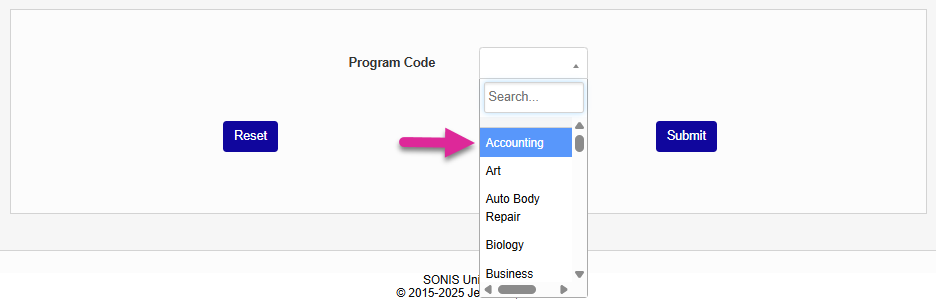
Select a Program Code and click Submit.
On the next page, click Add to begin adding promotion requirements.

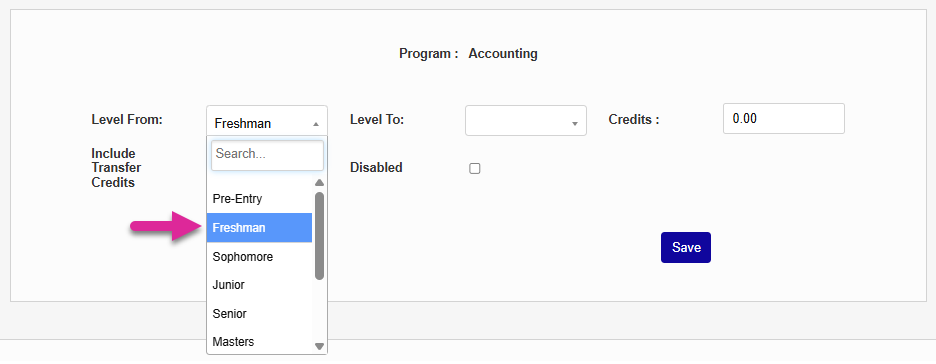
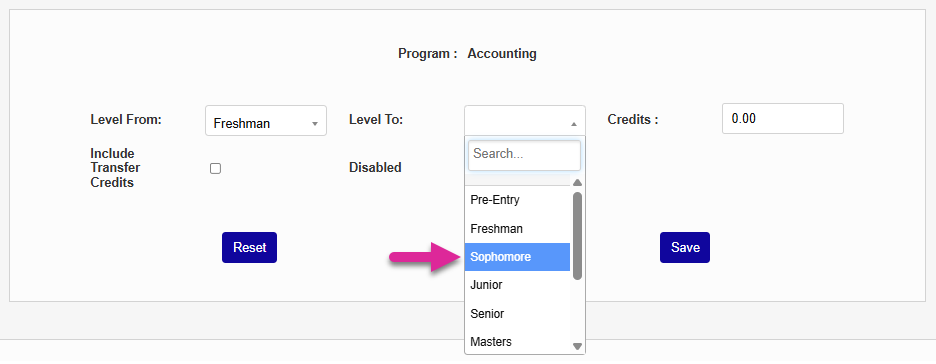
Choose a starting level from the Level From menu and the next level that a student can progress to from the Level To menu. Levels are created and edited in Table Maintenance.
Enter the total number of credits that a student will need to be promoted from one level to the other in the Credits field.
Note
The credits are cumulative and not tied to the student's current level. So, for example, if a student needs 30 credits to advance each level, you should put 30 in the first promotion standard, 60 in the second, and so forth.
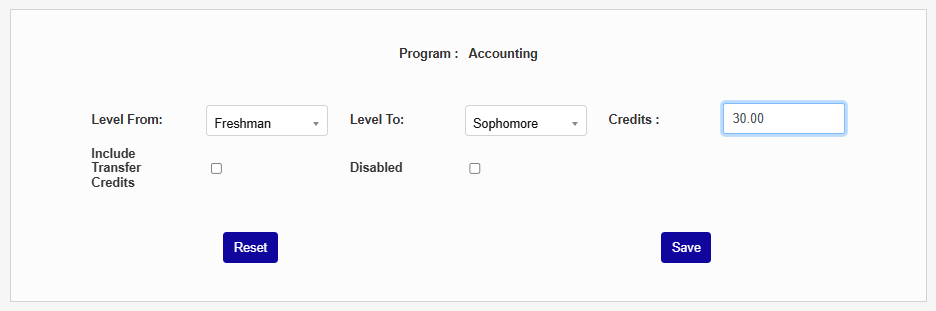
If students transfer credits should count towards their promotion, check the Include Transfer Credits box.
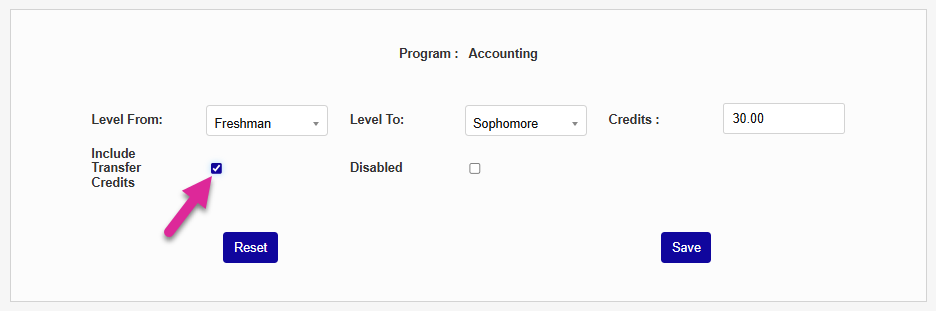
Click Save to create the setting. Repeat the process until you've created promotion standards for each level that a student will progress through.
Promotion
To promote students in bulk, navigate to Year End Promotion. Select one or more programs and click Submit.
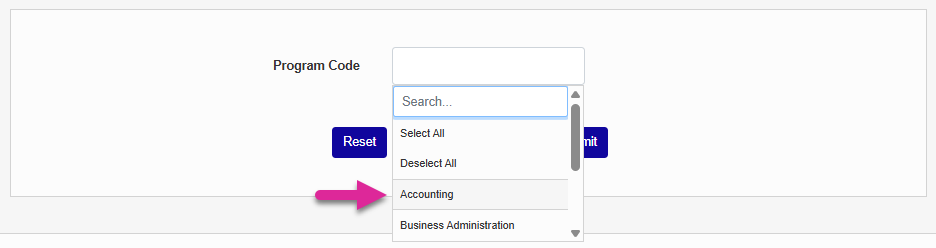
To promote all eligible students, leave the Promote box checked and click Submit.

Alternately, you can click the list link to view all eligible students. From this page you can check and uncheck the Promote boxes to choose which students will and will not be promoted when you click Submit.

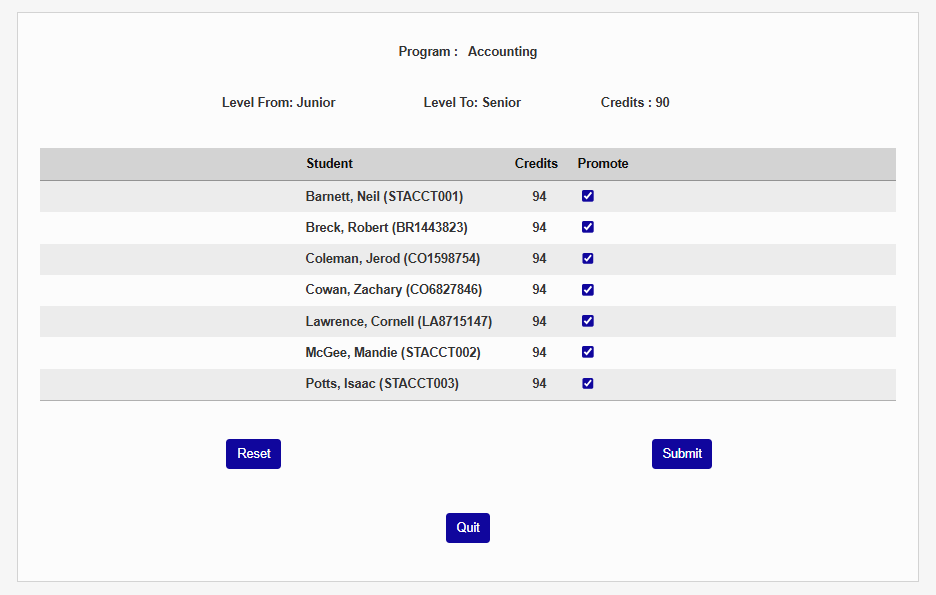
Each promoted student's Biographic page will be updated to display their new level.