Graduation Processing
Overview
This Systems hub function allows administrators to convert students whose credits and grades meet the requirements for graduation in their program to graduated in bulk.
System Default Criteria for Inclusion
In order for a student to be included in the result set, they must have a Student module status and meet the following criteria:
• an active Education record for the home institution,
• cannot have a previous graduated status associated with the active Education record,
• have courses with official grades associated with the active Education record, and
• have an active program associated with the active Education record, or no active program.
Search Criteria
The search criteria is combined with the system default criteria for inclusion, as noted above, to determine which students will be considered for graduation processing. There are three search options to choose from.
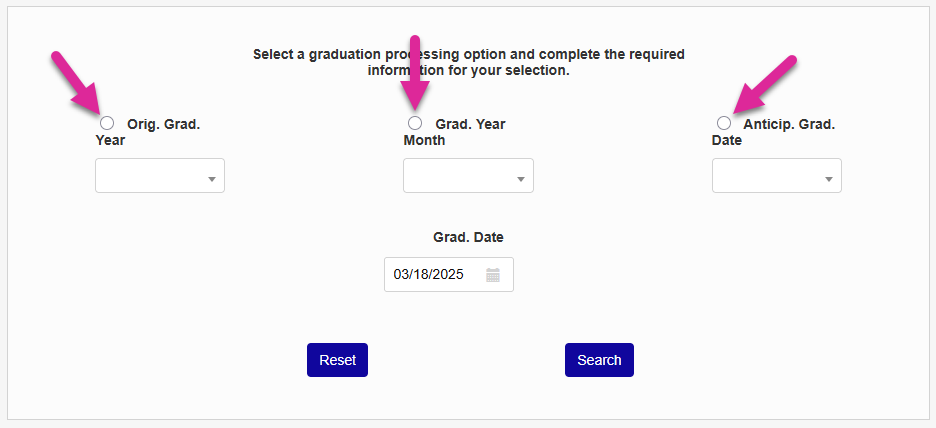
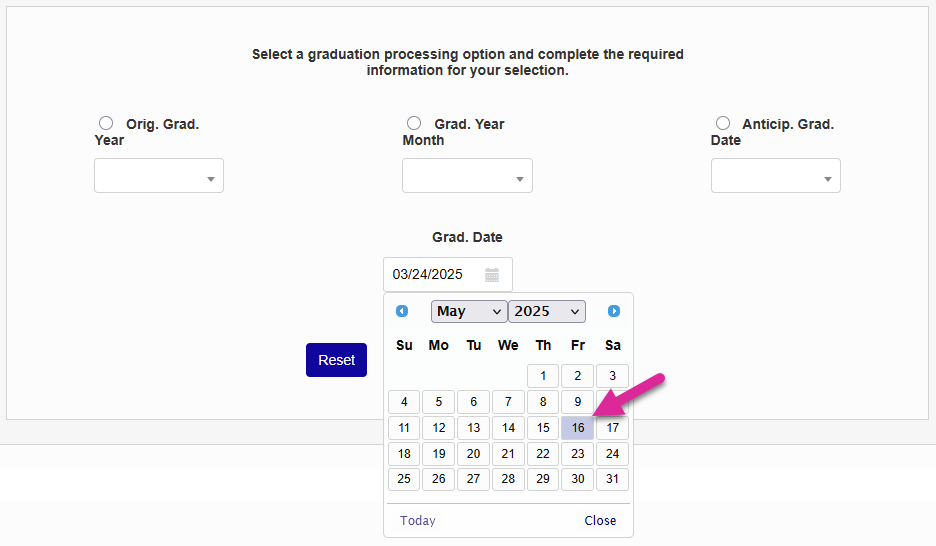
In addition to selecting a search option, use the Grad. Date field to select the date on which the students will graduate. By default, this field populates with the current date.
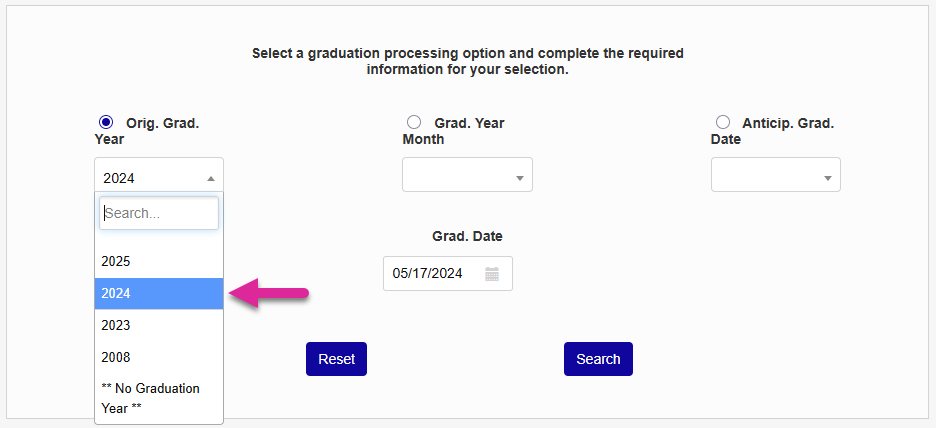
Original Graduation Year
To search by the Orig. Grad. Year field in a student's Education record, click the Orig. Grad. Year radio button, select a year from the drop-down menu, and click Search.
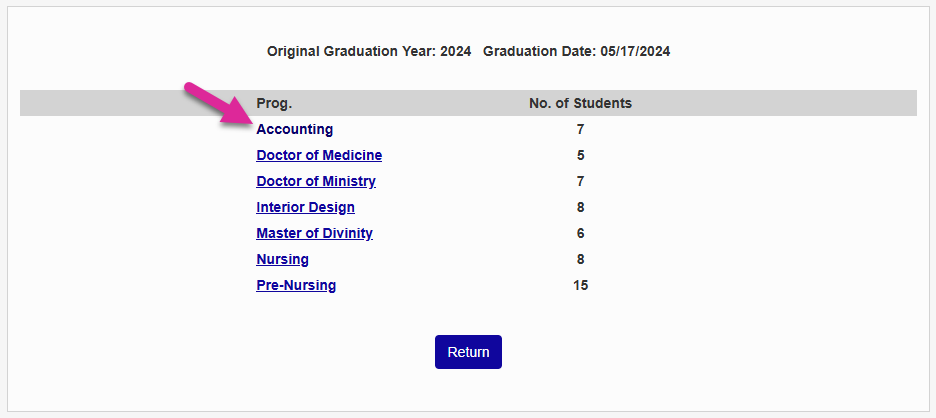
The matching students are listed under their active Program because the requirements for graduation can differ from program to program. Click on a program to proceed.
If there are more than ten results, you can use the Show menu to the right of the page and the Previous and Next links near the bottom to see more.
If one of the displayed students has left the school for another reason other than graduation, use the Date To field to select the student's date of departure. The Leave date in the student's Education record and the Stopped date in their Programs record will be updated to match this date. Otherwise, leave this field blank and these fields will be updated with the graduation date.
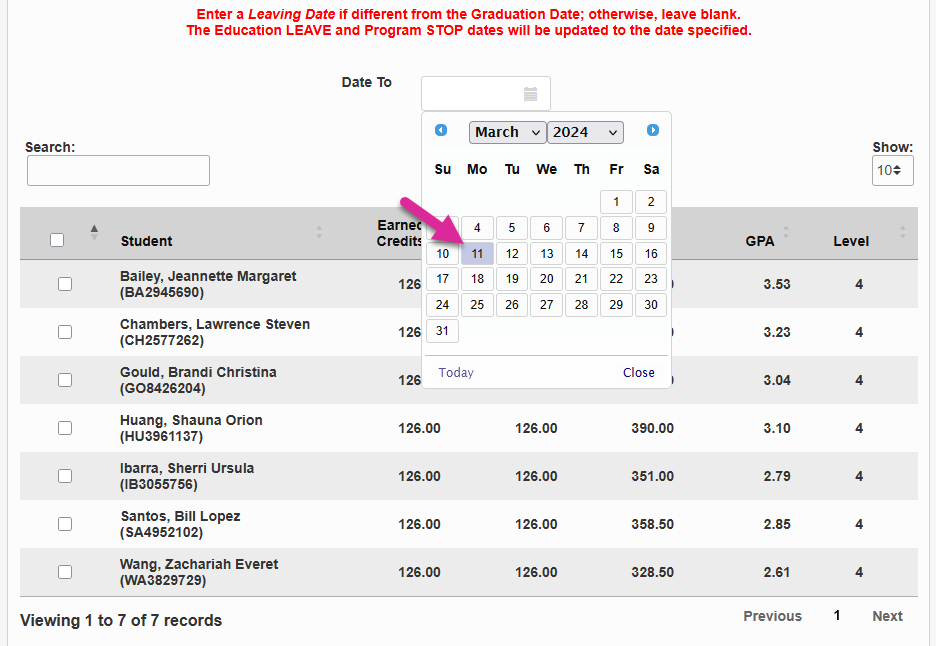
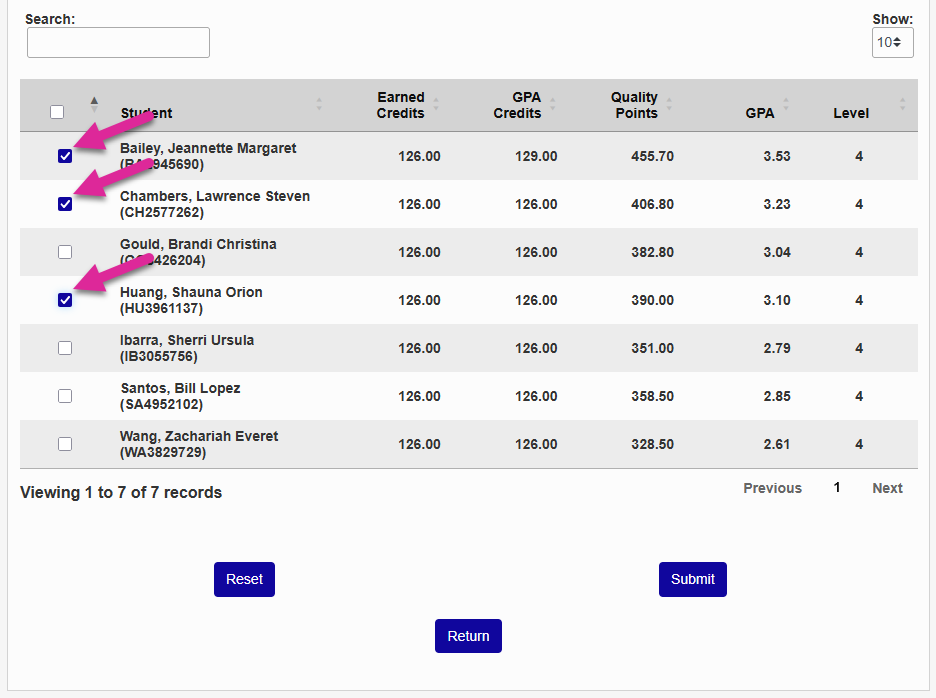
Use the listed credits, GPA, quality points, earned credits, and level and compare them against the active program graduation requirements to determine which students are eligible for graduation. Check the boxes of the students who are eligible and click Submit to continue.
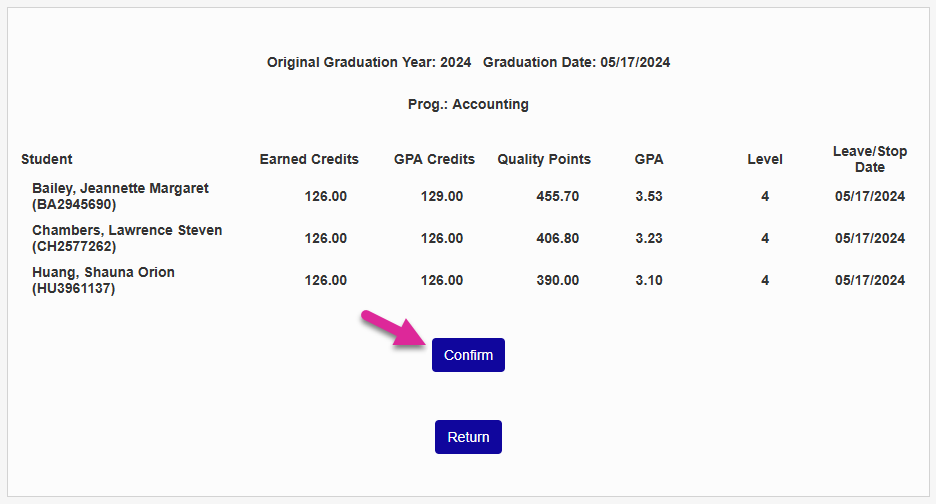
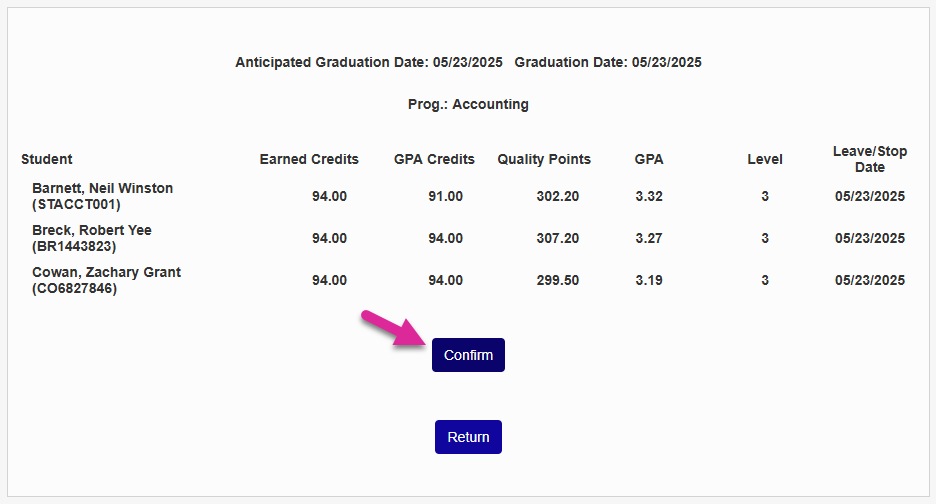
On the following page, click Confirm to complete the graduation process for the selected students or Return if you've selected students in error.
Graduation Year and Month
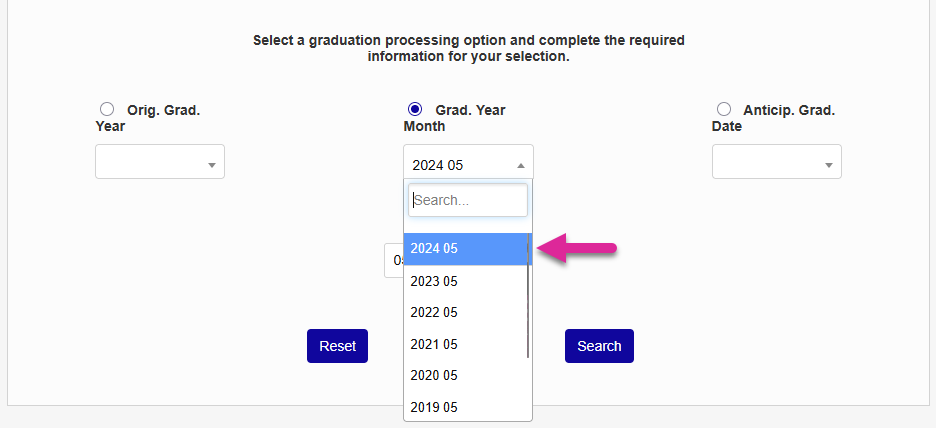
To search by the Graduation Month and Graduation Year fields in a student's Education record, click the Grad. Year Month radio button, select a year and month from the drop-down menu, and click Search.
The matching students are listed under their active PROGRAM because the requirements for graduation can differ from program to program. Click on a program to continue.
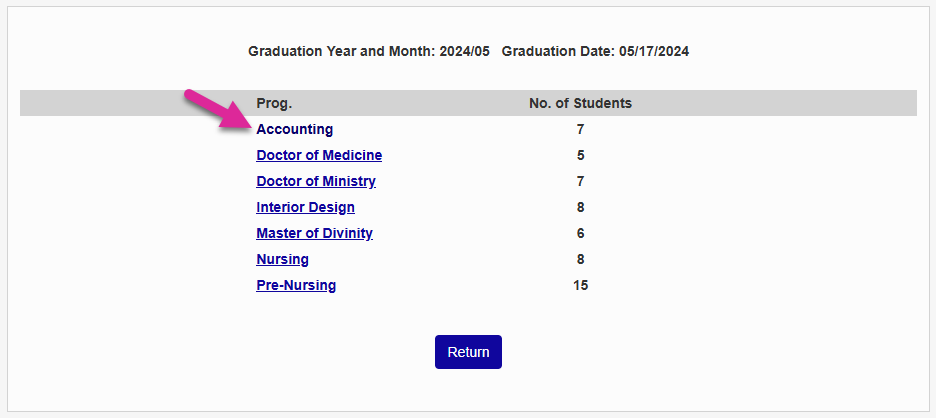
If the results contained more than ten students, you can use the Show menu to the right of the page or the Previous and Next links at the bottom to see more.
If one of the displayed students has left the school for another reason other than graduation, use the Date To field to select the student's date of departure. The Leave date in the student's Education record and the Stopped date in their Programs record will be updated to match this date. Otherwise, leave this field blank and these fields will be updated with the graduation date.
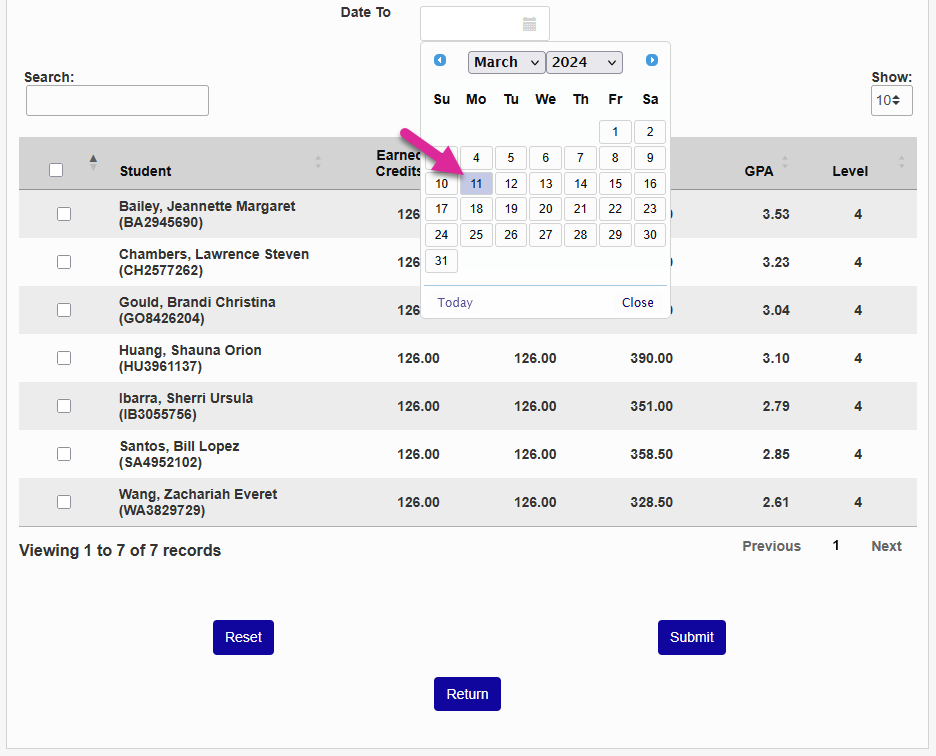
Use the listed credits, GPA, quality points, earned credits, and level and compare them against the active program graduation requirements to determine which students are eligible for graduation. Check the boxes of the students who are eligible and click Submit to continue.
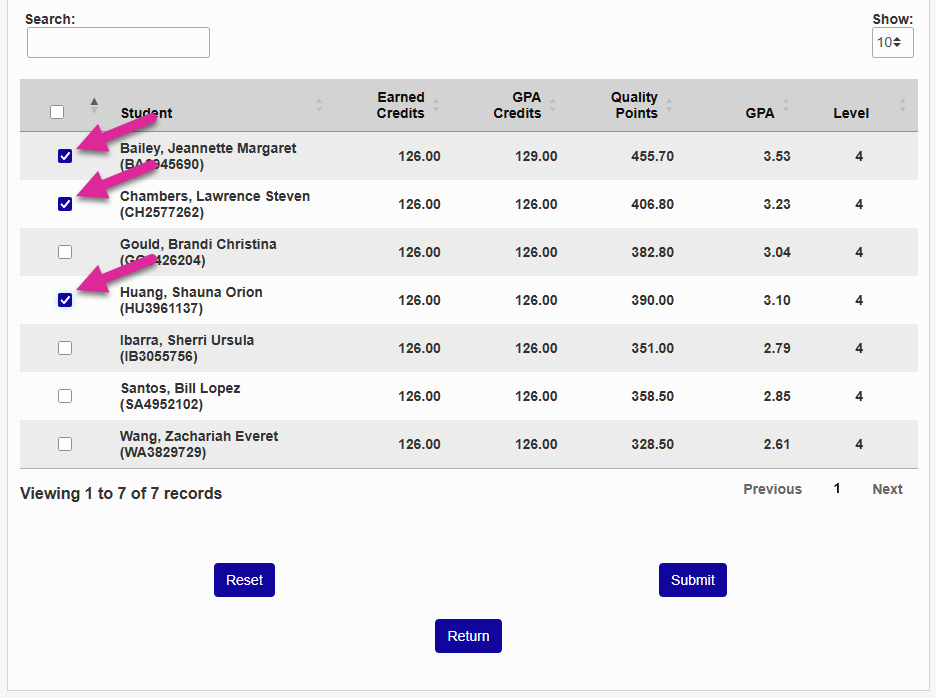
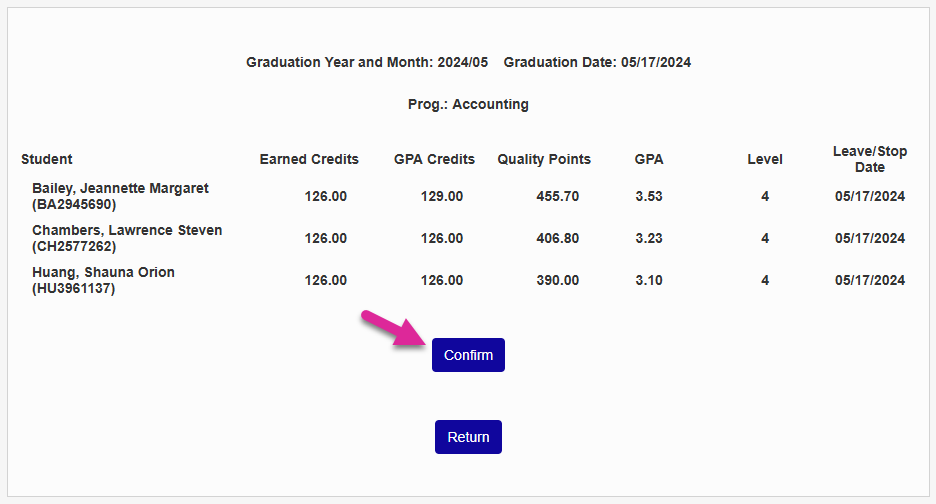
On the following page, click Confirm to complete the graduation process for the selected students or Return if you've selected students in error.
Anticipated Graduation Date
To search by the Anticipated Graduation Date field in a student's Education record, click the Anticip. Grad Date radio button, select a date from the drop-down menu, and click Search.
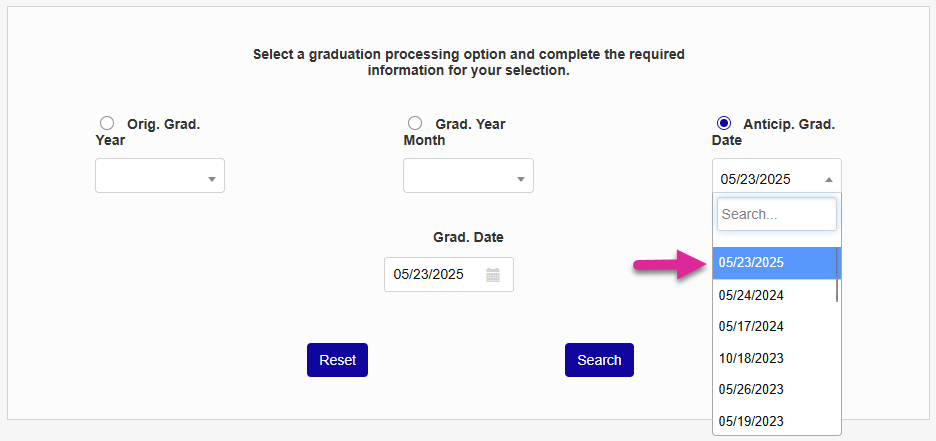
The matching students are listed under their active PROGRAM because the requirements for graduation can differ from program to program. Click on a program to continue.
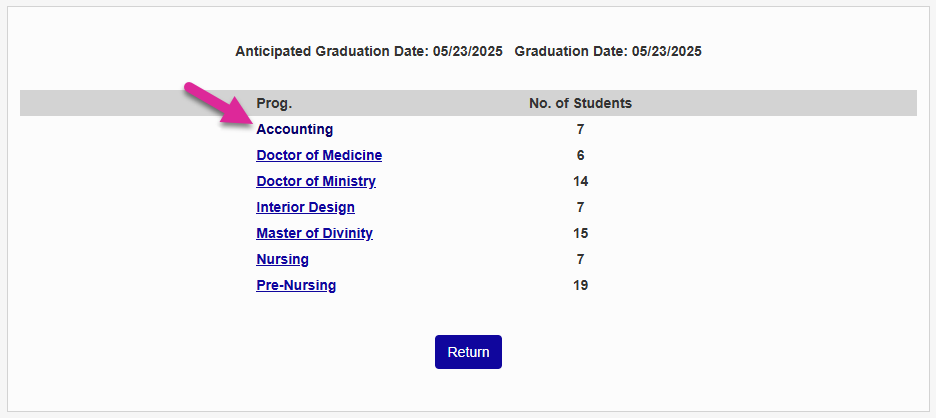
If the results contained more than ten students, you can use the Show menu to the right of the page or the Previous and Next links at the bottom to see more.
If one of the displayed students has left the school for another reason other than graduation, use the Date To field to select the student's date of departure. The Leave date in the student's Education record and the Stopped date in their Programs record will be updated to match this date. Otherwise, leave this field blank and these fields will be updated with the graduation date.
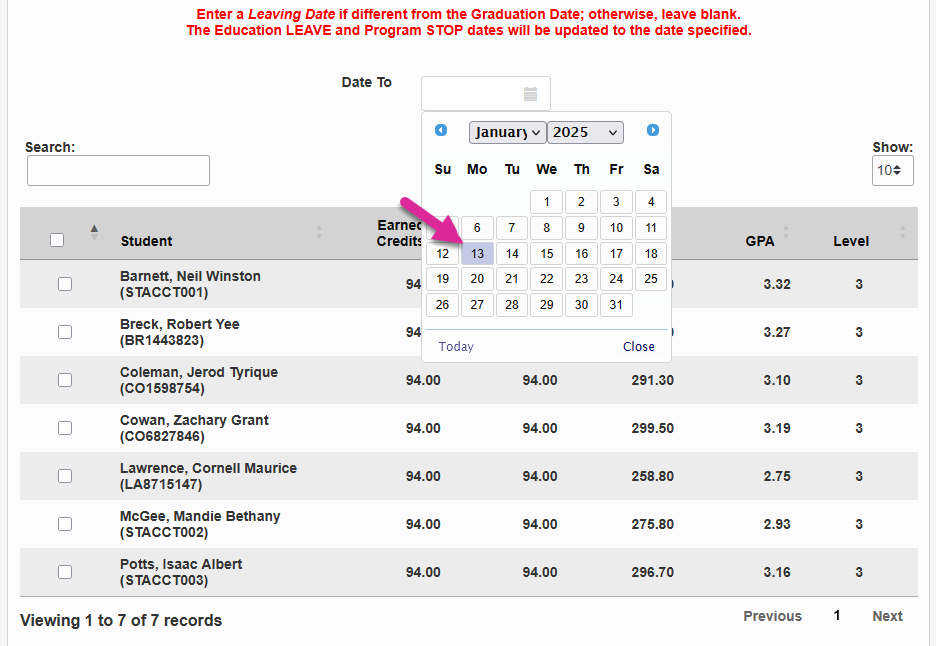
Use the listed credits, GPA, quality points, earned credits, and level and compare them against the active program graduation requirements to determine which students are eligible for graduation. Check the boxes of the students who are eligible and click Submit to continue.
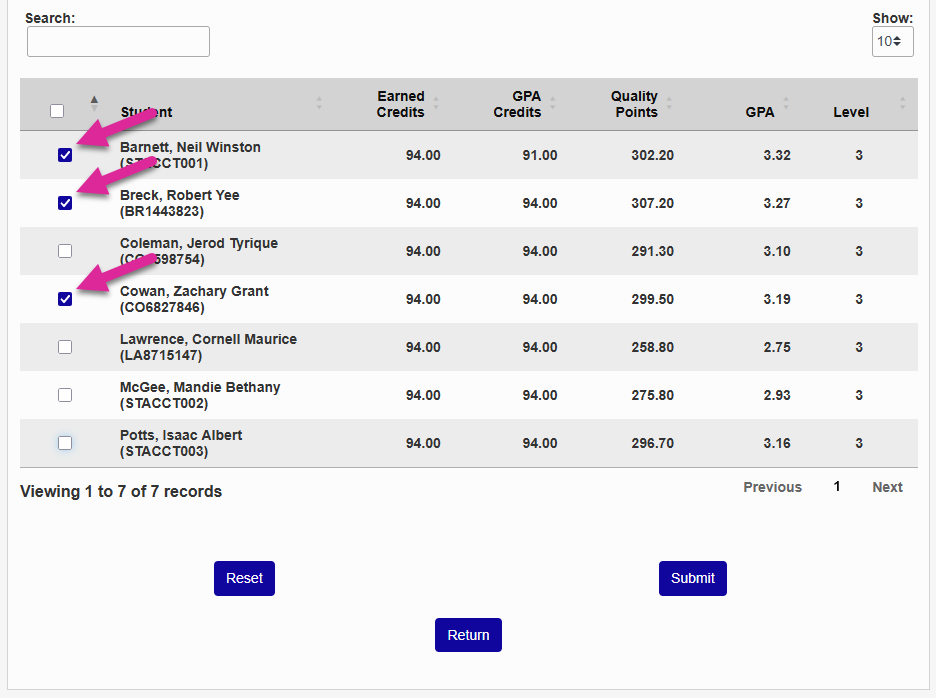
On the following page, click Confirm to complete the graduation process for the selected students or Return if you've selected students in error.
Other Fields Changed by the Graduation Process
• Advisors: active = 0 (Deactivate all the student's advisors.)
• Education: graduated = 1 (Excludes the Education record from future Graduation Processes and includes students in graduated reports.)
• Programs: grad_prog = 1 (The program is part of a successful "Graduation Processing" run.)