Aged Trial Balance Report
Overview
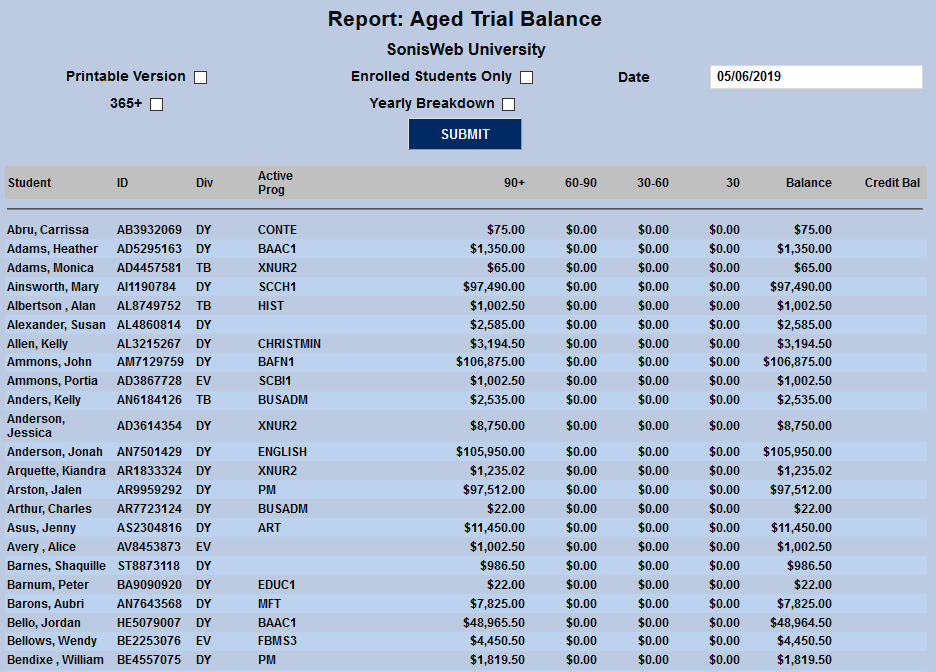
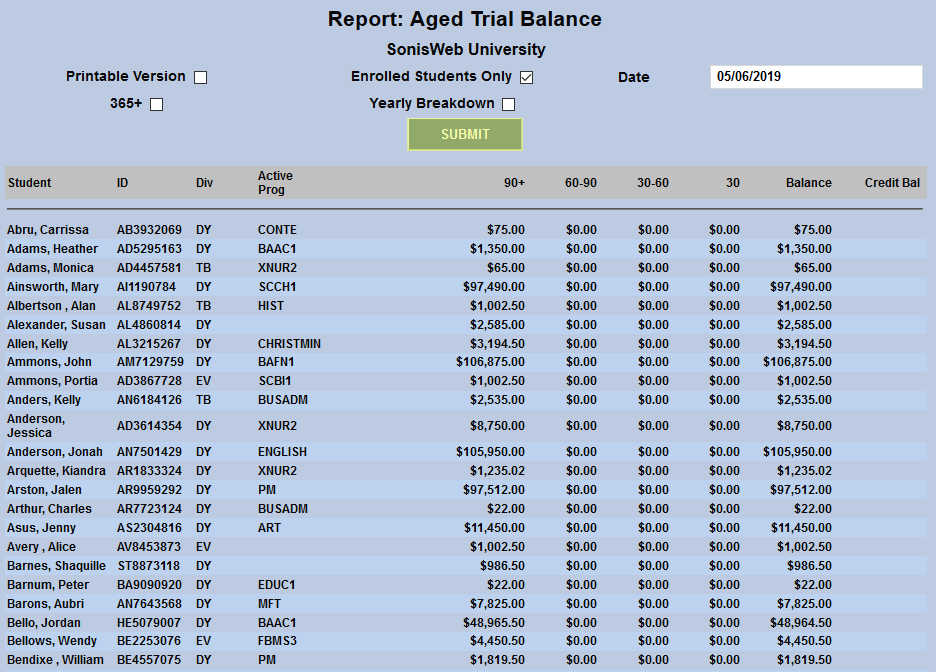
The Aged Trial Balance Report displays unpaid student balances. The report is located under the Financials menu. The students are listed in alphabetical order by last name.
Working With Data
Enrolled Students
To show only currently enrolled students in the report, check the Enrolled Students Only box and click Submit.
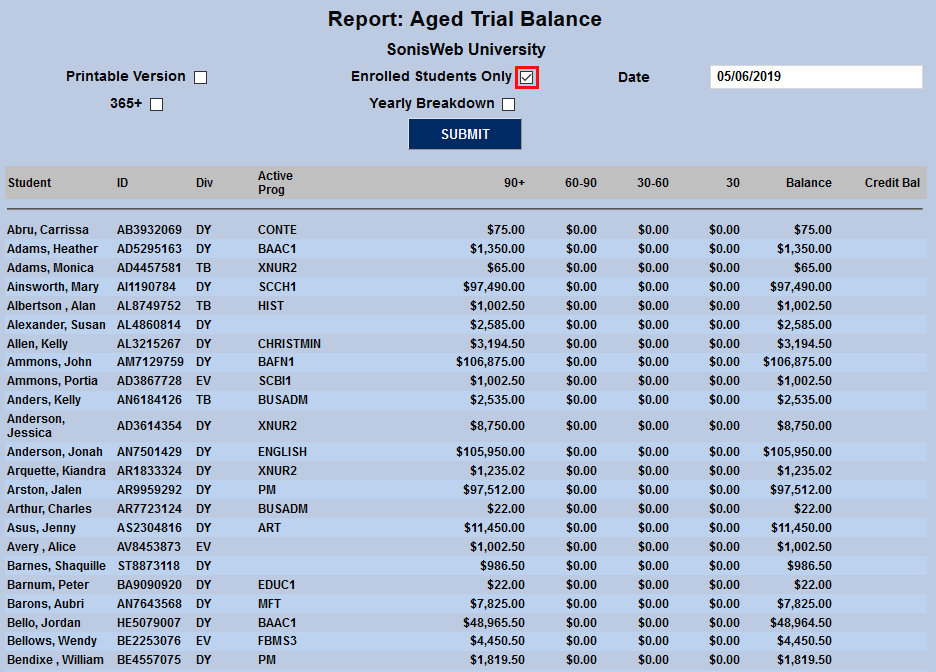
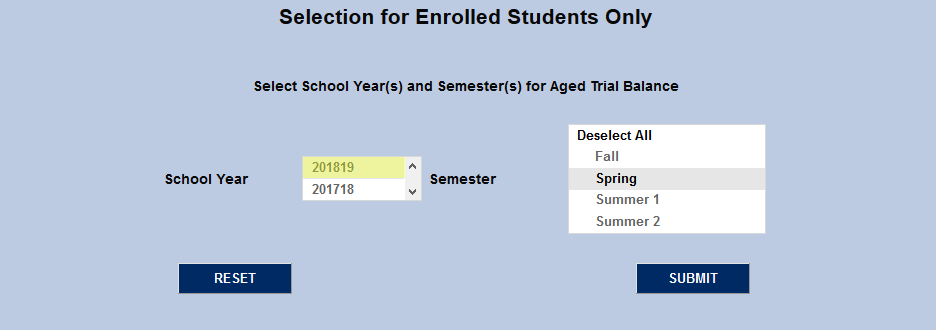
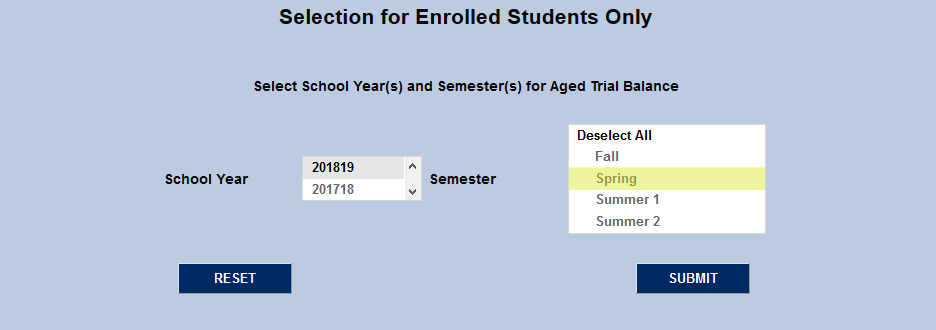
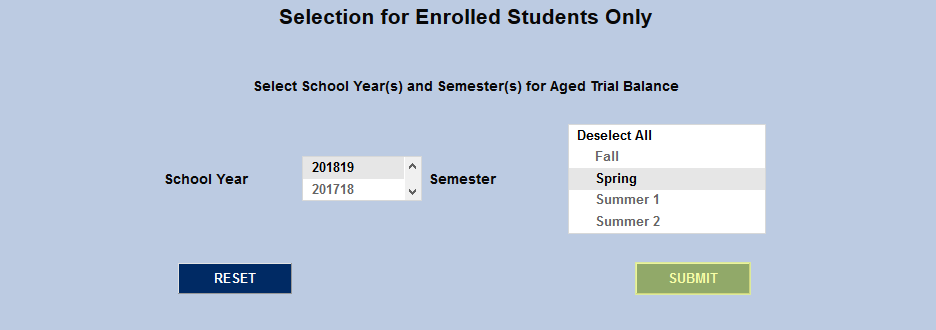
On the following page, select a School Year and Semester and click Submit.
Past Balances
To see a list of student balances on a prior date, change the Date in the upper right-hand corner and click Submit.
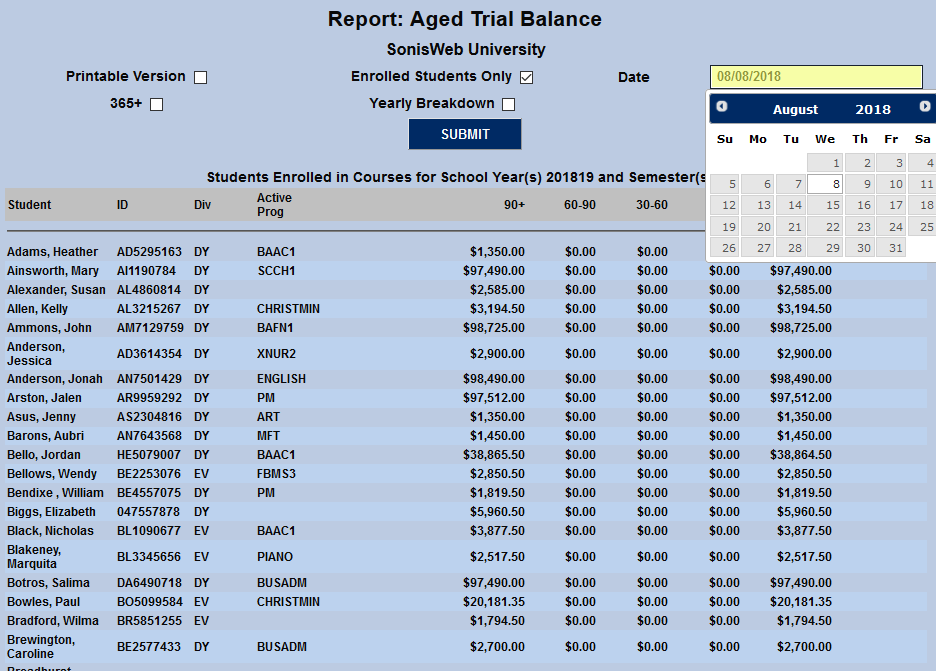
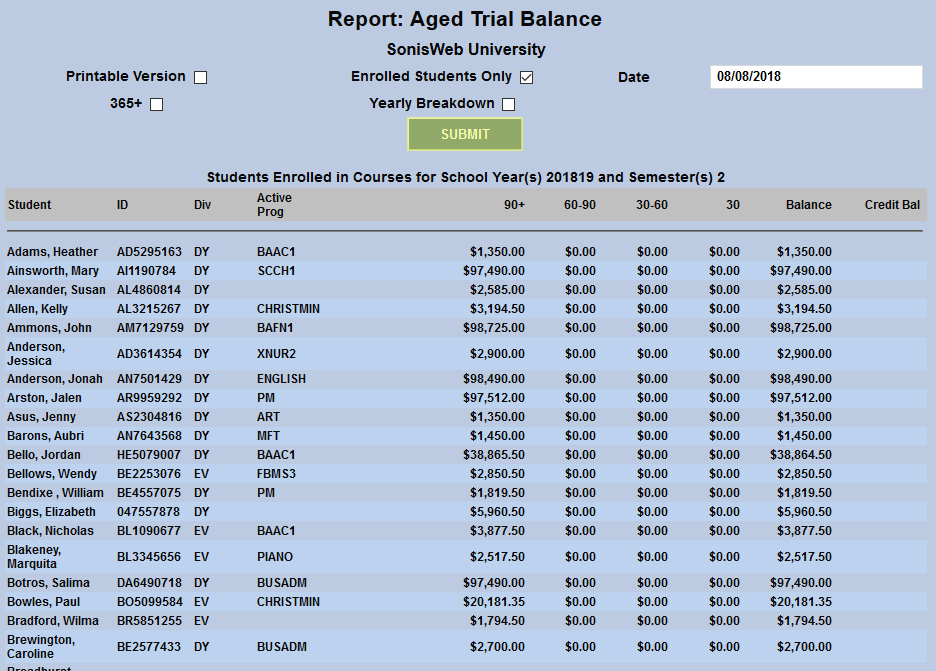
Note: The date chosen must be in the past. The Date field cannot be used to show how aged a student's balance will be at a future date.
Additional Columns
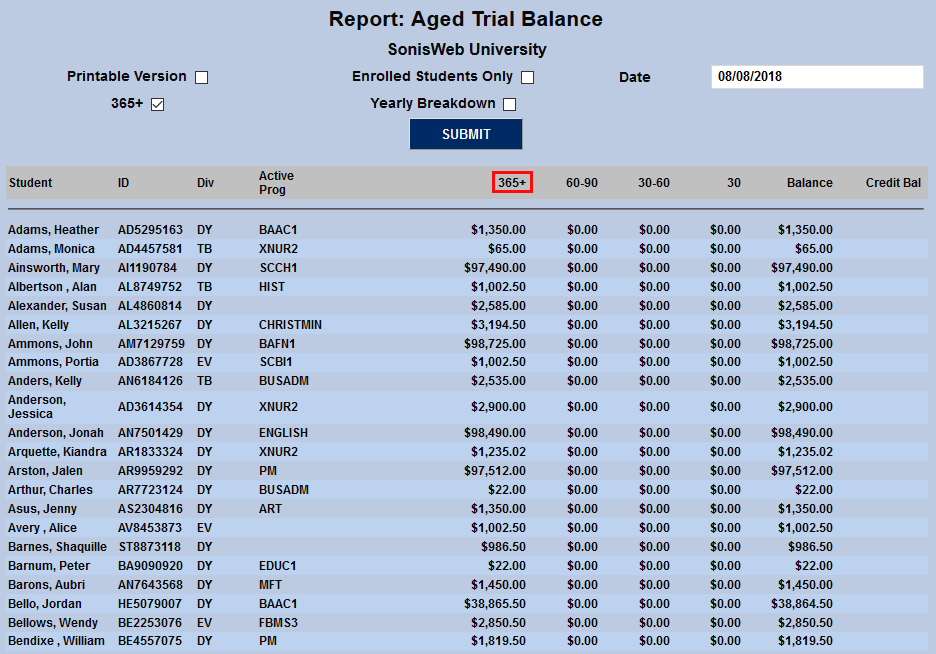
In addition to the columns displayed by default, extra columns can be added to display longer timeframes. To see balances that are more than a year old, check the 365+ box and click Submit. A new column will appear displaying balances that are a year or more old.
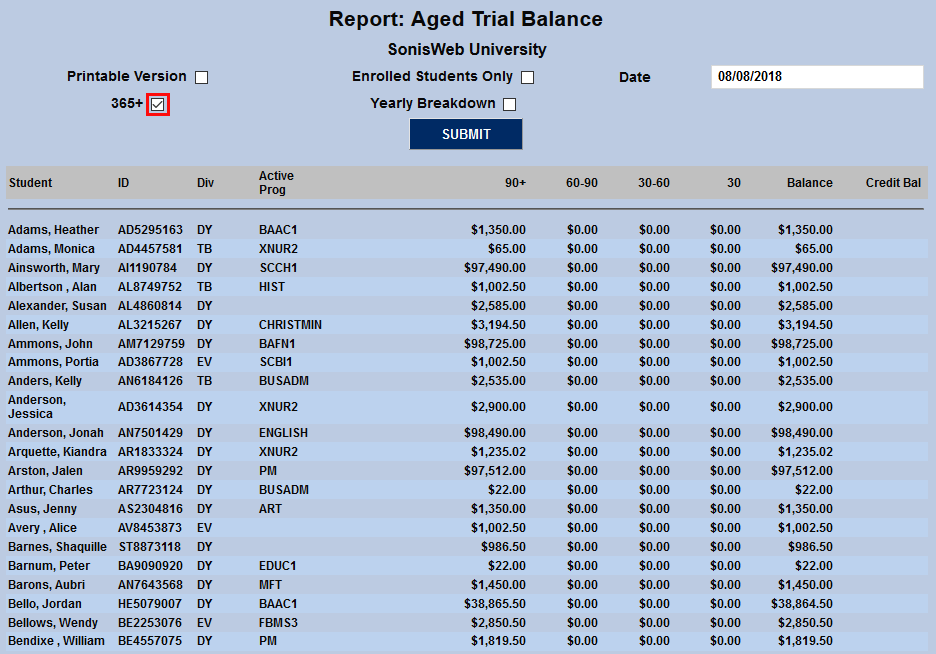
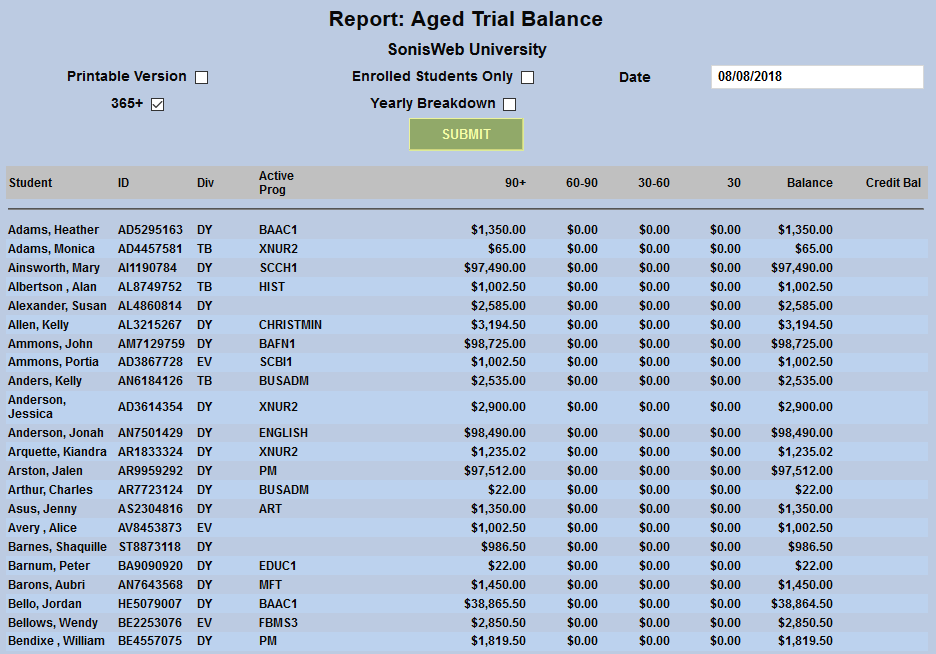
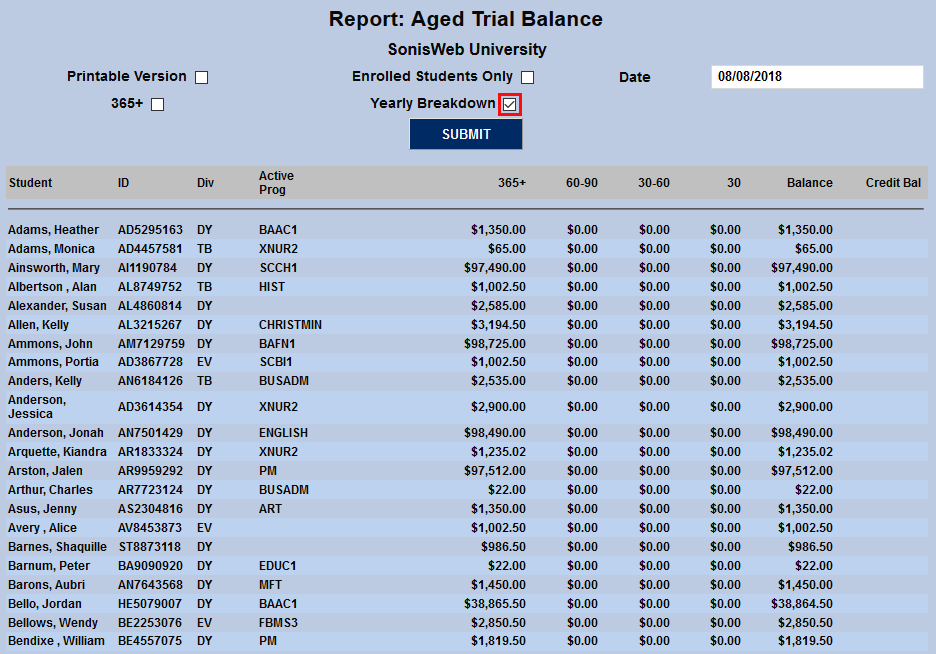
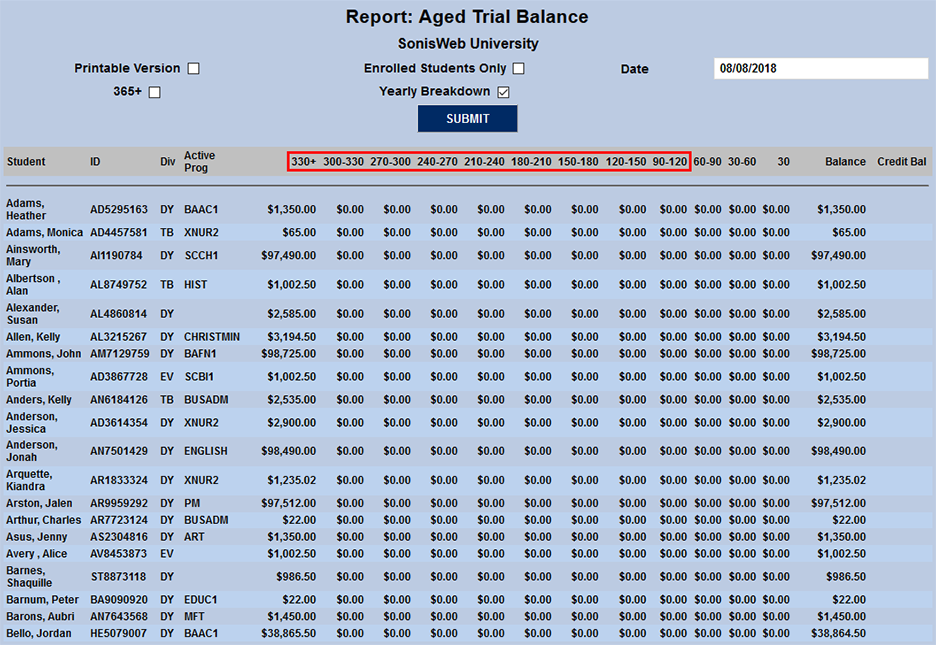
The Yearly Breakdown box adds columns for balances that are 120+, 150+, 180+, 210+, 240+, 270+, 300+, and 330+ days past due.
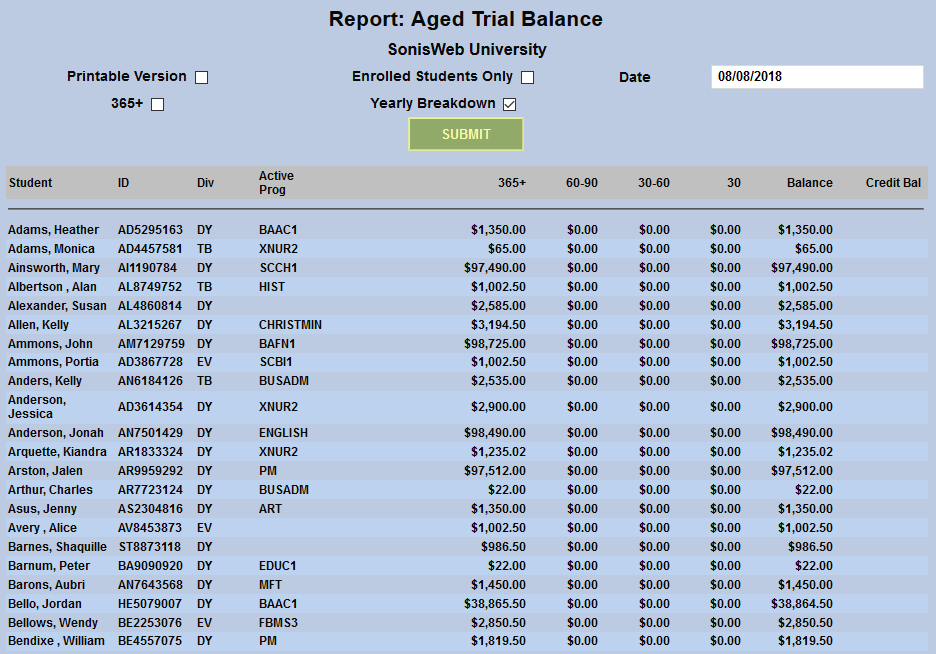
Note that the 365+ and Yearly Breakdown boxes can not be checked at the same time.
Exporting Data
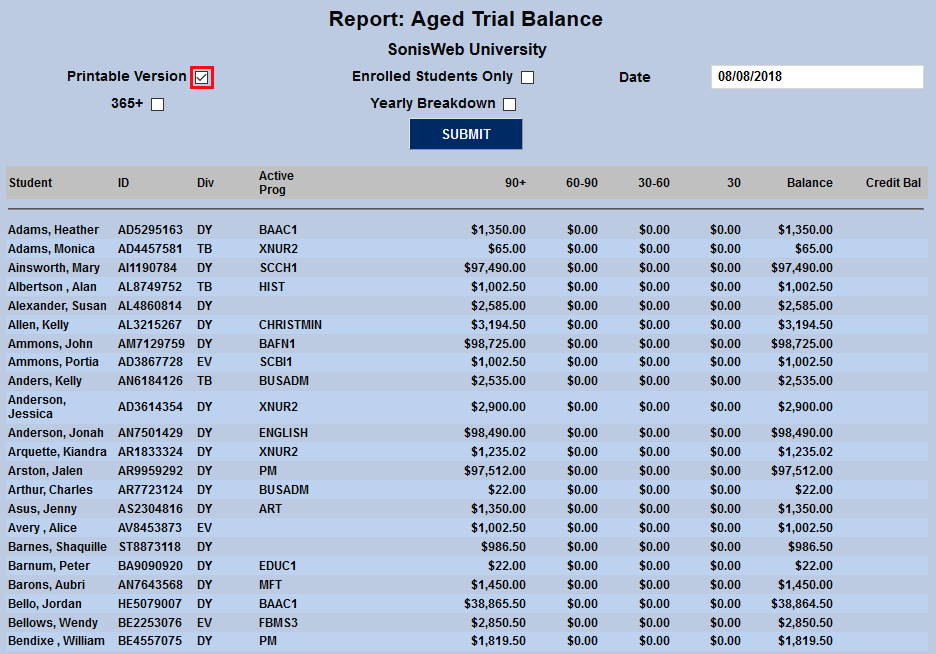
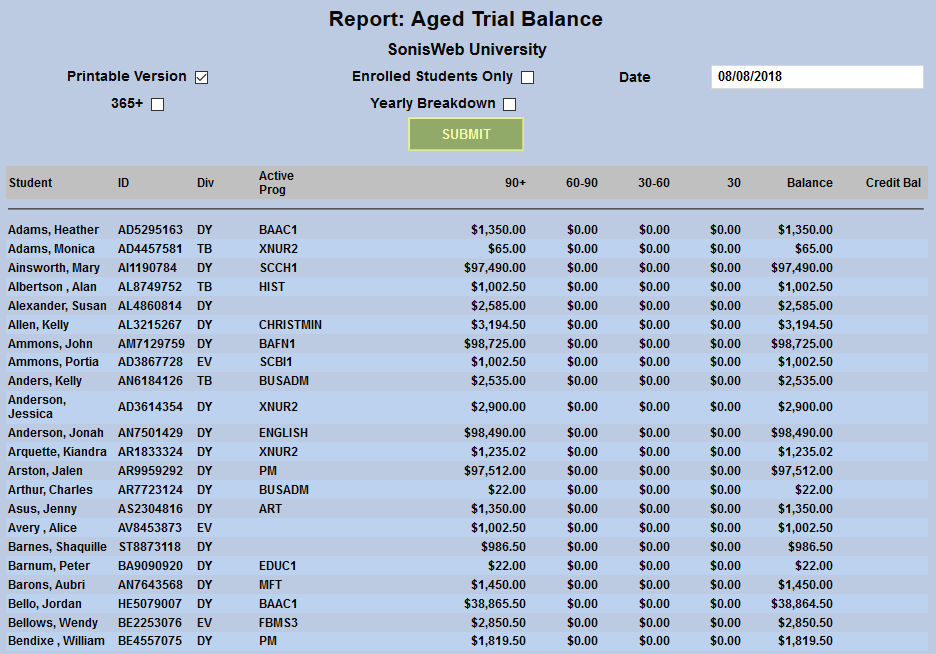
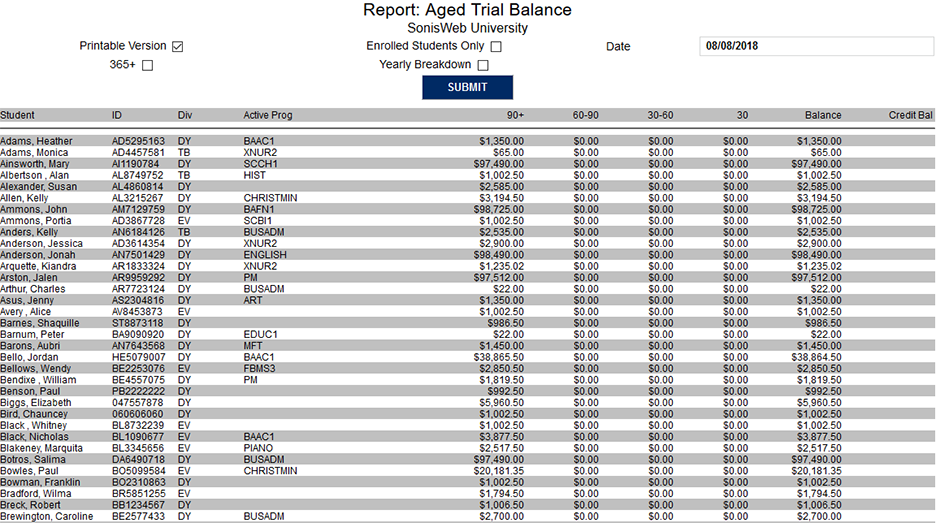
To view a printable version of the report, check the Printable Version box and click Submit.
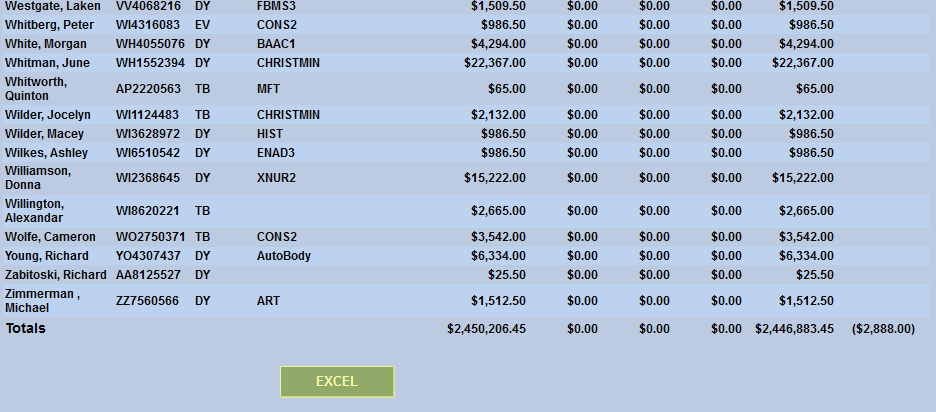
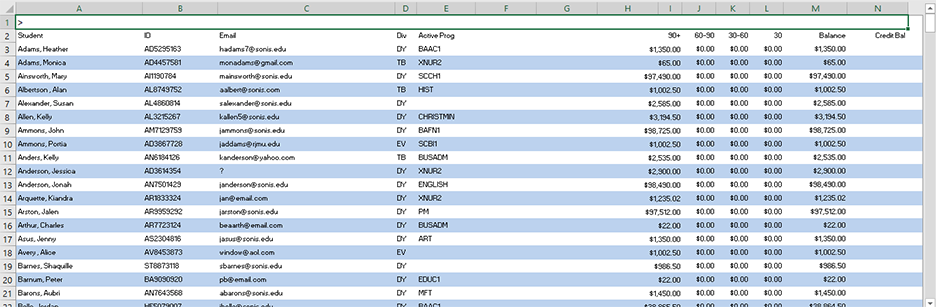
To view the data as a Microsoft Excel spreadsheet file, click the Excel button at the bottom of the page.