Learning Management Systems Export
Overview
The Learning Management Systems Export utility allows administrators to export student and instructor data to their learning management system of choice. The file is configured based on the LMS chosen on the Learning Management System Setup page. Additional setup options are available on this page as well. Note that in addition to the manual export, many of the systems also offer a timed export through the Jenzabar SONIS Timed Task Scheduler as well.
LMS Setup
The File Transfer table, which is used for LMS exports, is created and maintained in Table Maintenance.
As mentioned above, in activating the appropriate LMS, there are additional options for export files on the Learning Management Export page. The section labeled For Blackboard, WebCT, Moodle, Canvas, and Scholar360 Only is necessary if one of the listed learning management systems is being used. Choose whether each course in the export will Use Lead Faculty or Use Lead Faculty and Additional Instructors. Additional instructors are added on the Section Edit page.

Canvas Considerations
Prior to creating an export for Canvas, it is critical to ensure that the Semester History table in Table Maintenance is up-to-date. Visit the Canvas Integration page for more details on this.
Export
To create an LMS XML export file, navigate to the Jenzabar SONIS Learning Management Systems Export utility in the Systems hub. Select the appropriate School Year and Semester for the data.
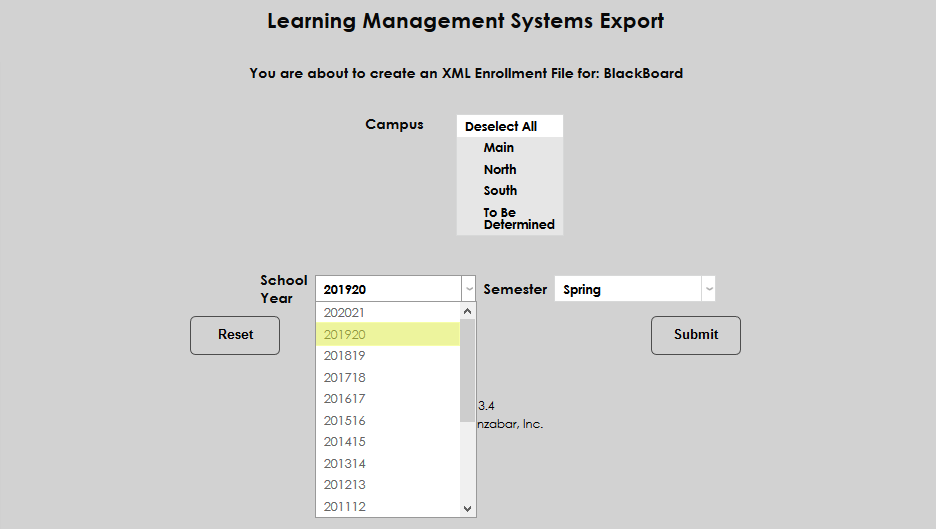
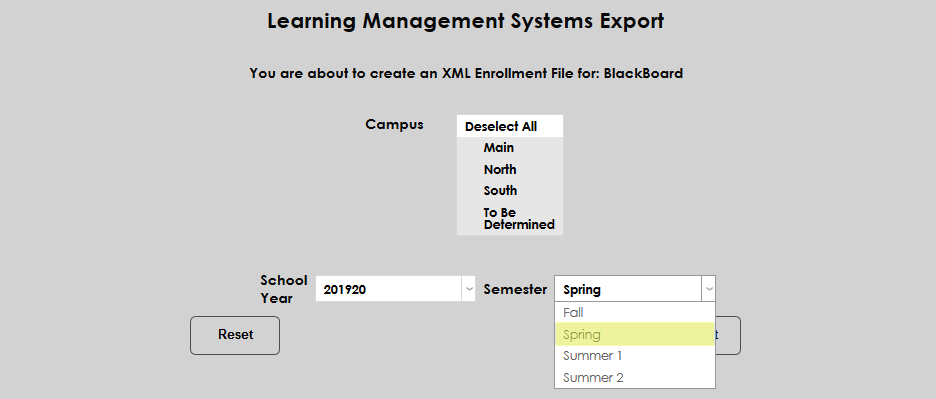
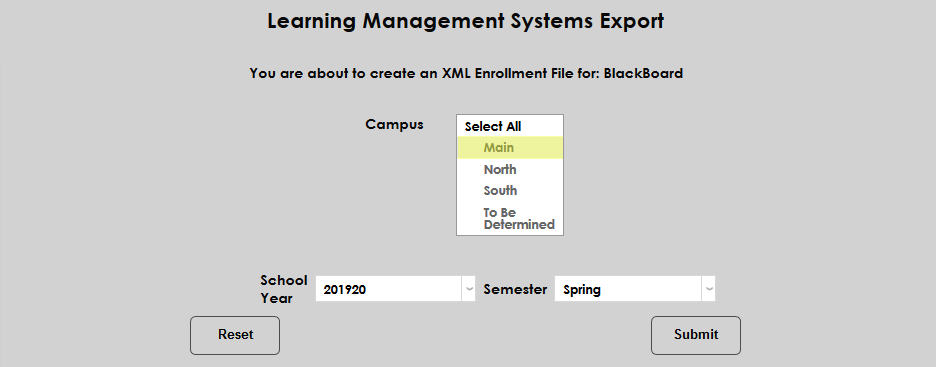
Next, select the Campus or campuses that should be included and click Submit to create the XML file.
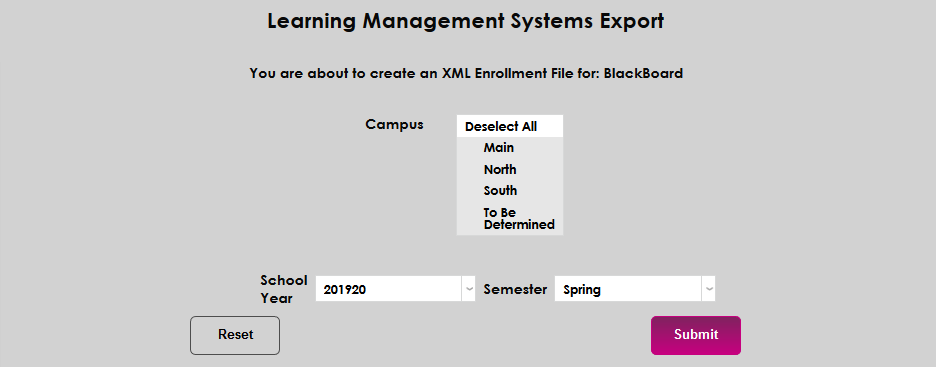
The file will be saved in the batch folder designated under Web Options. The process is the same for all learning management systems.