COA By Program & Award Year
Overview
The Department of Education requires the published cost of attendance for each offered program to be submitted annually as part of Gainful Employment reporting. The COA By Program & Year utility, available in the Systems hub, allows the entry, maintenance, and retention of COA data for offered programs over time. Records can be added and maintained individually and in bulk. These values will be used when creating the Gainful Employment Export.
Entering Data
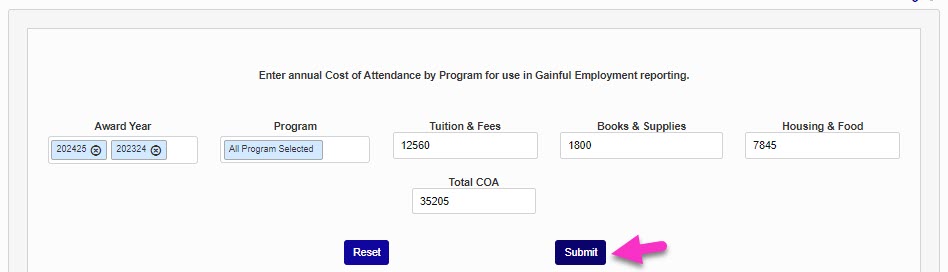
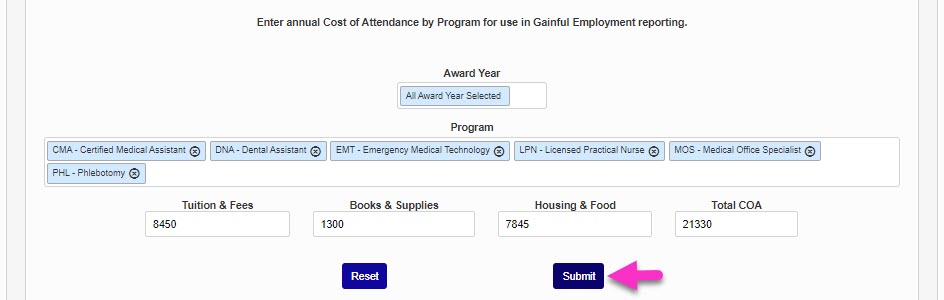
To begin adding the cost of attendance for all offered programs, including inactive programs, enter the COA By Program & Year utility from the Systems hub. By default, all Award Years and Programs will be selected. To change these selections, simply click in the field and select the desired Award Year(s) and/or Program(s).
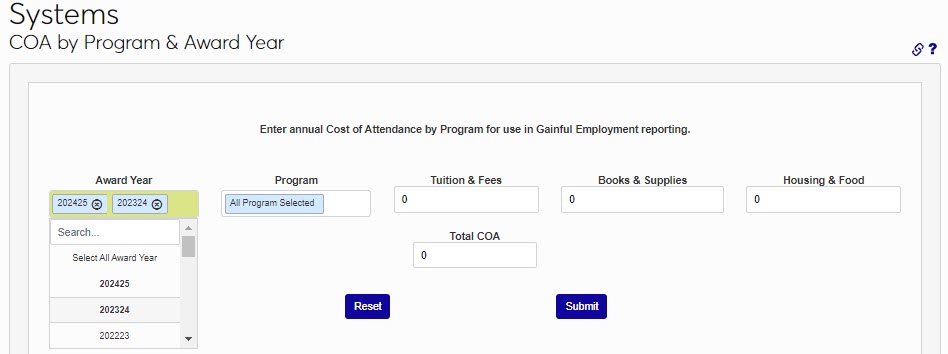
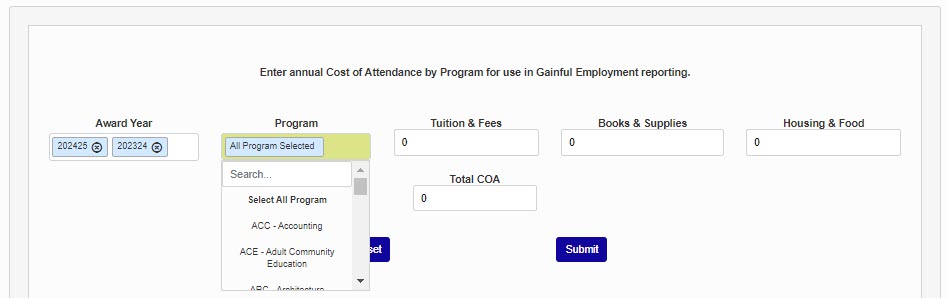
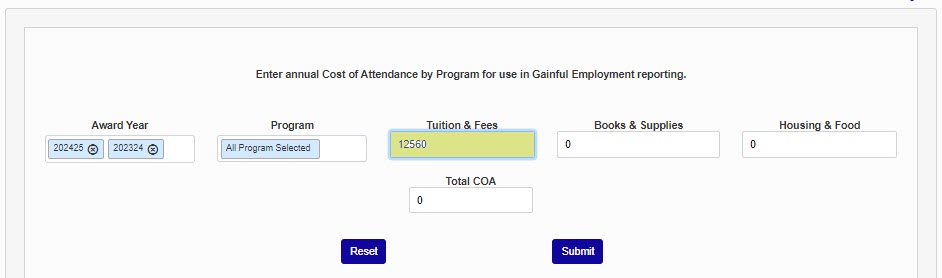
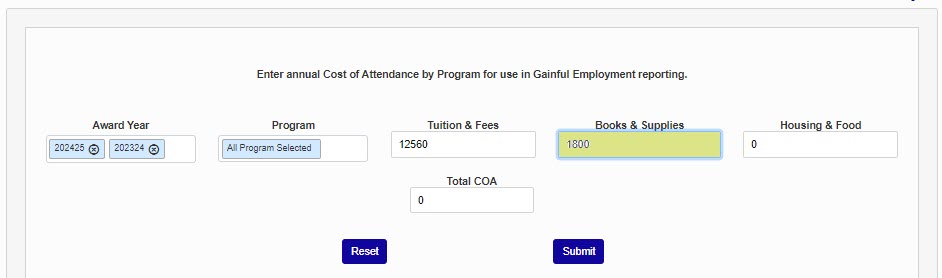
Enter the Tuition & Fees charged for the program(s). If unsure of the amount to be entered for any of the COA values, follow the guidance provided in the FSA Handbook. Enter the amount for Books & Supplies.
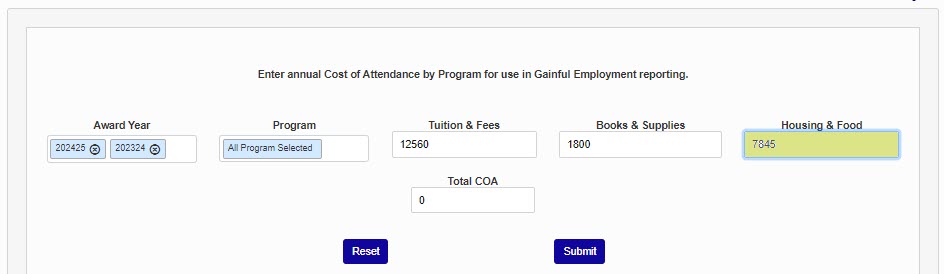
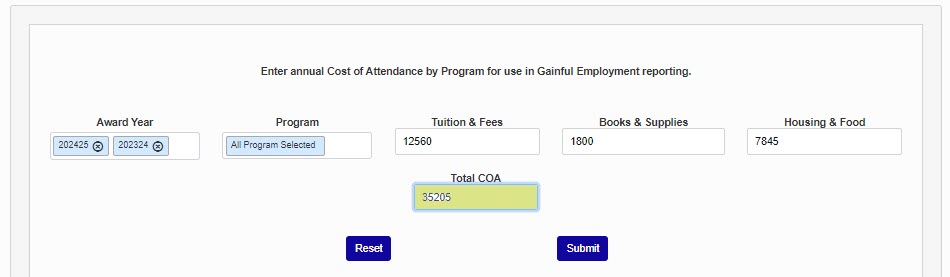
Next, enter the Housing & Food amount. Finally, enter the Total COA. Generally, the Total COA will not be the sum of the other fields, but the total budget anticipated for the program, including other COA elements such as Transportation and Miscellaneous expenses.
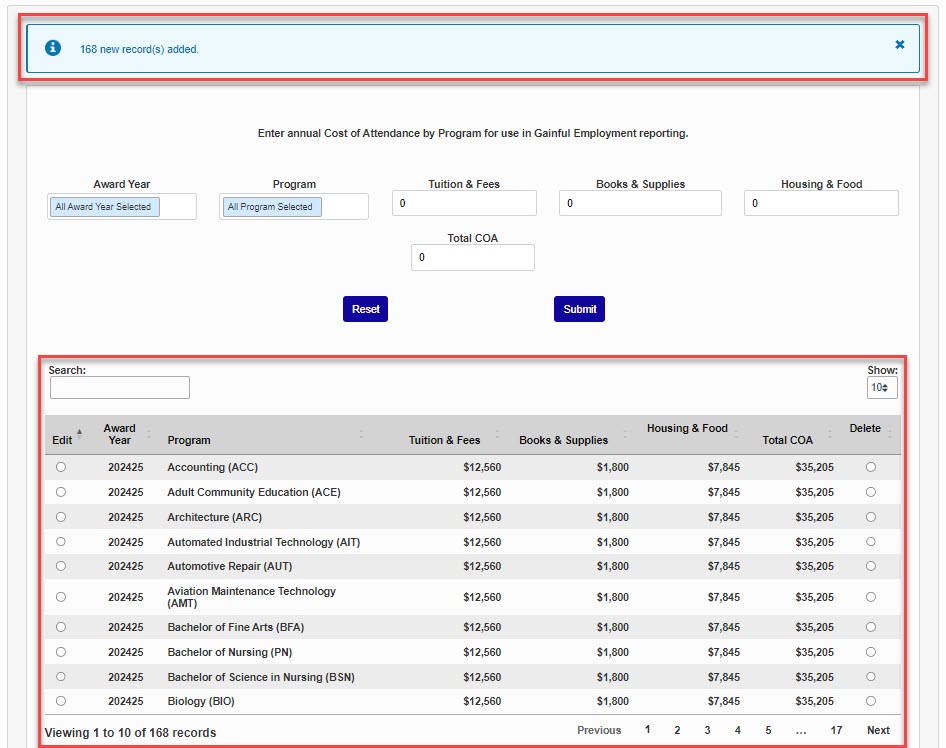
Click Submit to move to the next step. An informational banner will display at the top of the page detailing the action taken and the updated records will display below the data entry area.
Record Review and/or Update
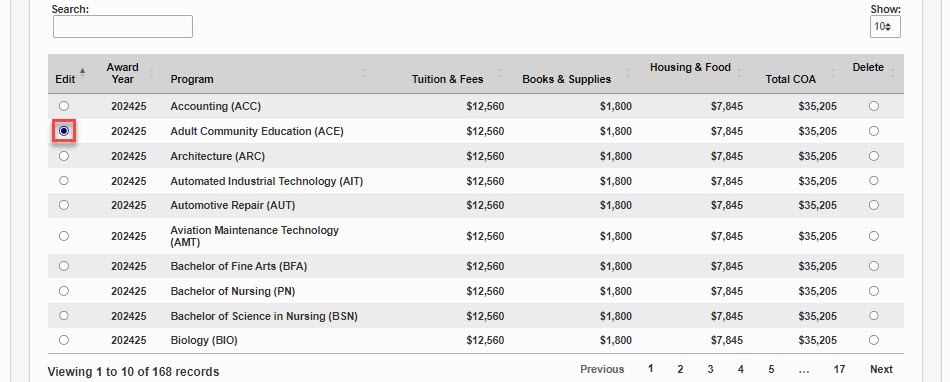
In the record listing section, each program is listed by Award Year and Program, with the entered COA elements and total. To change a value for a single program, click the Edit radio button. Clicking the button opens the edit screen. Make the desired updates and click Update.
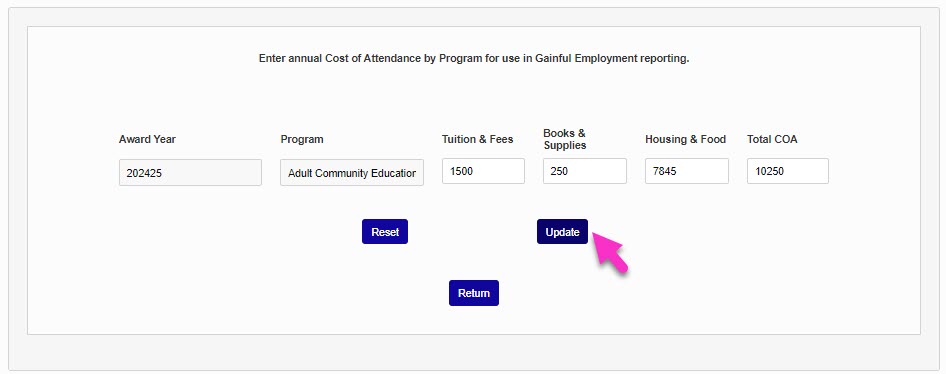
The updated data will be viewable in the record listing. If many programs should be updated to the same value, select the award year(s) from the Award Year menu and the programs from the Program menu and enter the updated COA elements. Click Submit to save the changes.

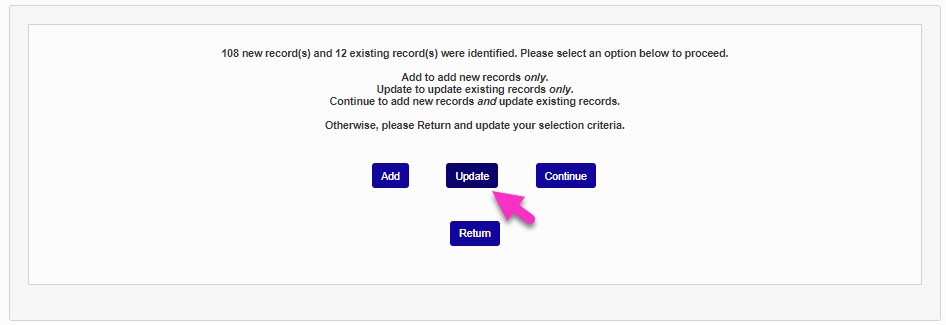
An informational page will display confirming the updates to be made. Select Add to add new records only, Update to update existing records only, and Continue to add new records and update existing records. Select Return to go back to the data entry page and make new selections and entries, without making any updates. In this example, Update has been selected.
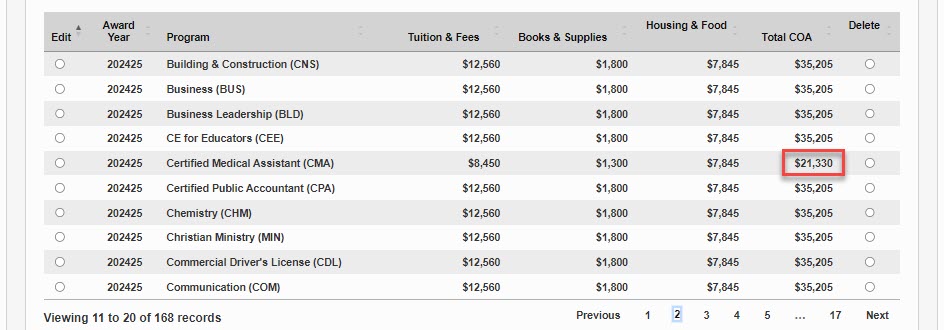
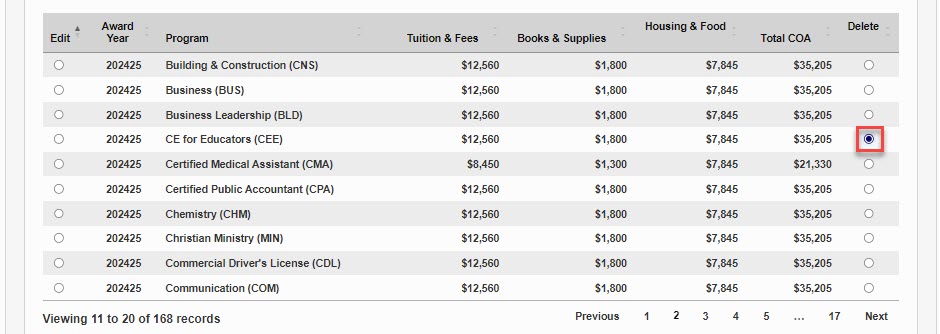
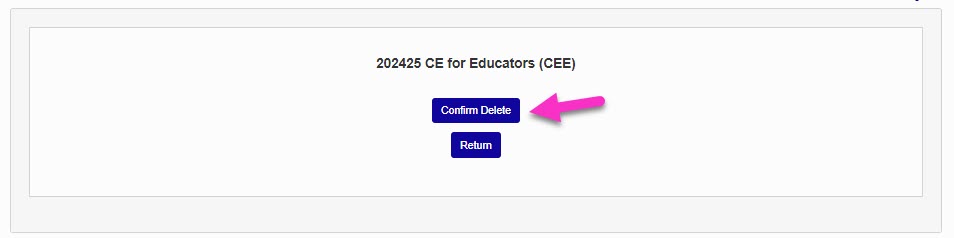
If a program shouldn't have any values added to it and shouldn't be included in reporting, a delete option is provided. Click the Delete radio button and Confirm Delete to complete deletion. Select Return to return without deleting.