Add/Replace Module Status
Overview
Module statuses in SONIS control how each user is classified and which portals they have access to. Users can have more than one module status concurrently. They include:
Prospect: A user who may have interest in attending your school in the future. They can be brought into the system by administrators who wish to recruit them or express interest directly through the Prospective Students page. They have no access to Jenzabar SONIS.
Online App: These users have begun the application process, but their application hasn't been finalized and submitted or their completed application has not yet been imported. They can continue editing their in-progress application through the external Online Application access point.
Applicant: Applicants are users who have submitted an application for admission, either through the Jenzabar SONIS Online Application or through an external form. They have access to the Applicant portal, where they can check the status of their application and complete checklist items.
Student: These users are currently enrolled in your institution. This module status includes both undergrad and graduate students. Students have access to the Student portal, which includes a robust set of features like registration, billing, financial aid acceptance, schedule access, communications, etc.
CE Student: CE stands for continuing education, students who are taking courses without being enrolled in a specific program or course of study. These students can create their own account and register and pay for courses using the external CE Registration page. They also have access to a CE portal that mirrors the functions of the Student portal with a few minor differences.
Alumni: Alumni are former students who have graduated. They have access to the Jenzabar SONIS Alumni portal, which includes job postings, a directory, giving access, and other helpful features.
Withdrawn: Withdrawn users are former students who have dropped out. They no longer have access to Jenzabar SONIS.
Staff: Staff members are employees of the institution. This category includes bursars, registratars, financial aid officers, recruiters, system administrators, and many other employees. They have access to the primary SONIS system where user records are stored.
Faculty: These are users who teach courses. This category also includes advisors even if they are non-faculty advisors. The Faculty portal provides access to course schedules, course pages, student contact information, grading, etc.
Constituent: These are donors and other users who support the university financially in some way. If they pay for a student or multiple students to attend, they may be granted access to the Sponsor portal where they can register the students they sponsor, view their grades, and access other reports.
Default Mgmt: Default management is a catch-all category used to store records for users who are no longer enrolled. It's primarily used to keep track of contact information for individuals who have taken out loans, but it can be used for other functions as well. These users do not have access to the SONIS system.
Inactive: This status is typically used for applicants who have abandoned their application. Users marked as Inactive will not appear in most reports and cannot access the SONIS system.
Note
While users can have and often need more than one module status, the best practice is to update rather than add module statuses to users as they progress through the application process. For example, a prospect can be converted to an applicant and then to a student rather than having all three statuses at once.
The Add/Replace Module Status modal provides a quick and easy way for administrators to update module statuses. It's faster and more efficient than prior methods.
User Security
In order for the Add/Replace Module Status modal to appear on a user's system, they must first have the Show Add Status on Name Search User Security privilege active.

Updating Module Status
To open the Add/Replace Module Status modal, select a user and click the person icon. A new window will open.

Select a new module status from the menu at the top of the page.
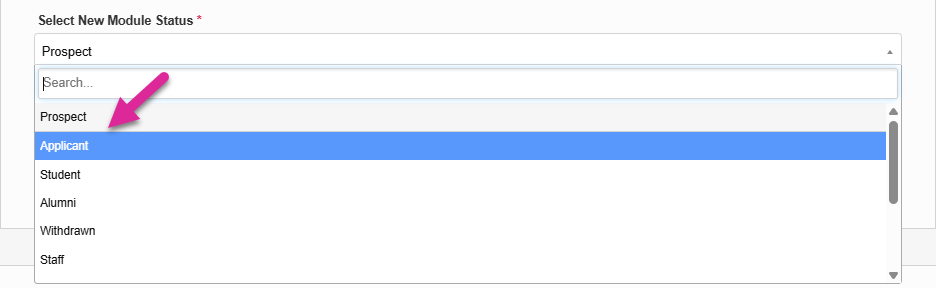
The Existing Module Status(es) table at the bottom of the page lists the current module status or statuses assigned to the user. The selected status is listed as Currently Viewing.
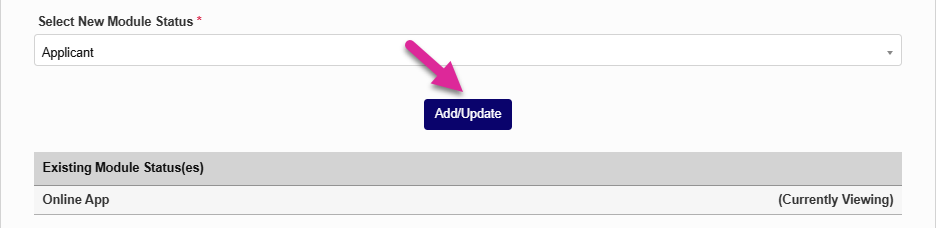
Click Add/Update to add the new status you selected.
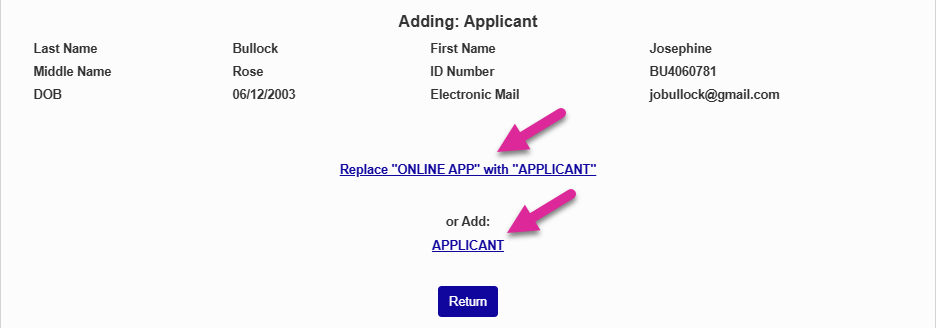
On the following page, click the Replace link to give the user the new status you selected and remove the status(es) they held previously or click the Add link to add the selected status while keeping the previous status(es). You can also click Return or X out of the window if you've changed your mind about adding the status.