Gainful Employment & Financial Value Transparency Import & Export
Overview
The US Department of Education, through Federal Student Aid, has reporting requirements called Gainful Employment Reporting and Financial Value Transparency (GE/FTV) for schools that offer programs and certificates that meet specific conditions.
COA by Program & Award Year, Programs, Transaction Codes, and Awards must be correctly defined as associated with GE/FTV to be considered by the Program and/or Student import utilities.
The Systems hub utilities, Gainful Employment NSC Student Import and Gainful Employment NSC Program Import, each have similar functions: they import the appropriate NSC file into SONIS, process the file to add SONIS calculations and data, create an Excel download of results, display data for review and update of individual records, and create export files in the format required by NSC.
For 2024-2025 reporting years and forward, SONIS will support the National Student Clearinghouse (NSC) process. SONIS member institutions are encouraged to sign up with NSC for this free service.
Gainful Employment NSC Program Import
After confirming that COA by Program & Award Year, Programs, Awards, and Transaction Codes are set up as desired, download the NSC program data file, save it as a CSV, and navigate to the Systems hub page, Gainful Employment NSC Program Import. This utility processes the NSC-provided program data file with the aim of assisting users in reconciling the data in the file with SONIS records and creating an NSC-compatible GE/FTV export file.
Caution
Don't edit the file in any way prior to importing to SONIS. The import process checks to ensure the selected file is in the correct format and that it contains the expected type of data and columns, as determined by NSC technical guidelines. Any changes to the NSC file may prevent successful file imports.
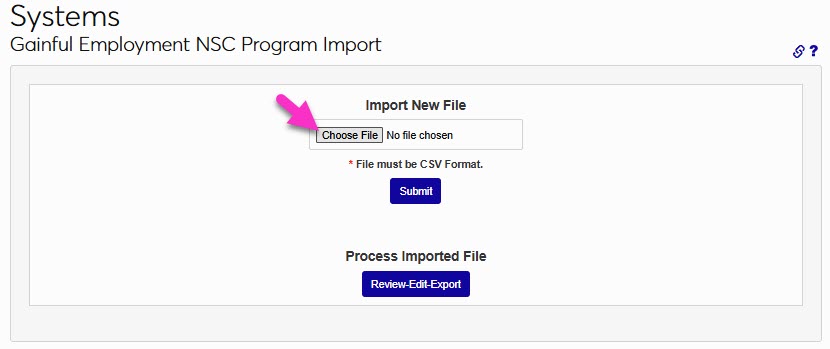
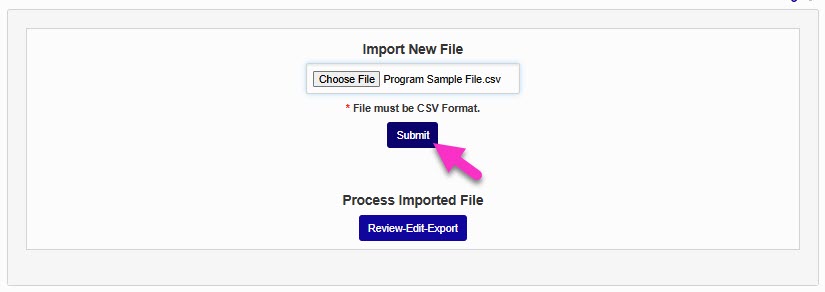
Begin importing by entering the Gainful Employment NSC Program Import page and clicking Choose File. Use the file picker to select the NSC-provided program file and click Submit.
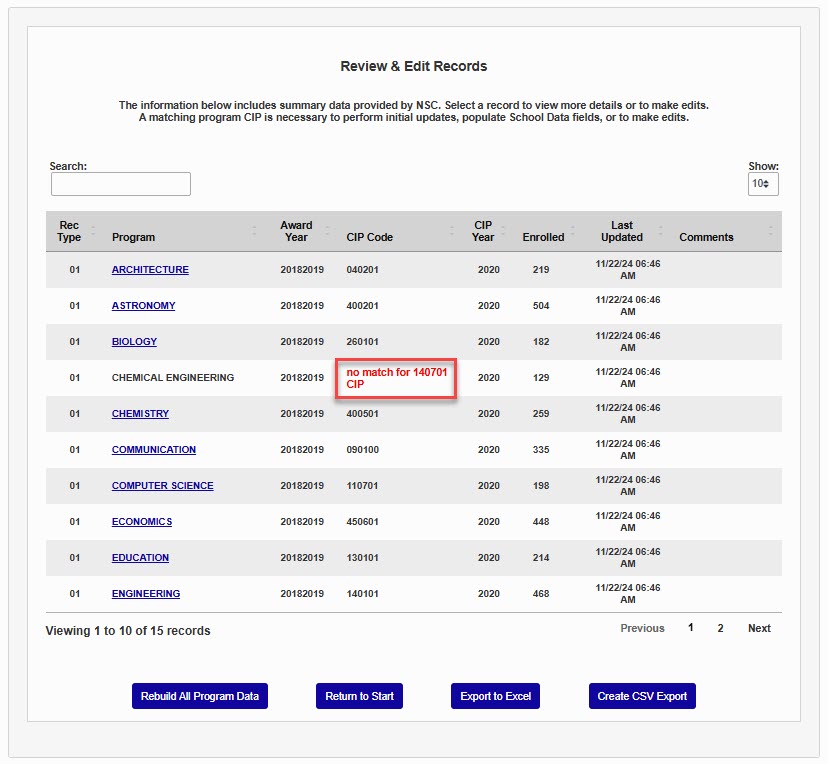
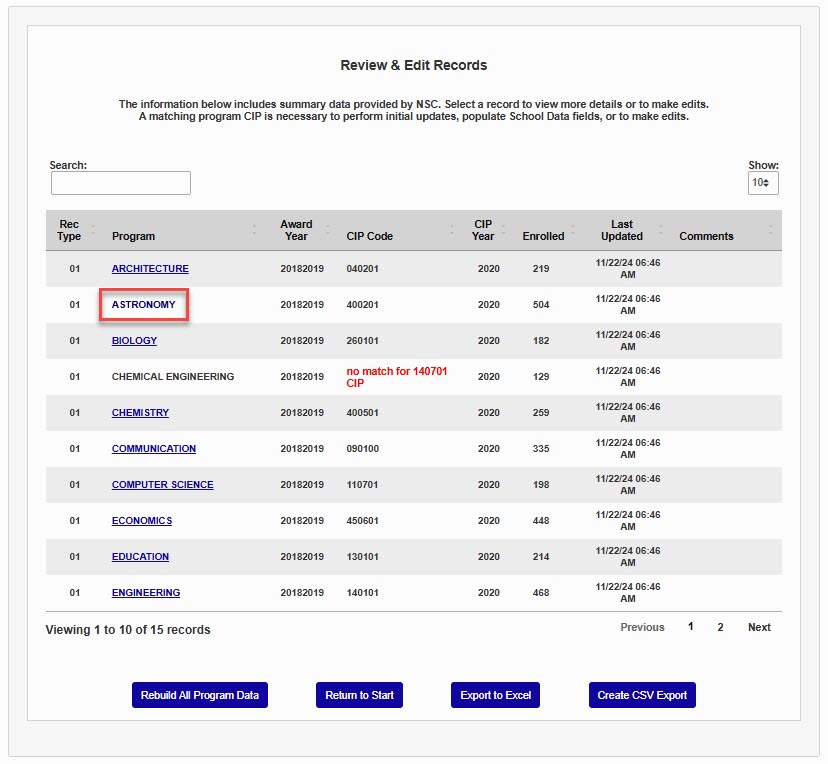
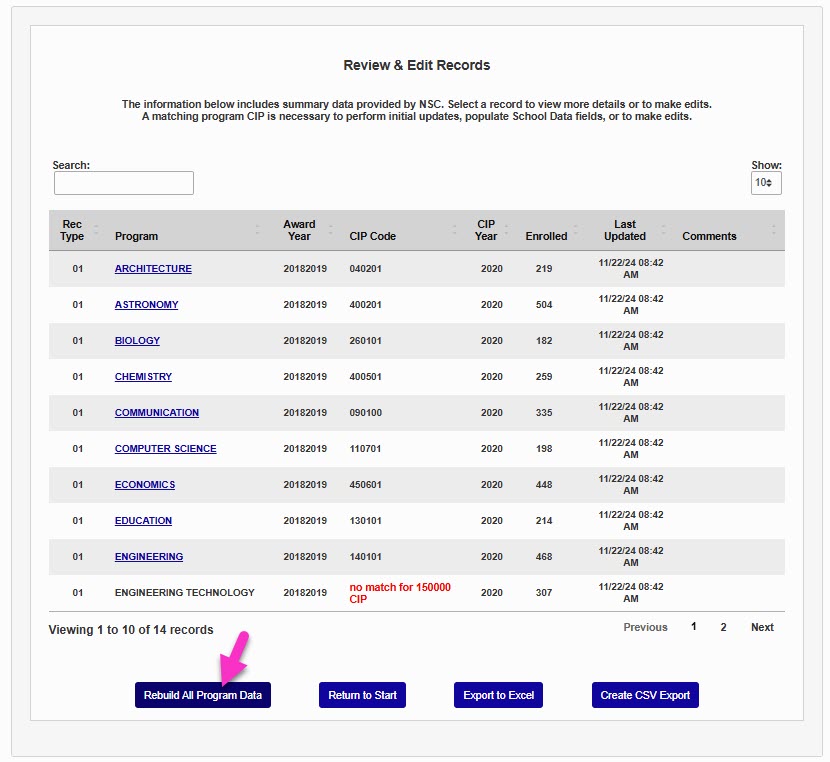
If the file passes data checks, SONIS performs data calculations and a comparison of the program data in the NSC file to the programs defined in SONIS. The user is then taken to the Review & Edit Records page. Programs with errors are displayed with an error message. In this example, the CIP Code in SONIS does not match the CIP Code in the file. The error must be resolved in NSC or SONIS, as appropriate to the location of the error. Programs with no identified errors become a link. Click the Program name to review program-specific information, or click the Export to Excel button to view the information for all programs in one document.
Note
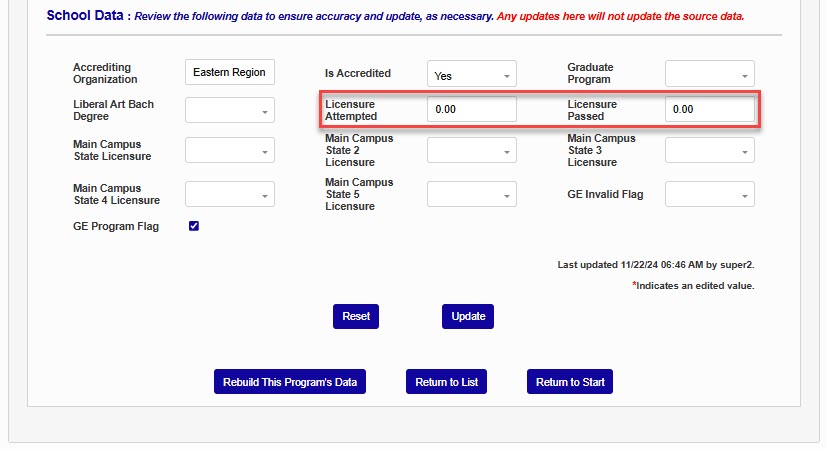
Programs are matched based on CIP Code. All values in the School Data section are from Programs.
The top section of the page displays the information provided in the NSC file and cannot be edited here. If any of the information in this section is wrong, it must be corrected in NSC. The bottom section of the page displays the information gathered from SONIS and provides users the opportunity to update or add information.
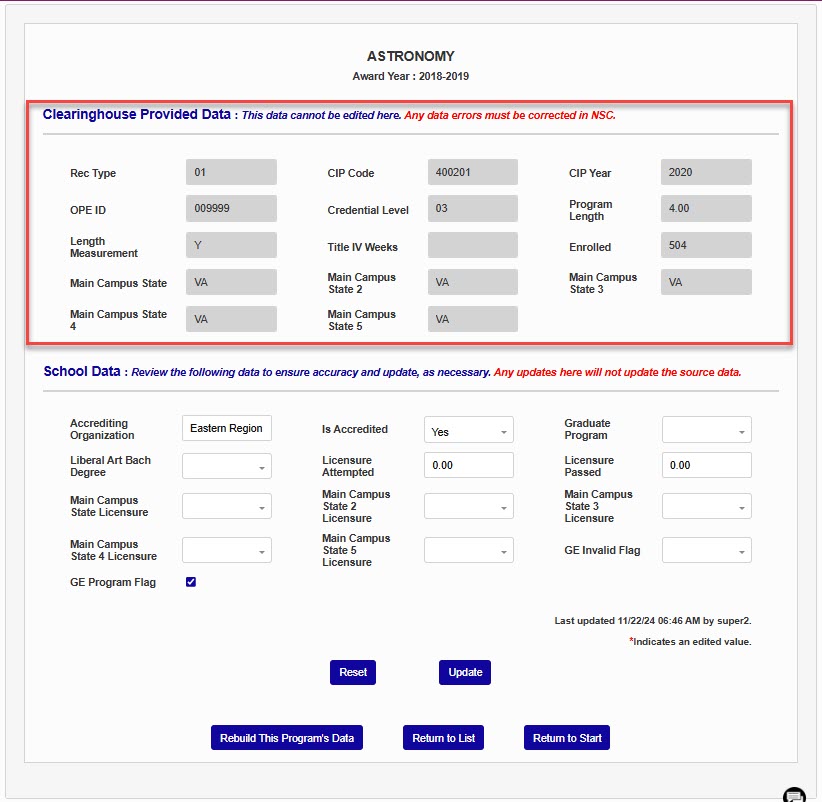
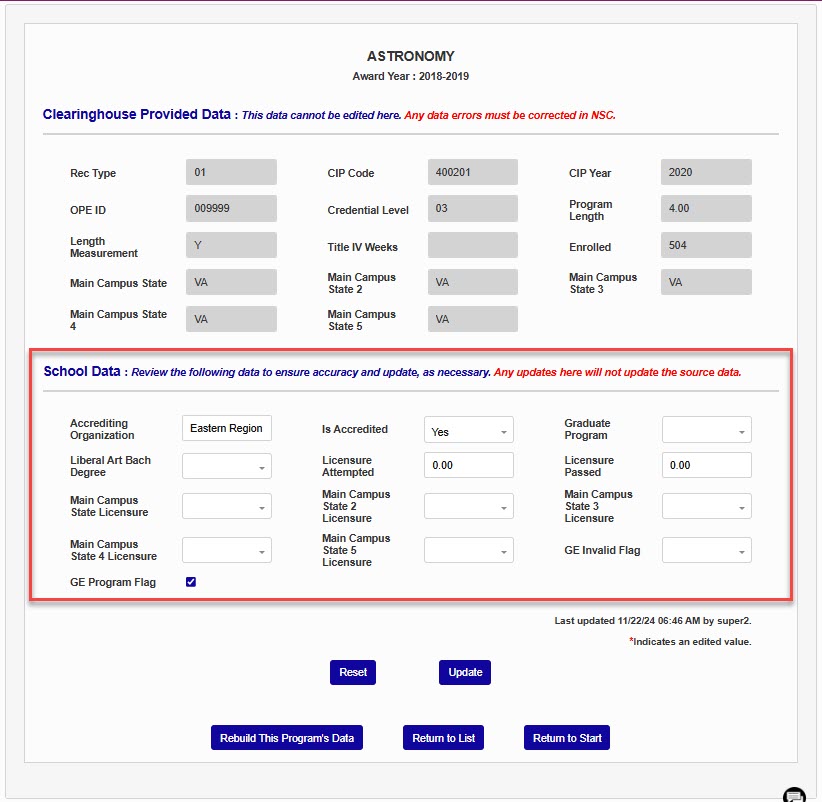
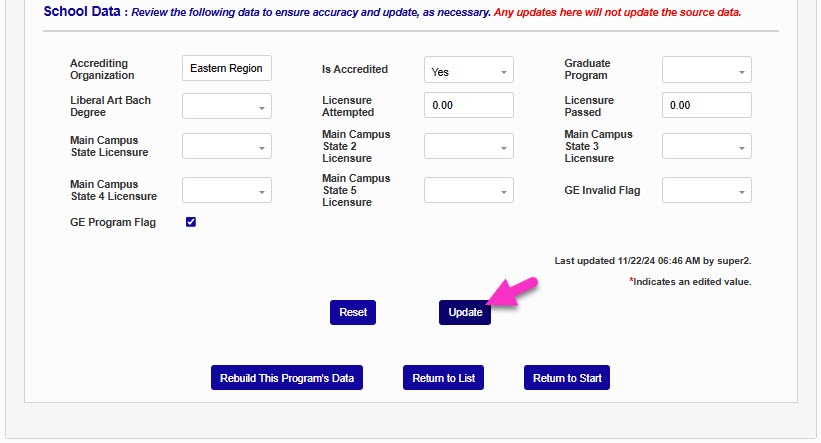
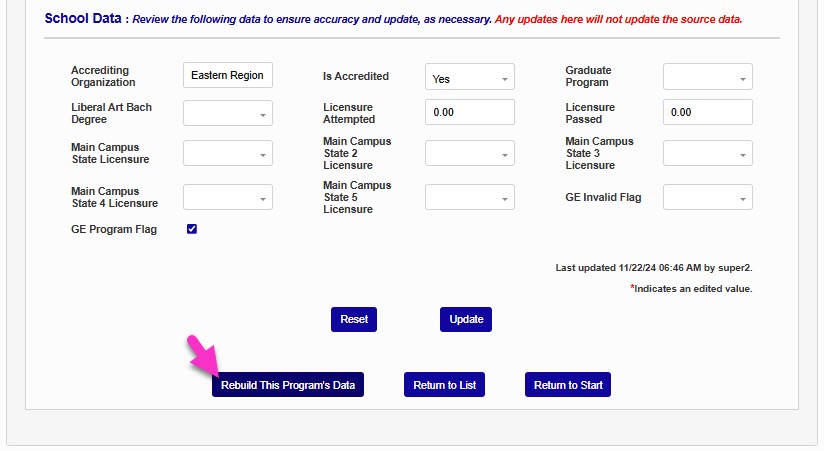
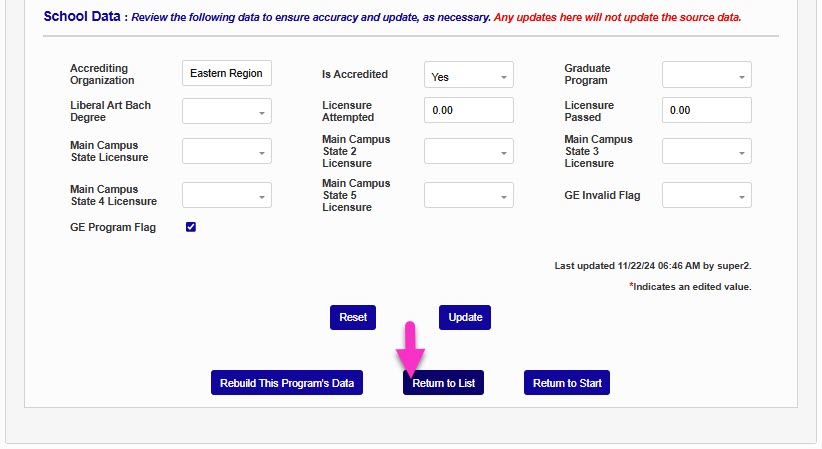
If any updates are made to the data in the School Data section, click the Update button to save them. Any updates made can be reset to the originally gathered values by clicking Rebuild This Program's Data.
The Licensure Attempted and Licensure Passed fields are unique to this page, as there is no other area provided in SONIS to store these values. Use care to add this information if needed for applicable programs. Click Return to List to go back to the Review & Edit page.
When choosing Export to Excel, an Excel file is produced. The file will be in the institutionally defined download folder. The name of the file will be reports.GENSC_Prog_xls.xls.
Caution
During the review, if errors are noted, corrections must be made in NSC or SONIS, as appropriate to the data item. Updates made in the Excel will not update SONIS or NSC.
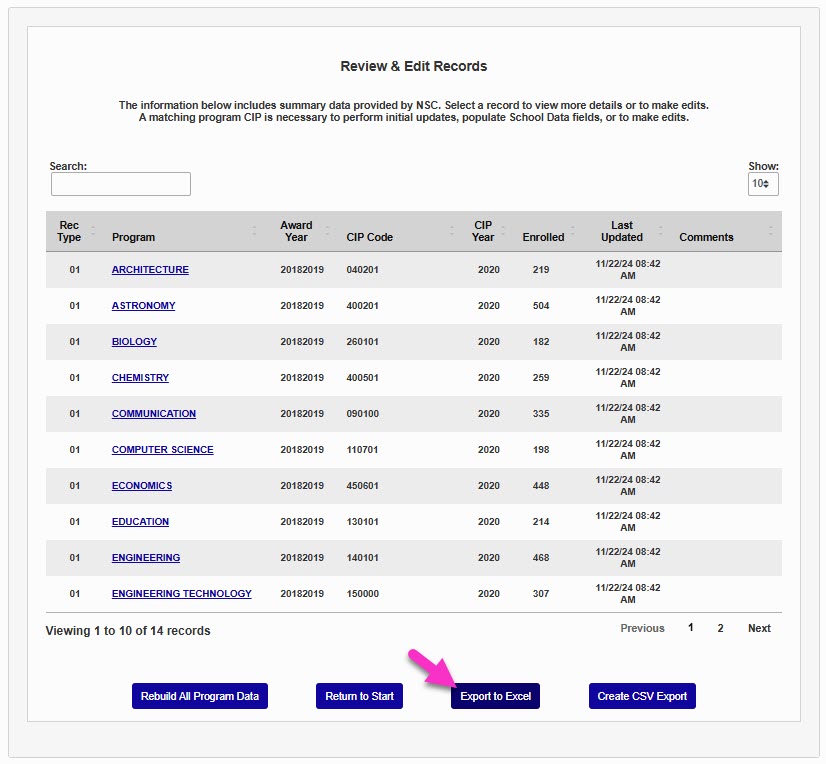
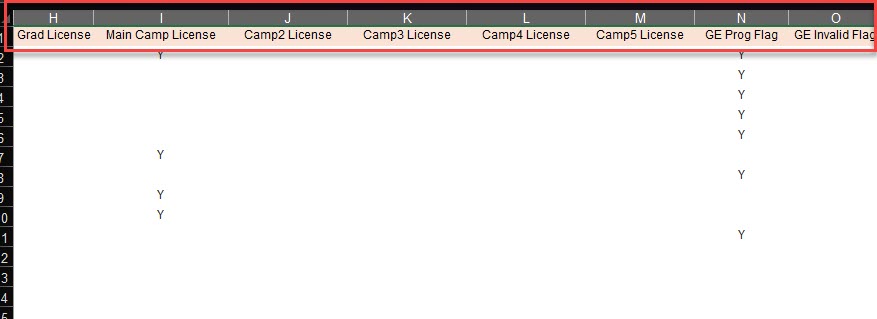
The file includes the programs listed in the NSC import file, data about those programs from the import file, and data and calculated values from SONIS. As shown in the images below, the fields in the Excel file are:
Award Year
Program
Accrediting Agency
Accredited
Graduate Program
Liberal Arts
Graduate License Attempted
Graduate License Passed
Main Campus License
Campus 2 License
Campus 3 License
Campus 4 License
Campus 5 License
GE Program Flag
GE Invalid Flag - is set only during subsequent reporting cycles and is used to indicate that the program is no longer a program subject to GE reporting.
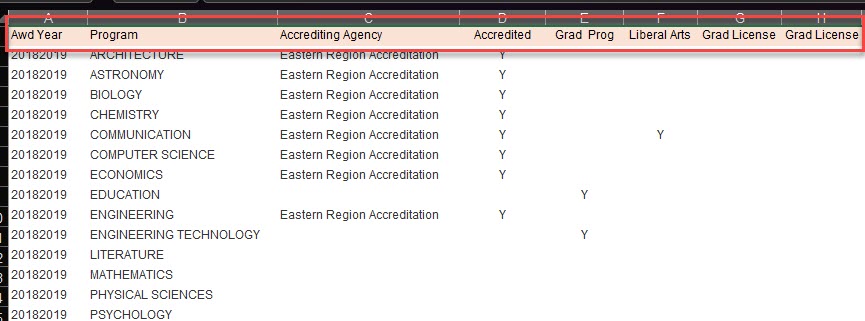
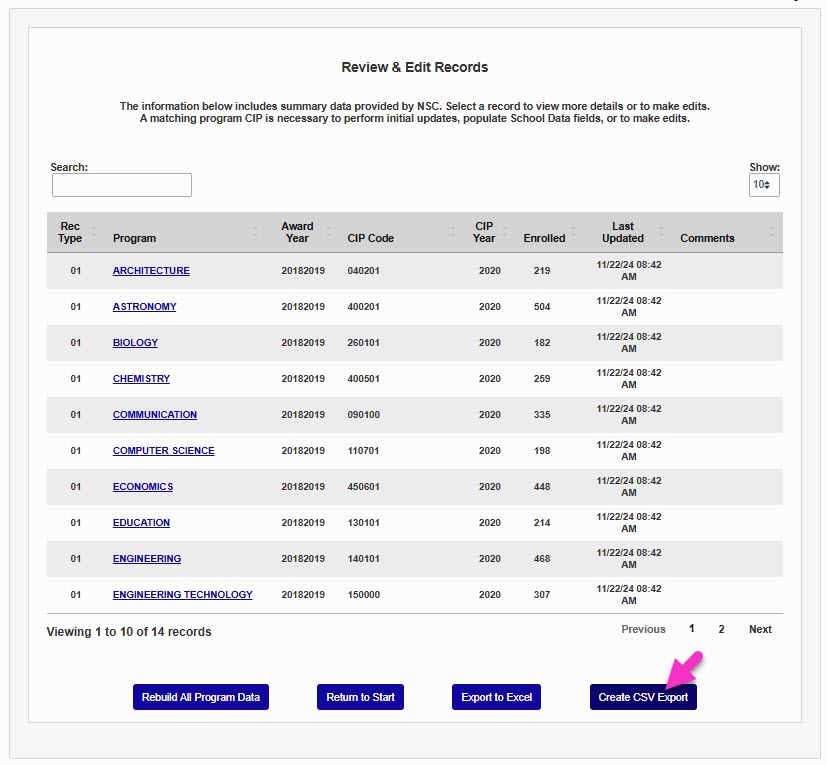
After making updates in SONIS, click Rebuild All Program Data or (Review-Edit-Export on the start page) to reprocess the imported file. Once all Program data is accurate, click Create CSV Export to create the file that will be sent to NSC. The file will be created and available in Systems > Batch Folder File Retrieval. Upload the file to NSC to complete the student portion of the reporting process.
Gainful Employment NSC Student Import
After confirming that COA by Program & Award Year, Programs, Awards, and Transaction Codes are setup as desired, download the NSC student data file, save it as a CSV, and navigate to the Systems hub page, Gainful Employment NSC Student Import. This utility processes the NSC-provided student data file with the aim of assisting users in reconciling the data in the file with SONIS records and creating an NSC compatible GE/FTV export file.
Caution
It is important not to edit the file in any way prior to importing to SONIS. The import process will check to ensure the selected file is in the correct format and that it contains the expected type of data and columns, as determined by NSC technical guidelines. Any changes to the NSC file may prevent successful file import(s).
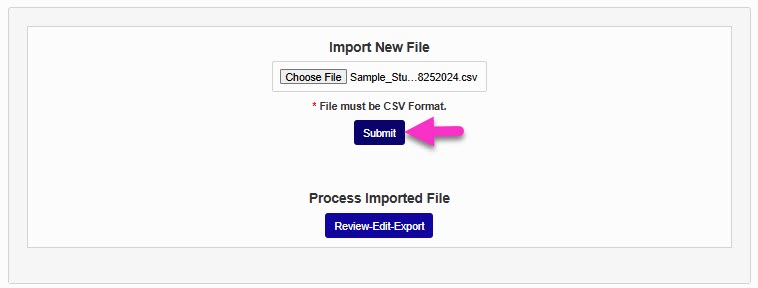
Begin the import process by clicking Choose File. After selecting the file, click Submit.
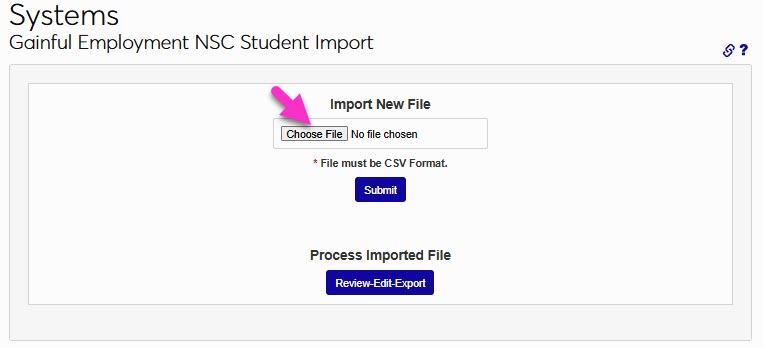
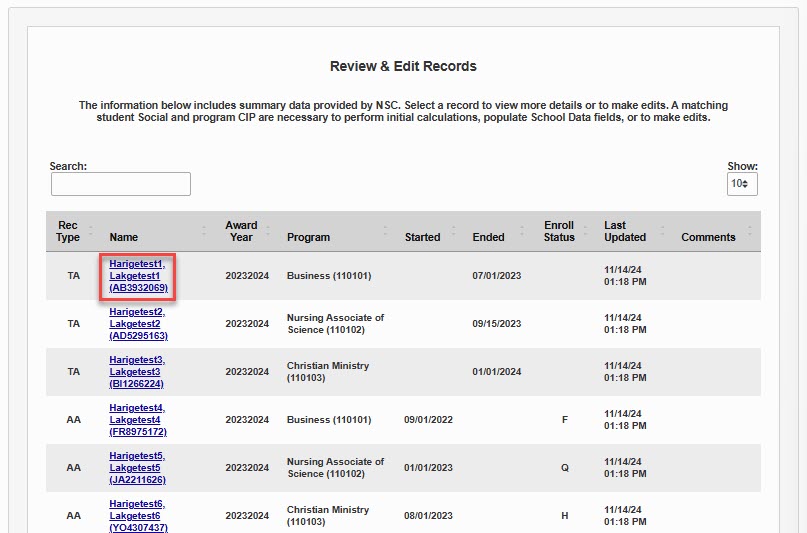
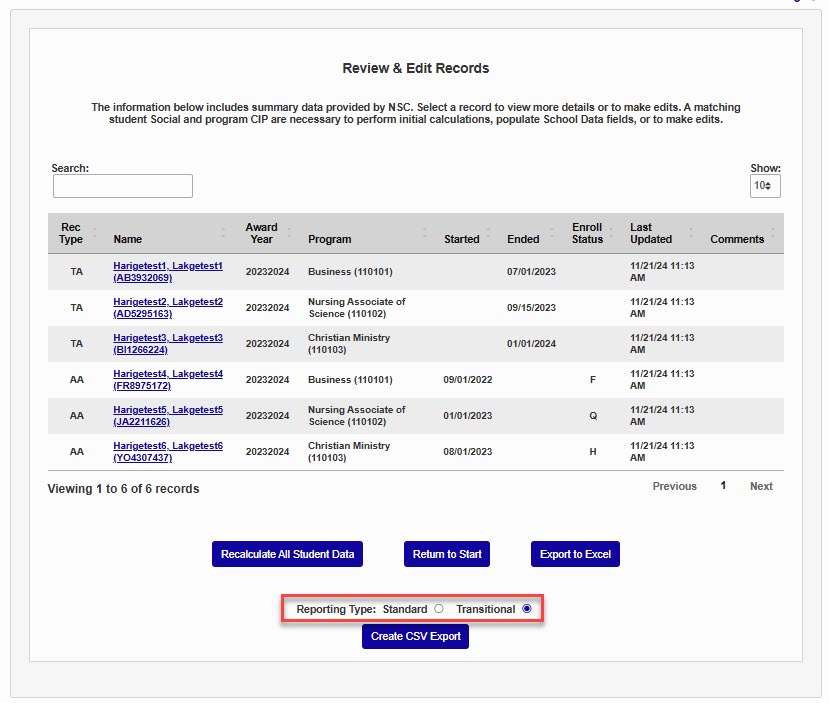
If data checks are passed, the process imports the file data, performs initial calculations for the school required data fields, and displays a summary list of the records imported. Student records are matched based upon the Social Security Number or the SONIS ID, as provided by NSC in the import file . Program record matches are based on CIP Code. Click a student's name to view the NSC and SONIS values for the student.
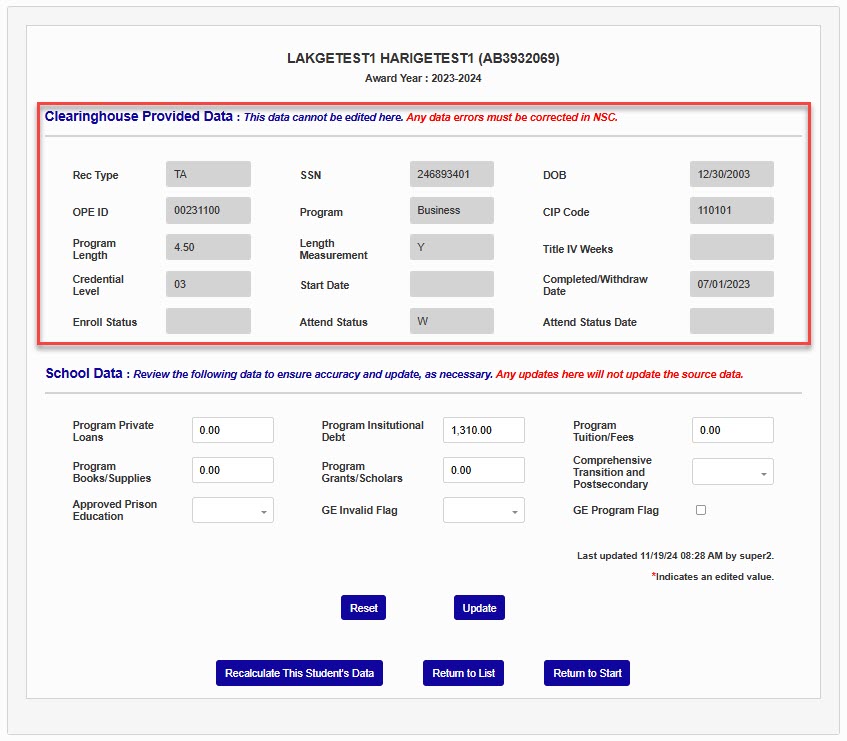
There are two student types in the reporting: TA and AA. AA record types are enrolled students, and award year data will be calculated for reporting; TA record types are completers/graduates/stop-outs and cumulative program data for the periods of enrollment will be calculate for reporting. Because of these differences, each have a separate list of data fields required for school data submission, so the fields displayed on the page may be slightly different than those shown in the example images. Clearinghouse Provided Data can not be edited. If errors are found, they must be corrected within NSC. School Data fields can be edited, and individual records can be recalculated, as needed.
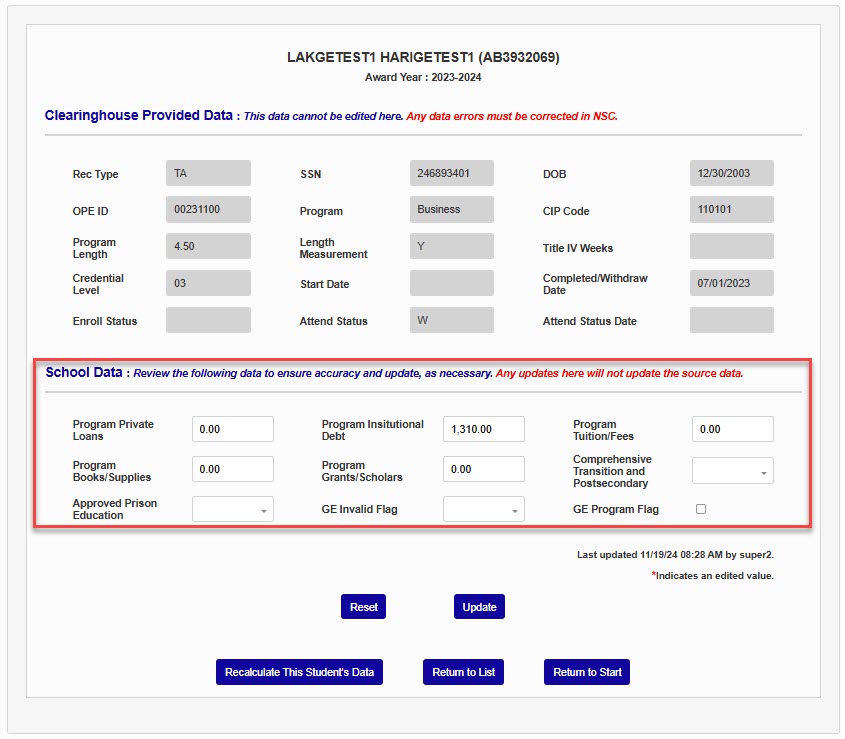
To make a change to the calculated school data, make the desired update and click Update. Changes made in this area will not update the source data. Click Recalculate This Student's Data to set all calculated fields back to the original, calculated, values from the source data.
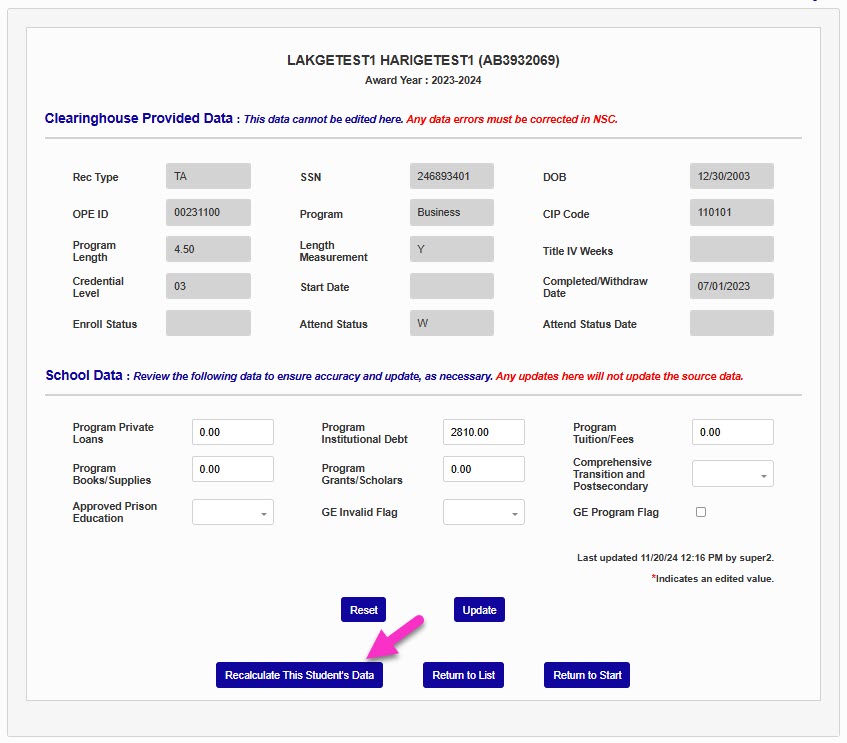
After reviewing a student's information, click Return to List to be taken back to the Review & Edit Records. Click Return to Start to be taken back to the file upload page.
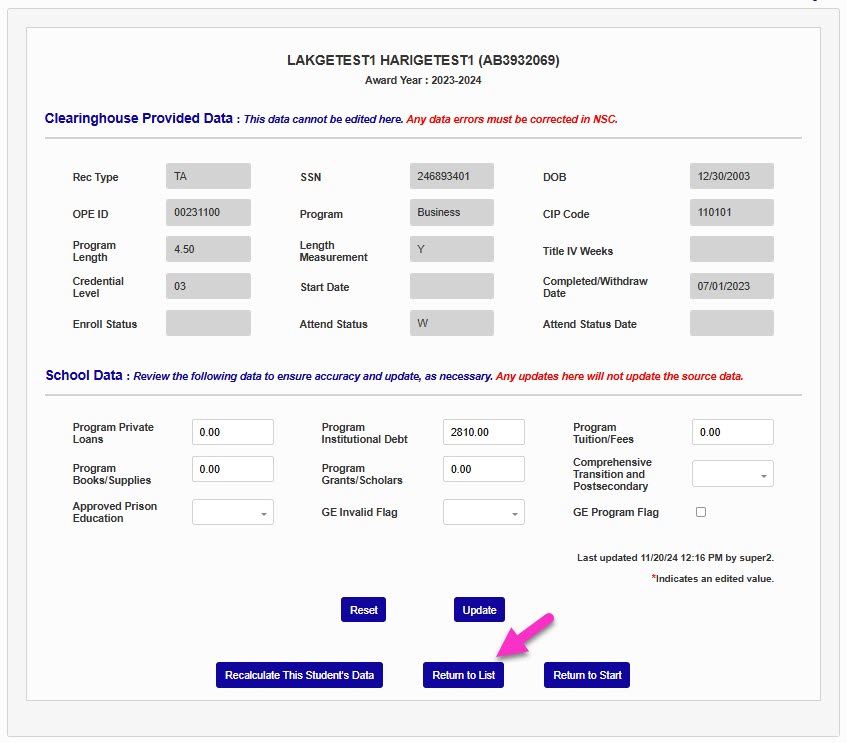
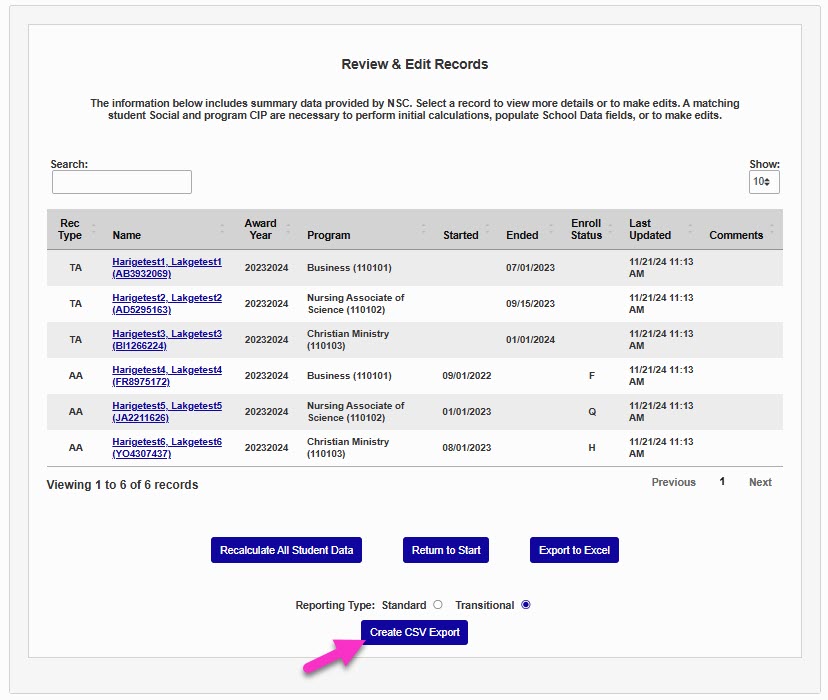
From the Review & Edit Records page, options are provided to Export to Excel and to Create CSV Export.
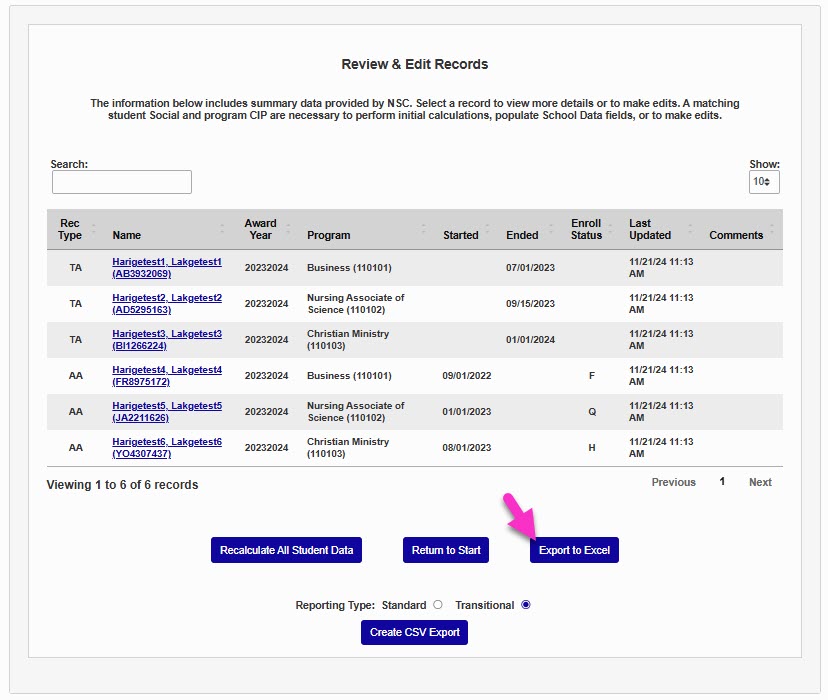
When choosing Export to Excel, an Excel file is produced. The file will be in the institutionally defined download folder. The name of the file will be reports.GENSC_Stud_xls.xls.
Caution
During the review, if errors are noted, corrections must be made in NSC or SONIS, as appropriate to the data item. Updates made in the Excel will not update SONIS or NSC.
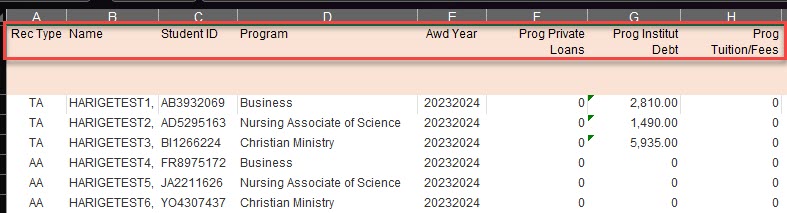
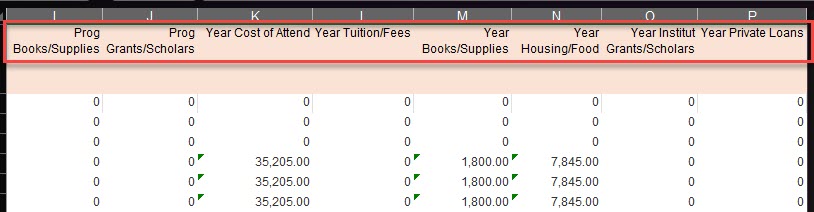
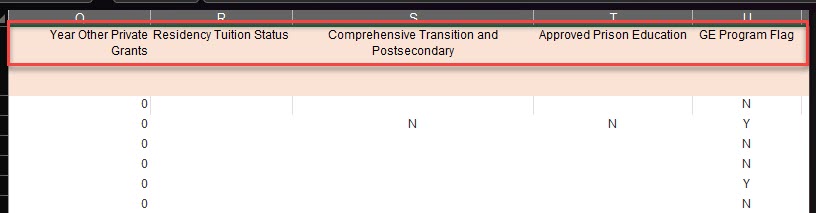
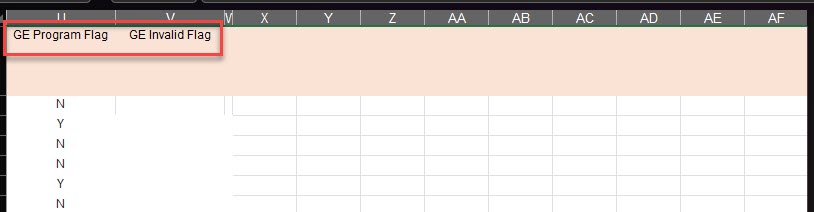
The file includes the students listed in the NSC import file, data about the students from the import file, and values from SONIS. As shown in the images below, the fields in the Excel file are:
Record Type
Name
Student ID
Program
Award Year
Program
Award Year
Program Private Loans
Program Institutional Debt
Program Tuition/Fees
Program Books/Supplies
Program Grants/Scholars
Year Cost of Attendance
Year Tuition/Fees
Year Housing/Food
Year Institutional Grants/Scholarships
Year Private Loans
Year Other Private Grants
Residency Tuition Status
Comprehensive Transition and Postsecondary
Approved Prison Education
GE Program Flag
GE Invalid Flag
When ready to create the export file for submission to NSC, select Standard if the institution has chosen to report 8 years of data; Transitional if the institution has chosen to report two years of data, and click Create CSV Export. The file will be created and available in Systems > Batch Folder File Retrieval. Upload the file to NSC to complete the student portion of the reporting process.
Data Calculation Sources
For each calculated value, the following pages and areas are used to gather the needed data.
Cost of Attendance: Systems > COA by Program & Award Year.
Cost of Tuition and Fees: Systems > COA by Program & Award Year and T-Codes marked as Tuition and/or Fees.
Cost of Books, Supplies, and Equipment: Systems > COA by Program & Award Year and T-Codes marked as Books, Supplies, and/or Equipment.
Cost of Housing and Food: Systems > COA by Program & Award Year and T-Codes marked as Housing and/or Food.
Private Loans: Systems > Table Maintenance > Award Types marked as Private Loan and/or Other Loan on an Award Code.
Institutional Scholarships and Grants: Award Codes with an Award Type of Institutional Grant.
Institutional Debt: Outstanding Balance and Monies Owed. The Student Ledger report can be used to review these amounts.
Note
Charges and/or credits for semesters that do not apply to the student's program enrollment are not included in the institutional debt calculation.