PowerFAIDS Anticipated Award Utility
Overview
The PowerFAIDS Anticipated Award Utility, located under the Systems hub, is used to review awards that have been imported from PowerFAIDS, a popular financial aid management system. If awards are found to be in error, administrators can void those awards as long as they haven't yet been exported to the school's general ledger system using Post to Accounting. Anticipated awards and disbursements can both be deleted.
Visit the PowerFAIDS Desktop or PowerFAIDS Cloud Help Hub pages for more details on the Jenzabar SONIS integration with PowerFAIDS.
Reviewing Awards
To review awards that have been imported through PowerFAIDS, navigate to the PowerFAIDS Anticipated Award Utility under the Systems hub. By default, ten awards will already be displayed. You can update the list using the tools on the page.
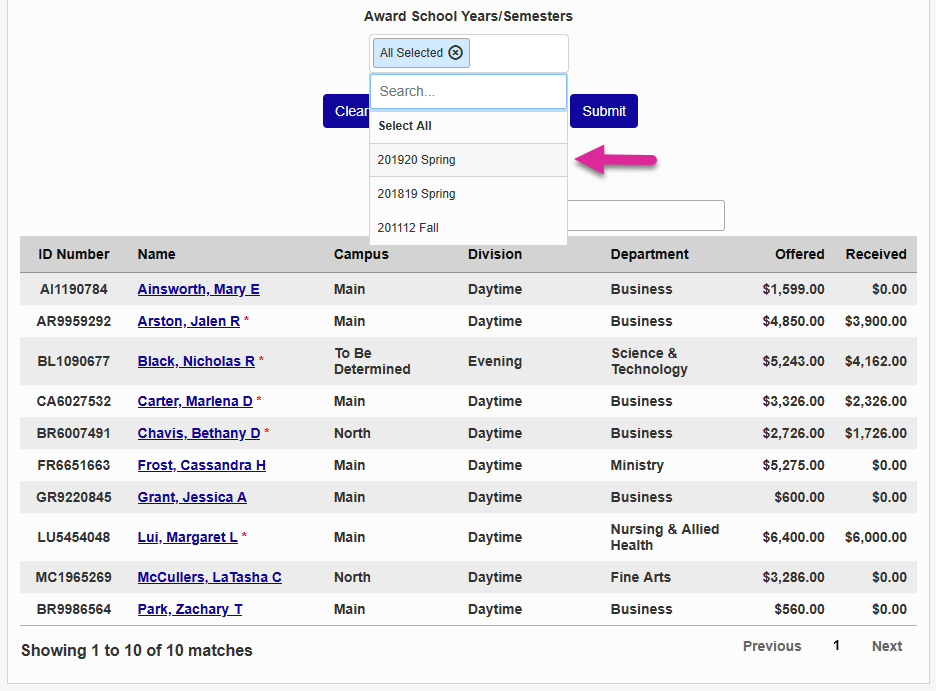
Use the Award School Years/Semester menu to select a specific semester or semesters to display. Click Submit to update the list once you've selected the semester(s) you want to view.
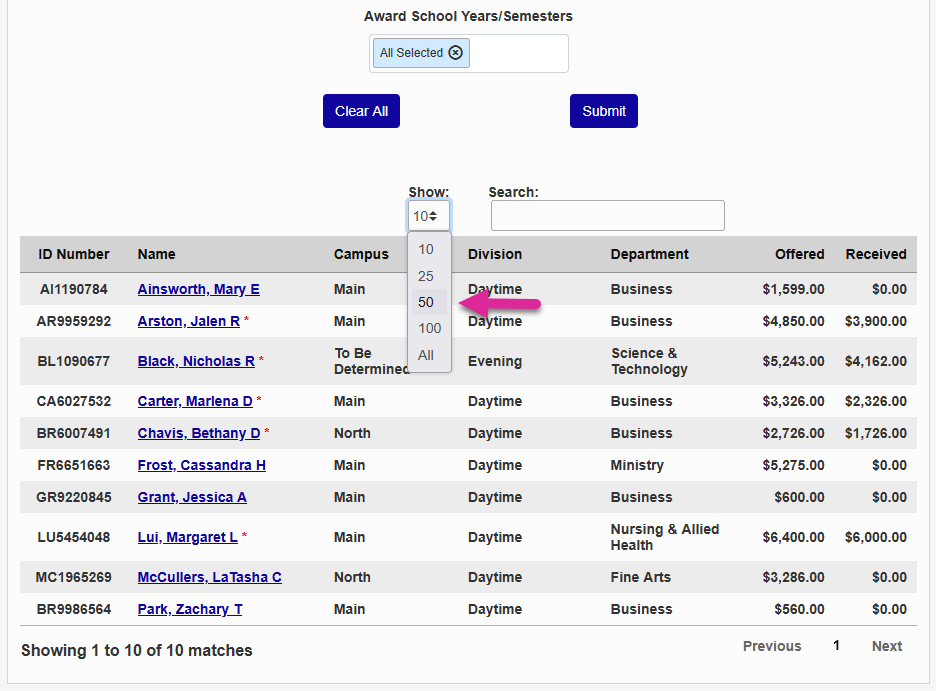
You can also use the Show menu to control how many awards display on each page.
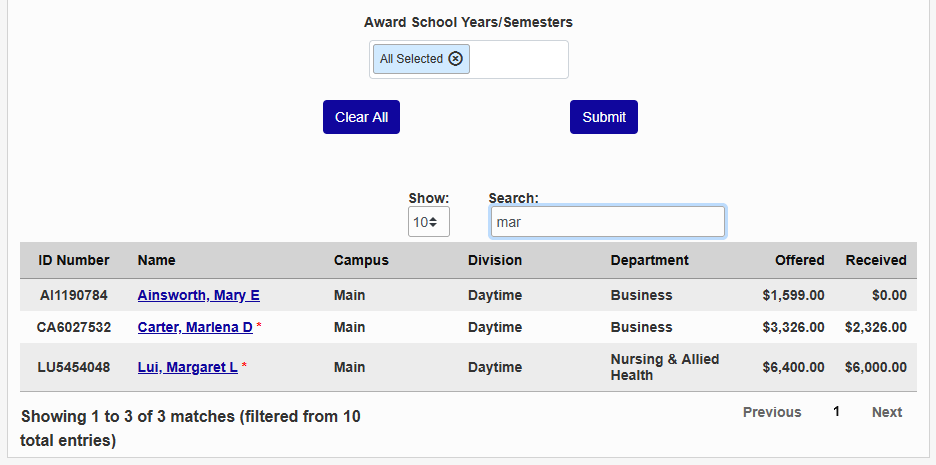
Use the Search box to locate more specific records. The box searches every field displayed and updates the page as you type.
The Clear All button removes all filters and returns the page to the default display.
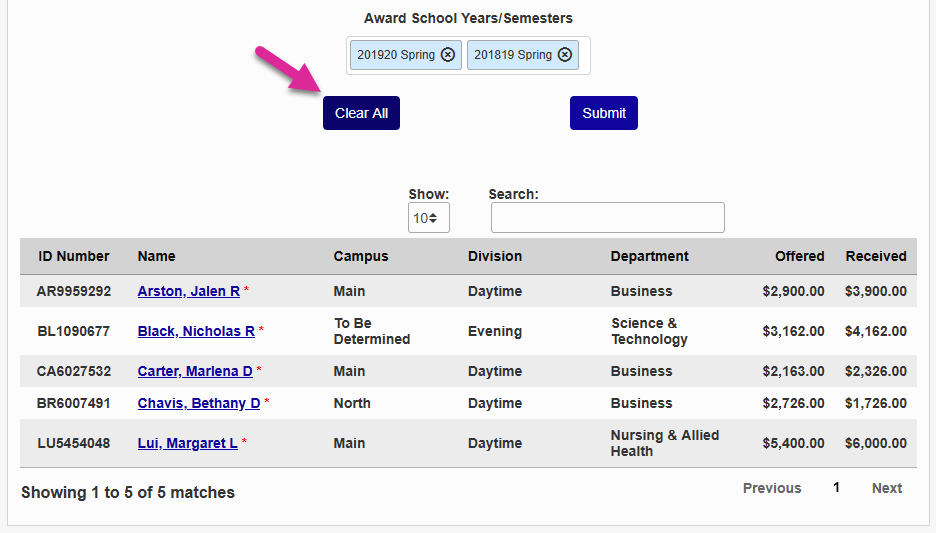
To view the full list of awards for a single student, click on the student's name.
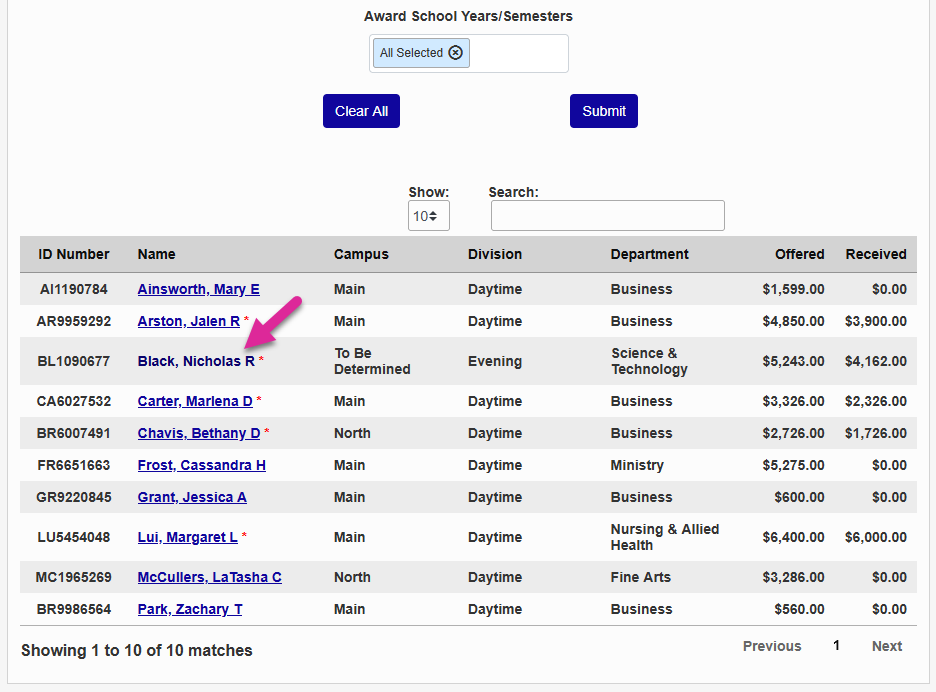
The detailed list displays the Award ID, Award Name, Year/Semester, Transaction Date, Amount, Offered amount, Received amount, Transaction Number, Payment Number, Batch, and any Adjustments that have been made.
Voiding Awards
To view the full list of awards for a single student and begin the void process, click on the student's name.
Check and uncheck the boxes in the left-hand column to control which awards will be voided.
Note
Any awards marked with a red asterisk have already been exported to your school's general ledger and cannot be voided.
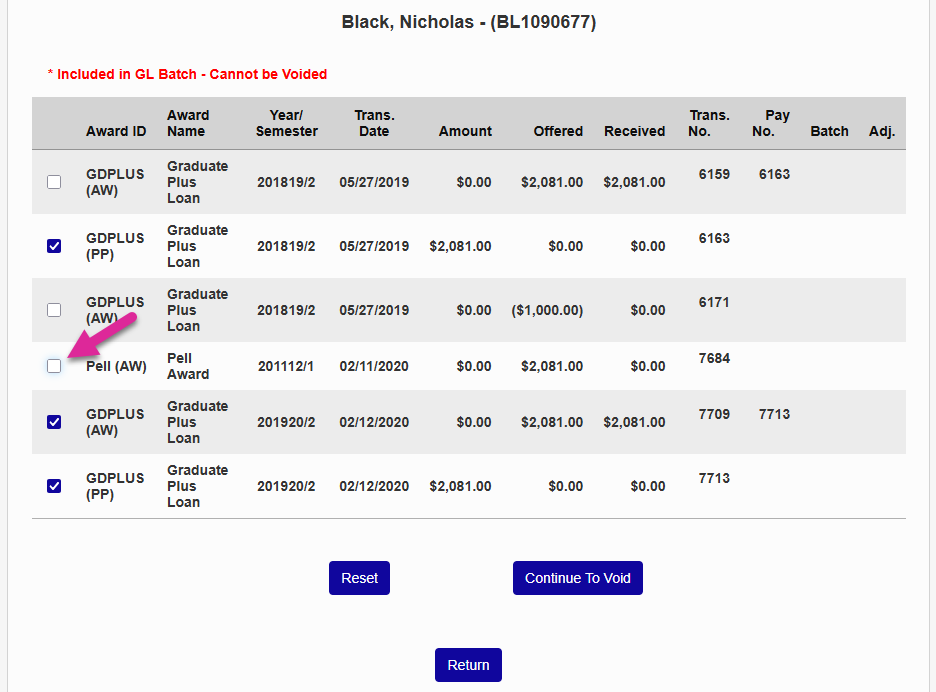
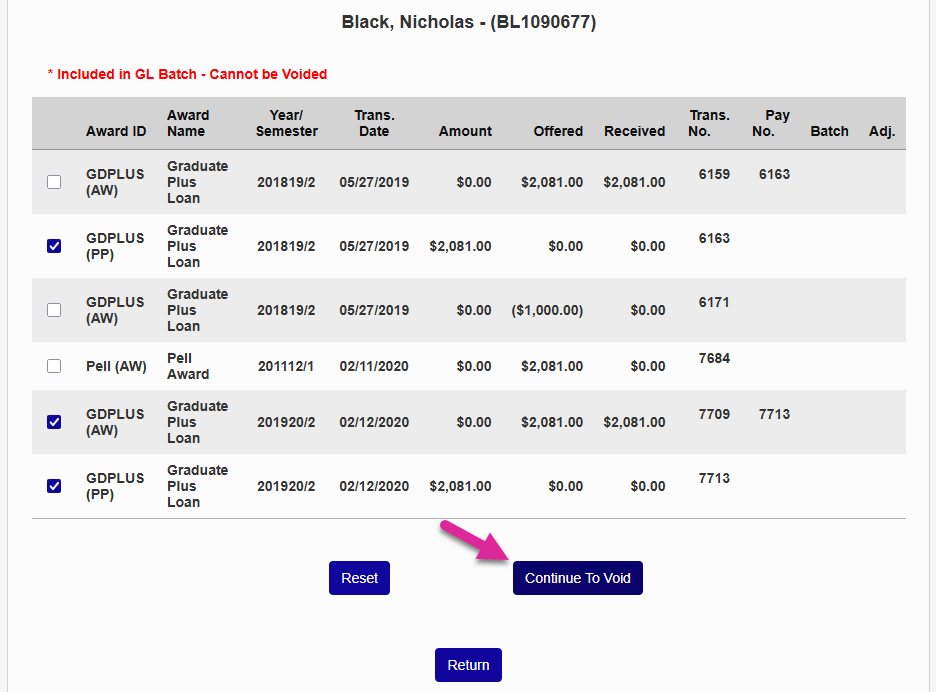
Once you've selected and deselected the appropriate awards, click Continue to Void to continue.
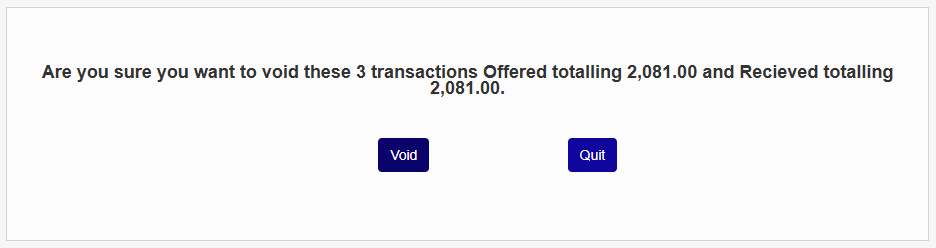
On the following page, click Void if you're sure that you want to void the selected transactions or click Quit to cancel the void and return to the start page.
Warning
Voids cannot be undone once they've been processed. To return errantly voided transactions to the student's records, import the transactions from PowerFAIDS again or add them manually.