College Financing Plan Report
Overview
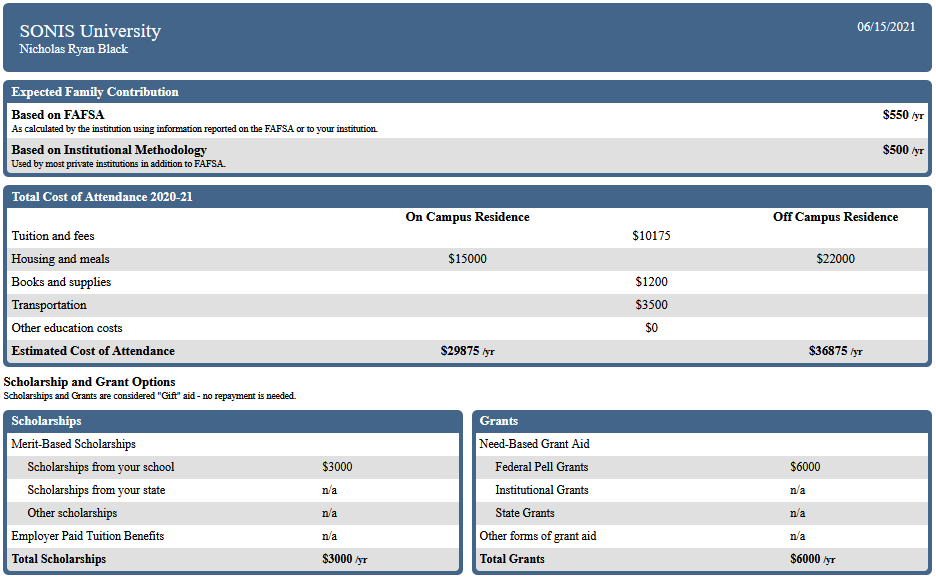
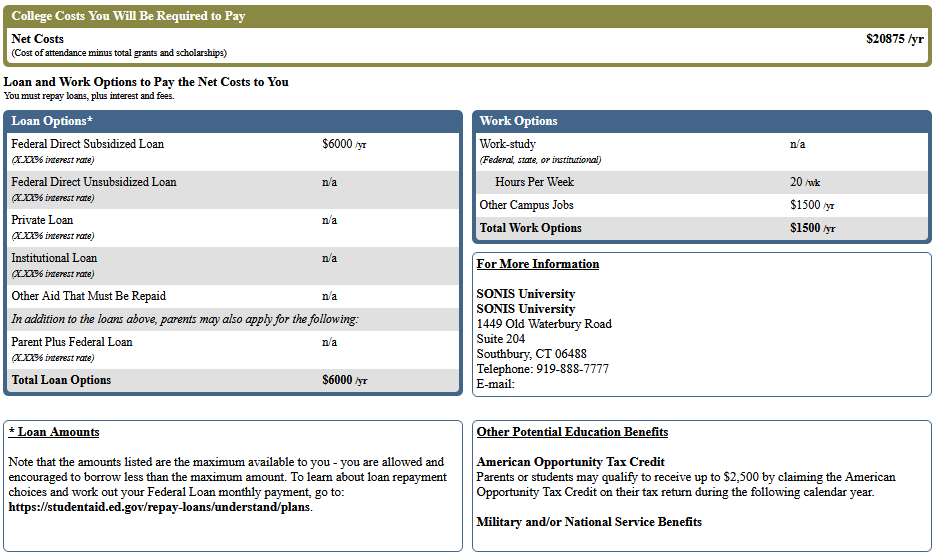
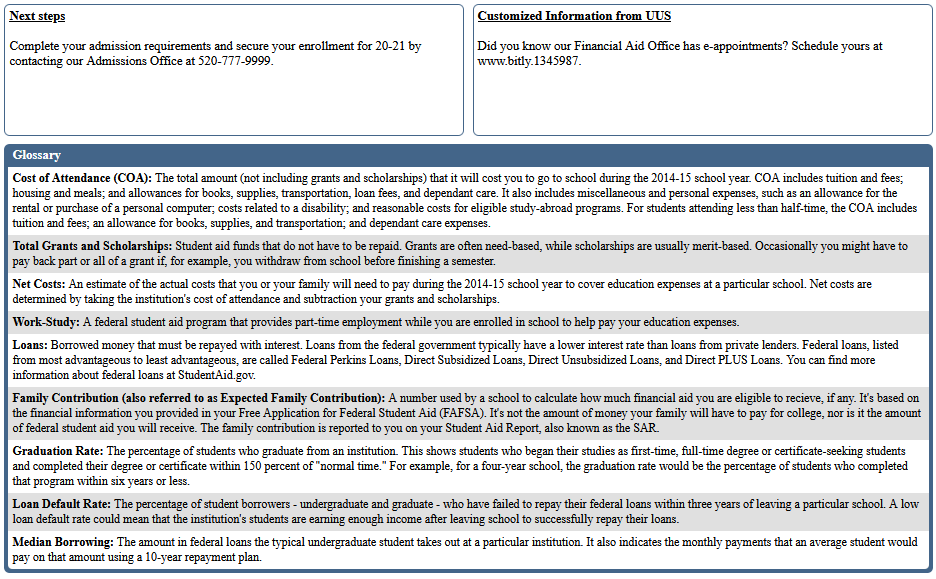
This report is provided to give applicants or students an overview of the costs associated with attending an institution, as well as the financial aid they may be able to receive. It requires FAFSA data, utilizes the Department of Education's College Financing Plan template, and provides the same financial aid and institutional information, in the same format. The report displays potential aid to applicants and students who have not been awarded. The report displays the student's awarded aid with default values. The report is run on-demand and may be printed and mailed or saved and emailed to the recipient. It is not currently available in the Applicant or Student Portal.
Setup
Data Source Setup
There are a number of fields in the report that will fill from data in Jenzabar SONIS. Each has a specific way it must be set up to fill the report correctly. These fields are:
1. Expected Family Contribution (EFC)
2. Total Cost of Attendance (On or Off-Campus)
3. Scholarships
4. Grants
5. Loan Options
6. Work Options
7. Next Steps
8. Customized Information
Expected Family Contribution Setup
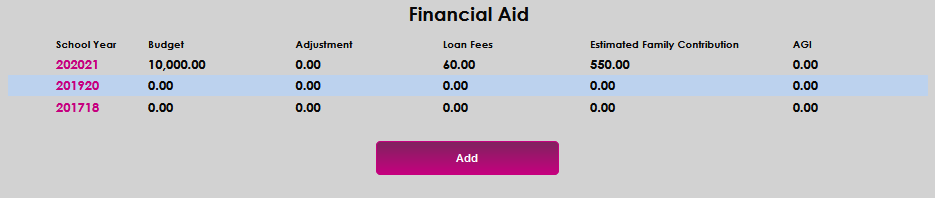
The Expected Family Contribution (EFC) is pulled from the student's financial aid data in the Financial Aid page of the Users hub. If no EFC is present, but a FAFSA has been received with an EFC or Institutional Methodology has been used to calculate one, the EFC can be added by selecting Add on the Financial Aid page. Next, select the desired School Year.
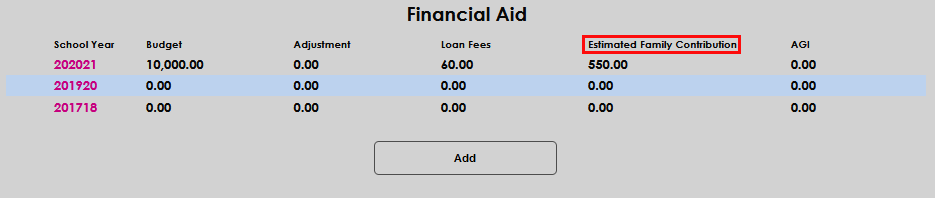
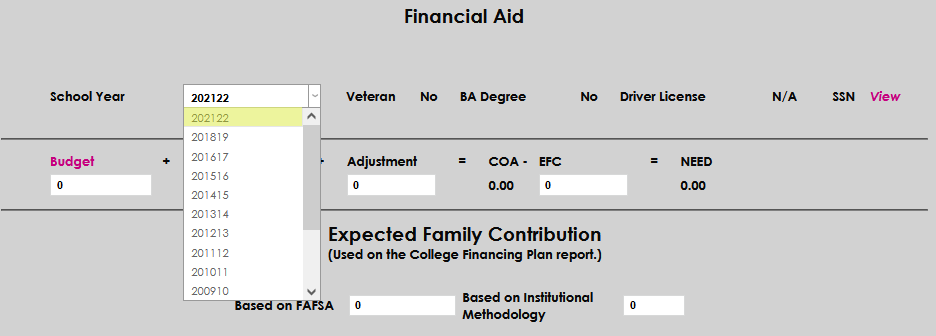
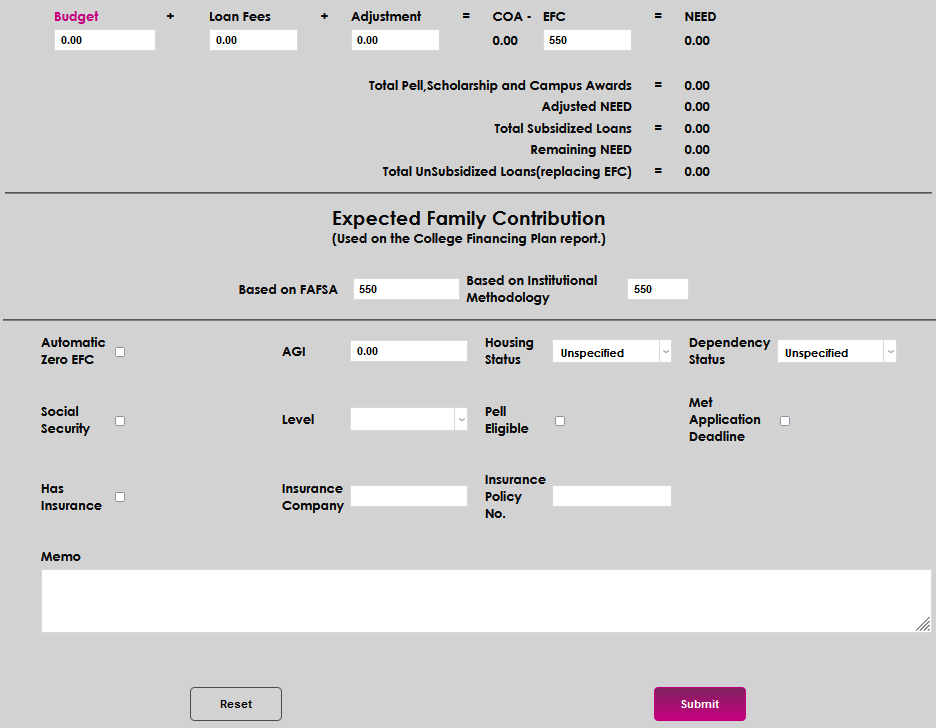
Enter the FAFSA EFC in the Based on FAFSA field and the Institutional Methodology EFC in the Based on Institutional Methodology field. Click Submit to save the entries.


Total Cost of Attendance Setup
A student will need to have a cost of attendance (COA), or budget, assigned. If desired, existing budgets may be used with the College Financing Plan, or a new budget may be created. To create a new budget, navigate to Financial Aid Budgets from the Systems hub and select Create Budget.
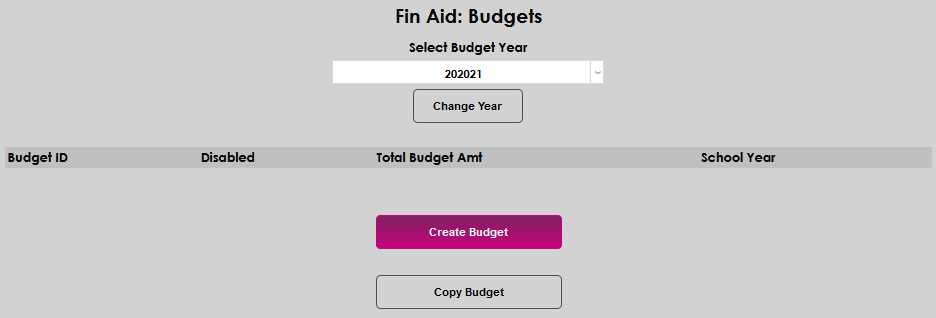
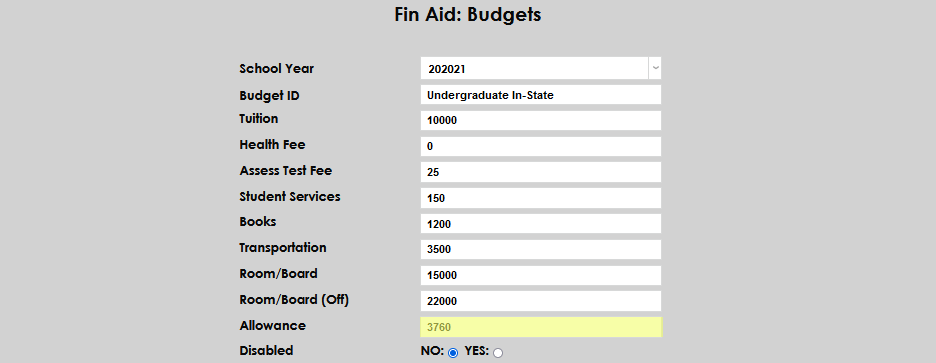
Select the desired year from the School Year dropdown. Enter the desired name of the cost of attendance in the Budget ID field. It may be up to 30 alphanumeric characters in length.
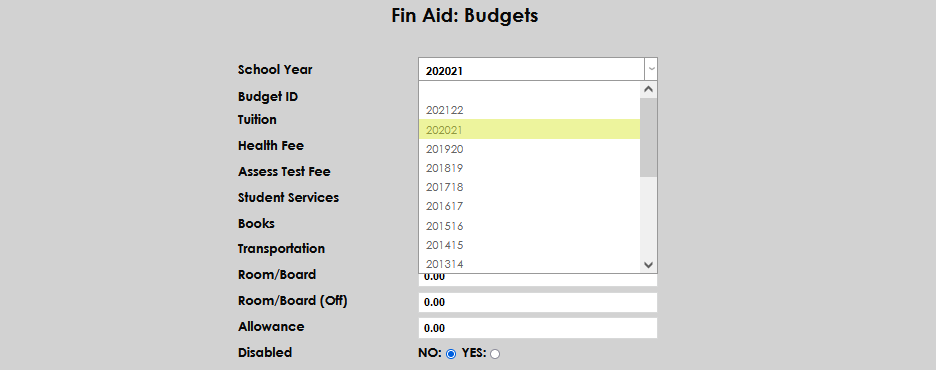
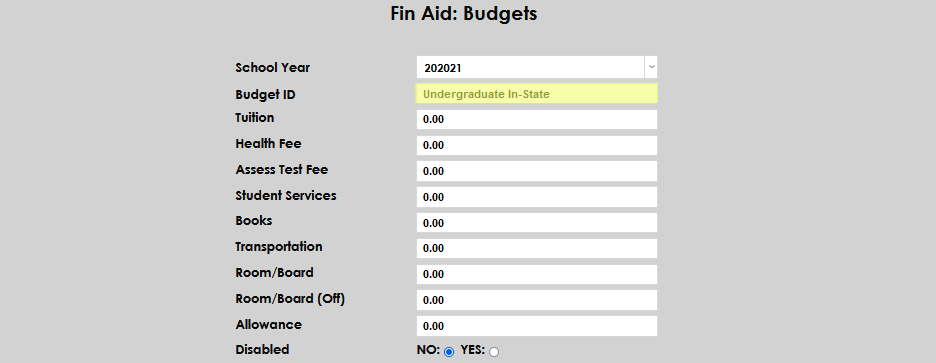
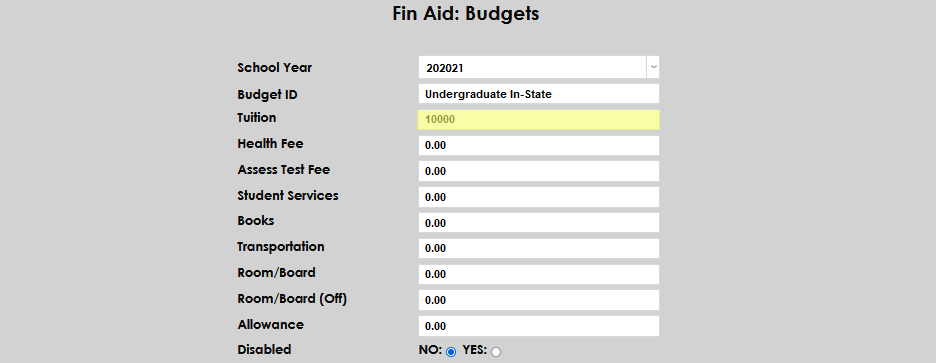
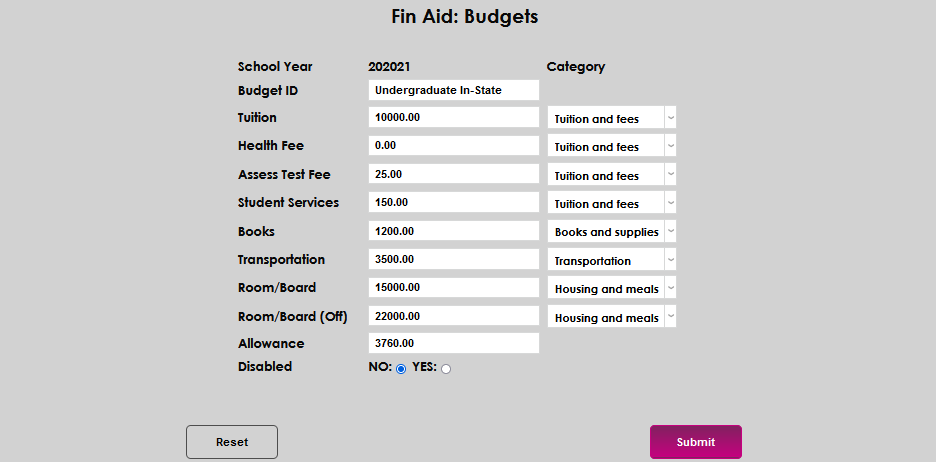
Enter the full academic year tuition amount in the Tuition field. Up to 10 characters may be entered and no decimal is required. If a health services fee is charged by the school, enter the yearly amount in the Health Fee field. It is not a required field and can be skipped if not applicable. The field accepts up to 10 characters, with no decimal required.

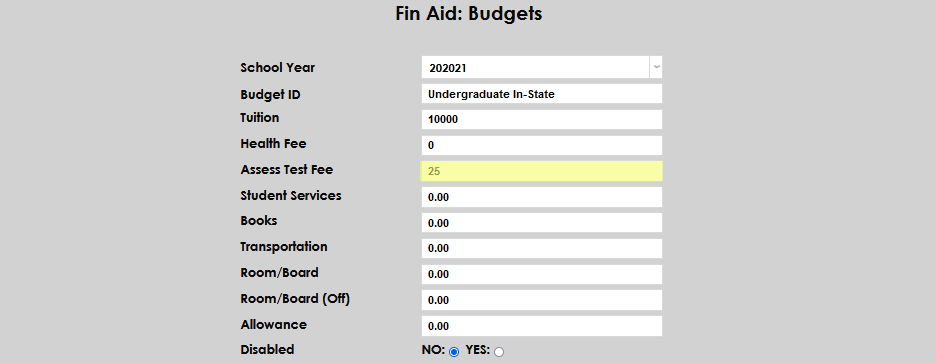
If the institution charges a fee for taking the assessment, or placement, tests, enter the amount in the Assessment Test Fee field. This field accepts up to 10 characters, is not a required field, and no decimal is needed. Enter any fees assessed for providing student services or activities in the Student Services Fee field. This field is not required, accepts up to 10 characters, and does not require a decimal.
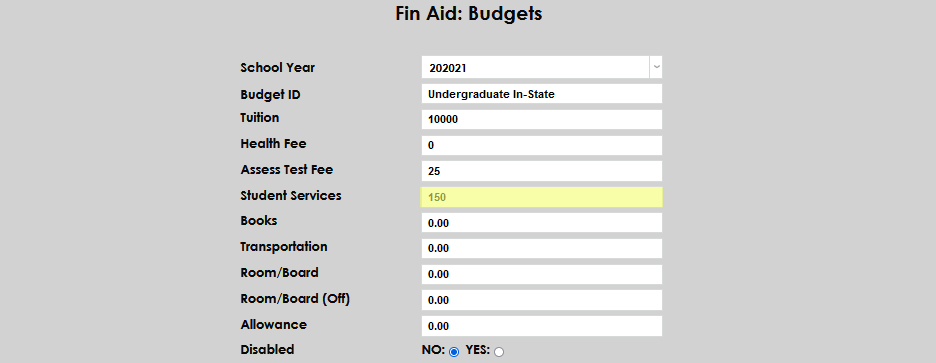
Enter the average amount a student is expected to spend on books and course supplies or materials in the Books field. This field accepts up to 10 characters, is not required, and no decimal is needed. If the institution makes an allowance for transportation costs in the cost of attendance, enter the amount in the Transportation field. If not amount is allowed, enter a 0 (zero). The field accepts up to 10 characters and no decimal is needed.
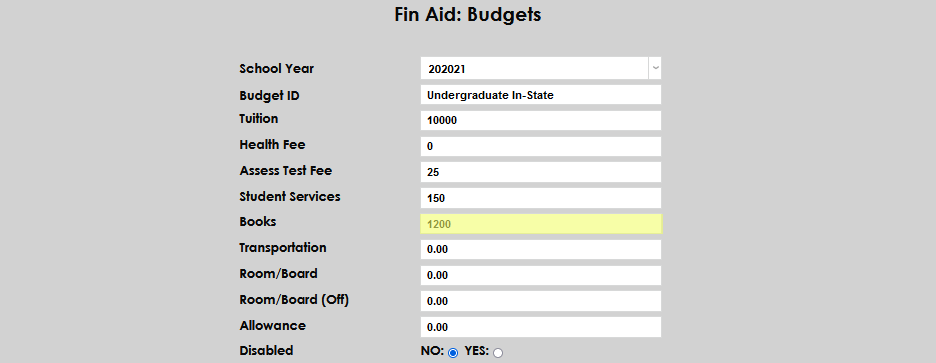

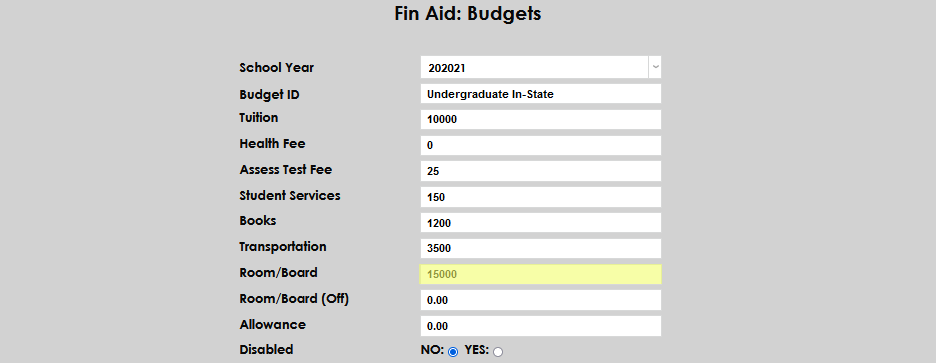
Enter the on-campus room and board allowance amount, if campus housing is provided, in the Room/Board field. If the institution does not provide housing, enter 0 (zero). This field accepts up to 10 characters and no decimal is needed. Enter the off-campus room and board allowance amount in the Room/Board (Off) field. This field was added in SONIS 3.7 to distinguish between on-campus and off-campus room and board costs for students. The field accepts up to 10 characters and no decimal is needed.
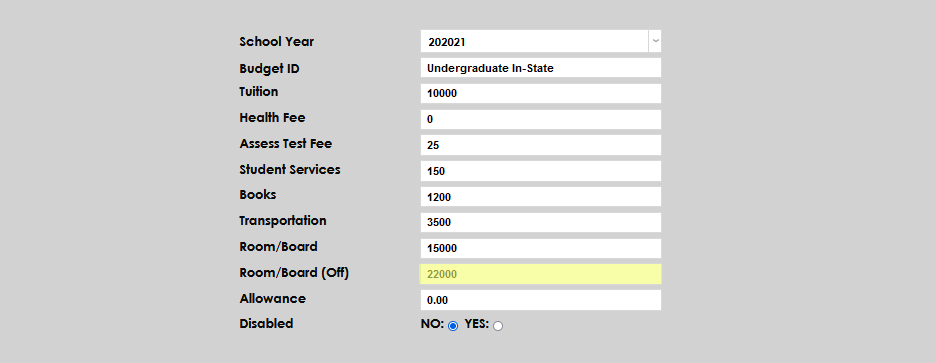
Other costs allowed in the institution's cost of attendance, such as personal expenses, institutional loan fees, or unique program costs may be entered in the Allowance field. The field accepts up to 10 characters, is not required, and no decimal is needed. Select either the Yes or No radio button in the Disabled section. If yes is selected, the Budget will be disabled; if no is selected, the Budget will be enabled.
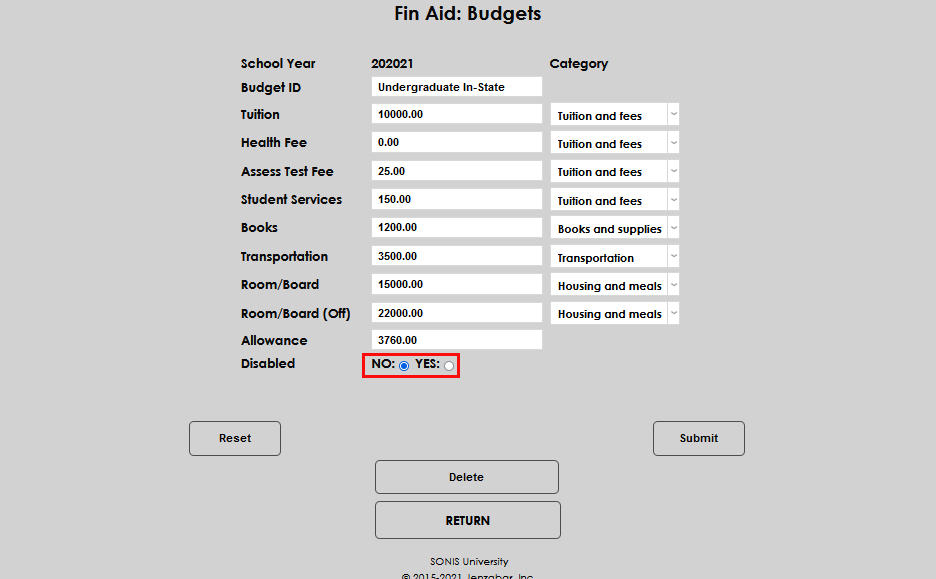
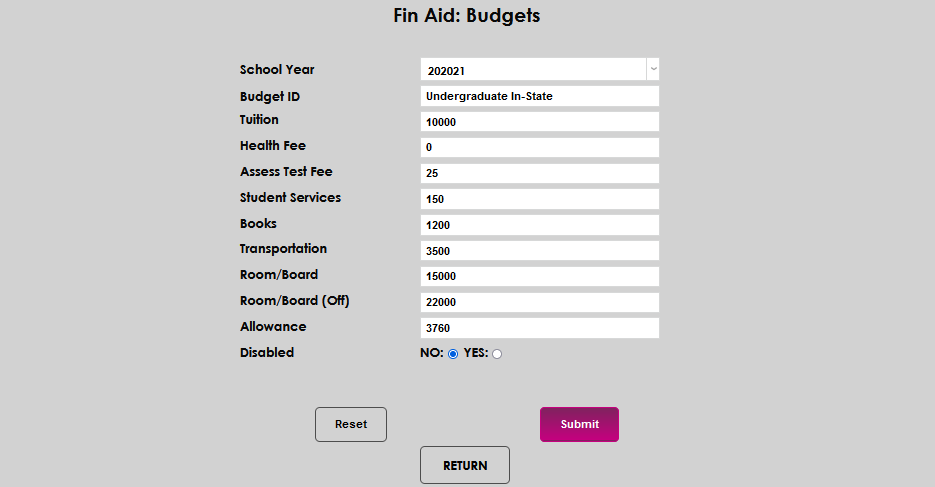
Select Submit to save.
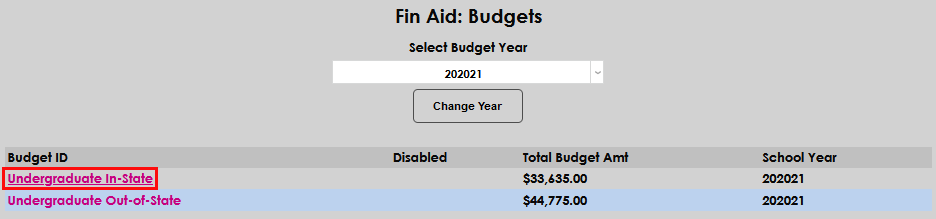
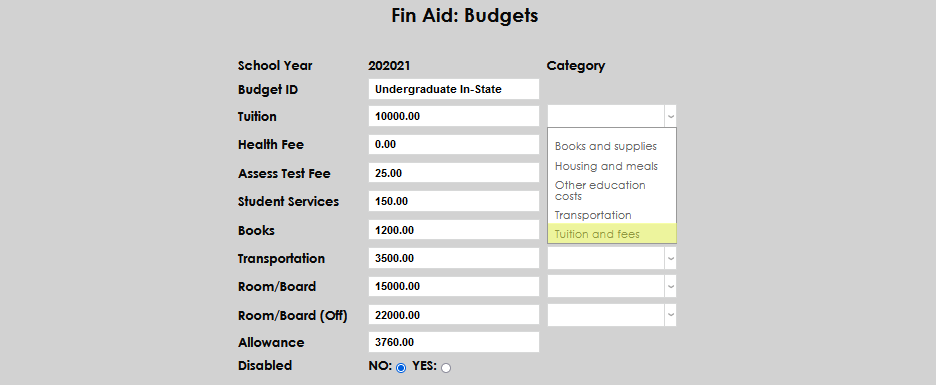
After the budget has been created, or if an existing budget will be used for the College Financing Plan, Department of Education College Financing Plan Cost of Attendance categories will need to be assigned to each budget component. Click on the Budget ID.
In the Category dropdowns, assign the appropriate Department of Education category to each budget component. If no category is assigned, the budget item will not display on the College Financing Plan report. When all categories are assigned, select Submit.
Award Code Setup
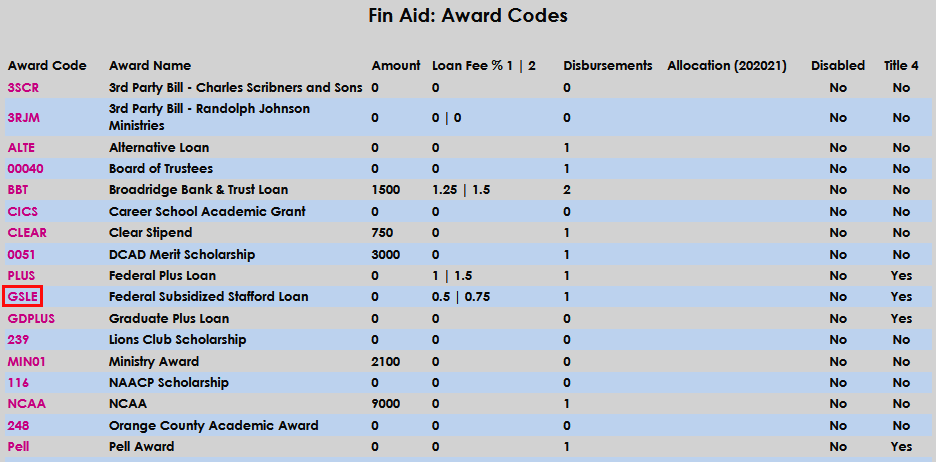
Scholarships, grants, and loans will only display on the College Financing Plan report if the Include on CFP Report block is checked on the Award Code setup page. Each Award Code that will display on the College Financing Plan must be set up. If duplicate Award Codes are setup to display, the report will combine the duplicate Award Codes and display the combined amount in the same field. Navigate to Fin Aid: Award Codes from Systems and select an Award Code to begin the set up.
To allow the awards to appropriately display in the various award type areas on the College Financing Plan, the Award Type must be defined. Select the appropriate value for each award code from the Award Type dropdown. If the award is incorrectly defined, it will not display in the correct place on the report. The options are:
1. Scholarships from your school - PrivScl
2. Scholarships from your state - StatScl
3. Other Scholarships - OtherScl
4. Employer Paid Tuition Benefits - Employer New with SONIS 3.7
5. Federal Pell Grant - Pell
6. Institutional Grant - Institutional Grant New with SONIS 3.7
7. State Grant - StatGrant New with SONIS 3.7
8. Other Grants - OtherGrant New with SONIS 3.7
9. Federal Direct Subsidized Loan - SubLoan
10. Federal Direct Unsubsidized Loan - UnSubLn
11. Private Loan - PrivLoan
12. Institutional Loan - Institutional Financing
13. Other Loans - OtherLoan New with SONIS 3.7
14. Parent Plus Federal Loan - ParentPlus New with SONIS 3.7
15. Work Study - Campus
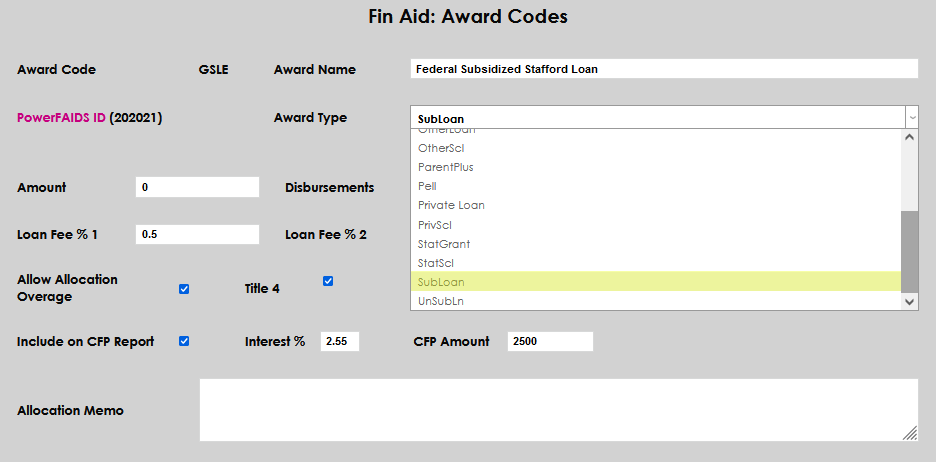
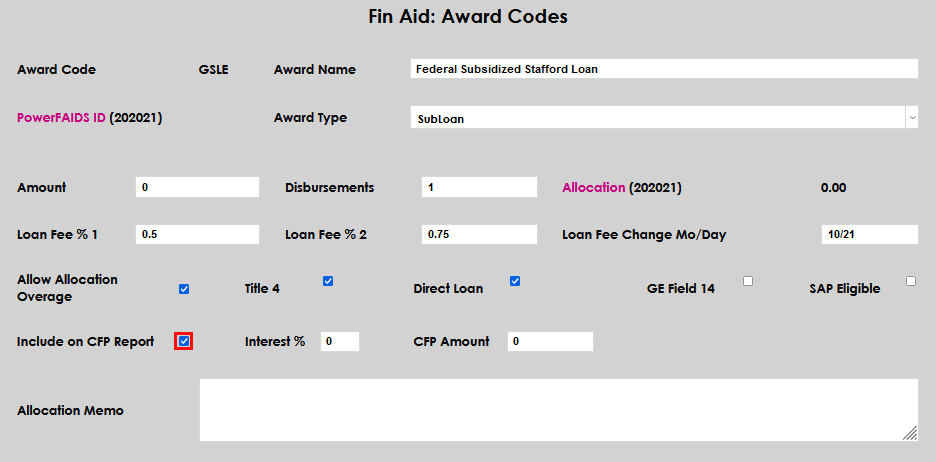
Check the Include on CFP Report to allow the award to be used in the College Financing Plan report. Every award that will be used with, or displayed on, the report must have this flag set.
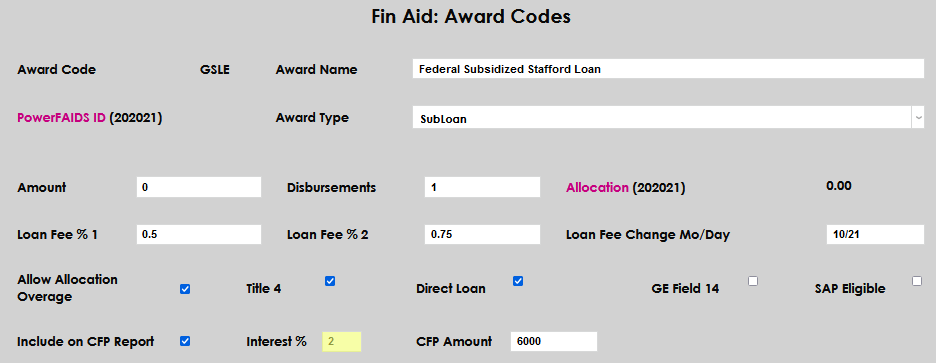
If the Award Code is a loan, enter the interest rate that should display on the College Financing Plan report in the Interest% field.
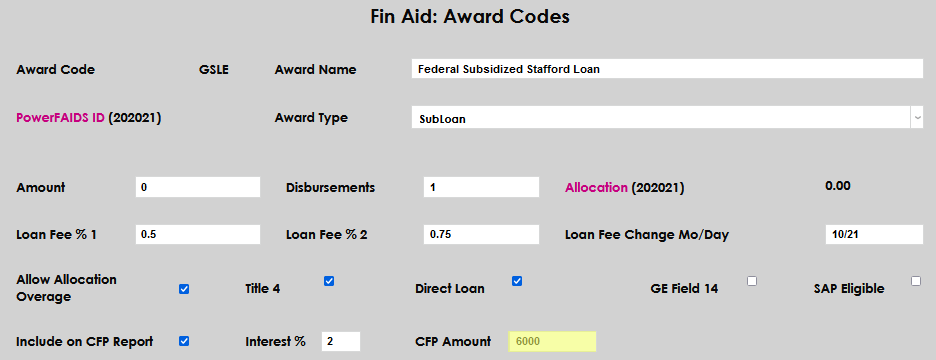
Enter the greatest amount that a student could receive and that should display on the College Financing Plan report in the CFP Amount field. This may be the same or different than the value in the Amount field, depending on the institution's practices.
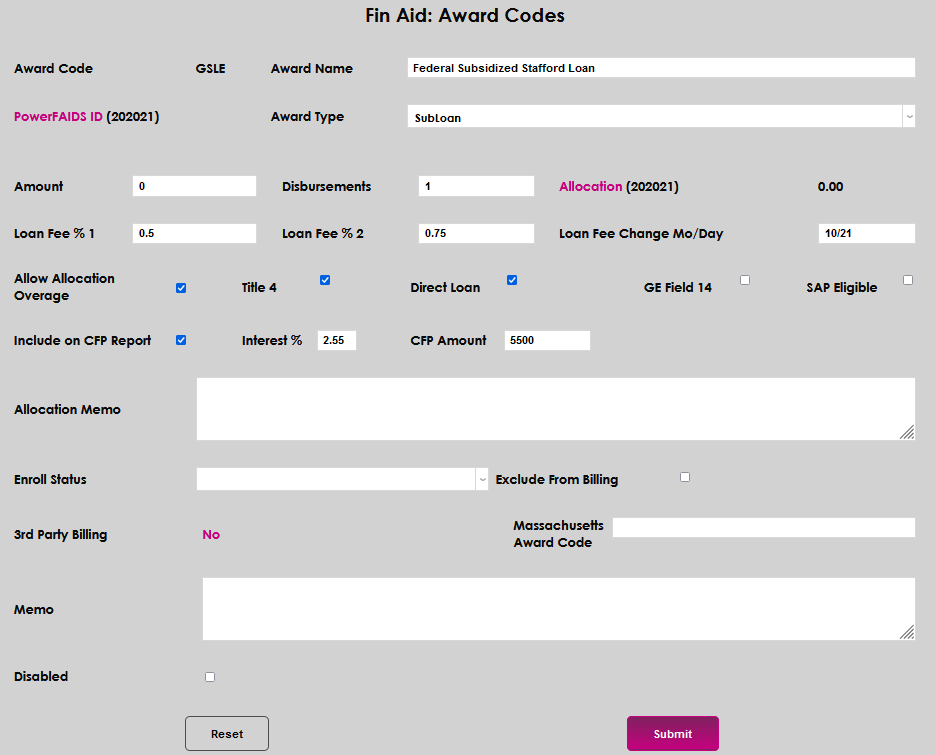
Select Submit to save.
College Financing Plan Setup
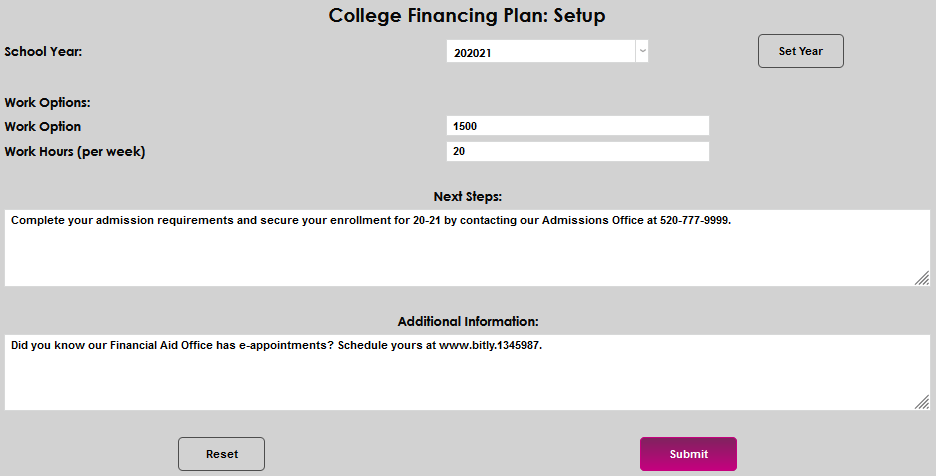
The last area that must be setup is the College Financing Plan: Setup page. Navigate to it from Systems. Select the School Year from the dropdown menu and click Set Year. Each year that the College Financing Plan will be used for must be set up.
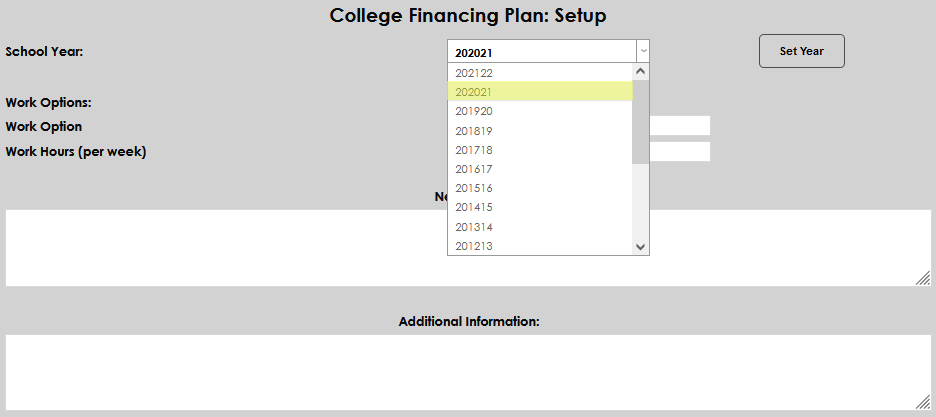
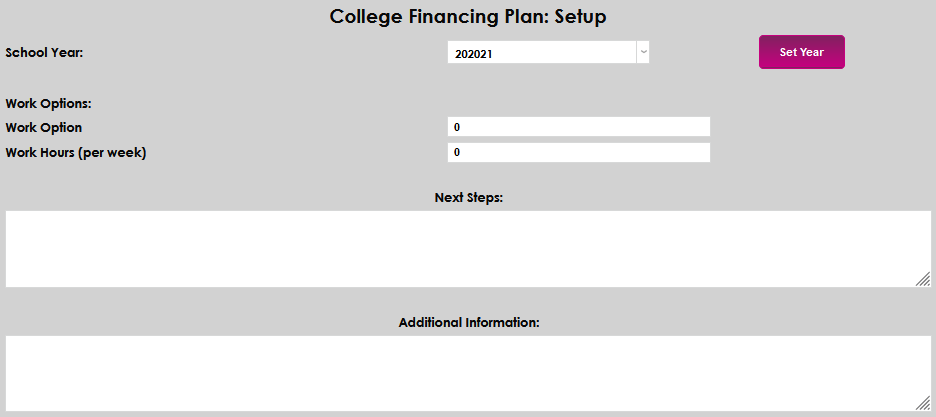
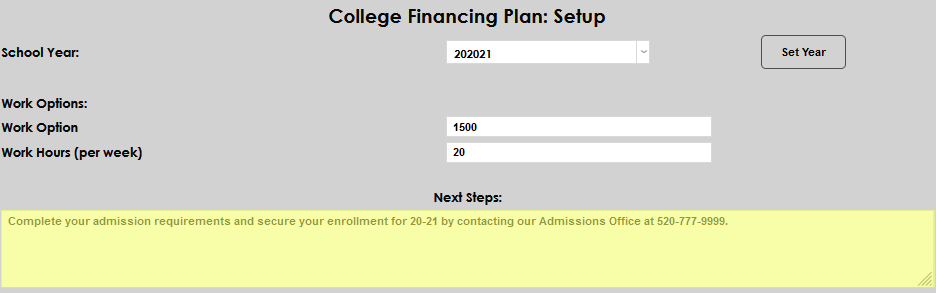
If the institution offers College Work Study, complete the Work Options fields. Federal Work Study will be included if it was set up in the Award Types. The amount that may be earned per year is entered in Work Option and the average or maximum number of hours per week may be included in the Work Hours (per week) field. Seven characters are allowed in Work Option and 8 in Work Hours (per week). No special characters like dollar signs are accepted, but a decimal point can be used if needed.


Applicant and student instructions may be entered in the Next Steps field.
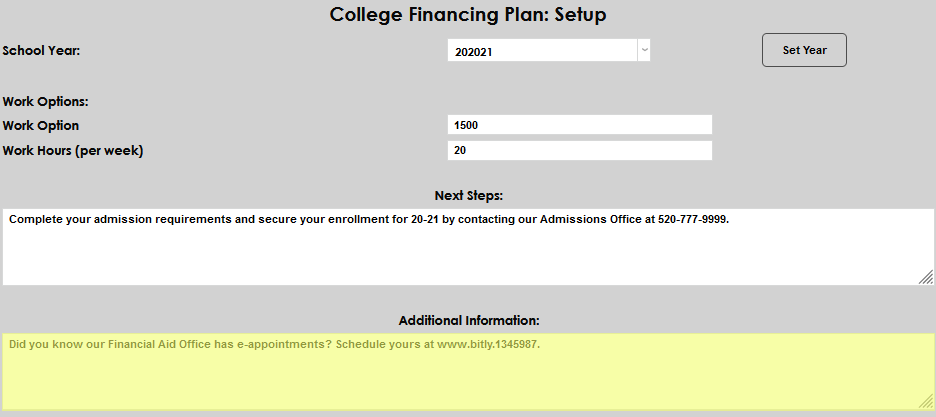
Any other information that should be shared with an applicant or student may be entered in the Additional Information field.
Click Submit to save the entries.
Running the Report
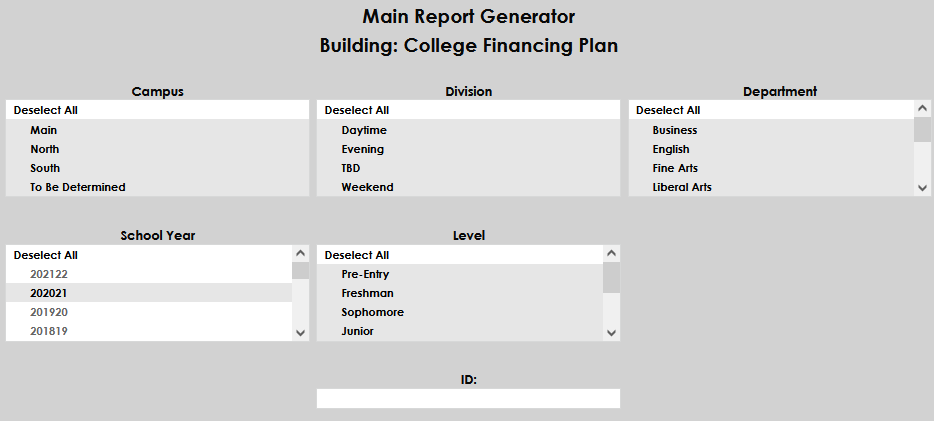
From the Reports hub, select College Financing Plan. The report can be run by Campus, Division, Department, School Year, Level, and ID, or a combination of these options. The values that display in each dropdown are specific to each SONIS member institution's setup and use. After choosing the desired options, select Build Report. This information is also available on the FA: College Financing Plan report page.
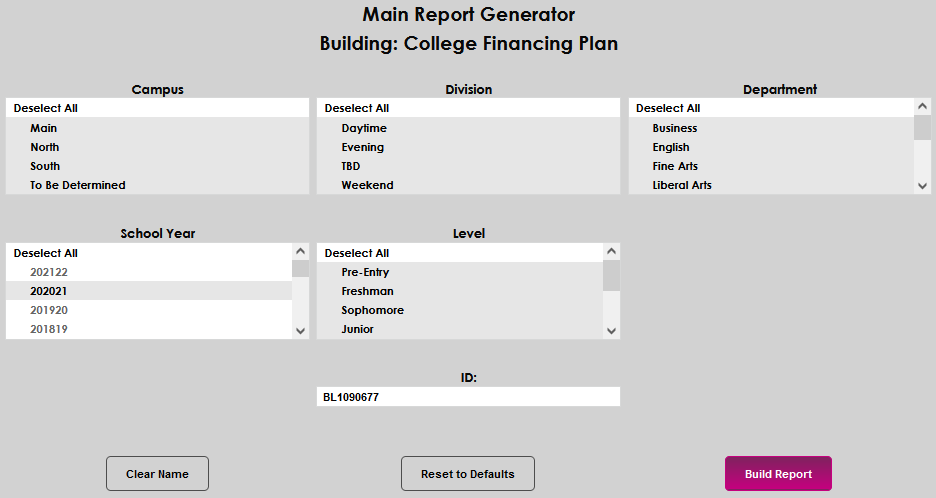
On the College Financing Plan screen, select Preview Report. The requested report will open in a separate window. When the report is displayed, it can be printed for handing or mailing to a recipient, or a screenshot may be taken and electronically mailed.