Jenzabar SONIS Version 3.4 PowerFAIDS Updates
Overview
Based on client feedback, Jenzabar SONIS product development made a number of enhancements to the way PowerFAIDS interacts with the SONIS system. These changes were released as part of the 3.4 product update.
Anticipated Awards Import Adjustments
When awards are imported to SONIS through PowerFAIDS, they're listed as Anticipated Awards. Previously, changes could only be made to these award totals prior to disbursement. Now, users can add "adjusting awards" that update the disbursement total.
If awards being imported from PowerFAIDS via the PF - Anticipated Awards utility under the Financials menu match previously disbursed awards, they'll be listed as Awards Already Disbursed and the system will offer to import them as adjusting awards.
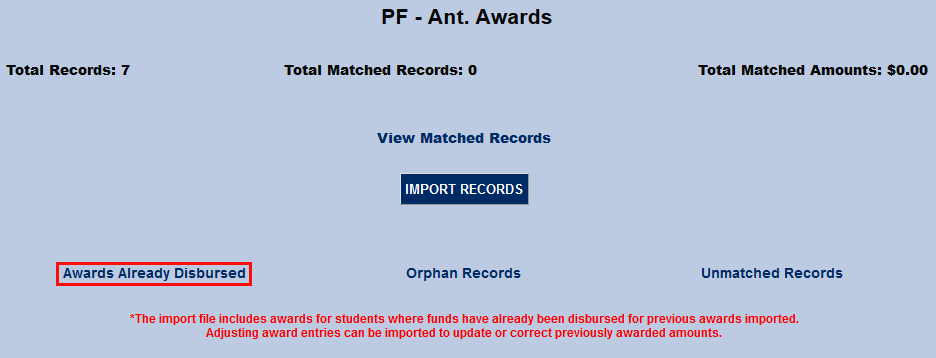
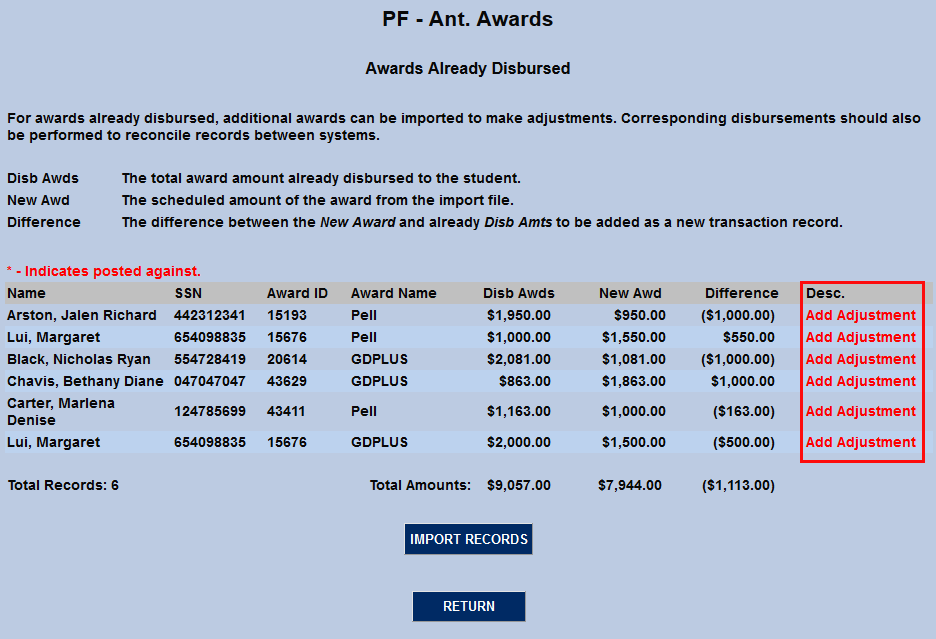
Click Import Records to import this data as adjusting awards to correct disbursement totals.

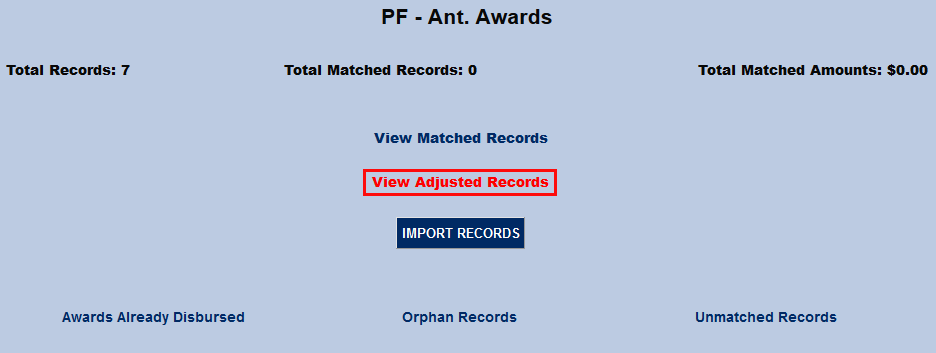
After adjusting awards have been imported, a new link is added to the primary page allowing users to view those adjustments.
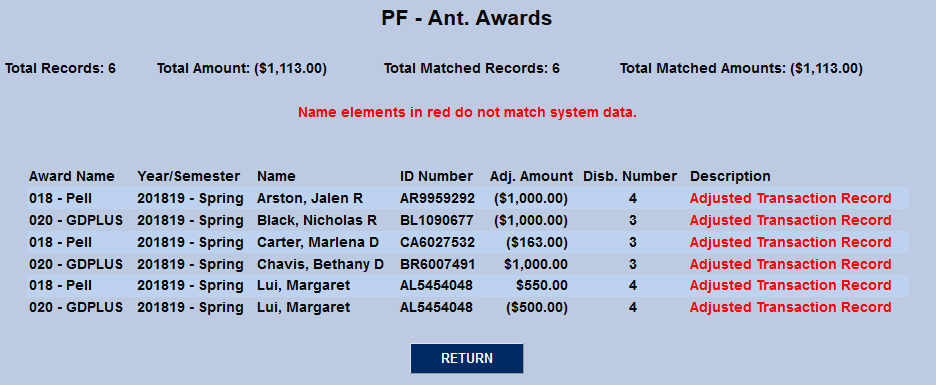
The import of the anticipated awards adjustment is immediately reflected on the student’s bill. Users can import as many award adjustments as needed. With each import, a summary of monies already disbursed and adjustments that will be added to students’ records is provided.
Code for SONIS Applicant Dispositions
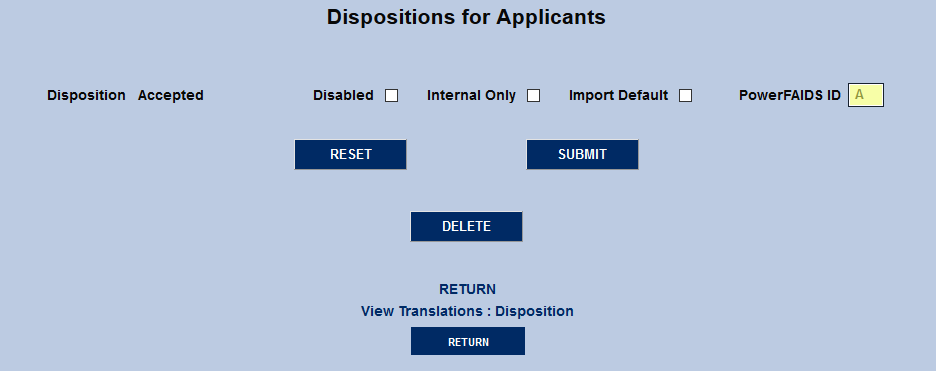
The Jenzabar SONIS disposition table holds a full-length description of the disposition. PowerFAIDS, however, only accepts a single-letter code. The SONIS product development team added a blank field that institutions can use to enter a single-letter mnemonic for PowerFAIDS export.
To use the mnemonic, navigate to the Dispositions for Applicants page under the Systems menu and edit the Disposition types.
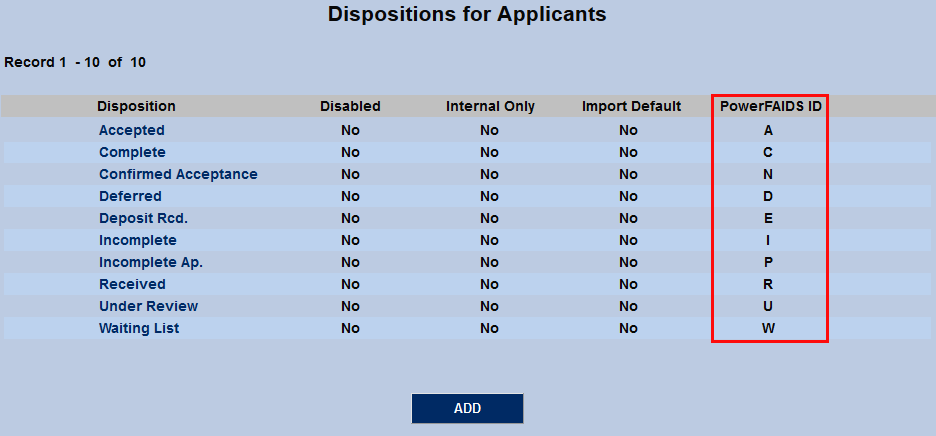
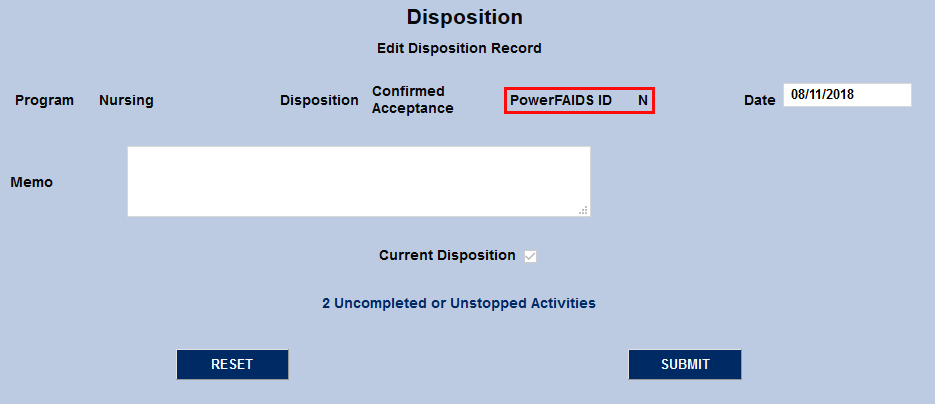
The code appears on each applicant's Disposition page as well.
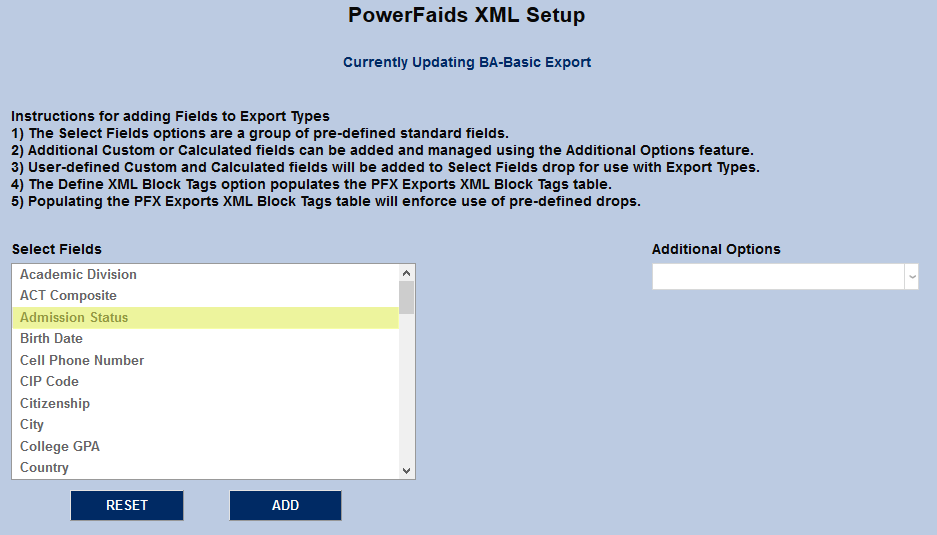
The Disposition PowerFaids ID, is also a standard, pre-defined export field available on the PowerFAIDS XML Setup page. The export of this field, Admission Status, is based on an individual’s Current Disposition record. Note that if no current disposition record is defined, no related information will be included in the PF-XML Export file.
Loan Disbursement Fee Change
When students are awarded federal loans, the fees can change during the course of an academic year. Previously, SONIS only allowed one loan fee to be assigned for all disbursements. An addition field has been added on the Award Codes page allowing users to specify the month and day of the fee, thus accommodating accurate loan fee percentage calculations when there is a change in the loan fee percentage during the academic year.
If the fee for a loan is set to change during the academic year go to the page for the loan in question and enter the second fee in the Loan Fee % 2 field.
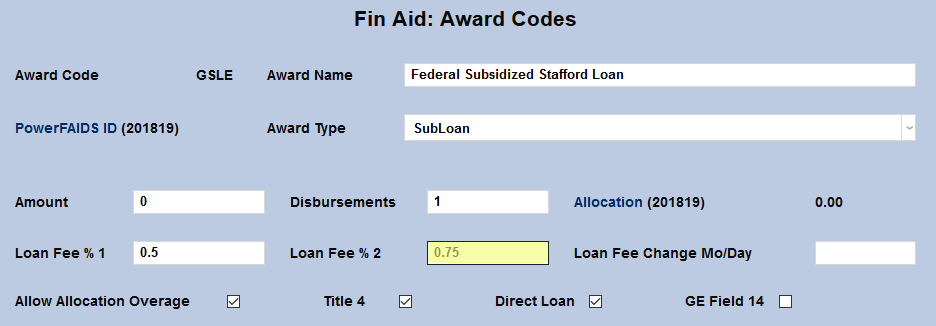
Enter the numerical month and day that the loan fee changes in the Loan Fee Change Mo/Day field.
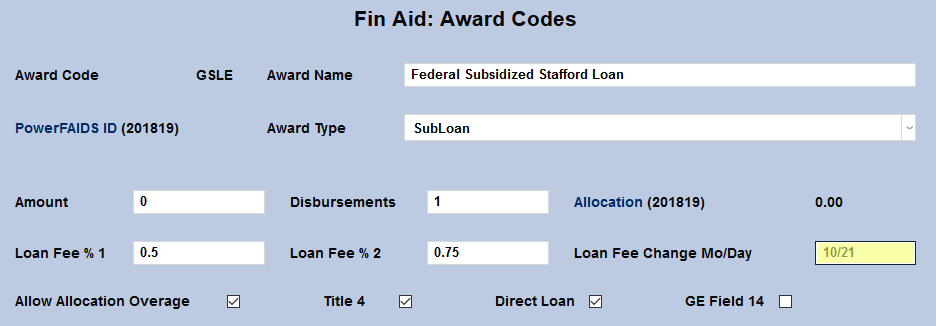
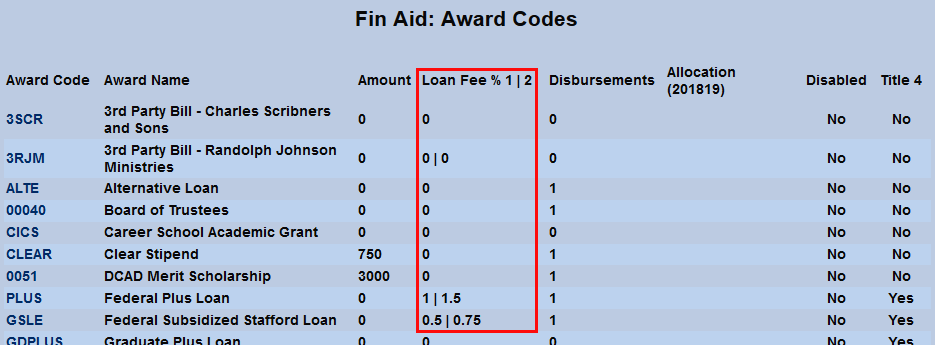
Both fees will be listed on the Award Codes summary page.
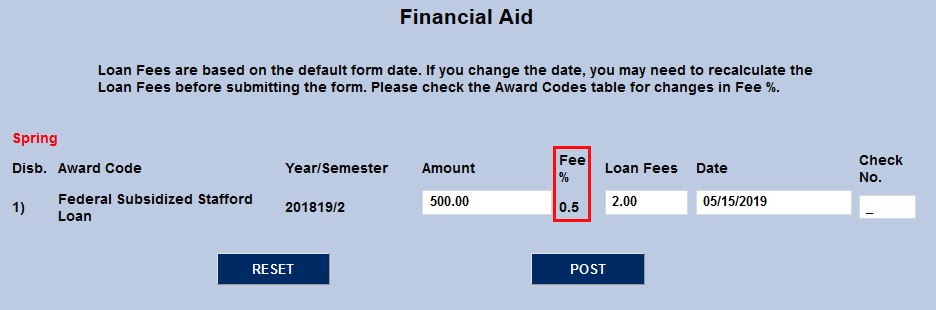
When Assigning Awards from the Financial Aid page, the current fee percentage automatically charged will be listed. However, if the Date is changed to a future date with a different fee, the fee percentage will not automatically change and the fee must be manually adjusted.
When an award is imported through the PowerFAIDS – Anticipated Award utility, the process will compare the Scheduled Date month/day from the import file to the Loan Fee Change MM/DD on the related award record to determine the Loan Fee % to be used for each student during the import process.
XML Tagging for Exports Addition
In previous versions of SONIS, the SONIS XML Export to PowerFAIDS process allowed users to specify which PowerFAIDS field each exported data element should be written to using XML tagging. This capability was removed in a recent SONIS version upgrade and, instead, corresponding PF fields were defaulted. Beginning with SONIS 3.4, the XML tagging feature has been added back for enhanced customization.
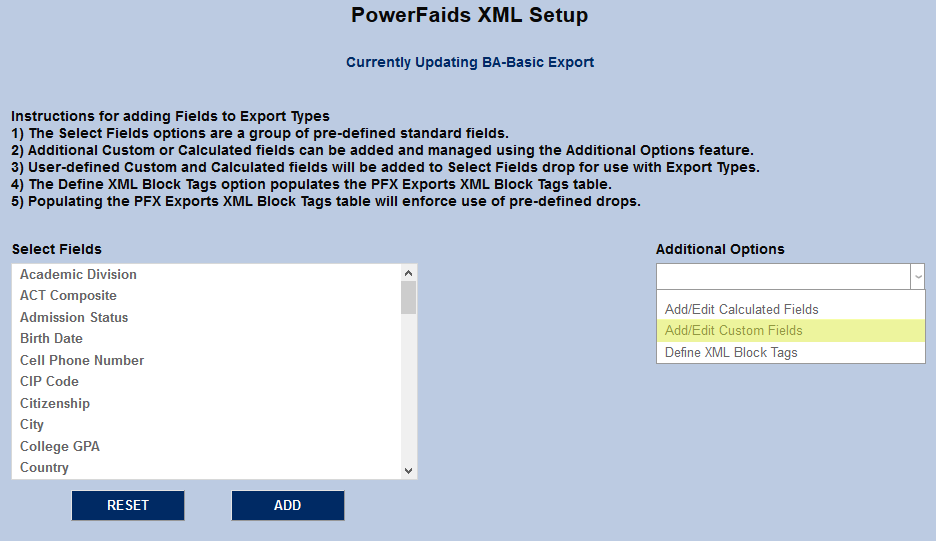
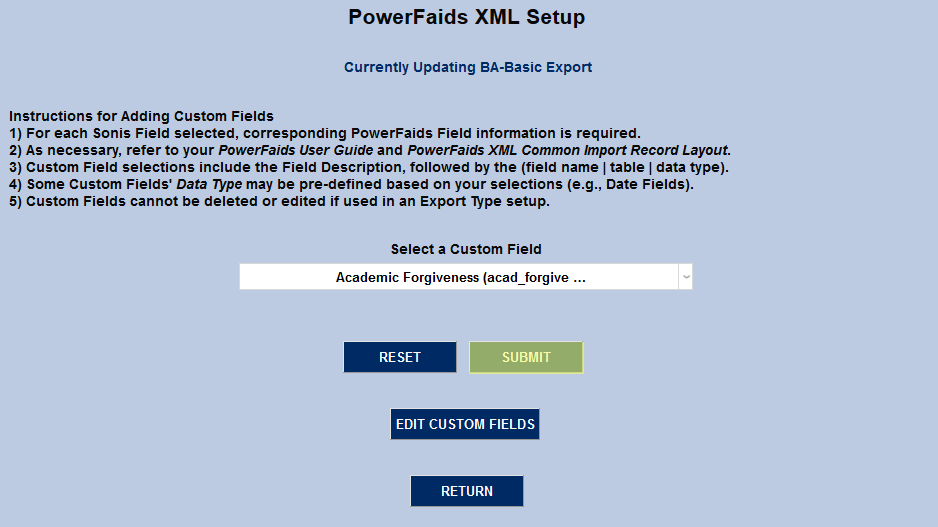
To create and edit custom XML files, navigate to the PowerFAIDS XML Setup utility and select Add/Edit Custom Fields from the dropdown menu on the left.
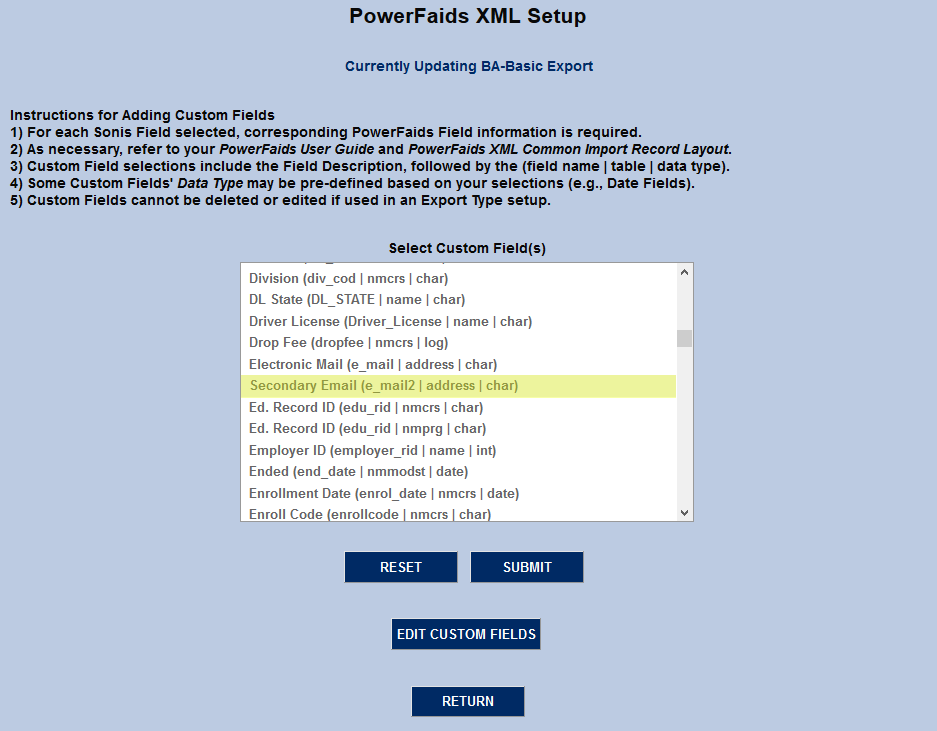
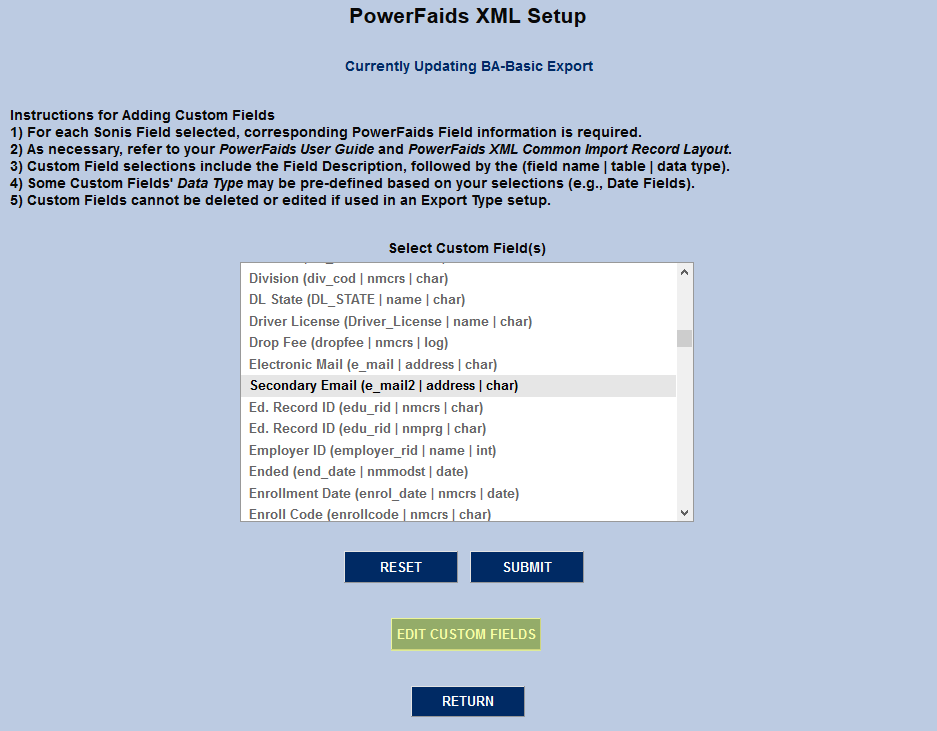
Select a Custom Field from the menu and click Edit Custom Fields.
XML Block Tagging Enhancement
With the reintroduction of user-defined XML tags, it was identified that a user could accidentally create incorrect XML Block Tags and associated XML Tags. A new table associates predefined XML block tags with XML tags to make the process run smoother and prevent errors.
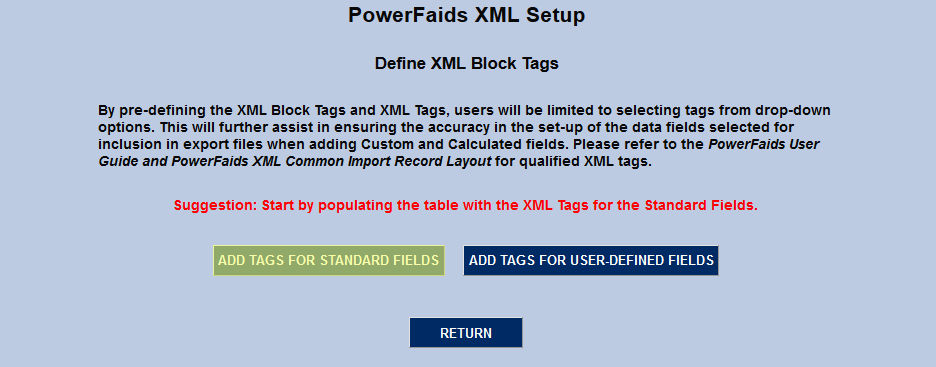
To create and edit block tags, navigate to the PowerFAIDS XML Setup utility under the Systems menu and select Define XML Block Tags from the dropdown menu on the left side of the page.
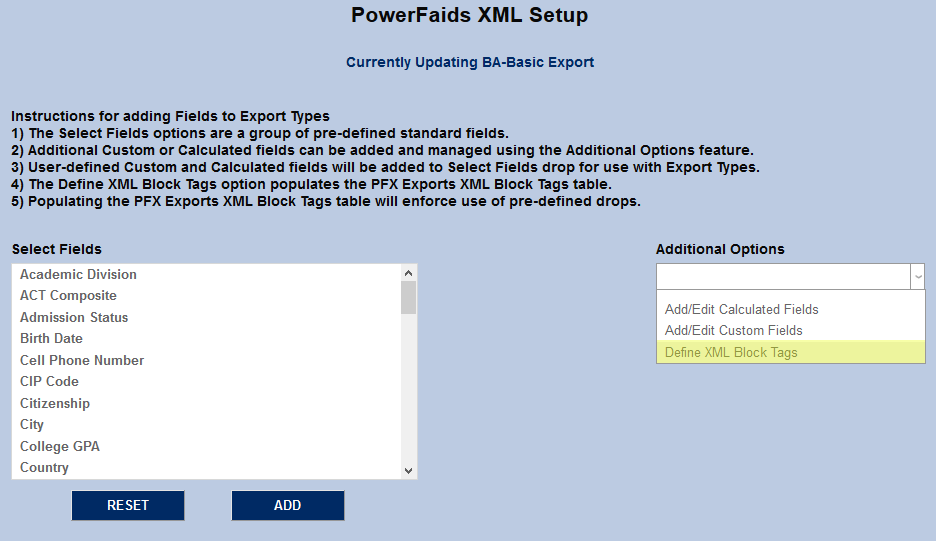
Upon selecting this option, users can proceed with adding their own custom XML tags or begin by adding the XML tags for the standard fields already defined for use with the exports. The latter is preferable and will lend itself to improved accuracy in the export file creation process.
Warning
If user-defined field tags are added to the XML Block Tag table, without having added the standard fields tags, the option to Add Tags for Standard Fields will no longer be available as an option. As such, it is highly recommended that the Standard Fields Tags be added first.
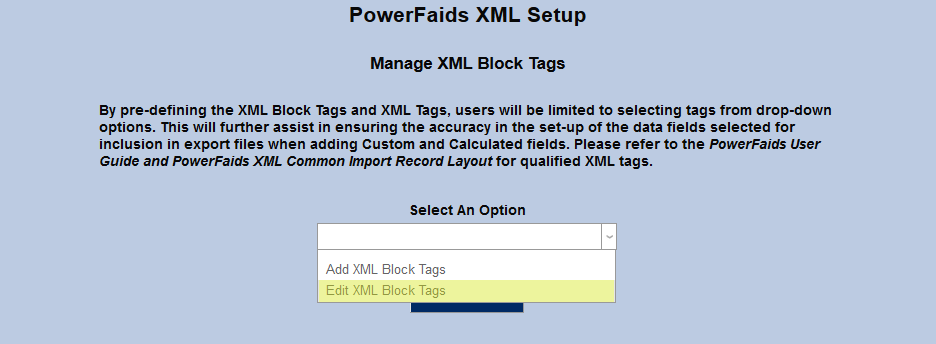
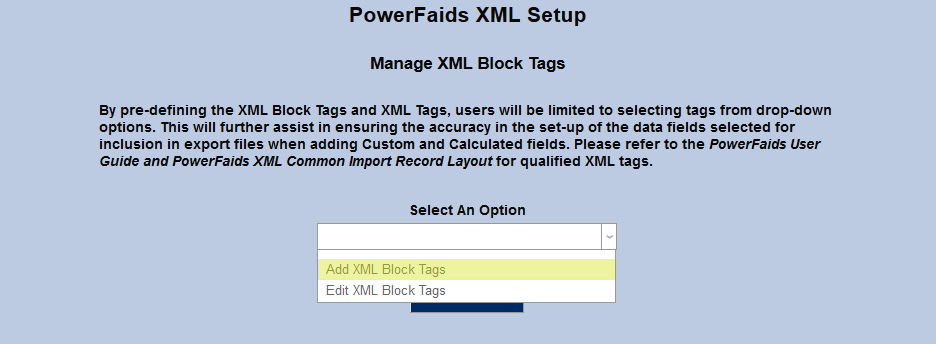
On the following page, administrators can choose to Add XML Block Tags or Edit XML BLock Tags.
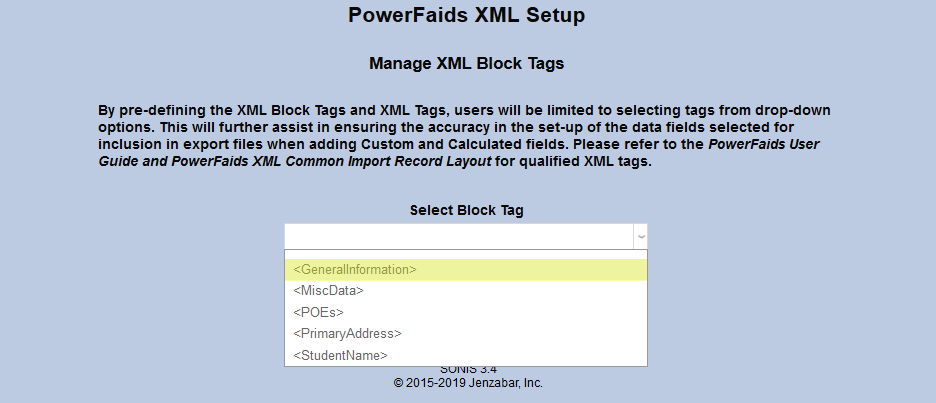
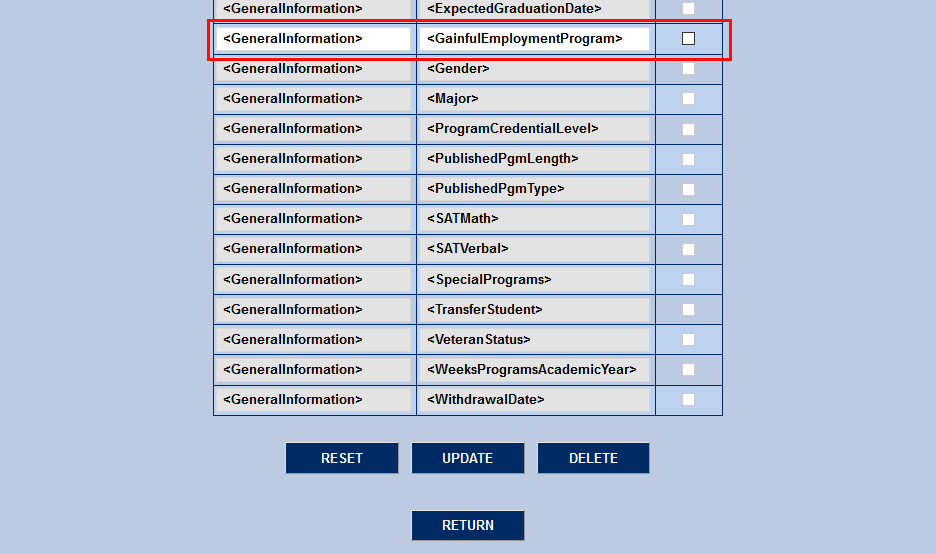
Choosing the edit option will bring up a list of existing block tags. Select a block tag to make edits.
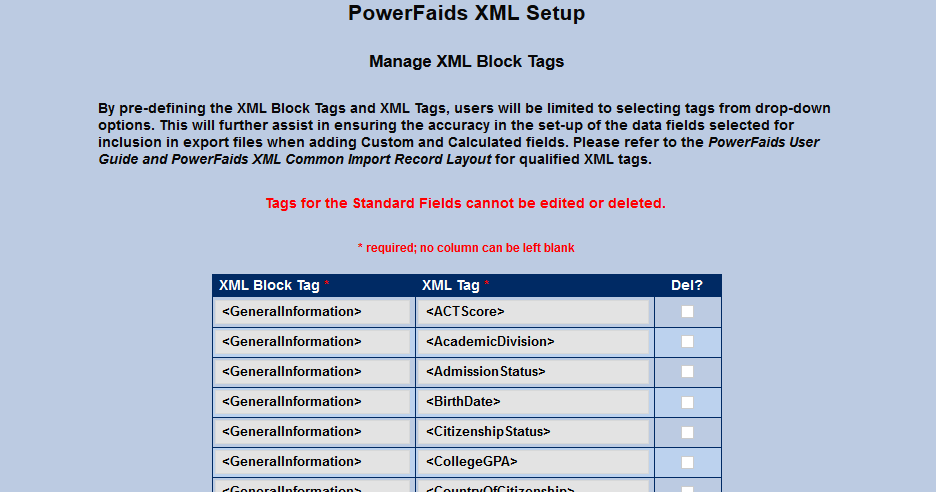
Selecting a block tag category provides a list of the XML block tags and associated XML tags that are now available in the table and for use in custom and calculated fields.
Using the Add XML Block Tags option, users can add their own pre-defined tags. The XML Common Import Record Layout PowerFAIDS User Guide (Appendix C) should be used as a reference to ensure the additional of qualified tag pairs.
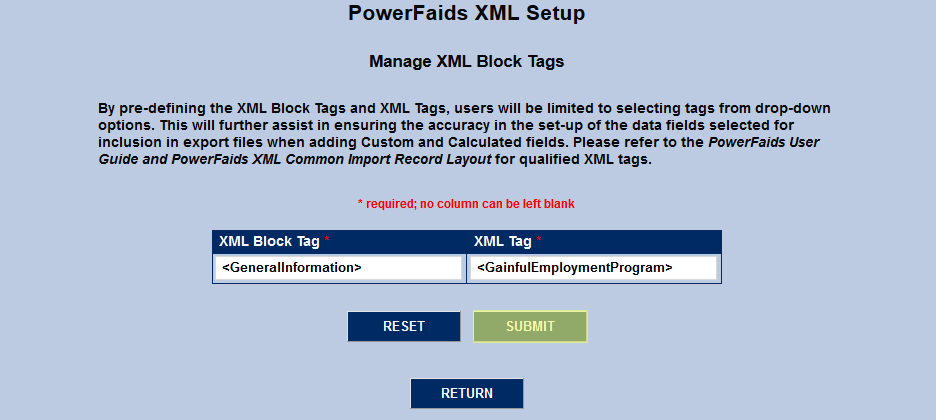
Once back to the Edit XML Tags option, the user-defined field is available and can be updated or deleted as desired.
Once any data resides in the XML Block Tags Table, users will no longer have the option to perform freeform data entry in to the tags fields when adding custom or calculated fields. The previous input fields will convert to drops, linking block tags to their associated XML tags.
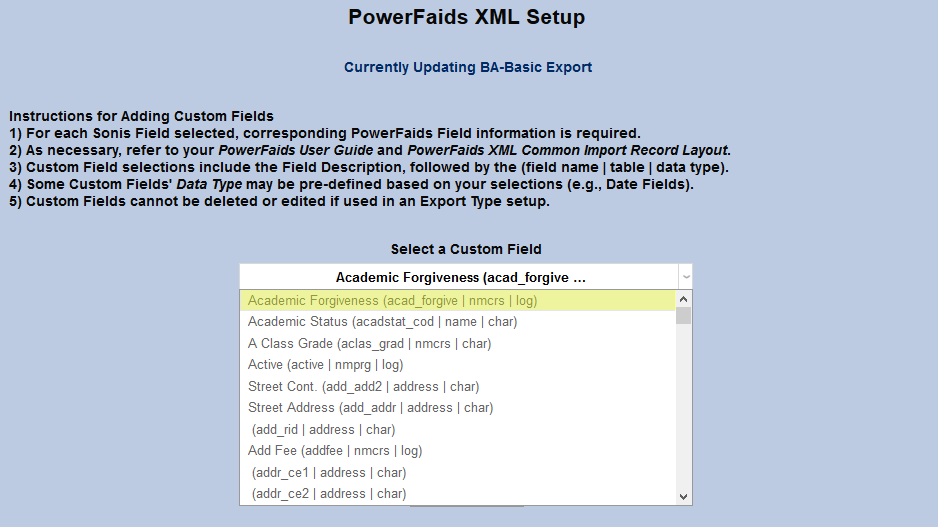
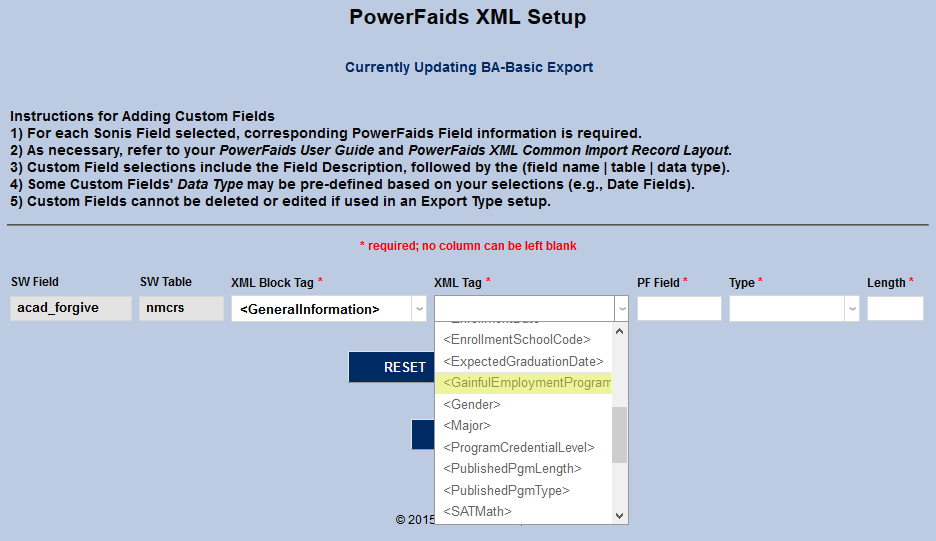
If the user changes the original XML Block Tag selection, the options available for selection in the XML Tag drop will also update. However, precautions should be taken to ensure that any change in the XML Block Tag will match the original SW Field and SW Table data originally selected for inclusion with the field.