Course/Degree/Program Association
Overview
The Course/Degree/Program Association utility, available within the Users hub, creates a list of all of the courses into which a student has enrolled, as well as the degree and program associated with each course. Generally, this is used when there is a new, or incorrect, association that needs to be changed prior to enrollment. Typically this occurs when the student has changed their degree or program between enrollment periods, or the student has graduated from one degree/program and is enrolling in a second degree/program. This utility is not useful unless students are assigned degrees and programs.
Viewing Current Associations
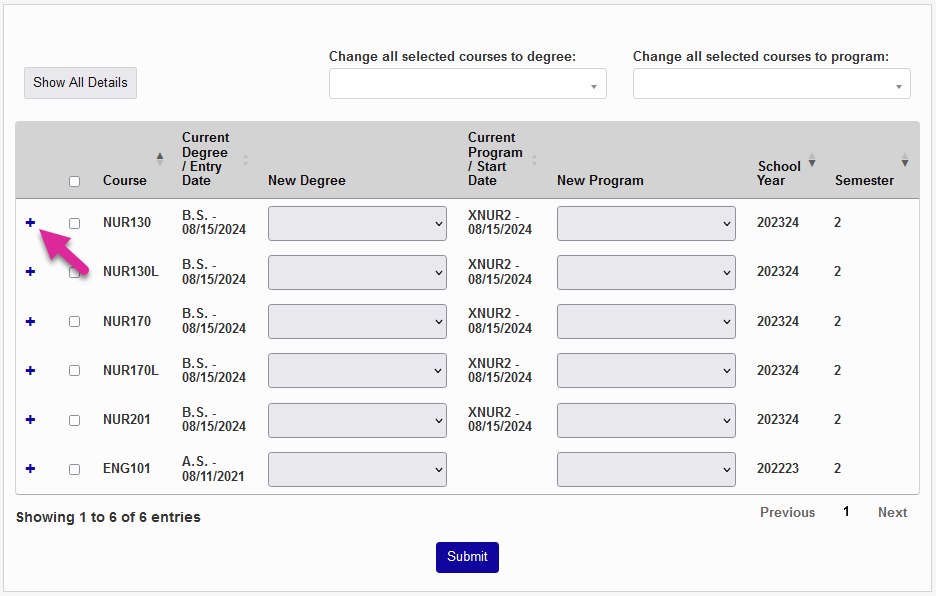
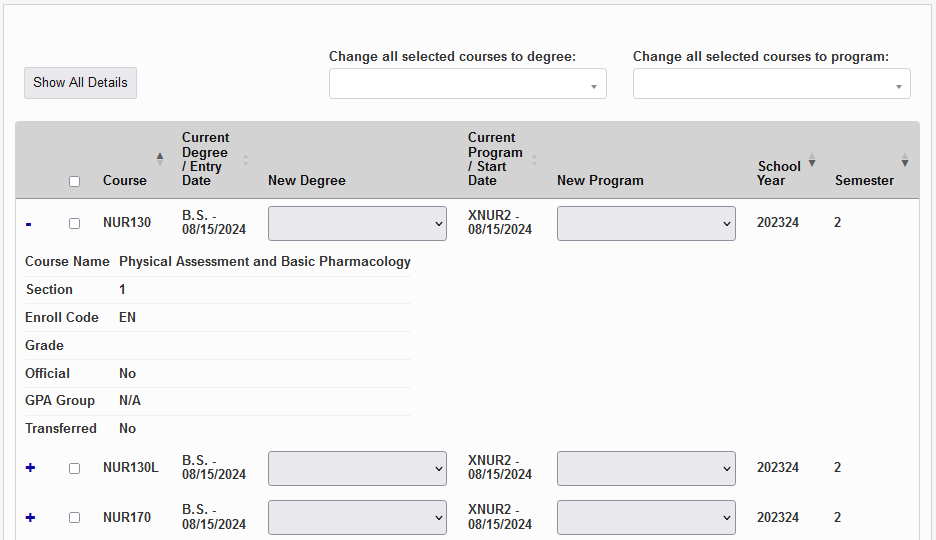
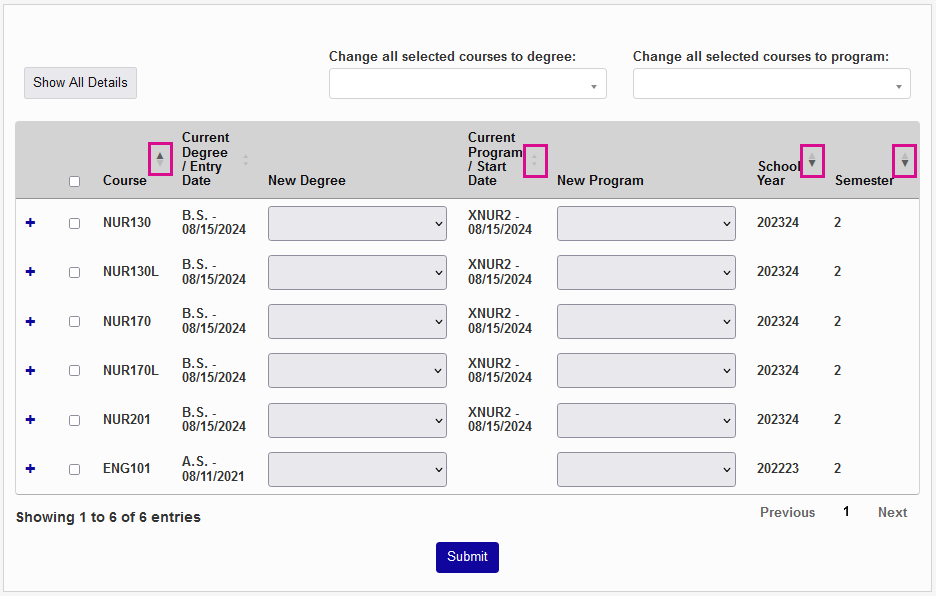
The Course/Degree/Program Association page lists all courses that the user has been enrolled in. You can see more details about a particular course by clicking the + button.
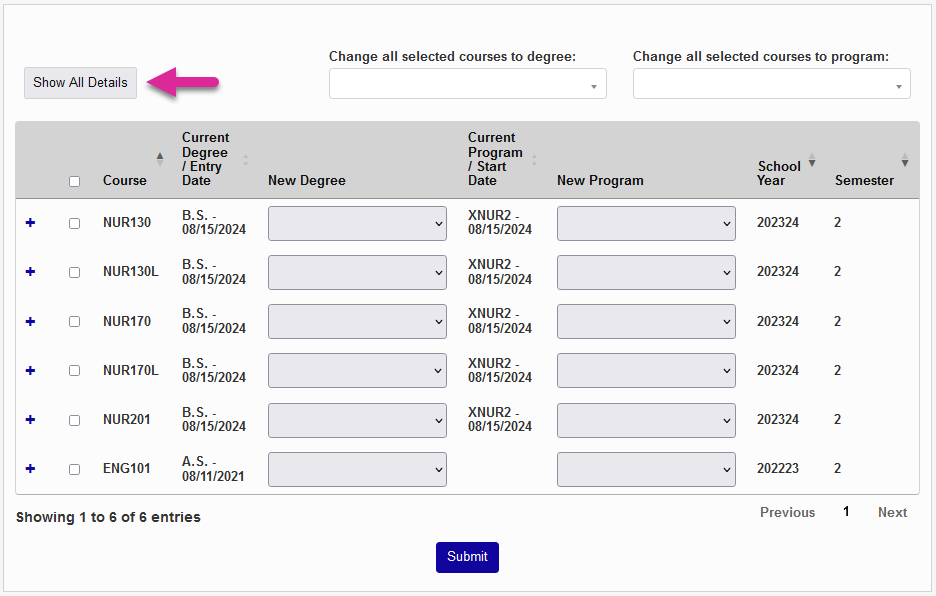
Click the Show All Details button to expand the menu of every course in the list or sort any column in ascending or descending order using the up and down arrow buttons for that column.
Changing Associations
Individual Changes
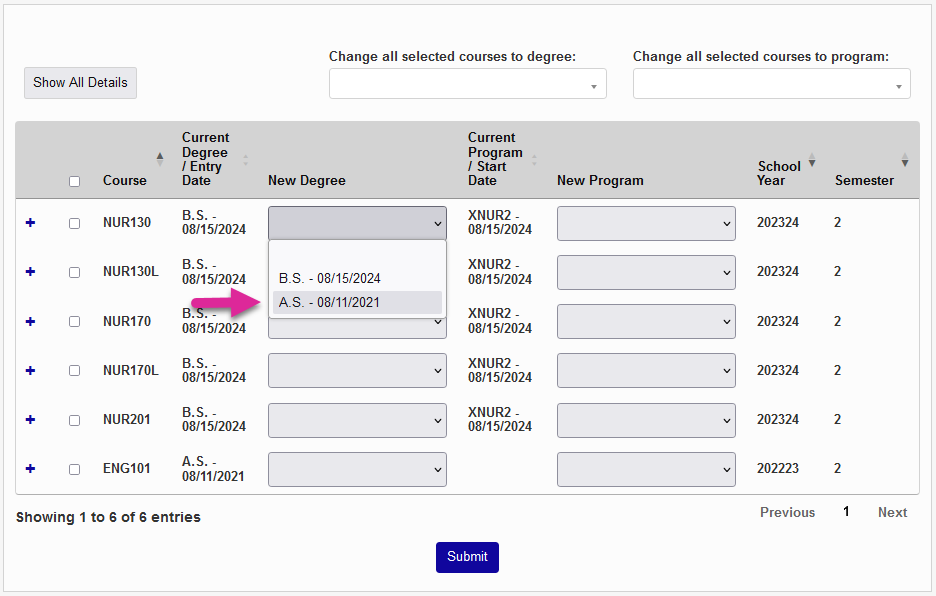
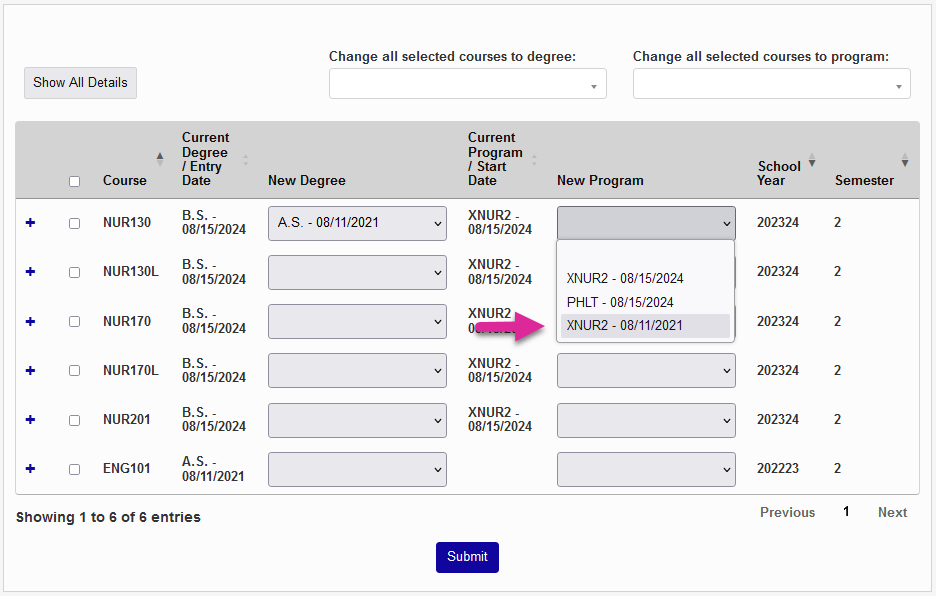
To change the degree and/or program associated with a single course, select a new degree and/or program from the dropdown menu associated with that course and click Submit.
Bulk Changes
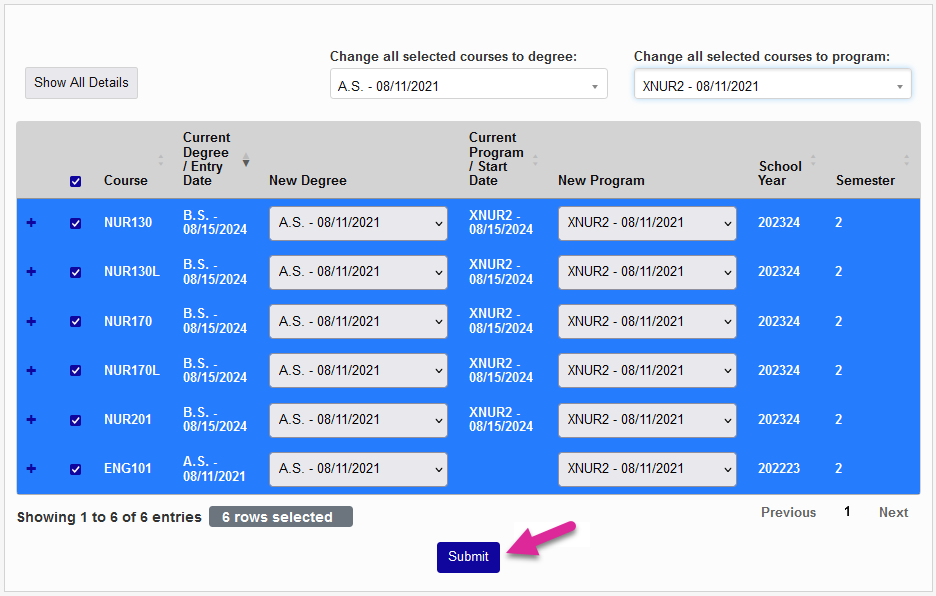
To change multiple courses at once, begin by selecting the courses that will be changed. You can check each box one by one or click the select all box at the top of the column to select every course.
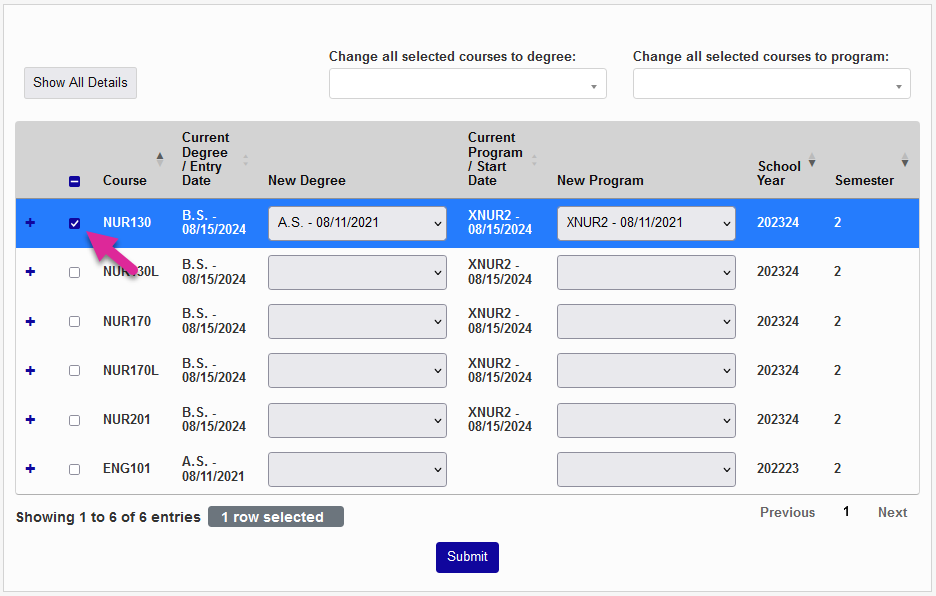
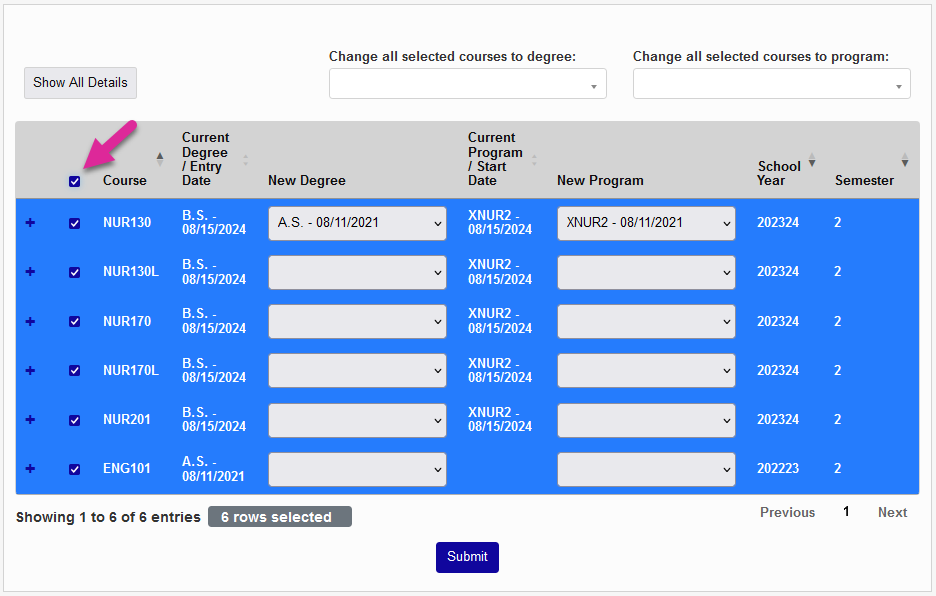
Next, use the menus at the top to select a new degree, a new program, or both.
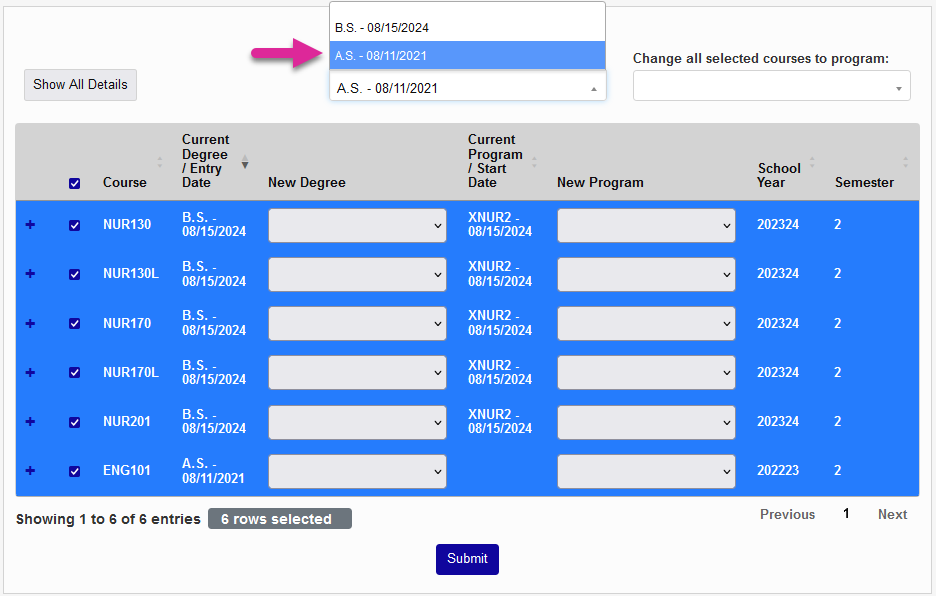
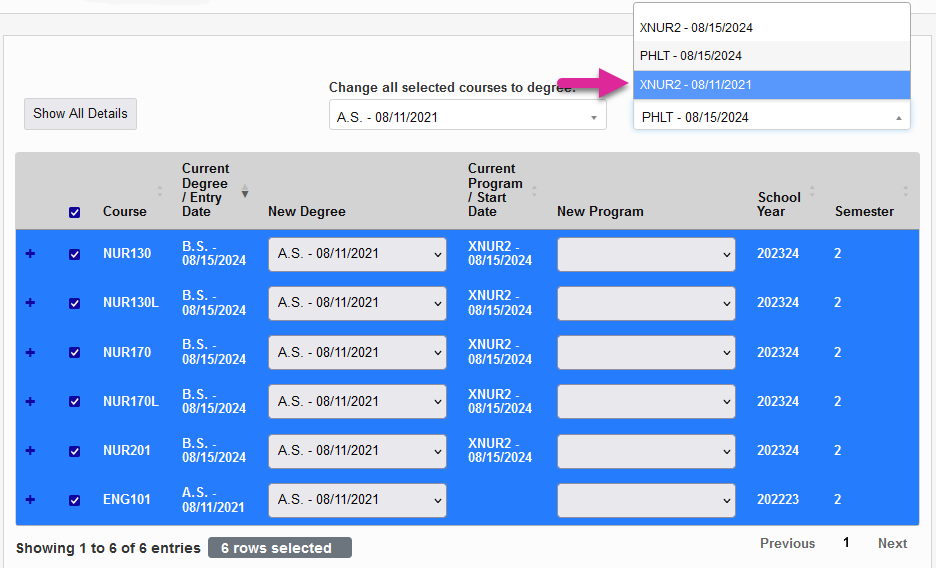
When a new degree or program has been selected, all of the dropdowns for the selected courses will update to match that selection. Click Submit to save the changes.