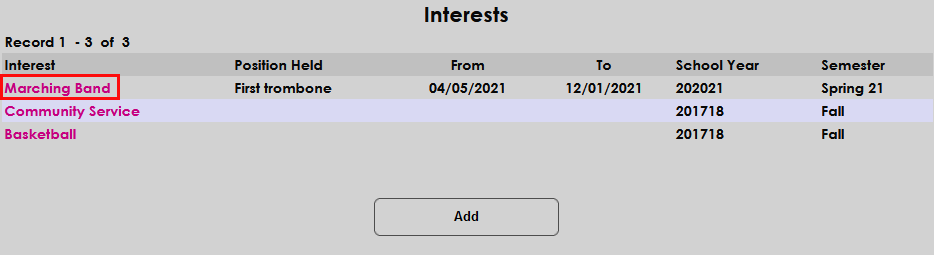
Interests
Overview
The Interests page, in the Users hub, allows entry of a user's interests or affiliation with an organization, for example, a sport or co-curricular activity. This could be used as a way to track a student's participation in a club or an alumni's support of a particular sport. Many institutions use this table as part of the application process to record information about applicants. The Interests are configured in Table Maintenance. Dates of participation, position held, and notes about the interest can be entered.
If the interest or organization relates to the activities of Constituents, such as those related to development or fund-raising, it is best practice to use the Cultivation Activities Table and/or the Events Table.
Setup
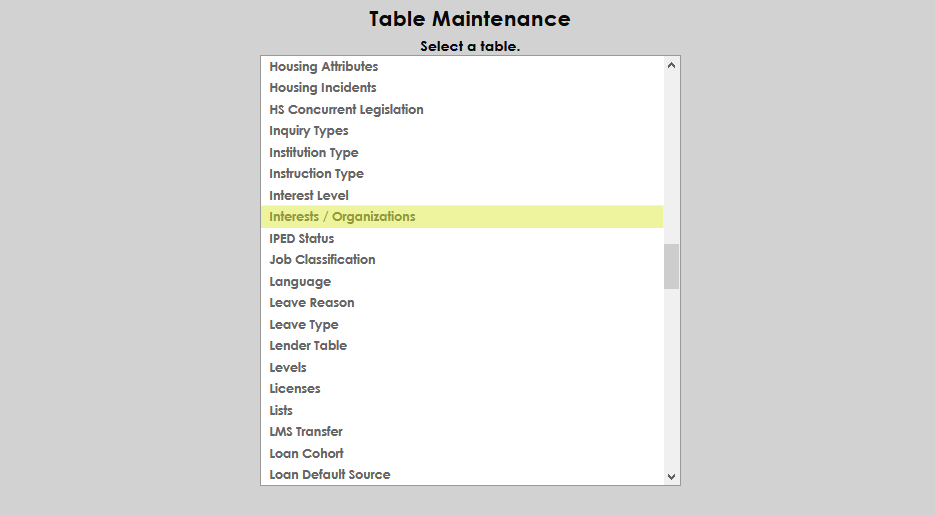
Navigate to Table Maintenance in the Systems hub to create interests. Select Interests/Organizations from the menu.
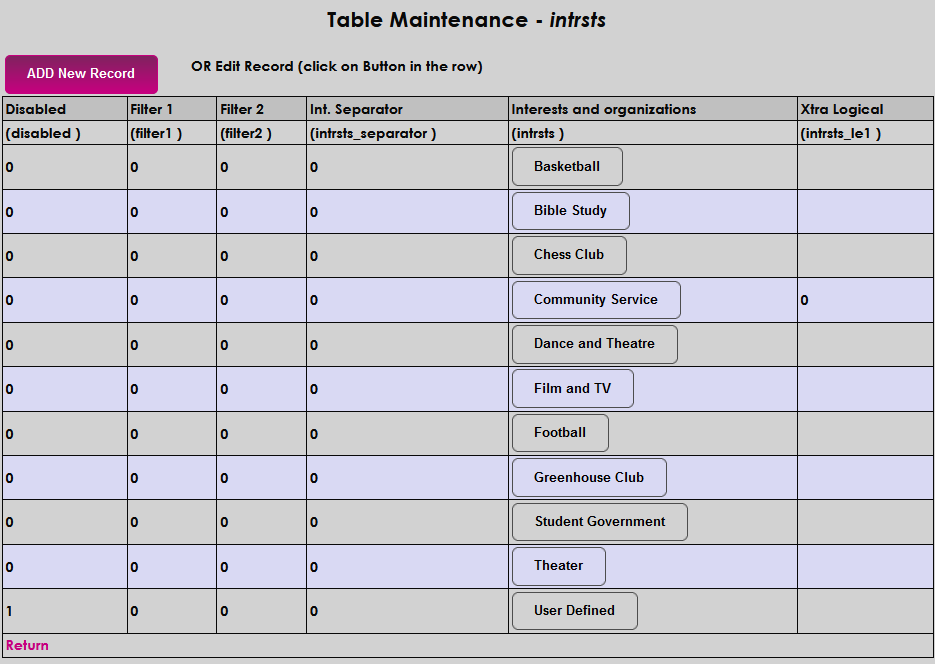
Click the Add a New Record button to add a new record.
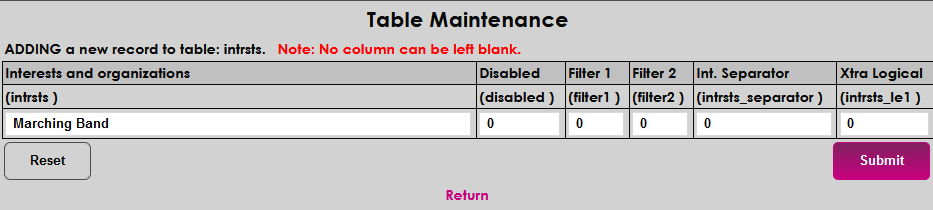
Create a name for the interest in the Interests and Organizations field. This field has a 50 character limit.
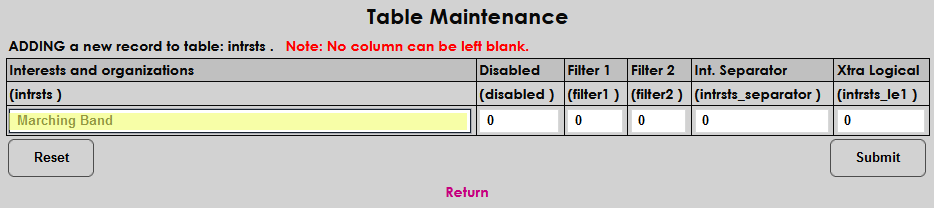
Leave a zero in the Disabled field to make the interest active. Place a one in the field to disable the interest. A disabled interest cannot be assigned.
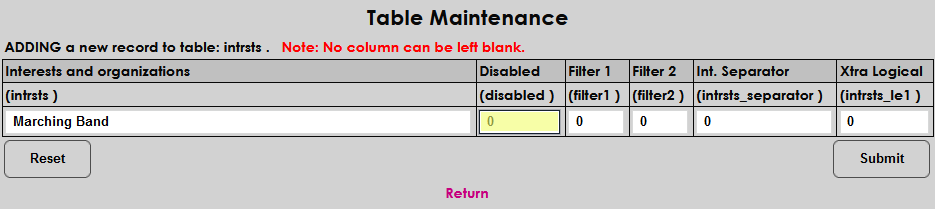
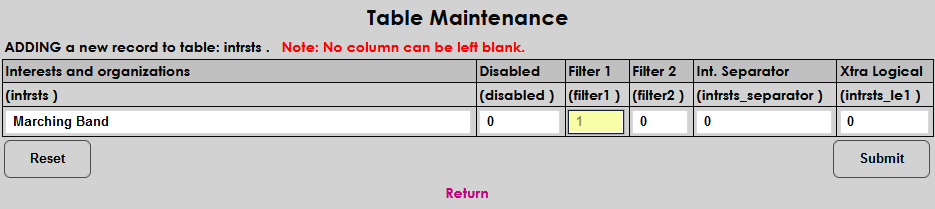
Place a 1 in the Filter 1 field to activate filter one and allow the Position Held field to display in the Plan of Study report. Filter 2 is not used at this time.
Additional Fields & Labels
The Interests Separator field is used to categorize interests by type. Enter a one to turn the separator on.
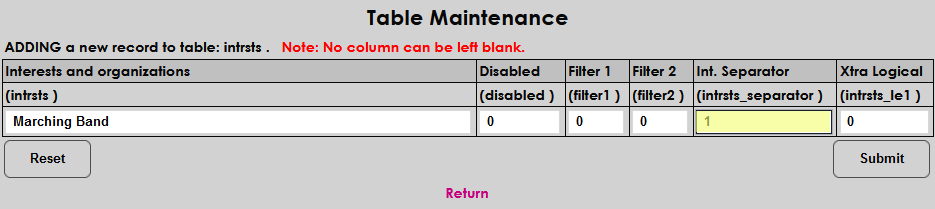
To create the text for the label, navigate to the Columns utility in the Systems menu.
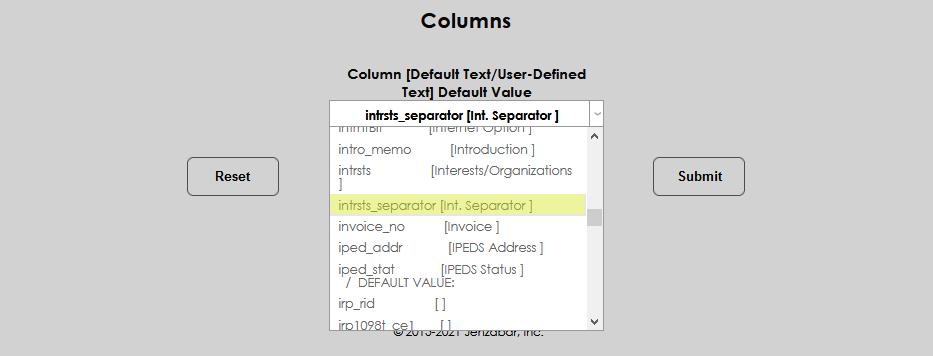
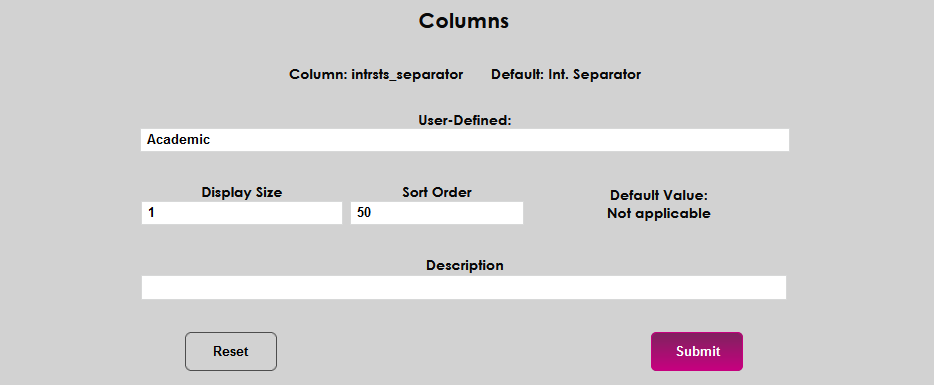
Enter the label name in the User-Defined field.
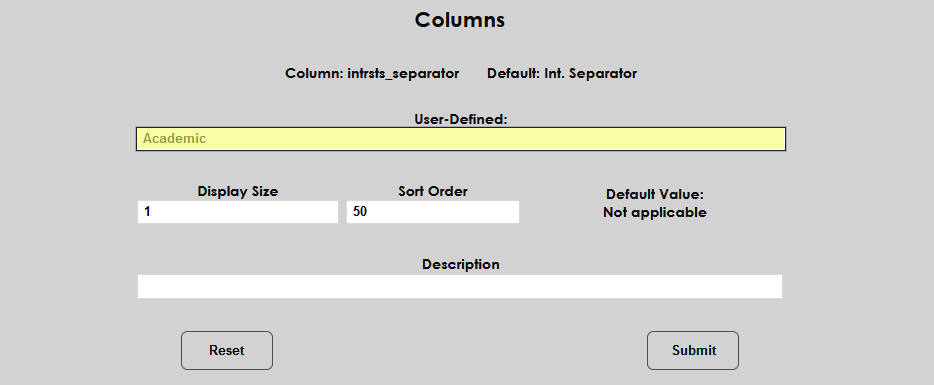
Click Submit to save the label.
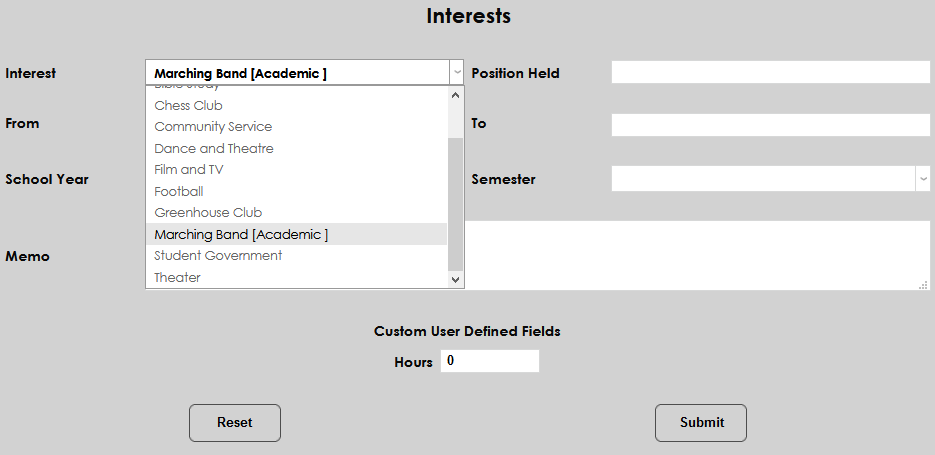
The label will now display in the Interest menu within brackets.
The Extra Logical field is not used at this time.
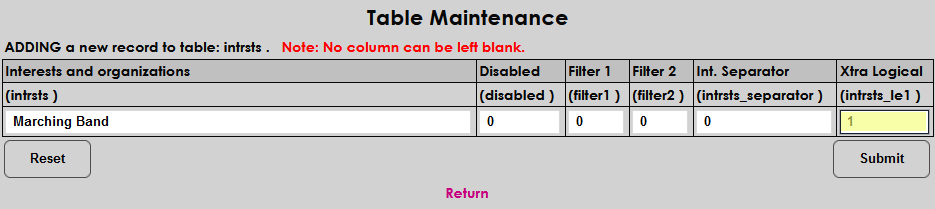
Click Submit to save the new interest.
Add/Edit Interests
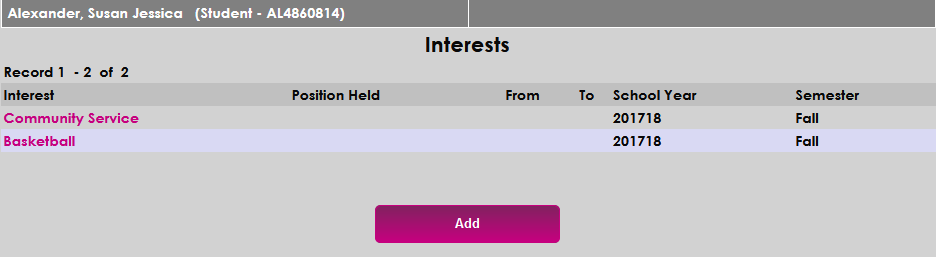
To add an Interest to a user record, navigate to the user, and select Interests from the Users hub.
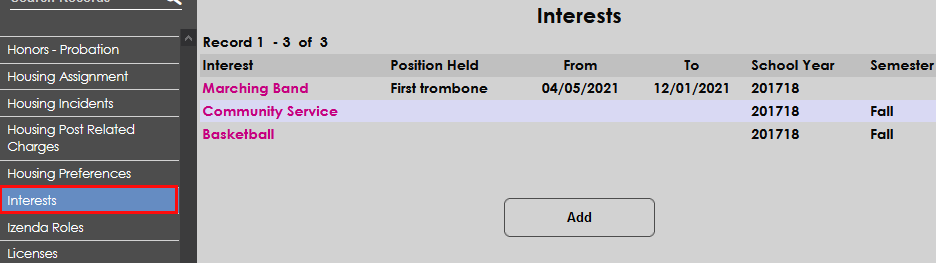
Click Add to begin.
Select the desired interest from the Interest dropdown menu.
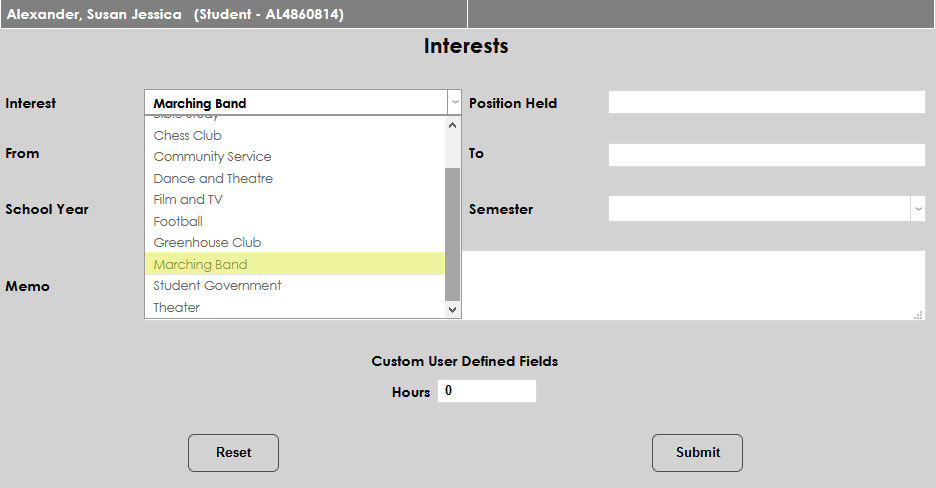
The Position Held field allows for up to 30 characters of text to be entered. It can be used to detail the user's role in the interest or organization being added.
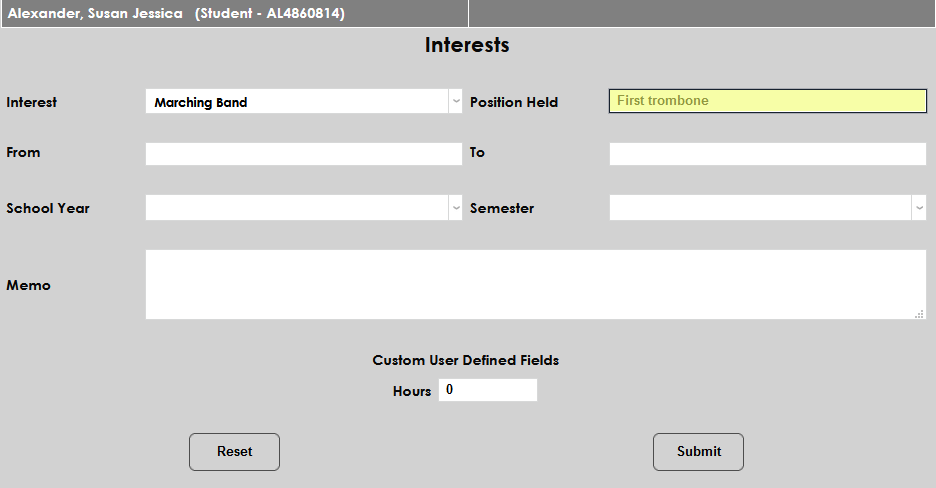
The From and To fields can be used to enter the dates the user participated in the interest or organization. The date can be entered manually or selected from the calendar.
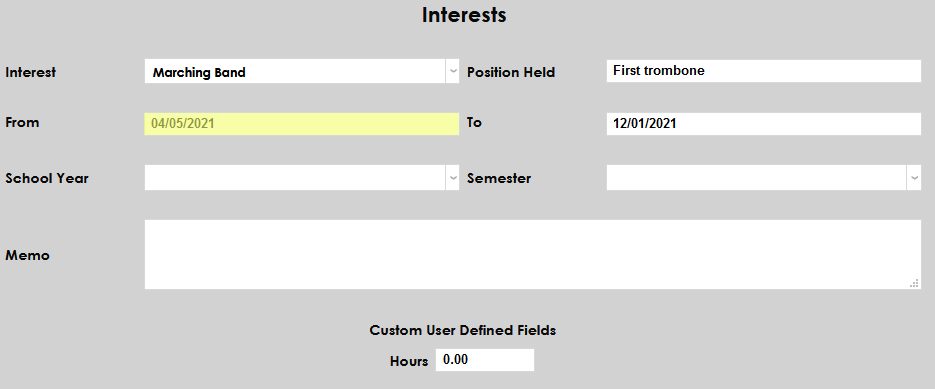
The School Year drop-down menu allows the year of participation to be associated with the interest.
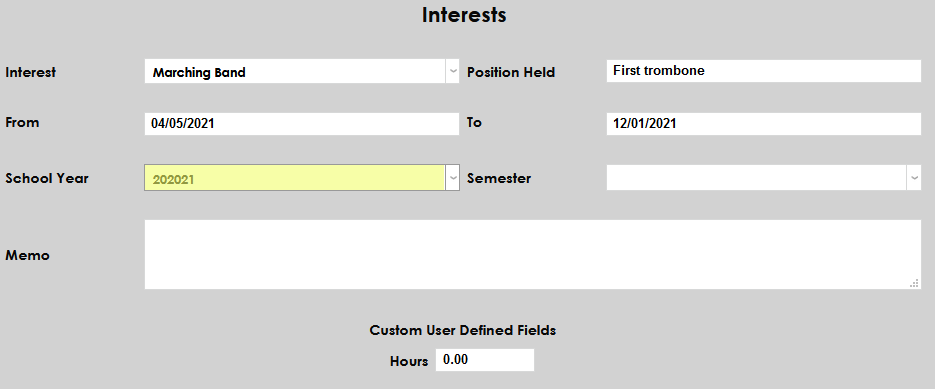
The Semester drop-down menu allows the semester of participation to be associated with the interest.
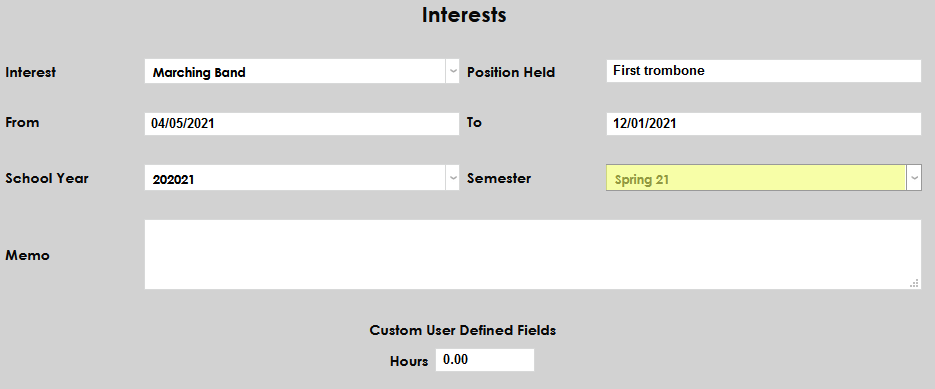
The Memo field has no character limit and can be used to enter any other details needed.
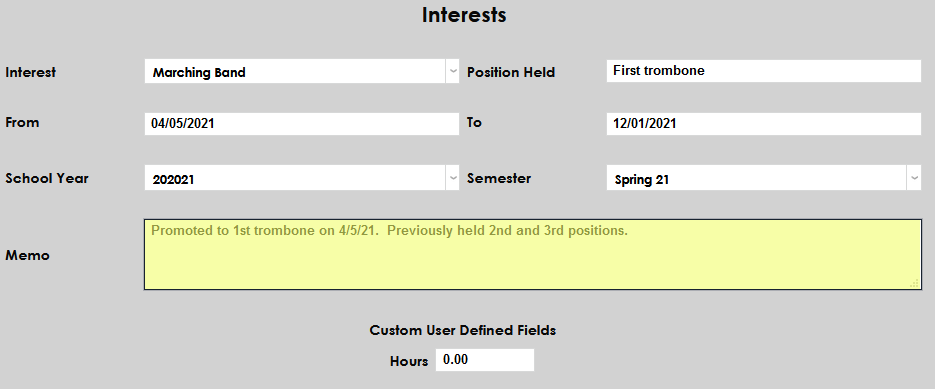
The Custom User Defined Fields can be used to record the number of hours the user has participated in the interest or organization.
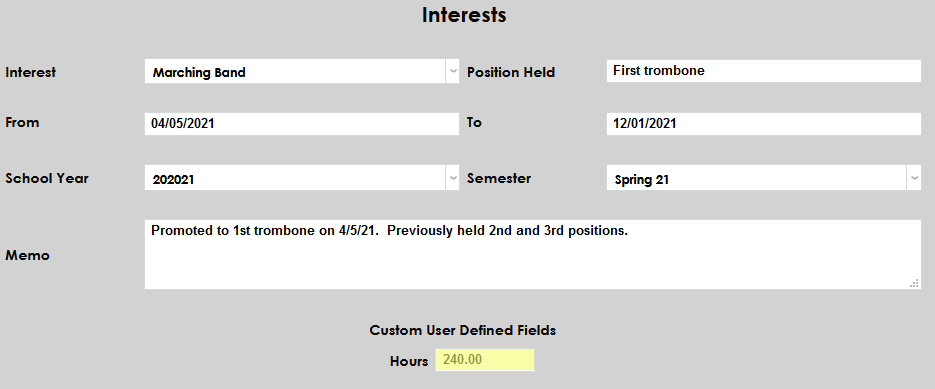
Click Submit to save the data entered.
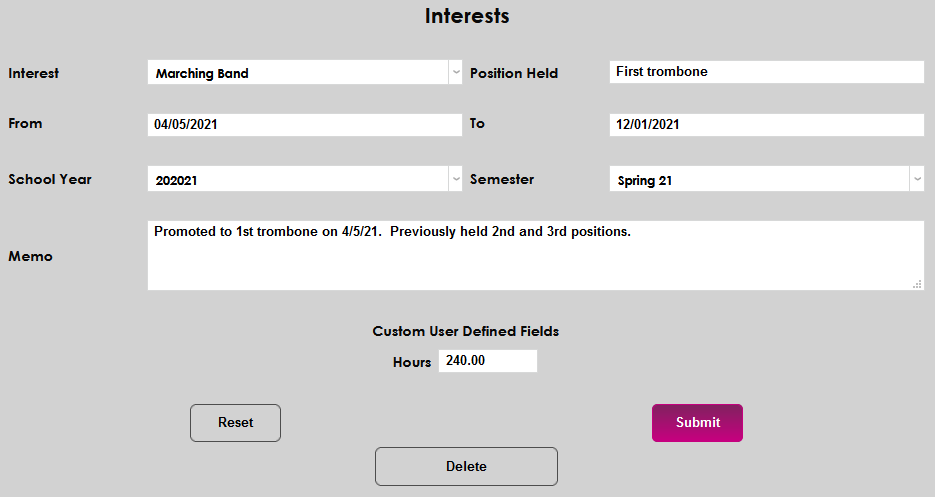
After clicking Submit, the Interests page will display the added interest and a confirmation message that the interest was added.
To edit an interest, click the interest name. The interest will open in a new page and any details may be edited. After making desired edits, click Submit to save.