Jenzabar Internet Campus Solution Export
Overview
Jenzabar Internet Campus Solution (JICS) is a powerful resource that offers everyone affiliated with an institution a single point of access to web-based self-service, eLearning, communications, and community-building applications. With one login and password, users have 24x7 access to role-specific content, from administrative records and reports to personal email and calendars, from chat rooms to online exams. Jenzabar SONIS offers a one-way push of course section data along with some basic student information from SONIS to JICS. This transfer can be performed manually or pushed from SONIS to JICS through an API.
Setup
To set up an API push of SONIS data to JICS, edit the File Transfer table in Table Maintenance in the Systems hub.
Click Add New Record to begin.
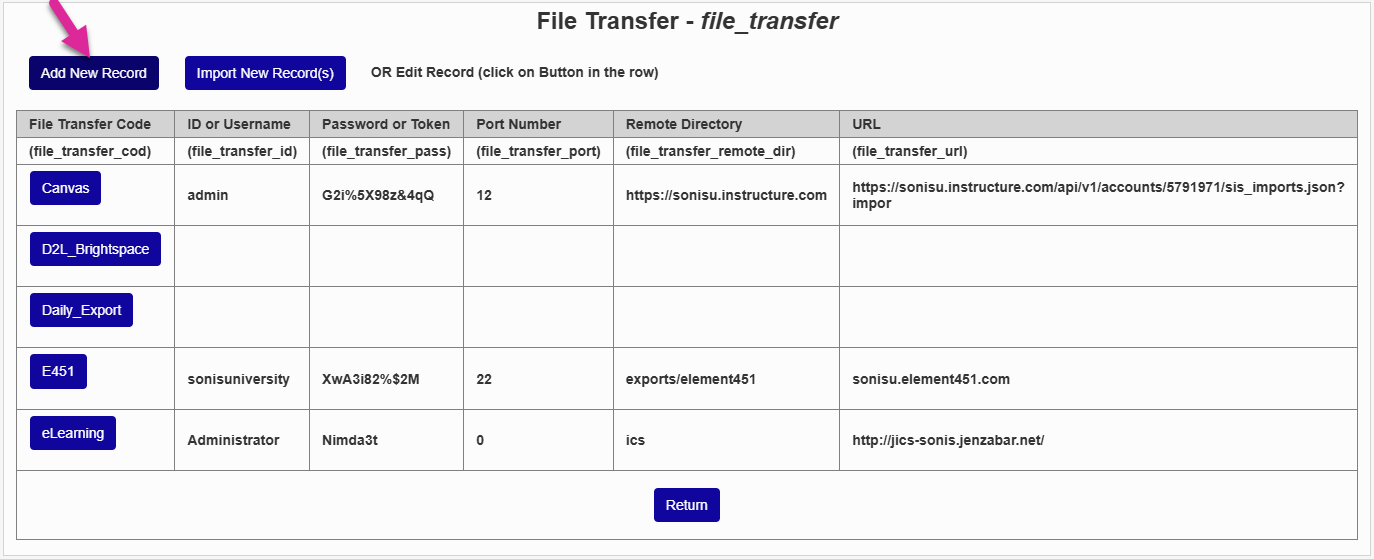
Name the record using the LMS Code field. The name must be entered as eLearning or the connection will not function.
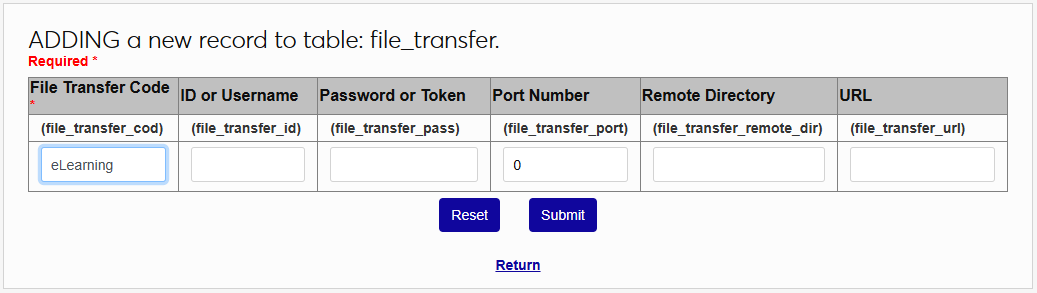
Next, enter the User ID and Password used to access JICS.
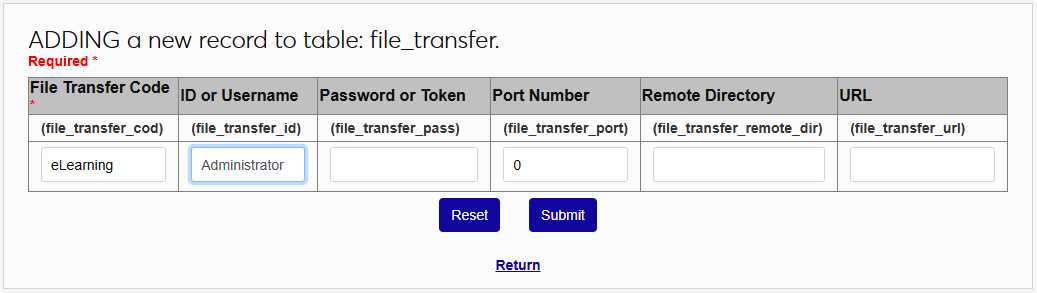
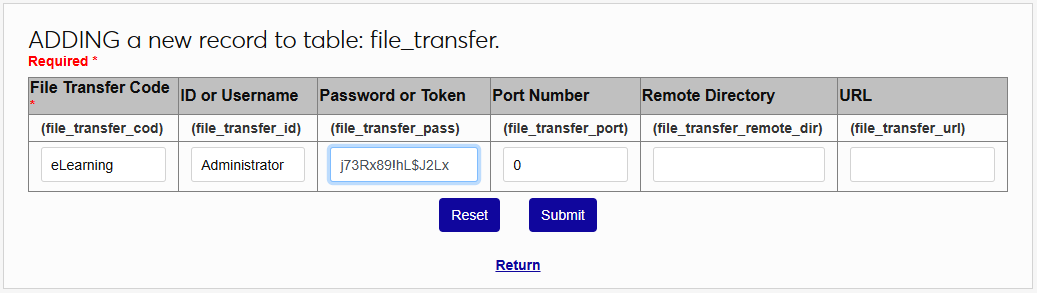
The Port Number is not used for the JICS connection, so a 0 can be left in this field. The Remote Director should be the client-specific directory where JICS is located and the URL should be the base URL used to access it. So for example, if JICS is accessed at https://sonisu.jenzabarcloud.com/JICS, the URL would be https://sonisu.jenzabarcloud.com/JICS and the Remote Director would be JICS.
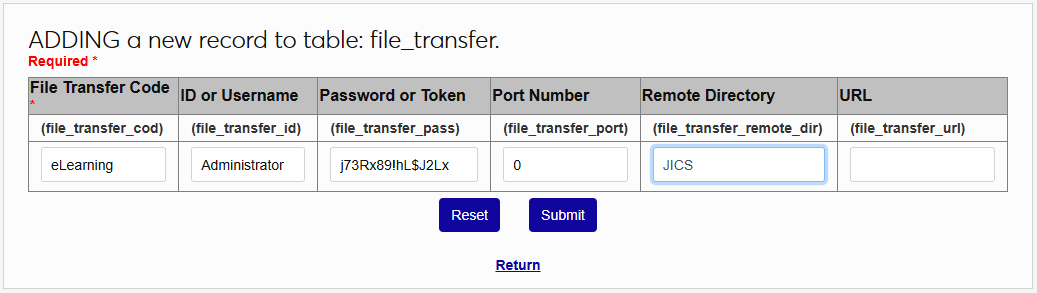
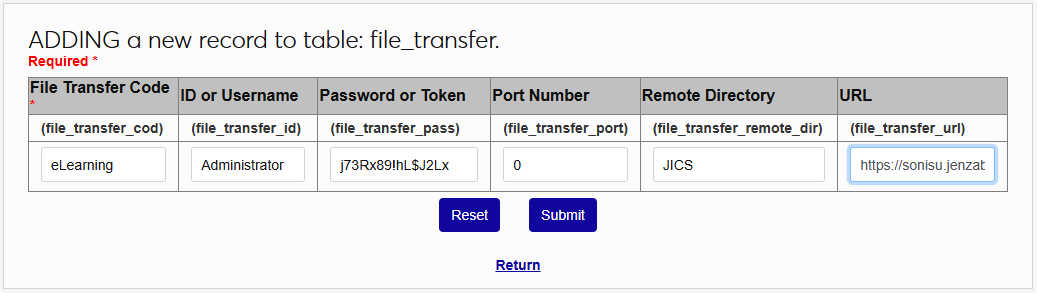
Click Submit to save the settings and create the connection between SONIS and JICS.
Export
To export data from Jenzabar SONIS to JICS, navigate to Jenzabar ICS Export in the Systems hub. Select the School Year and Semester to export.
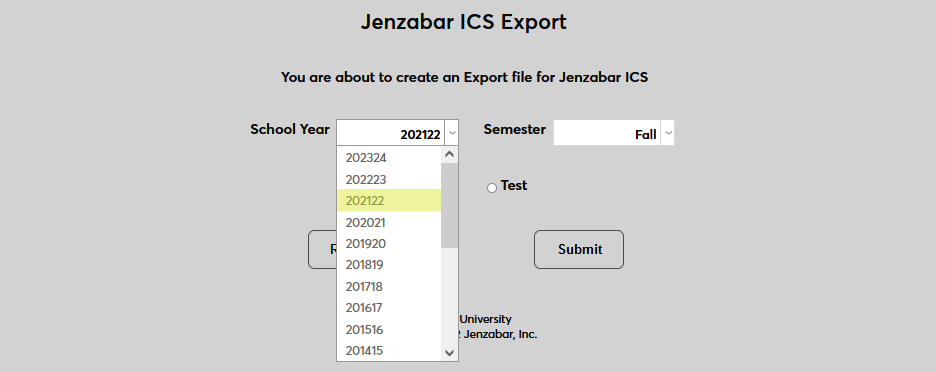

Select a JICS database to export the data to, either Live or Test.

Click Submit to export the data.