Columns
Overview
Administrators have the ability to change the displayed field text label, size of fields, and sort order of most fields within columns in Jenzabar SONIS. After a value is updated, the default or delivered value can be viewed and restored. All fields that can be updated display in the main page dropdown menu.
Custom Fields
Some pages have hidden fields that can be activated through the Columns utility. These fields will not appear on the page until activated. Once activated, they can hold a text or numerical value. These values do not output anywhere else on the system and are only stored on the page where they are located.
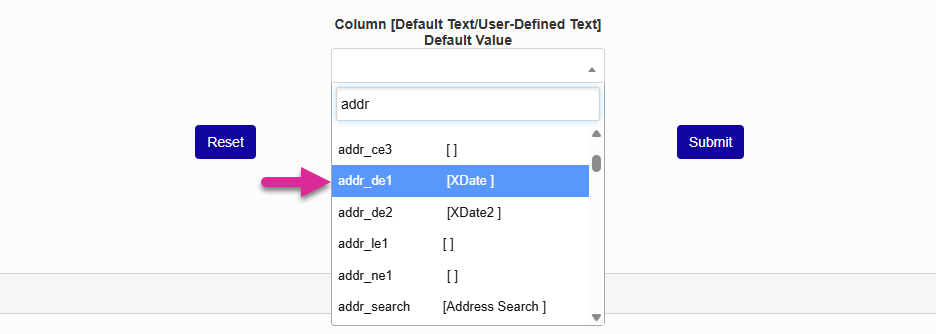
To activate a field, select it from the Column menu and select it.
Note
Each field is named after the page it appears on. In the example used here, the field starts with addr because it appears on the Address Users hub page. The text after the underscore tells you what kind of data the field will hold. In this case, the field is a date field that can only hold numbers formatted as a valid date.
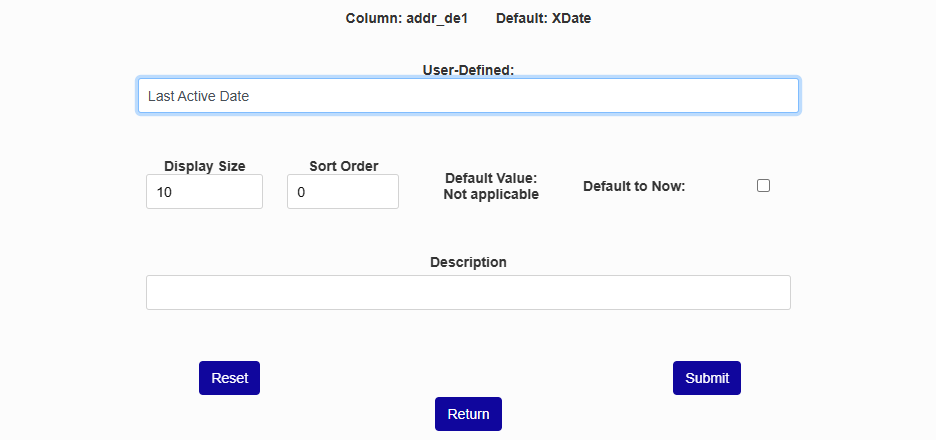
Once you've selected the field you want to activate, give it a name using the User-Defined field. This is the label that will display next to the field once it's activated. Click Submit to save your change.
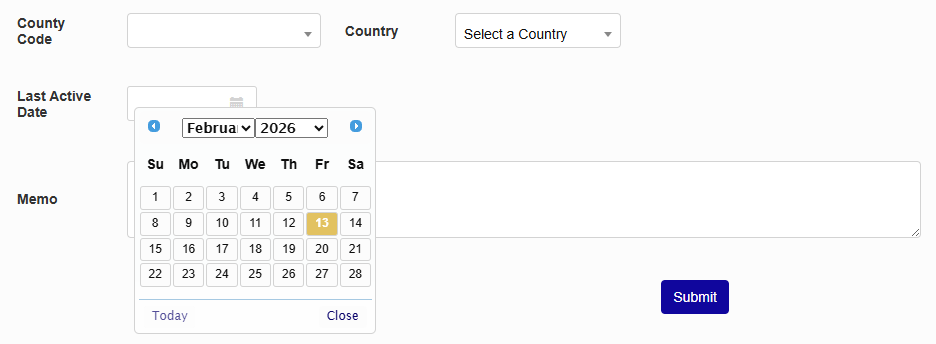
To remove a field that's no longer needed, delete the text in the User-Defined field and submit the Columns edit page again.