Lists
Overview
Jenzabar SONIS users can be grouped together for bulk processes, such as emails or reports, by adding them to defined Lists. Once a list has been defined, administrators can add and remove specific users on the Lists page in the Users hub.
Adding Users To Lists
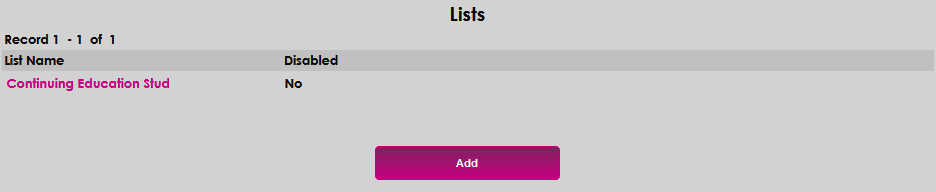
To add a user to a list, select the Lists page from the Users hub, and click Add.
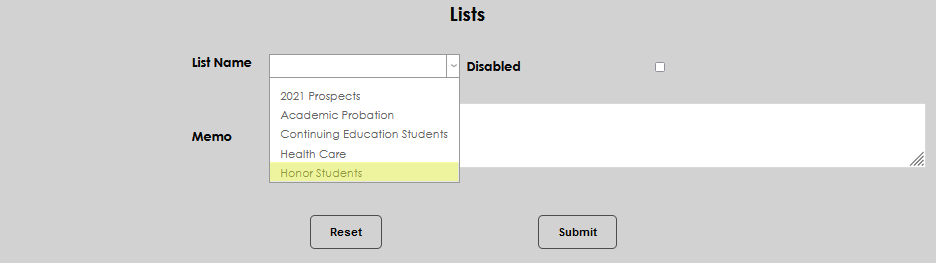
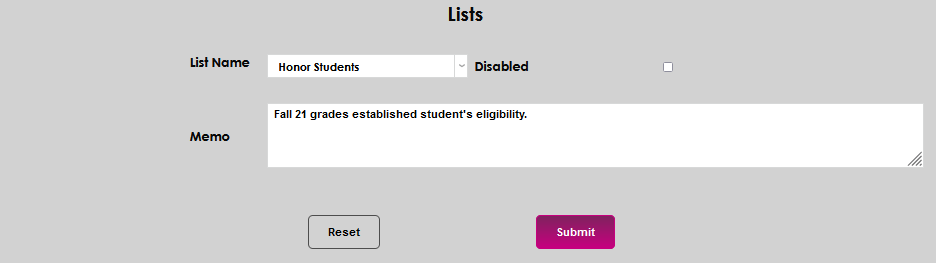
Select the desired list from the List Name dropdown menu. If the needed list doesn't display, it will need to be created by an administrator following the lists management guidance. Any information associated with the addition to this list can be entered in the Memo field.
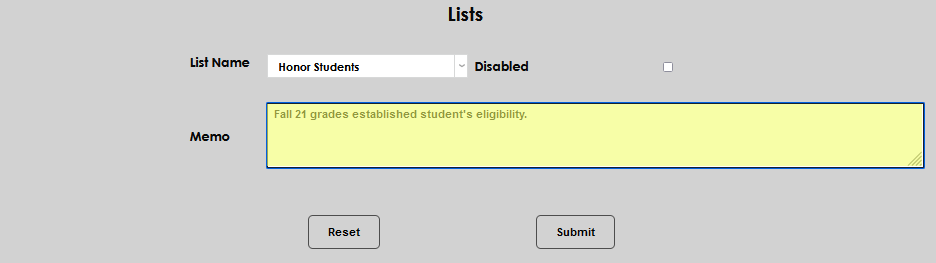
Click Submit to finalize adding the user to the list.
Managing User-Associated Lists
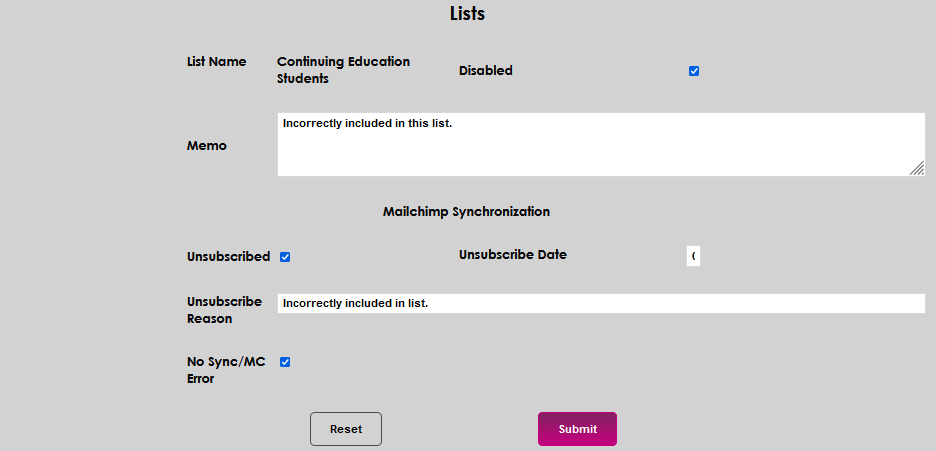
To manage a user's association with a list, click on the List Name.

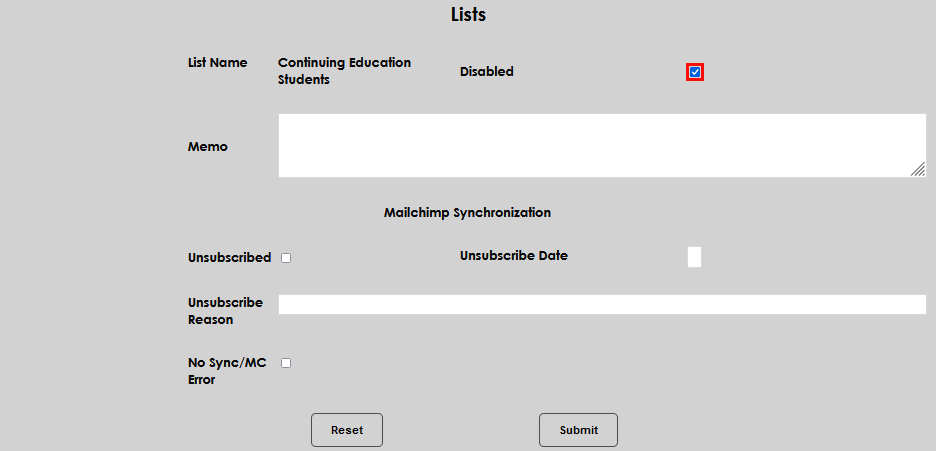
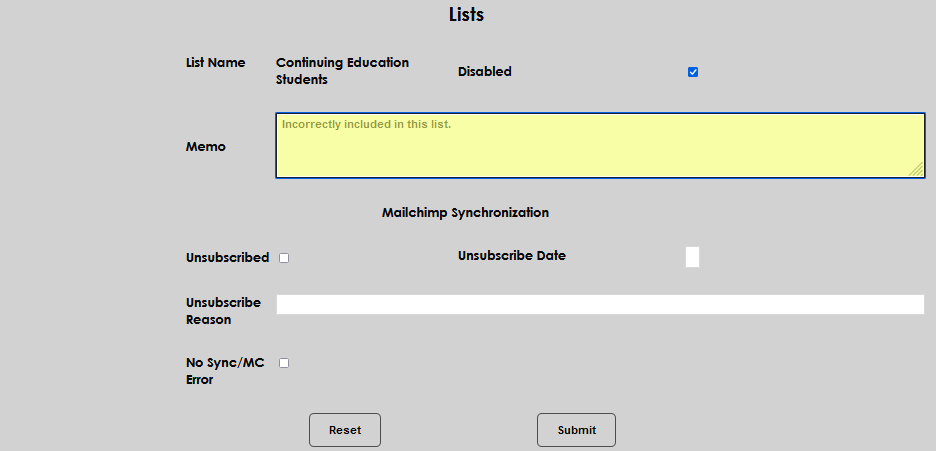
To stop the user's inclusion in list activities, click the Disabled checkbox. A Memo can be added to explain why the user is no longer a part of the list.
Because a user is automatically synced with Mailchimp, the user must also be Unsubscribed as part of the removal from a list. Click the Unsubscribed checkbox. Enter the date that applies to the removal in the Unsubscribe Date field.
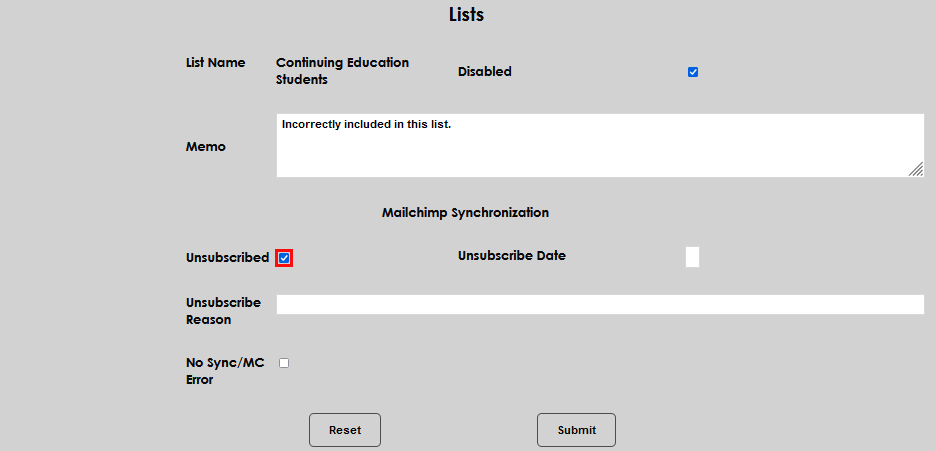
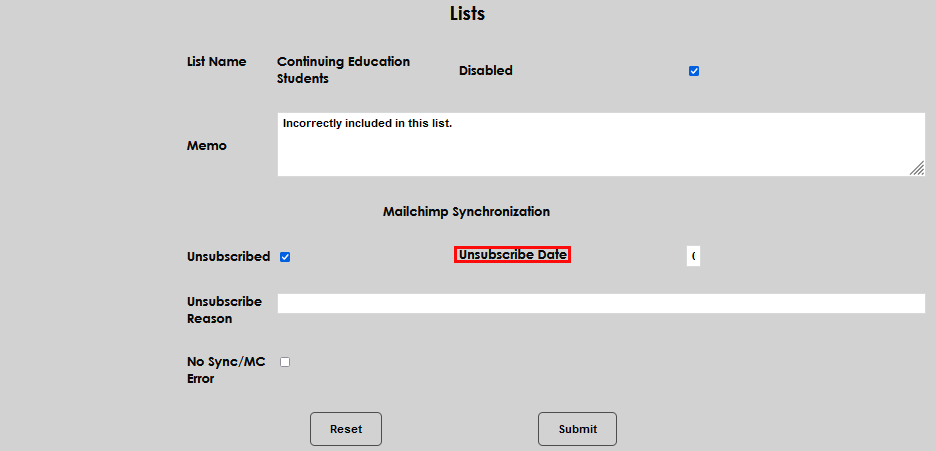
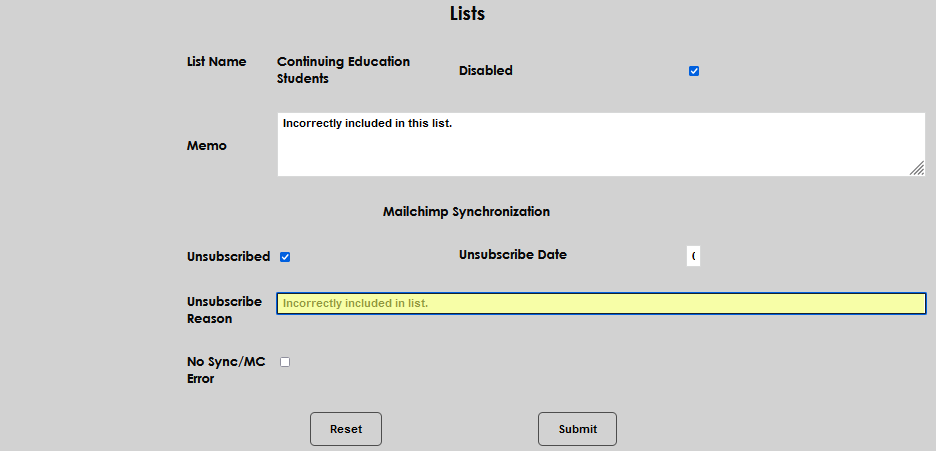
A reason for the removal can be entered in the Unsubscribe Reason field. If an error is associated, check the No Sync/MC Error field.
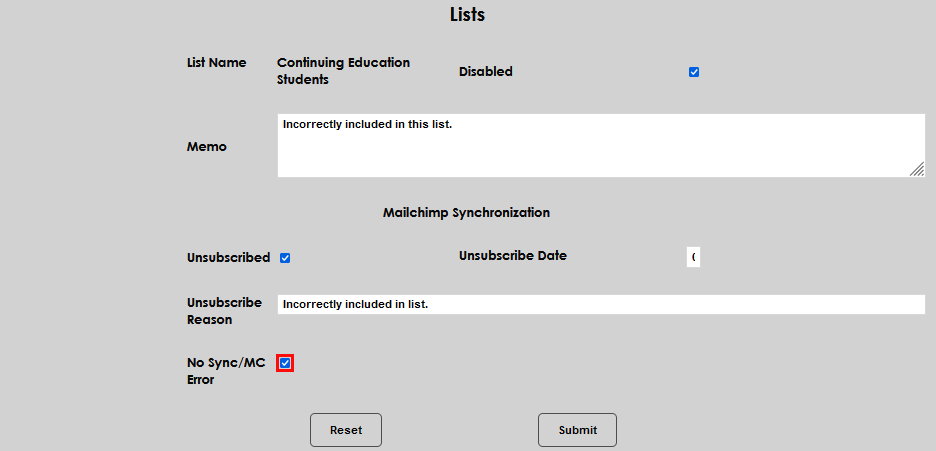
Click Submit to save the entries.