CMC Assignment
Overview
Career Major Competencies, also known as CMCs, are benchmarks that students must meet to complete a program. For a comprehensive overview on CMCs, including how to create them, visit the Career Major Competencies page. Once competencies are created, they must be attached to courses in order for students to successfully complete them. This attachment is set up through Career Major Course Assignment, a utility located in the Systems hub.
Note
CMCs are used much differently by our Oklahoma Tech Centers. These schools register and charge their students for programs rather than individual courses and use the CMC (career major courses in their terminology) functionality to track each course that is part of the program. While the the terminology and usage of this utility may vary from school to school, the functionality is the same and the instructions herein should be relatively universal.
Assigning CMCs
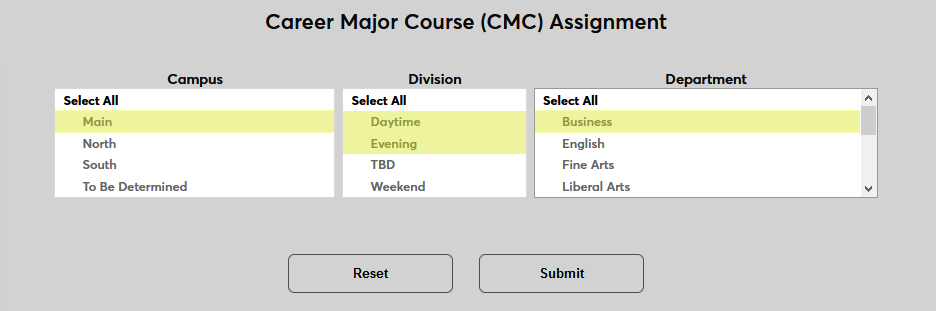
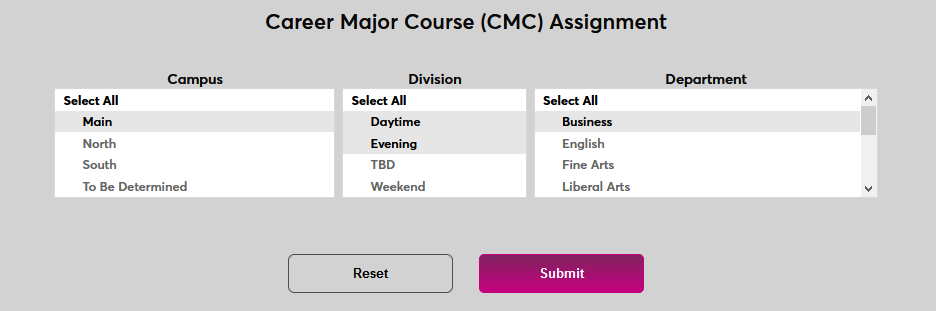
To begin, find a list of courses to associate with CMCs. The Campus, Division, and Department filters can be used to narrow down the list of courses to something more manageable. Once the proper filters have been selected, click Submit to search.
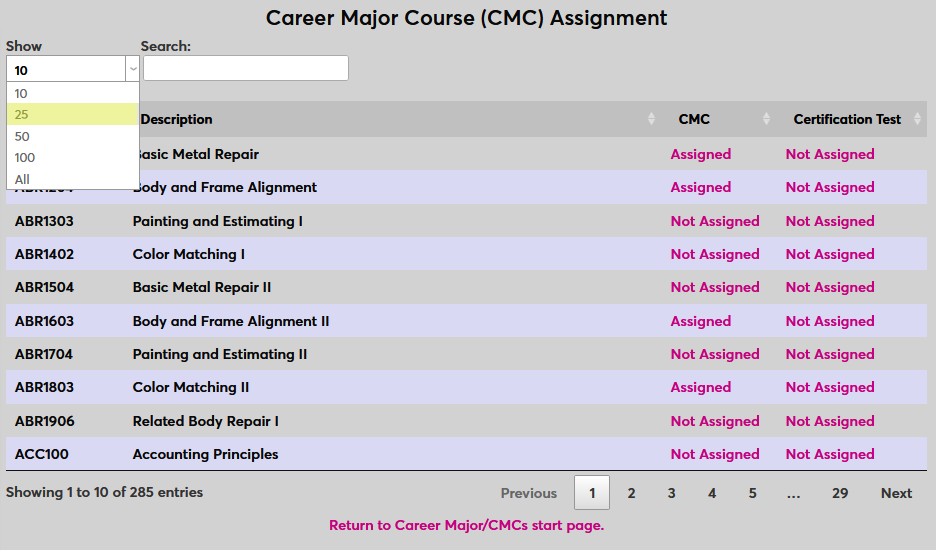
On the following page, the search controls can be used to further narrow down the results. Select a number from the Show menu to select how many courses will be displayed or select All to display every course that falls under the previous demographic filters.
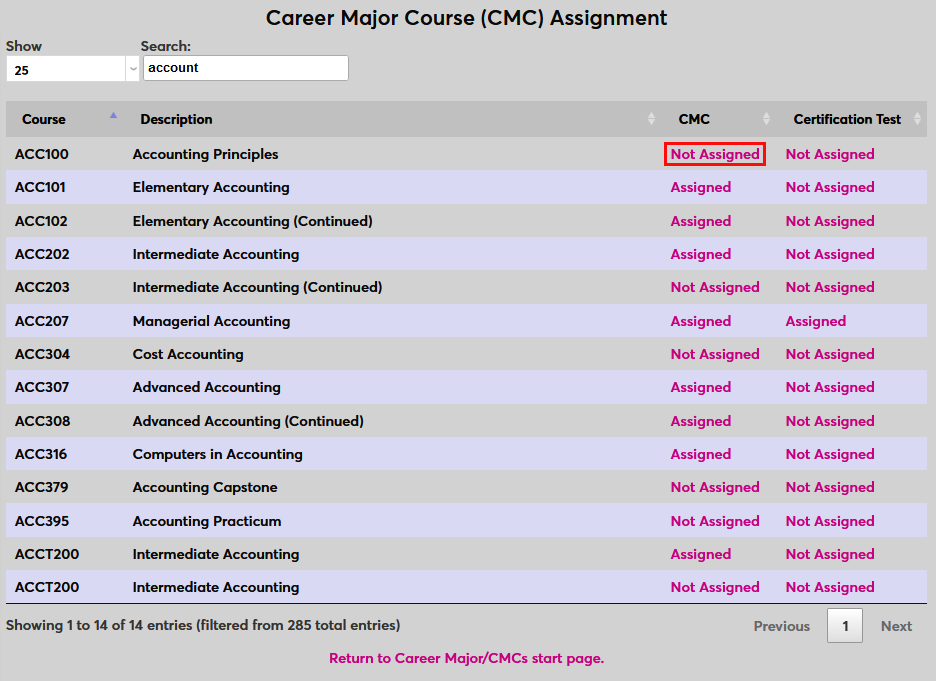
To search for a specific course or courses, type the course or description into the Search box. The search results display in real time as characters are typed.
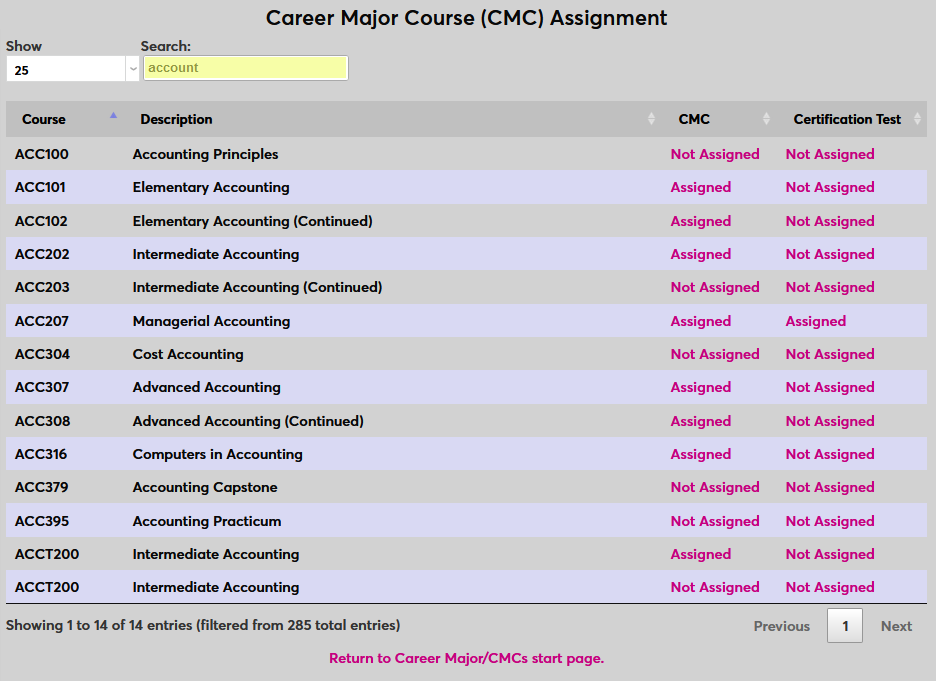
Locate the course to be associated with a CMC and click on Not Assigned in the CMC column. Courses with CMCs already assigned can be edited in the same manner by clicking the Assigned link. Clicking Next will display more courses if the list is too long to fit on one page.
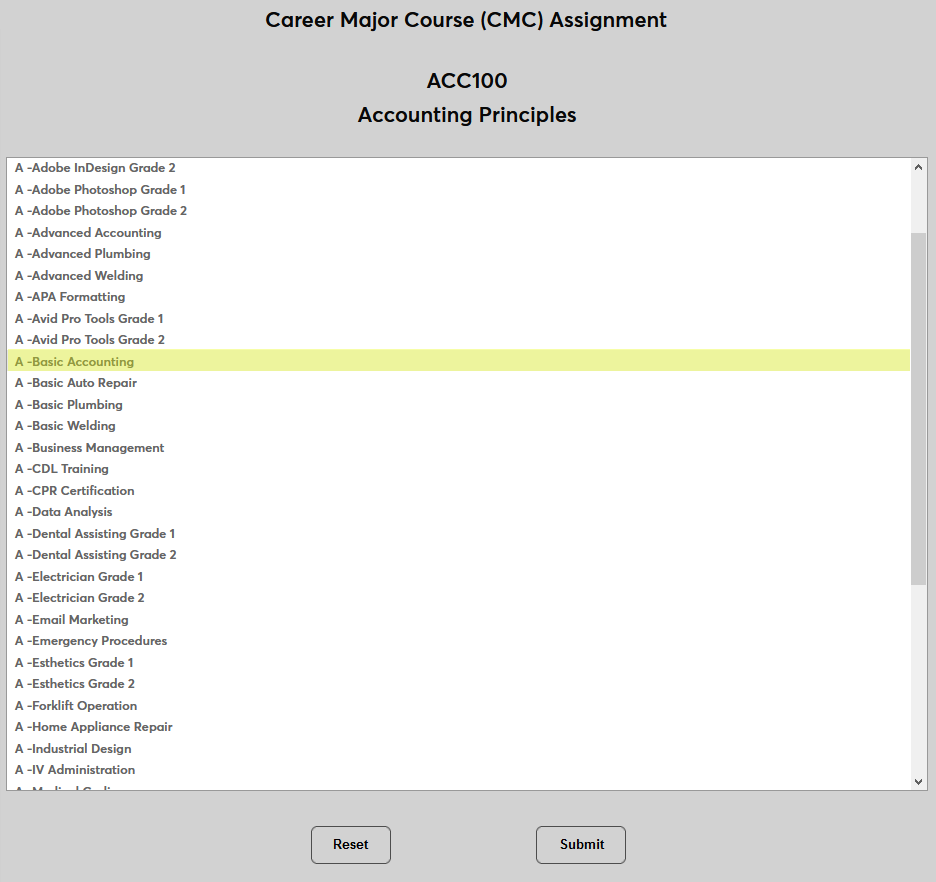
A list of every created CMC will be displayed. Select a CMC or multiple CMCs and click Submit. Once this page has been submitted, the CMC or CMCs selected will be attached to the selected course.
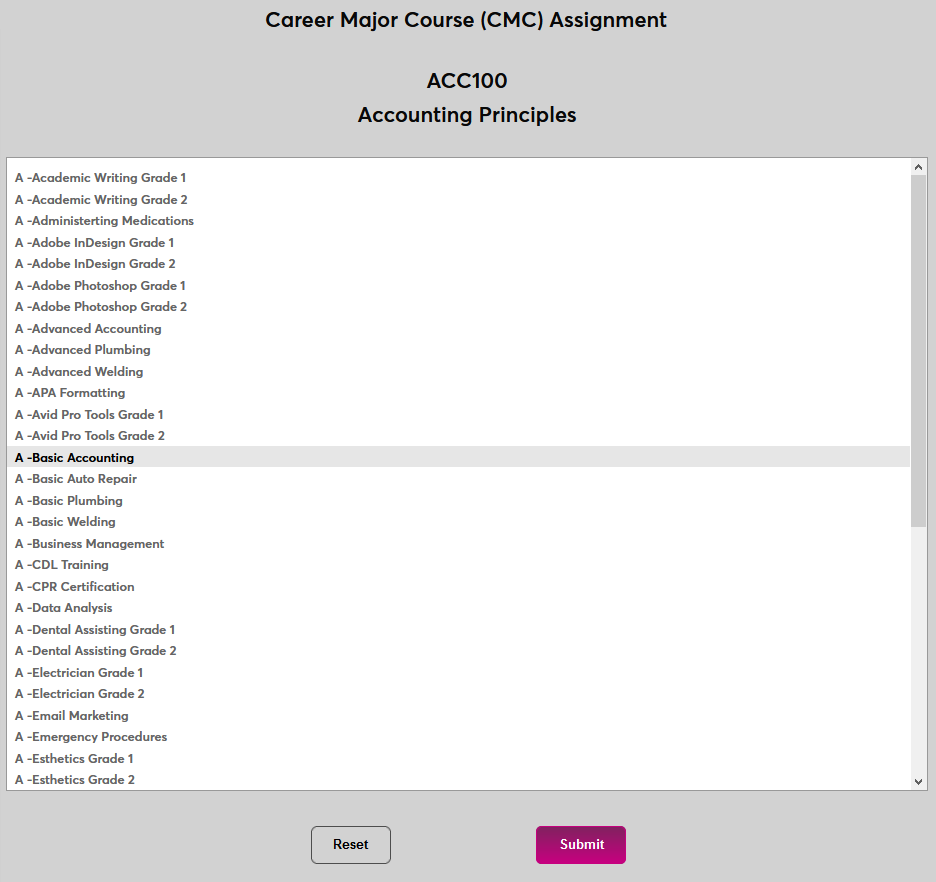
Note that when removing CMCs that have already been assigned to a course, the form cannot be submitted with nothing selected. Instead, select the blank space at the top of the field.