Oklahoma State Reporting
Overview
The state of Oklahoma requires institutions located there to perform specialized reporting that differs from the kinds of reports utilized by Jenzabar SONIS clients in other locations. For this reason, SONIS created an Oklahoma State Reporting utility to service these needs. The utility can be used to build three kinds of reports, BIS Class Data reports, BIS Student Record Reports, and Career Major Student Enrollment Reports. The utility can only be accessed by institutions that have the Oklahoma functions enabled.
For more on Jenzabar SONIS functions that are used by Oklahoma Technology centers, visit the Oklahoma Functions overview page.
BIS Class Data
The BIS Class Data report provides administrators the ability to view information about courses that are associated with contracts or career majors. The report will display the class name, associated contract, name of the instructor, type of course, start and end date, number of hours, MIS, and the number of enrolled students. The report can be run by Campus, Division, Department, Contract Number, and Date Range. To populate the report, courses must be associated with career majors, contracts, and/or have a set report date.
Report Setup
OK Business Code Creation
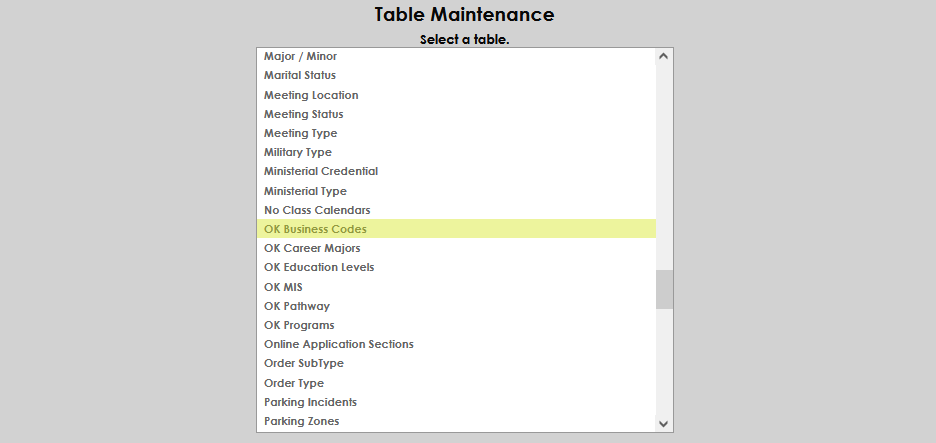
A business code must be associated with the course section for the contract information to display on the report. If the desired business code is not available, it must be set up in the OK Business Codes table. Navigate to Table Maintenance from the Systems hub, and select Business Codes.
Click Add a New Record to begin creating a new business code.
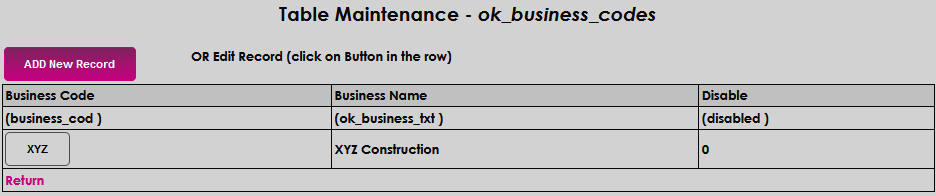
Enter an alphanumeric code that represents the business, up to five characters, in the Business Code field.

Enter the name of the business in the Business Name field. The field accepts alphanumeric values, up to 100 characters.

Click Submit to save the entries.

Course and Course Section Setup
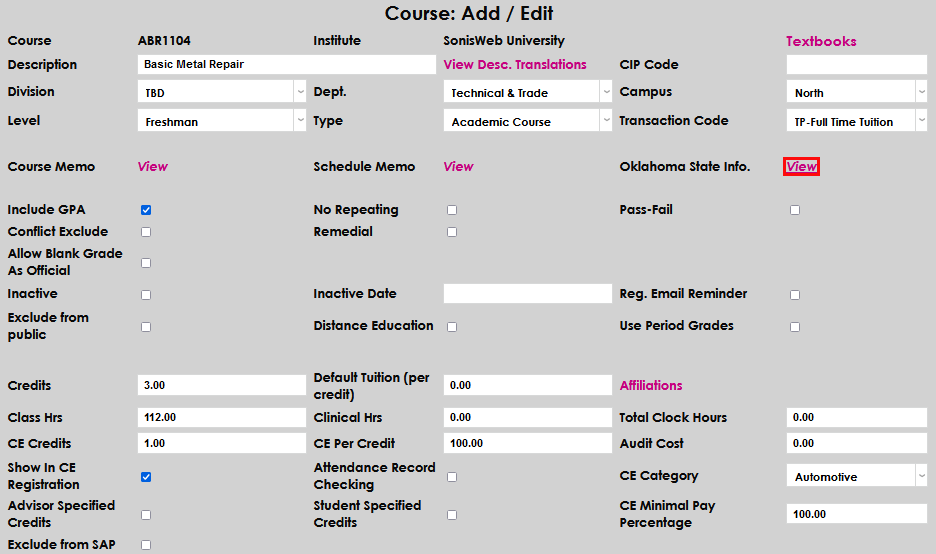
To display on the report, courses must be associated with a career major and pathway or an MIS at the course level, and have contract information or a report date at the course section level. To review current associations at the course level, or add information, select Course: Add/Edit from the Courses hub. Click on View to display Oklahoma State Info..
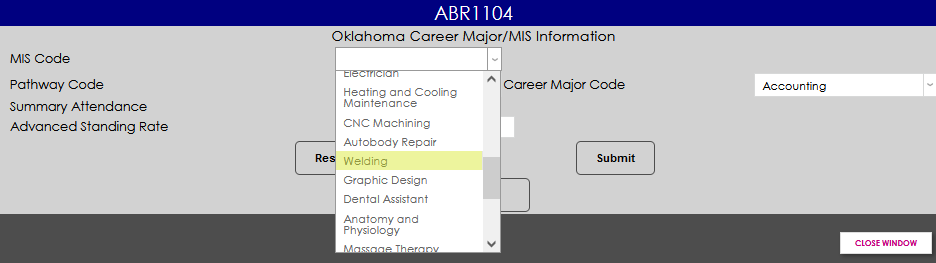
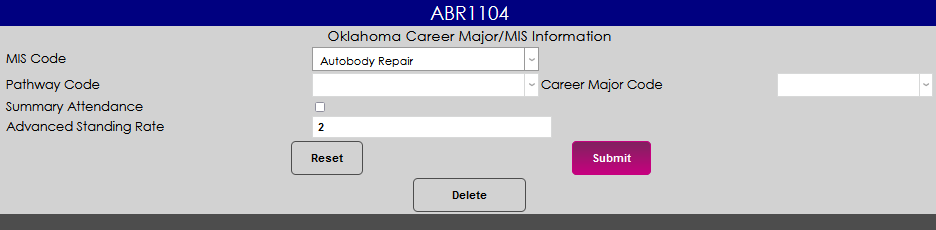
A new page will open, displaying the course number and Oklahoma Career Major/MIS Information. The fields will be populated with any current associations. Edit or add the MIS Code by clicking on the dropdown and selecting the desired MIS. This step can be skipped if the course will be associated to a Pathway Code and Career Major Code instead of an MIS Code.
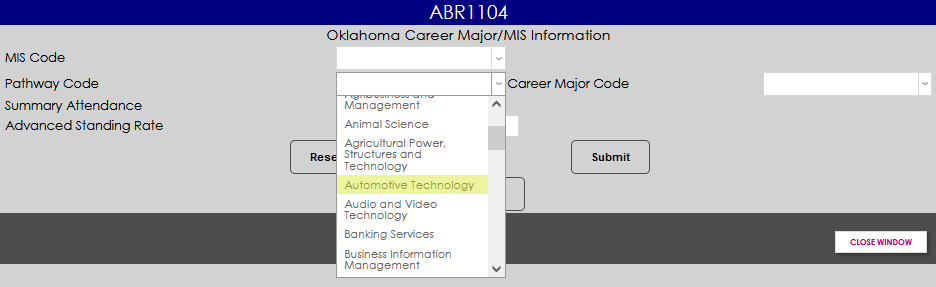
Add or edit the Pathway Code by clicking on the dropdown menu and selecting the desired pathway.
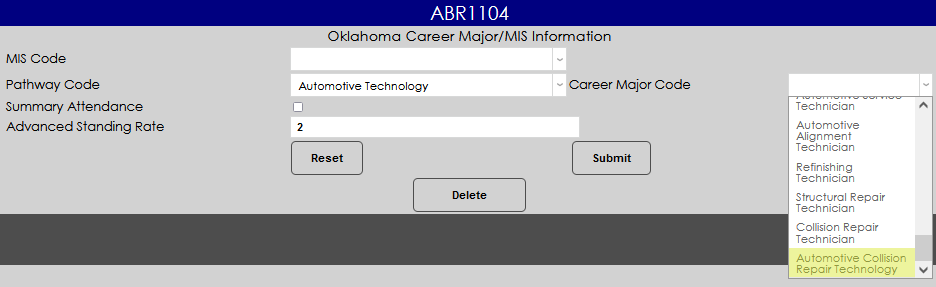
Add or edit the Career Major Code by clicking on the dropdown menu and selecting the desired code.
The Summary Attendance field is not used by this report. If desired, it can be checked to allow the number of students who attended the course to be entered, instead of individual student attendance.

Advanced Standing Rate is not used for this report. It can be populated by schools or technology centers that have agreements with other institutions that the course will equal additional credit or a higher level course at the accepting institution.

Click Submit to save the entries.
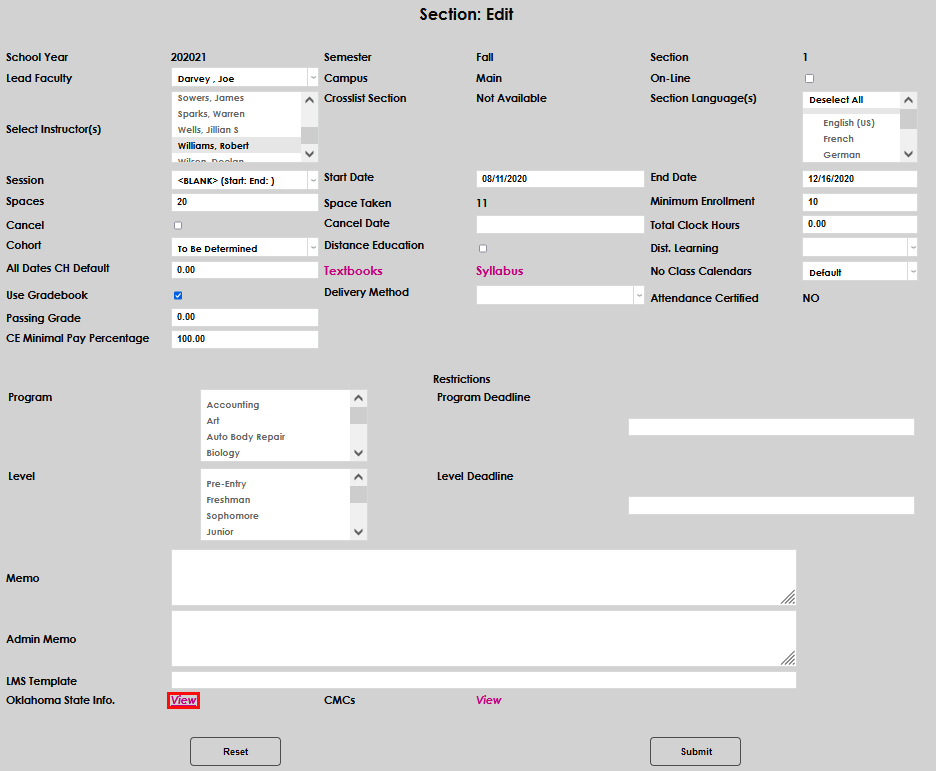
To review current associations at the section level, or add information, navigate to the Courses menu and select Section: Edit. Near the bottom of the page, click on View to display Oklahoma State Info.
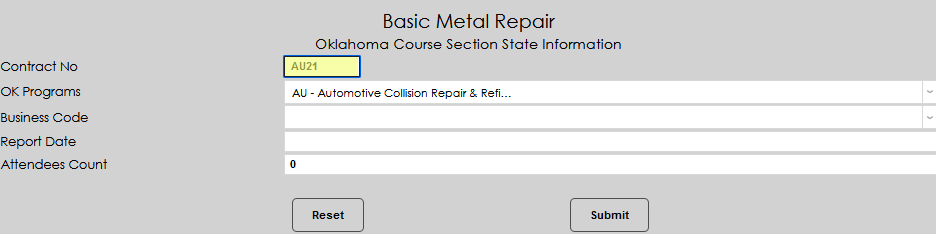
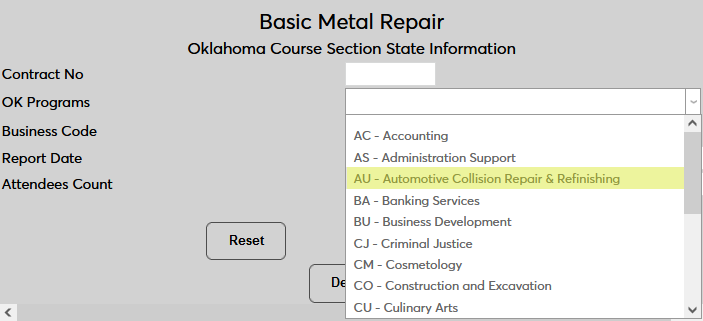
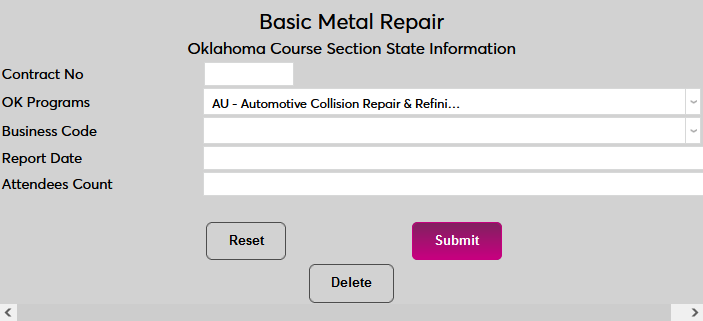
A new page will open, displaying the course name and Oklahoma Course Section State Information. All currently associated information will be populated. If a contract is associated with the course section, enter the number in the Contract No field. This field is alphanumeric and accepts up to 5 characters.
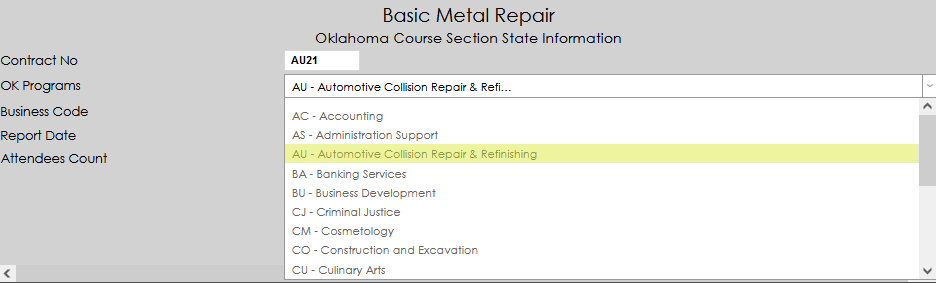
Clicking in the OK Programs field opens the menu. Select the desired career major, if not already displayed. MIS cannot be edited on this page.
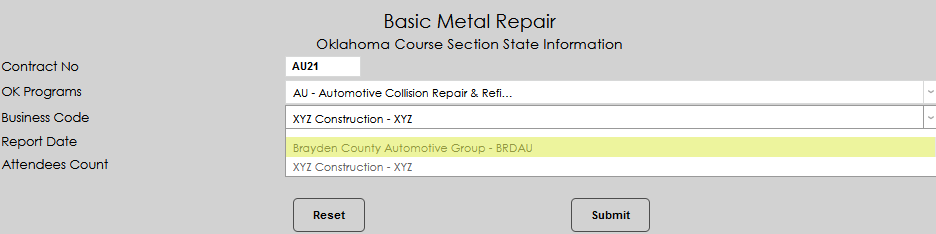
If the desired business code is available, click the name in the Business Code menu.
In the Report Date field, enter the date the course attendee information will be reported to the state.
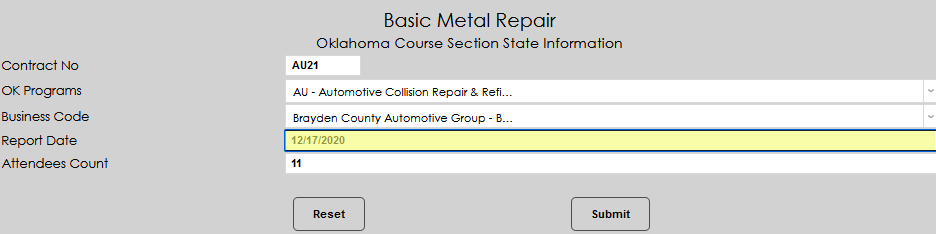
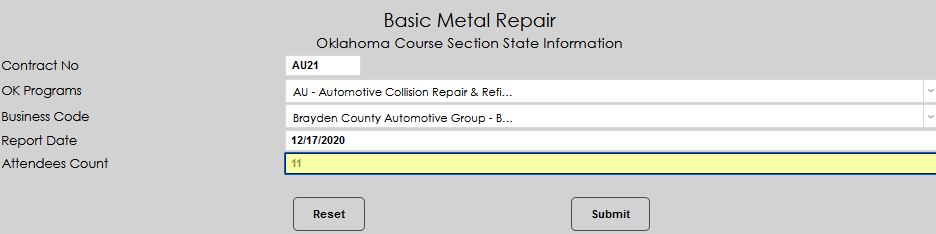
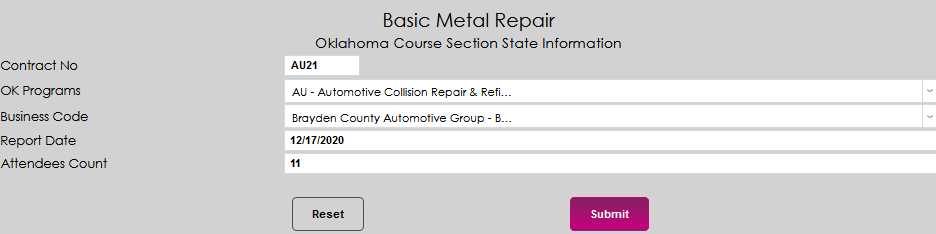
In the Attendees Count field, enter the number of students attending the course. This field may be left blank. Click Submit to save the entries.
Creating the Report
To create the report, navigate to Oklahoma State Reporting from the Systems hub and select BIS Class Data from the Select Report menu.

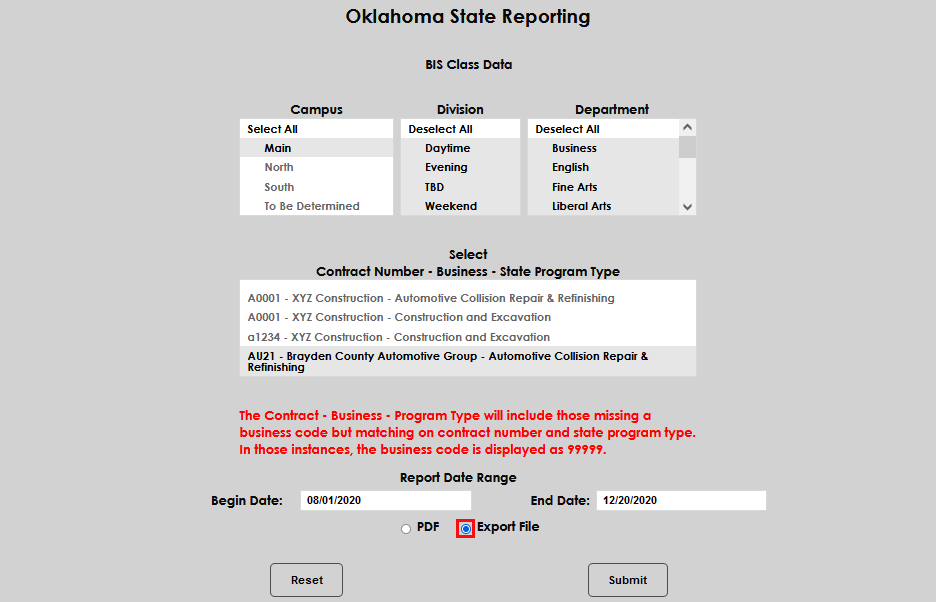
When entering the report page, all values in the Campus, Division, and Department menus are selected. If all values in a menu are not desired, simply click Deselect All and select the desired values. Multiple values can be selected in each menu and none of these three menus are required to have a value selected to compile the report.
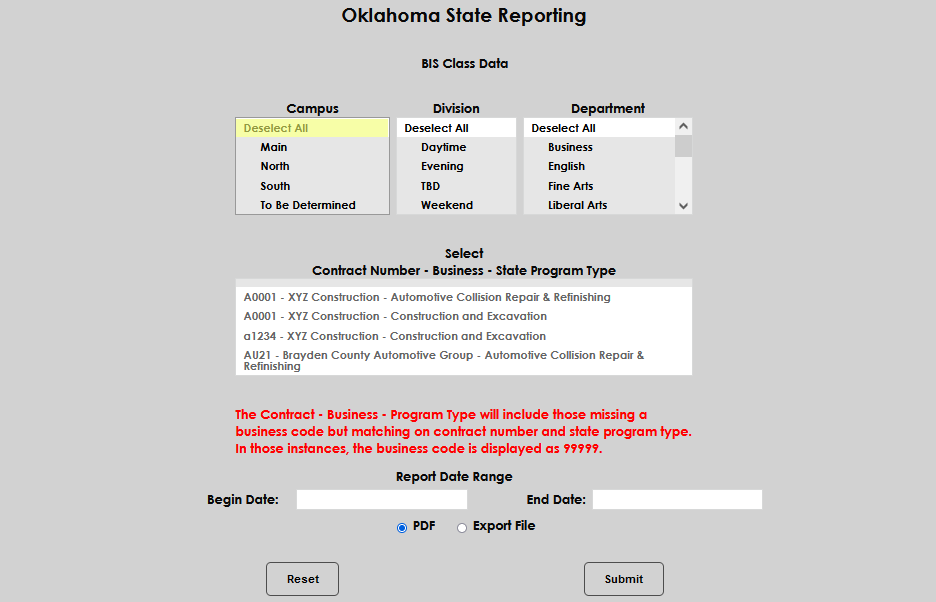
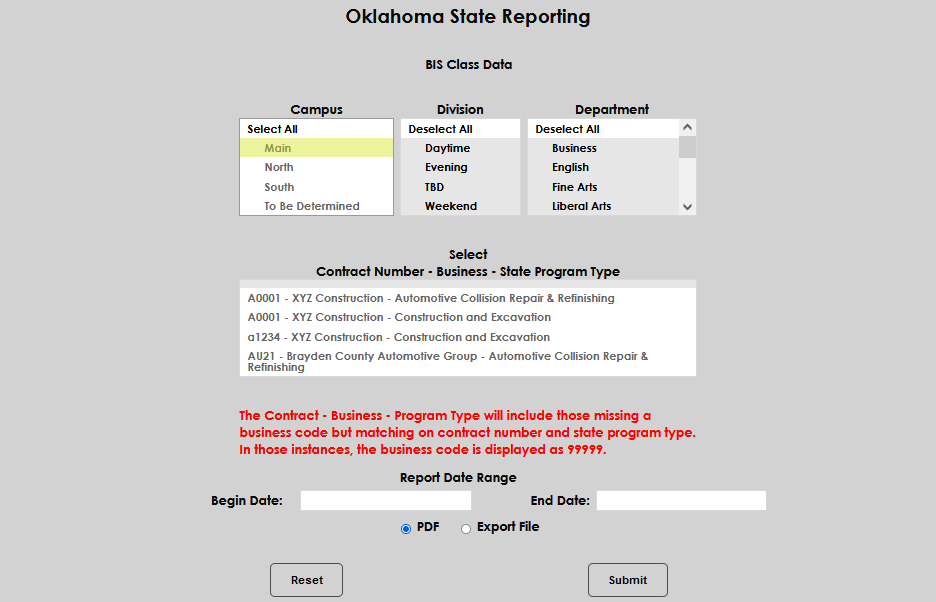
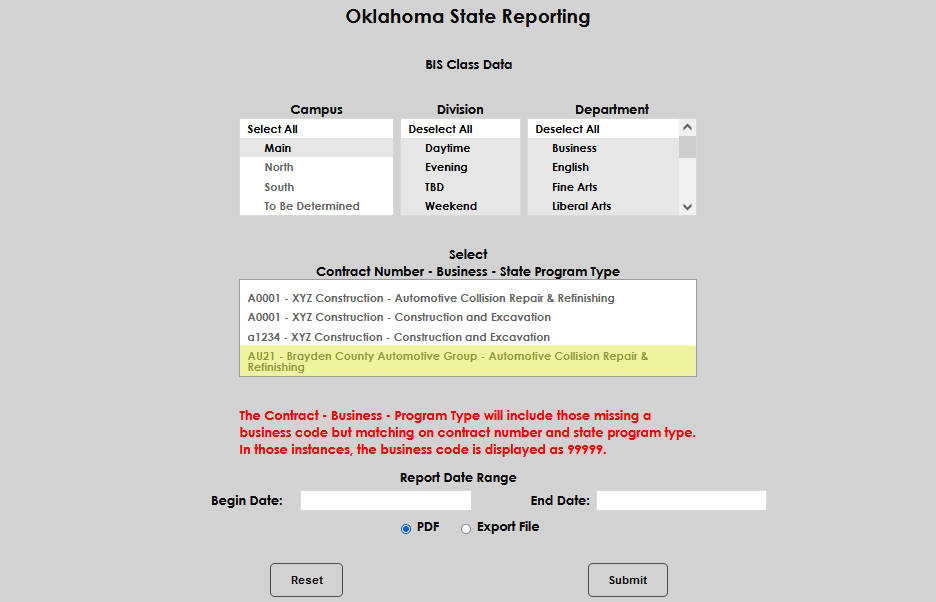
If reporting on courses associated with a contract, select the Contract Number by clicking on the name. All contracts that are currently associated with courses will display.
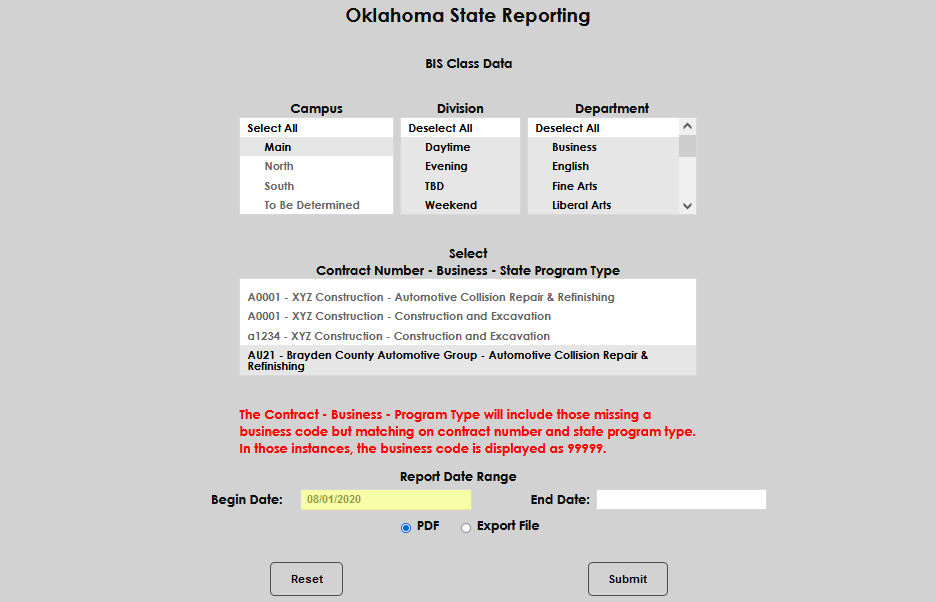
In the Report Date Range section, enter a date range that will include the defined report date. If the date is not known, dates of the term or terms can be used. The Begin Date should be equal to or earlier than the defined report date. The End Date should be equal to or greater than the defined report date.
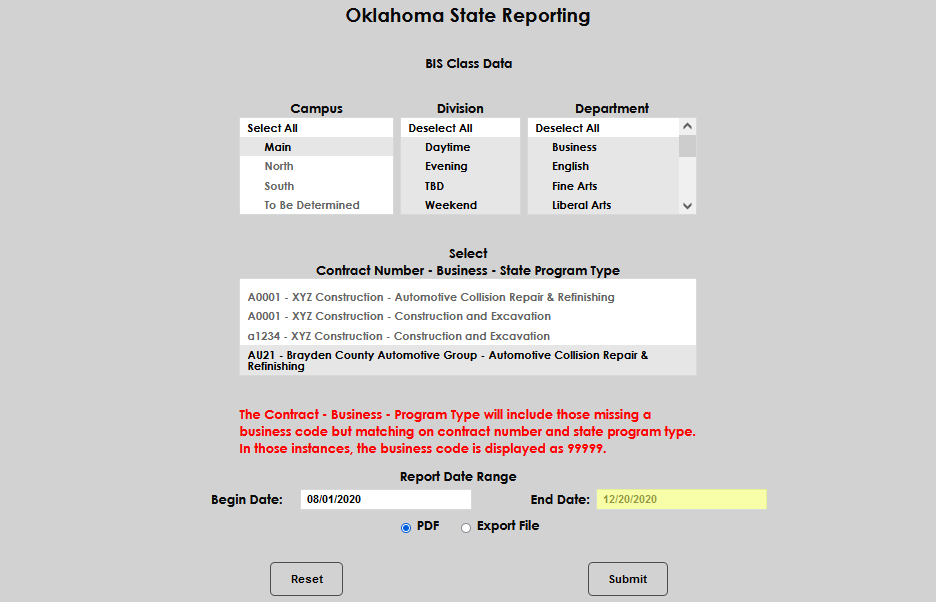
The report will be created in either PDF or as an Export File. Select the desired output type, then click Submit.
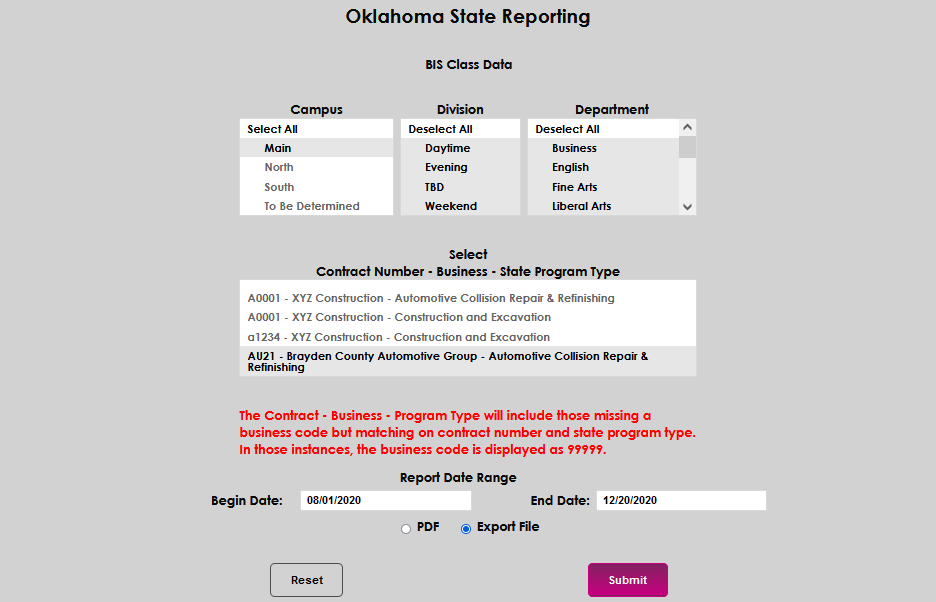
After clicking Submit, the display page will indicate where the file was created at. This is the area defined in the administrator's Web Options.

The option to download the file from the page is also available. Select Click Here to Download.

In this example, the report has been opened in WordPad. It can also be opened in Excel, Notepad, or any other text viewing software. The first section of text is the Contract Number.

The next section of text displays the lead faculty member's name and the course name.


In the last grouping of text, the course code and start and end dates are displayed.

If hours are defined for the course, they will display in the section prior to the decimal.

The MIS code and number of attendees in the course display after the decimal.

BIS Student Record
The BIS Student Record report provides administrators the ability to view information about students who have passed certification tests in their courses. The report can be run by Campus, Division, Department, Contract Number, and Date Range. To populate the report with students, tests must be built and associated with courses, and the student must have their passing status recorded. Up to ten certificate assessments, per student, will display in the Excel export version of the report.
Report Setup
Certification Tests Setup and Editing
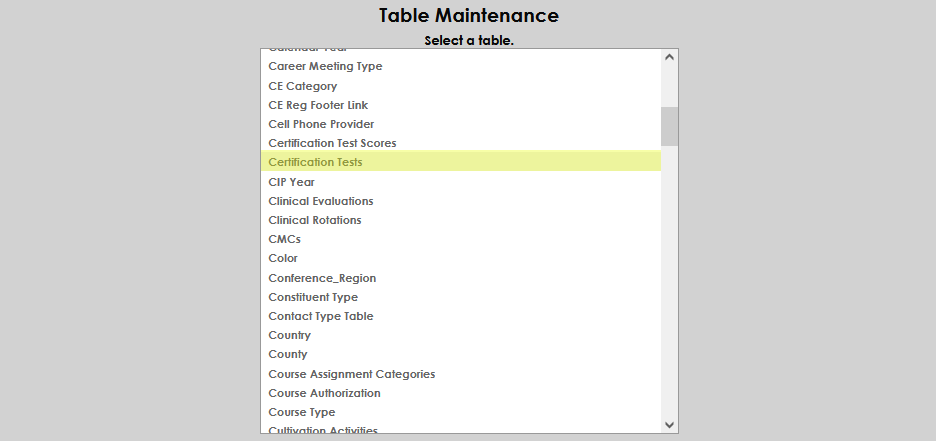
From the Systems hub, select Table Maintenance, then Certification Tests.
Select Add New Record to define a new certification test.
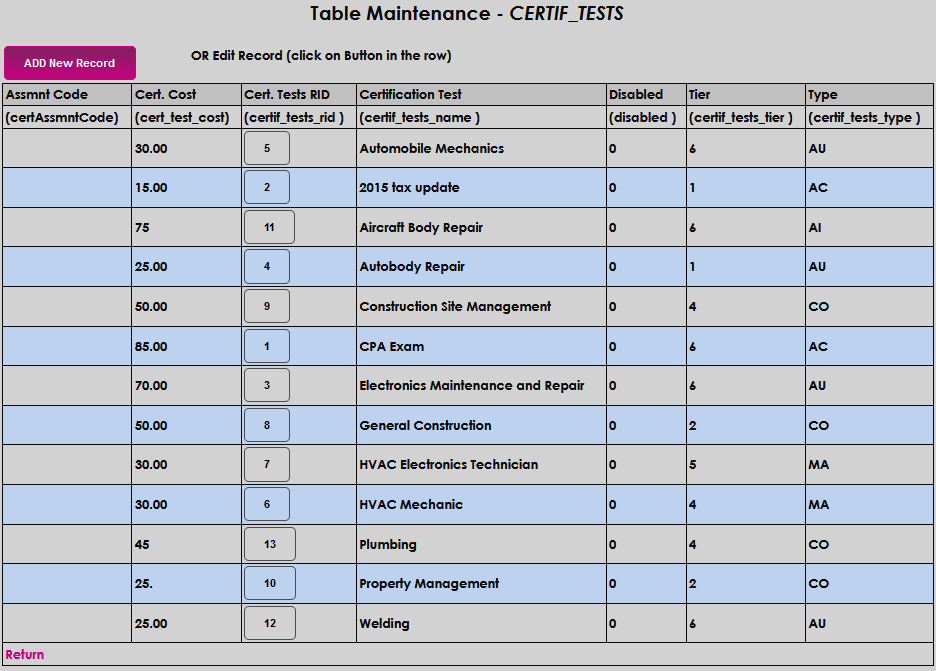
Enter an alphanumeric code of up to 5 characters that represents the corresponding assessment code in the Assignment Code field.

Enter any amount charged to the student for the test in the Cert. Cost field. If there is no charge, enter zero.
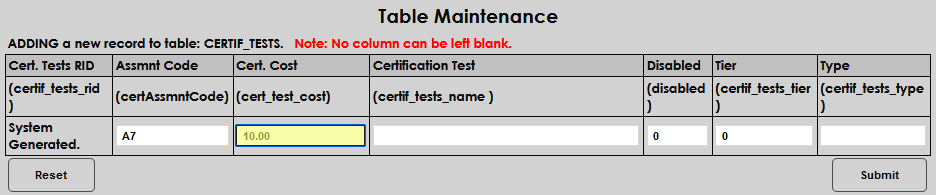
Enter the name of the test in the Certification Test field. This field allows up to 100 alphanumeric characters.
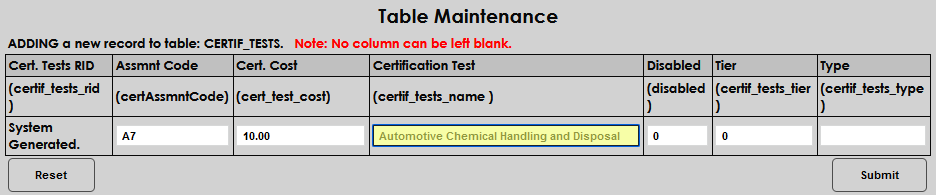
In the Tier field, enter up to 4 digits that will represent the level of difficulty of the test.
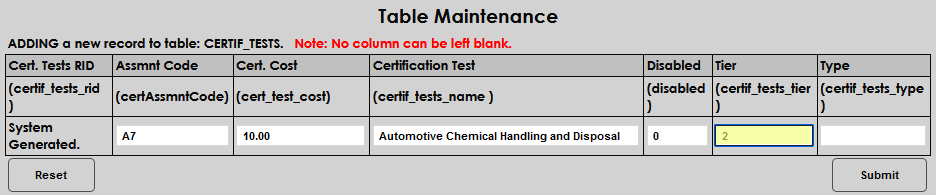
Finally, enter two letters that will associate the test with a program or other tests in the Type field.
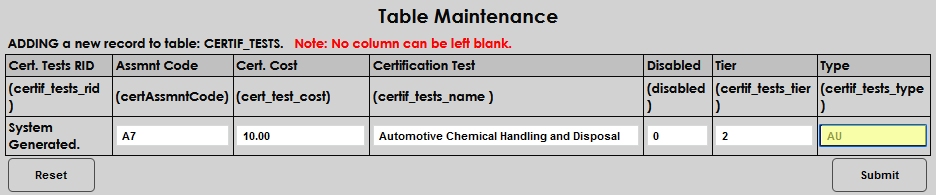
Click Submit to save the entry.
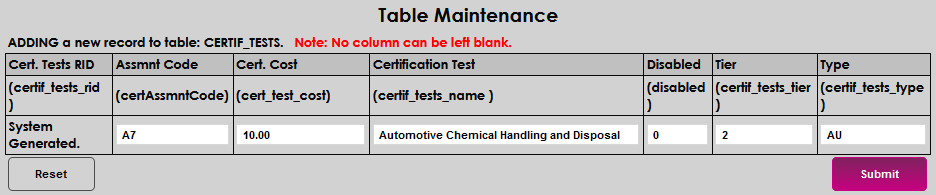
To edit an existing Certification Test, click on the Cert. Tests RID.
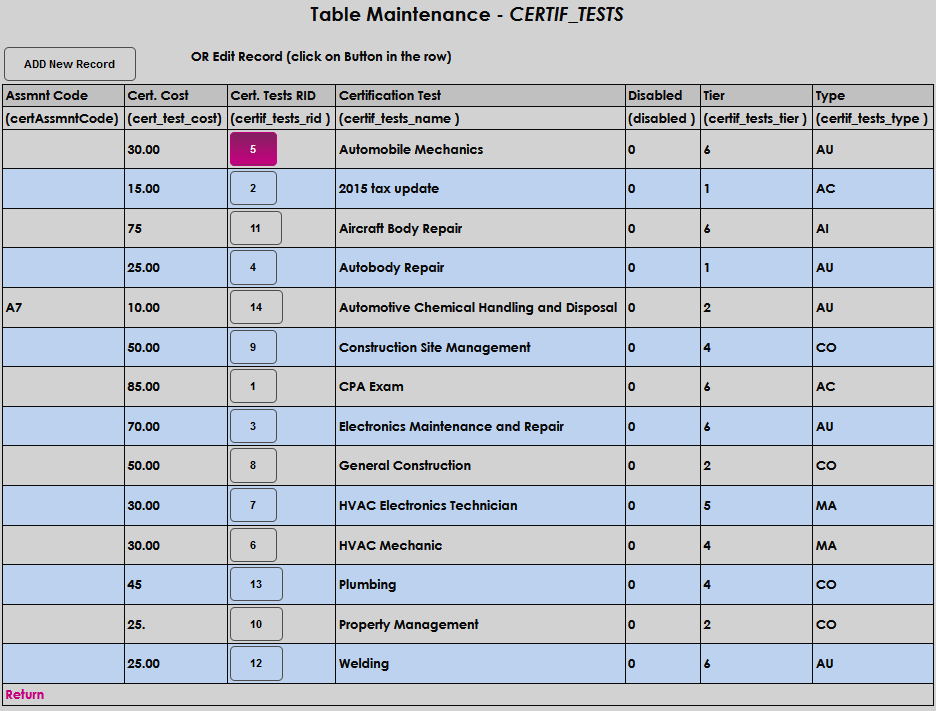
Make any desired edits, then click Submit. In this example, the Assessment Code was added and the Certificate Cost was decreased.

Associating Tests to Career Major Courses
Certification Tests are associated, or linked, with courses in the Systems hub item Career Major Course (CMC) Assignment. Three filters—Campus, Division, and Department—are provided so that administrators can quickly locate the desired course(s). By default, all items in each list are selected upon entering the screen. To begin, select any desired filter(s), and click Submit.
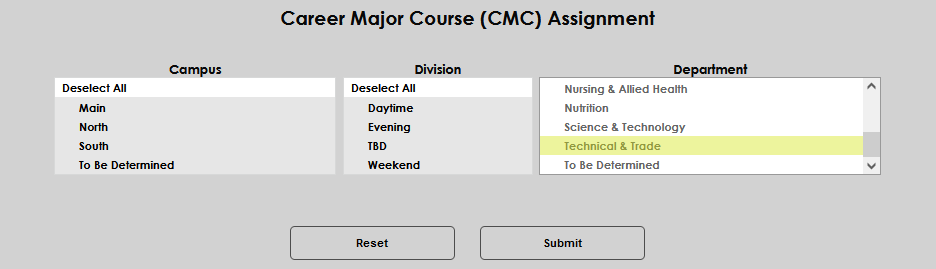
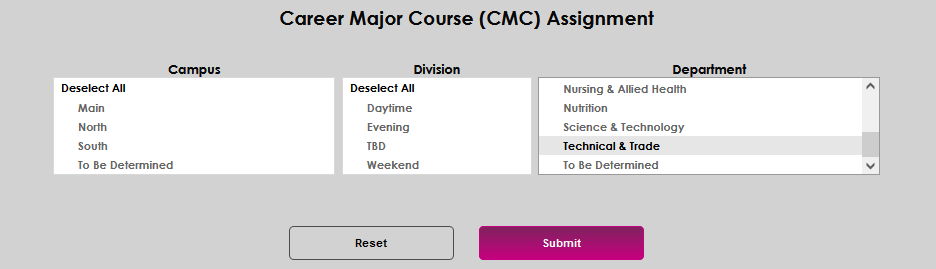
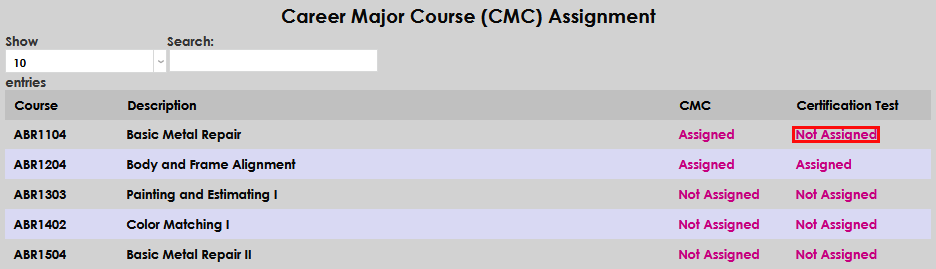
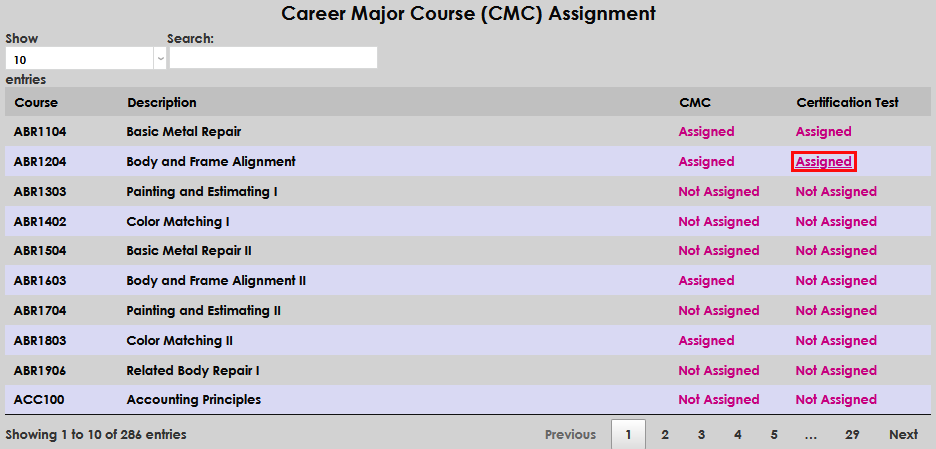
After clicking Submit, all courses that meet the selected filters will display. The Course identifier, Description, CMC assignment status, and Certification Test assignment status are shown. The values in CMC and Certification Test are links; clicking them will display further information. To assign a certification test, click on Not Assigned. To edit an existing association, click on Assigned.
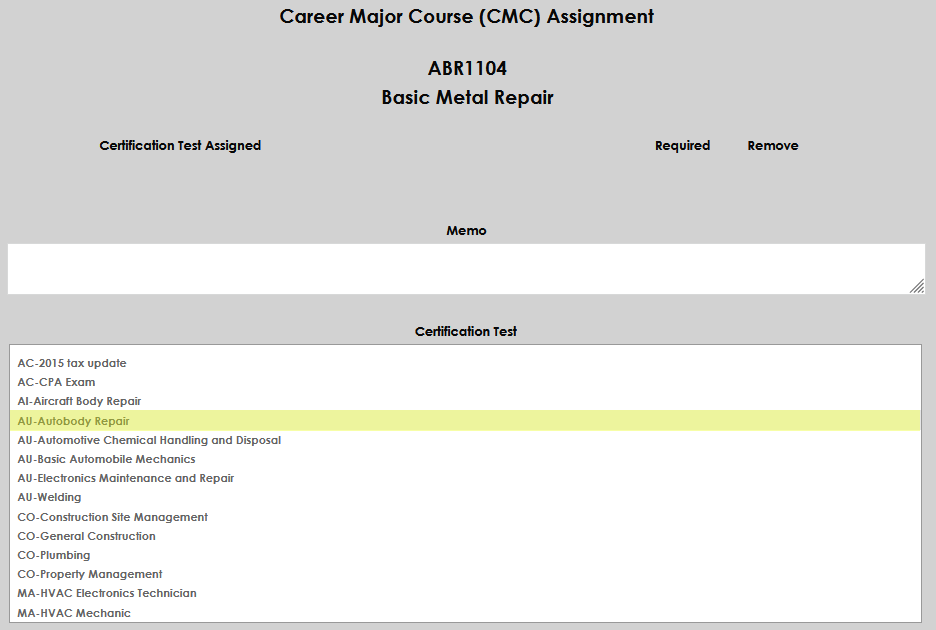
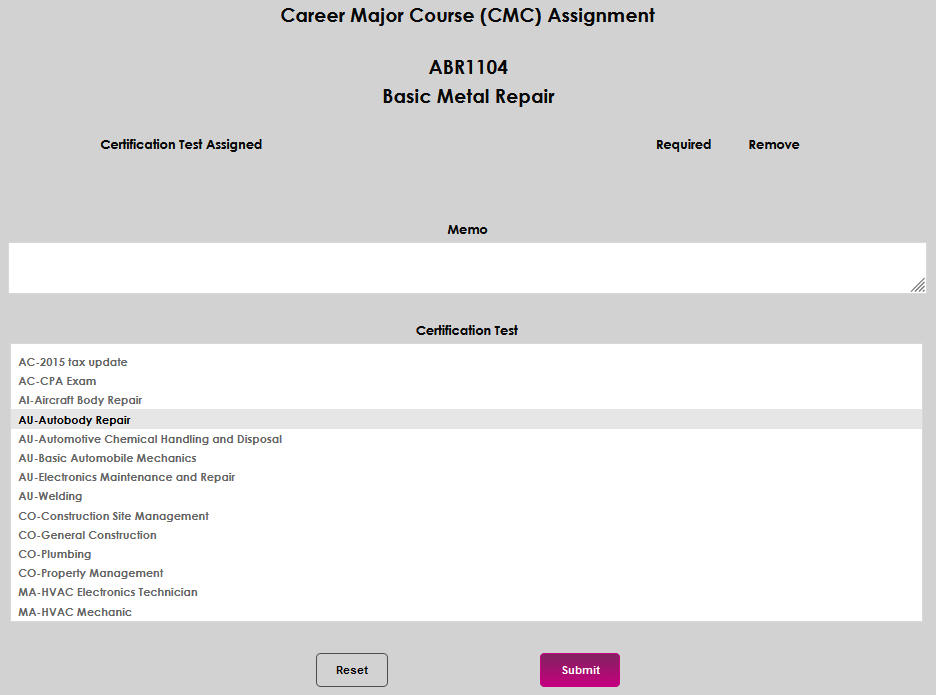
Select the appropriate Certification Test or tests, and click Submit.
The selected certification will populate in the upper Certification Test Assigned section. If the test is required for students in the course, click the Required box.
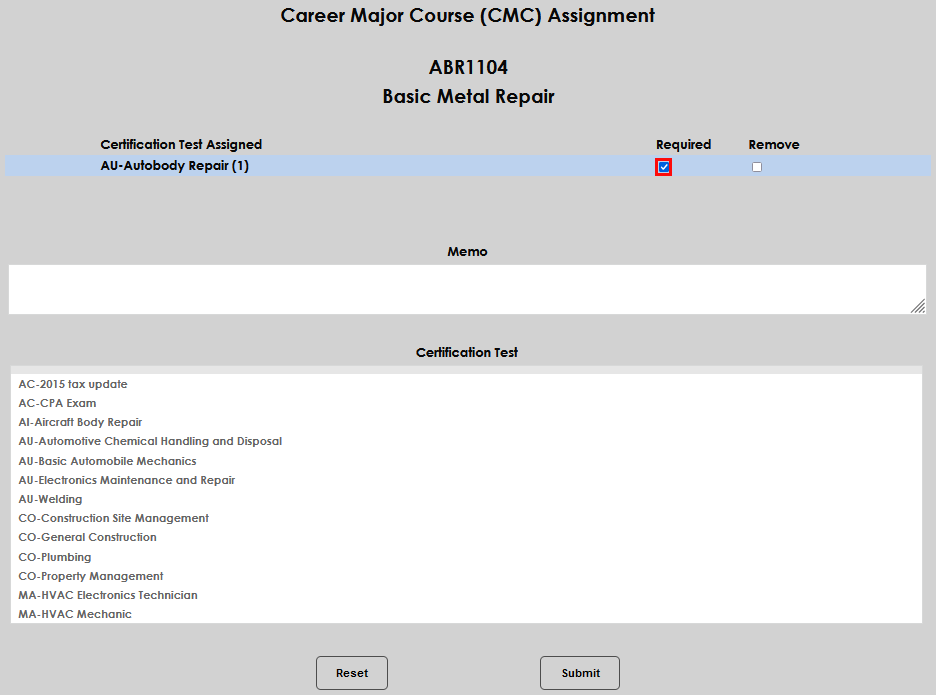
If any additional information should be entered regarding the test and its association with the course, enter those details in the Memo field.
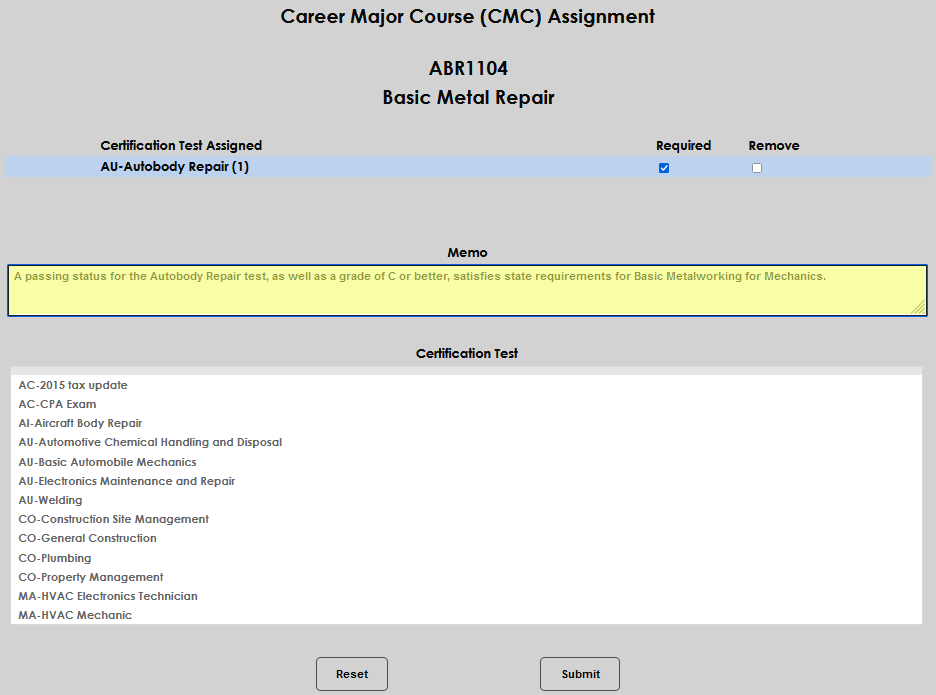
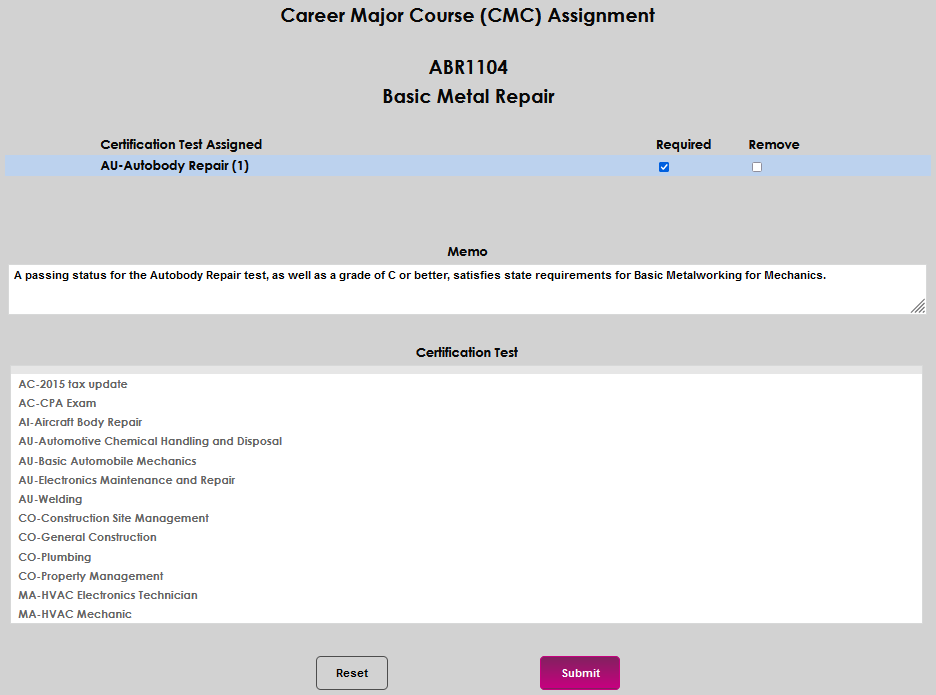
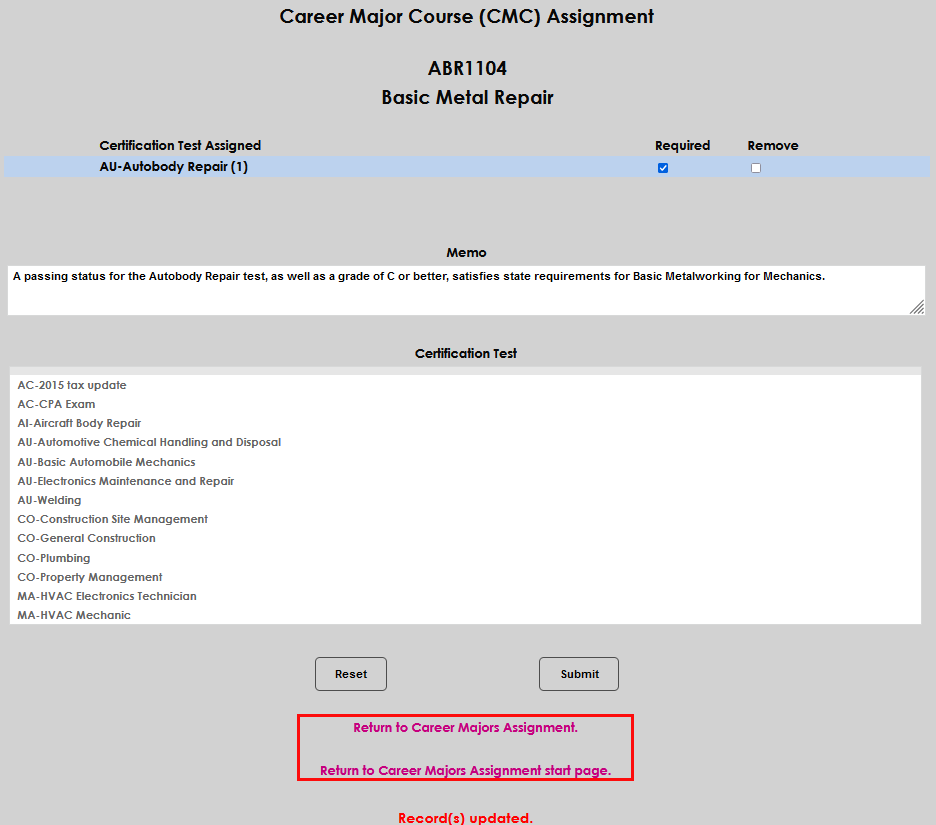
Click Submit to save the entries and click on either Return to Career Majors Assignment or Return to Career Majors Assignment start page to continue assigning tests to courses.
To edit an existing certification test association with a course, access the course via the Systems hub item Career Major Course (CMC) Assignment. Three filters—Campus, Division, and Department—are provided so that administrators can quickly locate the desired course(s). By default, all items in each list are selected upon entering the page. To begin, select any desired filter(s), and click Submit. After clicking Submit, all courses that meet the selected filters will display.
In the row for the desired course, click Assigned.
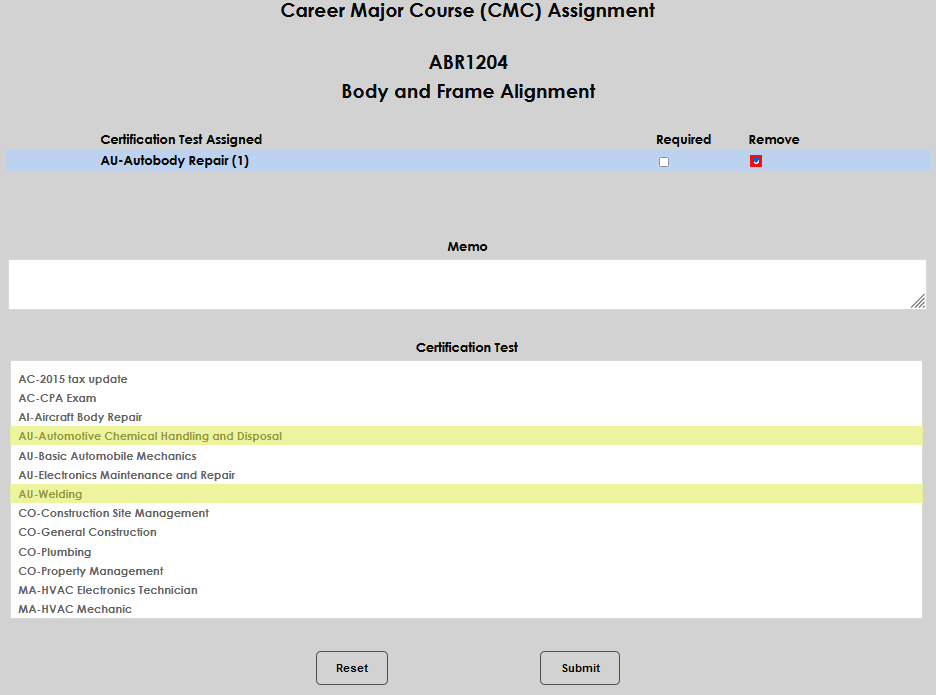
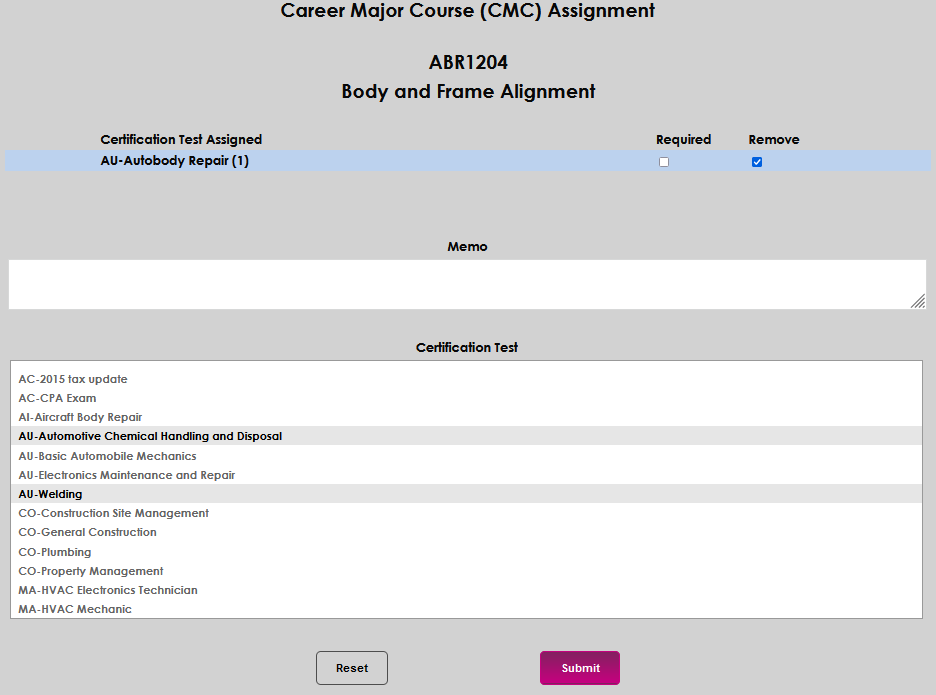
On the page that opens, make any necessary edits. In this example, the certification test is being removed and replaced with two others. Click Submit to save the edits.
Creating the Report
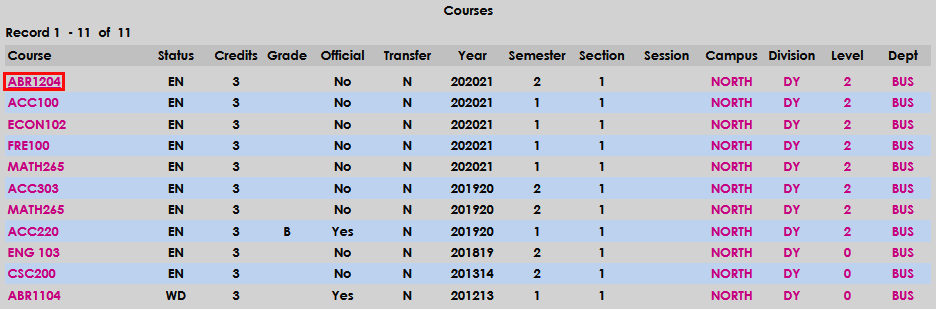
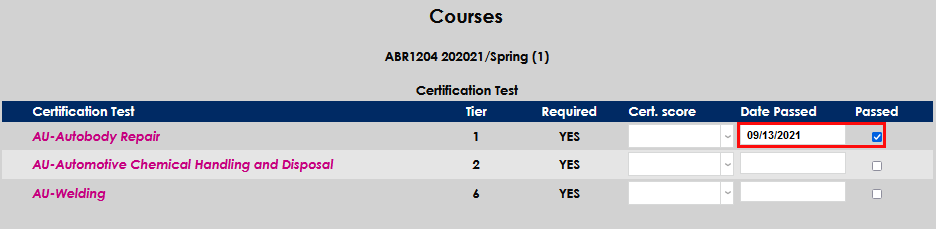
For a student to appear on the BIS Student Record report, they must have been enrolled in a course with an associated certification test and their Student Courses record must display the passed status. To view a student's certification test details, navigate to the student's Courses from the Users hub. Click on the desired course and then click View Certification Test Details
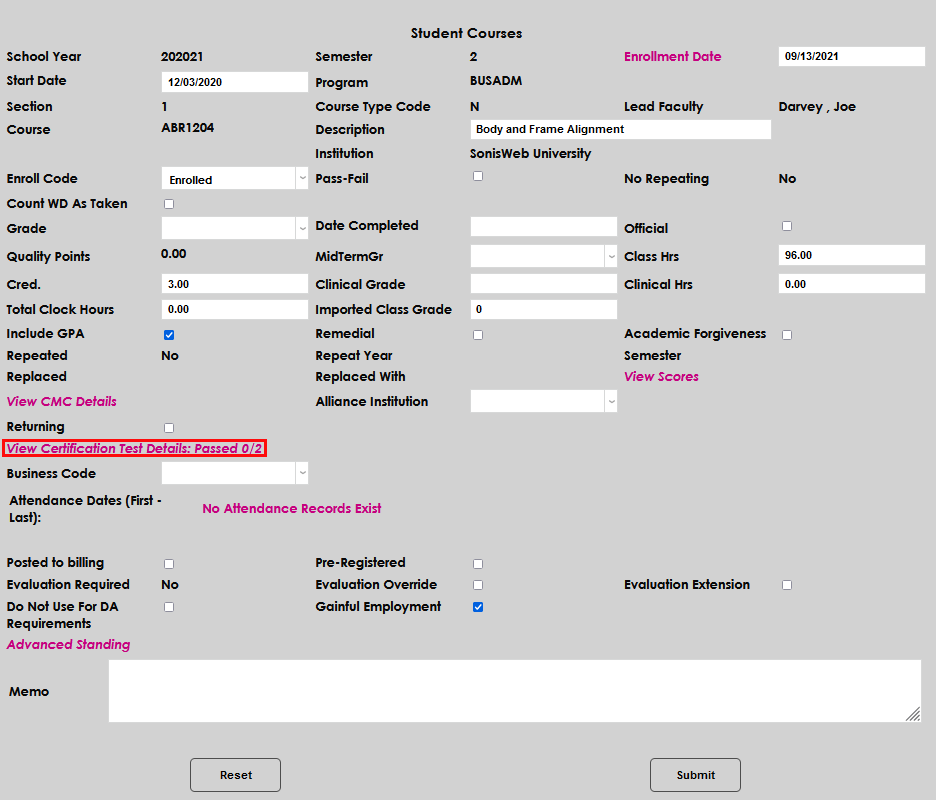
The page that displays next allows the administrator to view the certification tests that are assigned to the course and the student's status for each. If the student has passed any associated certification tests, the Date Passed field and Passed checkbox will be populated.
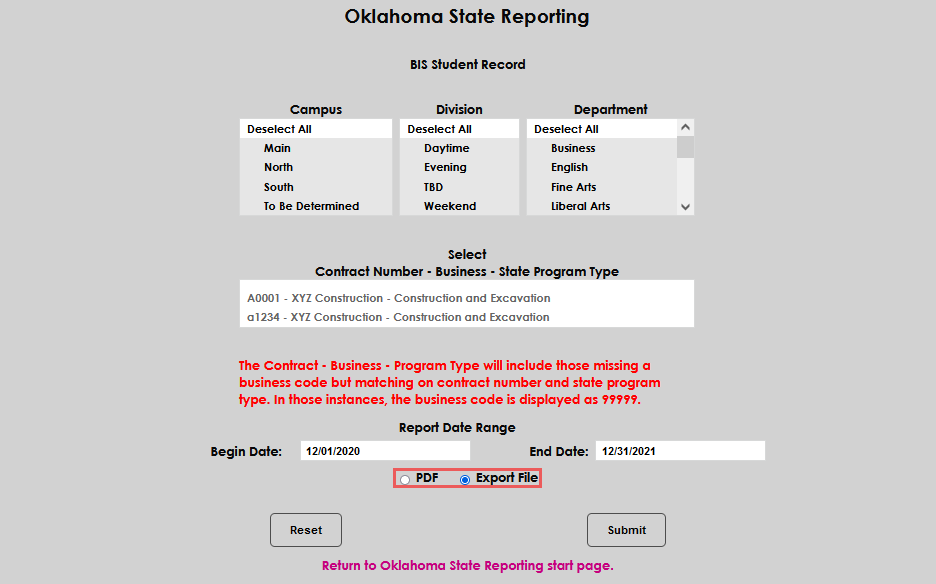
To create the BIS Student Record report, navigate to Oklahoma State Reporting from the Systems hub, and select BIS Student Record from the dropdown.

A number of filters are provided to assist administrators with identifying the desired population for the report. Campus, Division, and Department are defaulted to select all options. If a specific Campus is required, selecting the Campus will deselect the remaining campuses in the dropdown. Division and Department behave the same way.
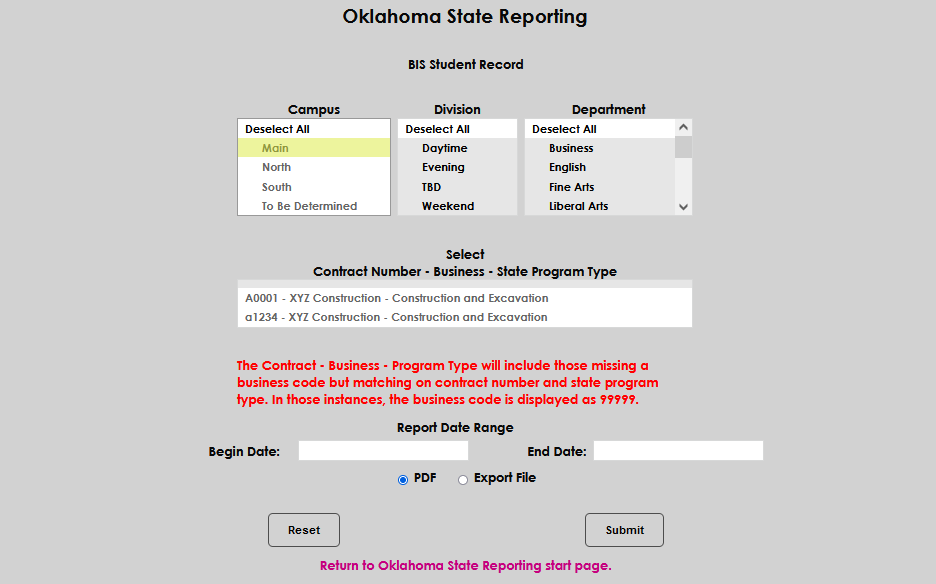
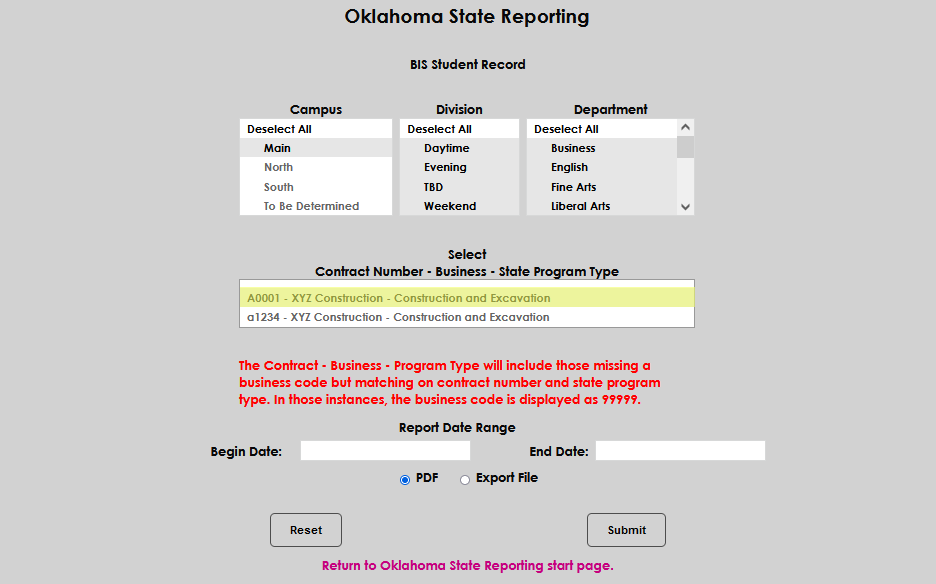
If reporting for a specific contract, and the contract has been associated with the course(s), select the needed Contract Number. This is not a required field.
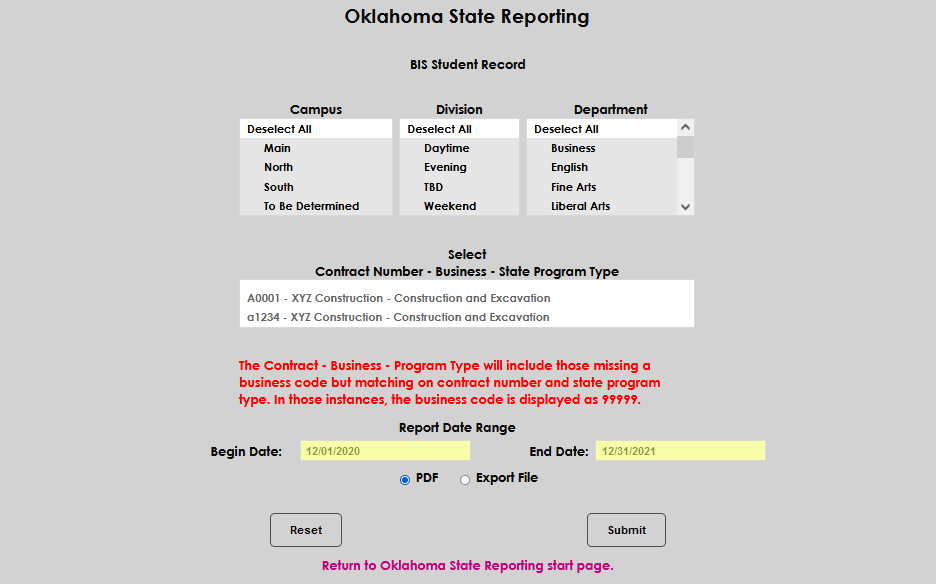
Enter a report Begin Date and End Date that include the dates associated with the enrollment dates for the course or courses being reported on. The report will not generate without dates, and it will not include the appropriate courses if dates are used that do not include the dates of the course.
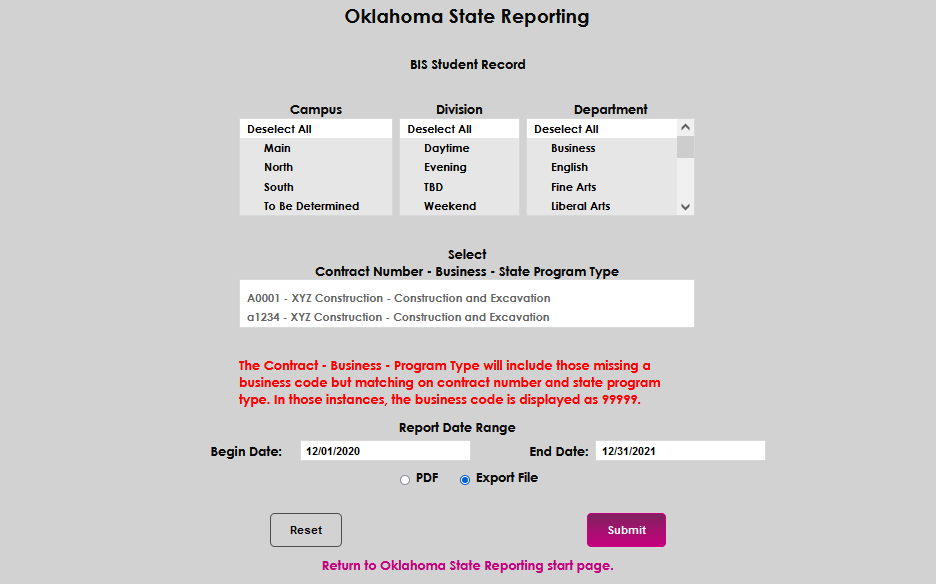
Select the radio button that corresponds to the format the report should be displayed in: PDF or Export File. Click Submit to generate the report.
When the report generates, the following fields will display and be populated with the values that apply to each student: Contract, School Code, First and Last Names, Suffix, Social Security Number, Student Tax Number, High School ID, Sex, Date of Birth, Hispanic, Indian, Asian, Black, Hawaiian, White, Unknown, Education Level, Hours, and Business Code. Here is an example of how this information is displayed in an Export File that was opened in Excel.

If no courses match the selected criteria, a notification will display.

Career Major Student Enrollment Report
The Career Major Student Enrollment report provides administrators the ability to view information about students who are enrolled in career majors. To populate the report with students, Oklahoma State Information records must be associated with students. The report allows selection of students by Campus, Division, Quarter, and the School Year.
Setup
Student Info
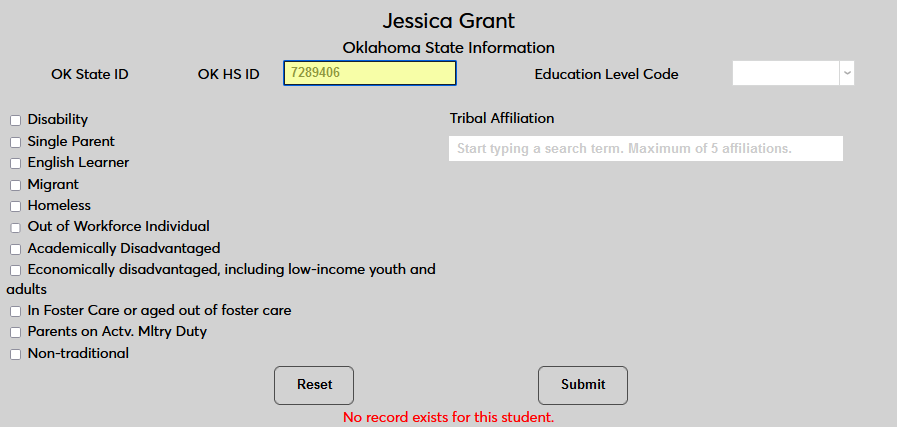
In order for a student to be included in the Career Major Student Enrollment Report, they must have an Oklahoma State Information record. To add this record, select a student using the Name Search feature and navigate to the student's Biographic page. Click the OK State Info. link on the left-hand side of the page. A new window will open.

On the following page, begin by filling out the OK HS ID that corresponds with the student's high school.
Next, select the appropriate Education Level for the student. The list is populated based upon the records in the OK Education Levels table, which can be accessed through Table Maintenance. The OK Education Level is mapped to the Education Level and automatically associates the value in the OK Name Table with the student's identifier.
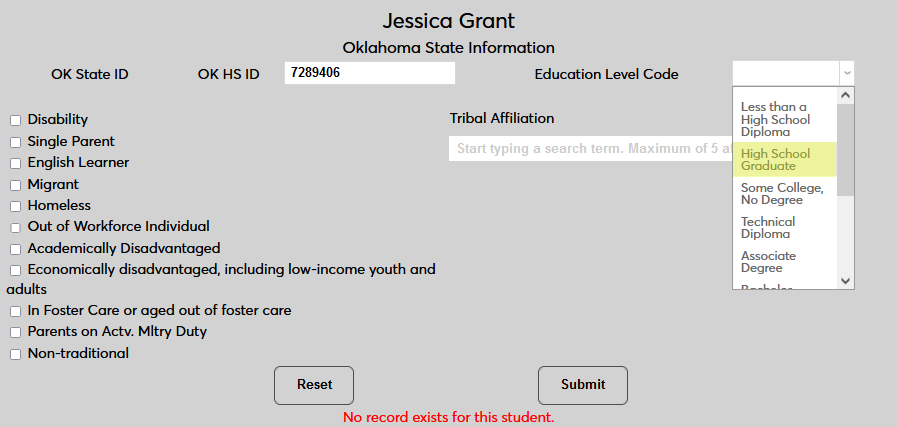
Select any demographics that the student may be part of from the list on the left-hand side of the page. A selection is not required since some students may not fit into any of these categories.
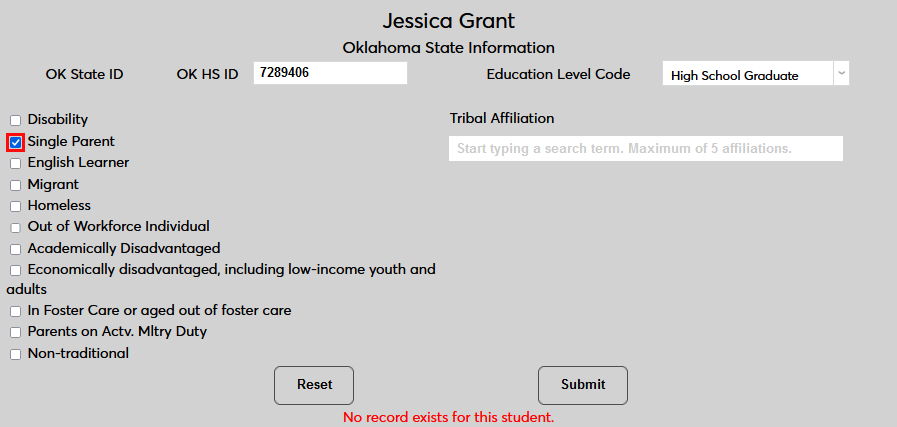
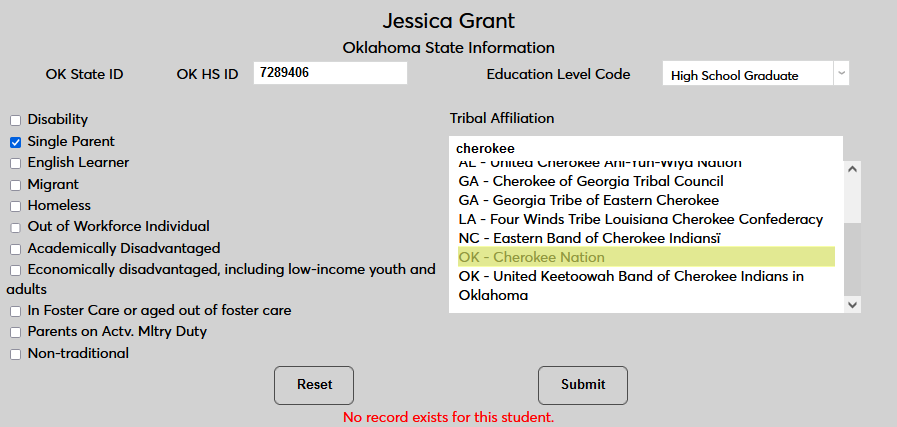
If the student is affiliated with a recognized American Indian tribe, select the tribe using the Tribal Affiliation menu. Type the name of the tribe into the search box and click on the appropriate result. The field uses a live search that updates with each letter typed. Up to five tribal affiliations will display for each student in a the report.
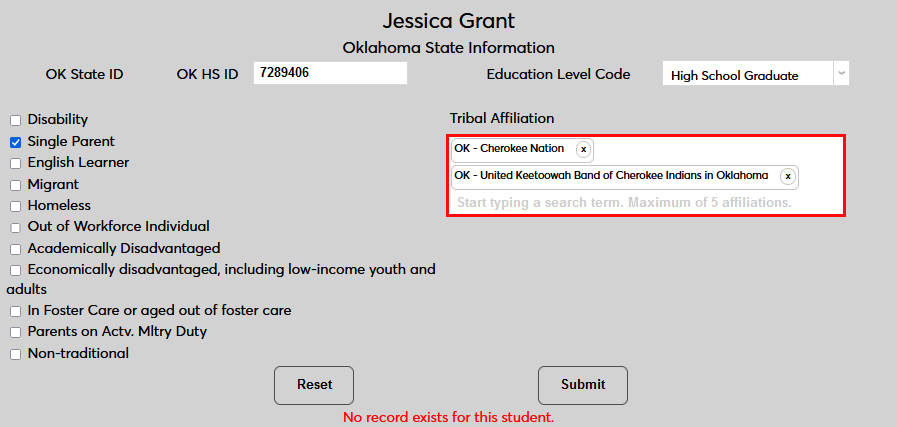
Note that additional tribes can be added if the student has more than one affiliation.
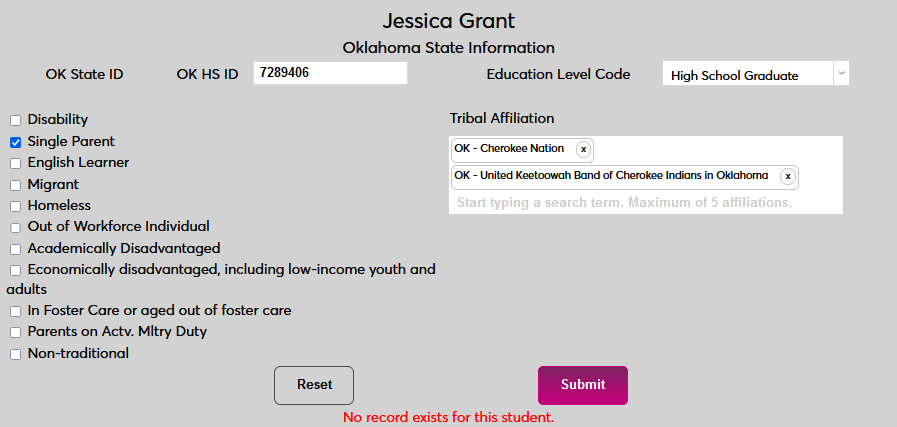
Click Submit to save the changes and create the record.
Course Info
In addition to the student information, each course to be included in the report must have Oklahoma state information entered as well. Only students who are registered for courses with these records present will appear on the report. To add the required records, select a course using the SONIS Course Search and click the Oklahoma State Info. link on the Course Add/Edit page. A new window will open.

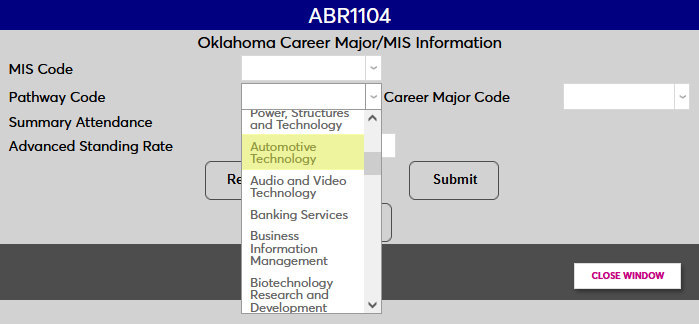
In the Oklahoma Career Major/MIS Information window, select a Pathway Code for the course.
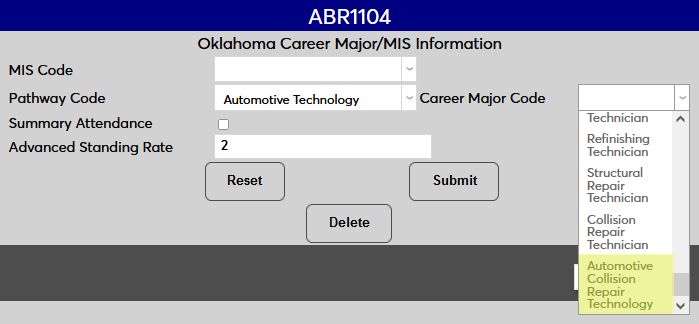
Then, select a Career Major Code for the course. Note that a course cannot have both an MIS Code and a Pathway code.
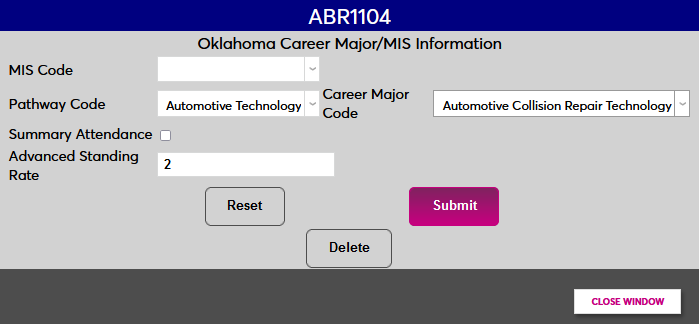
The other fields on this page may be needed for other processes, but are not required for this report. Click Submit to save the changes.
Each course must also be tied to one or more CMCs. Visit the CMC Assignment page for more on this process.
Course Section Info
Each course section included in the report must also have Oklahoma state reporting records. To add these values, navigate to the Course Section edit page and click the Oklahoma State Info. link. A new window will open.
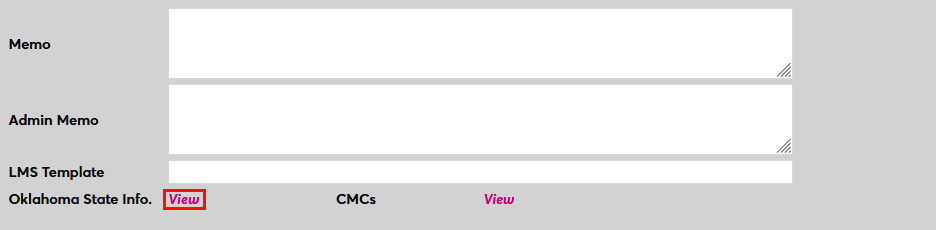
In the Course Section State Information window, select an OK Program.
The other fields on this page may be needed for other processes, but are not required for this report. Click Submit to save the changes.
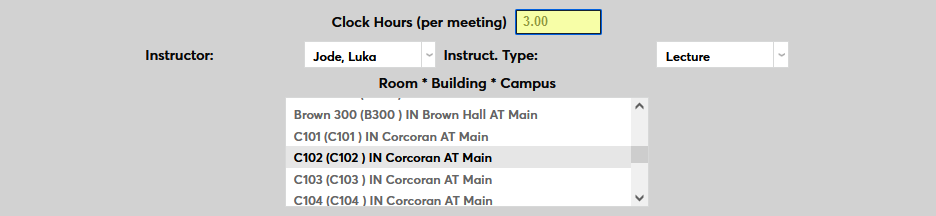
Note that each course section must have clock hours to be included in the report. To add clock hours, navigate to the Meetings page and fill in the Clock Hours (per meeting) field. If no courses have clock hours, the Career Major Report will not run.
Creating the Report
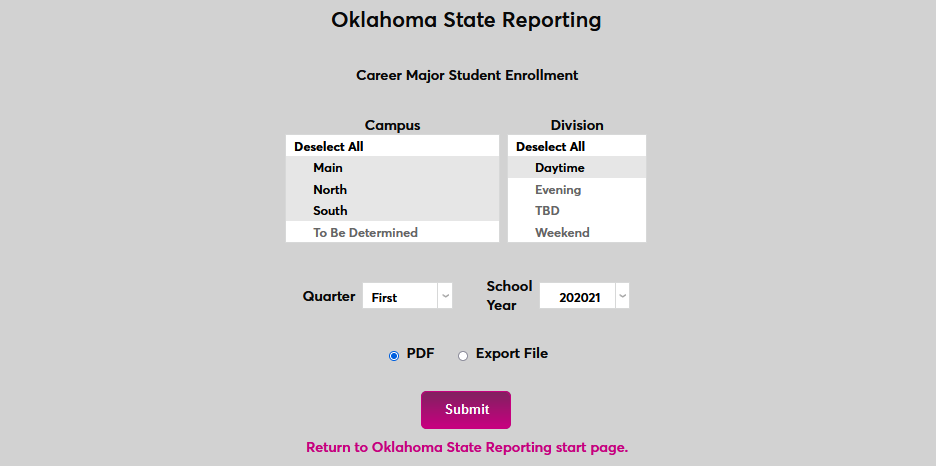
To create a Career Major Student Enrollment report, navigate to Oklahoma State Reporting in the Systems hub. Select Career Major Student Enrollment from the Report menu.

On the following page, select one or more options from the Campus menu and the Division menu.
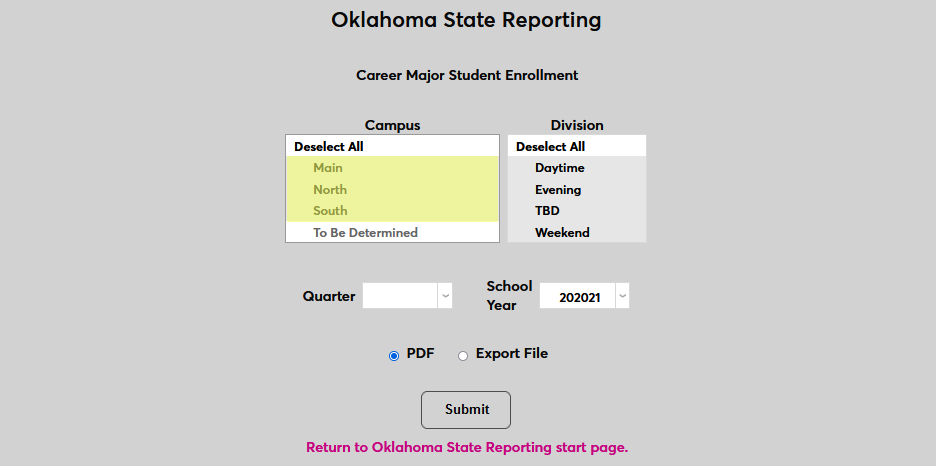
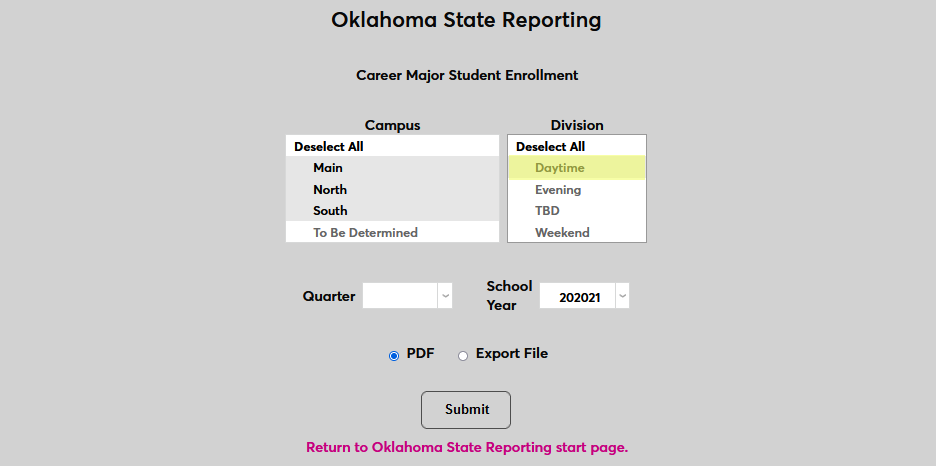
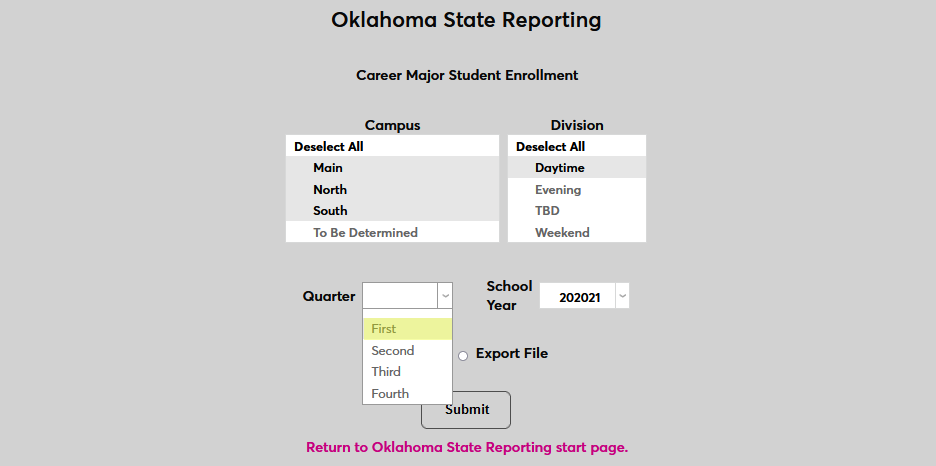
Select the Quarter and the School Year that will be included in the report. Quarters run as follows: First Quarter - July 1 - Sept. 30, Second Quarter - October 1 - December 31, Third Quarter - January 1 - March 31, and Fourth Quarter - April 1 - June 30.
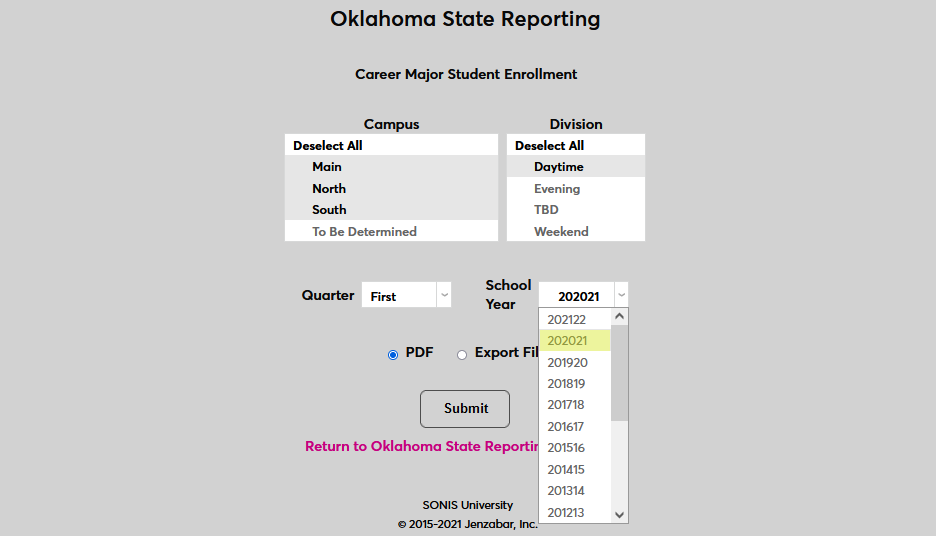
Choose whether SONIS will create the report in PDF format or as an Export File in CSV format. Click Submit to create the report.