Registration
Overview
The Registration page in the student portal provides current students in good standing with an easy, fast way to register themselves for upcoming courses. This page may be restricted or made inactive by school administrators for a variety of reasons and is often only made available during certain periods of the school calendar. It may also be unavailable due to unresolved registration holds. To clear holds, or inquire as to why registration is unavailable, contact school administration.
If Express Registration is turned on, the student will be taken directly to this page after logging in. Students can view course offerings without logging in if the Courses by Semester function is enabled.
Note
If you're a Continuing Education student, your registration page will look and function a bit differently. See the CE Registration section below for more details.
Registering for Courses
Displays, Navigation, & Filtering
The top section of the Registration page offers an Enrollment Summary. The system lists your degree and the school where you're registering. You can also see the semester you're registering for along with the begining and ending dates. Your registration status must be green and Active in order for you to begin registration.
Note
If your registration status is Inactive and you think this is an error, contect your school's registrar.
You can use the Registration Filters menu to change the Regristration Period you're registering for, if additional periods are available. For example, if your school allows you to register for both Summer and Fall courses at the same time. To change the registration period, select a different period from the drop-down menu and click Submit.
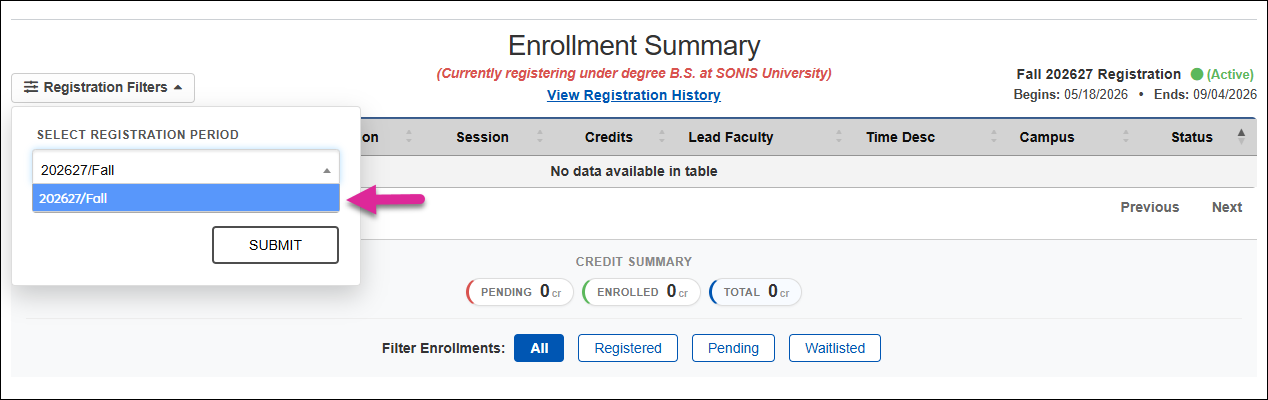
If your school uses the option View Registration History link, you can click it to see courses you've registered for in the past.
Note
System administrators can turn the View Registration link on and off from the Web Options page under the Systems hub.
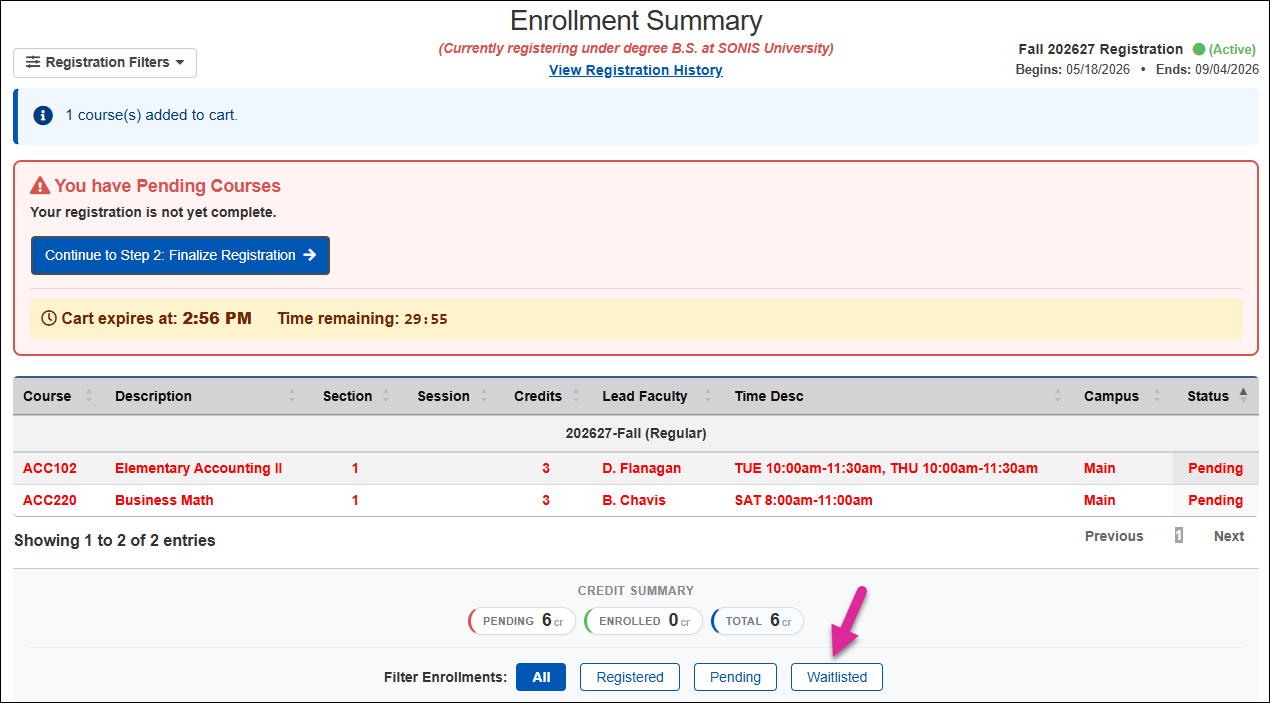
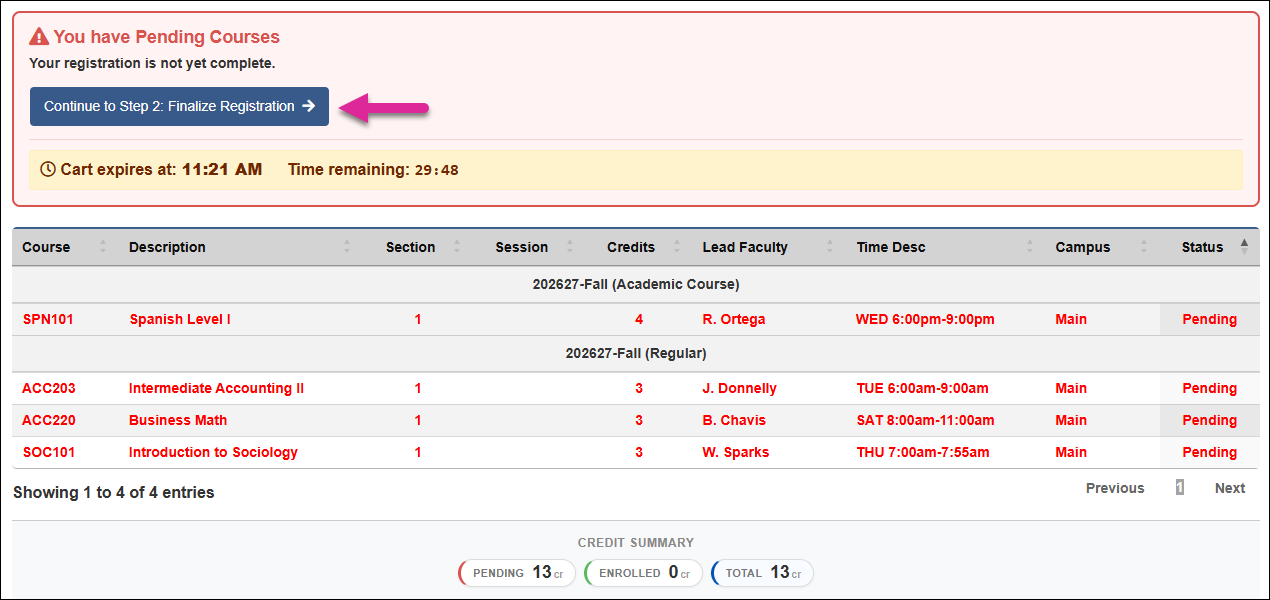
Courses that are pending or already registered also appear in this section. Pending courses appear in red with a timer that expires to keep students from holding courses for extended periods of time. You can sort any column in the table in ascending or descending order using the arrows next to each column header. Use the Previous, Next, and page number links to view additional pages of courses if not all of them display.
The Credit Summary provides a color-coded visual count of your Pending, Endrolled, and Total courses. You can click one of the Filter Enrollments buttons to display only Registered, Pending, or Waitlisted courses.
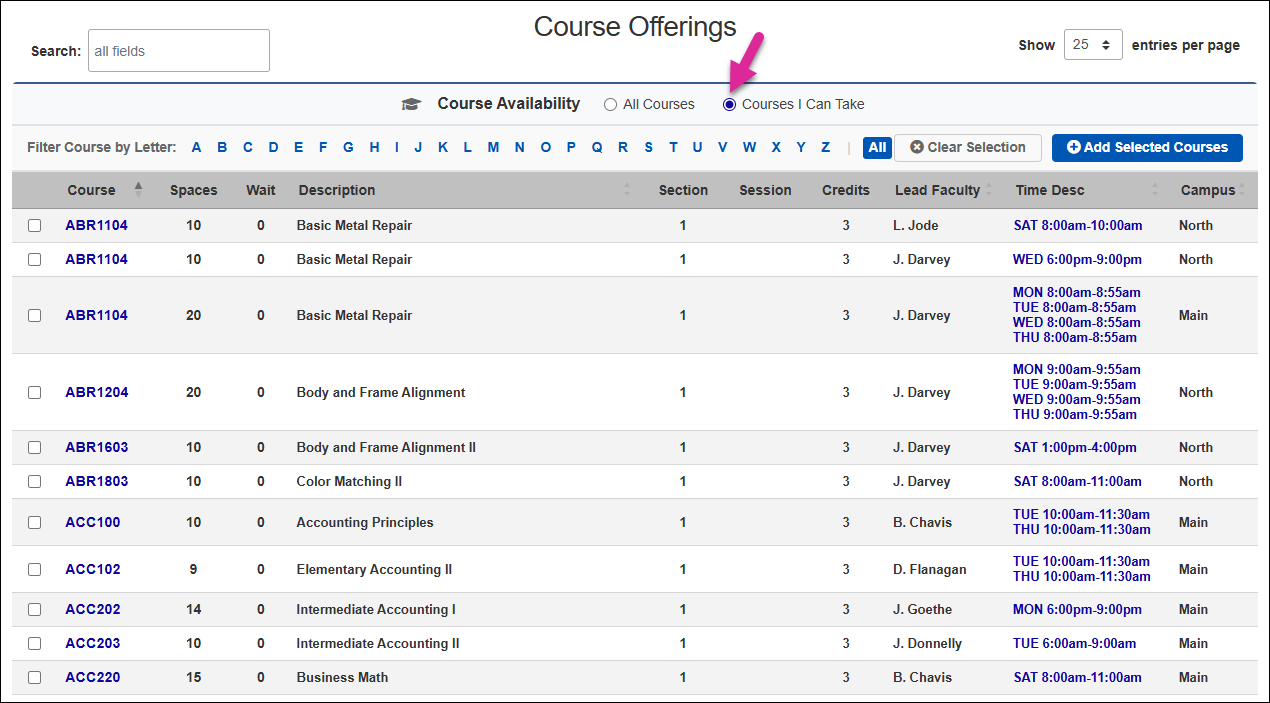
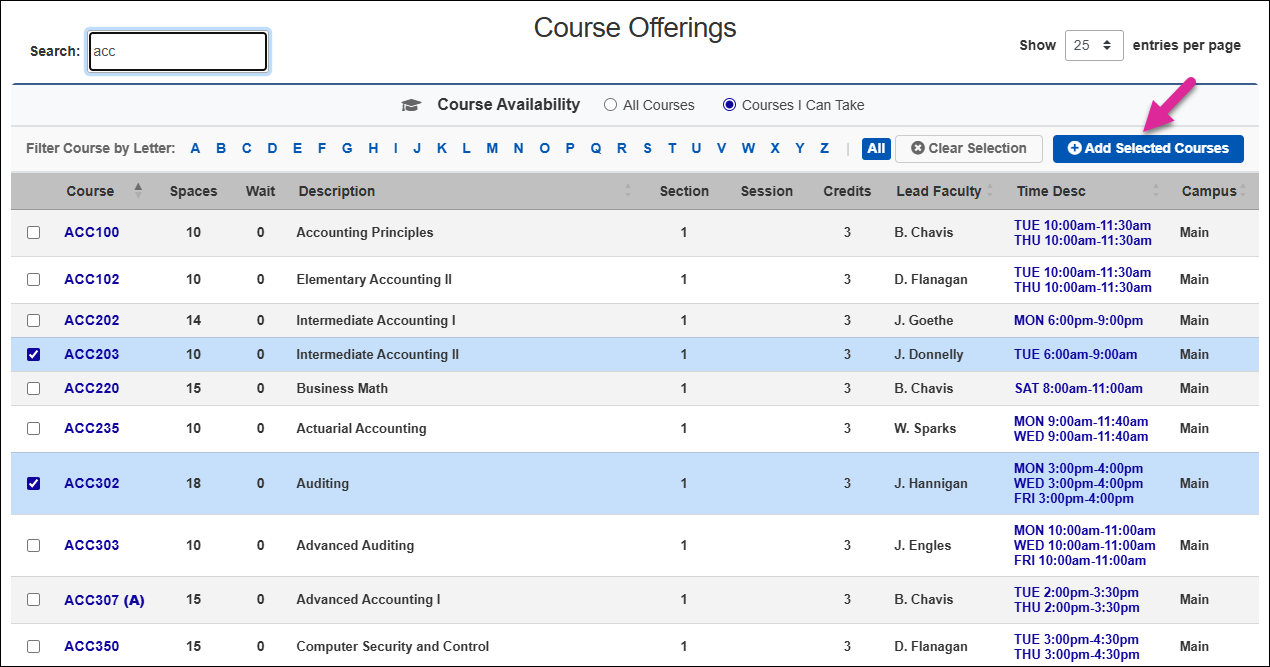
The Course Offerings section displays the courses that are available for registration.
A few filter options are available to control which courses display in the table.
You can use the Course Availability filters to show only courses you can take (based on program restriction, level restriction, prerequisites, etc.) or set it to show everything.
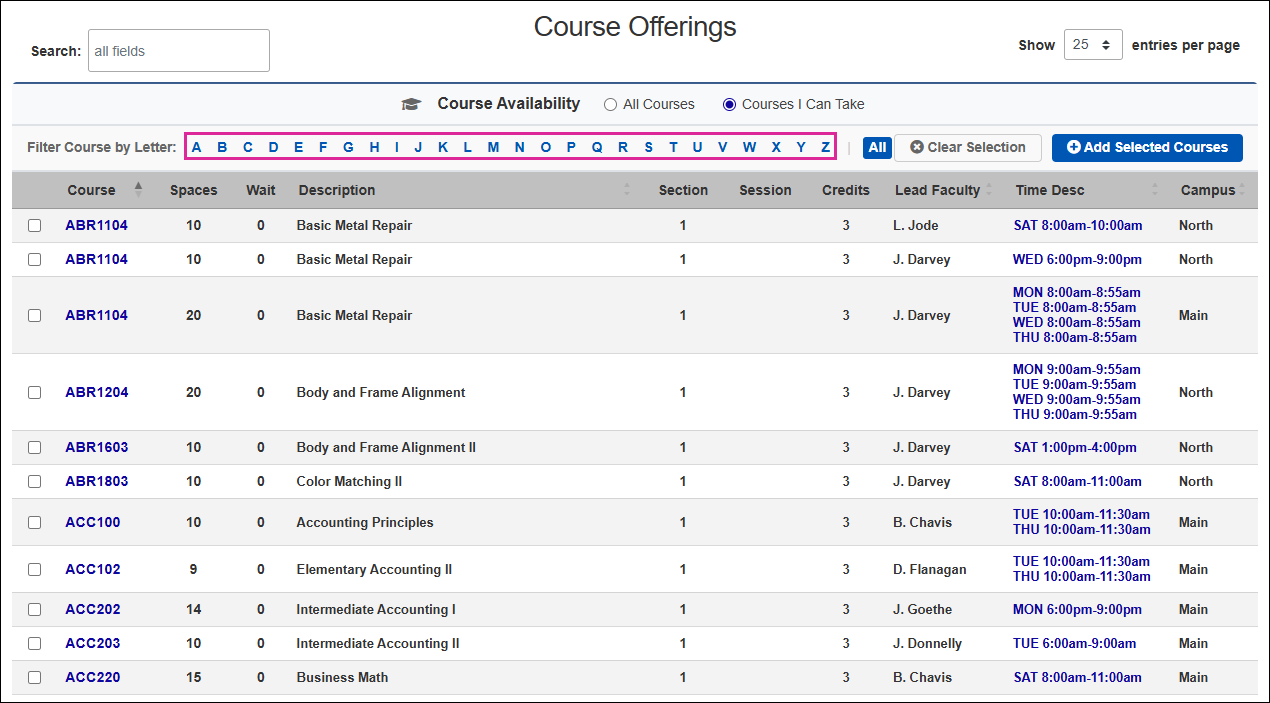
You can also filter courses based on the first letter of the course name. Click All to remove this filter and view courses that begin with any letter.
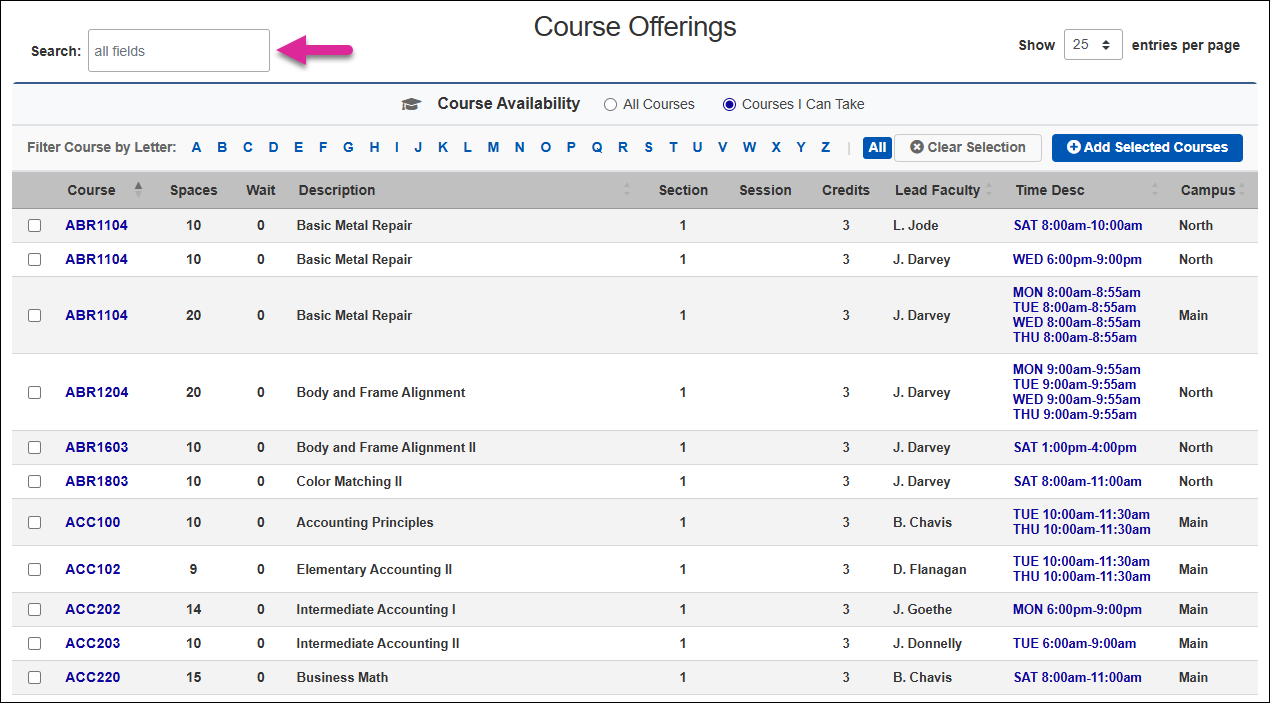
Use the Search box to find a specific course or group of courses. The search box searches all the fields in the table and begins searching as you type.
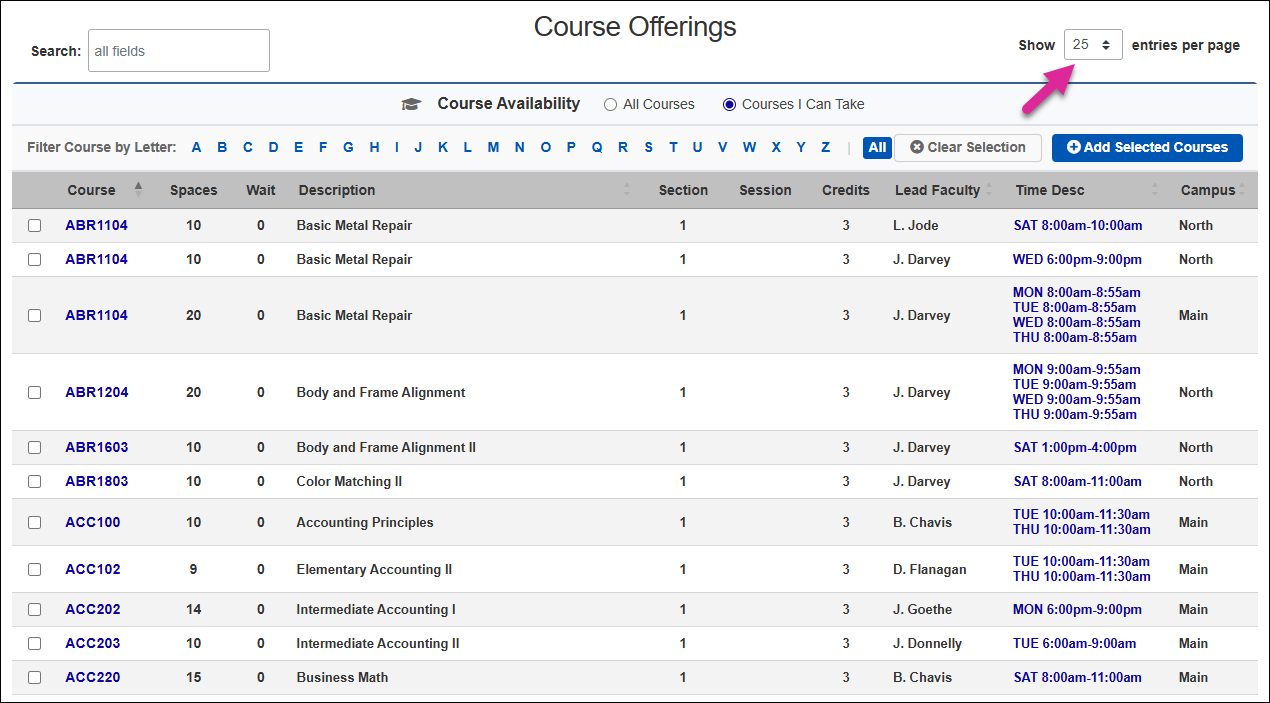
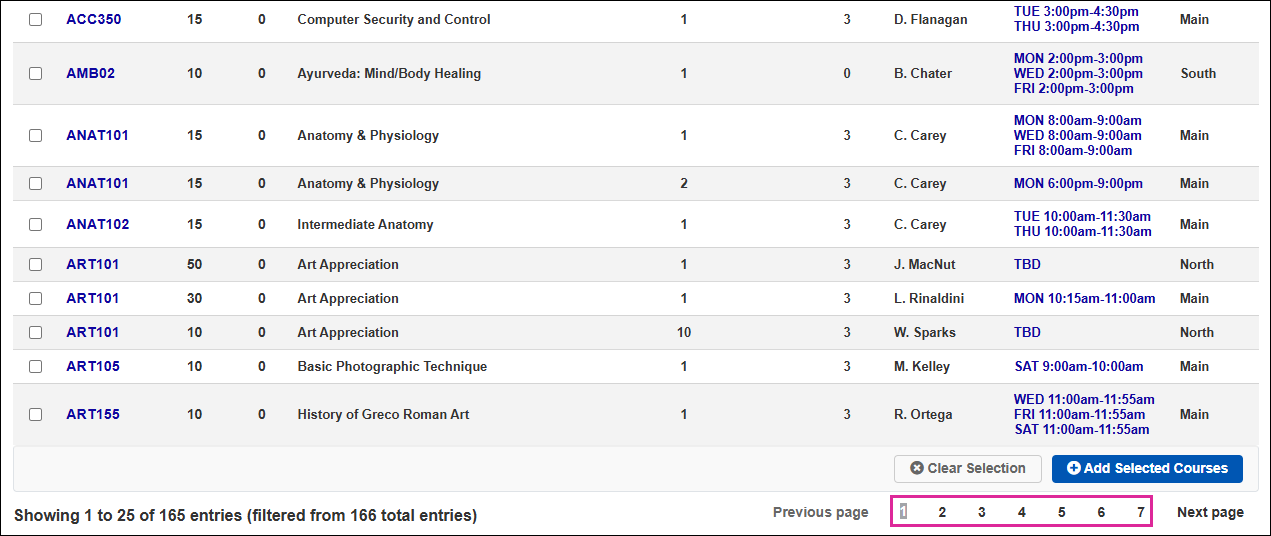
The Show menu controls how many courses are displayed per page. Use the Previous Page, Next Page and number links at the bottom of the page to navigate between pages in the course list.
Registering for Courses
Once you've located the courses you wish to register for using the filters, search box, and or page controls, you can click on the date and time of the course to view the full course information one table in a pop-up window.
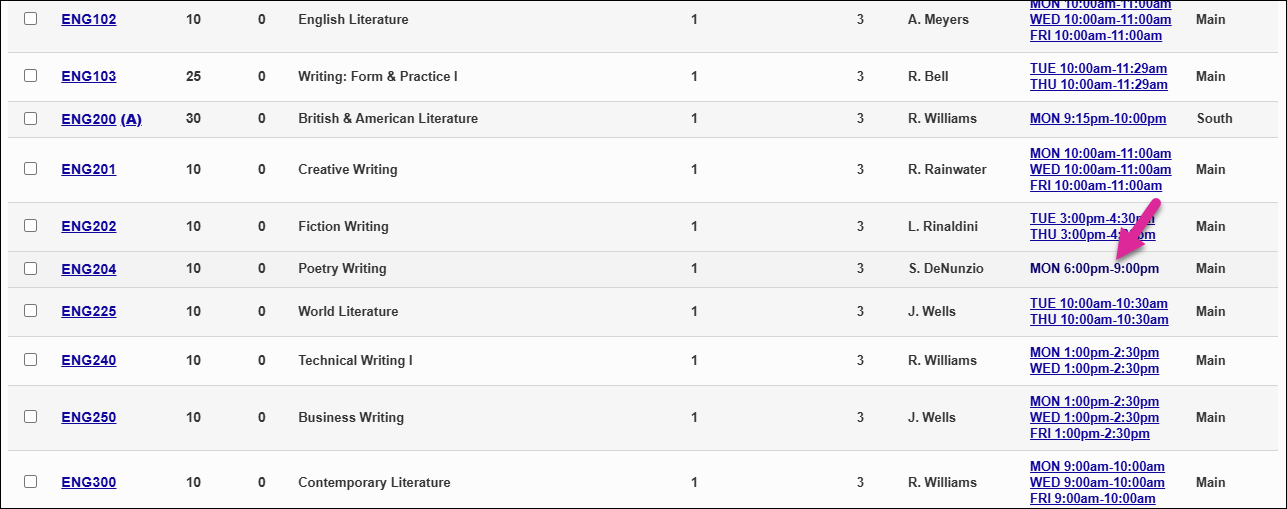

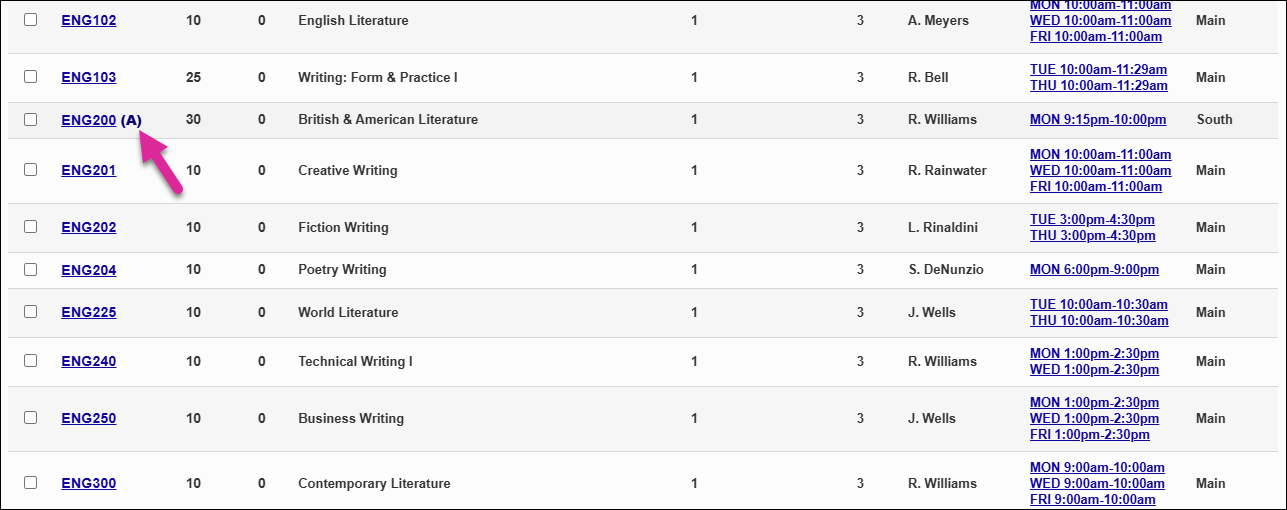
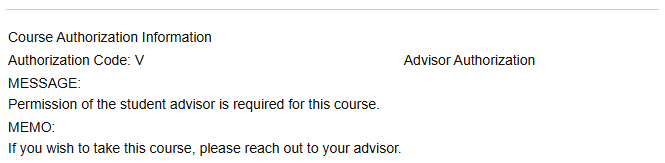
If a course has a letter in parentheses next to the name, this means that the course needs additional authorization of some kind. Click on the letter to open a pop-up window containing information about the required authorization.
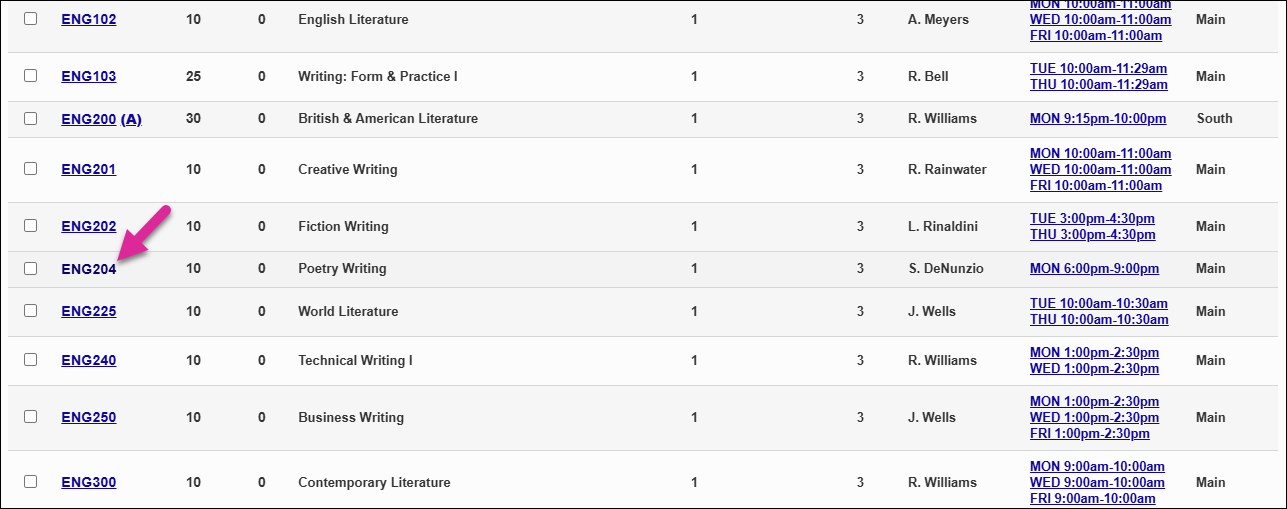
To select an individual course for registration, click on the name of the course.
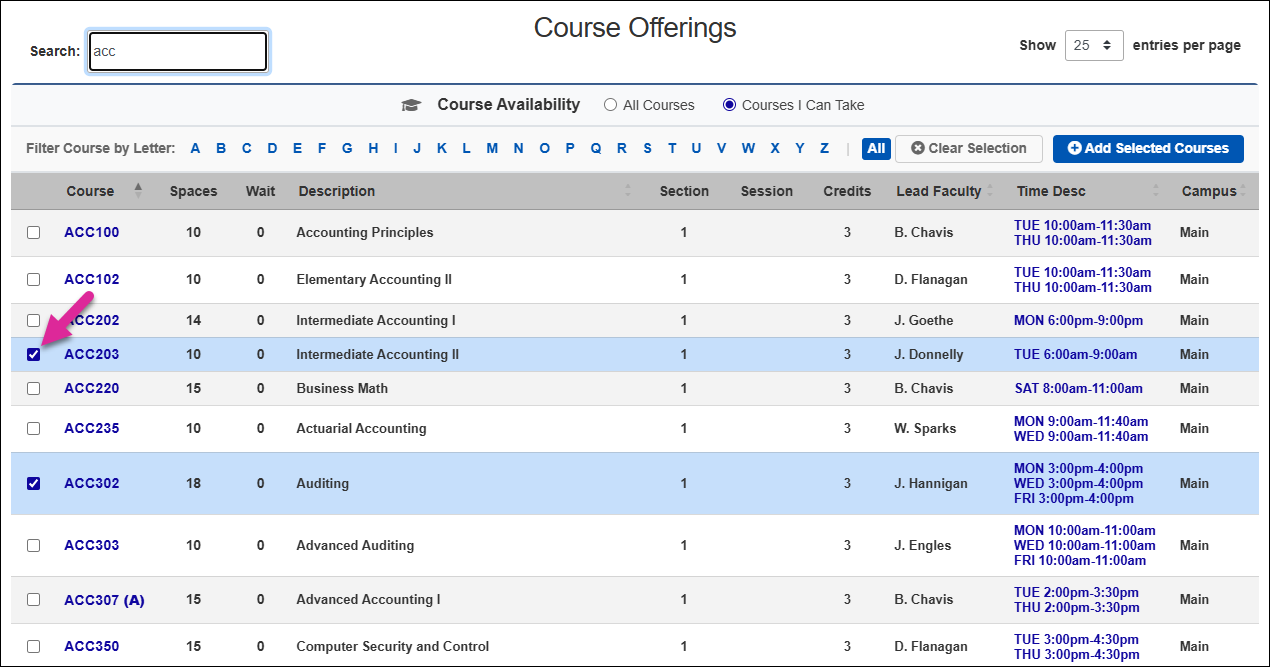
Alternately, you can select multiple courses for registration. Check the box next to each course name you want to select and then click Add Selected Courses.
Note
You can select courses that do not appear on the same page or within the same filter and they will stay selected as you switch between pages or filters. Click Clear Selection if you wish to unselect the boxes you previously checked.
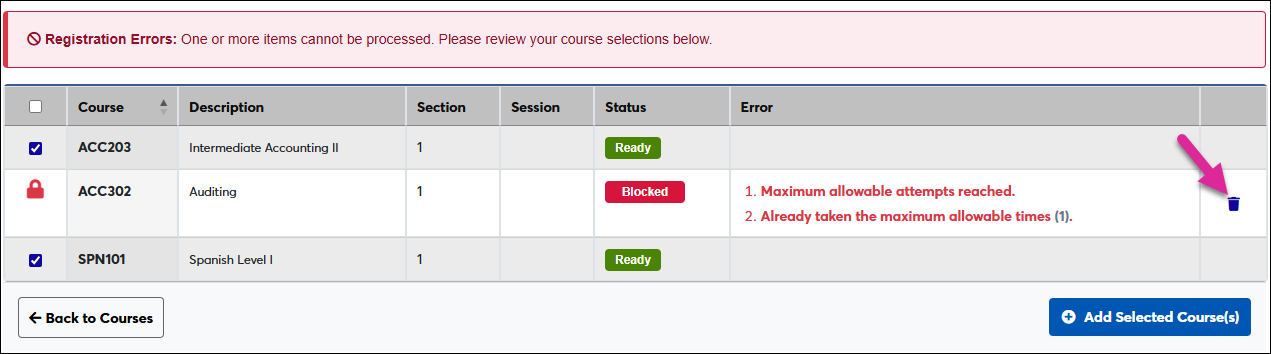
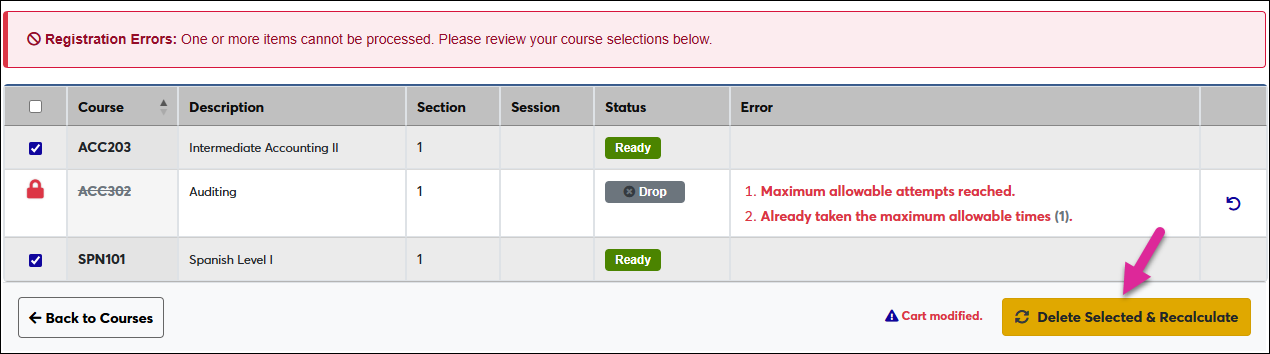
If there are restrictions or conflicts that would prevent you from taking these courses, you will be taken to a page that displays all the selected courses with the restricted course highlighted. To remove a course that is blocked, click the  icon followed by the Delete Selected & Recalculate button.
If the courses you've selected have no restrictions or the restricted courses have been removed, the courses you selected are added to the Enrollment Summary.
To remove a course that you've selected, click the course name.
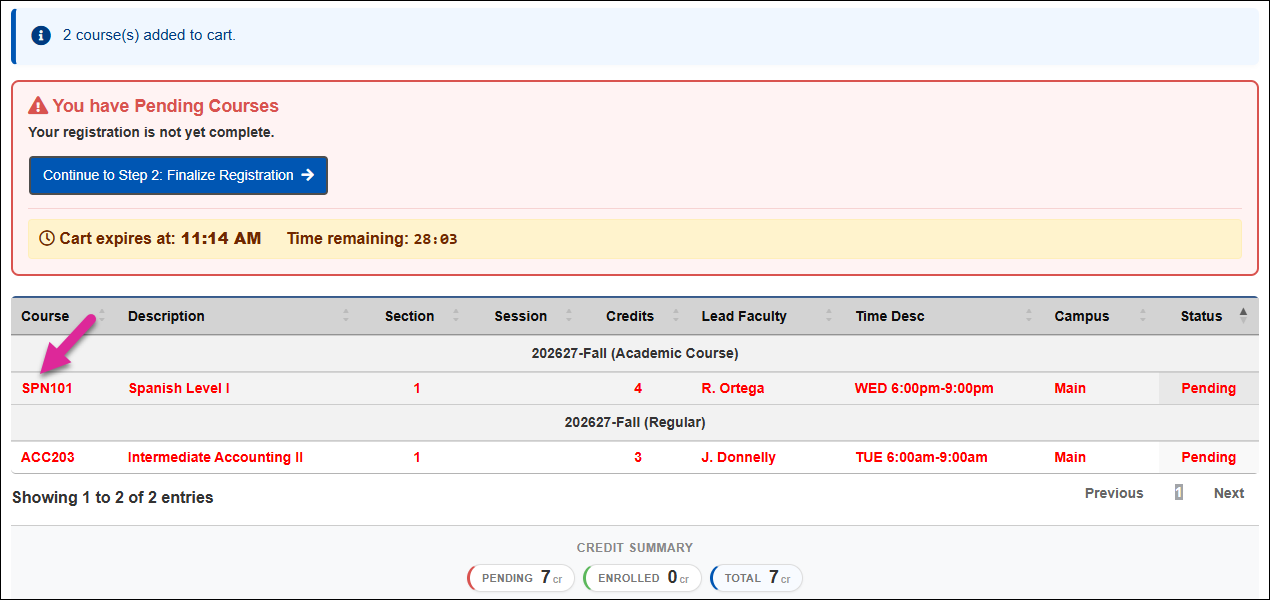
You can add additional courses to the cart and preserve the courses you've already selected. Your cart expiration timer will reset each time you add more courses.
Once you've added all the courses you wish to register for this session, click Continue to Step 2: Finalize Registration.
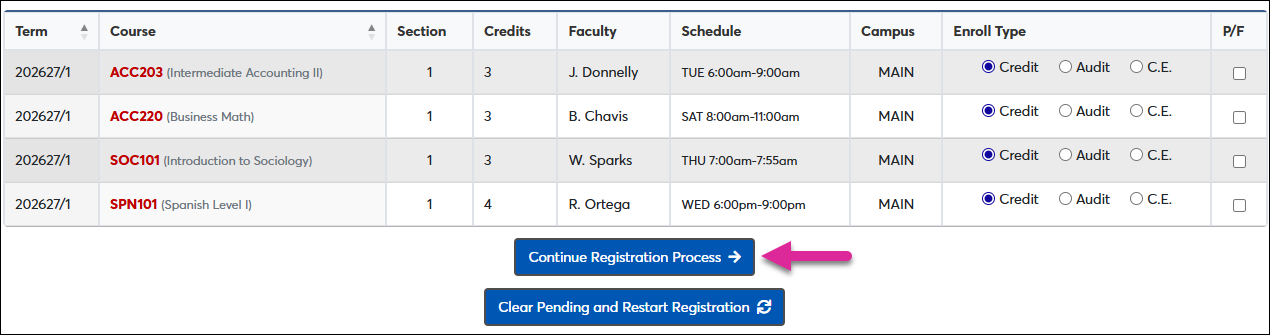
Depending on your school's registration procedure, you may be asked to select an Enrollment Type and/or choose whether the course will be taken with Pass/Fail or traditional grading. If your school offers these options, make these choices for each course before continuing.
Note
Among the Enrollment Options, Credit is the standard for full-time students. C.E. stands for continuing education. This is typically for part-time students who did not apply for enrollment at the school. To Audit a course means to sit-in on the classes without receiving any credit.
The P/F option stands for Pass/Fail and is not offered by most schools. Check this box to take the course with a binary outcome instead of receiving a letter grade.
Reach out to your advisor or your registrar if you have additional questions about these options.
Note
System administrators can change these settings from the Web Options page under the Systems hub.
When you're ready to finalize the registration, click Continue Registration Process. If you have selected a course in error and need to start over, click Clear Pending and Restart Registration to remove all courses and return to the Enrollment Summary and Course Listing page.
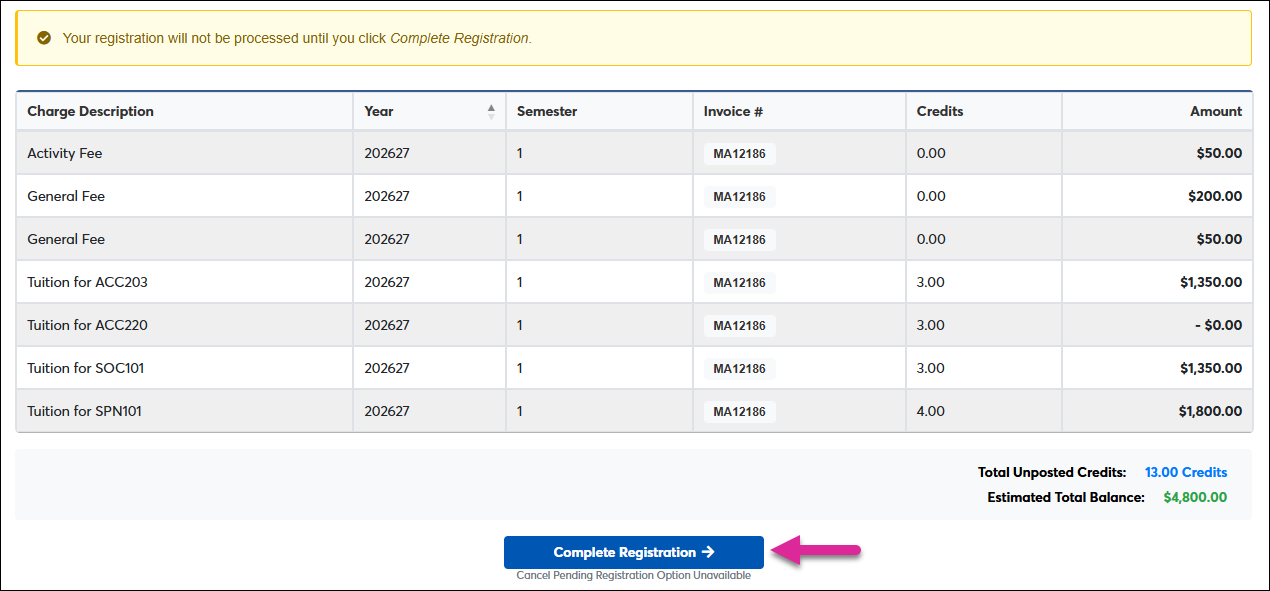
The final page lists the cost for each course, including fees. It also lists your estimated total balance and the total credits you're signing up for at the bottom. If this all looks correct, click, Complete Registration to finalize the process.
You will be returned to the primary registration page where your selected courses will be listed as Enrolled.
CE Registration
The CE Registration process is very similar to the registration process for traditional students, but it differs in a few ways. Your version of this page may also differ slightly depending on your school's settings, but the basic functionality should remain the same.
Note
Administrators with the proper permissions can change the layout and function of this page using the CE Registration Utility under the Systems hub.
When you arrive on the CE Registration page, any courses that you're currently taking will be listed in the In Progress Courses table.
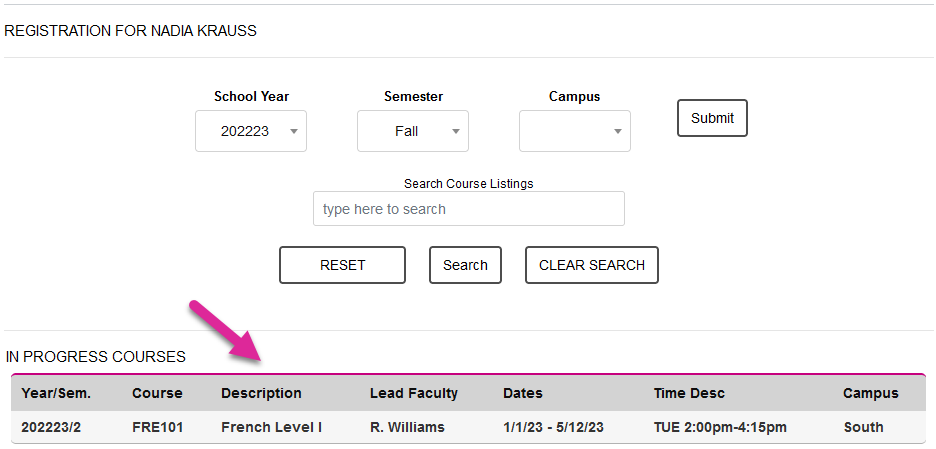
You can change the time period being displayed by selecting a new value from the School Year and/or Semester dropdown menus and clicking Submit.
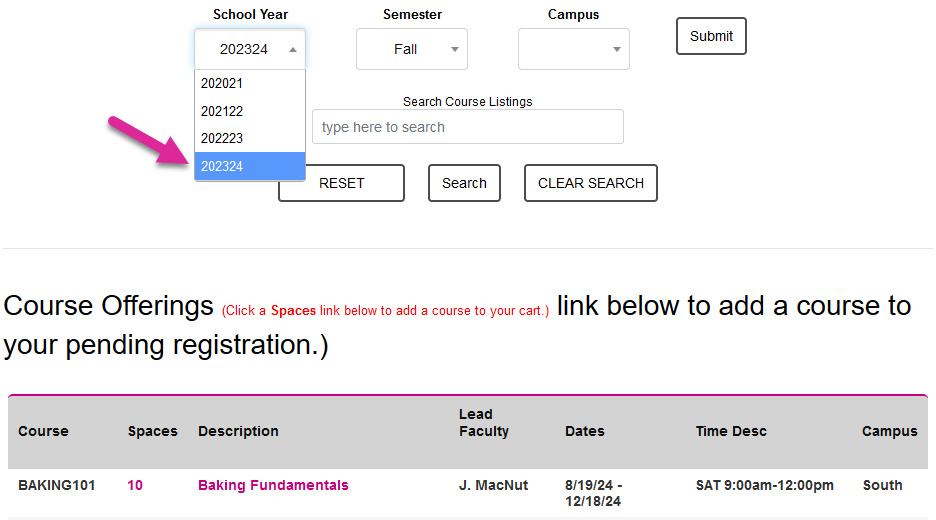
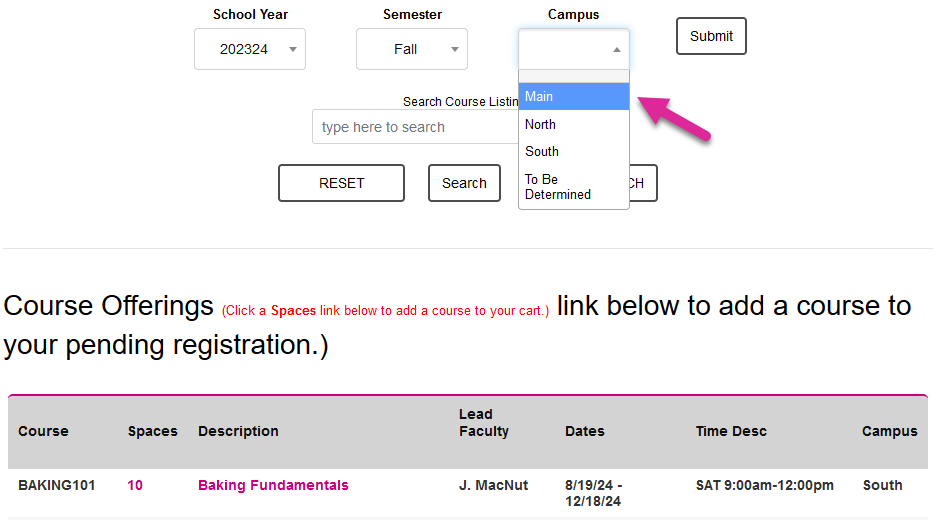
If your school has more than one campus, you can filter the list of courses to only show one of the campuses, by selecting a value from the Campus menu and clicking Submit. By default, all courses, regardless of campus, will display.
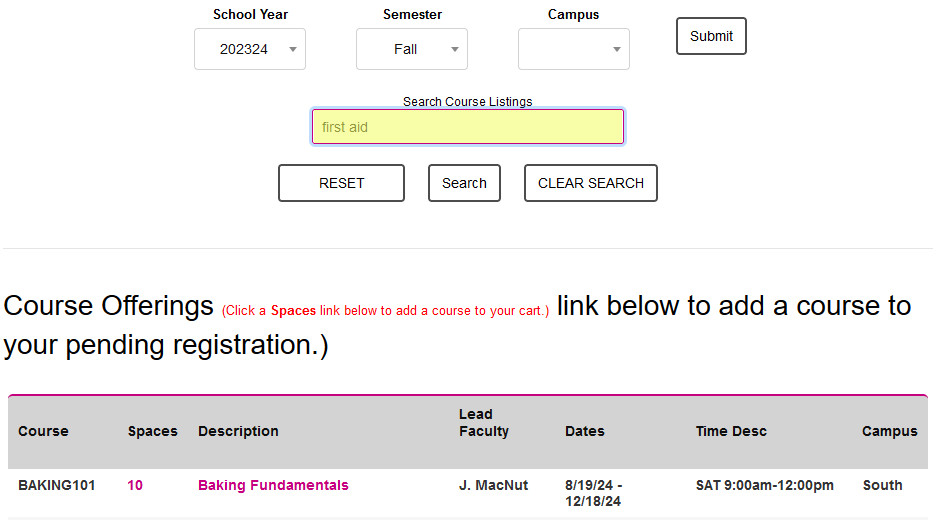
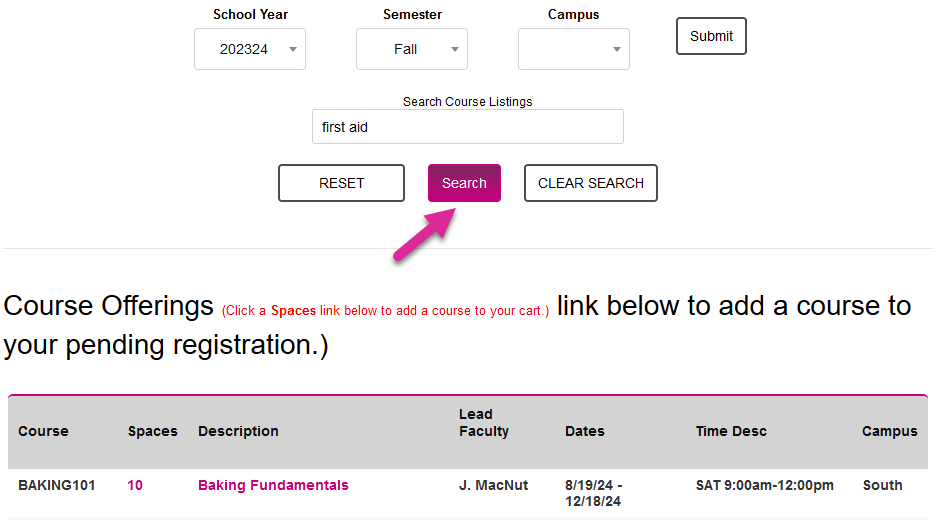
The page also contains a search box, which allows you to filter the results by your search time. Type any relevant value into the Search Course Listings box and click Search.
Note
The search will filter by data in any of the columns you see below—Course, Spaces, Description, Lead Faculty, Dates, Time, and Campus. It will also filter based on any word that appears in the expanded course description, as seen below. So, for example, if you search for the word "cooking" and the Baking Fundamental course includes that word in the long description, the course will appear in the search results.
Once you've located a course that interests you, click on the course description to see more details, including the long description. Be attentive to any prerequisites listed. If you do not meet the prerequisite, you will not be able to register for the course. A new window will open, saving your search results and filters in your initial browser tab.
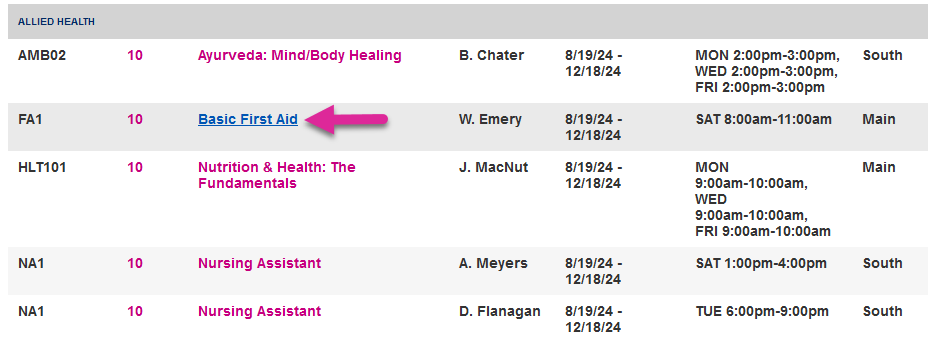
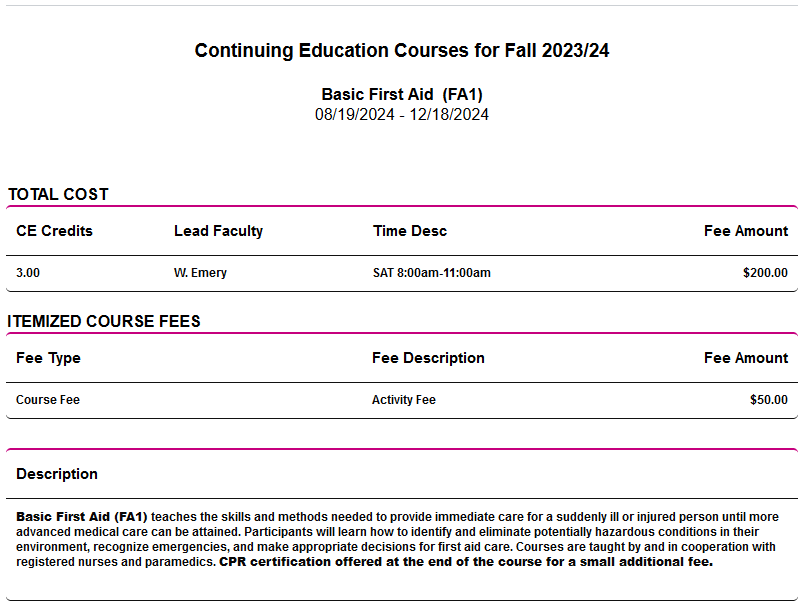
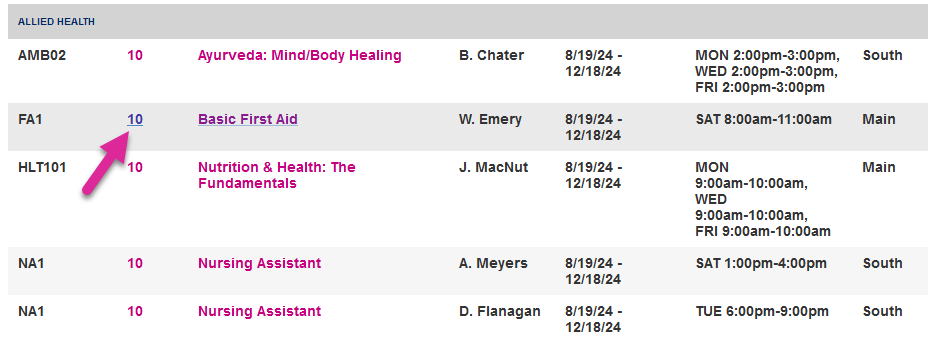
When you're ready to register, click on the number in the Spaces column. If there are no spaces available, this number will not be a link. If the course has prerequisites that you have not met, an error message will display, listing the missing prerequisite(s). Click the Cancel and Return button to return to the course selection page.

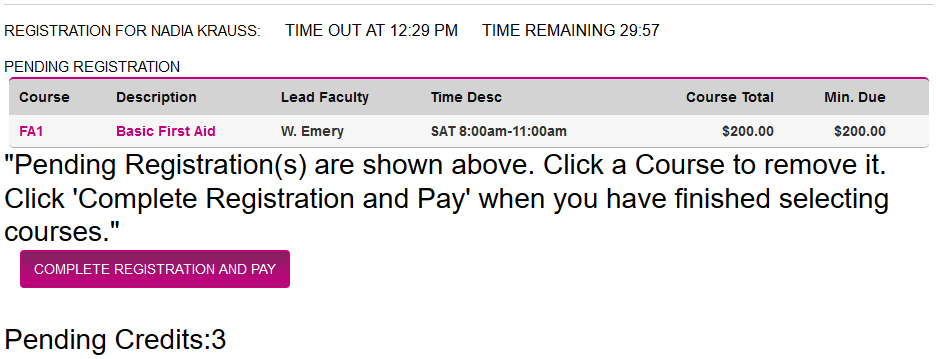
The selected course will be added to your cart at the top of the page. You can repeat the process until you've selected multiple courses, but be sure to pay attention to the Time Remaining notation to avoid timing out and potentially losing your spot in the selected course(s). When you're ready, click Complete Registration and Pay.
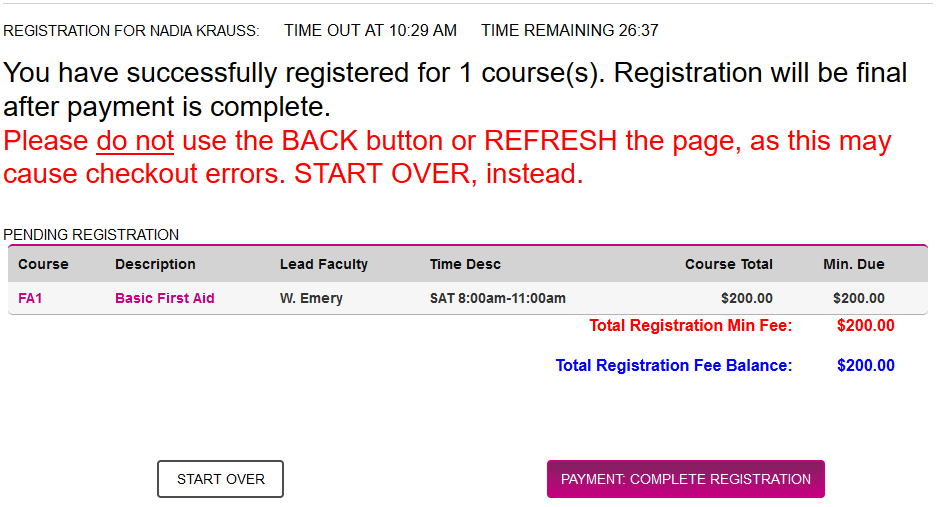
The following page provides a summary of all the selected courses along with the costs associated with each one and the total charges. Click Payment: Complete Registration to finish registering. You we be taken to the school's payment gateway to pay for the courses.
Warning
As the summary page notes, do not click your browser or mobile device's back button or refresh the page to avoid errors. Instead, click the Start Over button if you need to make changes to the selected courses.
Course Removal Explanation
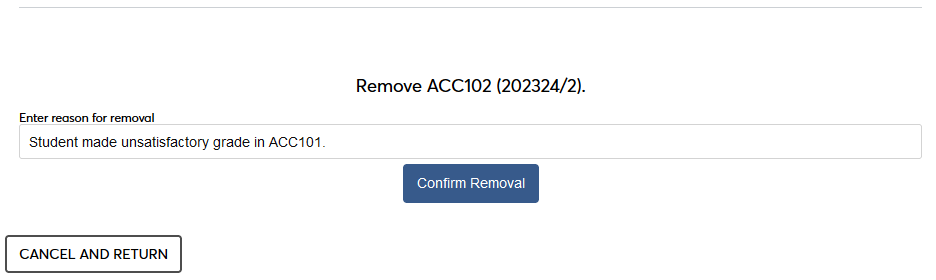
Some schools may require students to explain why they deleted a course from their list of registered courses. If this option is active, you must enter text in the Enter reason for removal field before clicking the Confirm Removal button.
Note
Administrators, this function is turned on using the System Variables utility.