Google reCAPTCHA Integration
Overview
Google reCAPTCHA is a free security feature designed to prevent spam, abuse, and fraud. It uses advanced risk analysis techniques to tell humans and bots apart. For Jenzabar SONIS clients, this feature can replace the standard CAPTCHA image with a more modern, accessible option. SONIS offers the CAPTCHA option for two pages where people without SONIS accounts can enter data, the Online Application and the Web Inquiry Card.
You can create your own free Google site through the Google reCAPTCHA setup process. Select Challenge (v2) as the Setup Type.
SONIS Setup
To activate this feature in SONIS, navigate to Google reCAPTCHA under the Systems hub.
Once you've created your Google site, copy the needed data from Google's setup page.
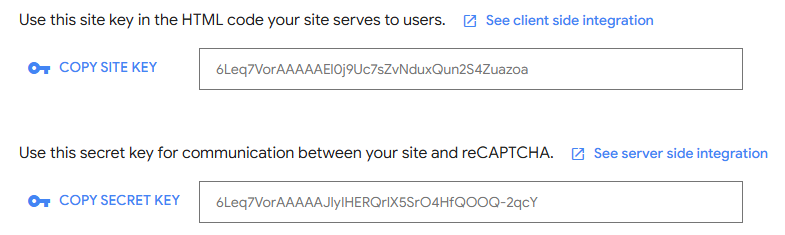
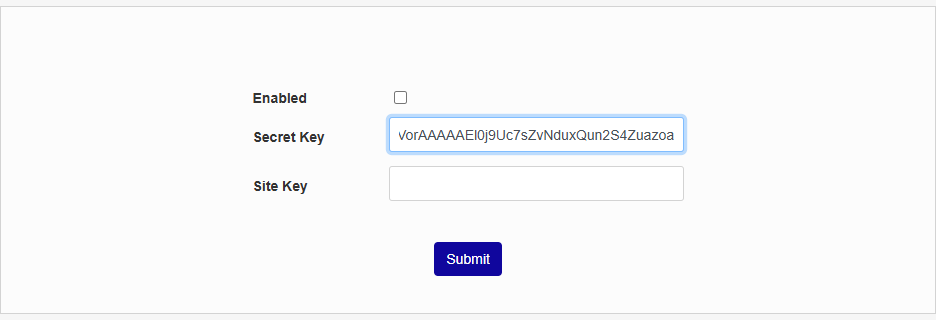
Paste your secret key into the Secret Key field.
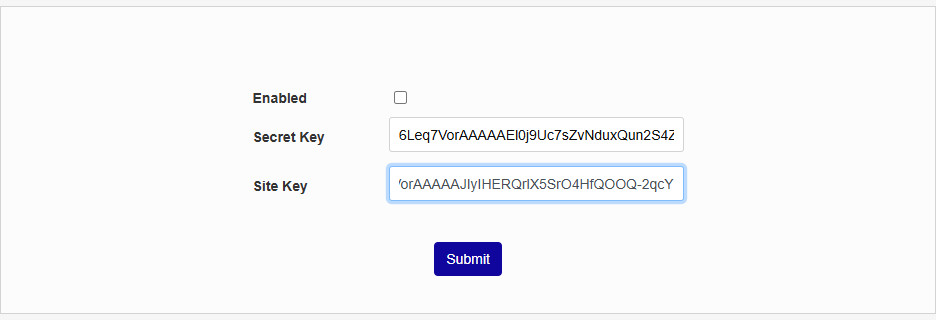
Paste your site key into the Site Key field.
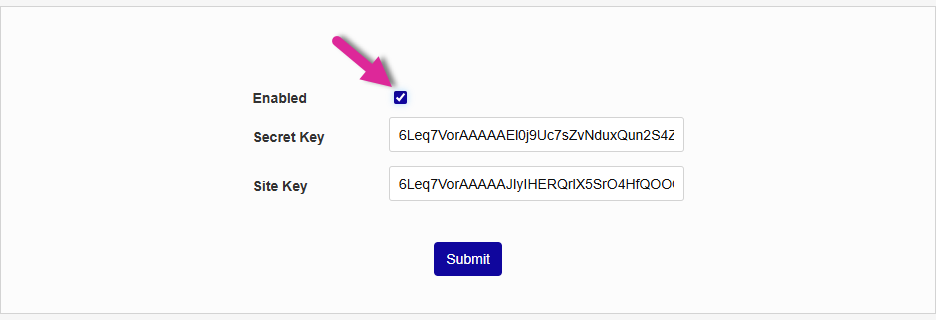
Check the Enabled box.
Click Submit to save the changes.
Note
If Google reCAPTCHA has a blank for the Secret Key or Site Key or the enabled box is not checked, the system will default to the old SONIS captcha.
Login Page Setup
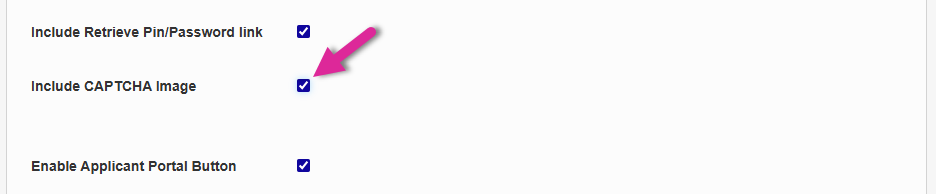
To turn on the CAPTCHA for users, navigate to Login Page Setup under the Systems hub. Select either Apply Online or Prospective Students.
Ensure that the Include CAPTCHA Image box is checked and click Submit to save the change.
Completing the reCAPTCHA
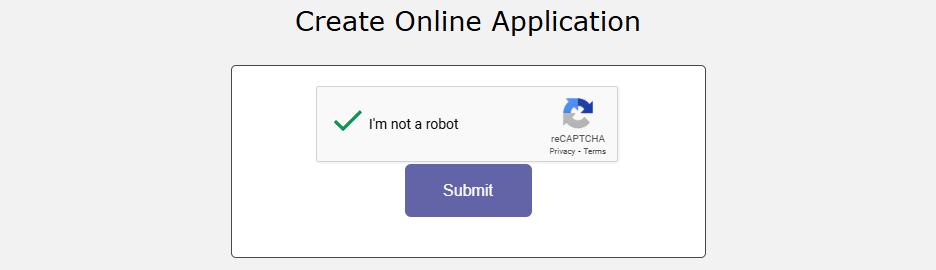
Once the reCAPTCHA is activated, users who attempt to create a new Online Application of fill out the Prospect Inquiry form, will be asked to prove that they are not a bot. To do this, they simply need to check the "I'm not a robot" box. Google will identify them as a real person based on their previous activity.
Note
In some cases, Google may be unable to verify a user as a human with the single checkbox method. In these cases, users are asked to pass another level of security by clicking on various images based on a prompt they're given. These tests are all simple to pass and common around the web and should not prevent users from creating applications or prospect inquiries.