Email Address Utility
Overview
The Jenzabar SONIS Email Address Utility allows schools to set-up their desired format for new email address creations. By default, this utility is masked by a hidden bit. To use the Email Address Utility, contact SONIS Support and request that they enable access.
Note
The Email Address Utility does not create new addresses for returning students who have already had a student status and therefore a school email address in the past. A module status audit table stores all users with a student status and the table is checked before a new email address is created to ensure that no prior school email address exists.
Setup
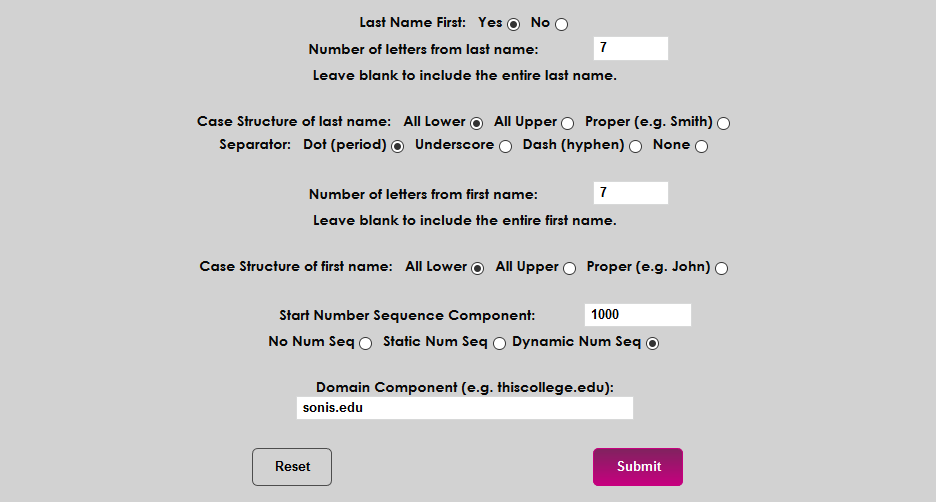
To format school email addresses, first choose whether the SONIS user's last name of first name should appear first in their email address. Choose Yes for the last name to appear first or No for the first name to appear first.
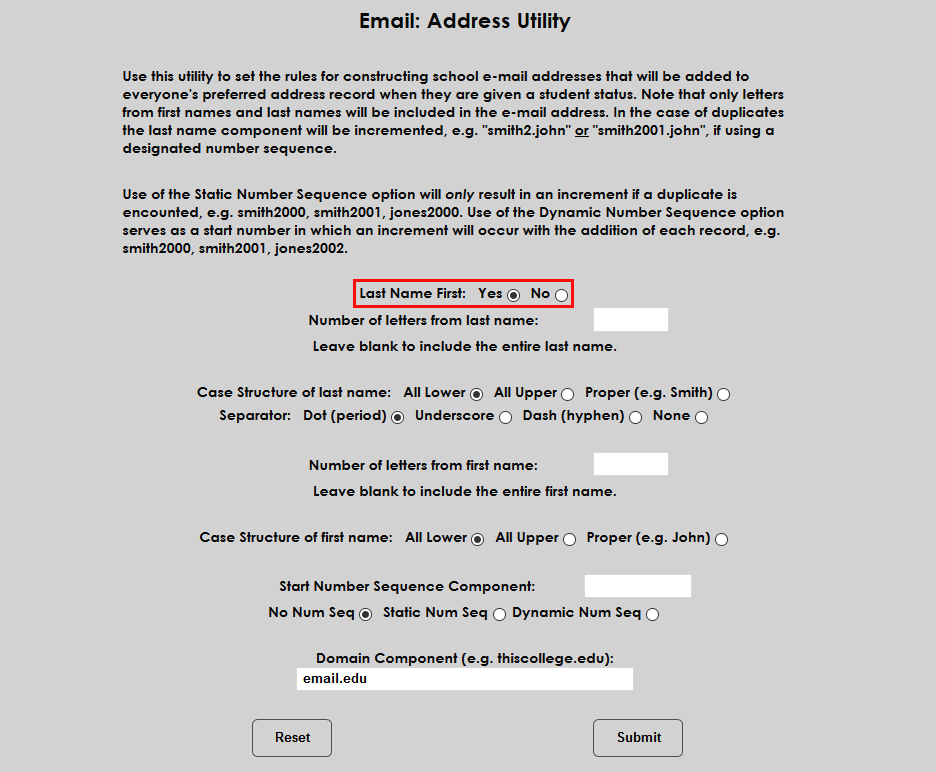
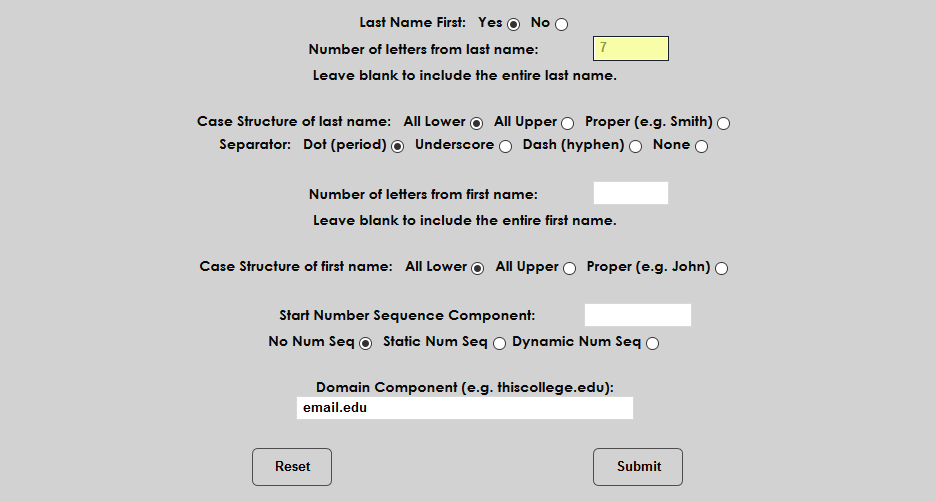
Next, choose how many letters from the user's last and first name should be used to build the address. Lave the field(s) blank to include the entire last name. Using more letters from each name will lead to less repeat addresses, but will also create a longer address that will take longer to type in many cases.
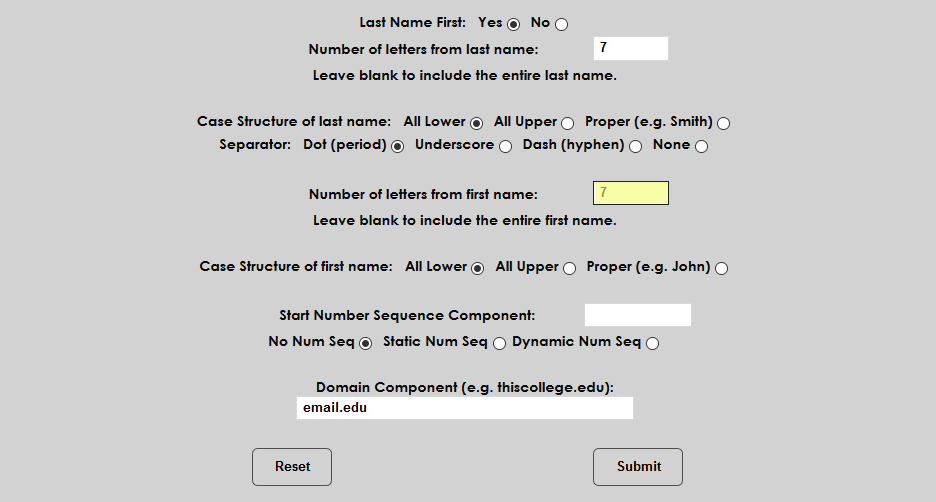
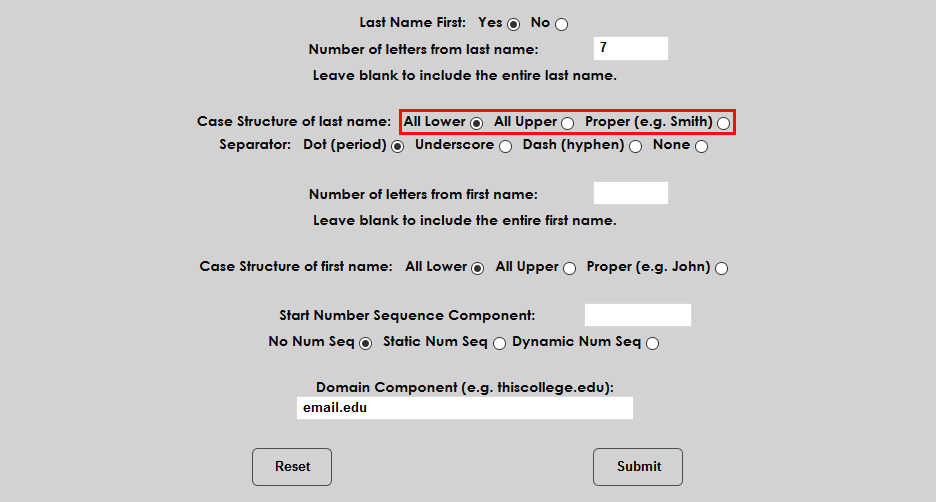
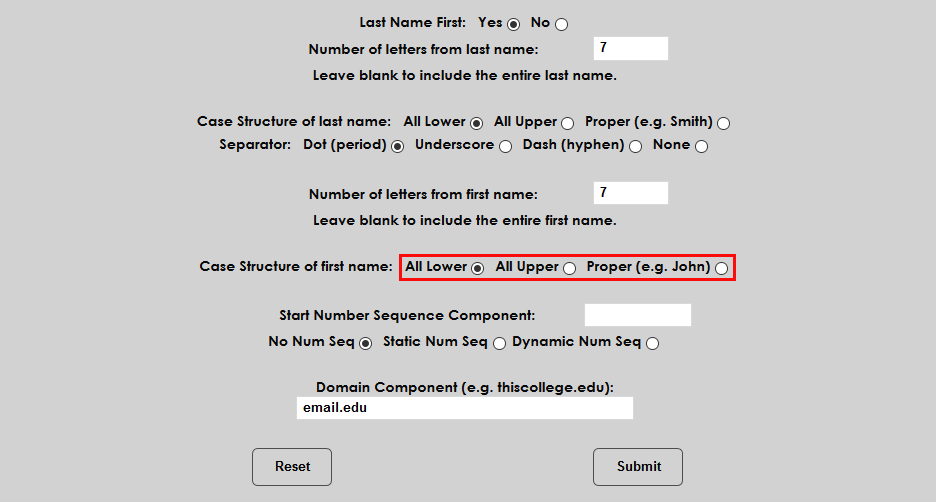
Choose a Case Structure for each name. Each name can be written with All Lowercase letters, All Uppercase letters, or in Proper case with the first letter capitalized along with any additional capital letters in the name like "McTavish." This capitalization is based on how the name is entered on the user's Biographic page.
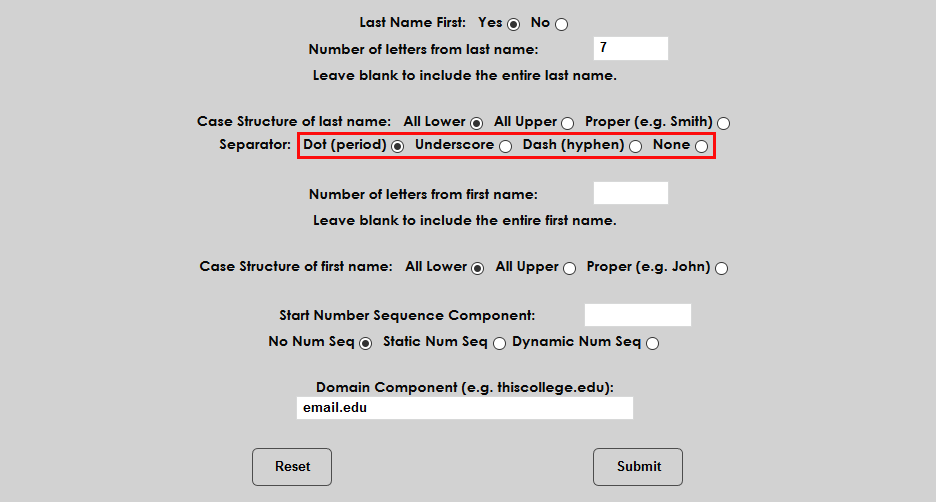
Choose a Separator that will appear between the first and last names. A dot, an underscore, a dash/hyphen, or no separator at all can be chosen.
The email address utility automatically adds a number to each address when a repeat is encountered based on a second user having the same name or designated portion of the same name. The utility offers an option that allows administrators to control how that number sequencing works.
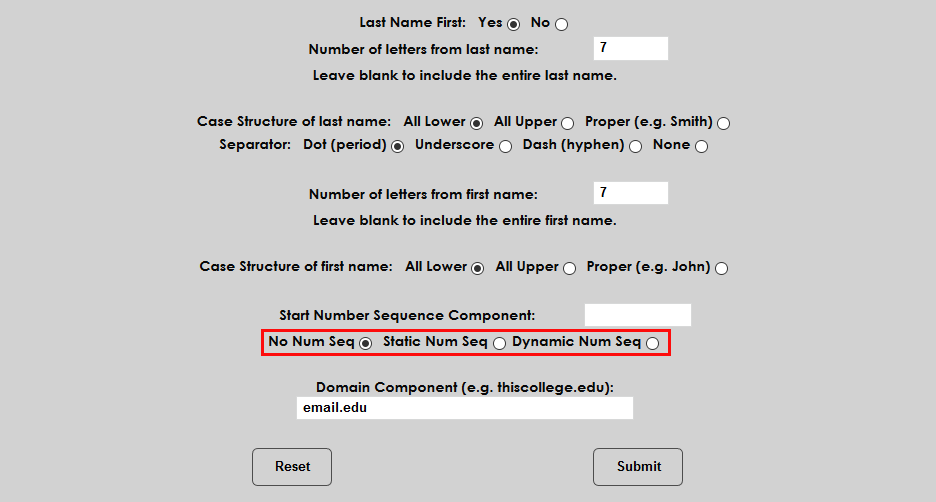
If No Number Sequence is selected, each repeat address will be numbered sequentially starting with one.
For example:
• banderson@email.edu
• jbaker@email.edu
• jbaker1@email.edu
• mgreen@email.edu
• tmadison@email.edu
If Static Number Sequence is selected, each repeat address will be numbered sequentially starting with the number in the Start Number Sequence field and every address will include a number whether it's a repeat or not.
For example:
• banderson1000@email.edu
• jbaker1000@email.edu
• jbaker1001@email.edu
• mgreen1000@email.edu
• tmadison1000@email.edu
If Dynamic Number Sequence is selected, every address will be numbered sequentially starting with the number in the Start Number Sequence field.
For example:
• banderson1000@email.edu
• jbaker1001@email.edu
• jbaker1002@email.edu
• mgreen1003@email.edu
• tmadison1004@email.edu
If either of the number sequence options are chosen, enter a Start Number Sequence Component.
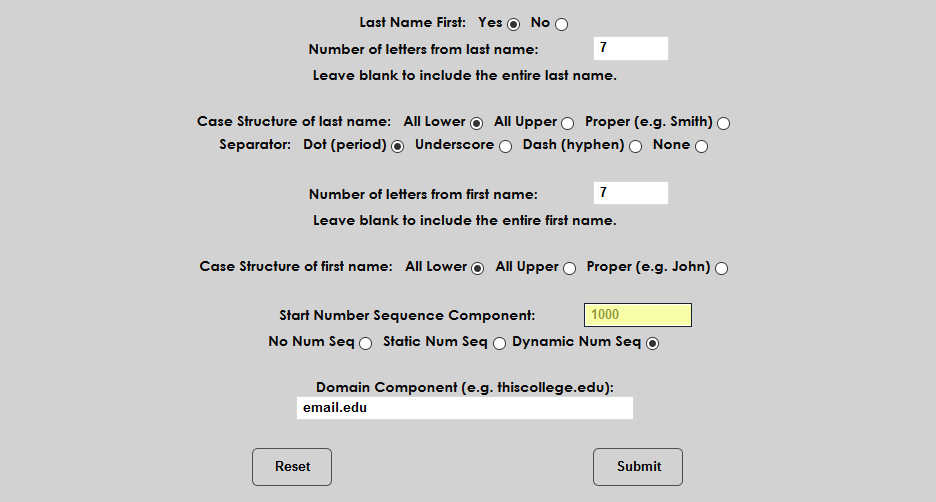
Finally, enter a Domain component based on the school's web address.
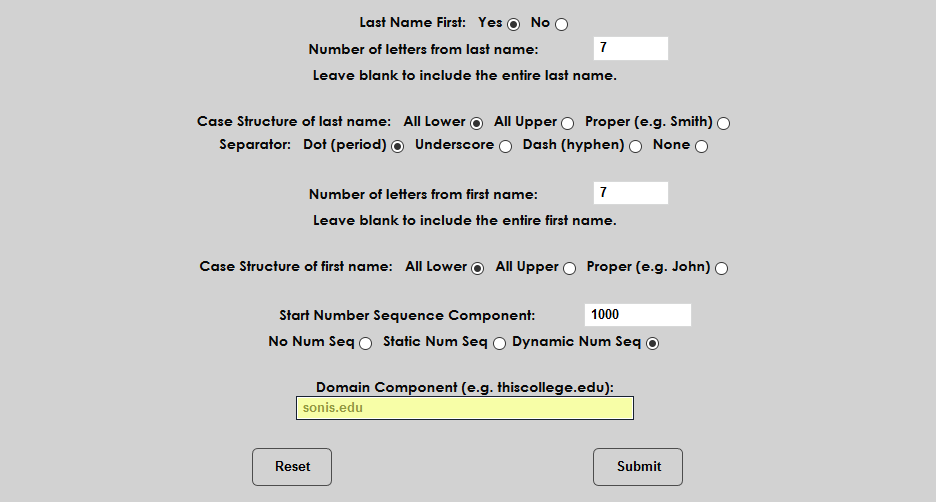
Click Submit to save the changes and use the formatting in email creation.