Syllabus
Overview
The Syllabus page allows faculty to upload a custom syllabus for the classes that they teach or manage. Students enrolled in the course will be able to access the syllabus from their Jenzabar SONIS portal.
This page can be enabled or disabled using the Portal Menu Utility.
Using Syllabus
To upload a syllabus, click Syllabus on the Course Management menu. The School Year and Semester autofill based on the active year and semester settings. To change either value, click in the field(s) and select the desired year and/or term from the dropdown menu(s).
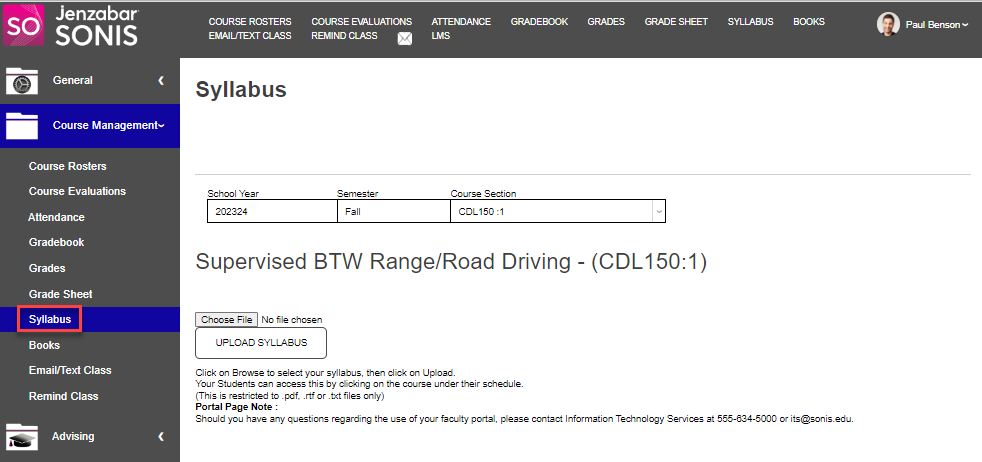
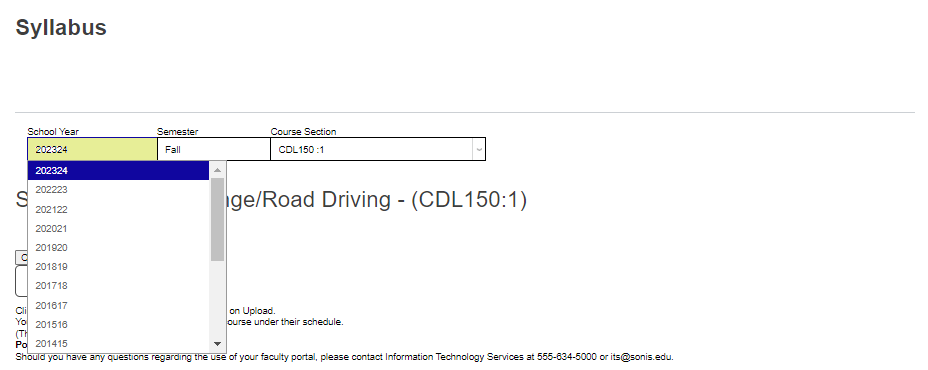
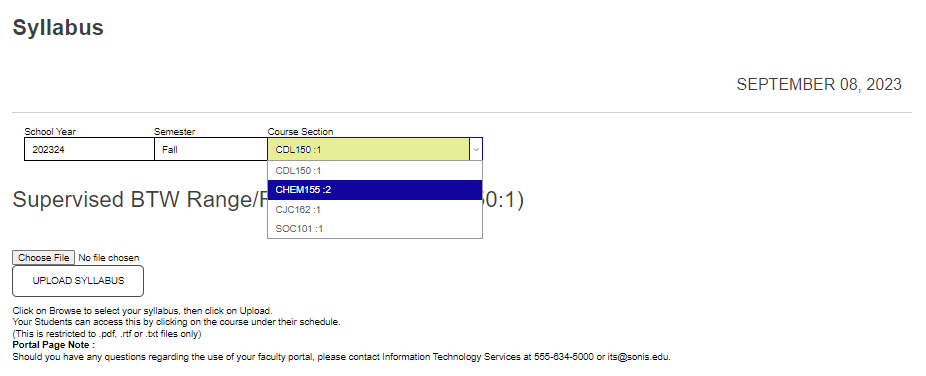
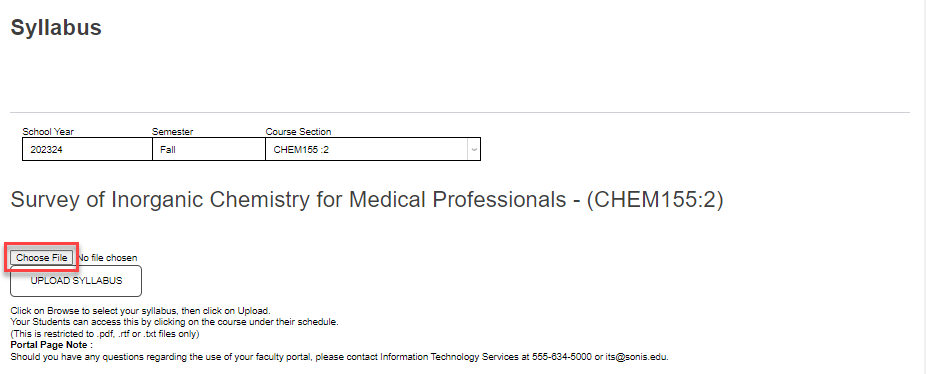
If the desired Course Section is not displayed, select it from the dropdown menu by clicking in the field and selecting it from the displayed options. Click Choose File to select the syllabus file from your computer. The file must be a .pdf, .txt, or .rtf file.
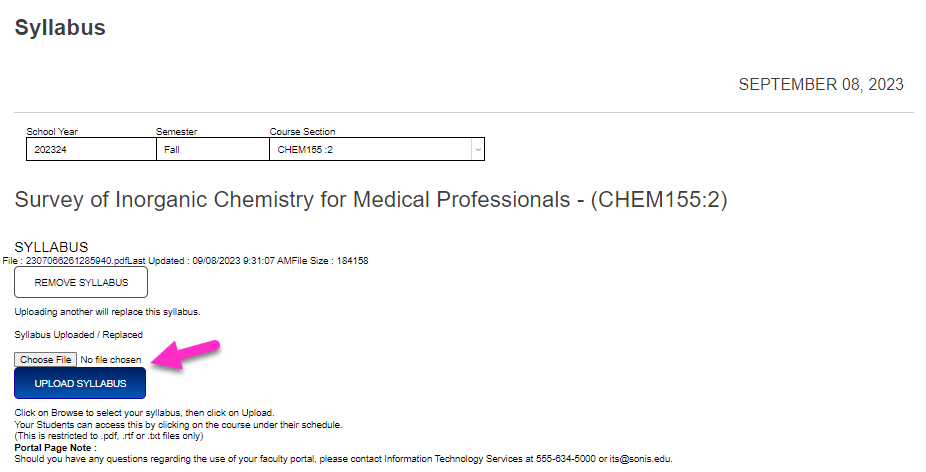
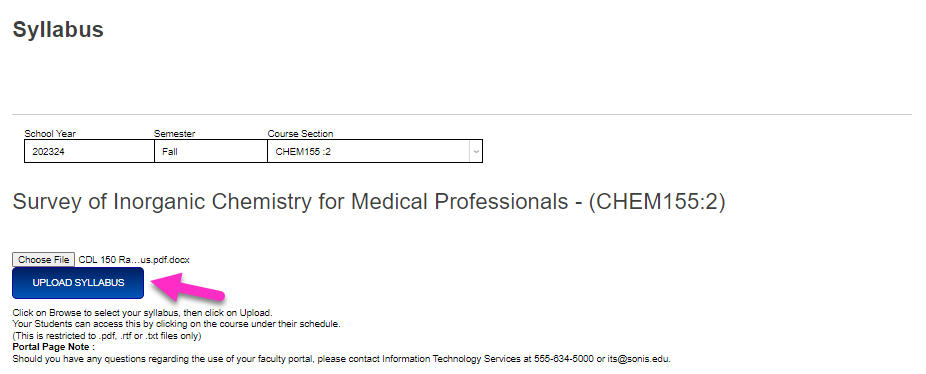
Click Upload Syllabus after selecting the syllabus file. The file will display with the date and time it was uploaded.
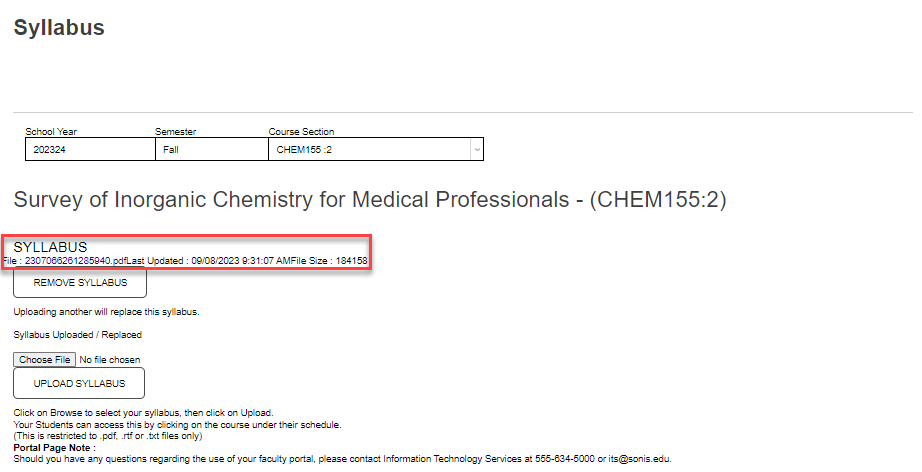
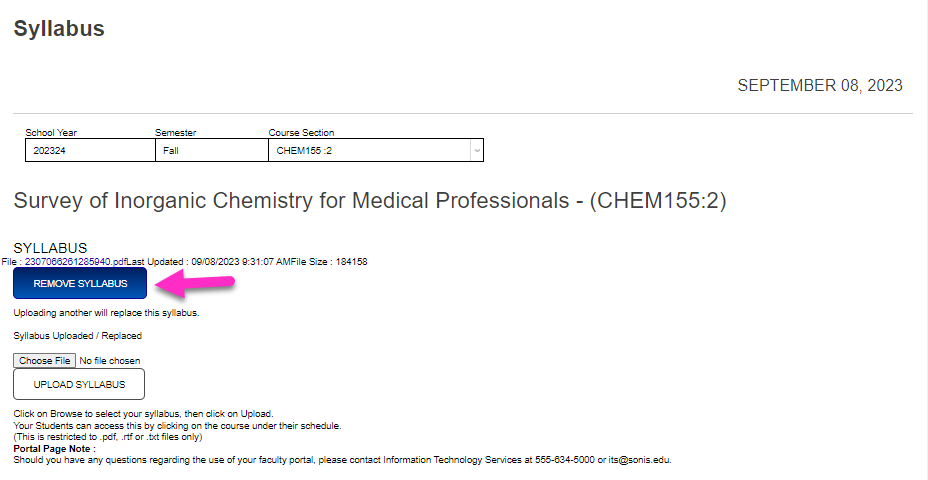
Click Remove Syllabus to remove the syllabus or Choose File and Upload Syllabus to add a new syllabus. Adding a new syllabus will remove the existing file.