Waivers
Overview
An individual student can be given a waiver for a particular course if the SONIS member institution's academic policies allow it. If a waiver is granted, users can record and maintain the waiver on the Users hub page Waivers. The reason for the waiver can be entered. To prevent the course from being used twice in a degree audit a flag can be set to indicate degree requirements should not be fulfilled by the waiver. The waiver can be set to act as a prerequisite. The waiver memo field is used as the Status Line in the degree audit report. Credits are not given for the waiver. More information about degree audits can be found on the Portal Menu Utility and Degree Audit pages.
Since not all waivers are associated with having actually taken a course, credits are not given for waivers. They simply satisfy the taking of a course.
Waivers can be imported in bulk using the Import Waivers utility under the Systems hub.
Use
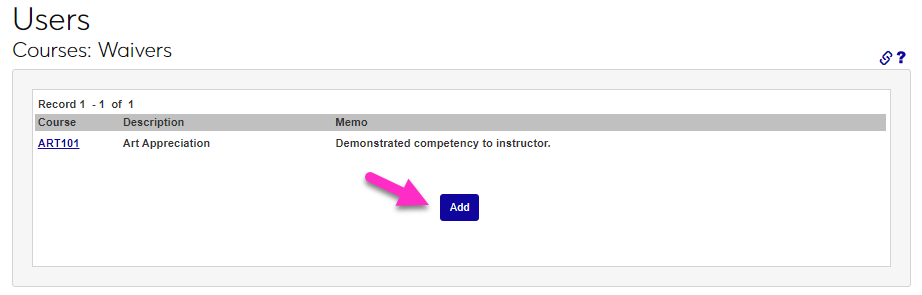
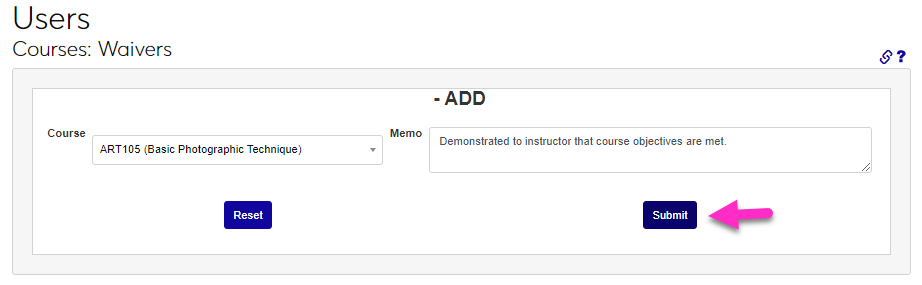
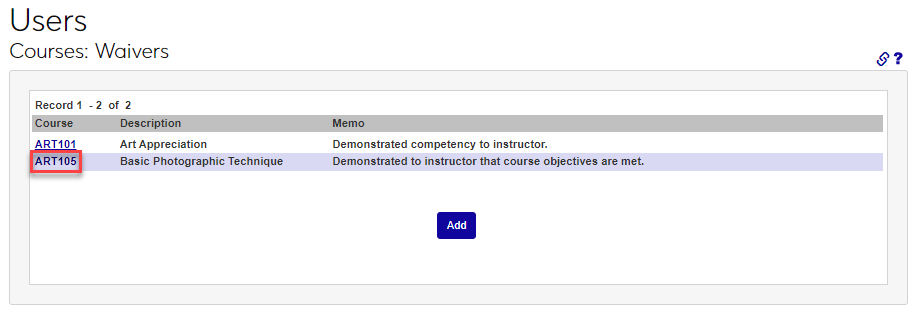
To add a waiver to a student, select the Waivers menu item from their Users hub. Any existing waivers for the student will display above the Add button. Click Add to create a new waiver.
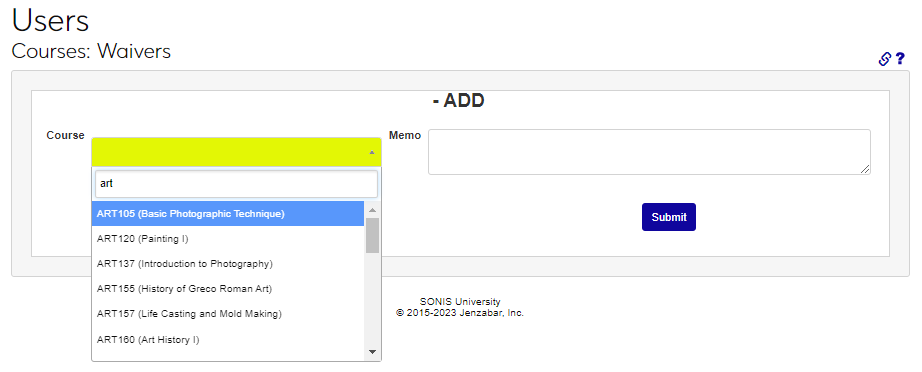
From the Course drop-down menu, select the course to be waived. If the course has already been waived it will not display in the menu.
In the Memo field, enter any information associated with the waiver that another SONIS user may need to be aware of. Note that SONIS does not verify that the course(s) and/or information stated in the memo field are accurate. For example, if recording in the memo that the student took the course at another institution, it is up to the user entering the information or authorizing the waiver to ensure that this is correct and the appropriate course is being waived. The waiver memo is used as the status line in the Degree Audit report in a similar manner as 'Satisfied by Equivalent Course', 'Completed', or 'In-Progress'.
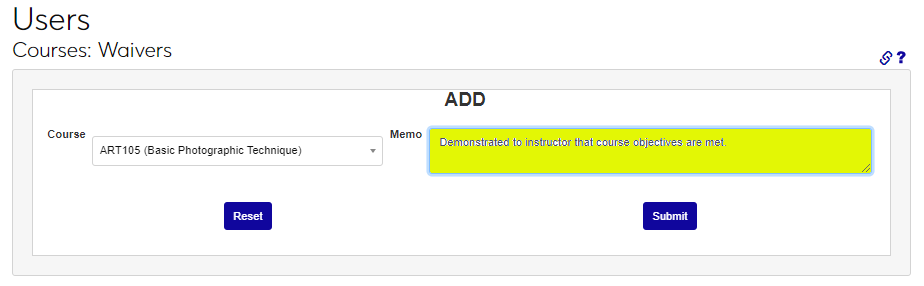
Click Submit to save the entry and activate the waiver.
Editing an Existing Waiver
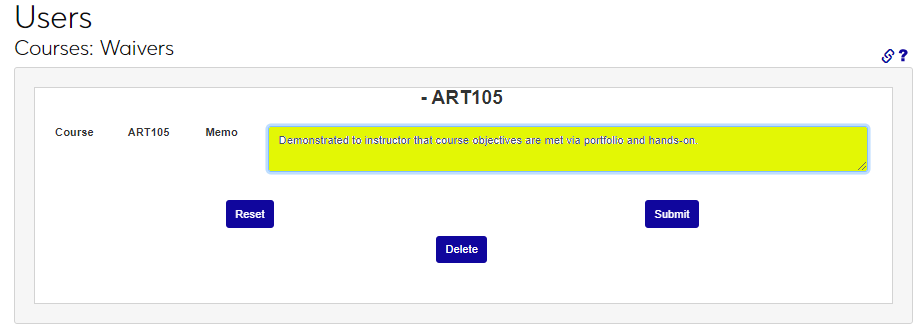
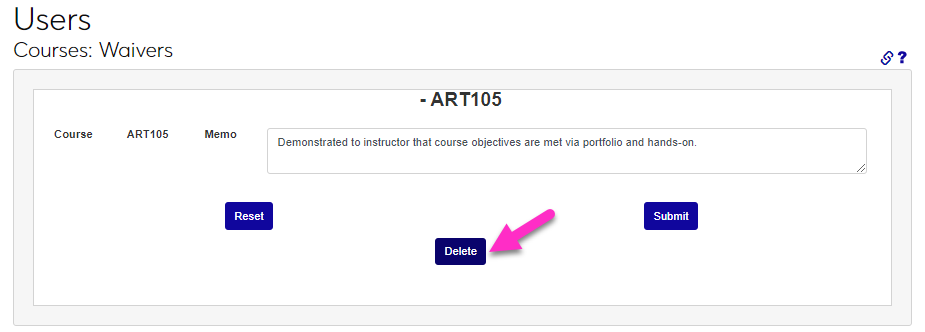
Clicking on a waiver link (the Course name) allows the user to either change the memo or delete the waiver.
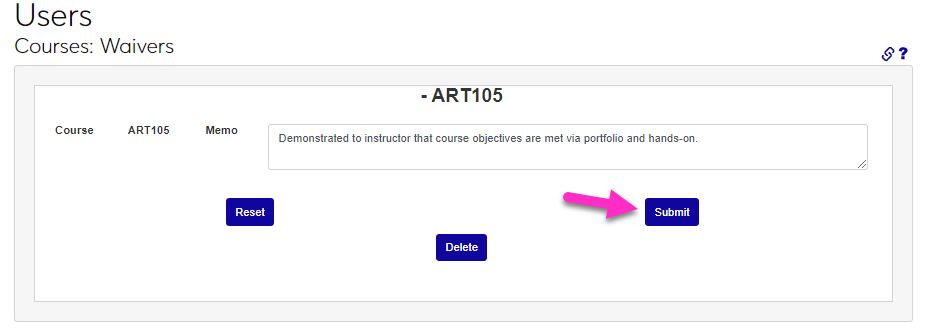
Make any desired edits in the Memo field and click Submit.
Click the Delete button to remove the waiver entirely.
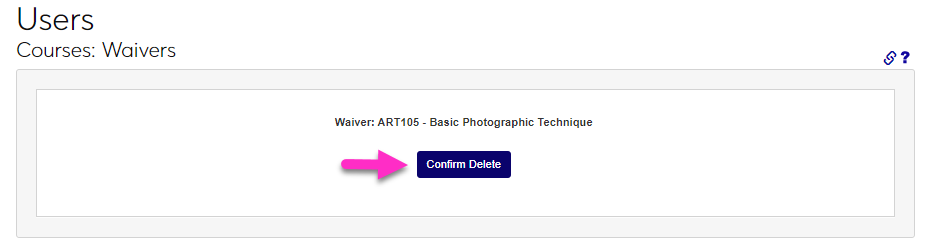
After clicking Delete the user is taken to a page that requires active confirmation of the delete. Click Confirm Delete to complete the removal of the waiver or use the browser back button to return to the waiver page.