Attendance Notifier
Overview
The Attendance Notifier is a Jenzabar SONIS Notification Assignment that allows users to create automated messages that alerts users when students' absences reach a critical point. An absence is determined by the Attendance Captions. Any item with the Did Attend setting unchecked is considered an absence. Note that the notification only monitors the current school year and semester.
Creating Notification
To create a notification assignment for an activity, navigate to the Notification Assignments page under the Systems menu and click Add to begin the process.
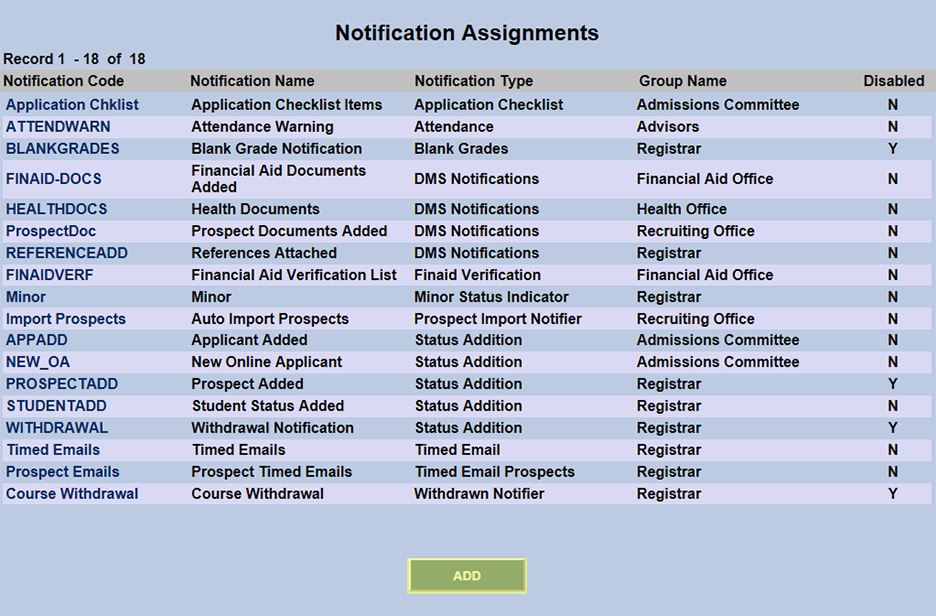
On the following page, select Attendance from the Notification Type dropdown menu. Click the Submit button to continue.
The Notification Notes briefly explain what the assignment type does and suggestions on how to set it up.
A unique Notification Code (up to 20 characters long) must be assigned. This code is what SONIS uses to identify the assignment. While it is not necessary, typically users assign codes that reflect the uniqueness of the assignment. For example, if creating an notifier for freshmen, the code might be Attend Freshmen. Naming codes in this fashion also facilitates sorting.
The Notification Name (up to 50 characters long) describes the specific assignment you are creating. The description typically emphasizes the uniqueness of the assignment. This information also serves as the subject of the email/reminder.
The Group Name is the group of administrators that will be notified. This is single-select so if multiple groups need to be notified, multiple assignments would need to be created. Groups can be added and edited through the Table Maintenance utility.
The Notification Owner SONISID is the individual's SONIS ID (soc_sec) whose email address will be the From in any email/reminder.
The Group Notification Message is the introduction of the message. In most cases the assignment adds additional data (statuses, names, etc.) to the message.
The Group Notification Method is the method of notification.
The Reminder Type should already be set up for those institutions that use reminders. Please see documentation for reminders if an empty drop appears.
The Status, Division, Campus, Dept. and Level are the standard SONIS filters. They are multi-select so an assignment can be created that captures all statuses etc. or focuses in on a very specific combination of filters. These filters refer to the student.
The Number of Days Threshold is the number at which absences will be reported. The alert will trigger when the threshold has been met or exceeded. For example, if the threshold is 2, any absences of two or more will create notifications.
Scheduling Notification
Use the Timed Task Scheduler to schedule when this notification runs.
Note
A notification scheduled task runs all assignments of that type. So if you have multiple assignments of the same type with different selection criteria and groups to be notified, they are not scheduled separately. All attendance assignments are run together.