Set Event Types
Overview
The Systems hub option, Set Event Types, provides administrators the ability to assign colors to events that are used for Jenzabar SONIS calendars. The event types are generally created and maintained on the Calendar Event Type table, but events created in the Set Event Types page will be automatically added to the Calendar Event Type table. For each event type created, a color can be assigned that will indicate to users what type of event it is, at a glance. A checkbox is provided to indicate whether there are classes during the event.
Setting New Event Types
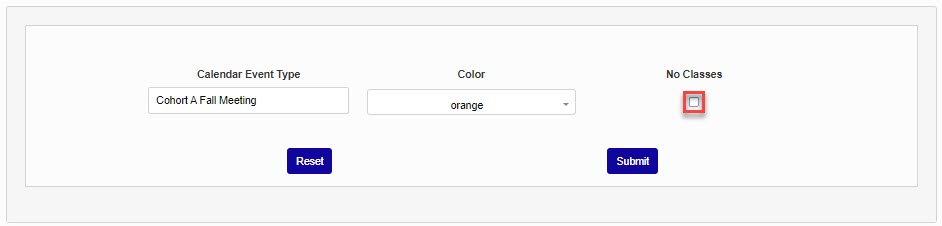
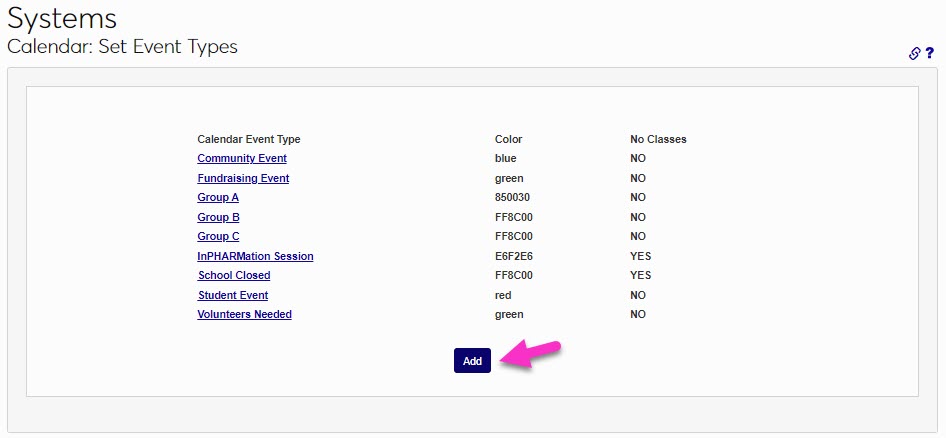
New event types can be created on the Calendar: Set Event Types page. Doing so will also add the newly created event type to the table, with an automatically created short description, or code. Click the Add button to begin. Enter a descriptive name of the event in the Calendar Event Type field. This field accepts up to 25 alphanumeric characters and symbols.
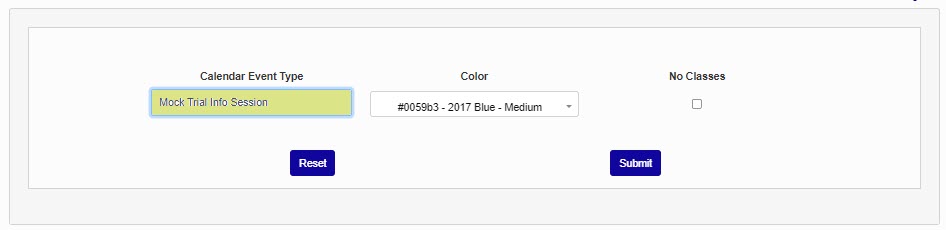
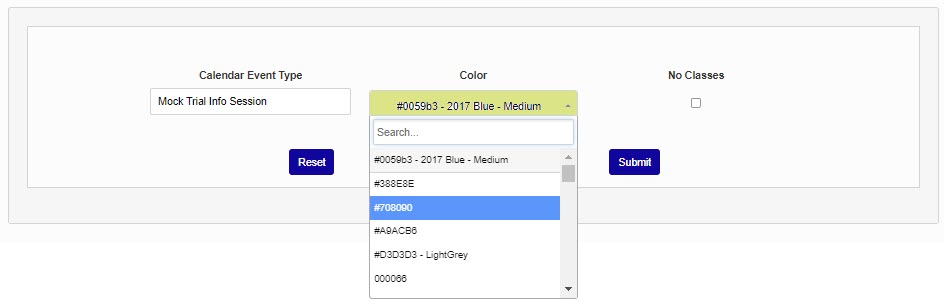
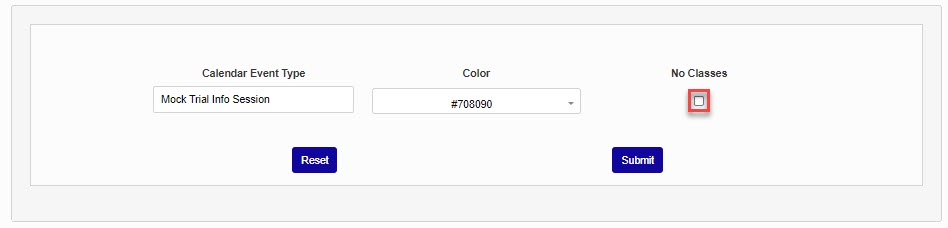
By default, the first color code in the Color menu populates. Some colors may be listed by their hexadecimal code. Click into the Color dropdown and select the desired color. If no classes will be in session during the event, such as during a scheduled school recess, check the No Classes box.
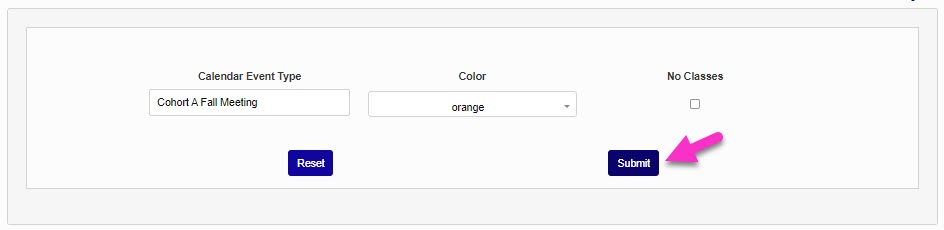
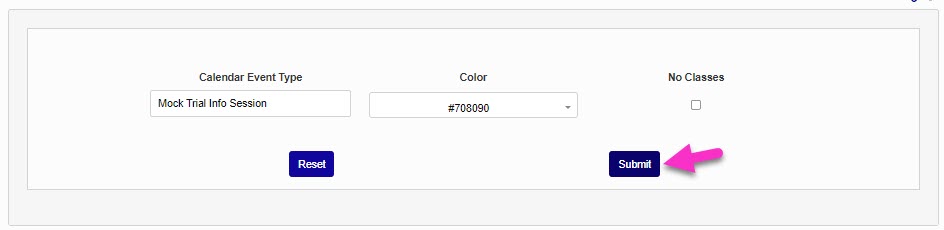
Click Submit to save the entered information. The event type will now be available for use in scheduling on the Calendar: Set Events page.
Editing Existing Event Types
If an event type was previously created or created on the Calendar Event Type table, it will be listed for editing on the Calendar: Set Event Types page. Click the name of the Event Type to be edited. To update the name, click in the Calendar Event Type field and make the desired edit(s). This field accepts up to 25 alphanumeric characters and symbols. To change the color, click in the Color menu and select the desired color. Colors may be listed by their hexadecimal code.
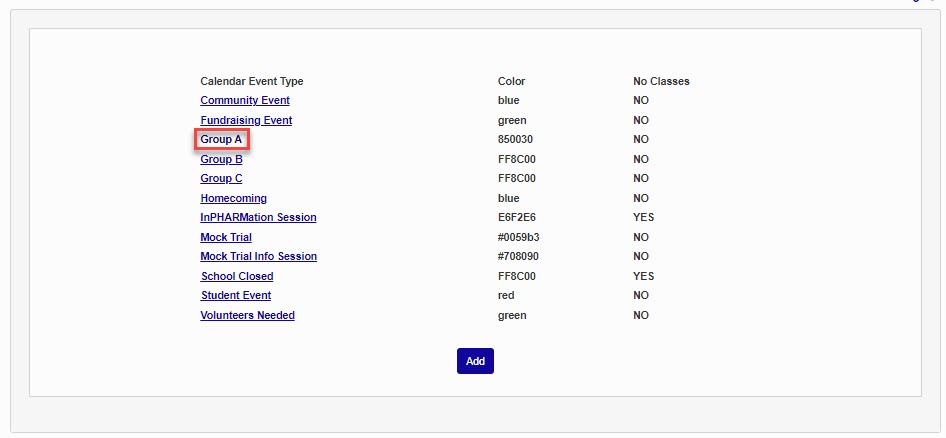
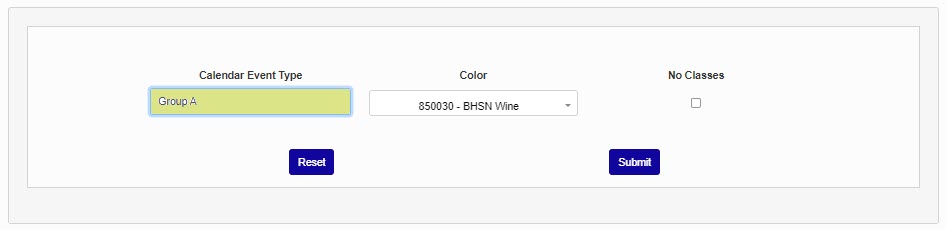
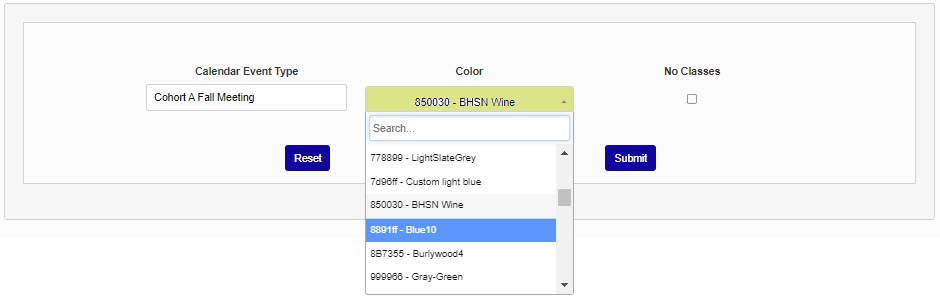
Edit the No Classes flag by clicking in the box to check or uncheck it. Click Submit to save the updates. If the Calendar Event Type is currently in use, these edits will update all in-use instances.