Housing Assignments
Overview
A student's residence hall and room assignment for a given year and semester may be recorded in Jenzabar SONIS on the Housing Assignment Users hub screen. Buildings are created using the Rooms and Buildings table in the Systems hub.
To learn more about the housing functions offered by SONIS, visit the Housing overview page.
Adding a Housing Assignment
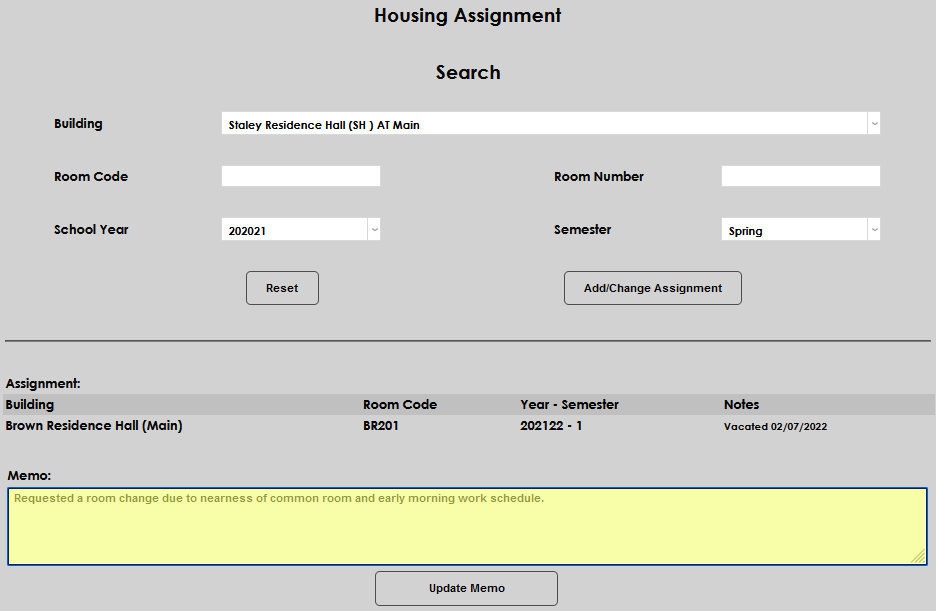
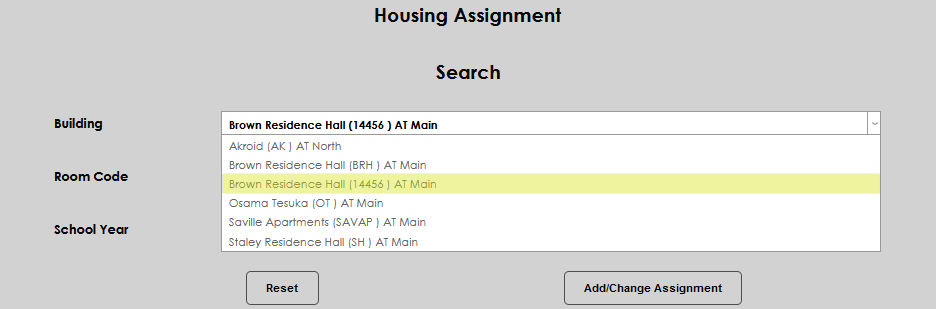
Upon entering the Housing Assignment page from the Users hub, the opportunity to search for available housing options is provided. Select a Building from the dropdown to search for rooms in a specific building.
If the code of the desired room is known, it can be entered in the Room Code field. Room Number works the same way. When the search is executed, the status and details of the room will be displayed.
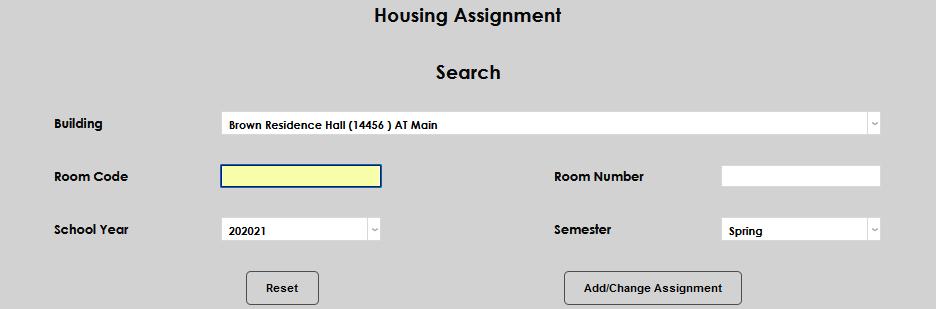
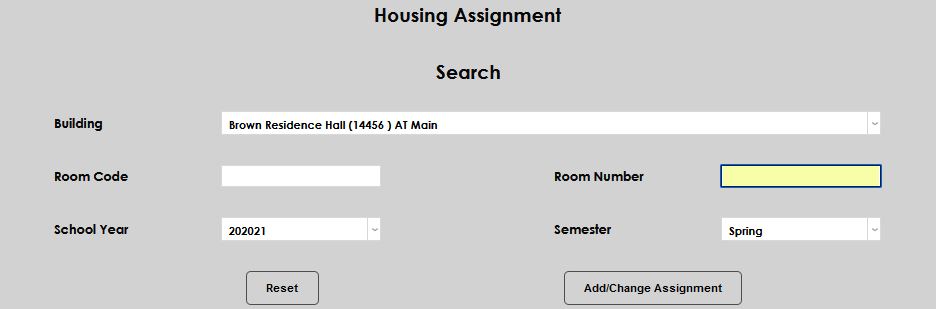
Select the School Year and/or Semester where the availability of housing is unknown or for which period of time housing is needed for the user.
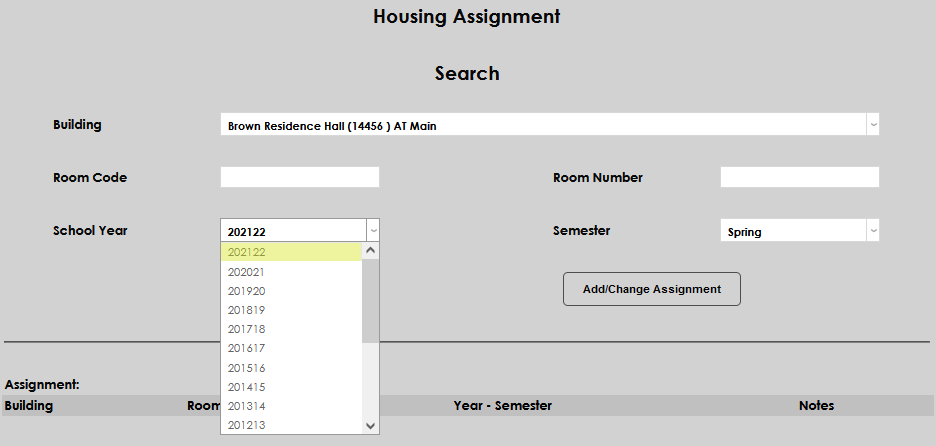
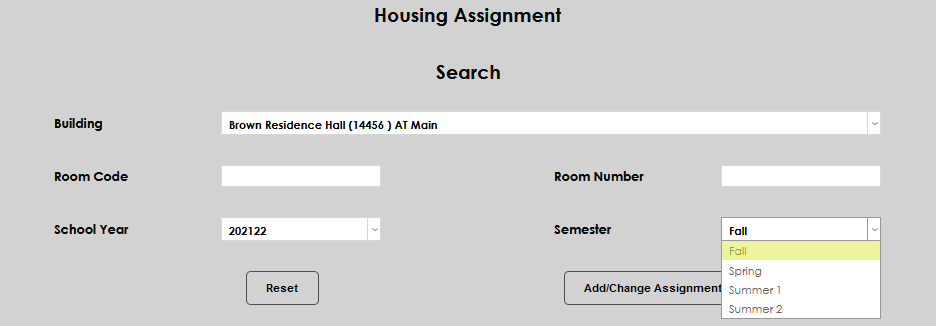
Click Add/Change Assignment to execute the search for available housing.
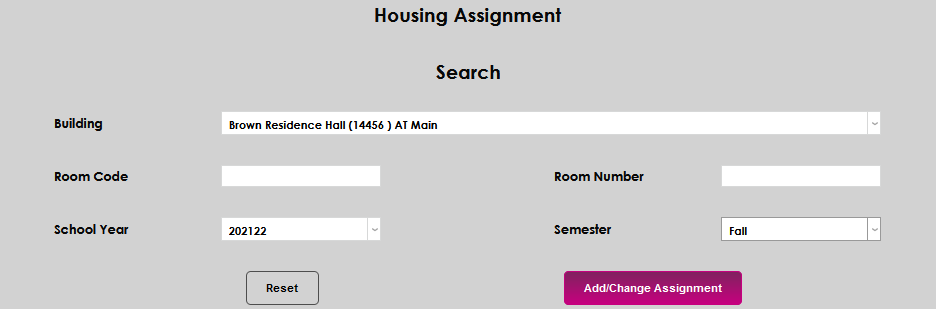
On the following page, all available rooms that meet the entered search criteria will display. Click on the Room Code to view more information about a room and/or select it for assignment to the user.
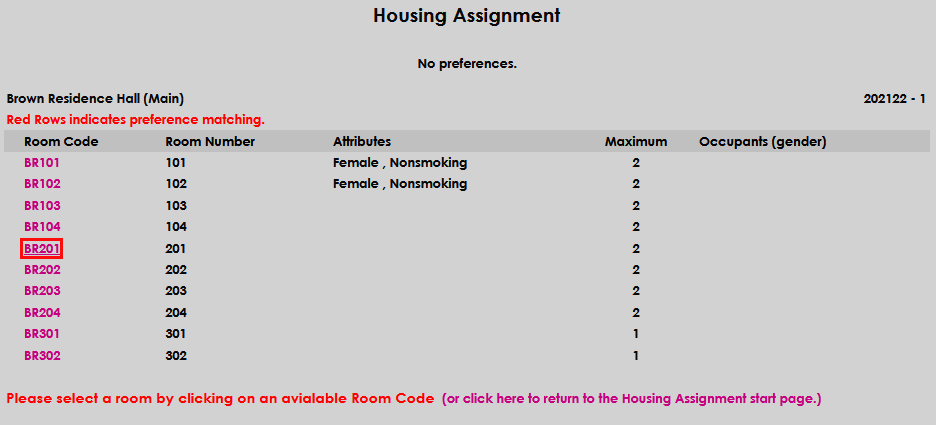
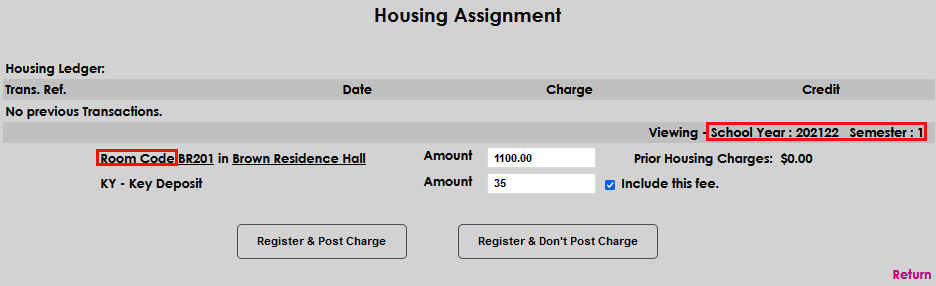
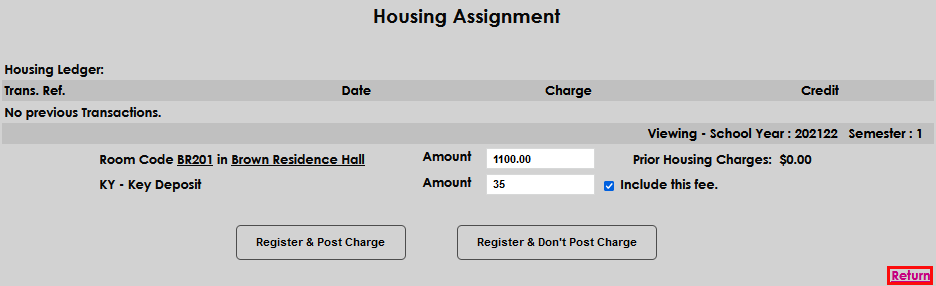
Any previous housing transactions will display under the Housing Ledger header. The School Year, Semester, and Room Code details display so the user can ensure they are viewing the selected parameters.
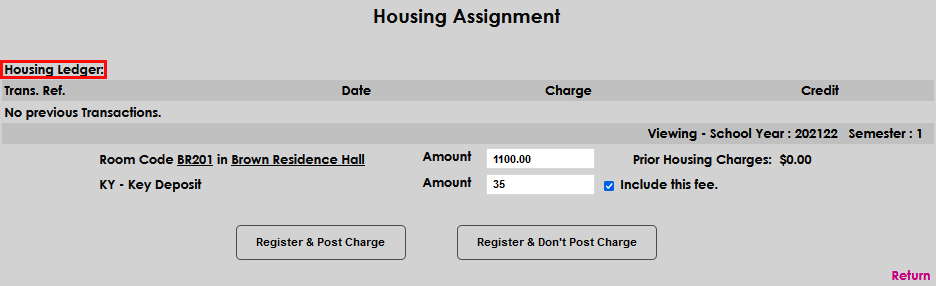
The Amount that will be charged for the room is auto populated and can be edited simply by clicking in the field and making any desired change. The Key Deposit is auto populated and can be edited the same way as the Amount field.
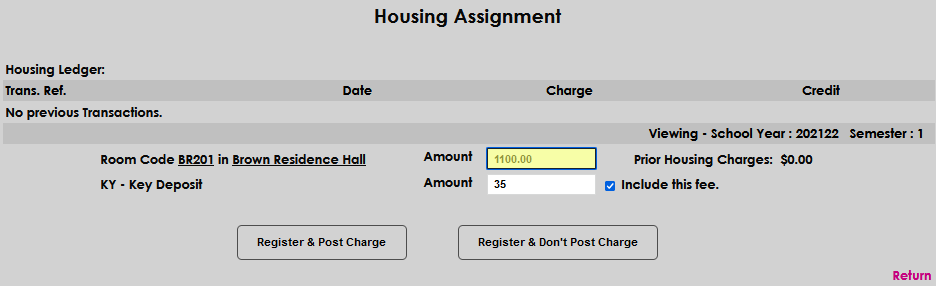
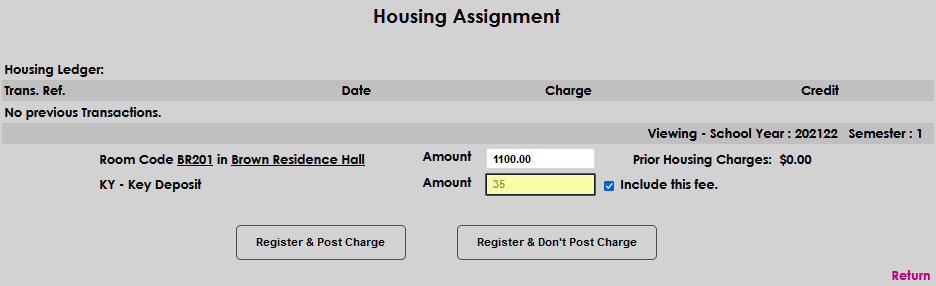
If the user should not be charged the fee, uncheck the Include this fee box.
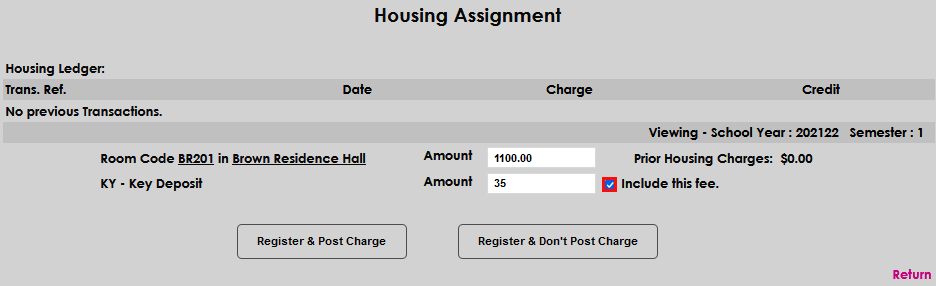
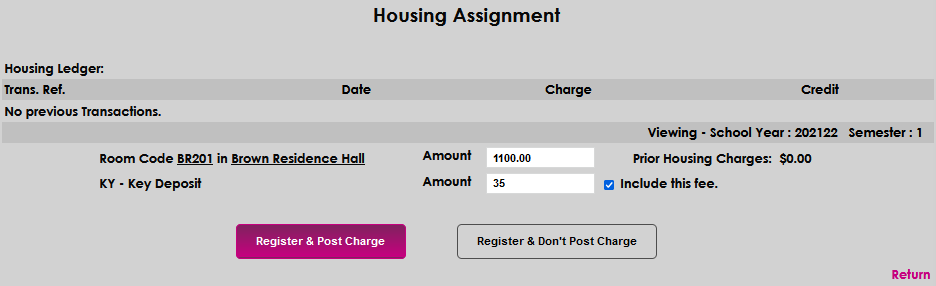
After confirming that the details are correct, decide whether to assign the room to the user and post charges or to assign the room to the user without posting charges. Select the Register & Post Charge button to confirm the user's assignment to the room and bill them for the cost of housing.
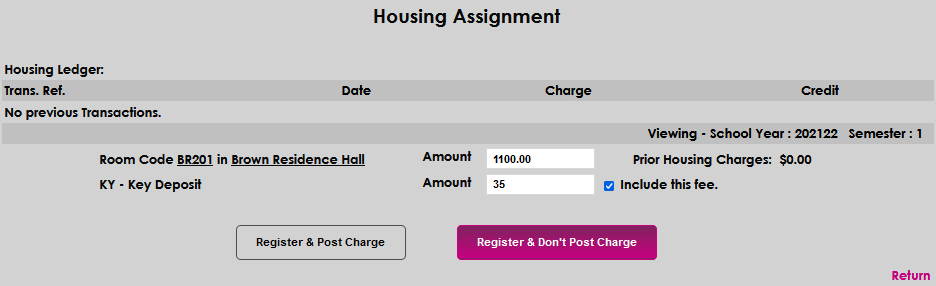
Select the Register & Don't Post Charge button to confirm the user's assignment to the room without billing them for the cost of housing.
Select Return to leave the page without assigning housing and/or billing the user.
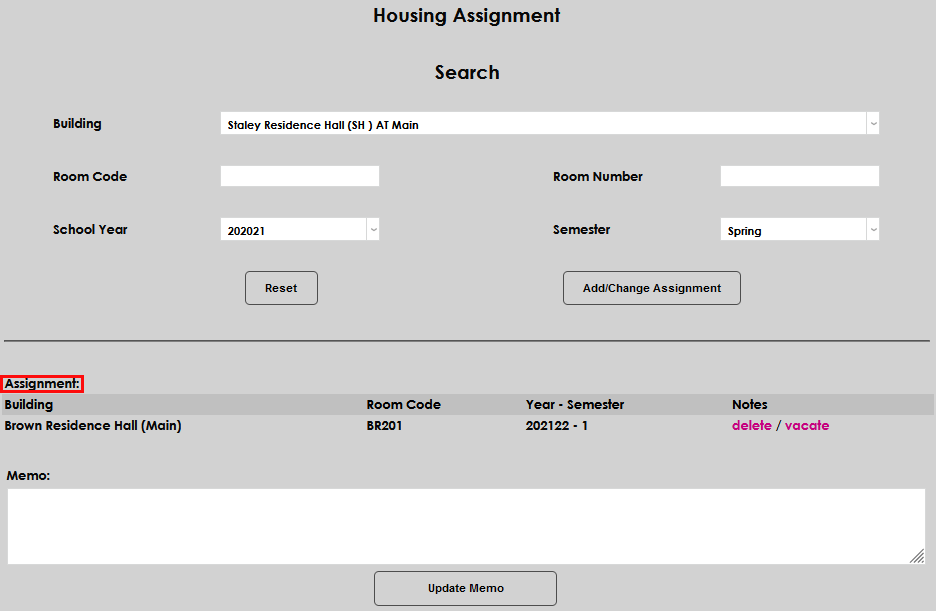
In this example, the Register & Don't Post Charge option was chosen. After clicking it, the user is returned to the Housing Assignment page and the Assignment portion of the page is filled.
Maintaining Housing Assignments
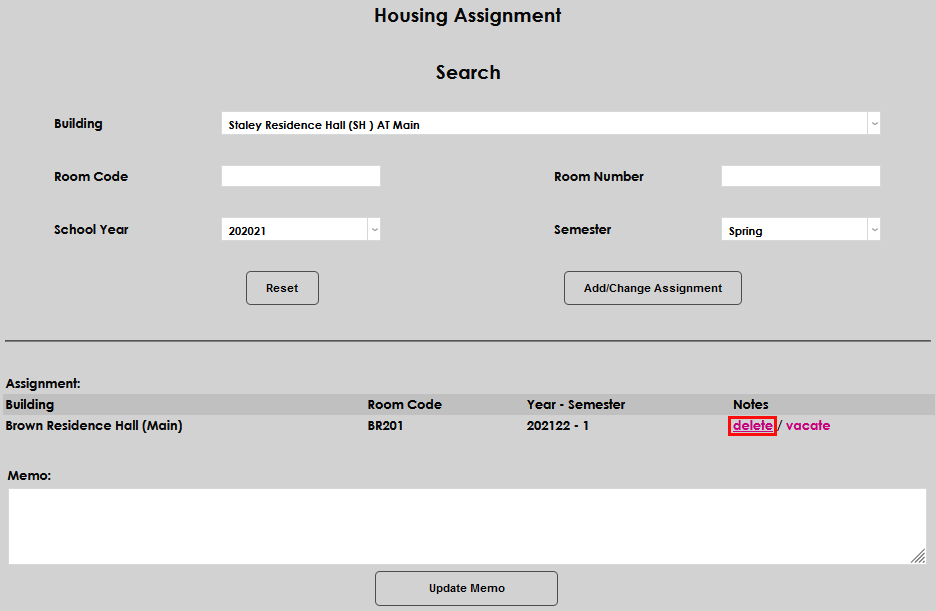
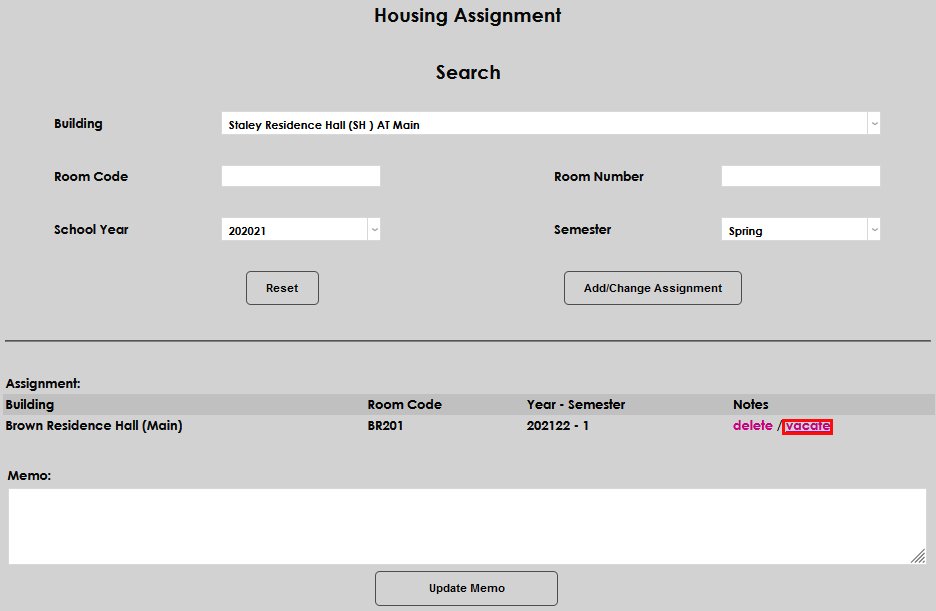
To maintain an existing housing assignment, enter the Housing Assignment page from the Users hub and click delete to delete the record entirely or vacate to indicate that the user has moved out of the housing and it is now vacant.
Enter the date the user vacated the room in the Moved out on field.
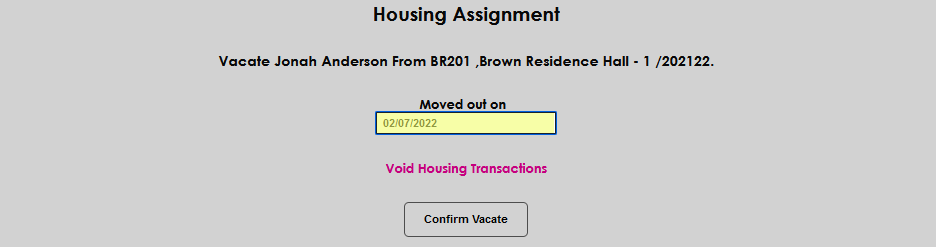
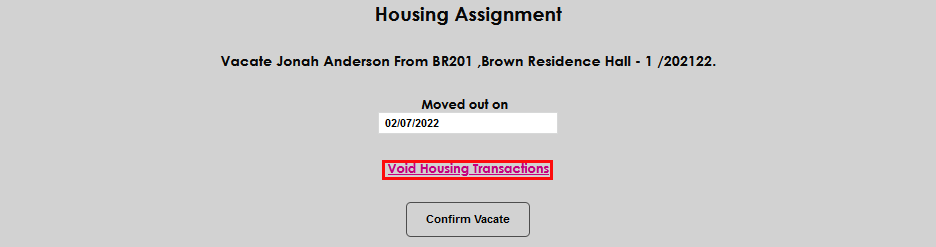
Select Void Housing Transactions if the charges associated with the housing assignment should be reversed and voided. Clicking will open a new SONIS page where the user is able to select the appropriate charges to be voided. It is important to confirm institutional policies on housing charges prior to deleting or voiding any existing charges the user has incurred for living in housing.
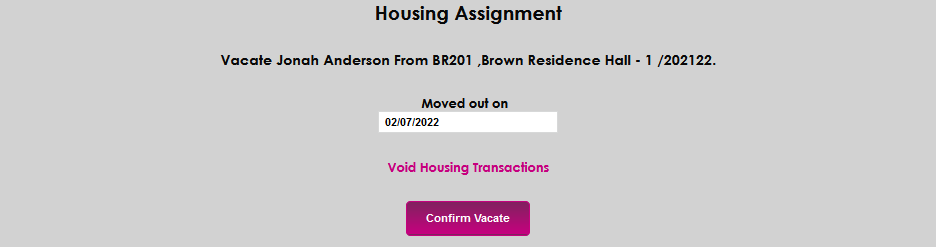
Click Confirm Vacate to save the moved out details.
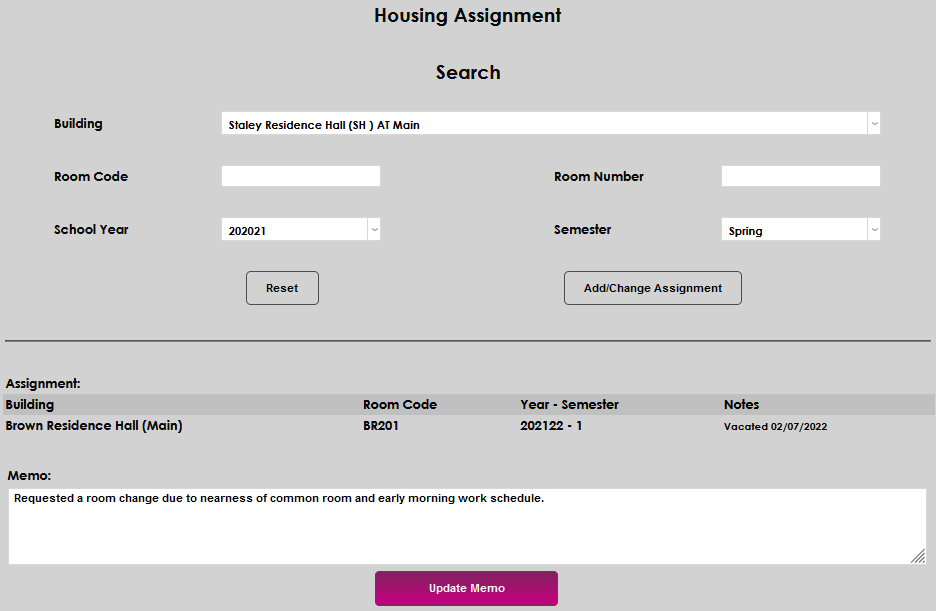
Enter any important details in the Memo field and click Update Memo to save the entered information.