Transaction Code Mappings
Overview
The Transaction Code Mappings utility allows institutions to associate their Transaction Codes with values from their General Ledger software.
Typically, each t-code has a pair of entries in the Mappings table. One entry identifies the GL account to be debited when the T-code is used while the other entry identifies the GL account to be credited. For example, a t-code of SP-Student Payment would typically have two entries, one that debits Cash and another that credits Accounts Receivable. Depending on the GL system in use, the Post to Accounting process can generate summary journal entries in electronic import format, which can then be exported. Even for customers who are not using an existing file export, the Post to Accounting summary report page will use the mapping values to provide a user with the information needed to manually enter summary journal entries into their General Ledger.
For schools with multiple campuses to set up or who have already created a spreadsheet of mappings for some other reason, Jenzabar SONIS offers a General Ledgering Mappings Import Utility that allows mappings to be created all at once through an import file.
Sort & Search Functions
With the understanding that many client institutions have numerous mappings, beginning with SONIS version 3.8, a search and sort features have been added to make it easier to find an individual record.
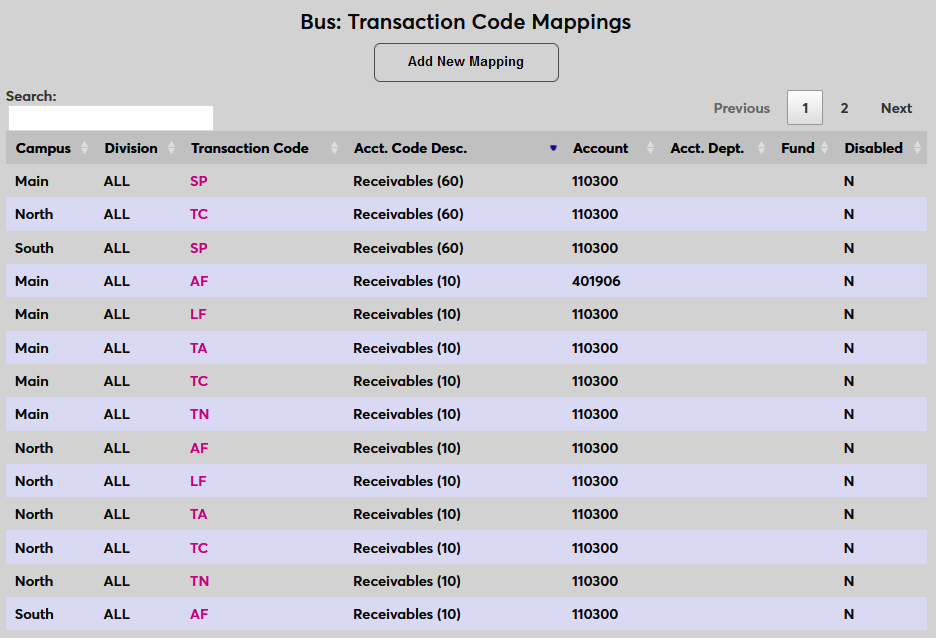
The first addition is the ability to sort by a chosen column. To sort by a column, click the set of up and down arrows next to the column header.
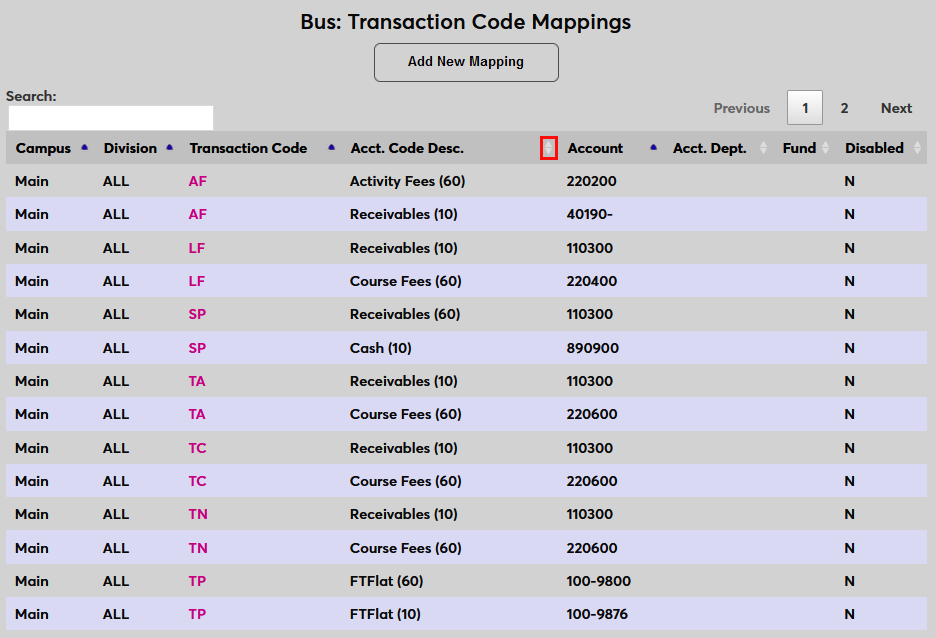
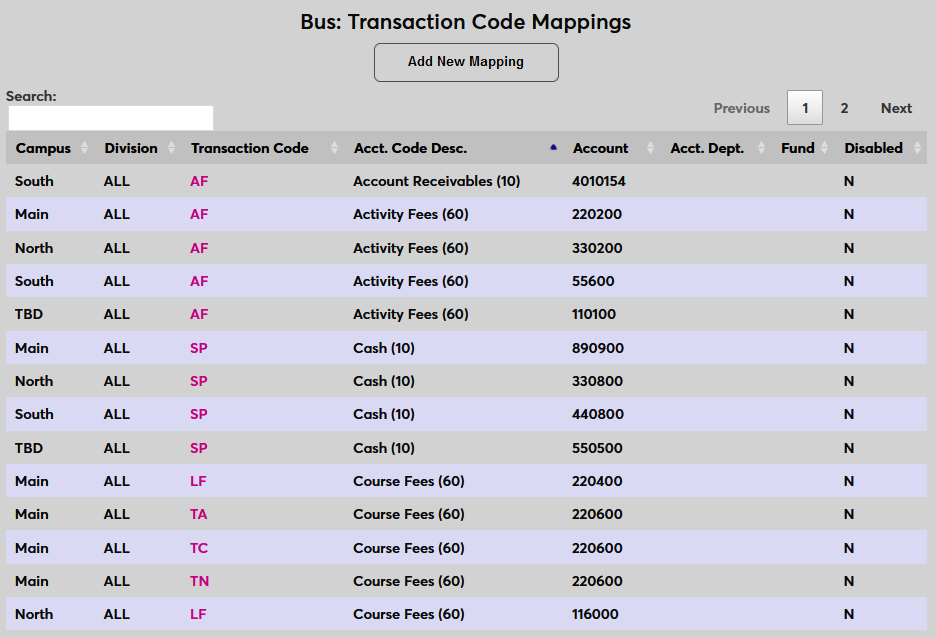
To reverse the sort to ascending rather than descending, click the button a second time.
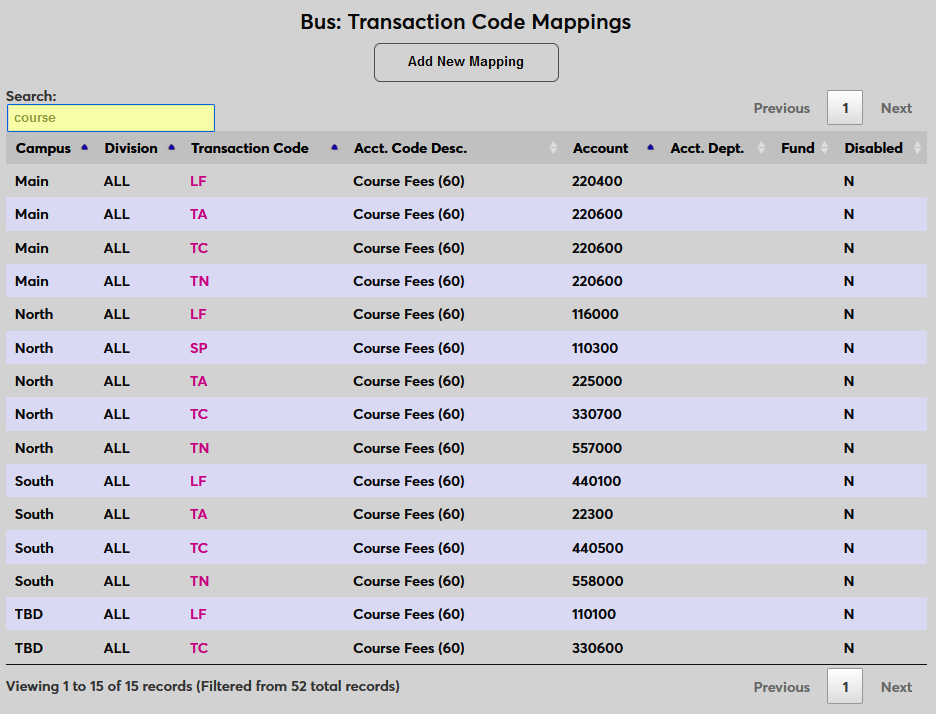
To search for a specific mapping simply type in the Search box at the top of the page. The search narrows the results instantly as characters are typed and searches based on the data in every column.
Add/Edit Mapping
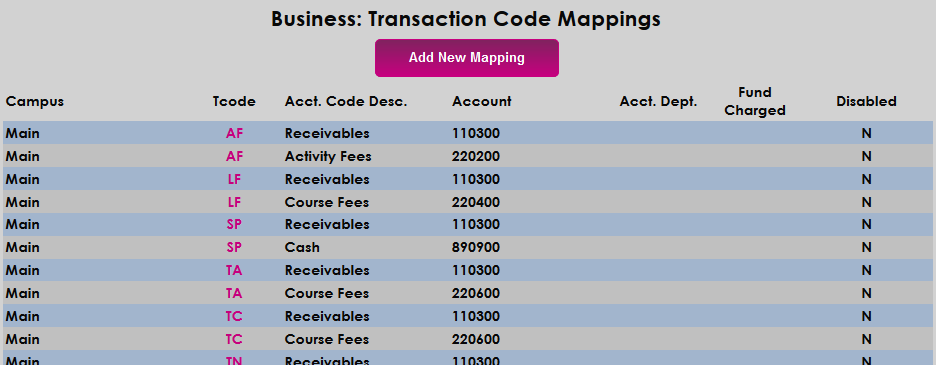
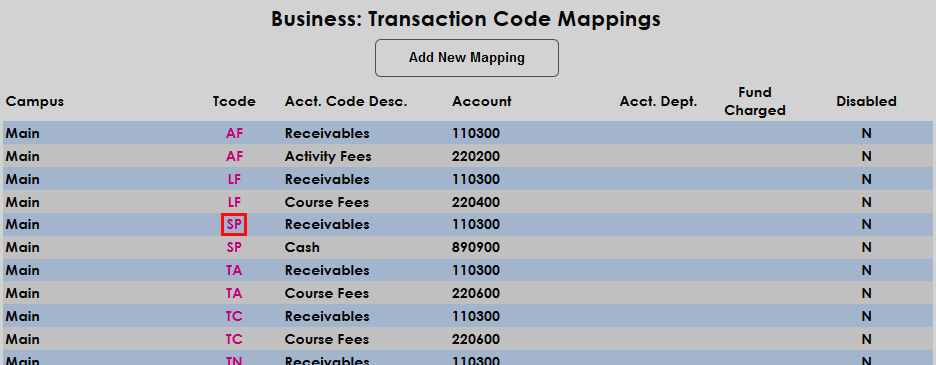
The Transaction Code Mappings utility is located in the Systems hub. To add a new mapping, click the Add New Mapping button at the top of the page. To edit an existing mapping, click on the link in the T-Code column.
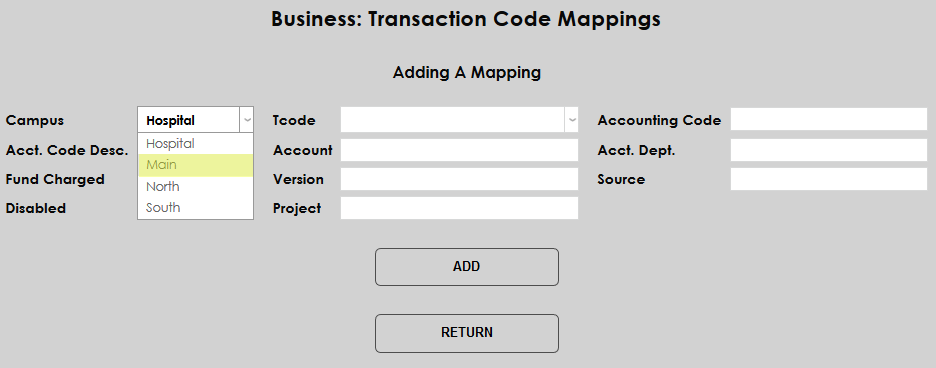
One the create/edit page, begin by selecting a Campus from the dropdown menu. All active campuses in the Campuses table should be available to select.
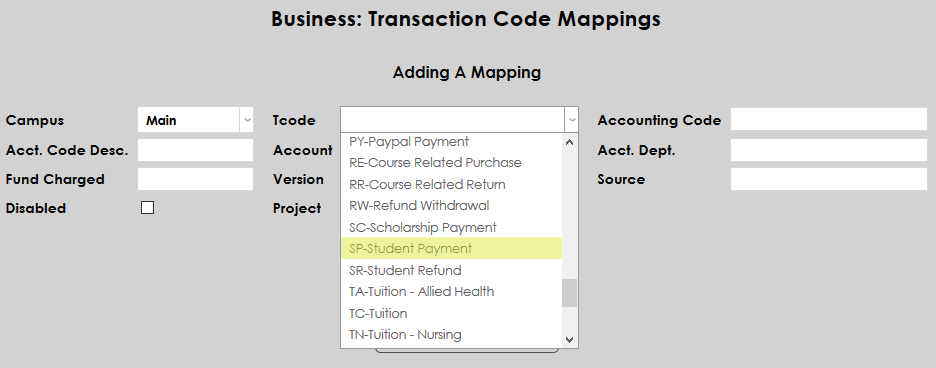
Next, select the T-Code to be mapped. All active t-codes in the Transaction Codes table should be available to select.
The Accounting Code field is used to designate whether the code is being used for a debit or a credit. Enter 10 in the Accounting Code field to designate a debit or a 60 to designate a credit. These values are SONIS specific and no other values are valid.
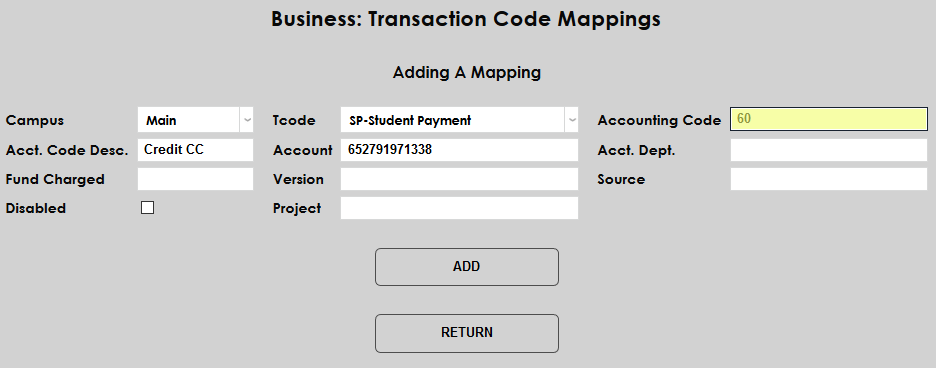
Enter a short description of the mapping intent in the Account Code Description field. The field has a 20 character limit.
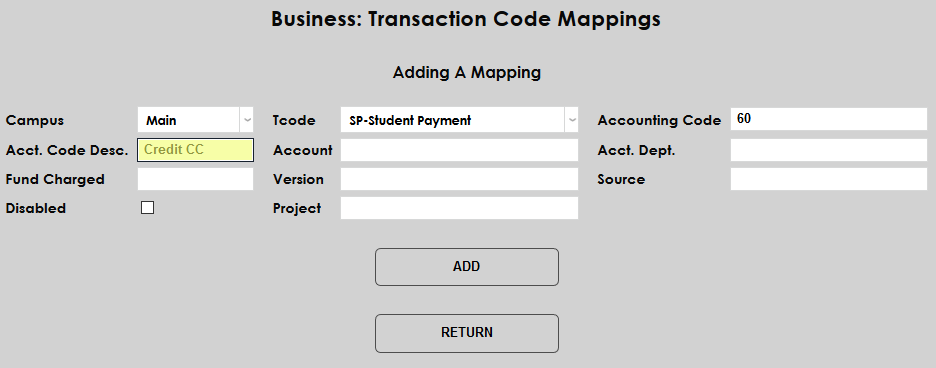
The Account field can vary in usage depending on the general ledger program, but it's typically used to designate the account number for the transaction.
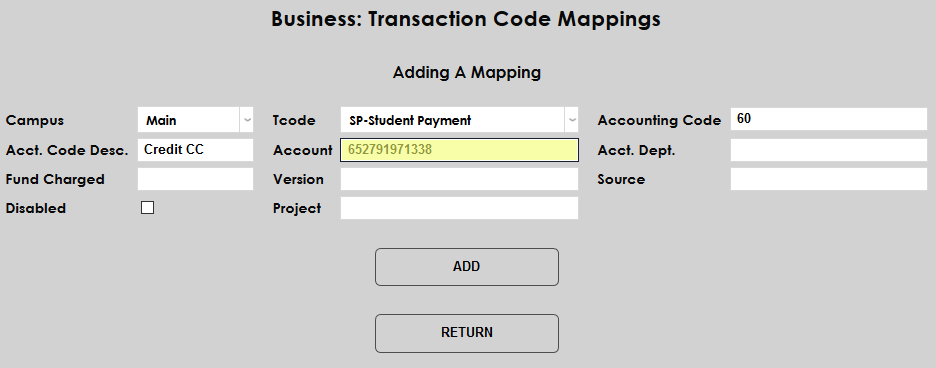
The Account Department field is optional if the entire account is entered into the Account field and is not used by most general ledger programs. In some custom builds and when using Abila MIP, the field holds a portion of the account number that's designated as the department.
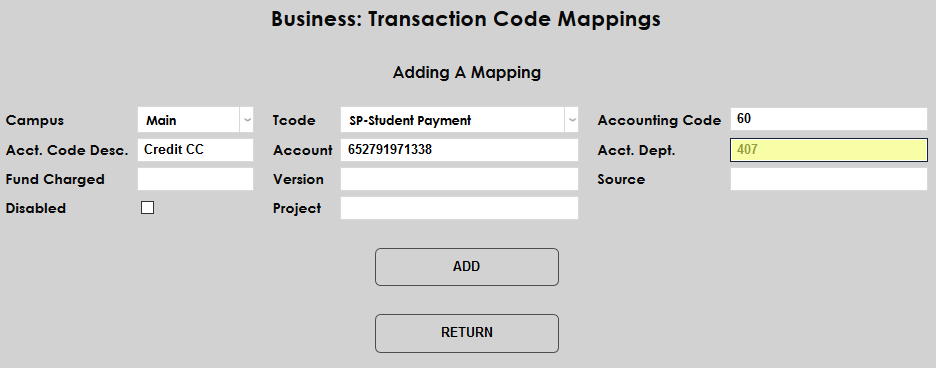
The Fund Charged field is optional if the entire account is entered into the Account field and is not used by most general ledger programs. In some custom builds and when using Abila MIP, the field holds a portion of the account number that's designated as the fund.
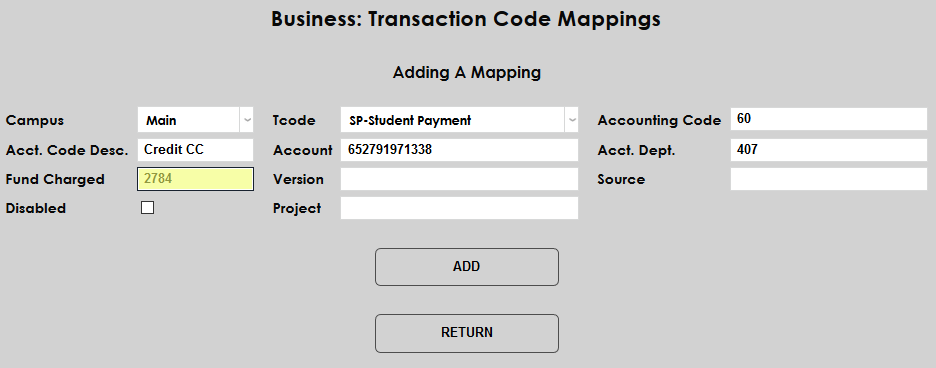
The Version field is optional if the entire account is entered into the Account field and is not used by most general ledger programs. In some custom builds and when using Abila MIP, the field holds a portion of the account number that's designated as the version or PG.
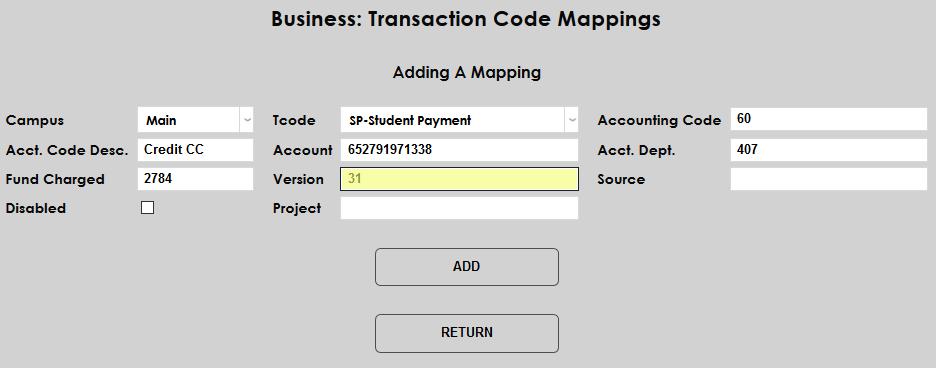
The Source field is optional if the entire account is entered into the Account field and is not used by most general ledger programs. Some custom builds may use the field for additional data. The field has a 30 character limit.
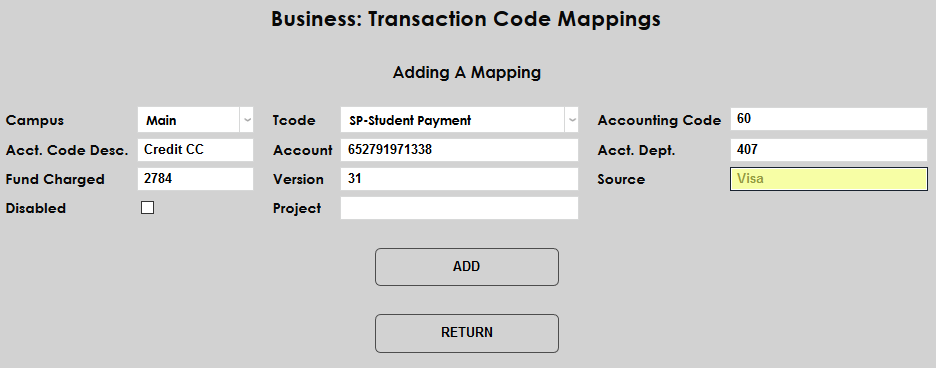
The Project field is optional if the entire account is entered into the Account field and is not used by most general ledger programs. In some custom builds and when using Abila MIP, the field holds a portion of the account number that's designated as the project.
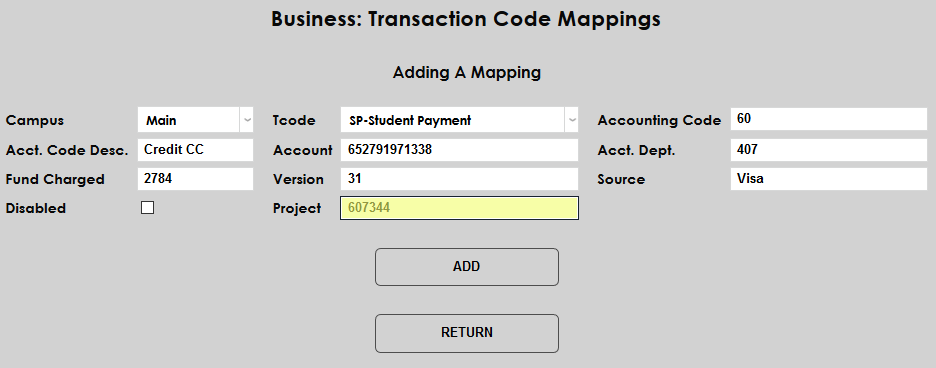
Checking the Disabled box prevents the code from being used. If disabling a t-code mapping, the attached t-code will also likely need to be disabled as well.
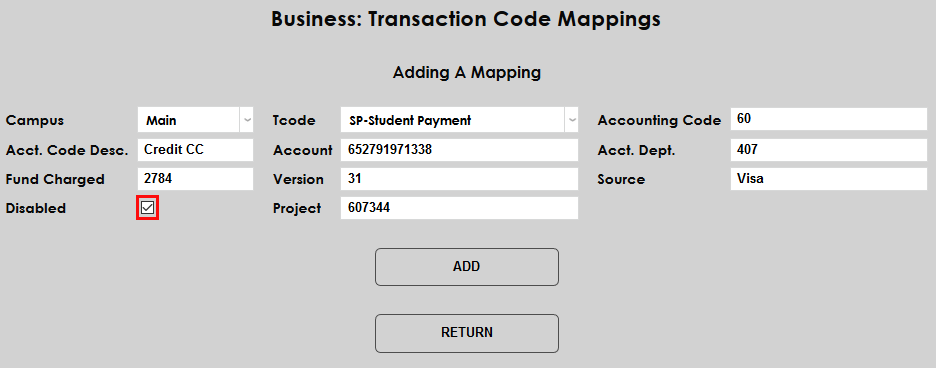
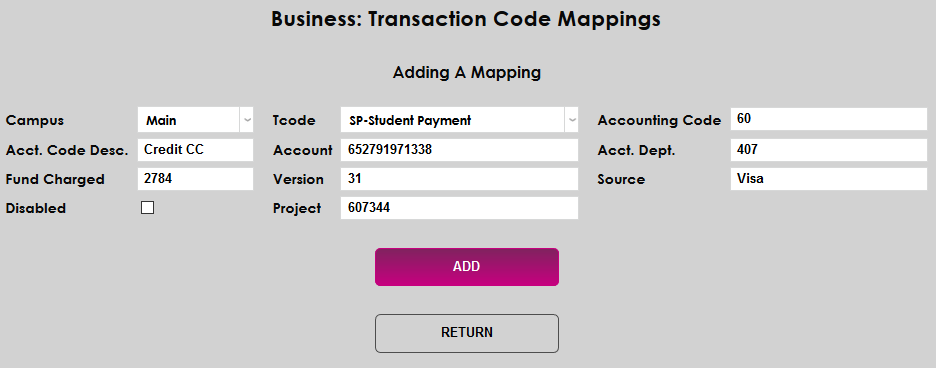
Click Add to save the changes and create the mapping or Submit if the code is being edited.
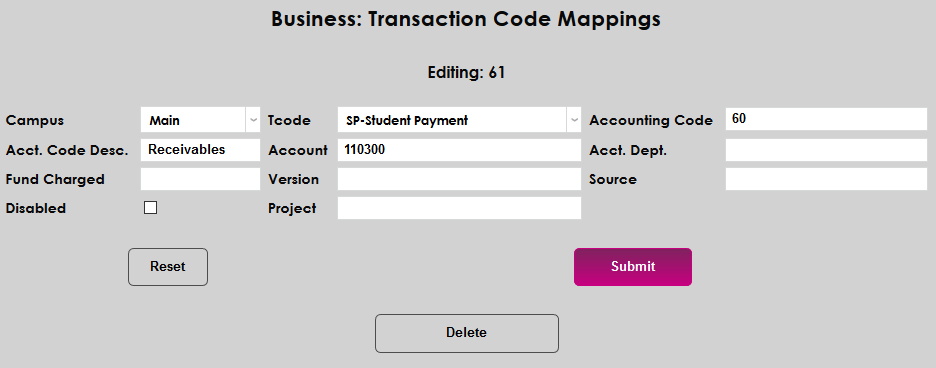
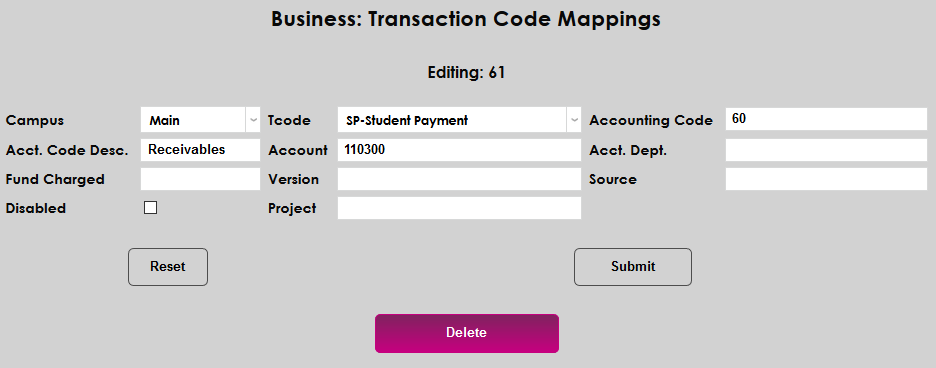
When editing t-codes, the mapping can also be deleted altogether rather than disabled if it will no longer be used and is not connected to the general ledger.
Division/Campus
To facilitate flexibility for institutions whose financial structure may not match the typical SONIS setup, SONIS allows schools to create T-code mappings by Division instead of or in addition to Campus. To activate this feature, contact SONIS Support. Once the feature has been activated, Division dropdown will appear on the add/edit page.
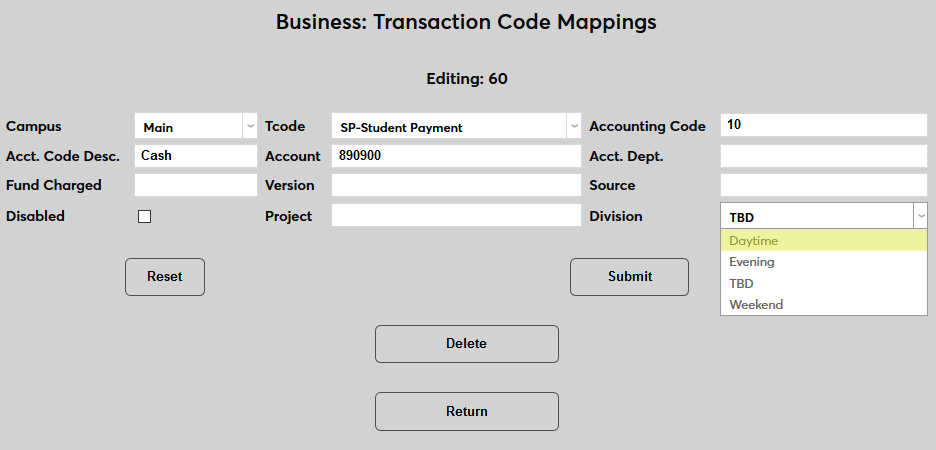
Divisions can be used along with the Campus or they can replace the campus designation depending on institutional preference.
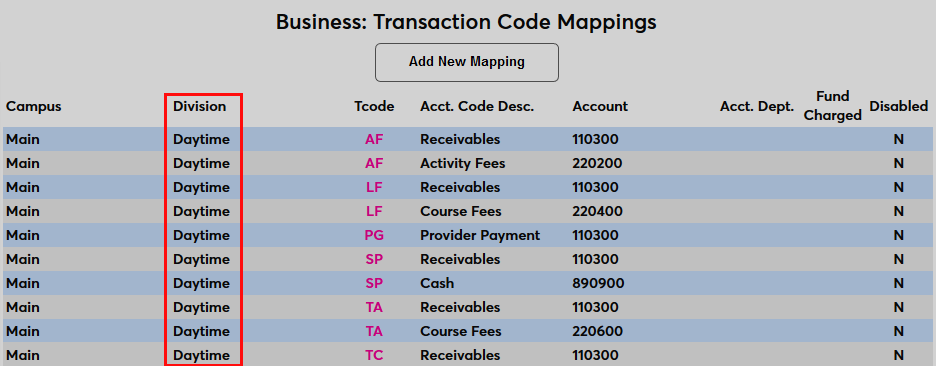
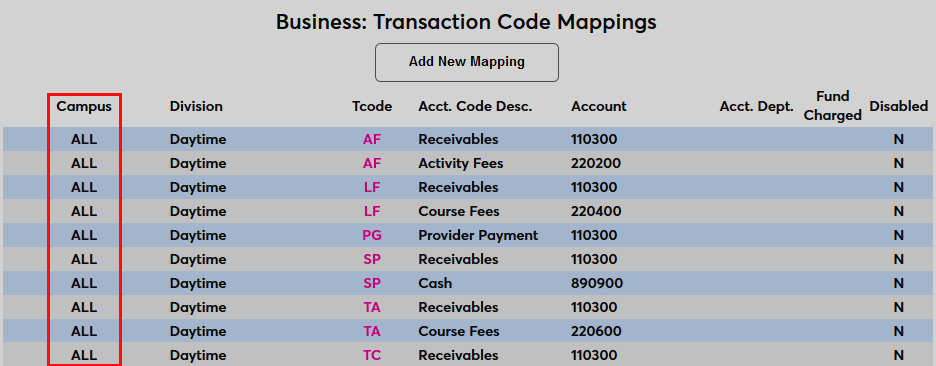
When the division option is on, each new or existing T-code must have a valid division in order for financial batches to post. The division will display in the Post to Accounting utility and in related reports.