Jenzabar Financial Aid Insight
Overview
The Jenzabar Financial Aid Insight utility is a dashboard of helpful tools for managing the Jenzabar Financial Aid integration with Jenzabar SONIS. The widgets on these page can be used to solve connection problems, debug errors, and provide greater understanding of how the integration functions.
Note
The information on this page is intended for system administrators and Jenzabar SONIS support technicians.
Server Settings
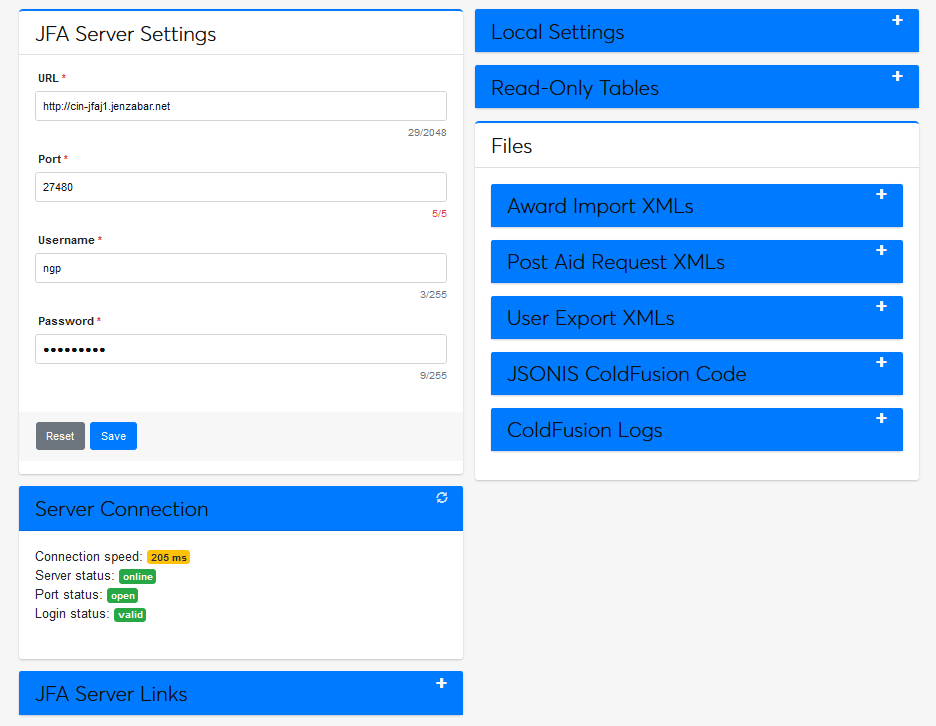
Before files can be sent back and forth between Jenzabar SONIS and JFA automatically using APIs, the correct server settings must be in place. Normally, this data is entered on the User Export page in the Financials menu. It also appears here on the JFA Insights page and can be altered if necessary.
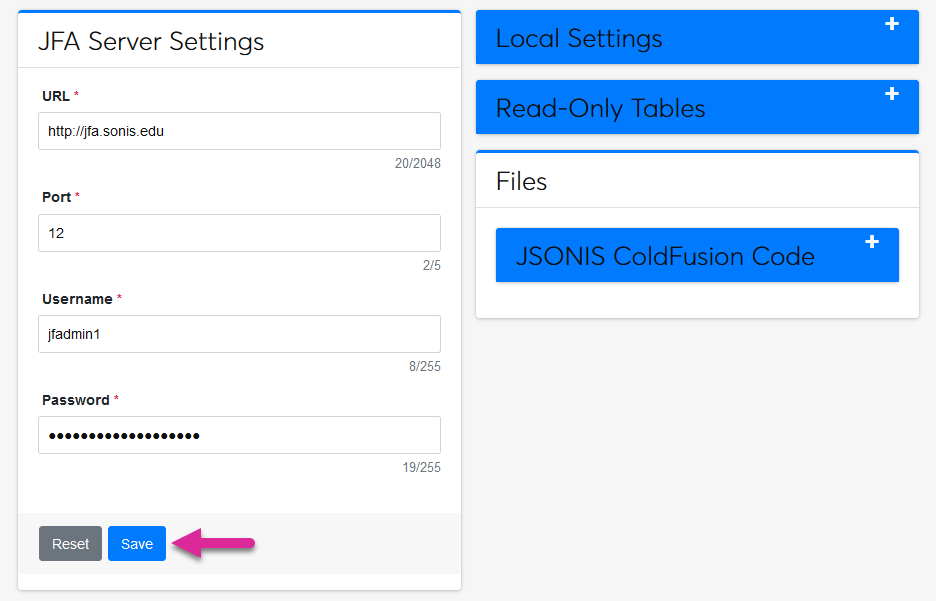
If setting up the connection for the first time, enter the location of the Jenzabar Financial Aid installation on the local network in the URL field. Enter the network port where Jenzabar Financial Aid can be accessed in the Port field. Enter the administrator’s Jenzabar Financial Aid username in the Username field and the password in the Password field. Click Save to save the settings.
Server Connection
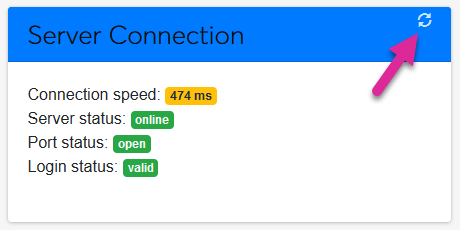
The Server Connection widget displays the current status of the Jenzabar SONIS connection to the JFA server. Each value is color-coded with green meaning good, yellow meaning caution, and red meaning bad or non-existent. Click the reload button to get the latest status.
Note
The server connection widget does not display the status of the connection from the opposite direction (from the JFA Server to the SONIS server). In some instances, a network can be set up so that the JFA server can respond to SONIS making a call but cannot initiate that call itself. In these cases, the JFA Server would be unable to send batch files to SONIS and those files would need to be manually uploaded.
Server Status - If this fails, it's likely that either the URL is incorrect or JFA is offline.
Port Status - If this fails, it's likely that either the port number is incorrect or the port is being blocked by a firewall. If the port is being blocked by a firewall, network administrators must ensure that the port is open for TCP traffic both ways.
Login Status - This will only fail if the username or password is incorrect.
Server Links
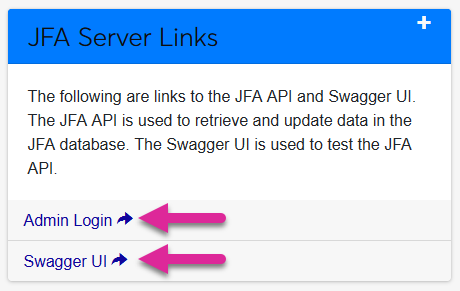
These links use the server URL and Port provided in the JFA Server Settings to provide the user with a shortcut to the JFA server’s UI and Swagger UI. Click the + to expand the JFA Server Links widget and click on the links themselves to use them.
Local Settings
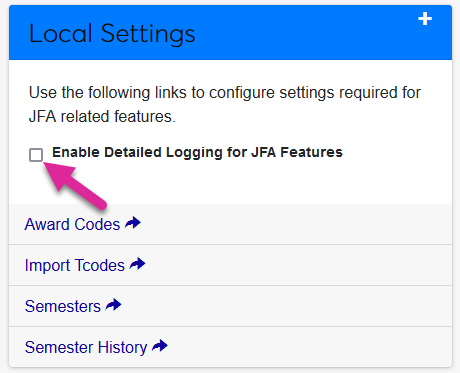
The Local Settings widget provides links to areas of SONIS that are part of the required setup for JFA to function properly. Click the + button to expand the menu and click on the individual links to use them. Check the Enable Detailed Logging for JFA Features box to turn on detailed debugging for all JFA utilities.
Warning
Detailed Logging should only be enabled while actively debugging as it will quickly fill up the jfa.log file. Do not leave it enabled after testing.
Read-Only Tables
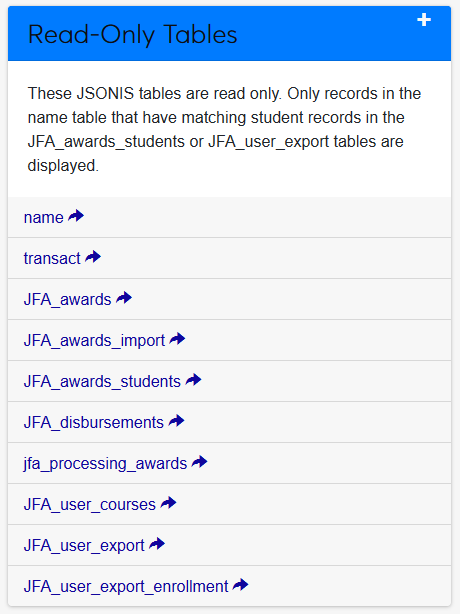
The Read-Only Tables widget provides a quick way to view JFA-related user data. As the name suggests, these tables are presented as read-only and cannot be edited from this utility. Click the + button to expand the menu and click on any link to view the associated table. The name table only displays users with matching records in the JFA_awards_students table or the JFA_user_export table.
Note
Any data that is encrypted by SONIS will not be displayed in these tables. For example, social security numbers are encrypted and are therefore not included.
Files
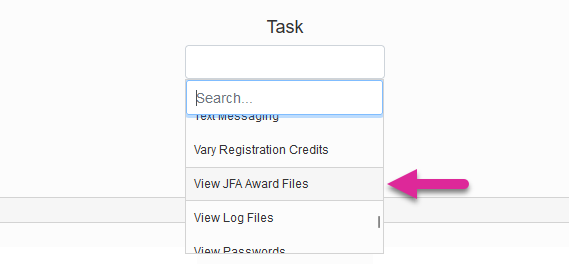
The files section provides links to download all JFA-related files on the Jenzabar SONIS server. Before the XML files and logs can be viewed, an administrator must have the View JFA Files User Security task enabled.
Award Import XMLs
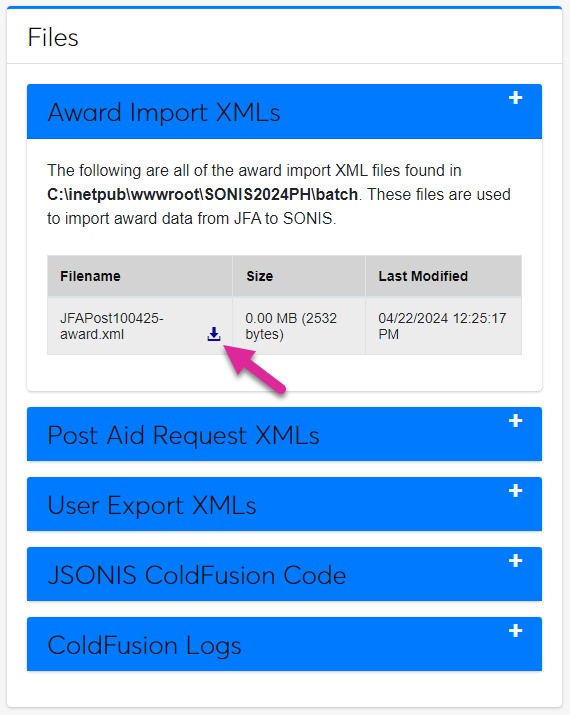
Expand the Award Import XMLs menu to view a list of all the award files that have been imported from JFA along with the size of the file and the date they were imported. Click the download symbol to download any of the files and see more details.
Post Aid Request XMLs
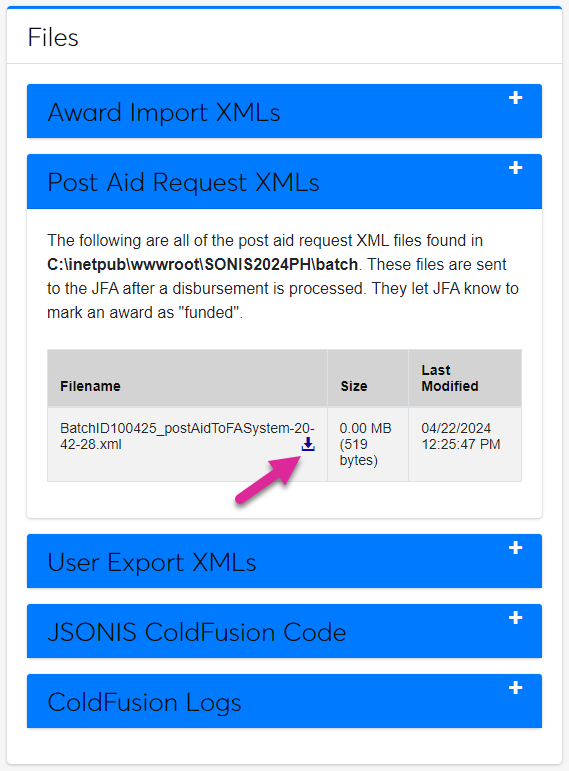
Post aid requests are the files sent back to JFA after an award is processed by SONIS. Expand the Post Aid Request XMLs menu to view a list of these files along with the date they were sent. Click the download button to download any of them and see more details.
User Export XMLs
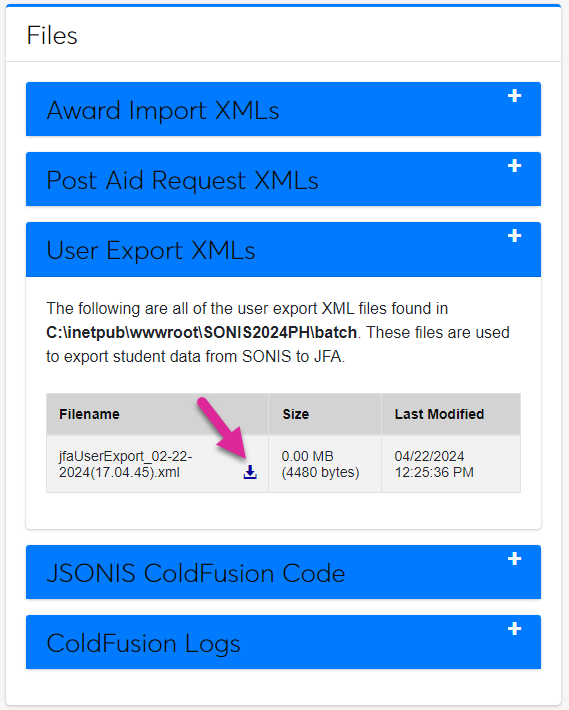
Expand the User Export XMLs menu to view a list of all the files that have been sent to JFA from SONIS using the JFA User Export utility. Click the download button to download any of them and see more details.
JSONIS ColdFusion Code
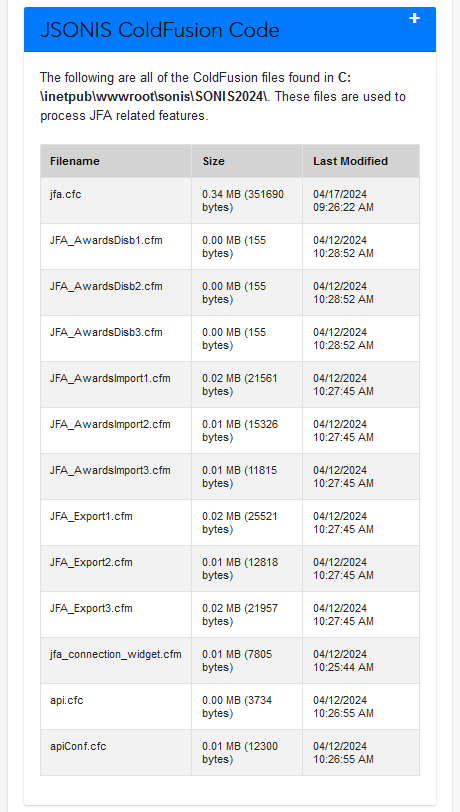
Expand the JSONIS ColdFusion Code menu to view a list of every Jenzabar SONIS code file that relates to the Jenzabar Financial Aid integration. This list is read-only. For more details about any of the files listed, contact Jenzabar SONIS Support.
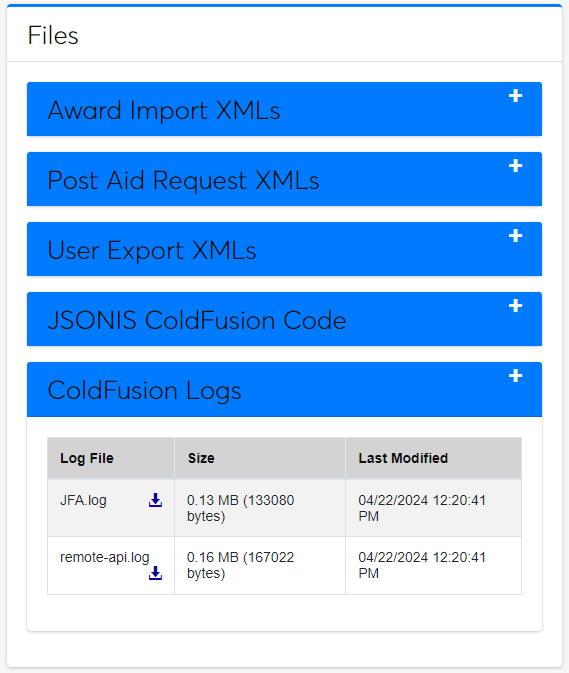
ColdFusion Logs
Expand the ColdFusion Logs menu to view all log files created in the ColdFusion system when sending files between Jenzabar SONIS and JFA. Click the download button to download any of them and see more details.
Note
The ColdFusion Admin Password in Web Options must be set correctly before these files can be accessed.