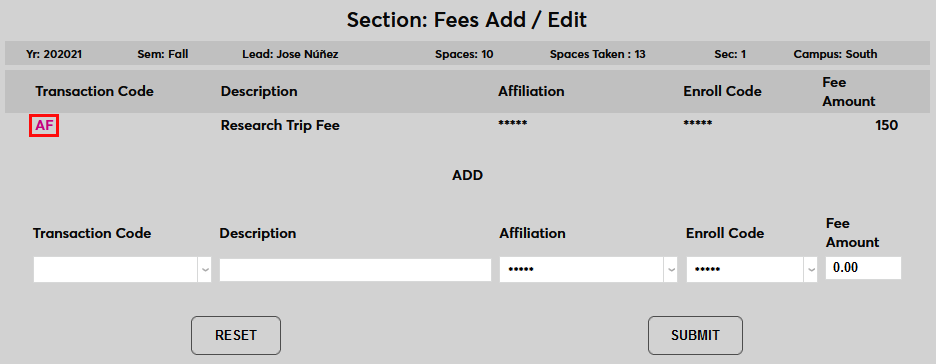
Course Section Fees Add/Edit
Overview
Some course sections may cost more for the institution to teach than other sections of the same course. For instance, a course could be taught by a visiting faculty member who commands a hefty fee, or one section could offer more lab or clinical time or extracurricular activity that the other sections don't offer. For this reason, Jenzabar SONIS allows institutions to add additional costs to a course section using the Section Fees Add/Edit page.
If the fee applies to all sections of the course, it should be added using the Course Fees Add/Edit page instead. Additionally, the overall tuition price for a course can be changed for certain affiliations using the Affiliation link on the Course Add/Edit page. For more information on other fee types that SONIS offers, visit the Feesoverview page.
Adding Section Fees
To add a course section fee, select a course section and navigate to the Section Fees Add/Edit page. Select a Transaction Code from the dropdown menu. All active transaction codes should be included in the list. Select a charge T-code if the student will be charged an extra fee or use a credit T-code to give the student a discount.
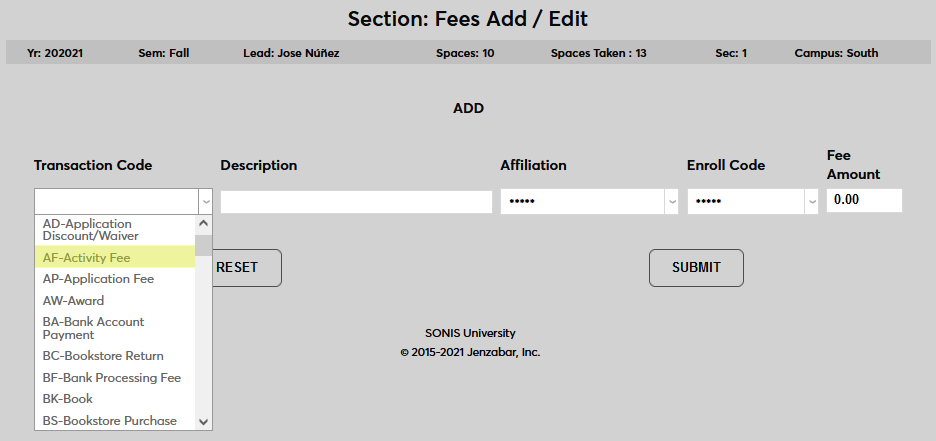
Next describe the fee in the Other Description field. This description is what will appear on the student's bill. If the field is left blank, the selected T-code will display instead.
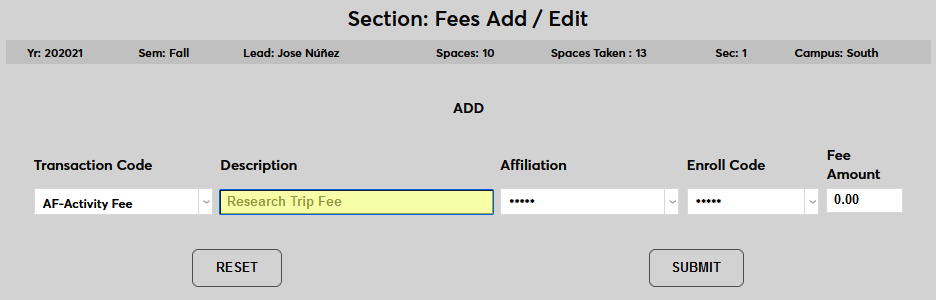
If the charge will only apply to one affiliation, select the appropriate affiliation from the Affiliation dropdown menu. Leave the ••••• option selected if the fee will apply to all affiliations.
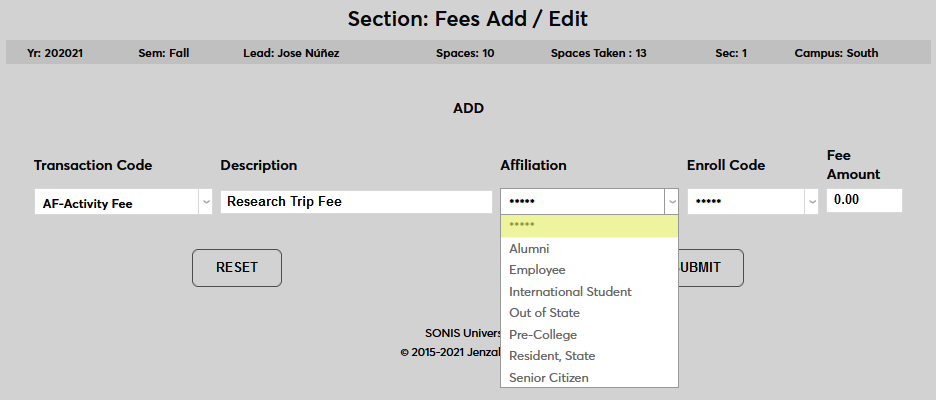
Select whether students subject to the fee will be auditing, taking the course as a continuing education class, or enrolled as a regular student using the Enroll Code dropdown. Or leave the b>••••• option selected if the fee will apply to all enrollments.
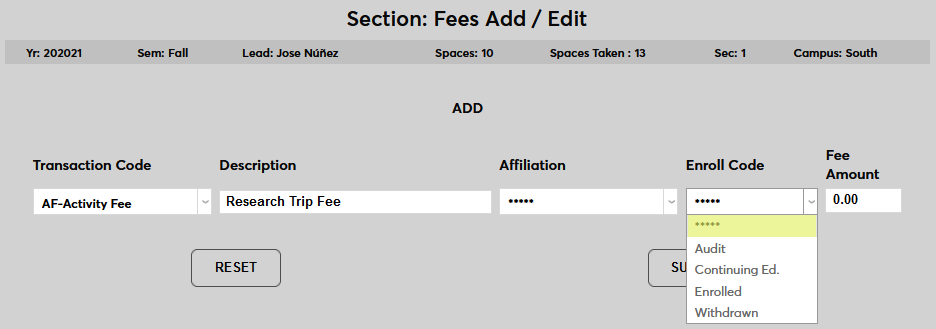
Set an Amount for the fee. This amount can be made negative using a minus sign, but keep in mind that a negative amount with a credit T-code will result in a positive charge.
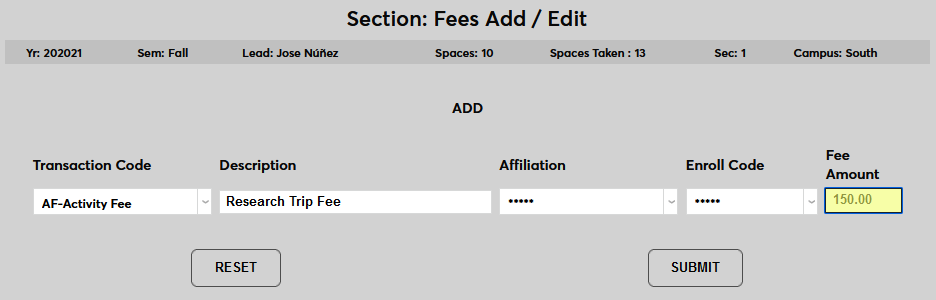
Click Submit to save the changes and create the fee.
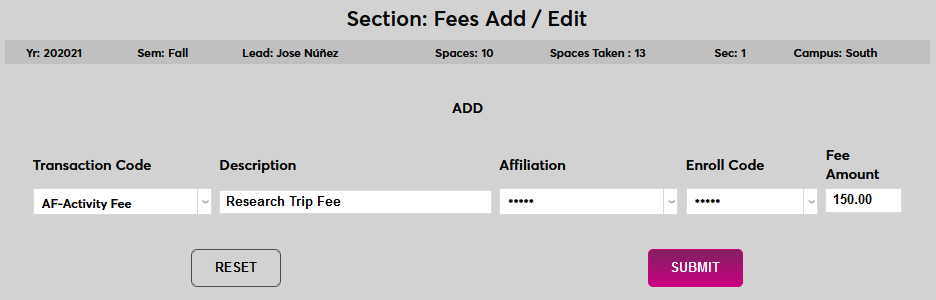
Additional fees can be added using the same method. Click the Transaction Code of an existing fee to remove it or make changes.