Deep Linking
Overview
Deep Linking is a Jenzabar SONIS feature that allows a user to generate a link to an internal SONIS page associated with a particular record. This link can then be sent to other SONIS users, allowing them to access the page directly rather than having to search for it. For a deep link to work, the recipient of the link must have access to view the page/user record selected. Deep links expire after a time.
Configuration
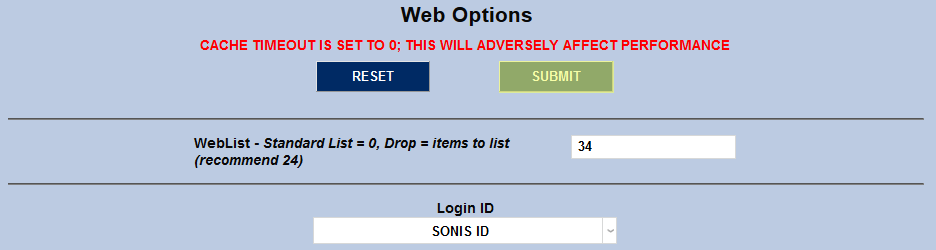
To enable deep linking, navigate to the Web Options utility under the Systems menu. Scroll down to the Deep Linking Configuration section. Check the Enable Deep Linking box to turn on deep linking for all admin portal users.

You can also modify the options that users have to control the expiration of links. Type a number in the Default Delta Days field to set this value. Delta days are a countdown, essentially. Links will expire after the set number of delta days have passed. To allow individuals to control their own link expiration, check the Expire links by delta days box. Otherwise, the default delta days cannot be altered by other administrators when they send a link.


You can also allow users to set a date when their link will by checking the Expire by Date box. Check Expire by Page Visits to allow users to set the number of times the page can be visited through the link, after which the link will expire. If more than one box of these three boxes is checked, users sending deep links can choose one or more expiration options based on their personal preference.


The SONIS system checks link viability in the following order.
Has the default number of delta days passed
Has the user-specified number of delta days passed
Has the date passed
Has the link been visited the defined number of times
A link must pass all four checks before it can be accessed. If an expiration option was not activated, all links will automatically pass that check.
Click the Submit button at the top or bottom of the page to save the changes that have been made and turn on deep linking.
Sending Deep Links
Once deep links have been activated, a deep links icon will appear in the top-right corner account options menu. Click the icon to send a deep link.

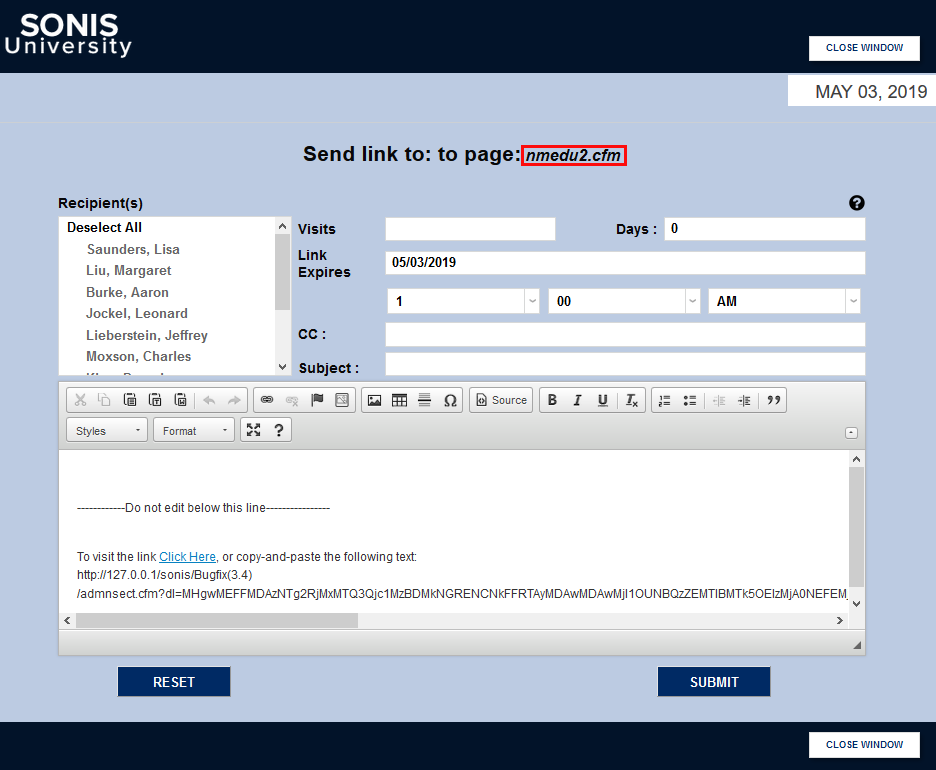
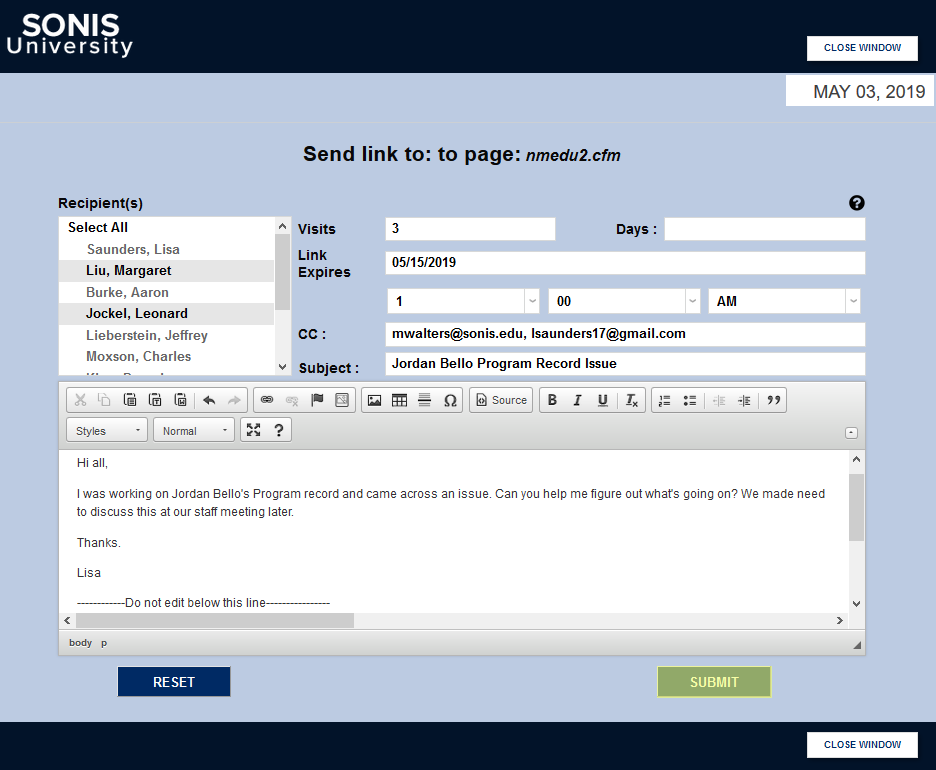
A new window will open with options for sending the link. The page being sent is listed at the top. Remember that this page is specific to the current state. In this example, the link would be to this specific education record in this specific student's records.
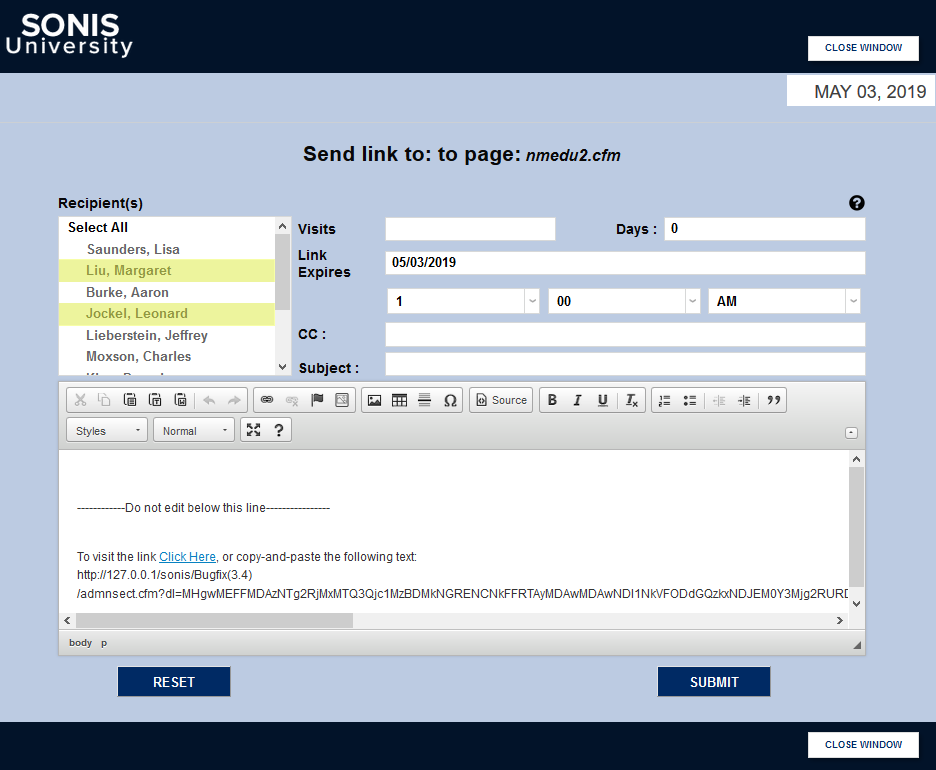
Select one or more SONIS users from the Recipient(s) list. To be listed as a potential recipient, a user must be a Staff member, have a User Security profile, and have a valid Preferred email address.
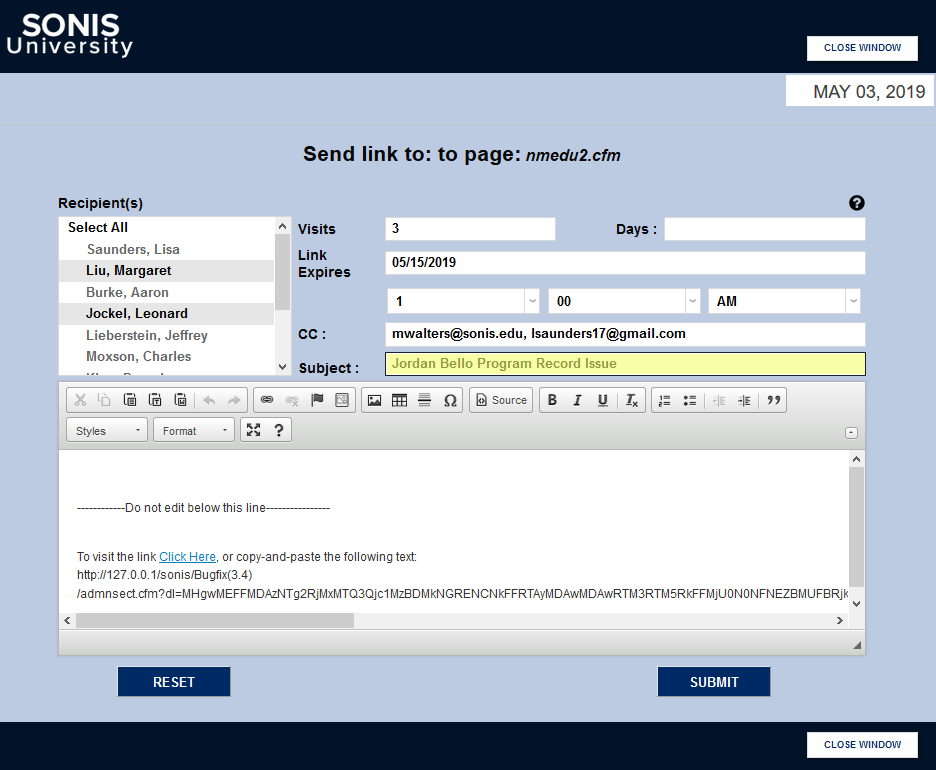
The CC: field can be used to add additional recipients by email address. If more than one email address is included, they must be separated by a comma. Recipients must have valid SONIS credentials with permission to access the page for the link to work.
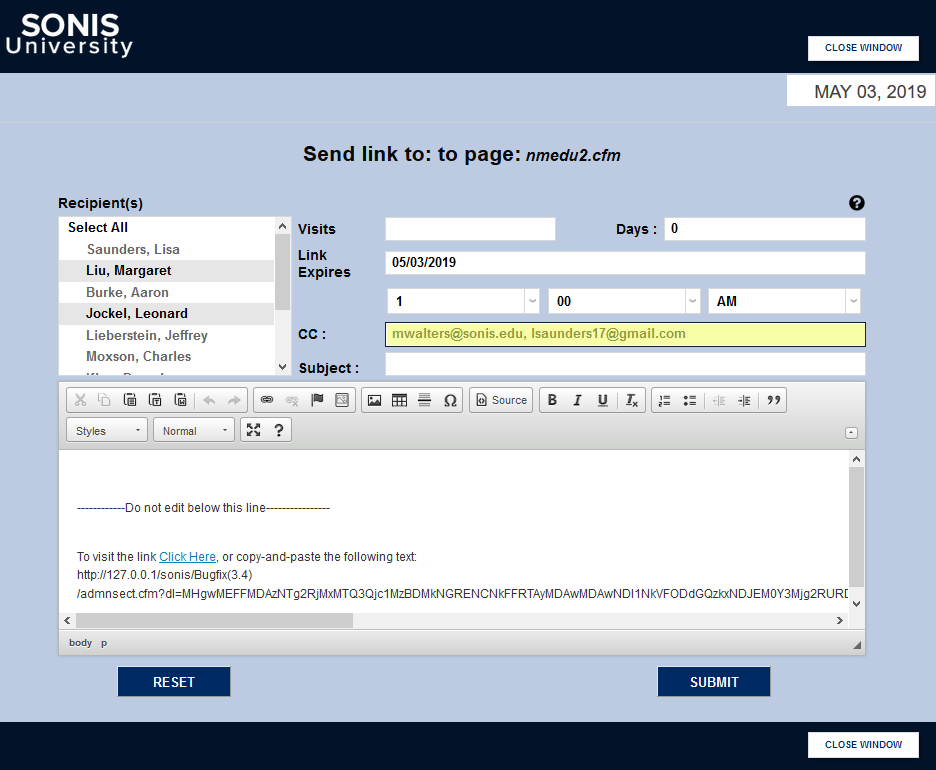
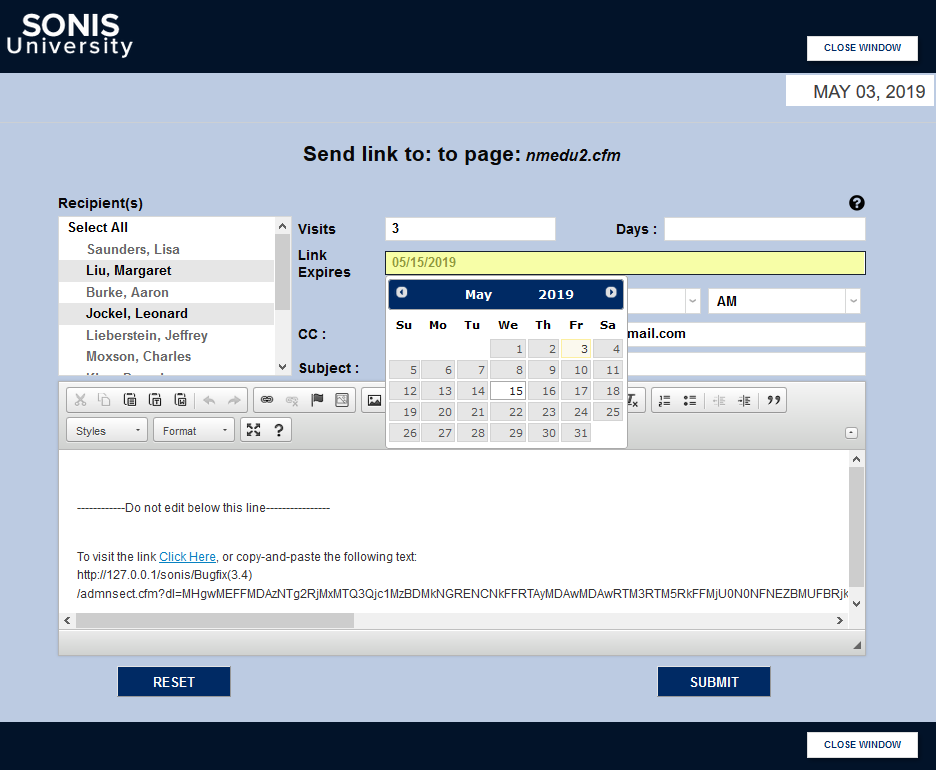
Next, set an expiration for the link based on Visits to the page, Days counted down from when the message was sent, or a date with the Link Expires field. If more than one expiration metric is used, the link will expire when it hits any of the thresholds.
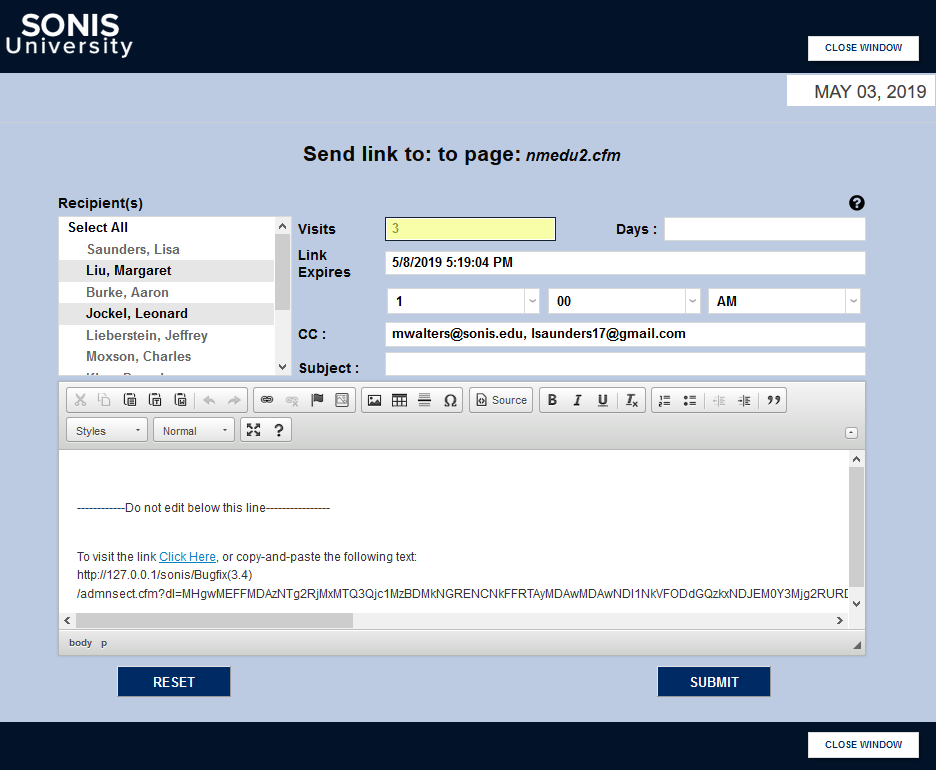
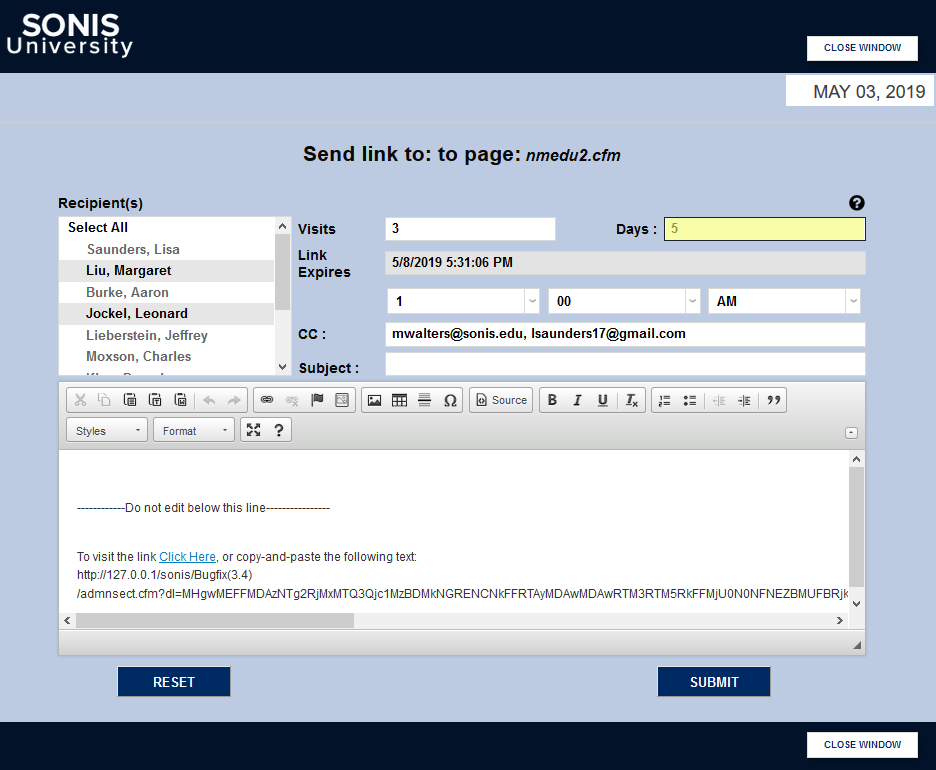
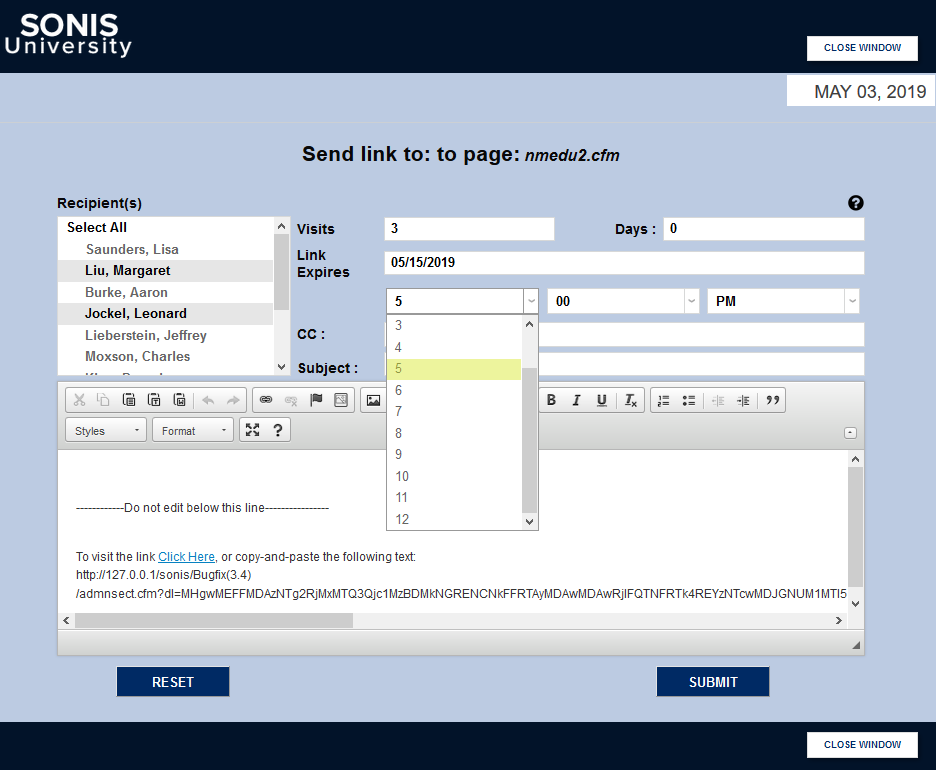
When a number of days is set, the Link Expires date will be updated to reflect the number of days selected.
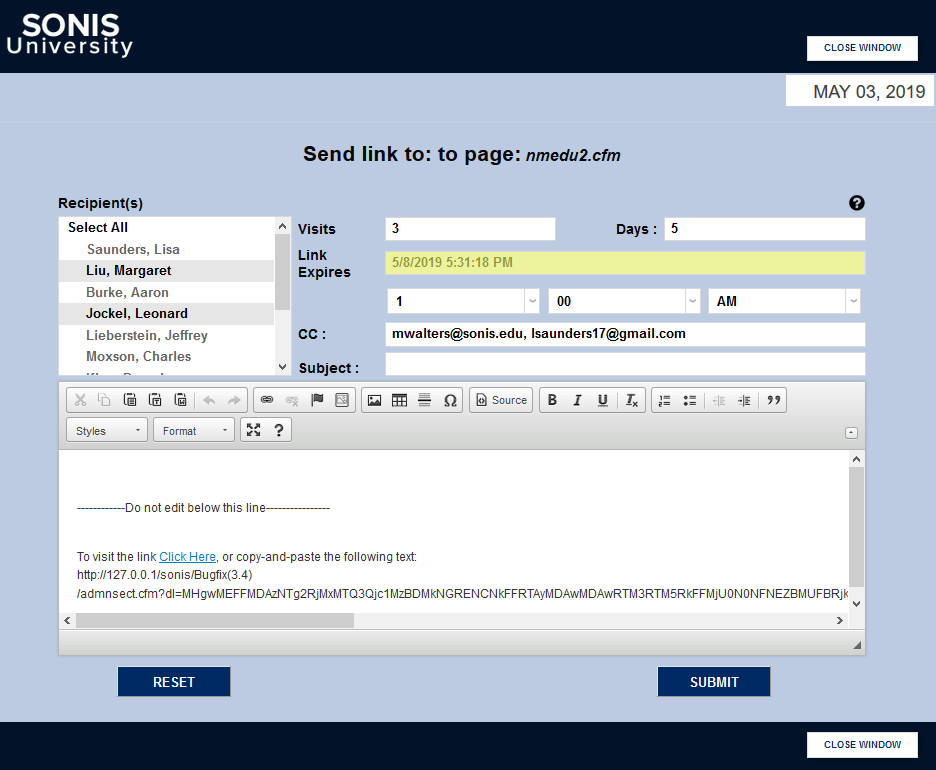
Alternately, administrators can choose a date and time for the link to expire with the Link Expires fields.
Enter a Subject for the email and add any additional comments needed for context to the body field. Be sure not to change anything in the section containing the link itself.
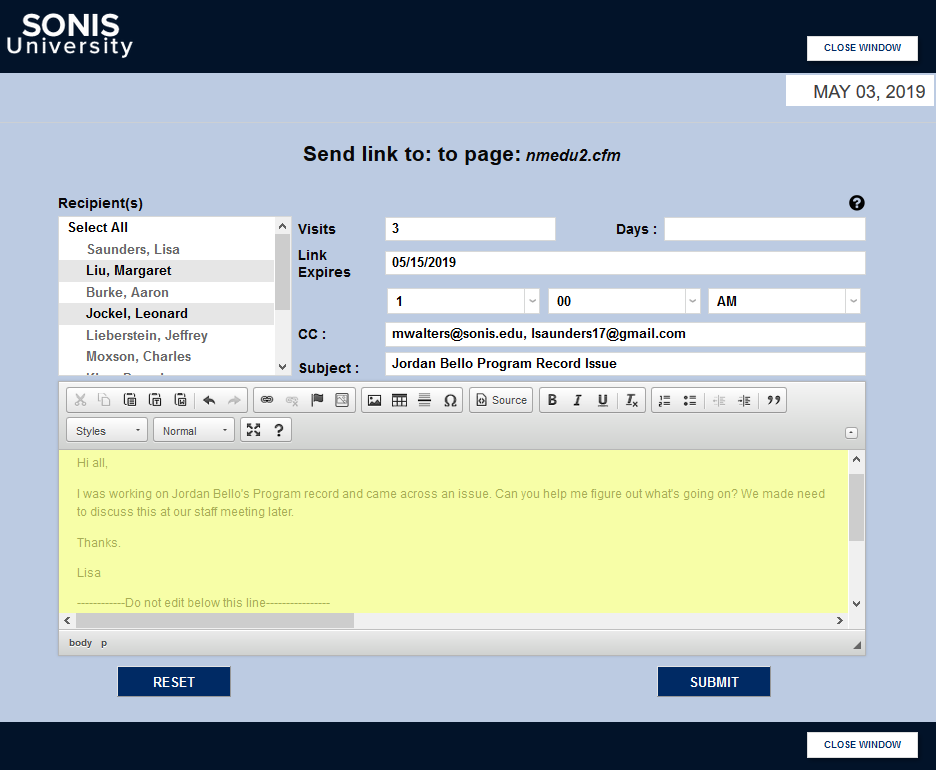
Click the Submit button to send the deep link to all recipients.
Expiring Links
From time to time, institutions may want to clear out old links that were not given proper expiration dates. To do so, simply return to the Web Options page in the Systems hub and click Expire All Links.

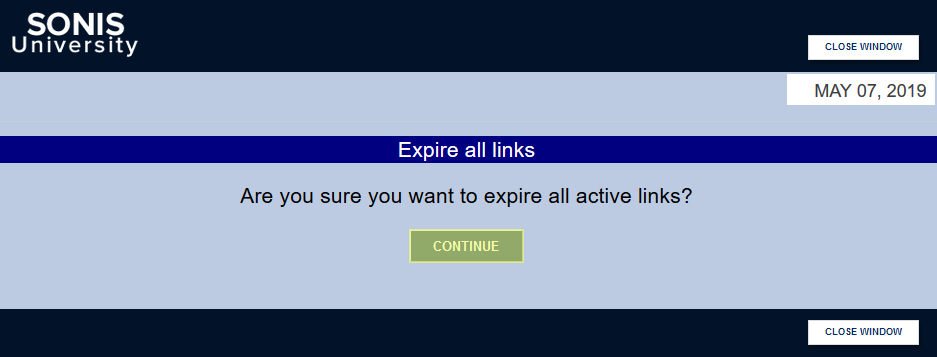
A pop-up will appear asking for verification that all links should be expired. Click Continue to expire all active links.