Jobs
Overview
The Student portal Jobs page allows students to view and, if active, apply for jobs directly through Jenzabar SONIS. The jobs listed must be added by school administrators or employers who have been granted access to the SONIS system. Generally speaking. all job listings will be from on-campus employers or community partners.
Accessing Job Listings
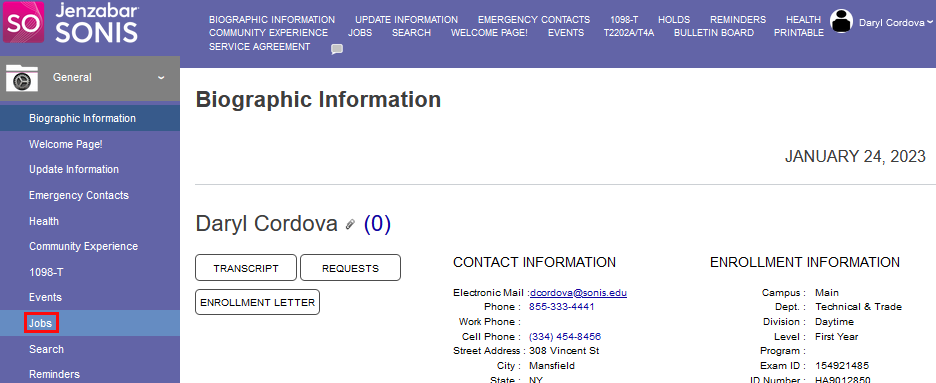
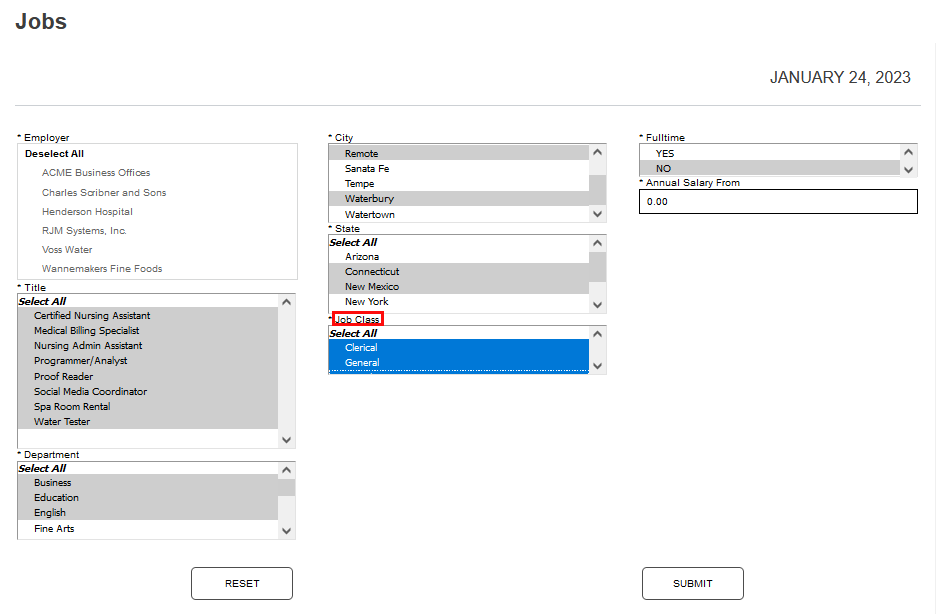
Users can access job listings simply by logging into their portal and clicking the Jobs link. The page displays and provides a number of filters with which the student can tailor the view of listings. All options are selected by default in the Employer filter. All active employers in Jenzabar SONIS display in this filter.
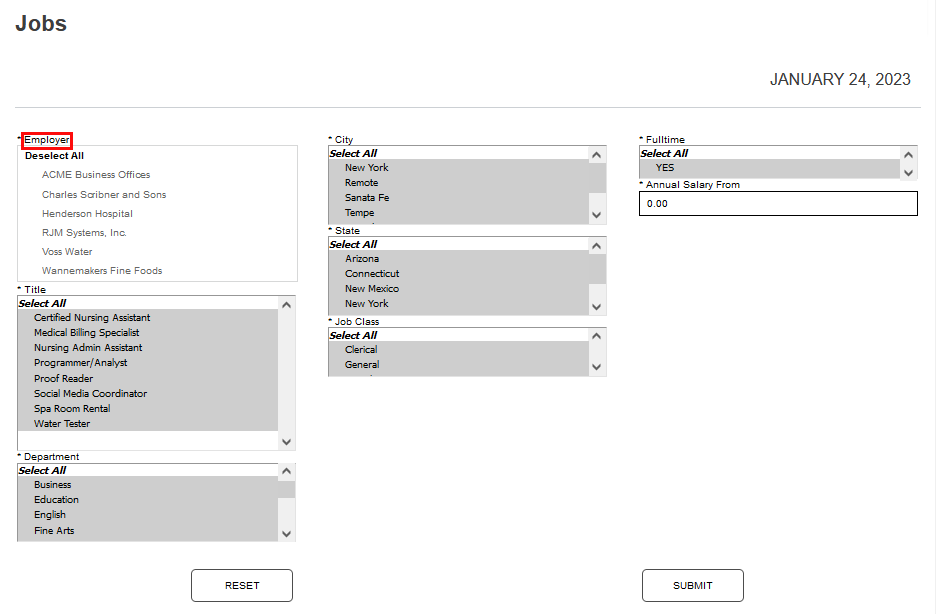
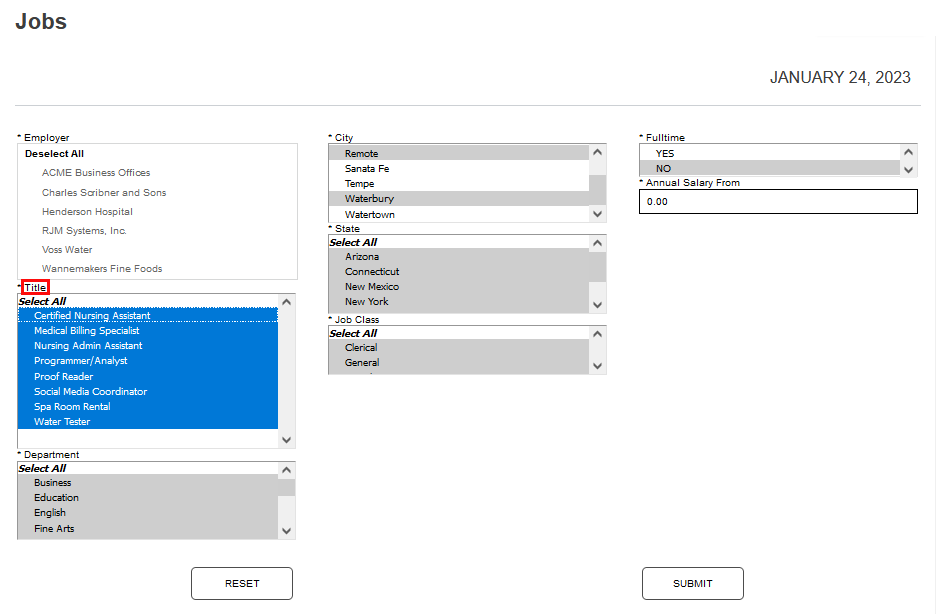
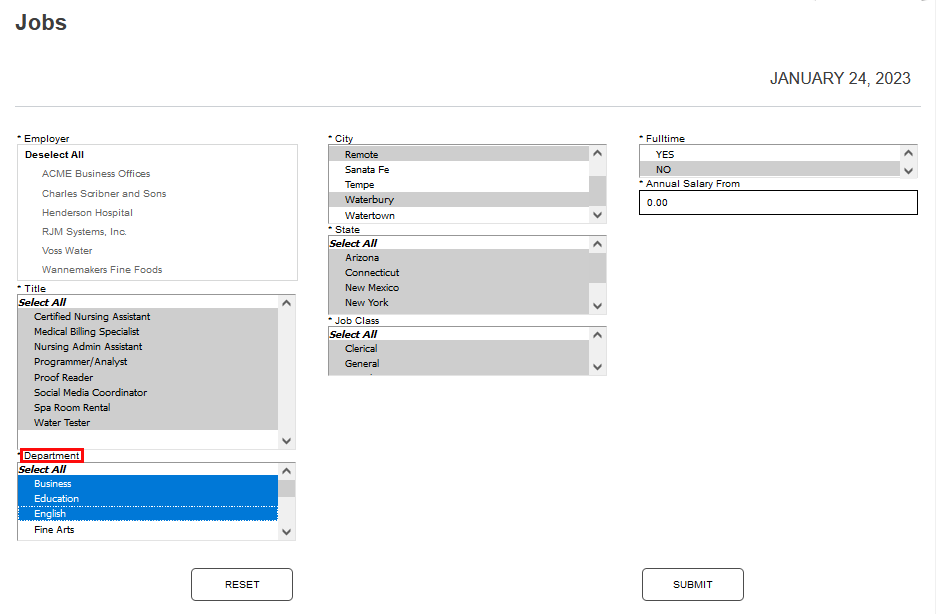
The Title filter displays the titles of all active job listings. Multiple listing can be selected by choosing Select All or holding the control button while clicking the desired titles. If the listing is associated with an institutional academic department, the Department filter provides the option of selecting one or more department.
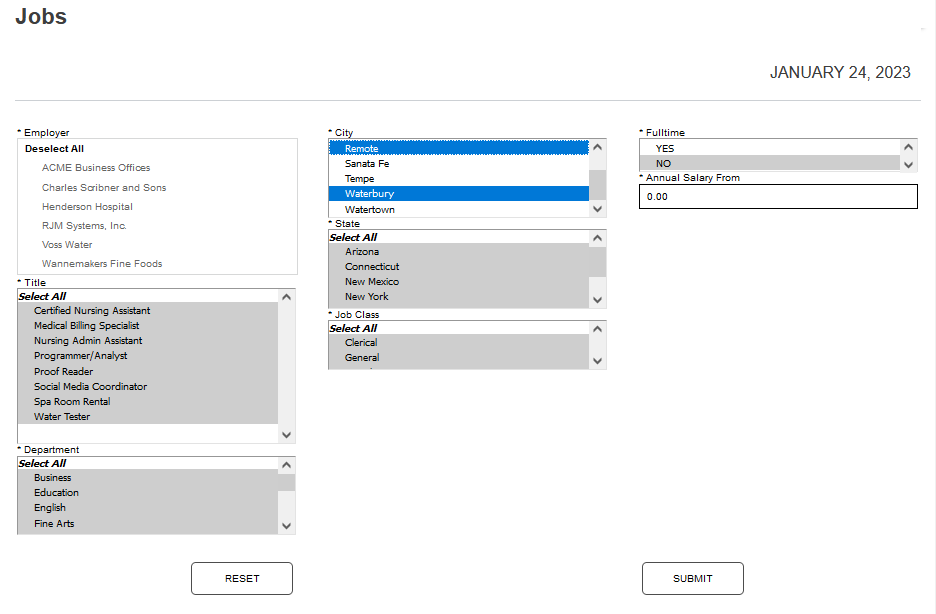
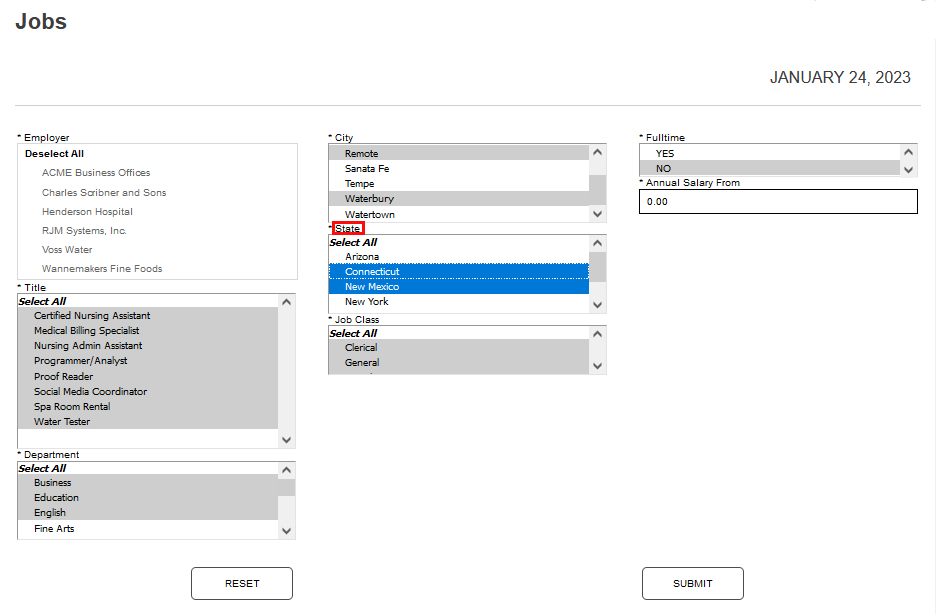
The City filter displays all cities that are associated with active employers. Multiple cities can be selected by choosing Select All or holding the control button while clicking the desired city names. The State filter displays all states that are associated with active employers. Multiple states can be selected by choosing Select All or holding the control button while clicking the desired state names.
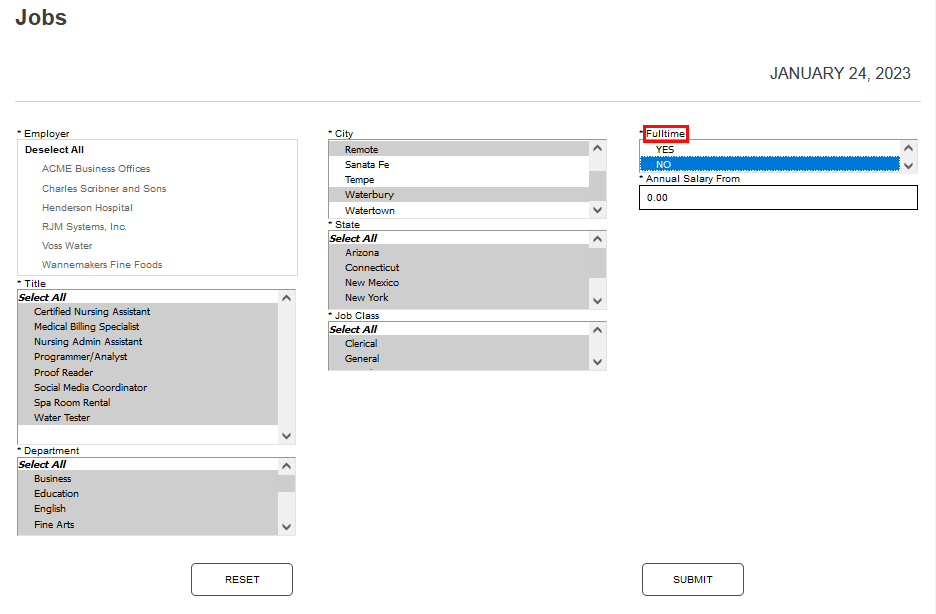
The Job Class filter displays the classification that was selected when the job listing was created. The Fulltime filter displays Yes and No. Yes is selected if only fulltime listings should be displayed. No, or no selection, should be chosen if both full and part-time listings should be displayed.
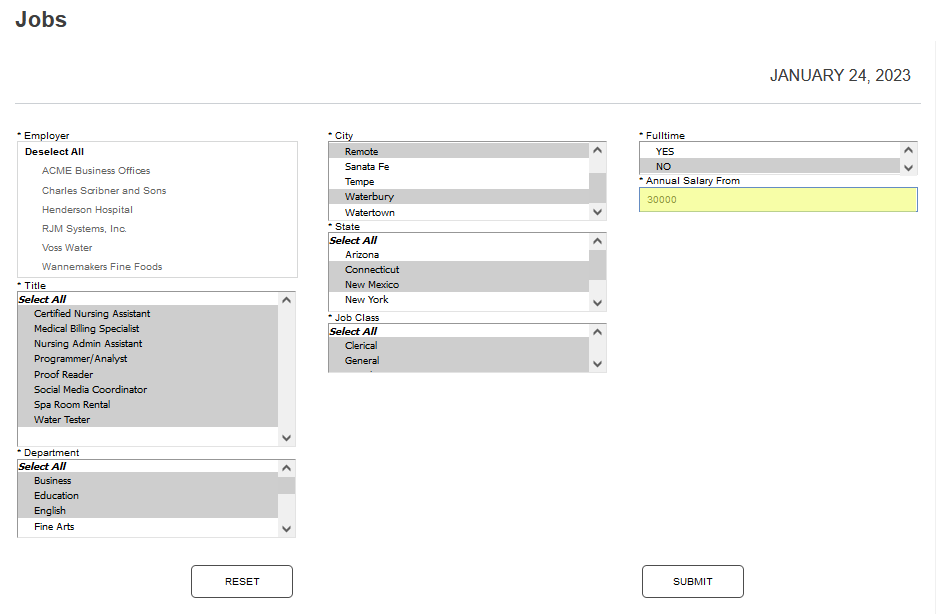
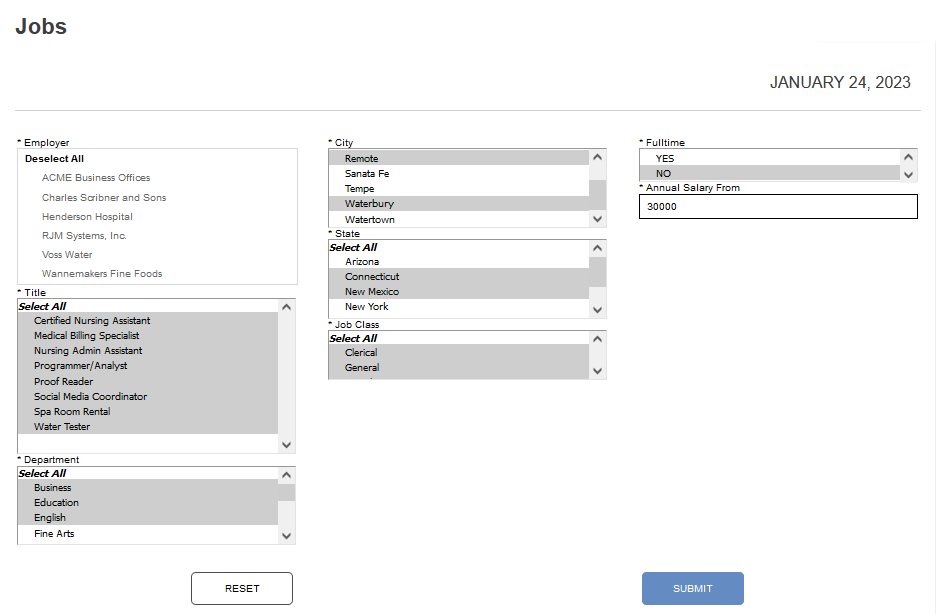
A minimum annual salary that is acceptable to the student can be entered in the Annual Salary From field. The salary defined in the job listings will be searched. Click Submit to execute the search and display results meeting the selected criteria.
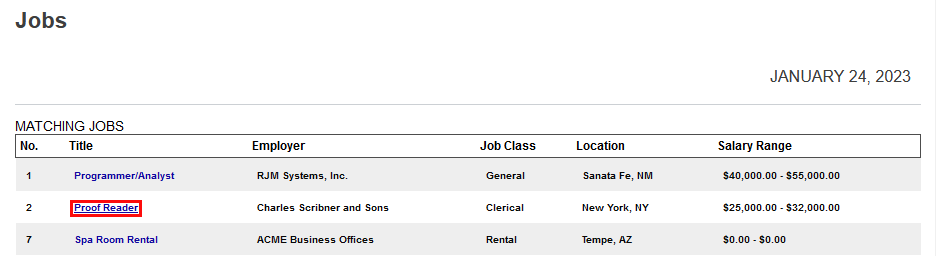
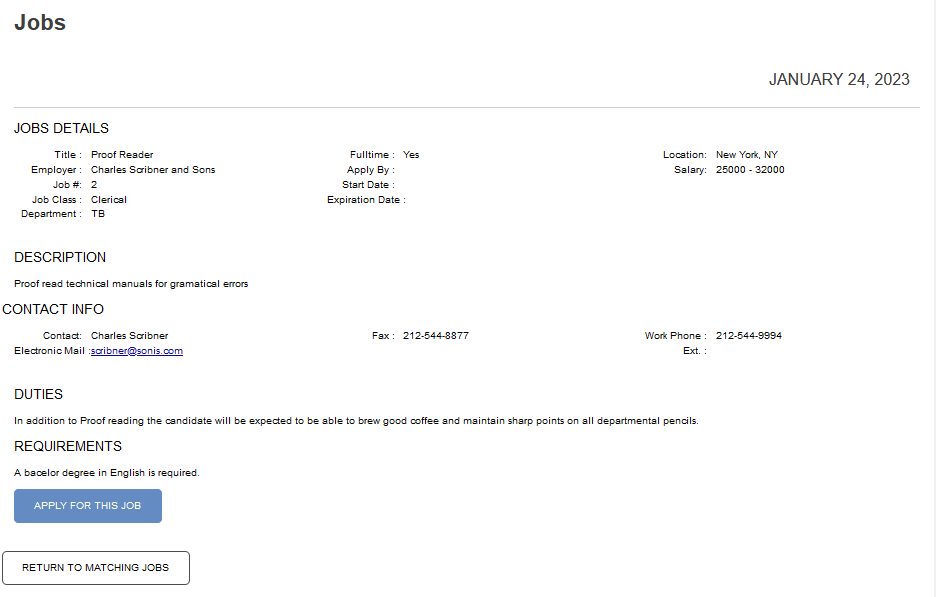
The Matching Jobs display based on the selected filters with summary information that matches the filters. Clicking the name of the job in the Title column will display the full listing and the option to Apply for the job.
Applying for Jobs
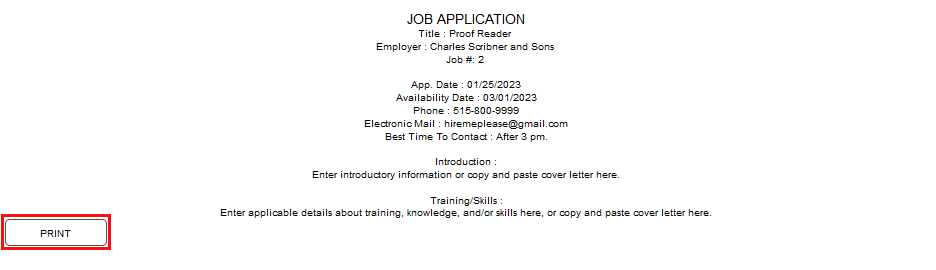
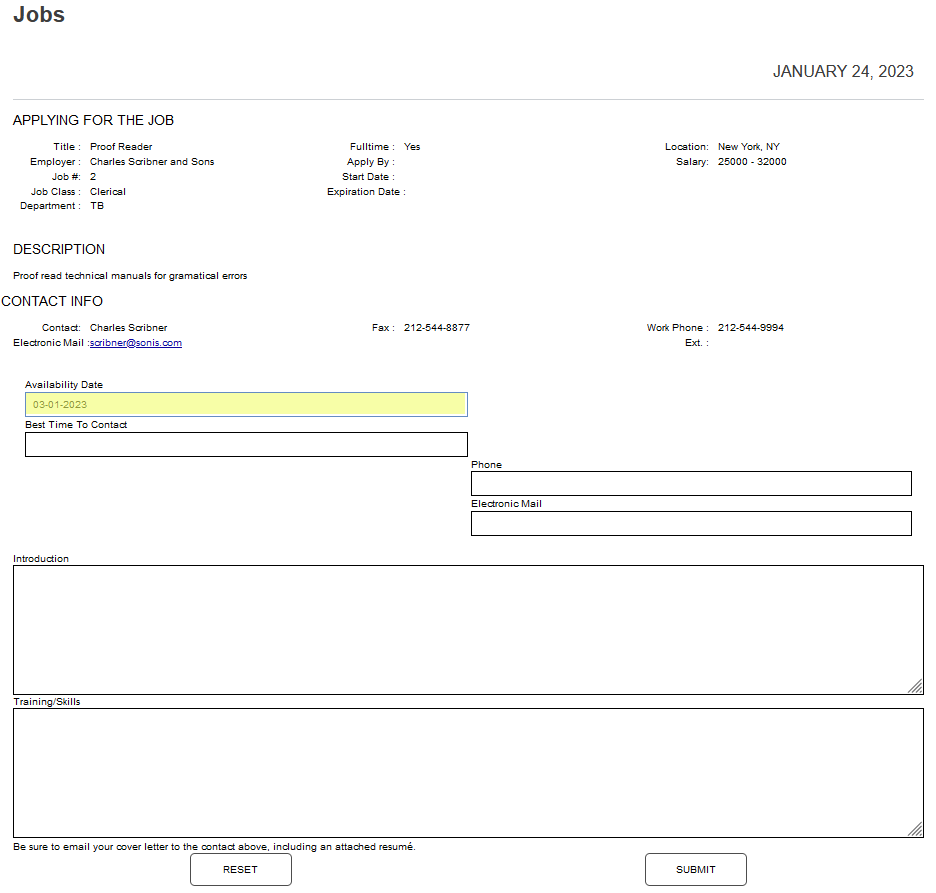
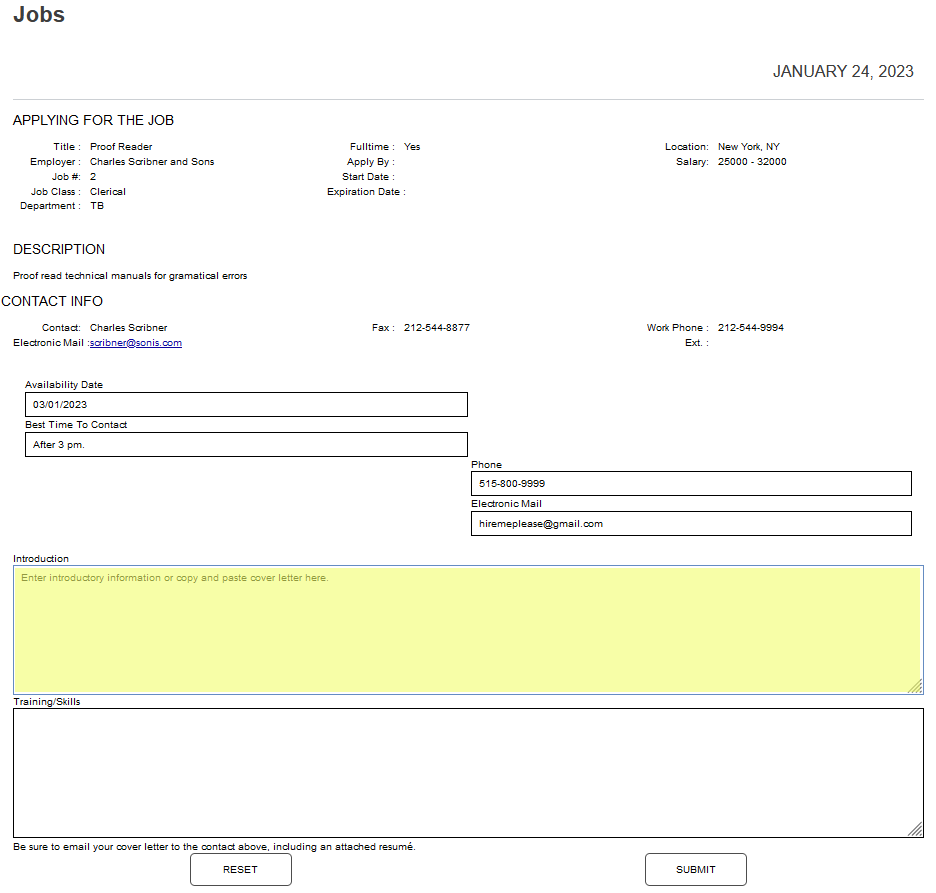
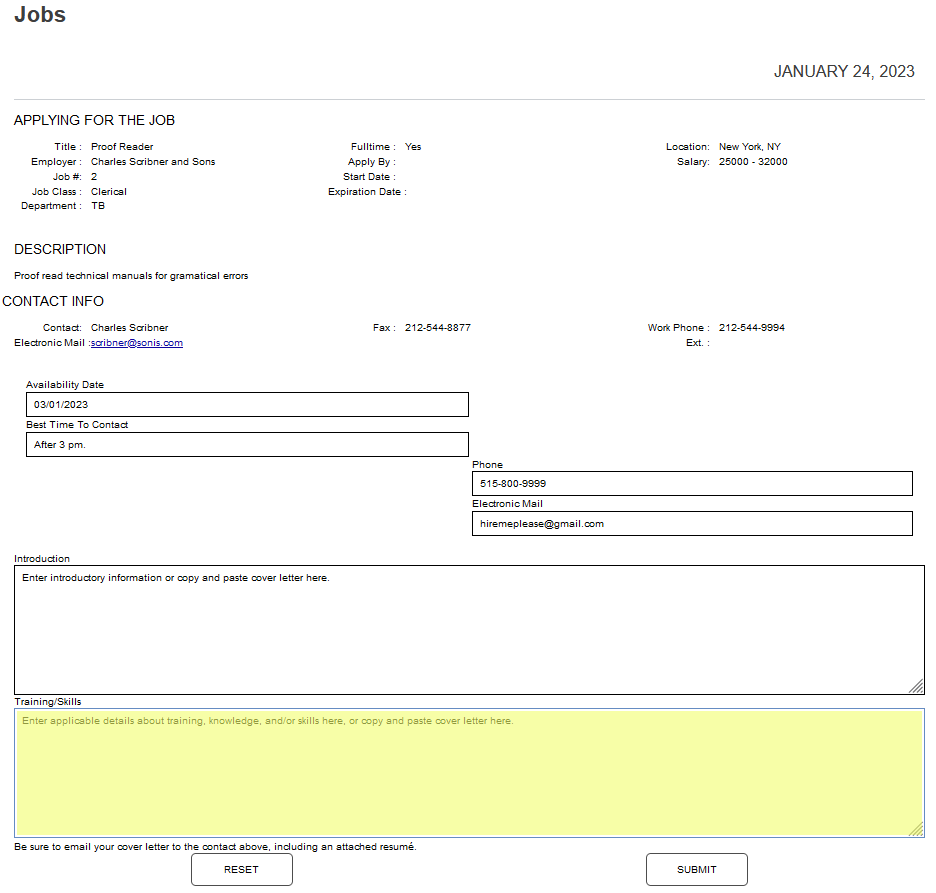
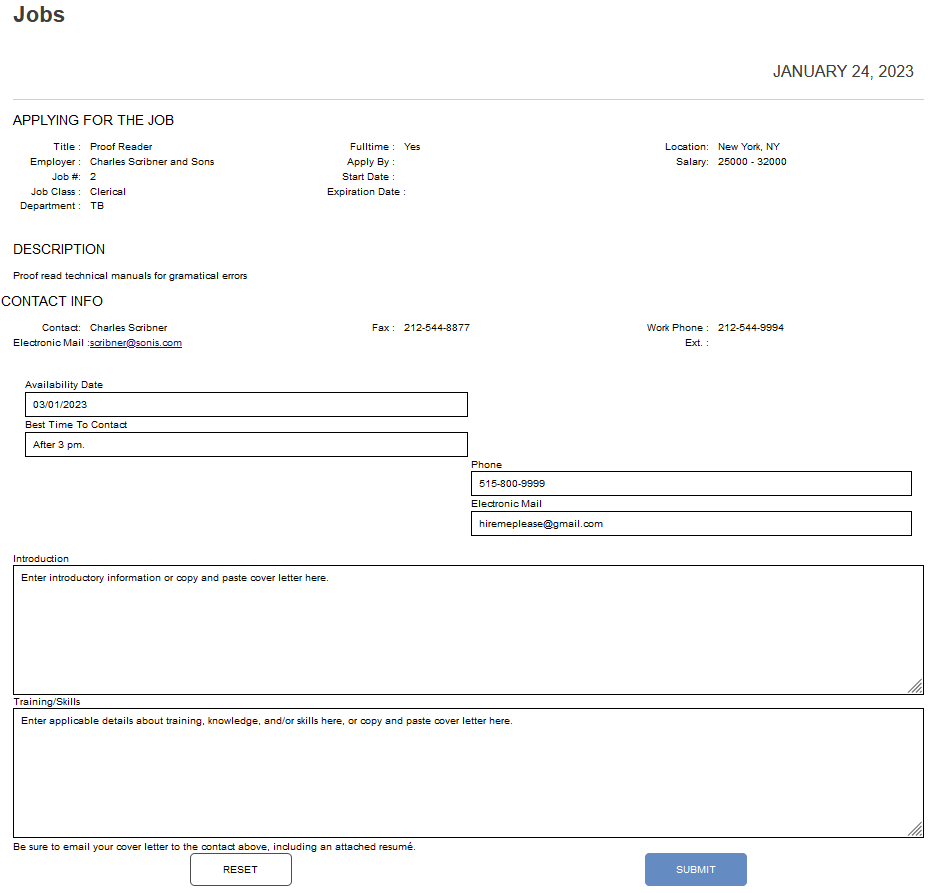
After clicking Apply for the job, a page displays with information about the job being applied for, fields for information entry, and a request that the applicant email their cover letter and resume to the contact listed in the listing. All fields are required. The submitted information will be available to the contact within the Employer portal.
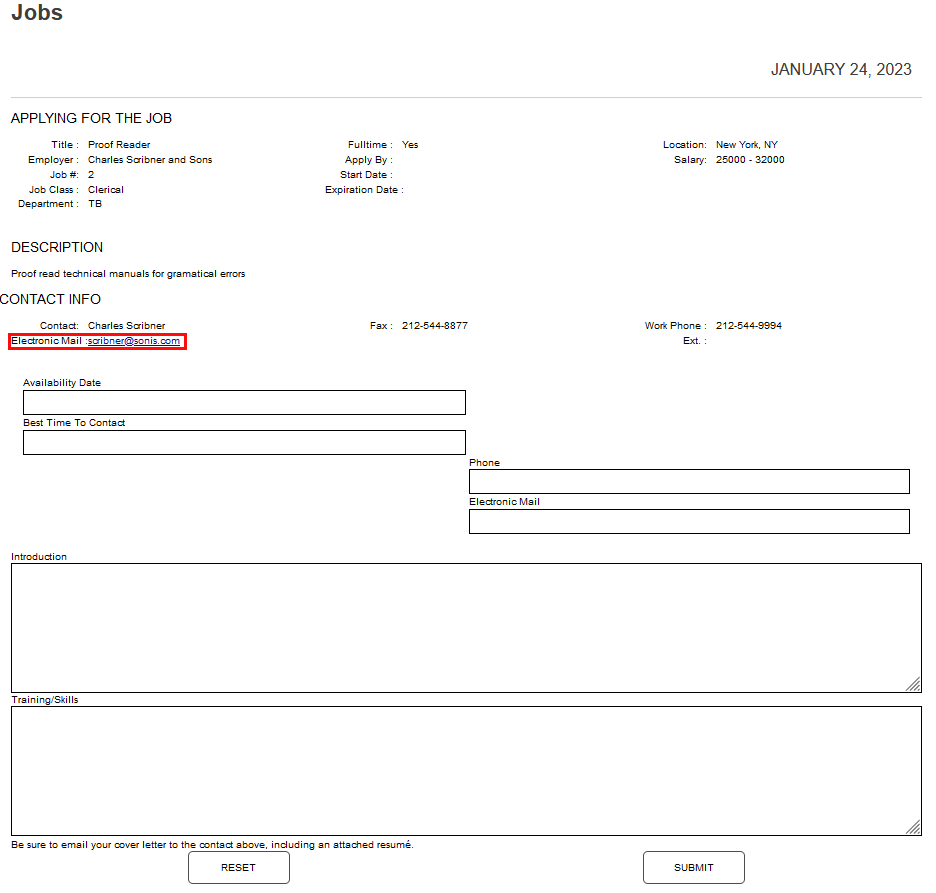
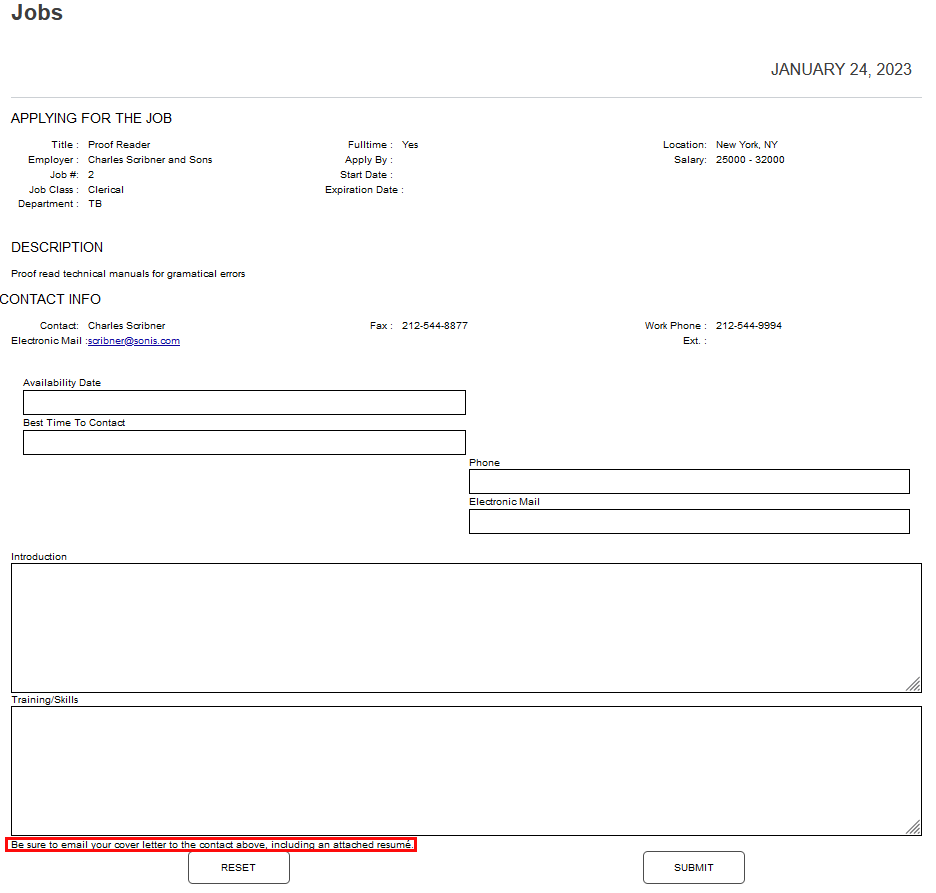
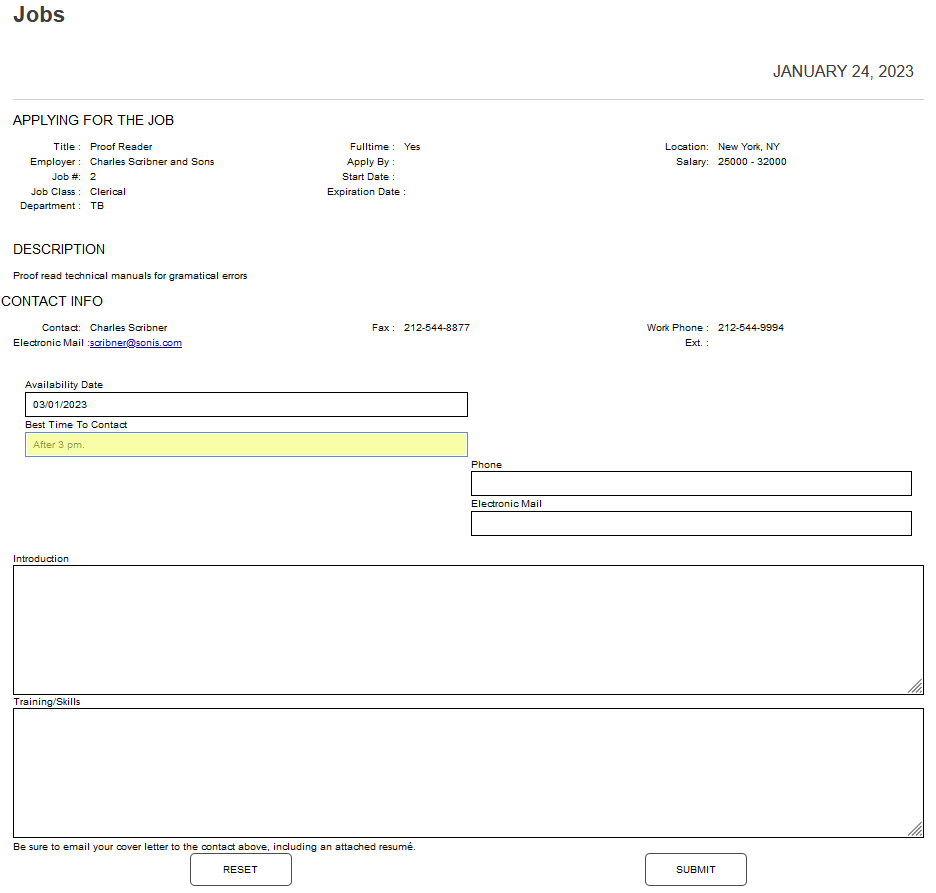
The applicant is provided fields to enter their Availability Date in numeric form and the Best Time to Contact them. The Best Time to Contact field allows up to 85 characters.
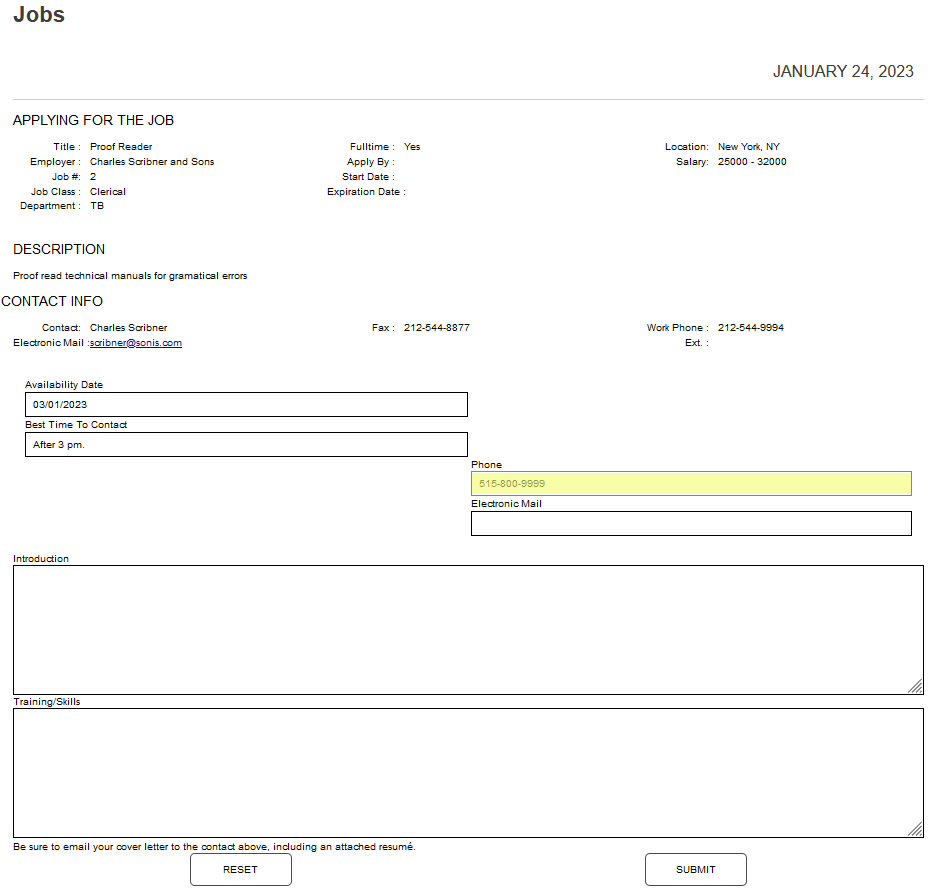
The applicant should enter their phone number in the Phone field and email address in the Electronic Mail field.
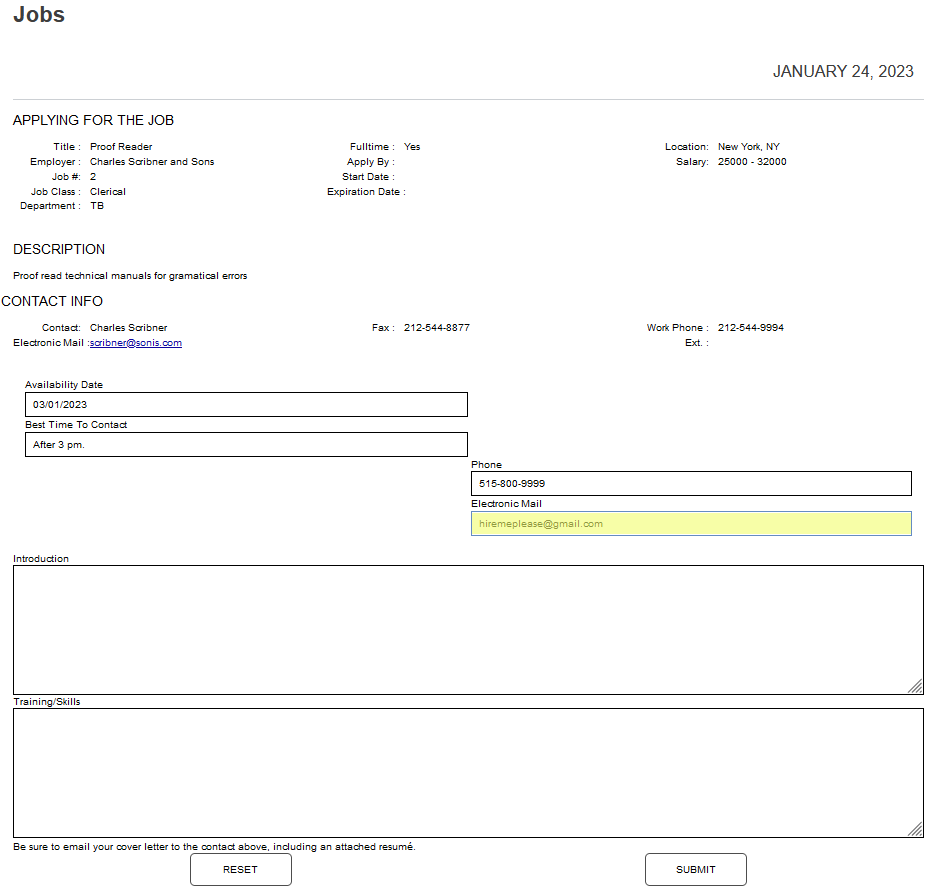
An Introduction field is provided where the applicant can provide introductory information about themselves and their interest in the position. They may also copy and paste their cover letter in this field. The applicant should highlight their applicable knowledge, skills, and training in the Training/Skills field. They may also copy and paste their resume in this field.
Click Submit to submit the application for the position.
Viewing Submitted Applications
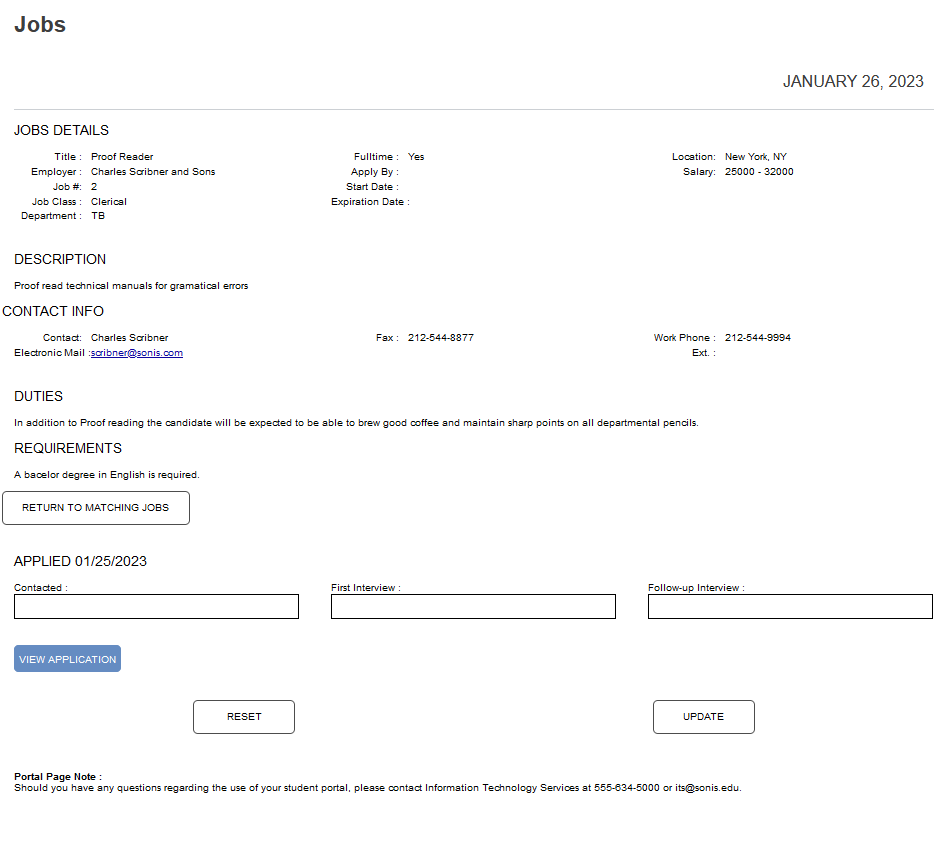
Once a user has applied for a job, the next time they click on the job listing, the listing appears slightly different and provides additional fields to support the applicant's record of their interaction with the position. The Apply For This Job button is replaced with the date the application was submitted. The Contacted, First Interview, and Follow-up Interview fields allow date entry are used at the discretion of the applicant. The intention is for the applicant to enter the date they are contacted by the employer after sending in their application. These fields are informational only.
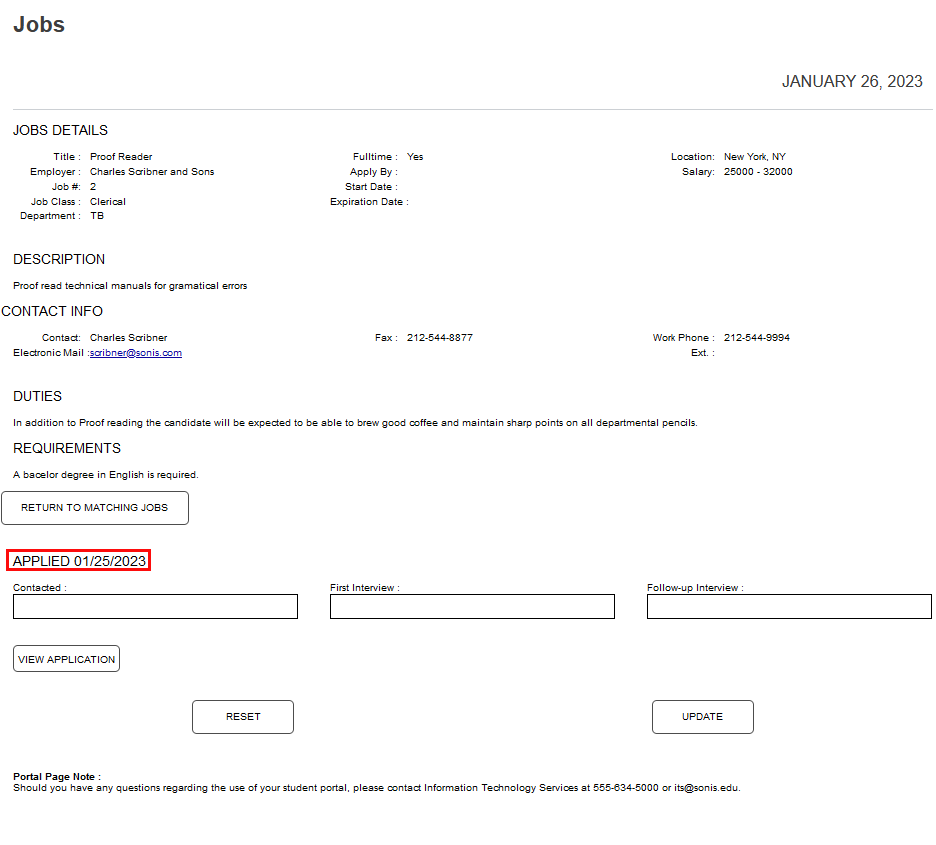
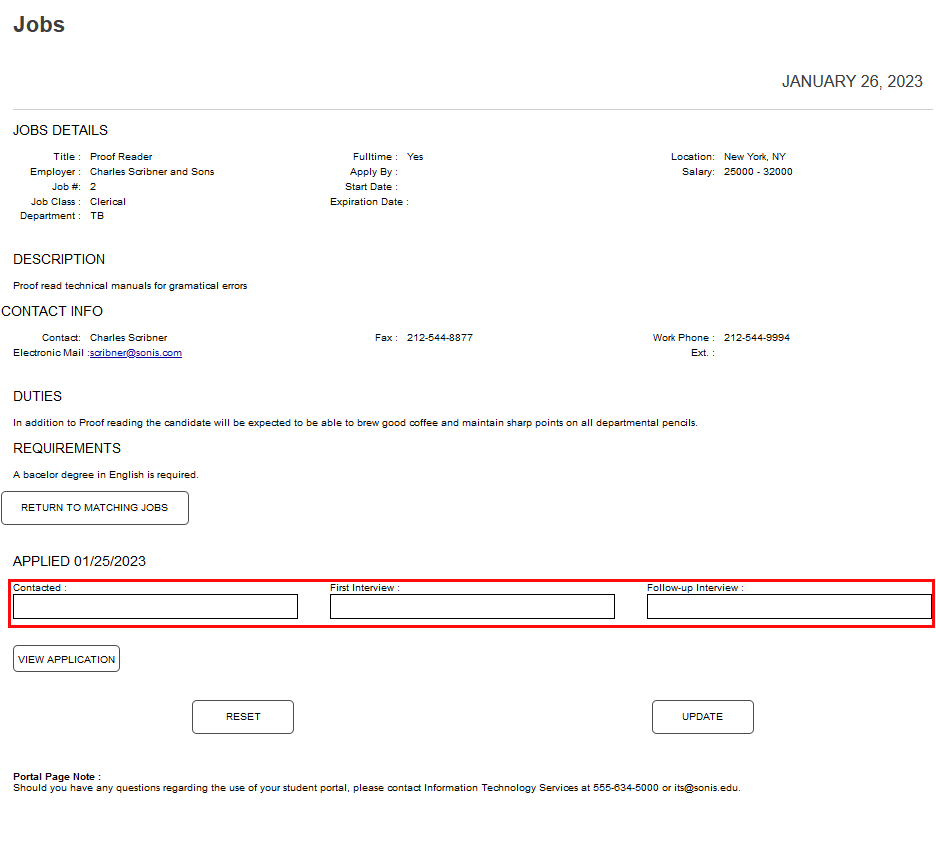
The applicant can also click on View Application to see in a separate window what they entered in the application form and what was sent to the employer contact. The opportunity to Print the information is provided, as well.