Award Codes
Overview
The Award Codes utility is where specific awards are created in the Jenzabar SONIS system. Before financial aid can be awarded to a student or disbursed in the SONIS system, it must be given a name and some basic details from the Awards Codes page. These codes are also used when importing awards from PowerFAIDS, EDExpress, Regent Award, and other financial aid software. In many respects, Award Codes are the financial aid equivalent of Transaction Codes. Once allocations have been added to awards, use the Award Allocations utility under the Systems hub to copy allocations that are not changing from a prior year to the new award year. Award Codes are used in Gainful Employment reporting, if set up to do so.
Creating Award Codes
To create a new award code, navigate to the Award Codes utility in the Systems hub and click Add.
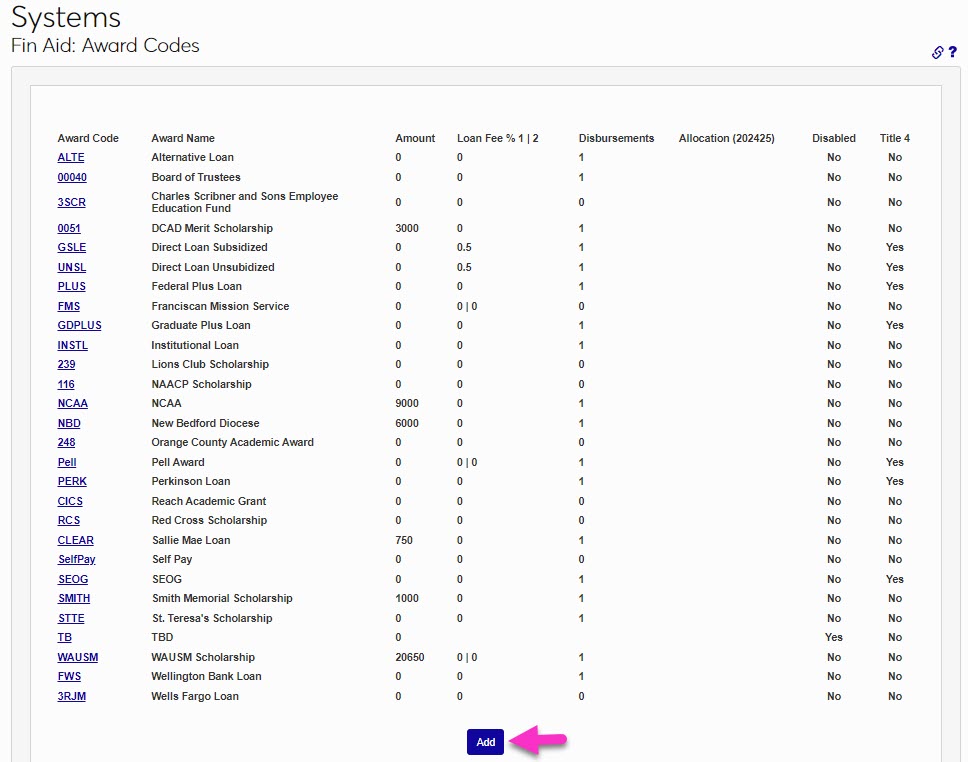
On the next page, begin by creating an Award Name that will be used to identify it throughout the system. The field has a 50 character limit.
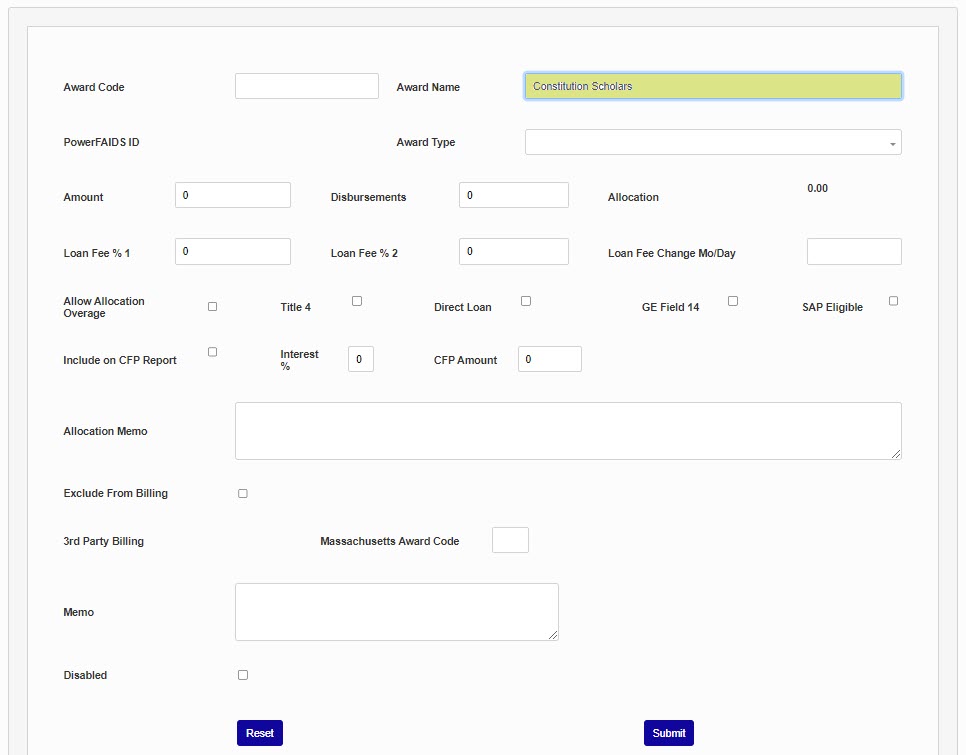
Next, create the Award Code, a shortened version of the award name that's used to identify the award in the database. This field has an eight character limit.
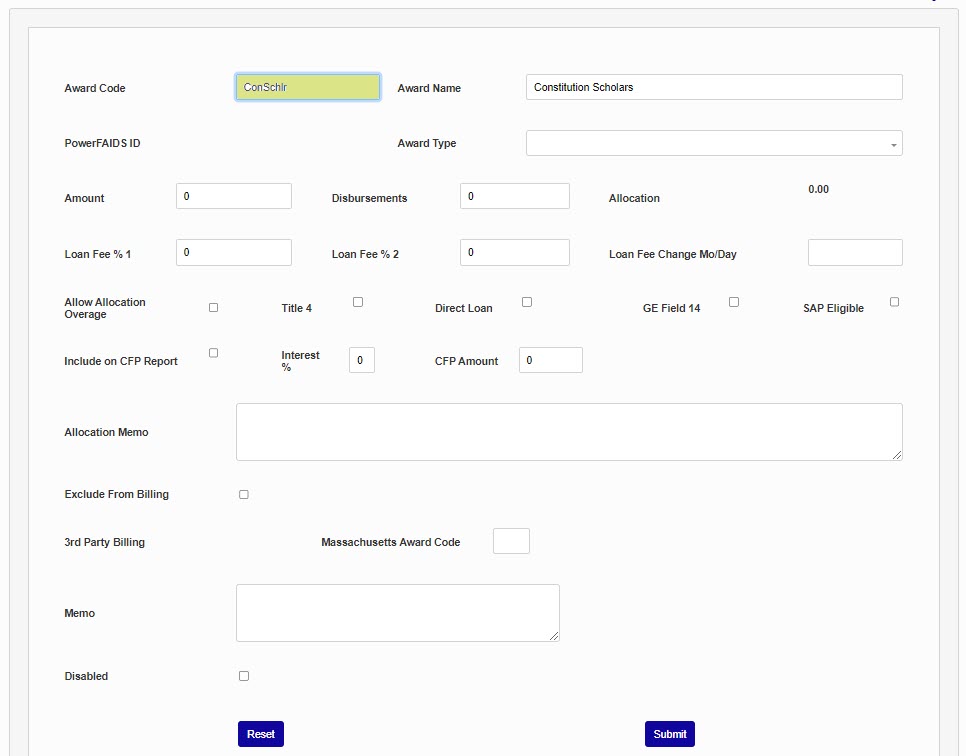
Select an Award Type that specifies what kind of award is being created. This list is built into the system and cannot be altered.
Note
For any non-federal awards that will be considered in Gainful Employment reporting, the State, tribal, or private grants award type should be selected.
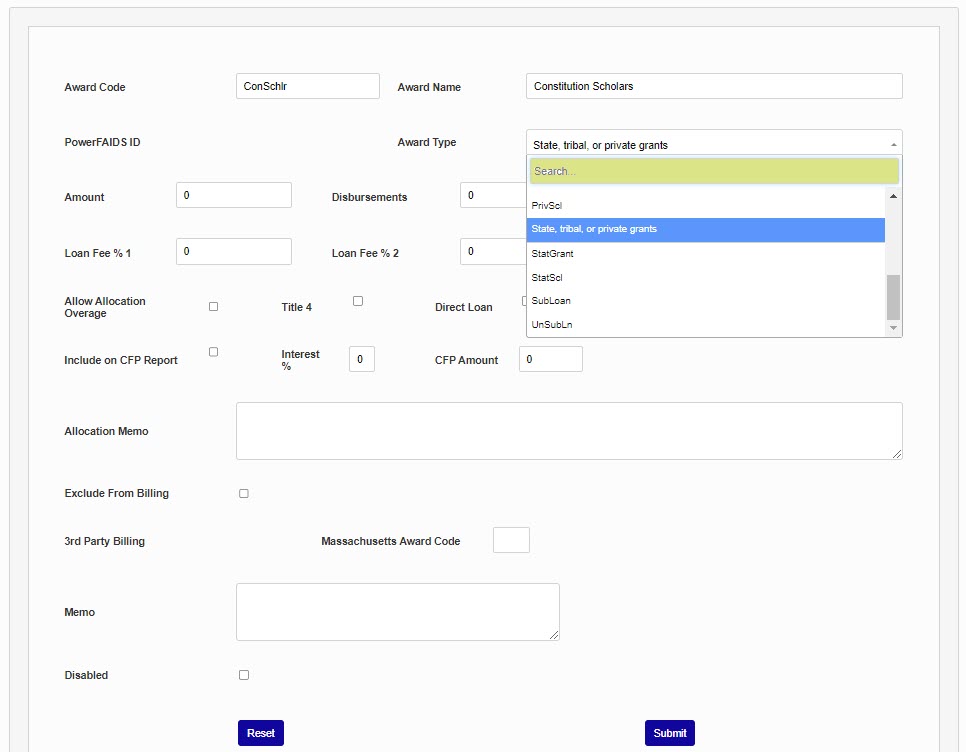
The Amount field is used to specify the dollar amount that will be awarded. The field can be left blank if the amount will vary.
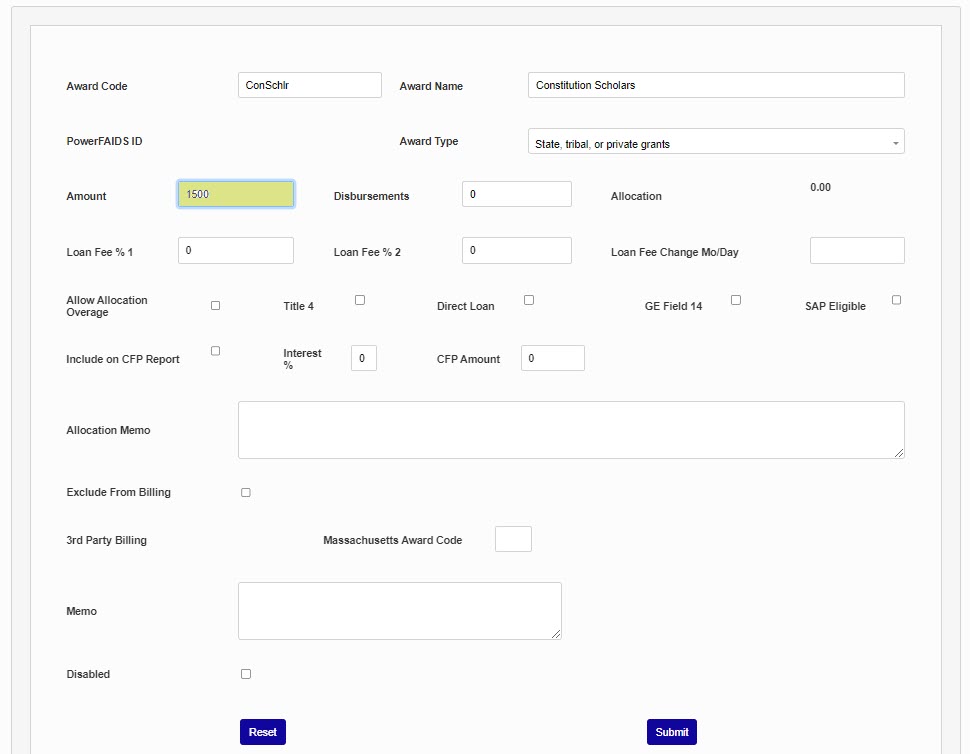
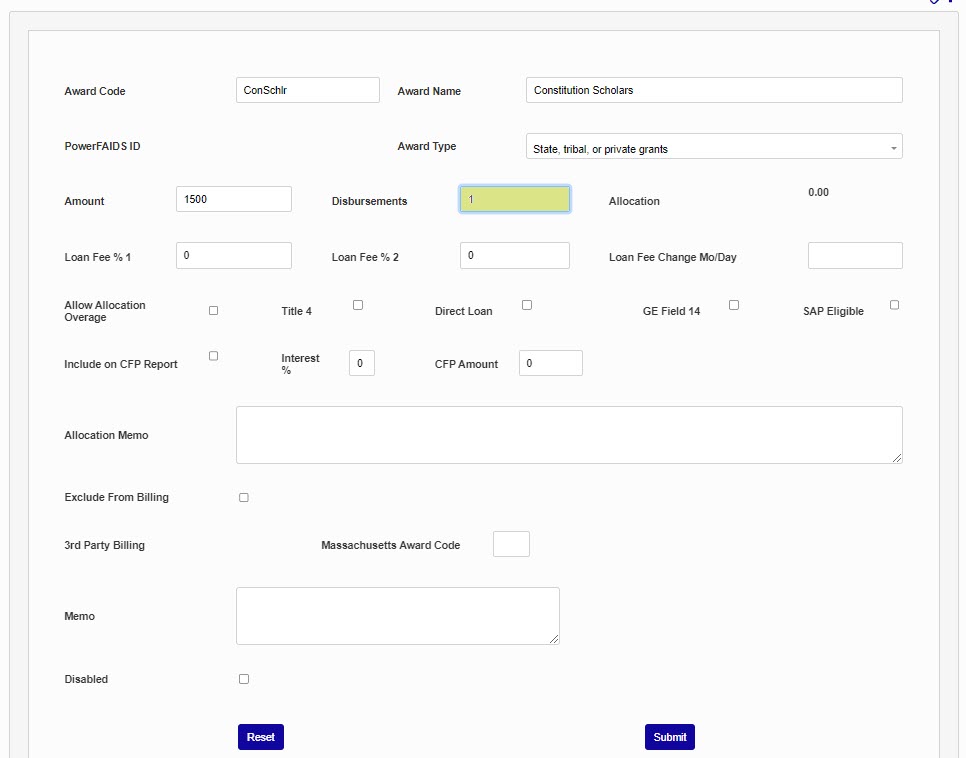
The Disbursements field specifies the number of times per semester that the award is disbursed.
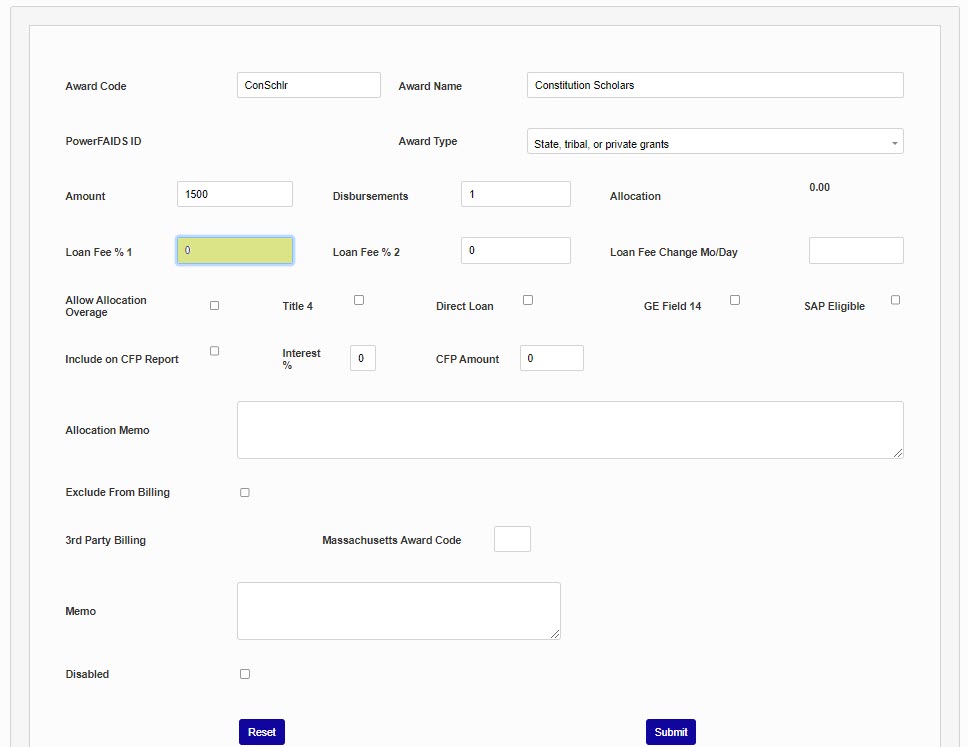
Some loans have a fee that changes during the course of the school year. If the award being set up is a loan of this type, put the initial loan fee percentage in the Loan Fee % 1 field and the second percentage in the Loan Fee % 2 field.
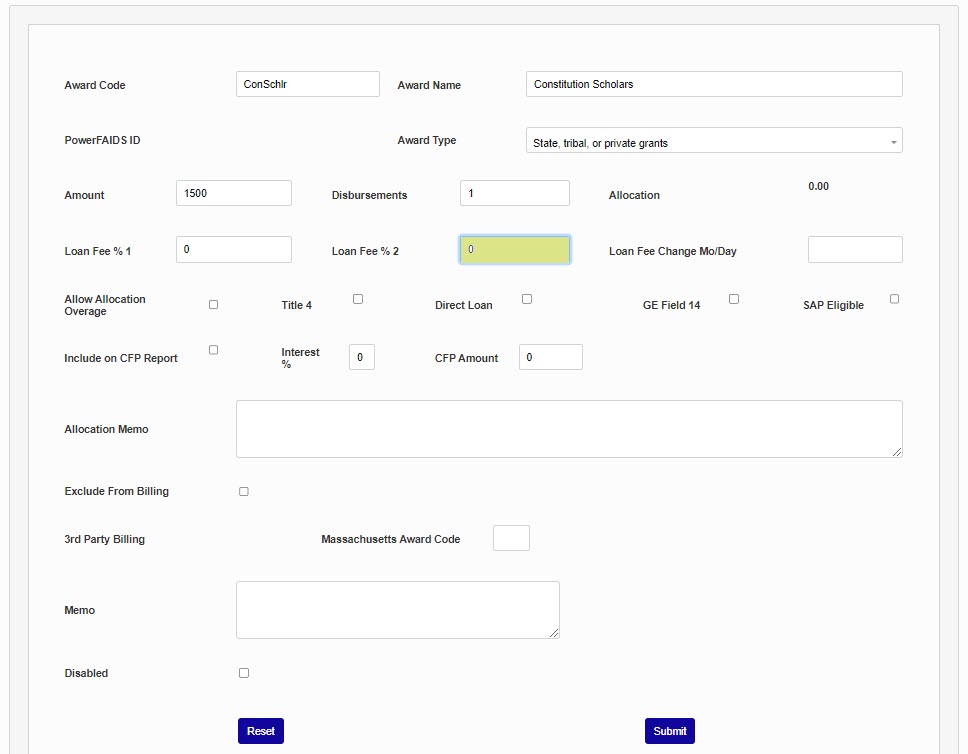
If the loan fee changes, enter the date when it changes as a month/day in the Loan Fee Change Mo/Day field.
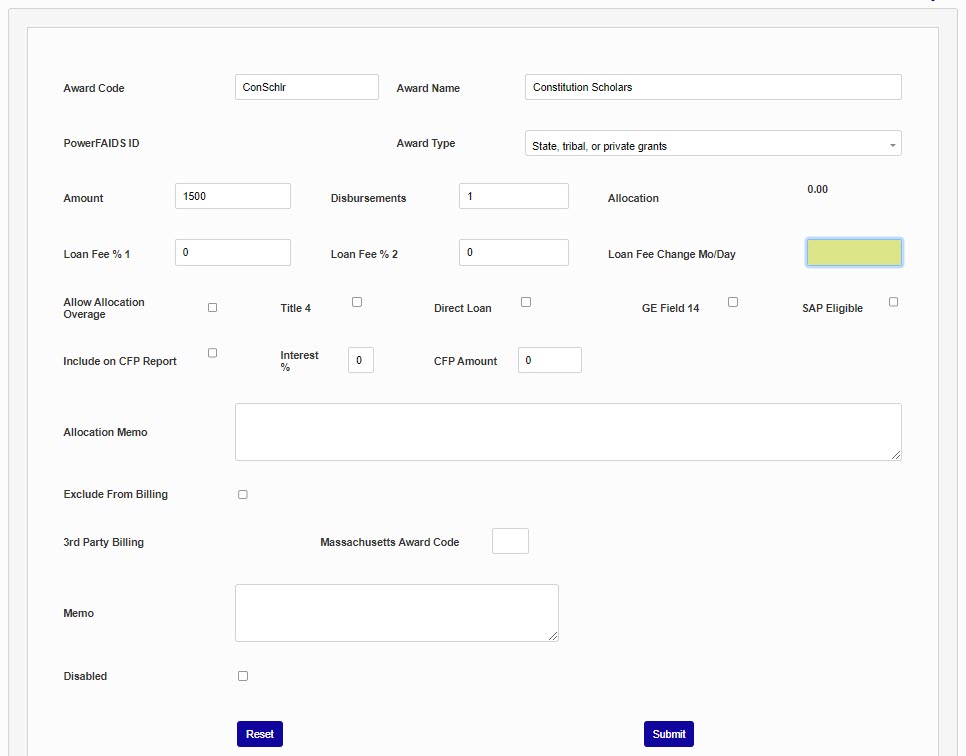
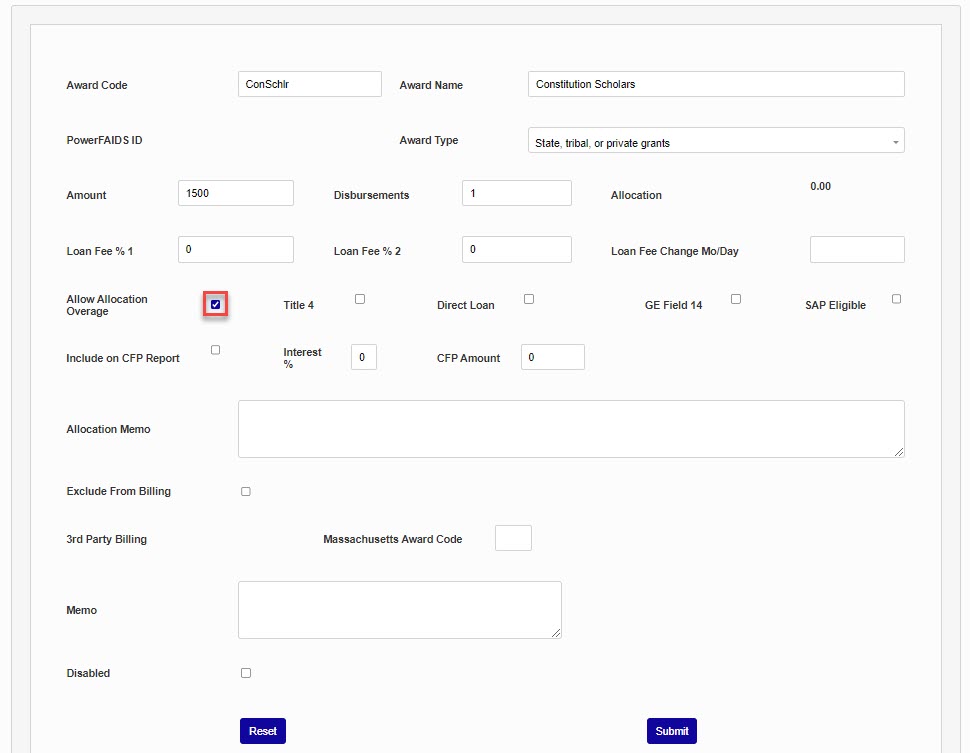
If the Allow Allocation Overage box is checked, more than the amount shown in the Allocation table can be awarded. For example, if the yearly Allocation for an award starts with $25,000.00, each time an award is applied to a student's record, the amount of the award will be deducted from the $25,000 until the fund reaches $0.00. If awarding more than a total of $25,000 to students is not allowed, then a blank checkbox prevents awards beyond the allocated amount. If funds can be awarded after $0.00 has been reached, the box should be checked.
Warning
If there is no allocation for the award, the Allow Allocation Overage box must be checked or awards cannot be processed.
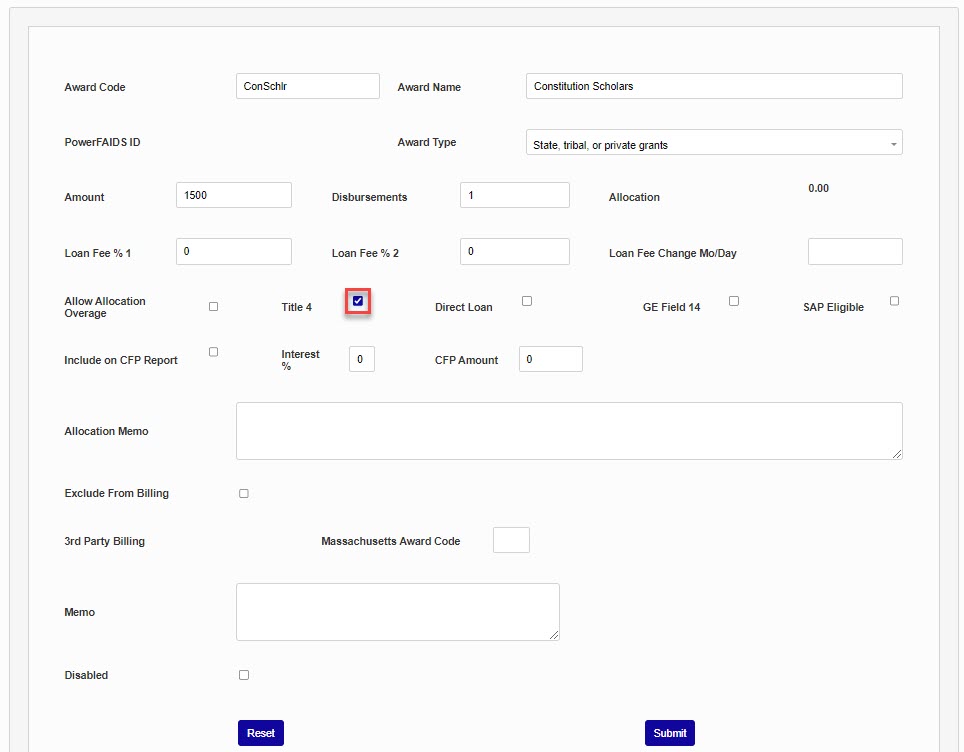
Check the Title 4 box if the award is from a Title IV funding source.
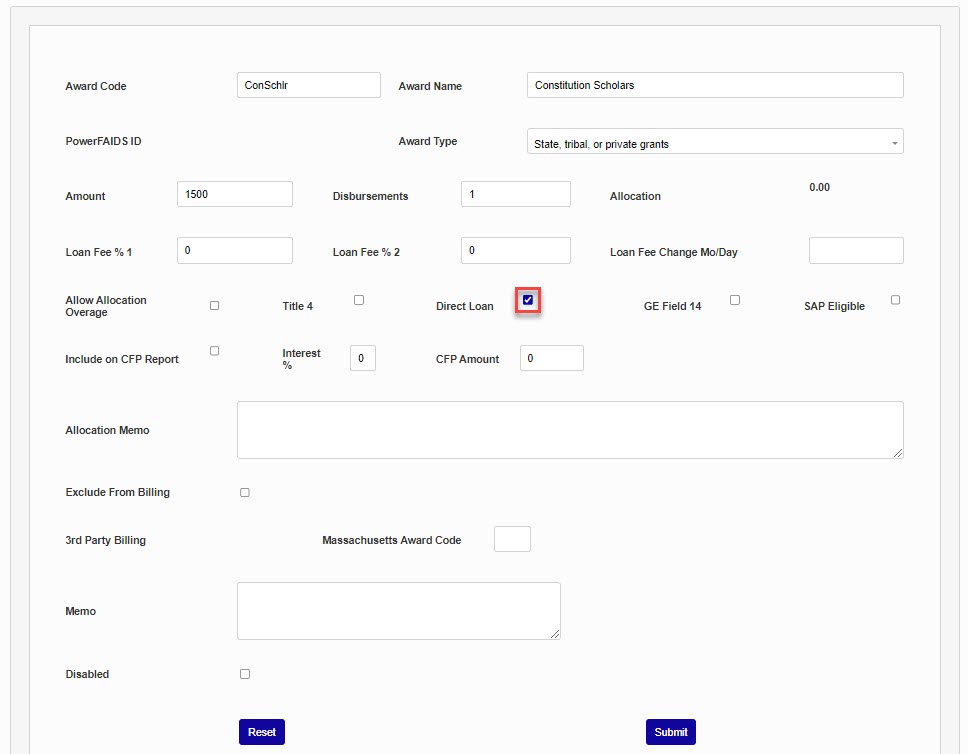
Check the Direct Loan box if the award is a federal direct loan.
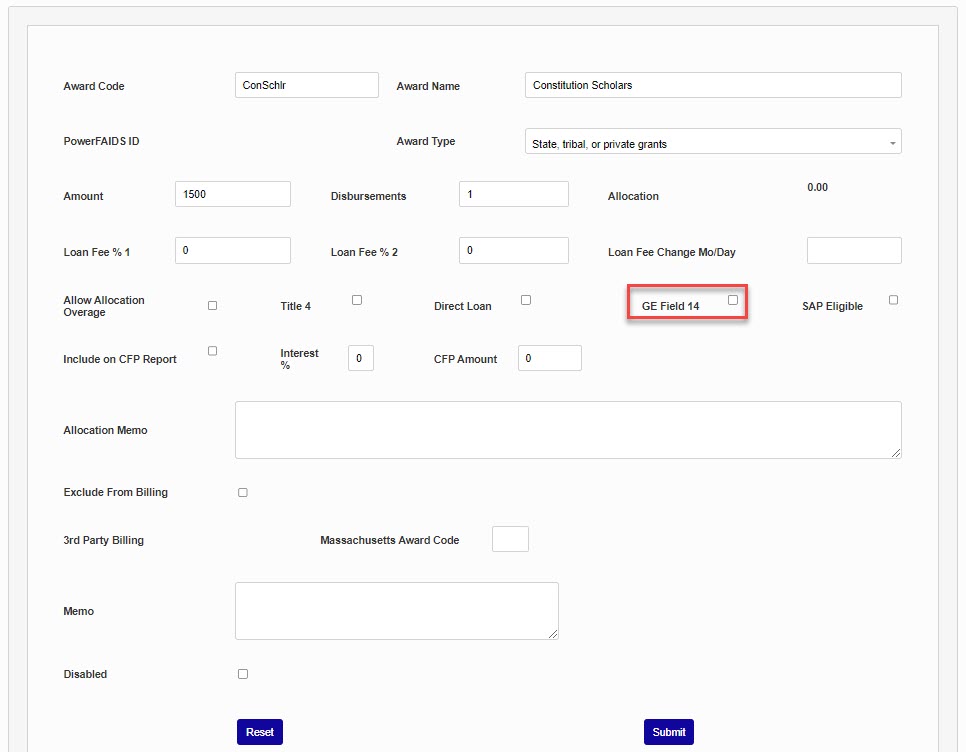
The GE Field 14 was previously used for gainful employment reporting, but is no longer in use. It has been replaced by fields on the Programs page.
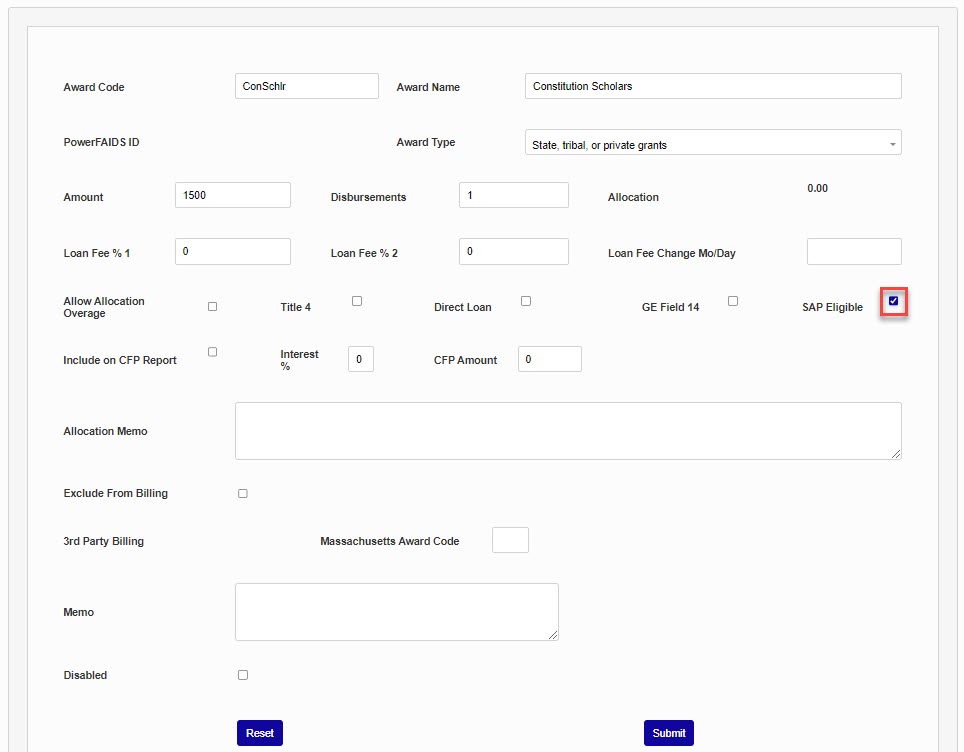
Click the SAP Eligible box to mark the award as following SAP guidelines. While a certain SAP standard is generally required for federal awards, some private awards may not adhere to the same standards. For this reason, awards can be marked as SAP Eligible to identify that they follow the set SAP guidelines. By default, the box is unchecked.
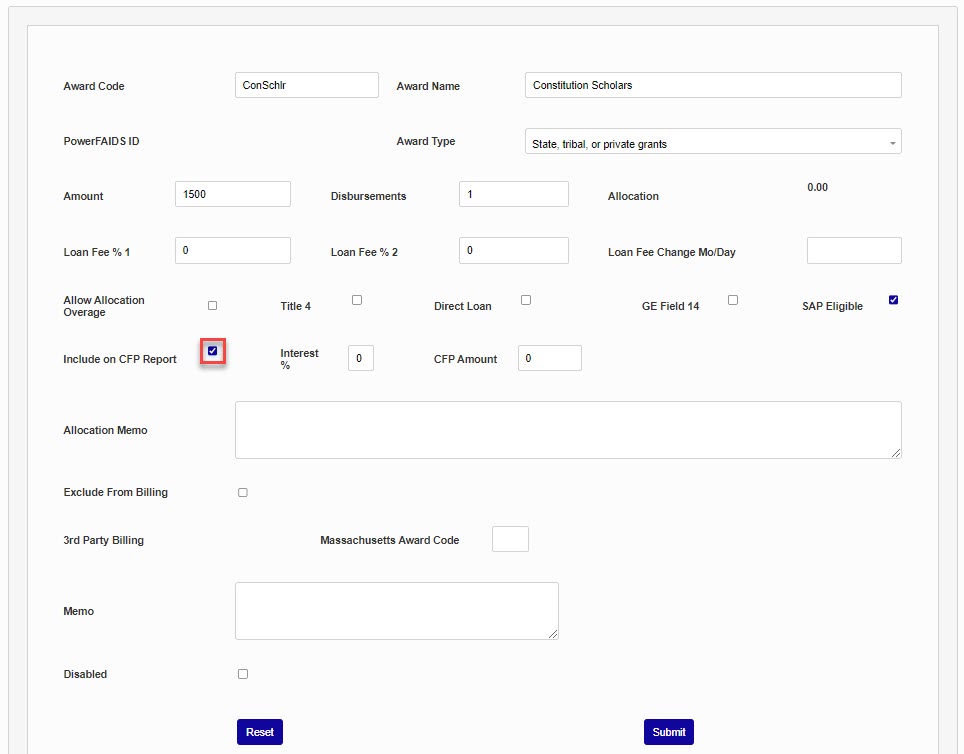
The Include on CFP Report check box is used to allow the fund to appear on the Shopping Sheet, formerly called the College Financing Plan. The CFP Amount box is used to determine the amount of the award that should be shown on the Shopping Sheet prior to a student being awarded.
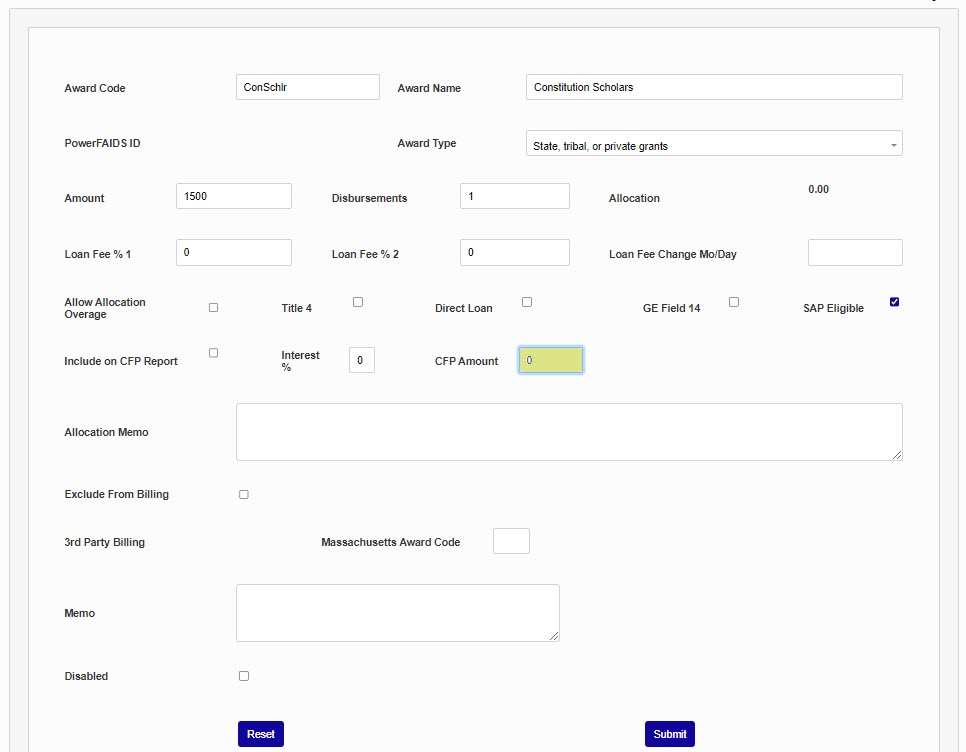
If an interest rate is associated with the award, and should be shown on the Shopping Sheet, enter the percentage in the Interest % field.
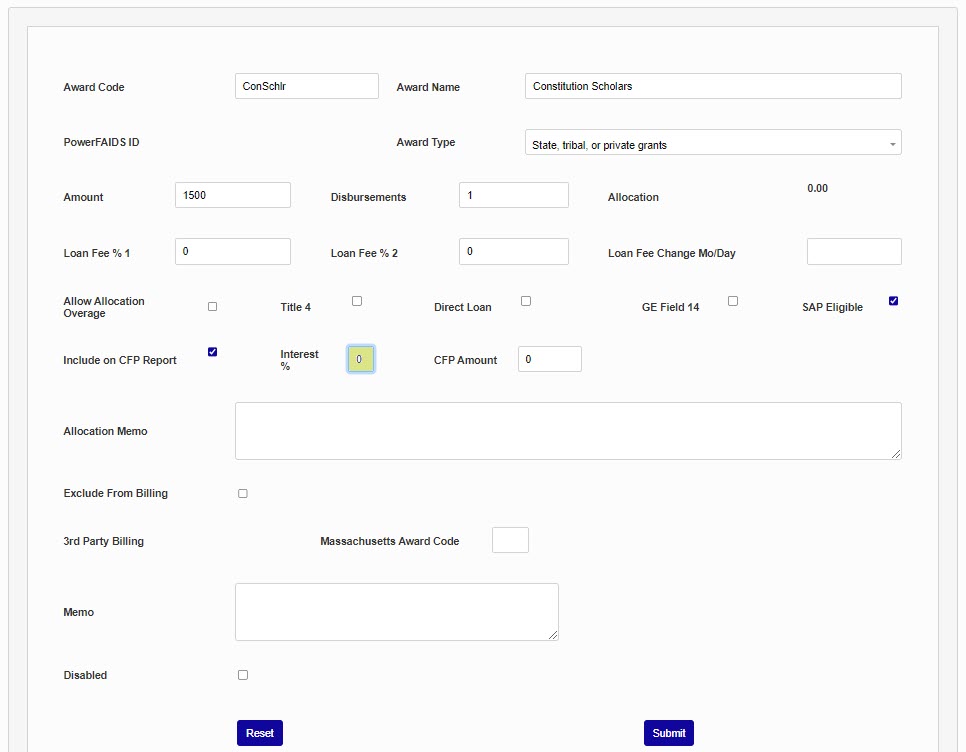
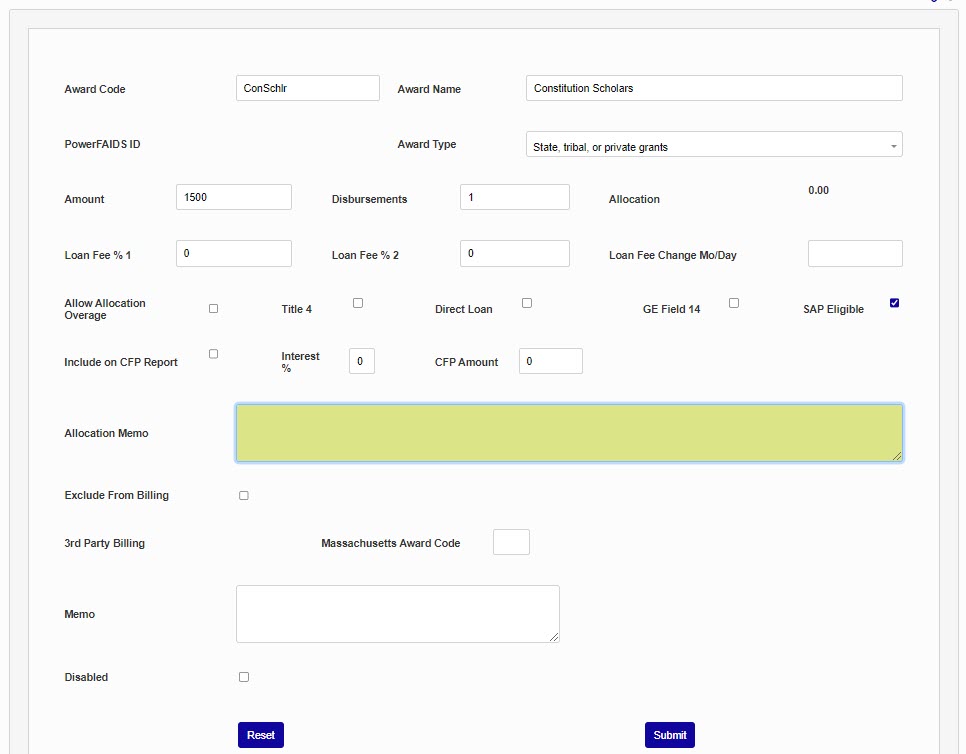
The Allocation Memo field can be used to leave notes about allocation that will appear on this page only.
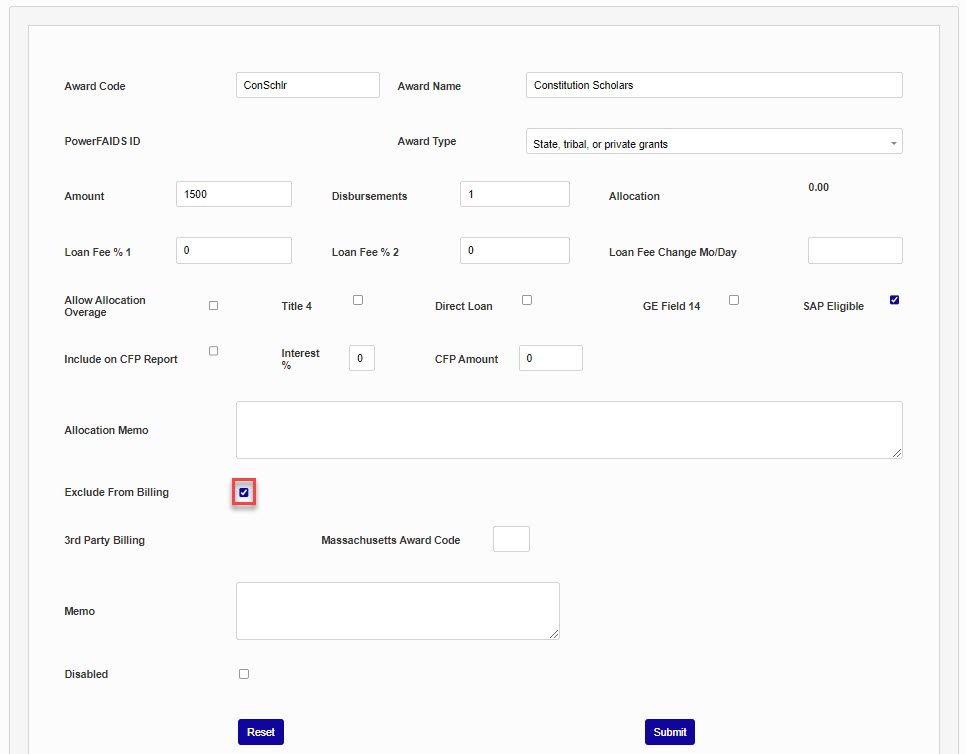
If the Exclude from Billing box is checked, this award will not appear on the student's bill. It is most often used with work-study payment which requires that the student receives a payment that is never applied against their bill.
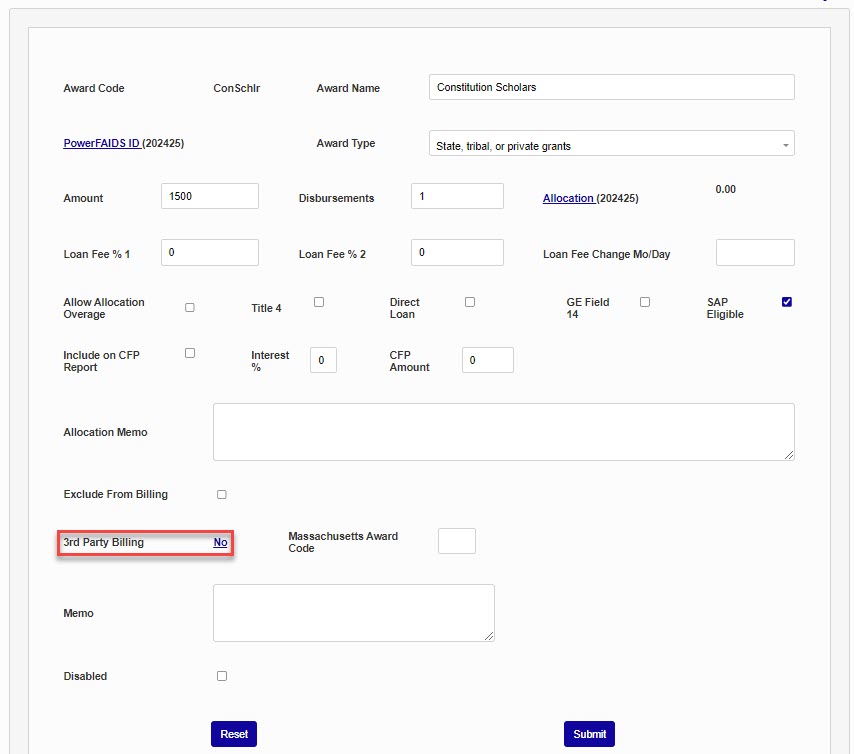
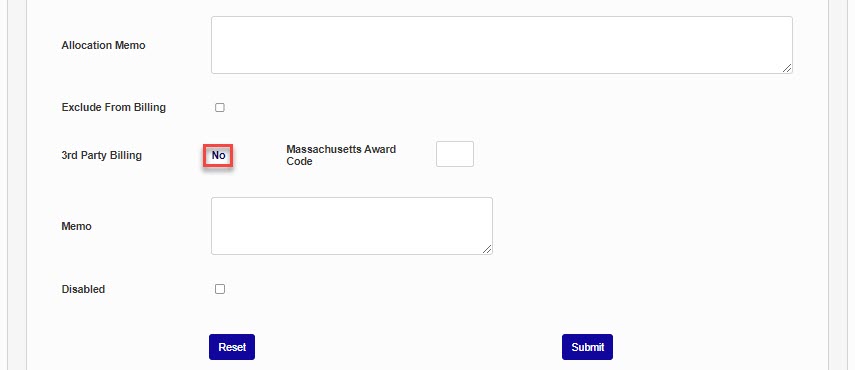
The 3rd Party Billing field will display after the award is created and saved, and the page is re-entered. It is used to indicate that the payment is from a 3rd party. The Massachusetts Award Code field is used for Massachusetts state reporting and can be ignored by institutions in other areas.
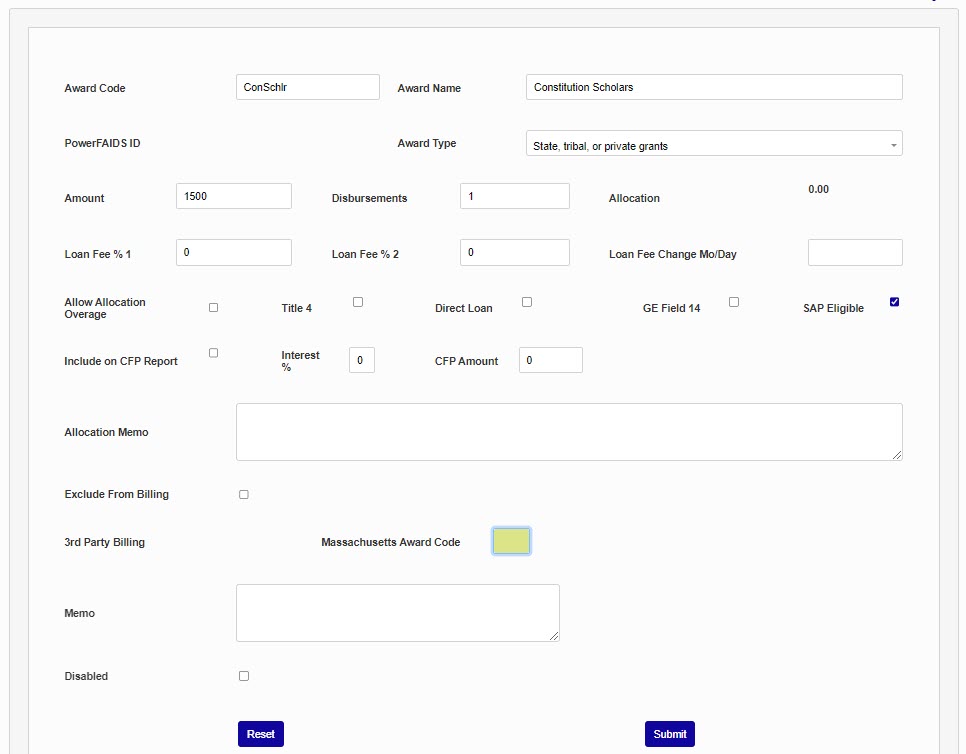
Use the Memo field to add any notes that other administrators may need when assigning the loan.
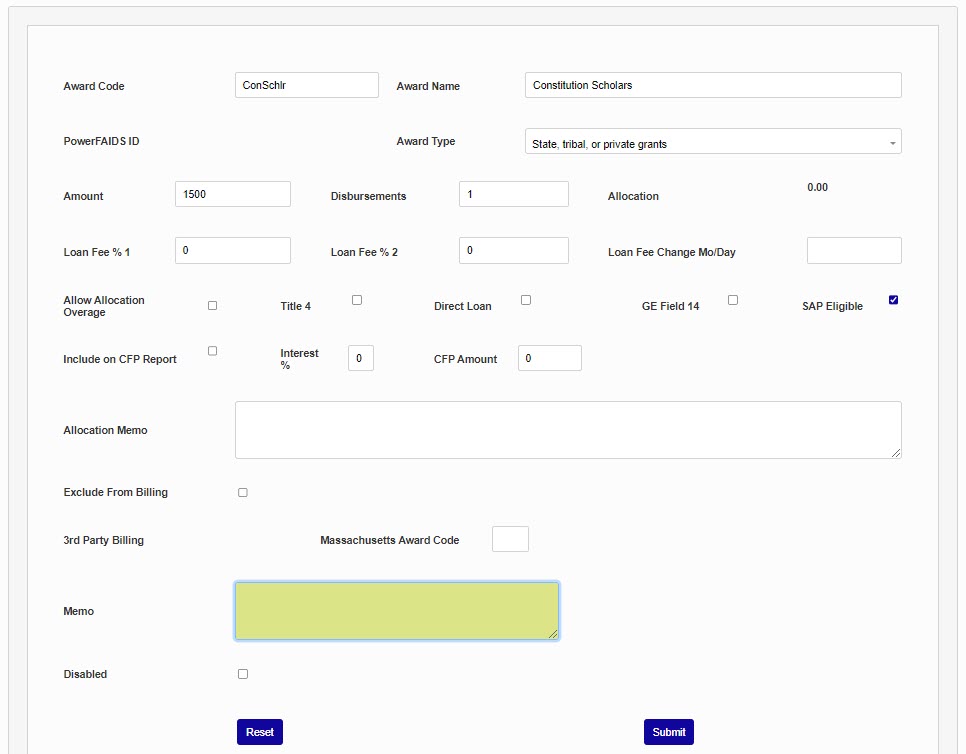
The Disabled box prevents the award from being assigned.
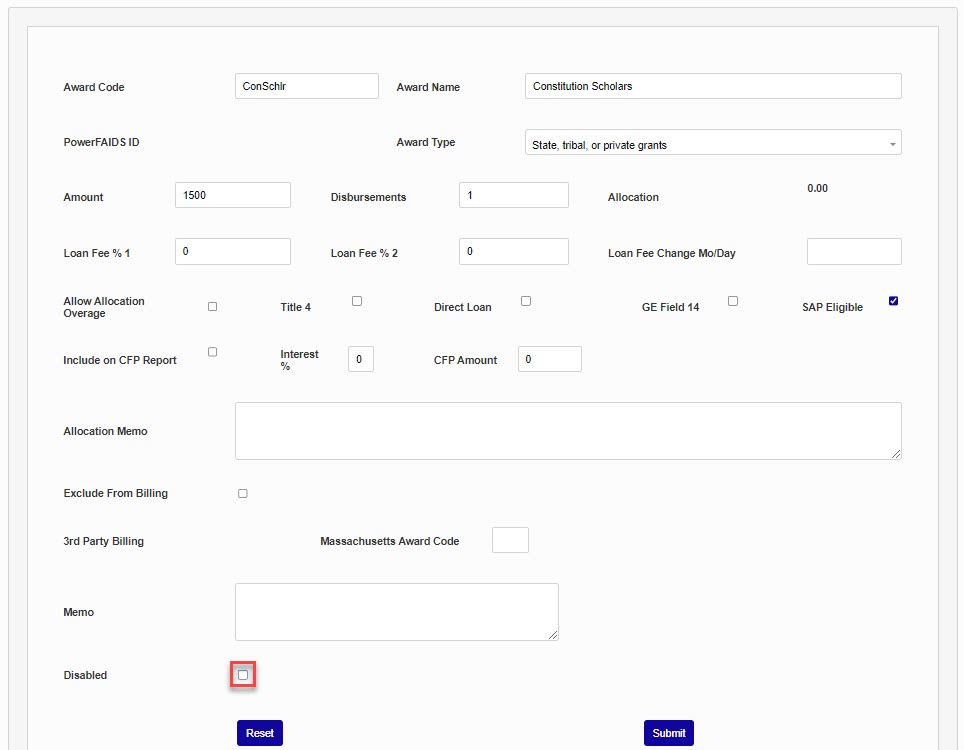
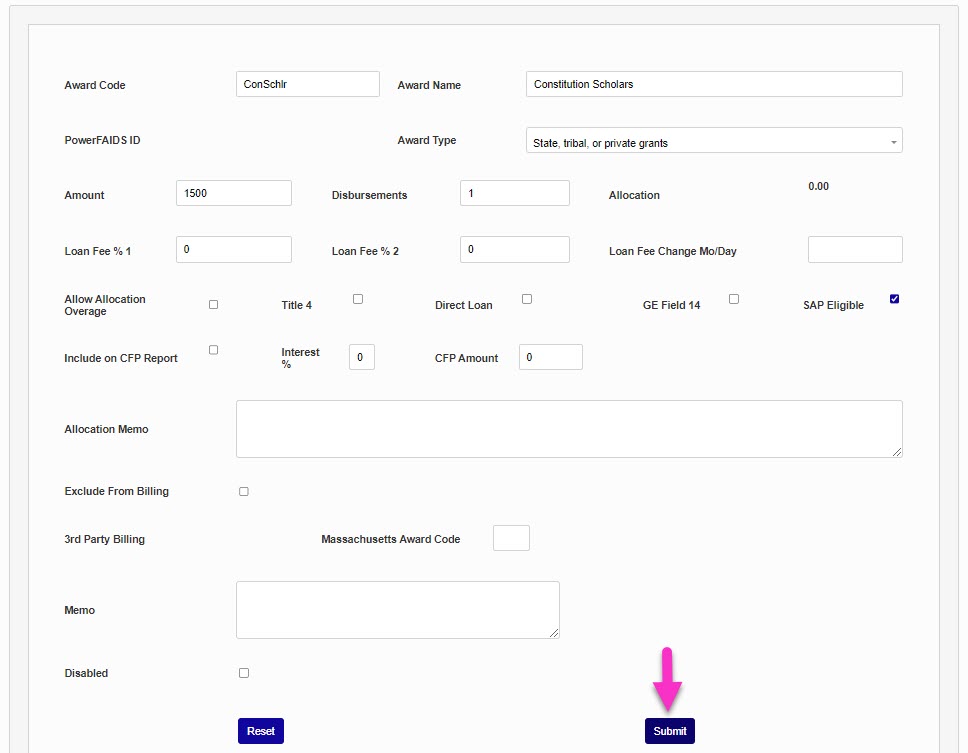
Click Submit to save the changes and create the award.
Editing Awards
To edit an existing award, click the text of the Award Code from the summary page.
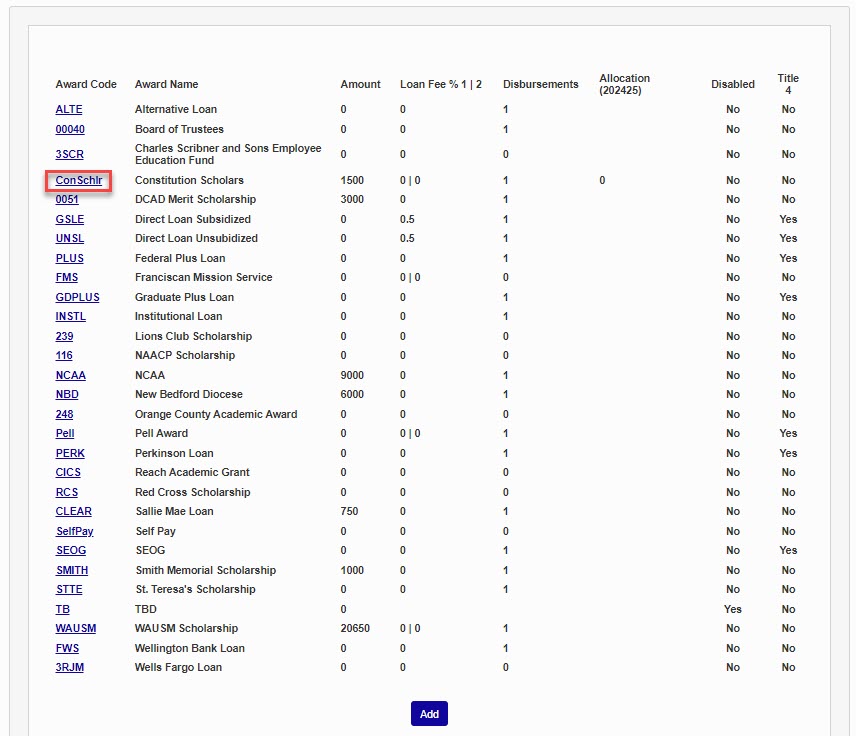
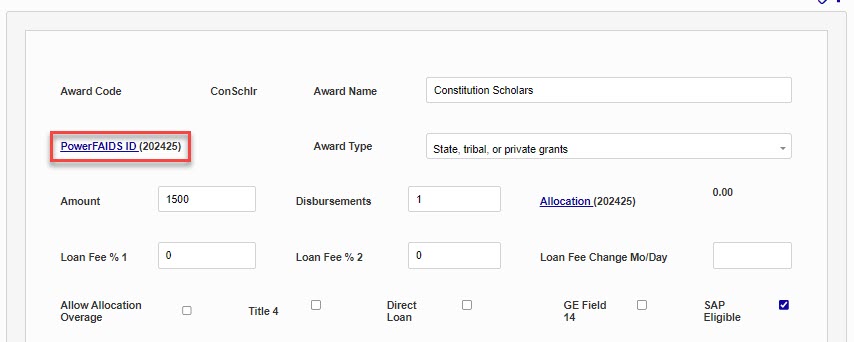
Every field but the Award Code can be altered. Additionally, the following three fields are only accessible after the award code has been created.
PowerFAIDS ID
PowerFAIDS, a financial aid program used by many SONIS clients, automatically assigns identification codes to each award in its system. These codes must be attached to each award before the awards are imported to SONIS. To add a code to an existing award, click the PowerFAIDS ID link.
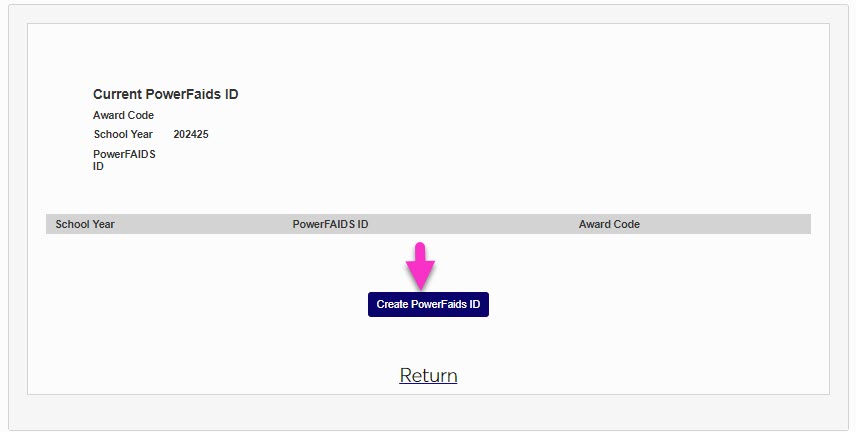
On the following page, click Create PowerFAIDS ID to continue.
Select a School Year for the award. School Years are created through Table Maintenance.
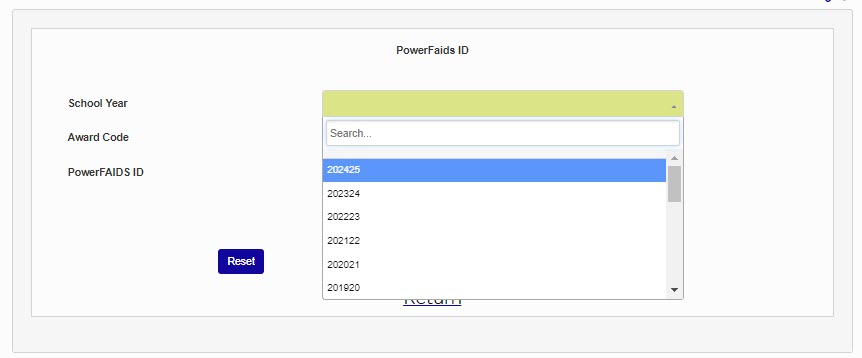
Select the Award Code that's being updated (if not auto-populated) and enter the PowerFAIDS ID that was created by the PowerFAIDS system.
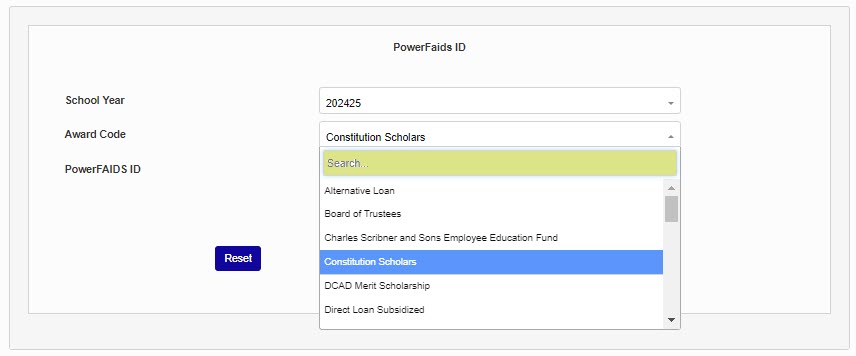
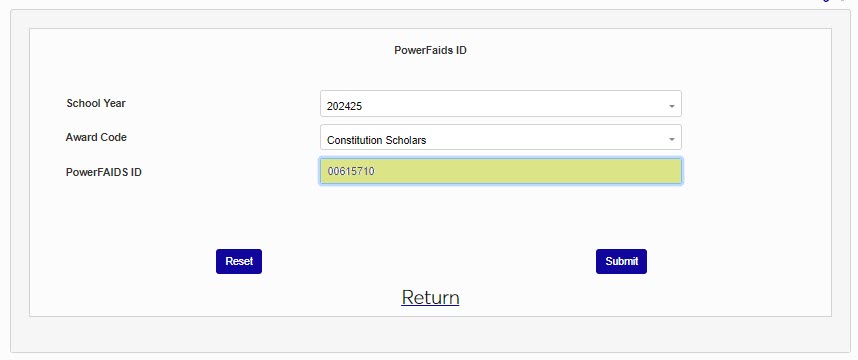
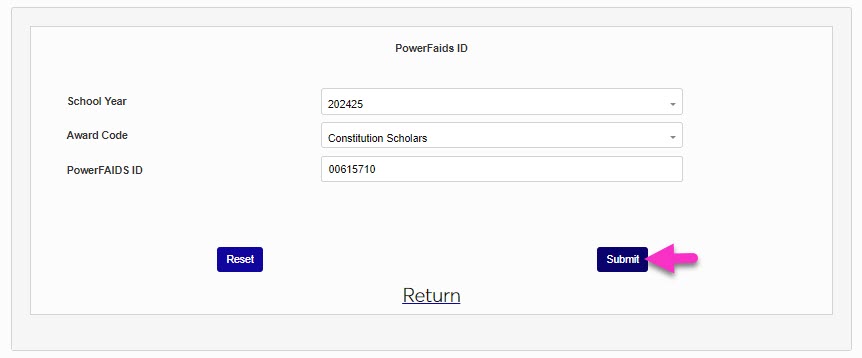
Click Submit to save the code.
Allocation
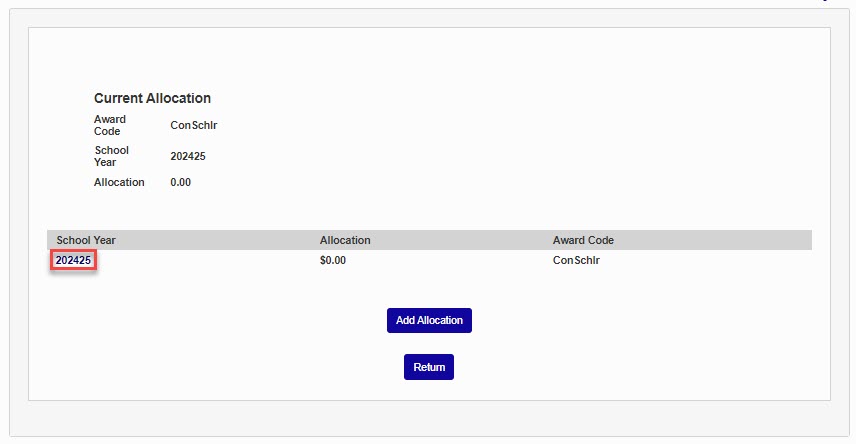
Some loans and scholarships have a default pool of money that is available each year. Click Allocation to set this amount.
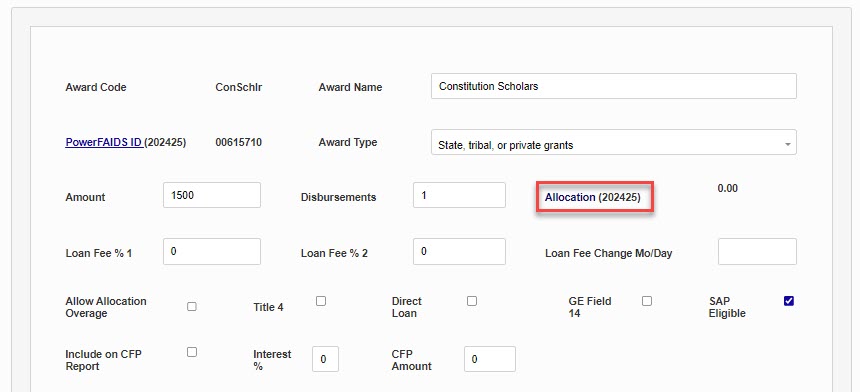
On the following page, click on a school year to edit the allocation for that year. The current school year will be displayed by default.
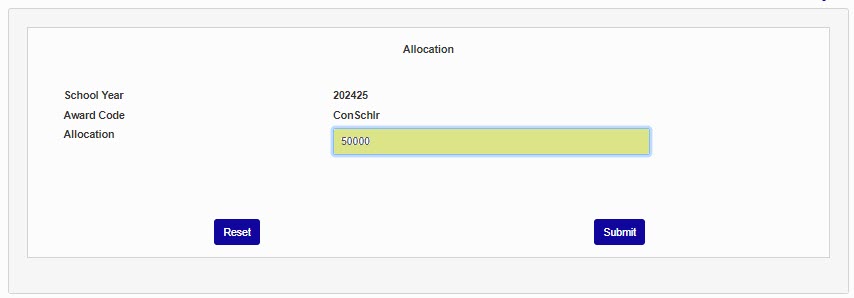
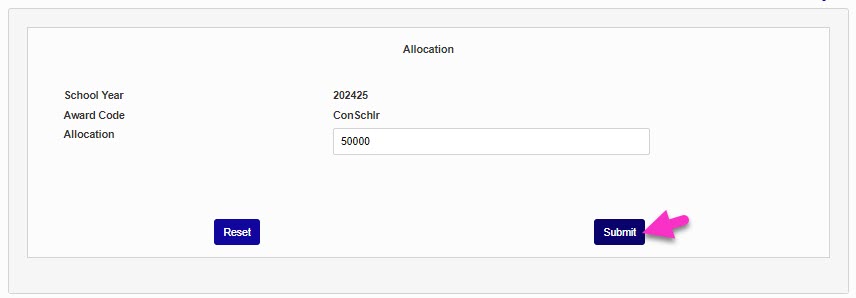
Enter the Allocation in dollars and cents and click Submit to save the change.
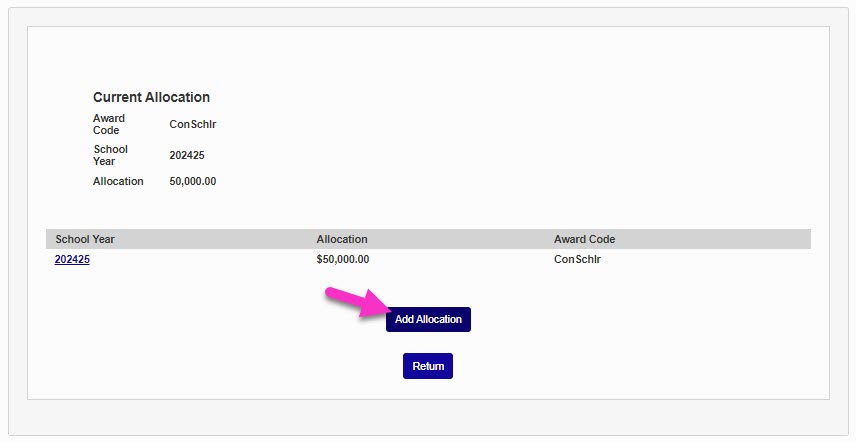
Allocations for additional school years can be added by clicking Add Allocation and repeating the process.
Third Party Billing
Some awards are billed to a third party such as an employer or sponsor. To set up third party billing once an award has been created, click the 3rd Party Billing link.
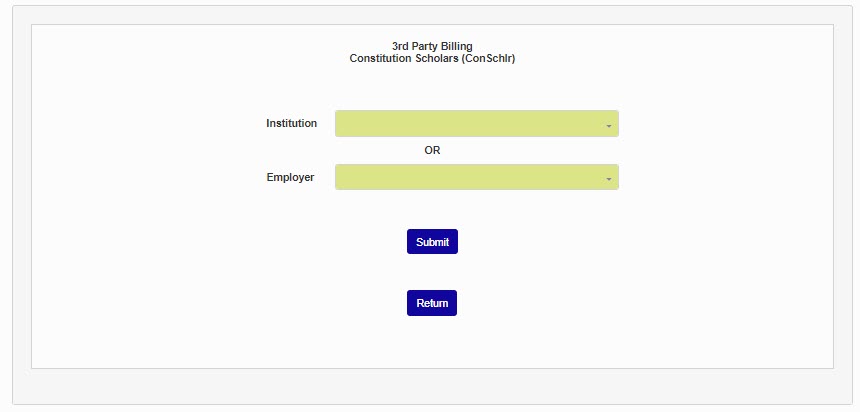
On the following page, select an Institution or an Employer. Both are created using the Institution Add/Edit utility under the Systems menu.
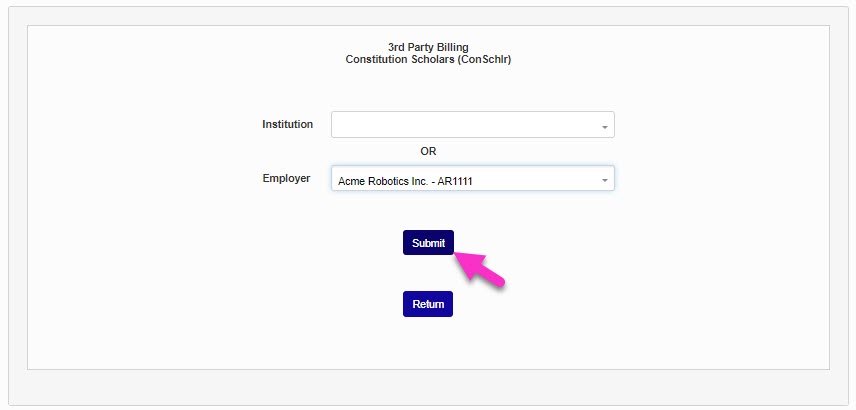
Click Submit to save the change.
SAP Eligibility
While a certain SAP standard is generally required for federal awards, some private awards may not adhere to the same standards. For this reason, awards can be marked as SAP Eligible to signify that they follow the set SAP guidelines. To access the checkbox, navigate to Award Codes under the Systems hub and select the appropriate award. By default, the box is unchecked.
To mark the award as following SAP guidelines, check the SAP Eligible box. Only the active awards in a student’s transaction records that have been designated as SAP Eligible will be considered in determining if the student is a Financial Aid recipient.