Bulk Email/Text Message
Overview
Jenzabar SONIS provides administrators the ability to email and/or text one or more users at a time based on selected educational information or an existing List using the Systems hub utility Bulk: Email/Text Message. Recipients can be selected to be sent an email and/or text using any of the following filters: Module Status, Department, Cohort, Division, Level, Campus, and List Name. A CC: field is provided, as well as the ability to add both a subject and message body.
If no third-party texting account has been set up, and text options are chosen, the message will be sent as an email only. Bulk External Texting can be used to send texts when an email isn't necessary. Use the Twilio Integration documentation for help with this setup process.
Emailing and/or Texting
To contact students through this utility, begin by selecting the radio button for Email Only, Text, or Both.

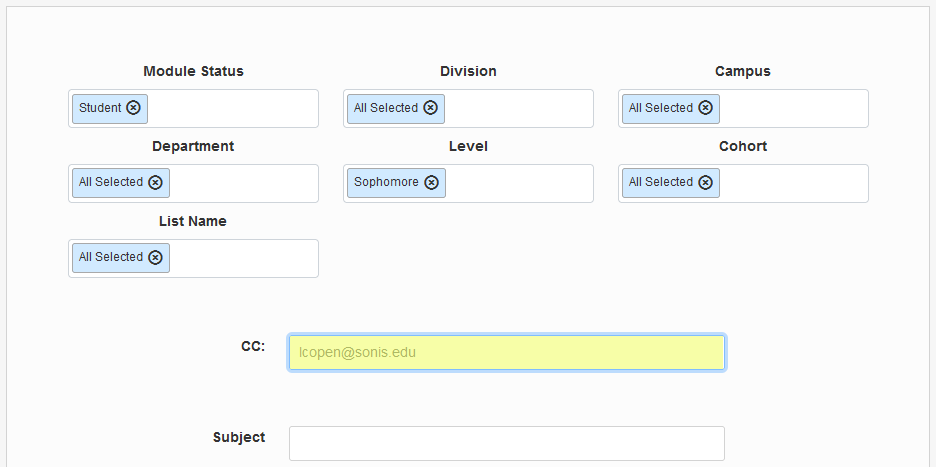
On the following page, use the demographic dropdown menus to select the list of recipients. Or, leave them all set to All Selected to email/text every Jenzabar SONIS user.
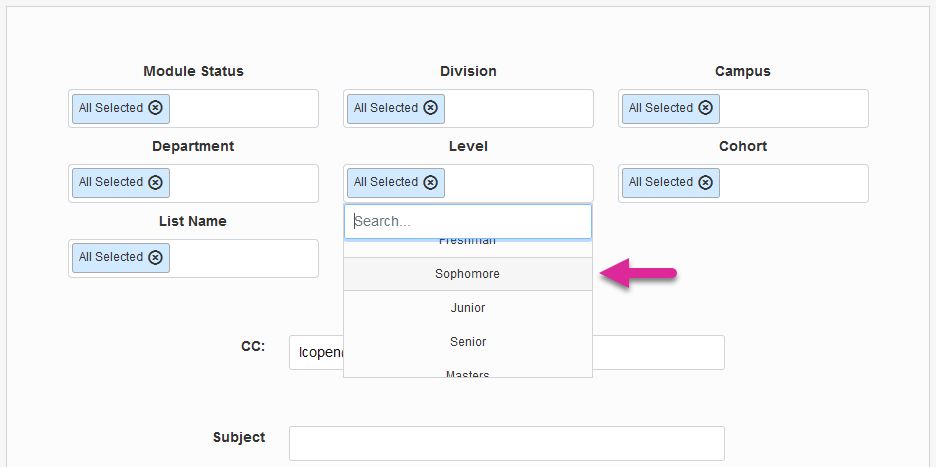
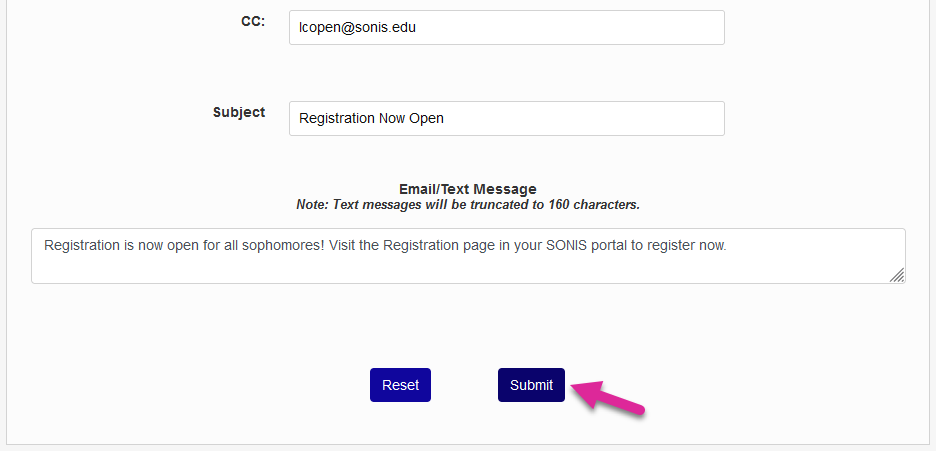
The CC: field is used to send a copy of the email/text to another user who may need to be informed that the message was sent. By default, this will be the logged in user's email address. You can change the address listed here to CC someone else or remove it if no copy is needed.
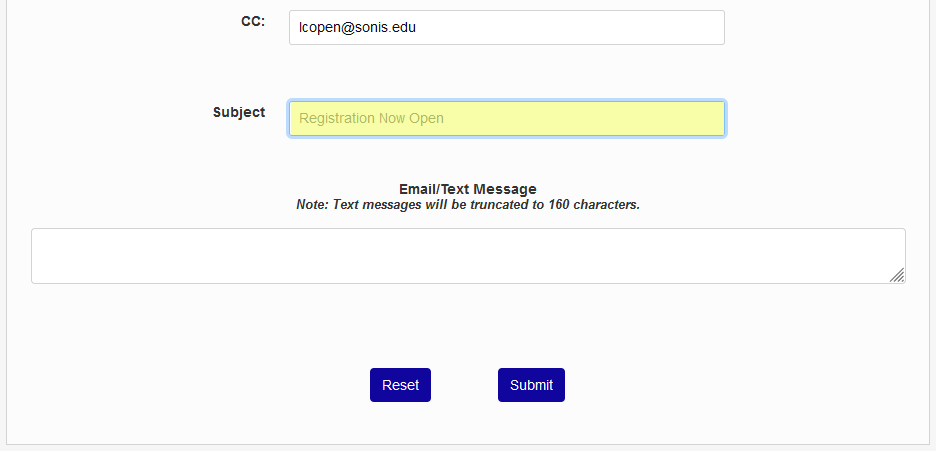
Next, add a Subject for the email or text. This field has a 100-character limit.
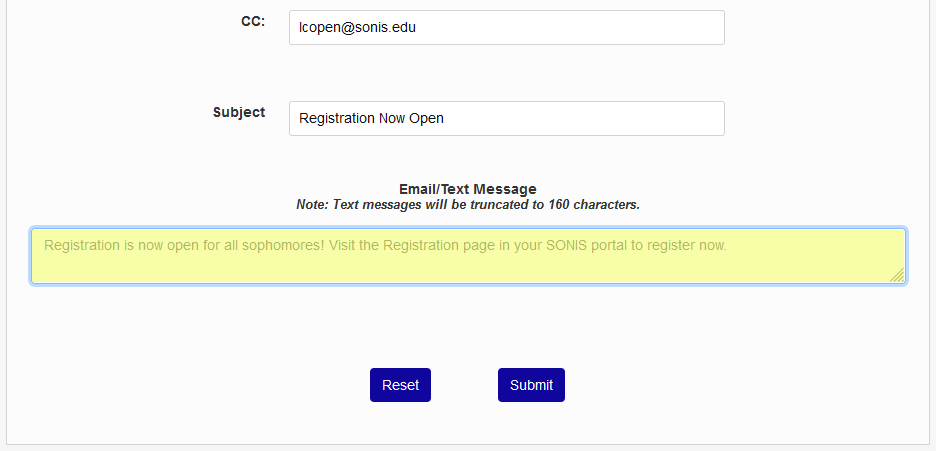
Finally, add a message. When sending a text, either with or without an accompanying email, the field is limited to 160 characters and there are no formatting options.
When sending an email alone, the body of the email can be formatted using the provided text editing tools, a signature can be added, and/or a file can be attached.
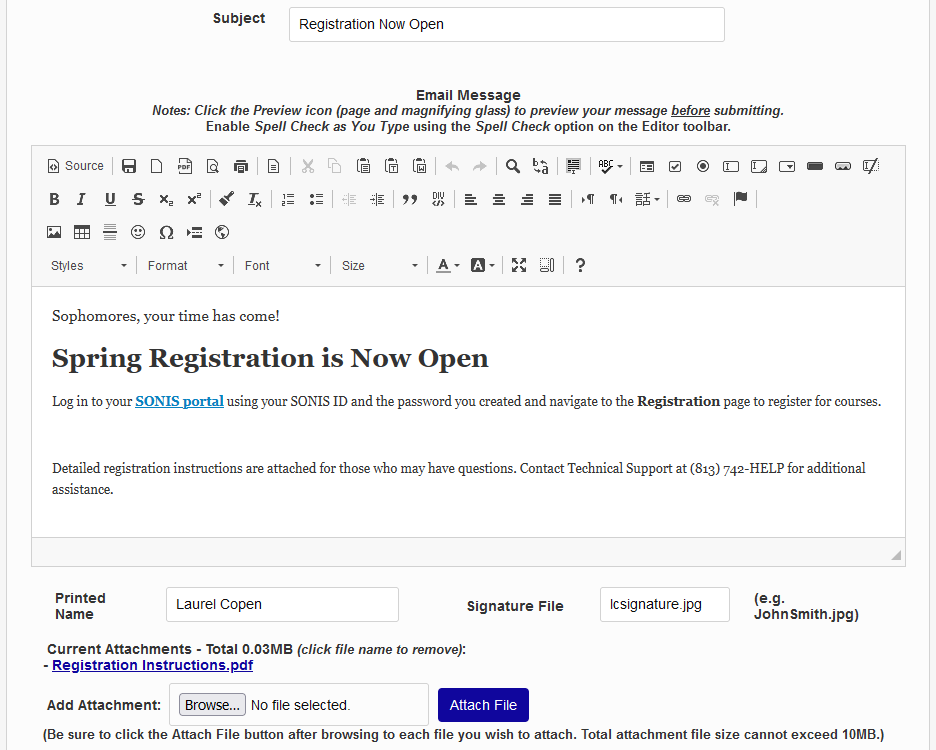
You can also use the following email variables to send emails that are customized to each each individual recipient:
#Prefix#
#first_name#
#mi#
#maiden#
#last_name#
#Suffix#
#ID#
#pin#
Once the message is composed, click Submit to continue.
When sending an email, the option to Include Secondary Email is available. Check this box to send an email to both the primary and secondary email address for each student. With the option active, a new column appears noting which students do and do not have secondary email addresses on file.
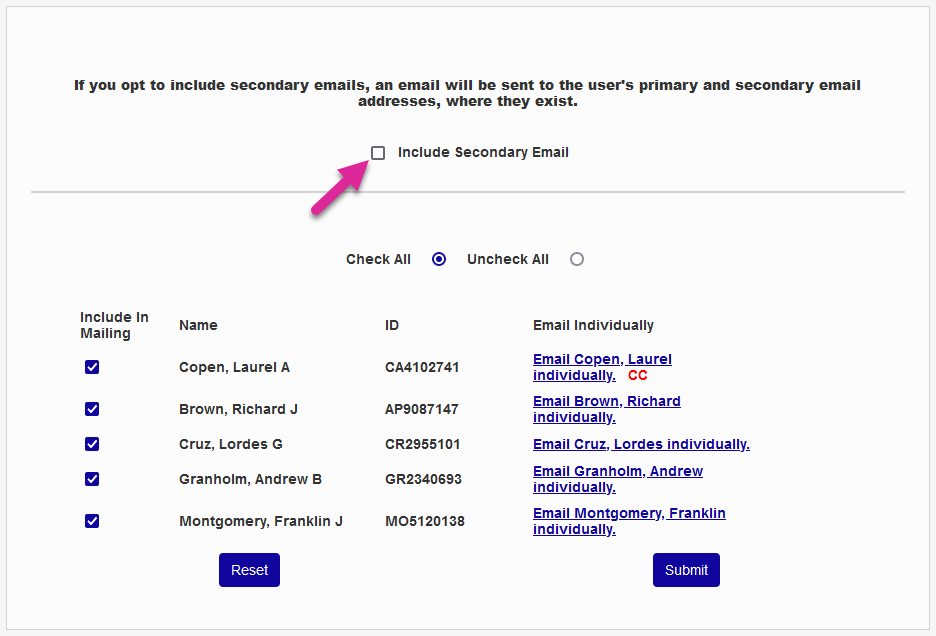
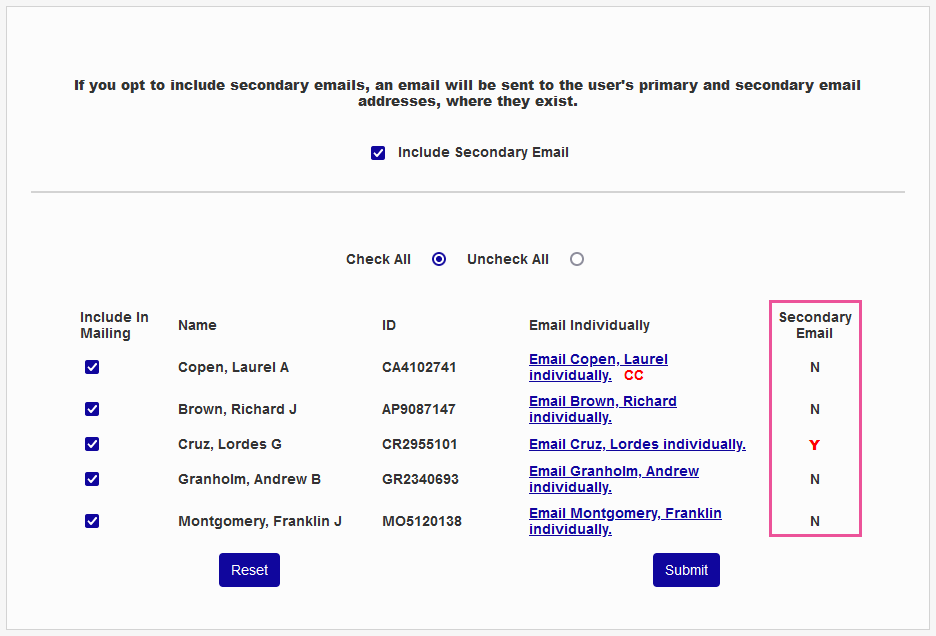
Check or uncheck the boxes in the Include in Mailing column to add or remove students from the mailing. Check All and Uncheck All radio buttons are available for bulk changes.
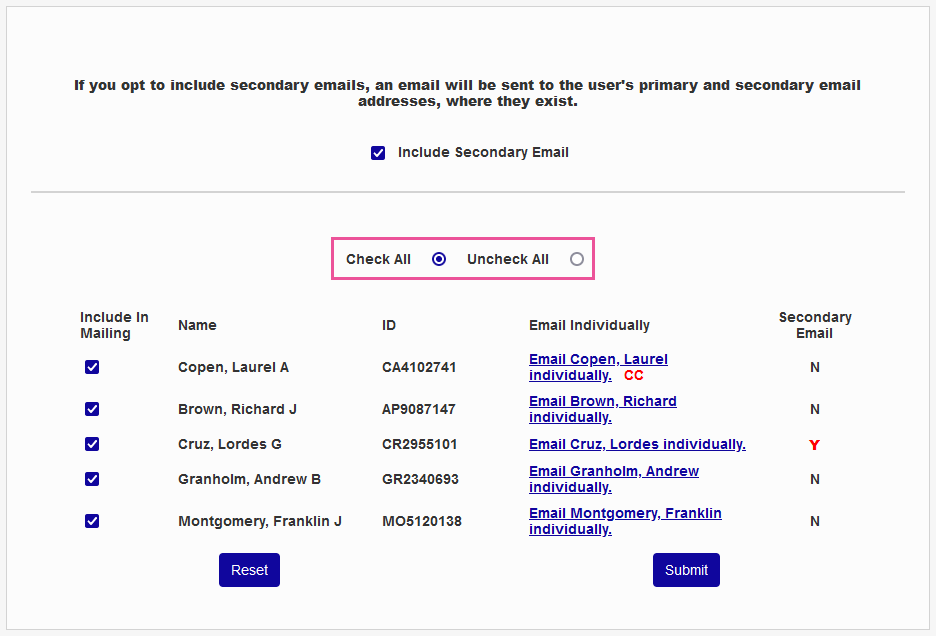
You can also click on any individual user's name to compose an email to just that user in your default email client. Once the appropriate selections have been made, click Submit to send the email/text.