Jenzabar Chatbot Integration
Overview
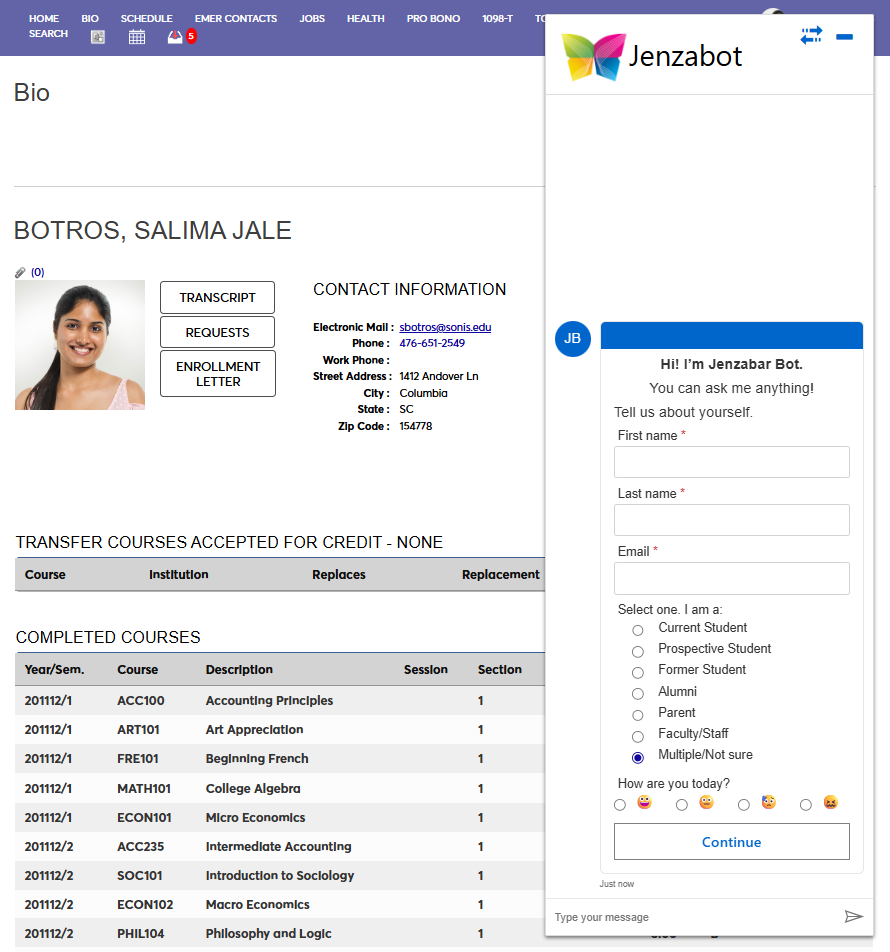
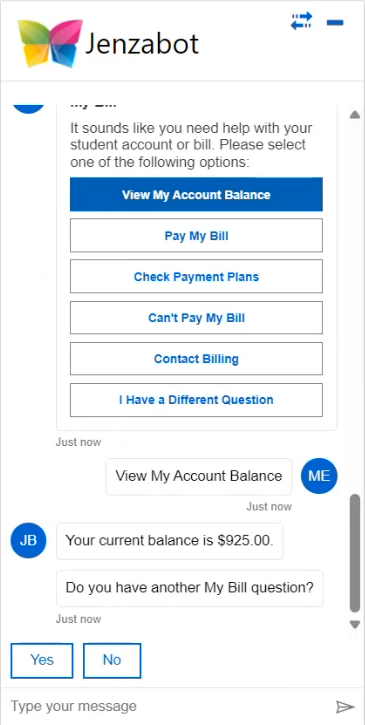
Jenzabar Chatbot is an always-on, digital engagement platform powered by artificial intelligence. It can replace the need for repetitive questions from students and other users, freeing up staff to spend time on other concerns. Jenzabar Chatbot setup in SONIS is relatively simple and the bot can be deployed in every portal. With the proper setup, the bot can provide individuals responses to questions like "What's my schedule?" and "Where's my bill?"
For more information on setting up Chatbot responses, visit the Chatbot section of the Jenzabar Academy or view the help videos available on Wistia. Contact Jenzabar Support if you don't have a login for these sites.
Chatbot Setup
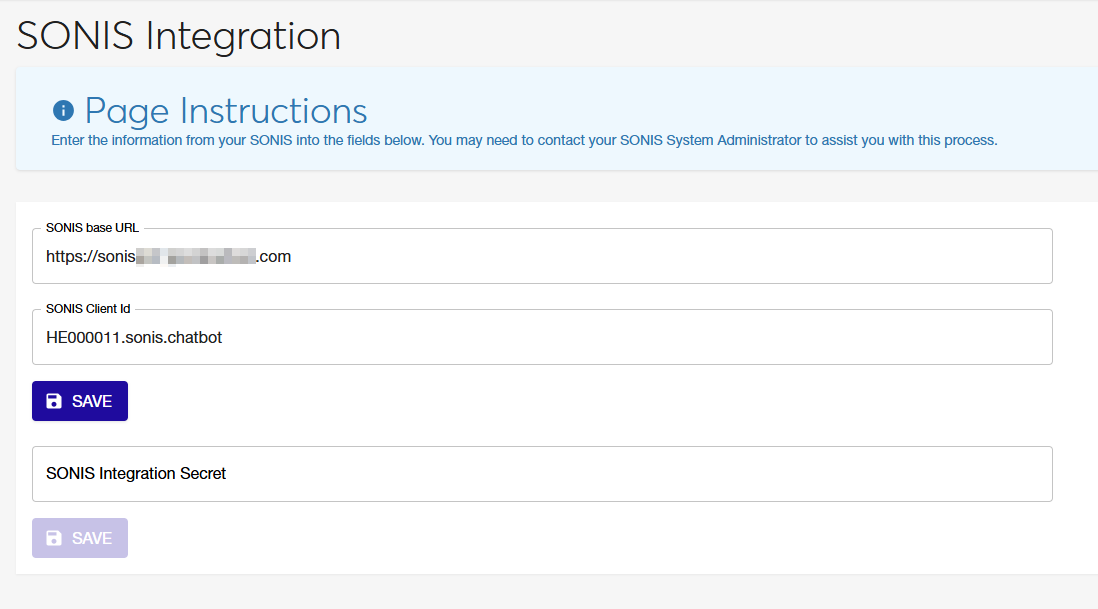
To link the Jenzabar Chatbot to your Jenzabar SONIS system, navigate to the SONIS Integration page of your Chatbot administration tool.
Enter the SONIS base URL. This is the web address where users access your version of Jenzabar SONIS. For example, https://cbasonis.jenzabarcloud.com.
Then enter the SONIS Client ID and the SONIS Integration Secret. Both of these values should be provided to you by Jenzabar support. Click both Save buttons to save the values you've entered.
Chatbot Deployment
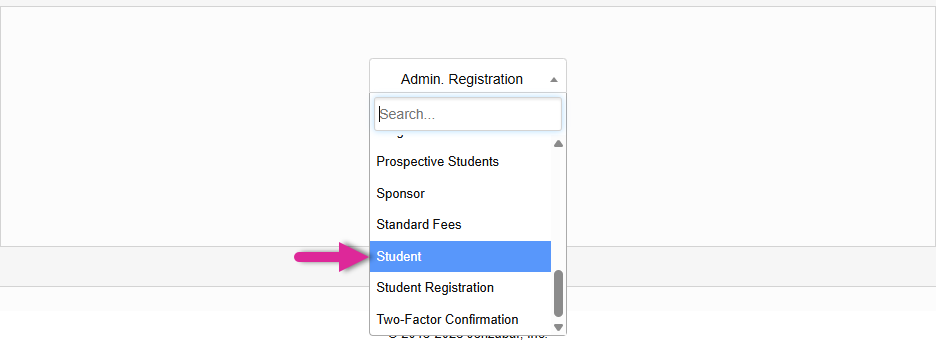
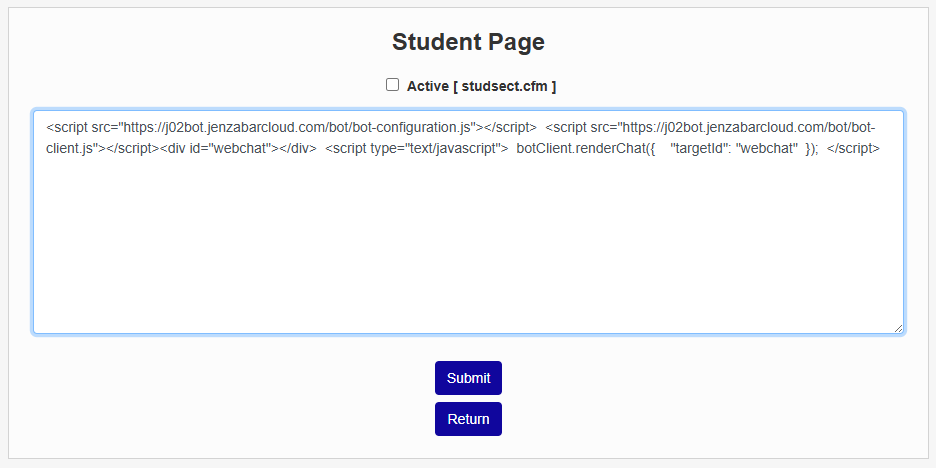
To add the Chatbot to a SONIS portal, navigate to Login Page Notes under the Systems hub. Select the portal you wish to add the bot to and click Submit.
Paste the following code snippet into the memo field:
<script src="https://j02bot.jenzabarcloud.com/bot/bot-configuration.js></script> <script src="https://j02bot.jenzabarcloud.com/bot/bot-client.js></script> <div id="webchat"></div> <script type="text/javascript> botClient.renderChat({ "targetId": "webchat" }); </script>
Check the Active box and click Submit to activate the bot.
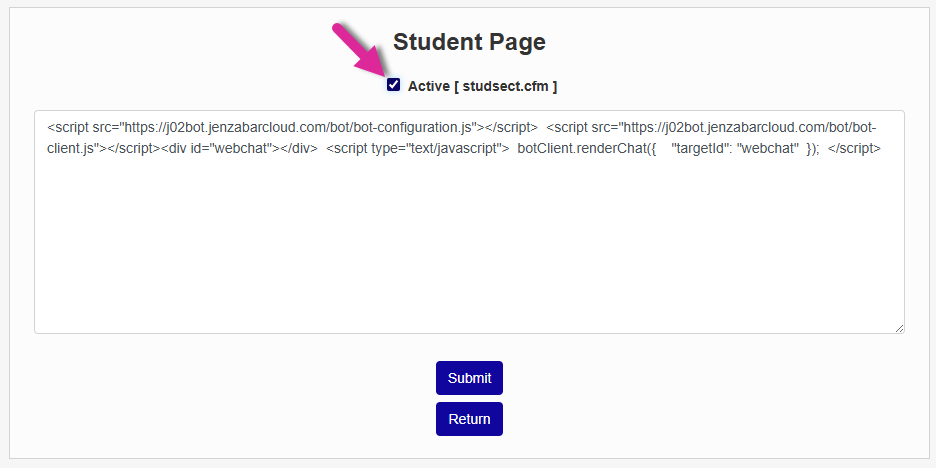
The Chatbot will now be active within the selected portal.