CE Course Certificates
Overview
Jenzabar SONIS offers the ability for schools to grant a certificate to their Continuing Education (CE) students after they've completed a specified course. Once the student has passed one or more of these courses, they will have access to print their earned certificate(s) through their CE Student Portal.
Creating Certificate Courses
For a certificate to be awarded, the course must be designated as a Certificate Course. This can be done by creating a new Course Type specifically for certificate courses or editing a preexisting course type to award certificates. To perform either task, navigate to the Course Type table under Table Maintenance in the Systems hub. Click on the Add New Record button to create a new course type or click on an existing Course Type Code button to edit it.
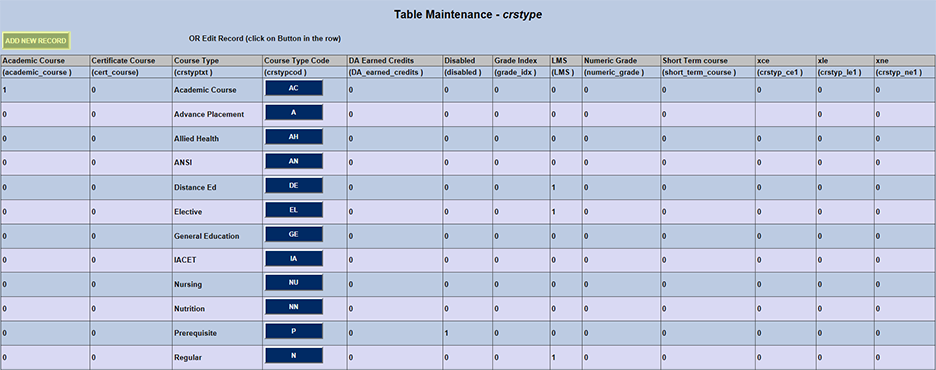
If creating a new type, enter the name in the Course Type box and give it a two-character abbreviation under the Course Type Code box. Whether creating or editing, replace the "0" in the Certificate Course box with a "1" to turn this feature on. Click Submit to create the course type or finish editing. Note that all boxes must be filled before submitting.

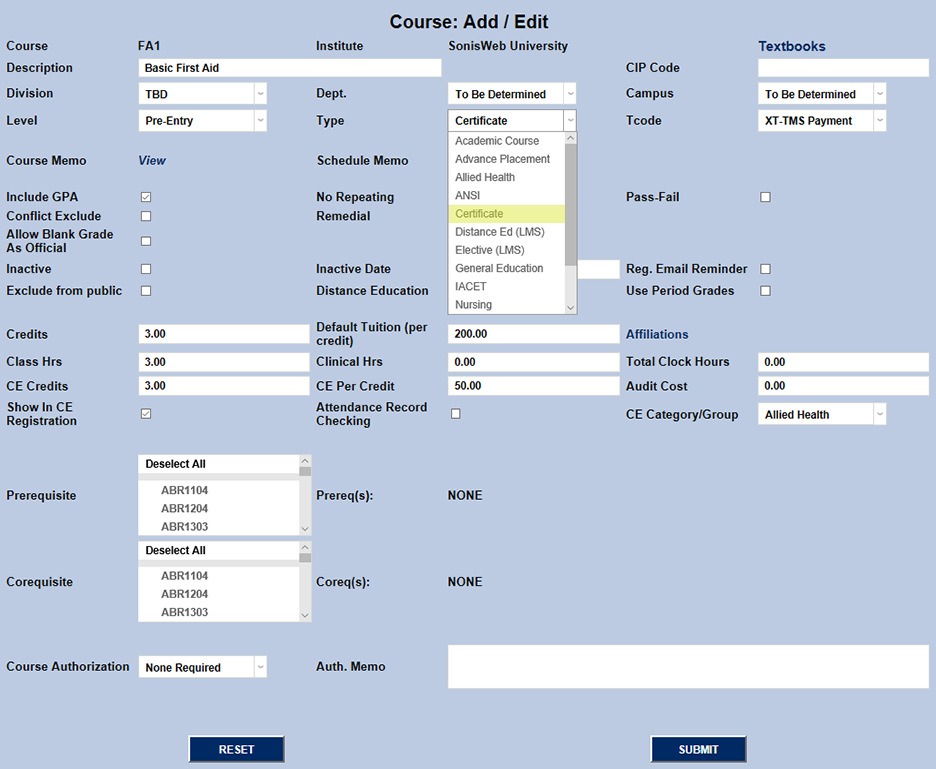
Next, using the Courses tab, navigate to the Course: Add/Edit page of a course that should offer a certificate. Choose Certificate or another course type that's been set up to offer certificates from the Type dropdown menu and click Submit. Any CE student who completes this course will now receive a certificate.
CE Portal Access
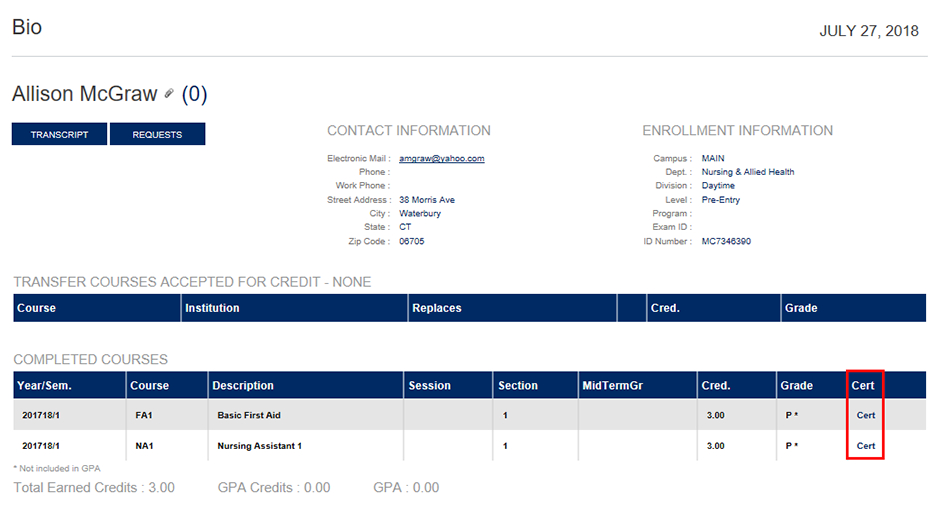
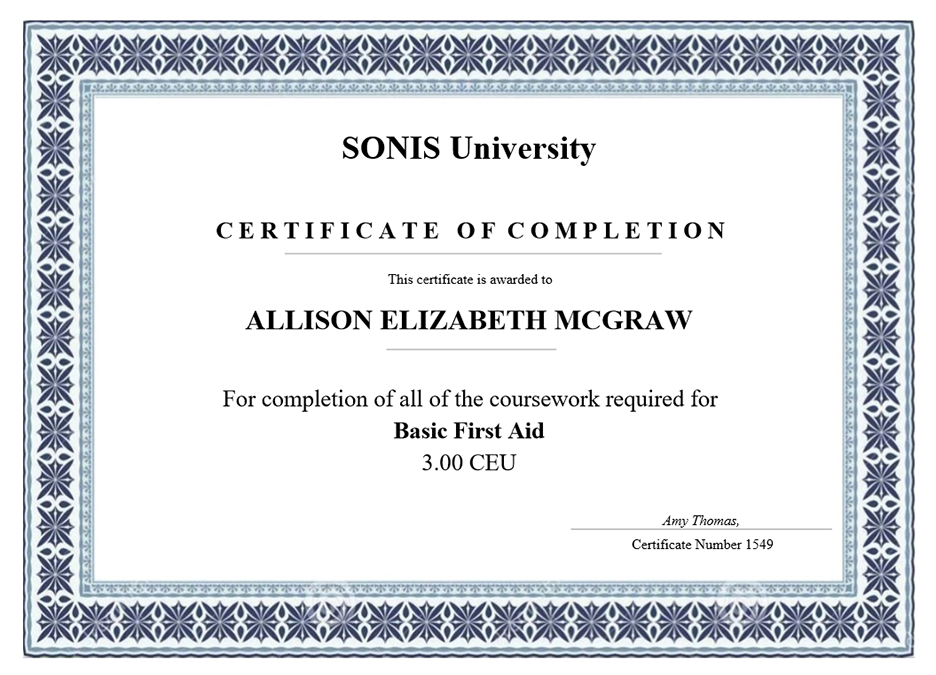
Once the student has been given final grades for certificate courses, these courses will appear in the Completed Courses section of their bio page in the CE Student Portal. Available certificates will be listed in the Certificates column. Clicking on a Cert link will open up the certificate in a new window where it can be printed.