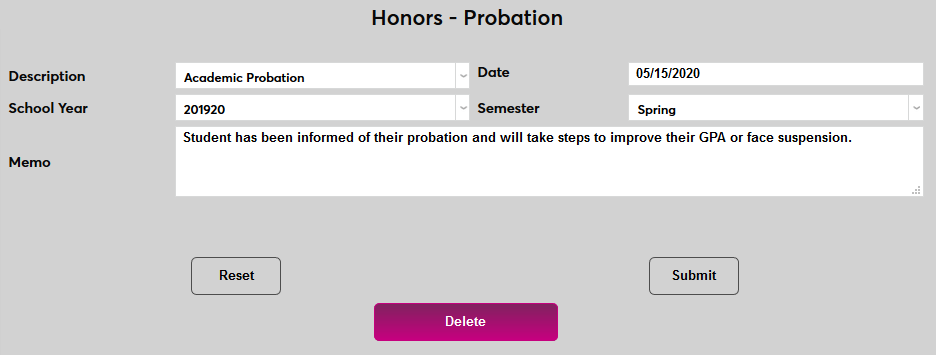
Honors - Probation
Overview
The Honors - Probation page in the Users hub is used to store student honors and probation statuses. Records can be added manually from the page or in bulk through the Honors/Probation Assignment utility in the Systems hub. The utility can be updated based on Honors/Probation Requirements also set in the systems menu or based on those students' inclusion in a List.
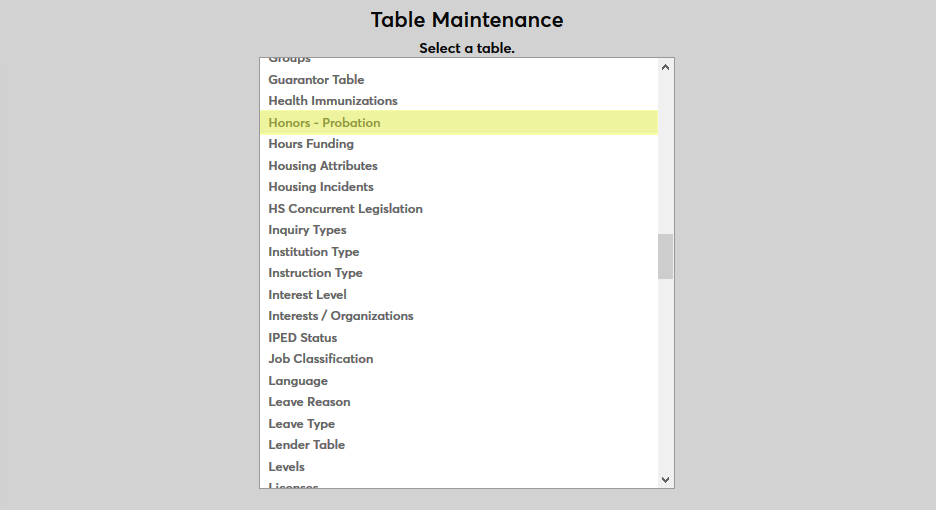
Before honors or probation statuses can be given to students, these statuses must be created using the Table Maintenance utility in the Systems hub. Select Honors - Probation from the list to begin.
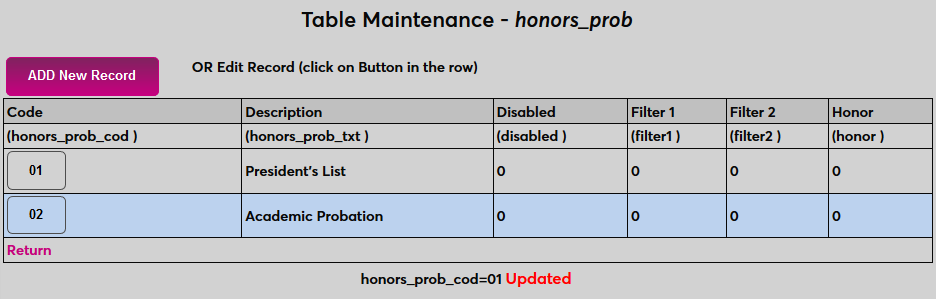
Click Add to create a new honors or probation type.
Create a name for the status in the Description field. The Description field has a 100-character limit. Then, create a shortened version of the description or numerical signifier to serve as the Code that will be used to identify it behind the scenes. The Code field has an 8-character limit.
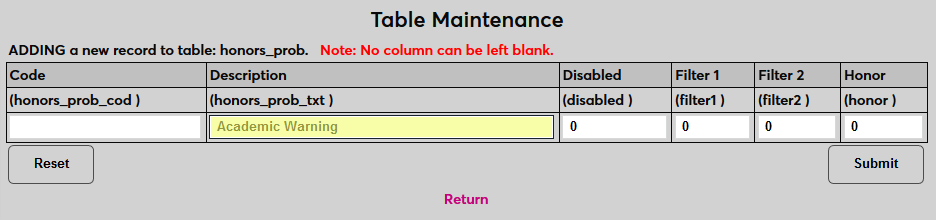
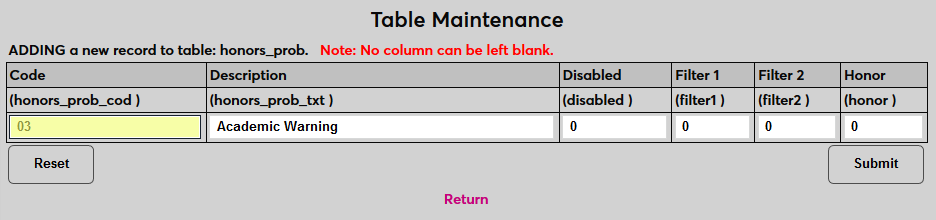
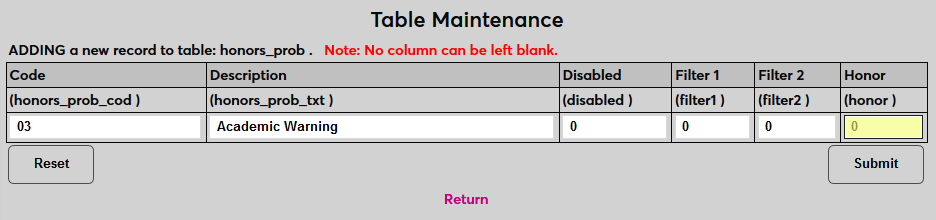
If the status is an honor, put a 1 in the Honor field. If the status is a probation, leave a 0 in the field.
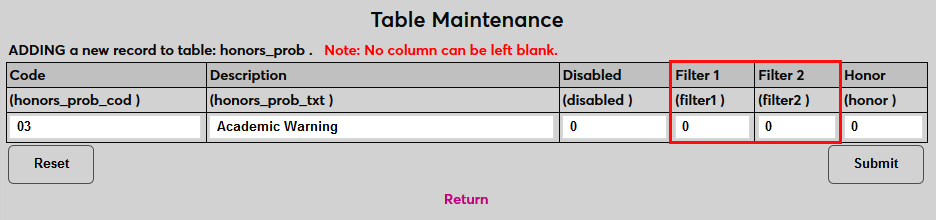
The Filter 1 and Filter 2 fields are only used by Oklahoma tech centers and can be ignored by other institutions.
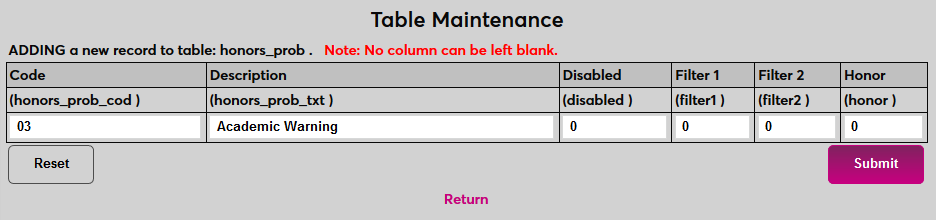
Click Submit to save the changes and create the status.
Manual Status Updates
To add an honors or probation status manually, select a student and navigate to their Honors - Probation page. Click Add to begin.

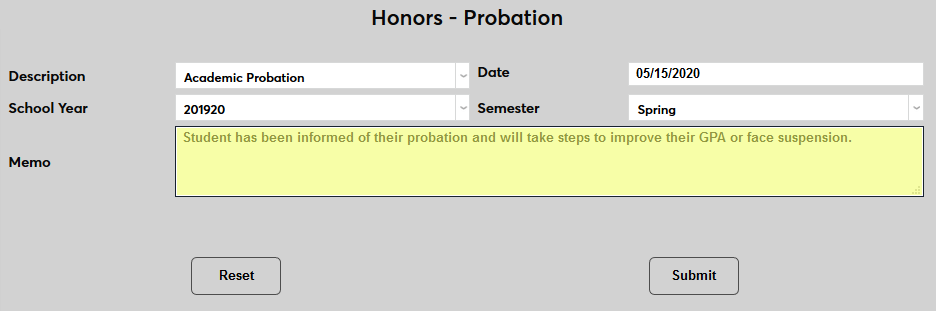
On the next page, select the Description of the status to be added.
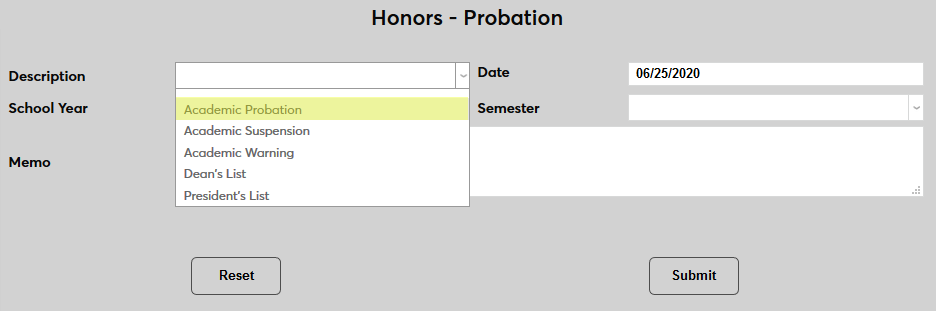
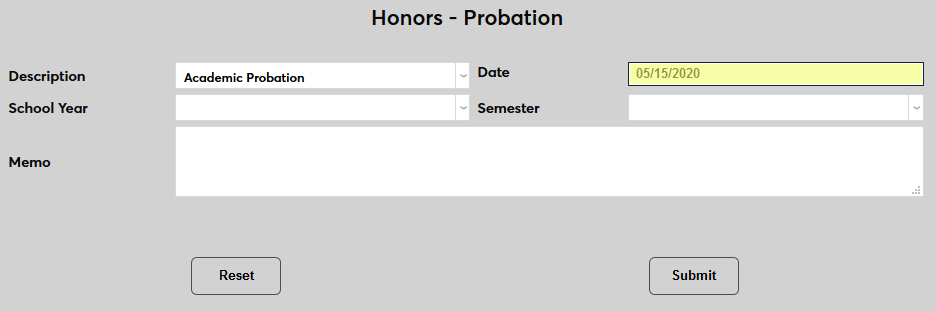
Set a Date for the status to begin.
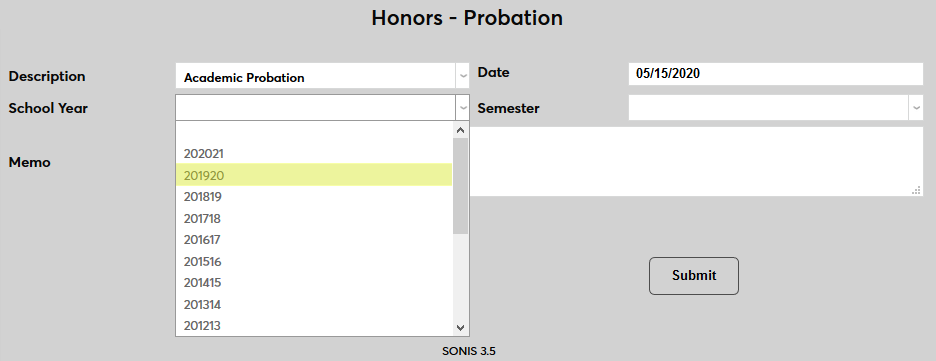
Select a School Year and a Semester for the status.
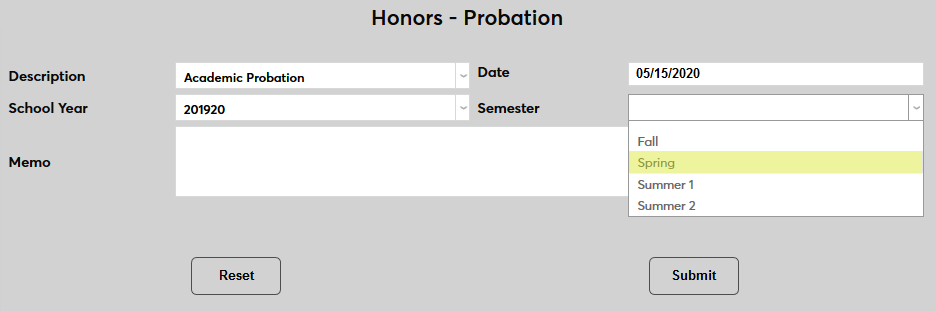
An optional Memo field is included to add notes about the status change.
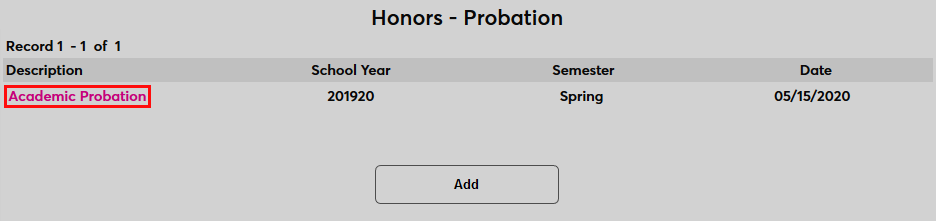
Once an honors or probation status has been added click on the Description view the details or make changes.
Administrators can edit any of the fields or click the Delete button to remove the status altogether.