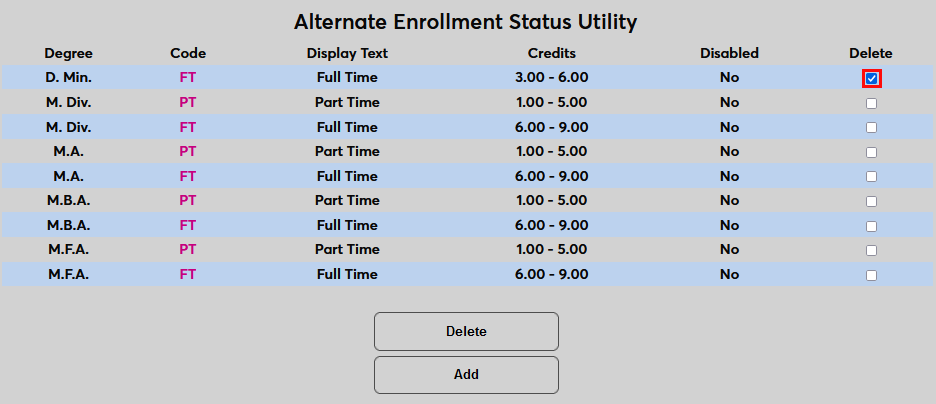
Alternate Enrollment Status Utility
Overview
A student's enrollment status in the Jenzabar SONIS system is based on their credit hours. This status is required by numerous functions including Satisfactory Academic Progress determination, National Student Clearinghouse reporting, federal and state-level government reporting and accreditation, and Financial Aid eligibility. The standard enrollment statuses that will apply to the majority of students are set through Table Maintenance, but degree programs may have different enrollment standards. For example, a graduate level program generally requires less credit hours for full-time status than an undergraduate program. For this reason, SONIS offers an Alternate Enrollment Status Utility where these values can be set based on degree.
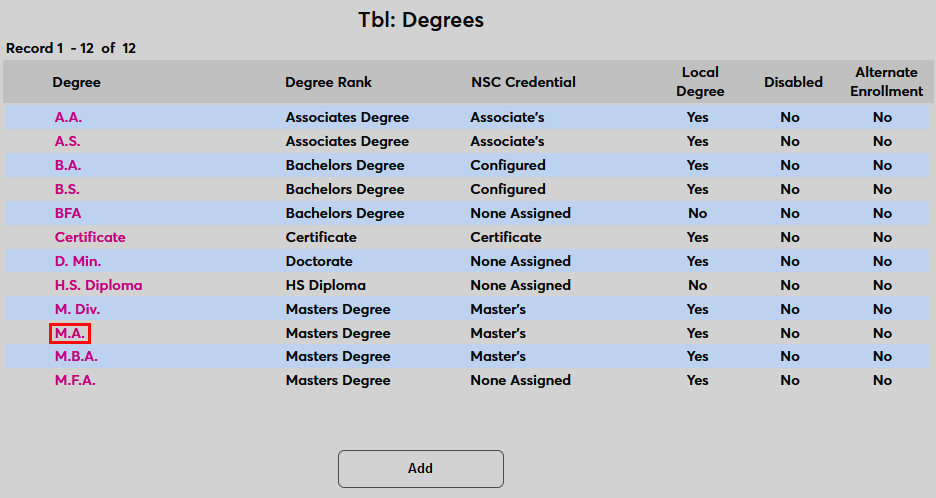
Only degrees marked as alternate enrollment in the Degree table will use the alternate enrollment status calculations.
Standard Enrollment Status
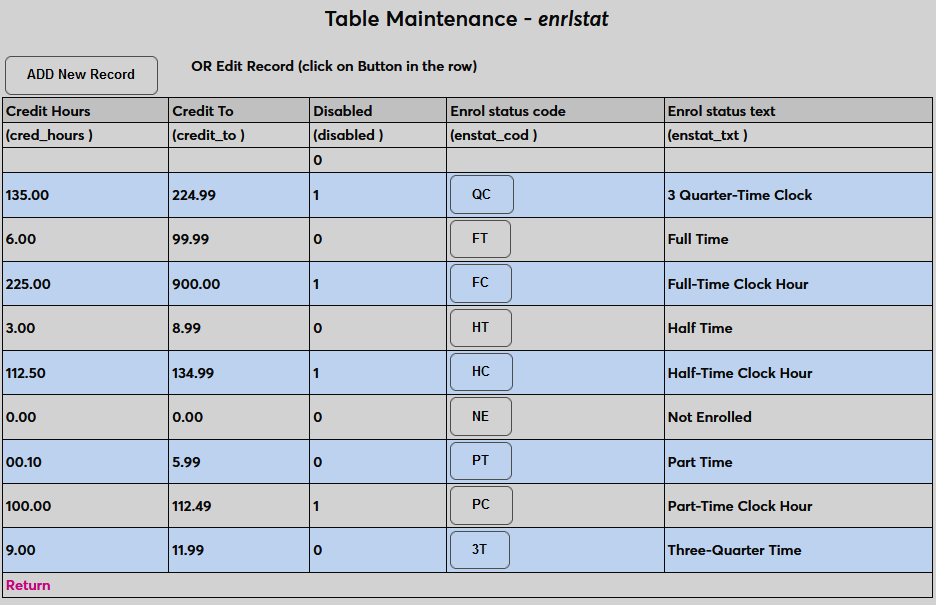
Before alternate enrollment statuses can be created, the standard enrollment status thresholds must be set. As mentioned above, the standard enrollment status thresholds are set through the Enrollment Status table, which is accessed through Table Maintenance in the Systems hub.
Degree Setup
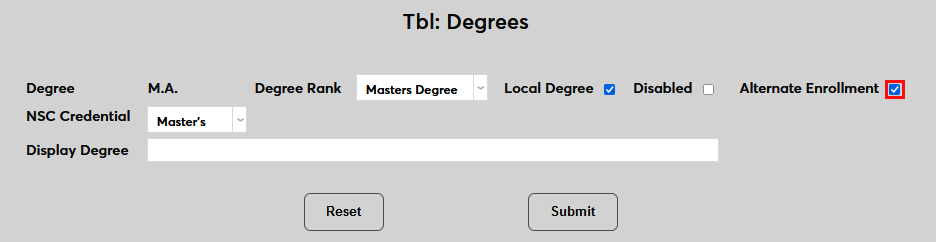
Degrees that will have an alternate enrollment status must be flagged as alternate enrollment eligible first in the Degree table. To set this flag, either add a new degree using the Add button or open an existing degree.
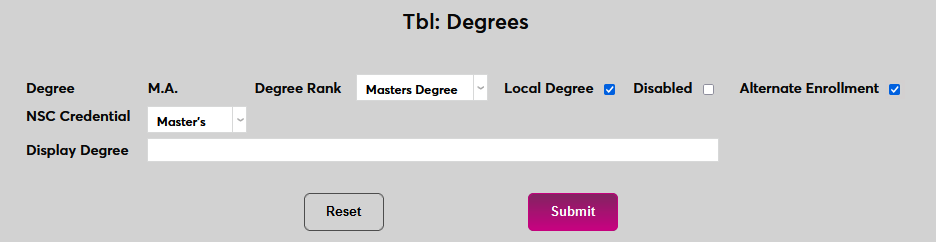
On the following page, check the Alternate Enrollment box and click Submit to save this change. Repeat these same steps with all degrees that will not fall under the standard enrollment status thresholds.
Setting Alternate Enrollment Status
Once alternate enrollment degrees have been set, navigate to the Alternate Enrollment Status Utility under the Systems menu to set the thresholds. Click Add to begin.

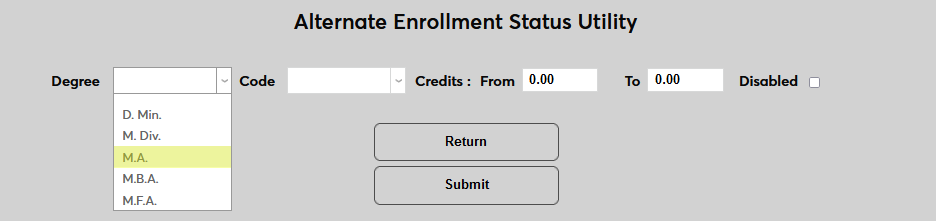
Select a Degree and a Code, which is the enrollment status that will be altered.
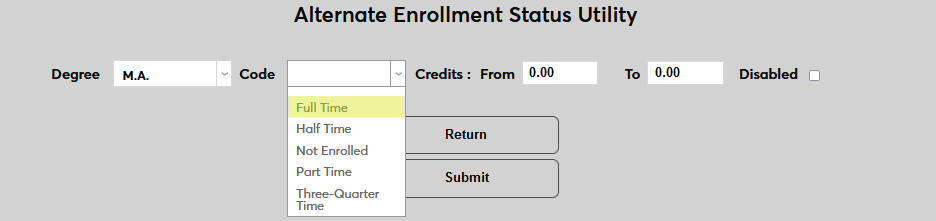
Next, set the From and To credits. Any student enrolled in the selected program whose enrollment falls into this range will have the selected enrollment status.


Click Submit to save the changes and create the alternate enrollment status.

Once alternate enrollment statuses have been created, click on the corresponding Code to make changes or disable the status.
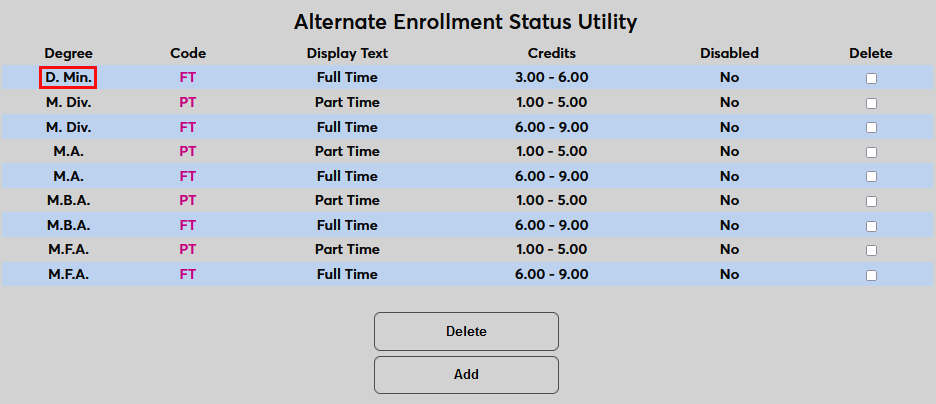
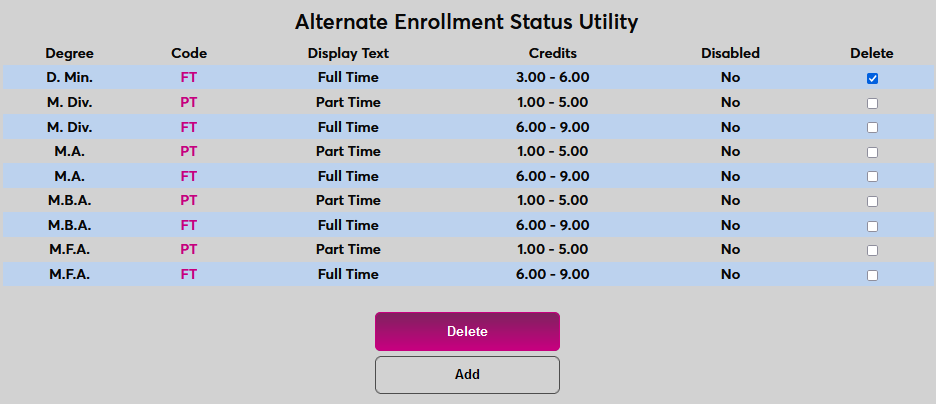
To delete a status that is no longer needed, check the corresponding box in the Delete column and click Delete.