Void Transactions
Overview
The SONIS Void Transactions utility is used to reverse financial transactions. The utility can only be used to void transactions that have not yet been posted to accounting and only voids transactions for individual SONIS users. The Bulk Void utility can be used to void transactions from more than one user at a time.
When voiding awards transactions, the disbursement must be voided before the award can be voided. The Void Awards by Disposition utility can also be used to void awards that have not been disbursed.
Searching
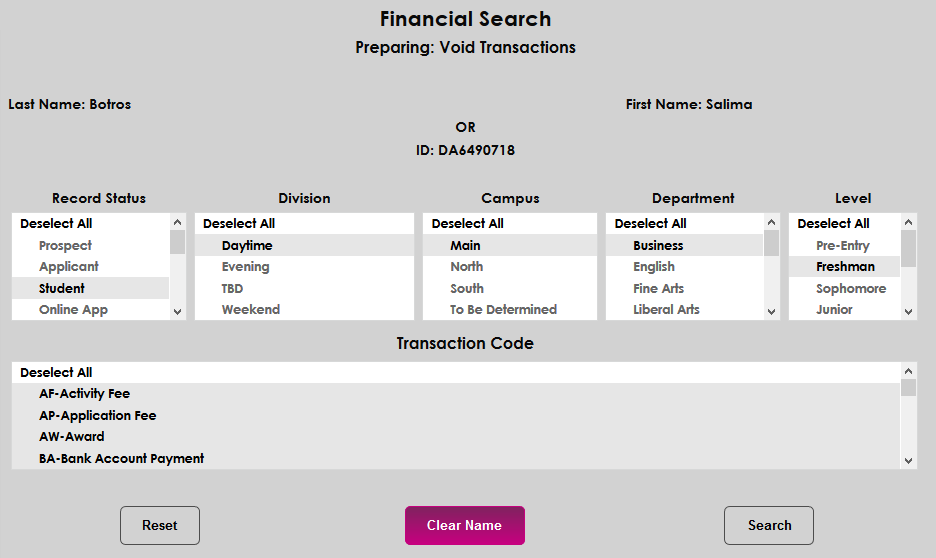
To begin voiding a transaction, navigate to the Void Transactions utility under the Financials menu. If a name has already been selected using the Name Search function, the user's information will appear at the top of the page. Click Search to continue or Clear Name to remove it and search for a different user.
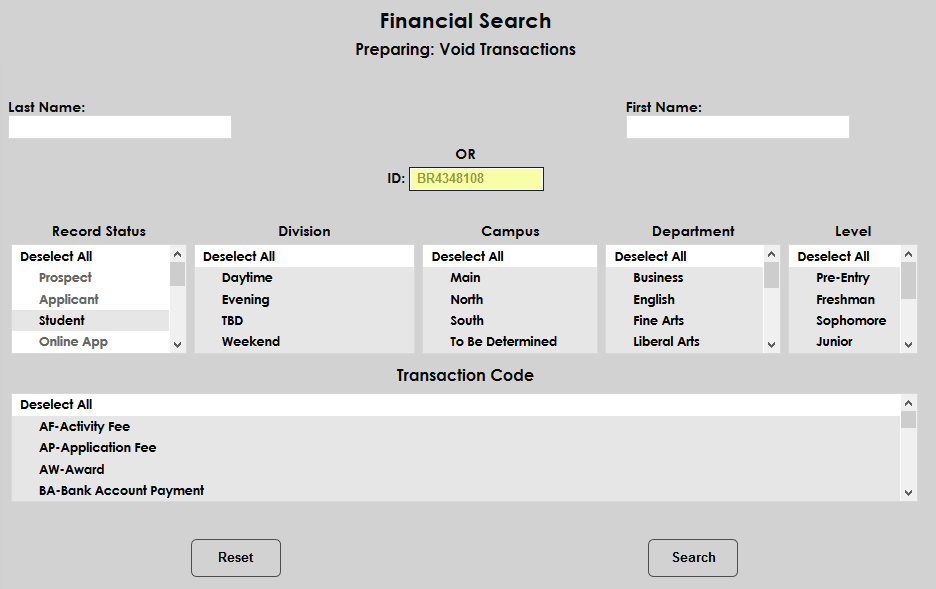
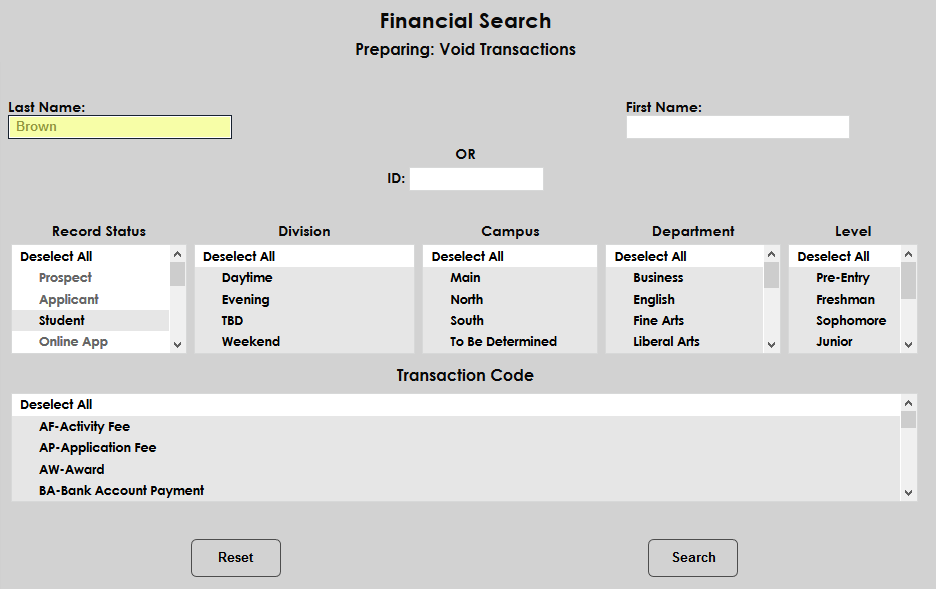
If a name is not selected, enter the user's SONIS ID or a first and/or last name.
The Record Status, Division, Campus, Department, and Level menus can be used to further narrow down the results.
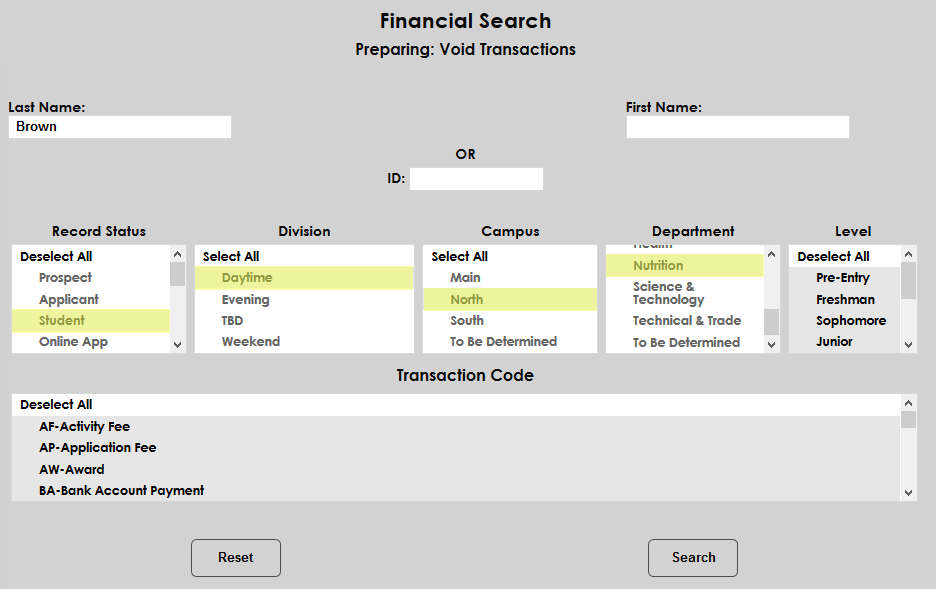
Select a Transaction Code or codes to show only transactions using that code or leave them all selected to show all transactions for the selected student.
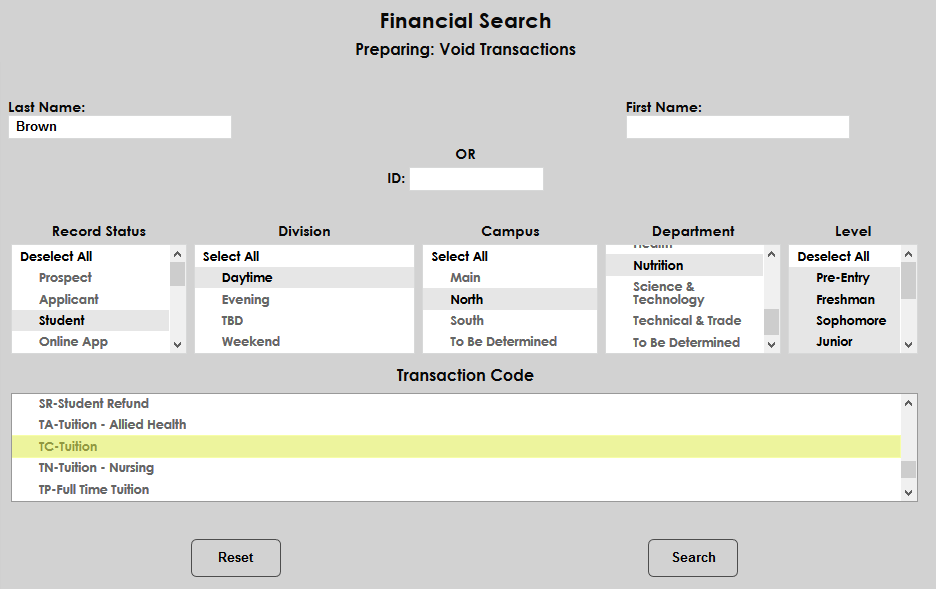
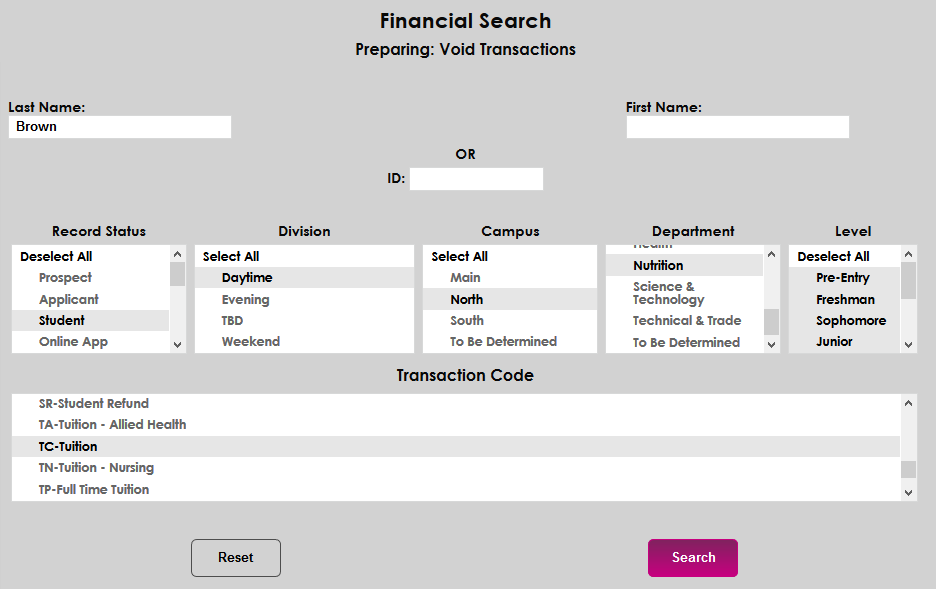
Once the appropriate selection criteria has been selected, click Search to continue.
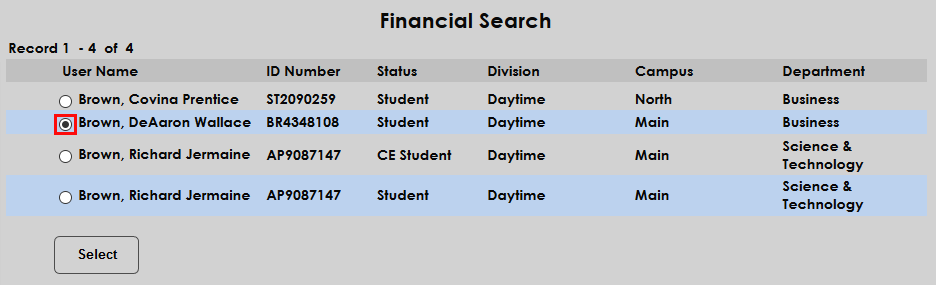
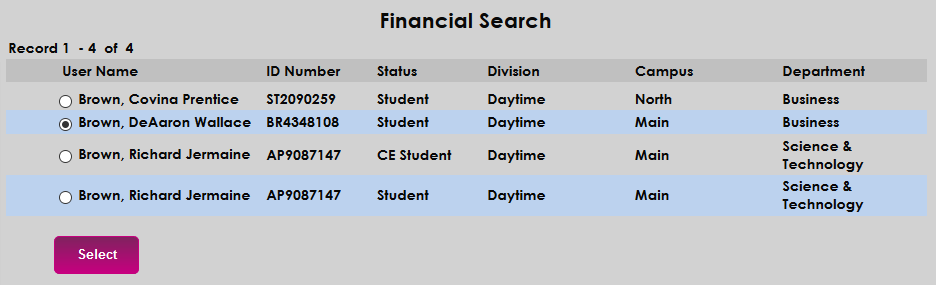
If a name was entered rather than a SONIS ID, the next page will display a list of potential matches. Choose a user by clicking the radio button next to the name and click Select.
Voiding
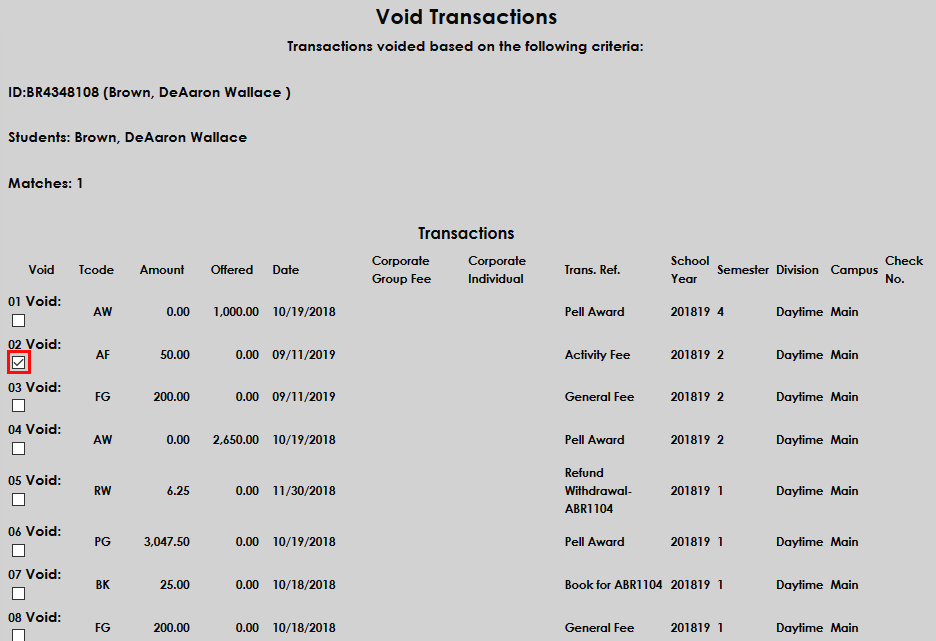
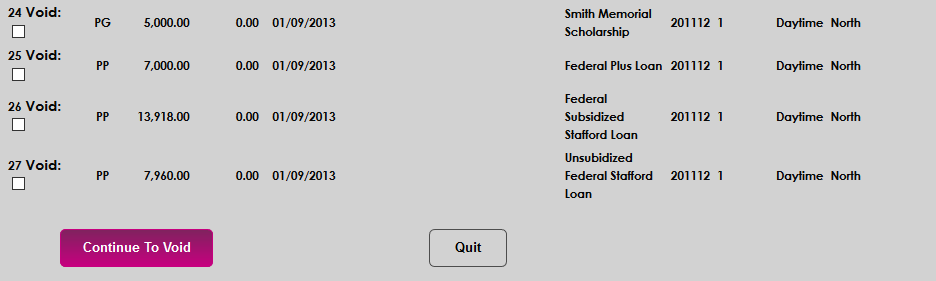
The following page lists all of the user's transactions, most recent first. Check the Void box next to the transaction(s) to be voided and then Continue to Void. As previously mentioned, voiding awards transactions, only voids the disbursement, not the award itself.
A message appears giving the total amount of the transactions being voided and giving the administrator one last chance to cancel. Click Void to complete the void and cancel the transaction.
