Update Bio
Overview
When enabled, the Update Bio page allows students to update their contact information, text preferences, PIN, profile information, ethnicity, and photo. They may also set their directory search preferences.
Settings
Portal Menu Utility
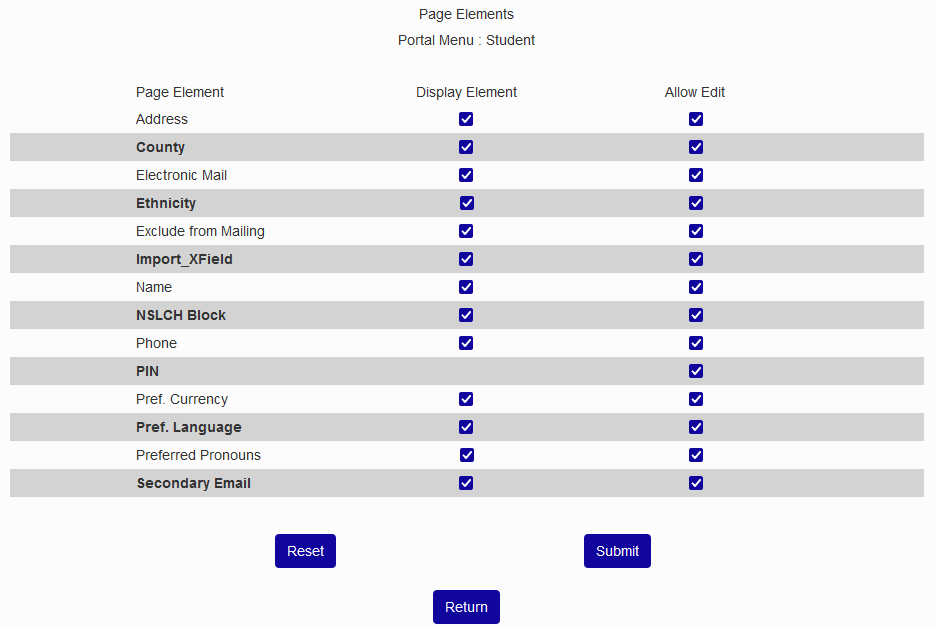
Administrators should use the Portal Menu Utility to set which fields are available on the Update Bio page. Some fields may not be relevant to your school or may be connected to data that you wish to prevent students from updating. Click the Edit button in the Update Bio row to make changes.

Note
The Preferred Pronouns and Gender Idenity options need to be turned on in Web Options before they're availabe in the Portal Menu Utility.
Web Options
If the Allow Direct Biographic Information Updates box is checked for this portal in Web Options, any changes that a user makes will immediately change their Users hub records. If the box is unchecked, an administrator must approve all updates in Import Functions before changes are made.

Updating Information
Any updates made here will be made in the corresponding Biographic and Address records within the Jenzabar SONIS administrative system. The student's Last, First, and Middle names display in the upper left corner of the page. Many schools may choose not to make these values editable.
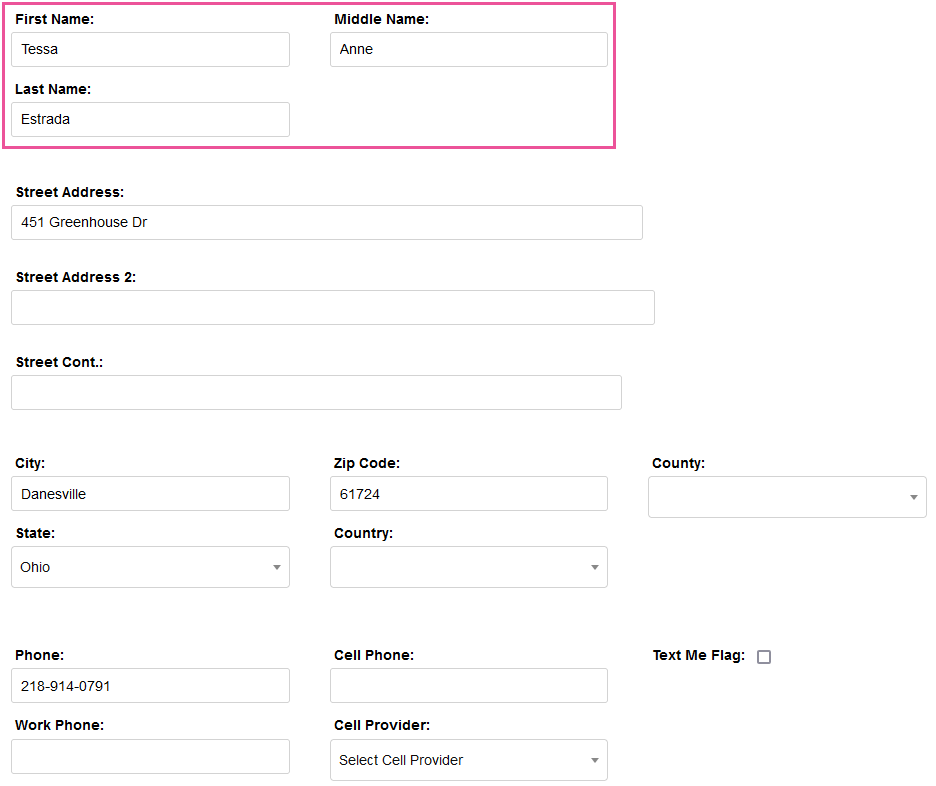
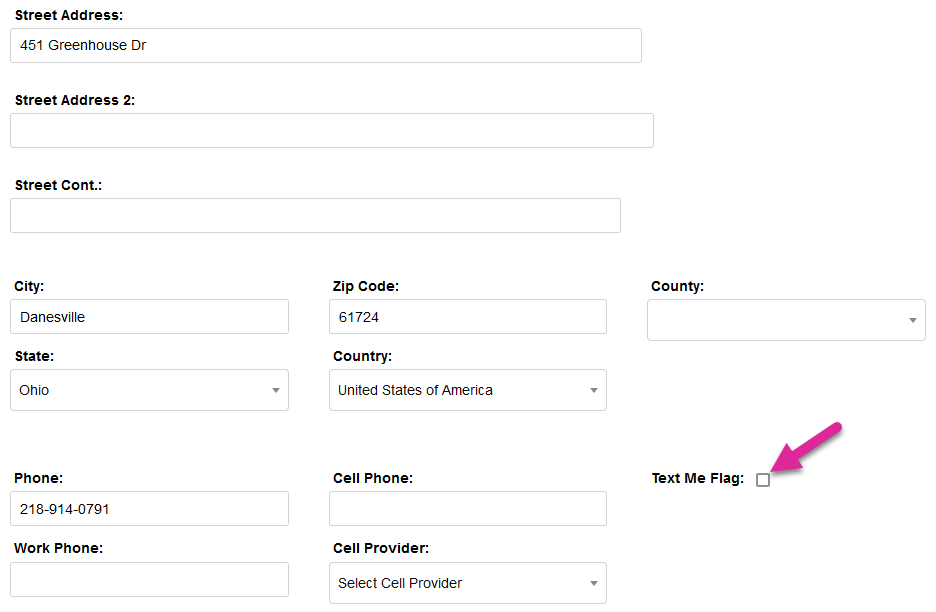
The next section contains contact information. There are three optional fields for street address, allowing space for apartment numbers and other additional address components. The County field may not be used by some schools. Clicking the Text Me Flag box indicates consent to receive text messages at the provided Cell Phone number.
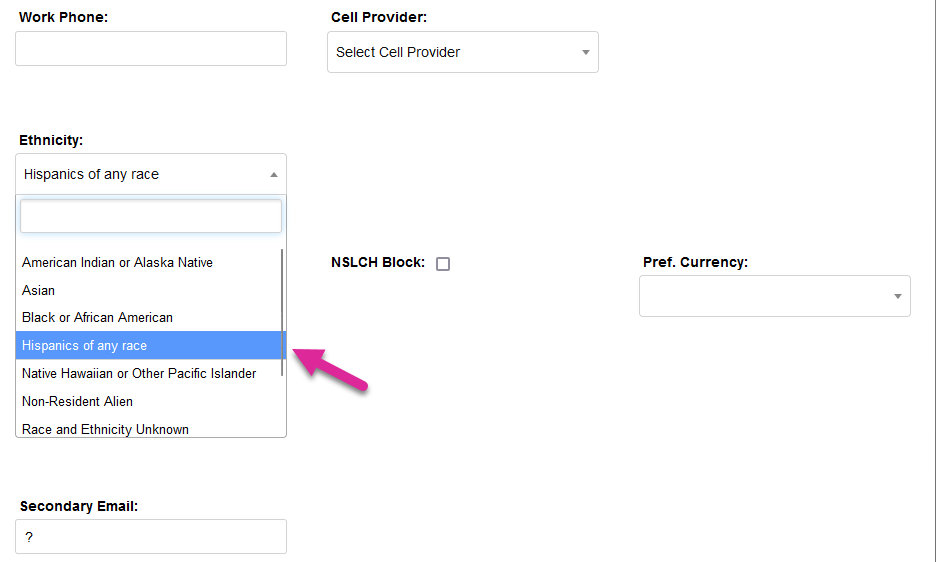
Note that the Ethnicity field is needed for federal reporting in the U.S. Students should always select the ethnicity that best describes them when the field is active on this page.
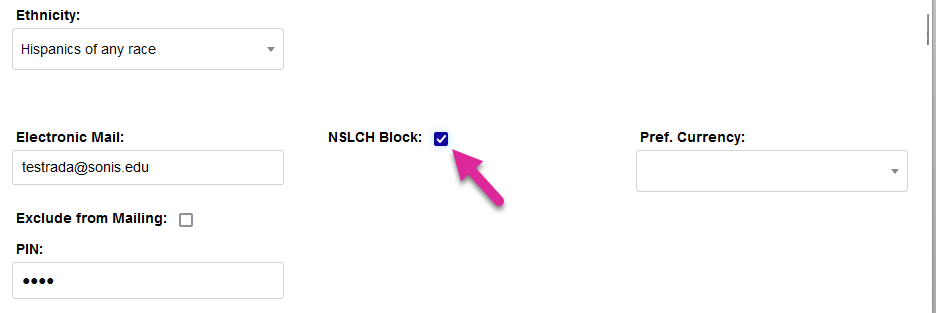
Clicking the NSLCH Block excludes the student's name and attendance dates from being included in the Clearinghouse Directory. As with other areas on this page, making an update requires the Submit button be clicked for the update to be recorded.
Administrators, see Text Processes and Clearinghouse for more information on these processes.
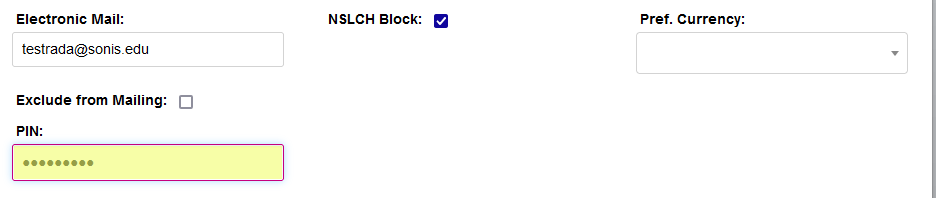
Users have the option to change their PIN. To do so, click in the PIN field, enter a PIN that meets institutional requirements, and click Submit. If the PIN requirements and/or length are not met, a warning message displays.
Administrators, see Password & PIN Utility for more information on PIN codes.
The Profile field allows students to write and maintain a short biography of themselves. This profile is displayed to instructors and on the Biographic page in the SONIS administrative portal, and if Publish Profile is checked, it can be viewed by others at the institution in the portals. To create a profile, click in the box and enter the desired information. Click Submit to save the entered information.
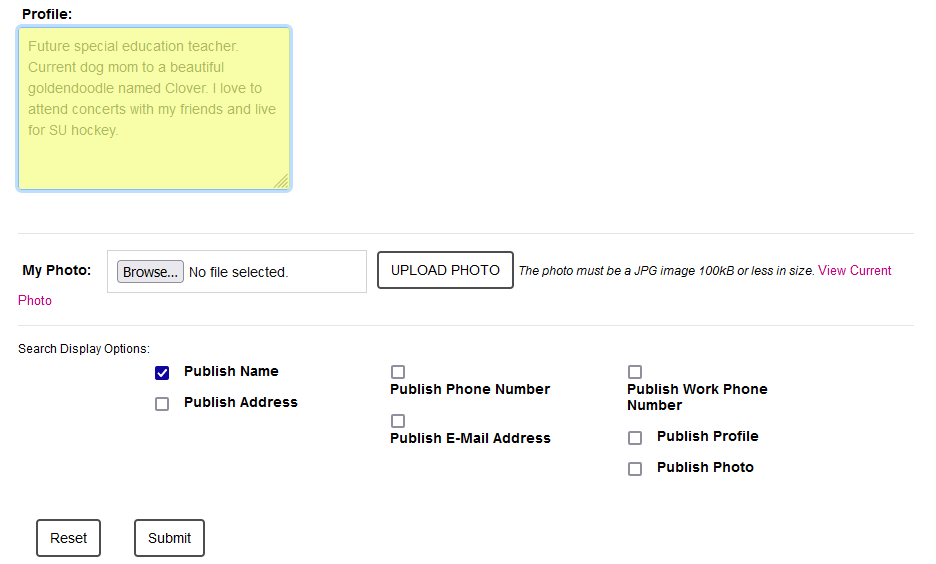
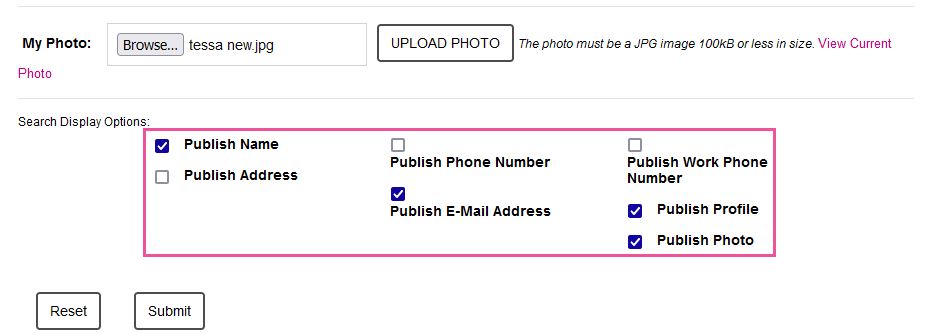
The My Photo section allows users to upload their own photo. The photo must be a .jpg image of 100KB or less in size. If the user is not sure what their current photo is, or would like to confirm the new photo updated, the View Current Photo can be clicked to view the current photo.
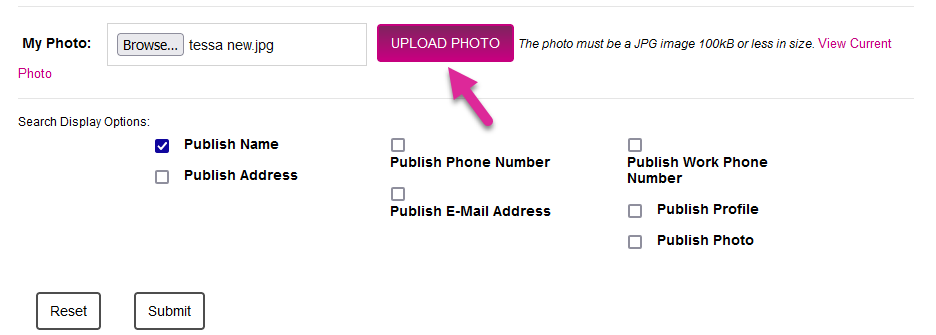
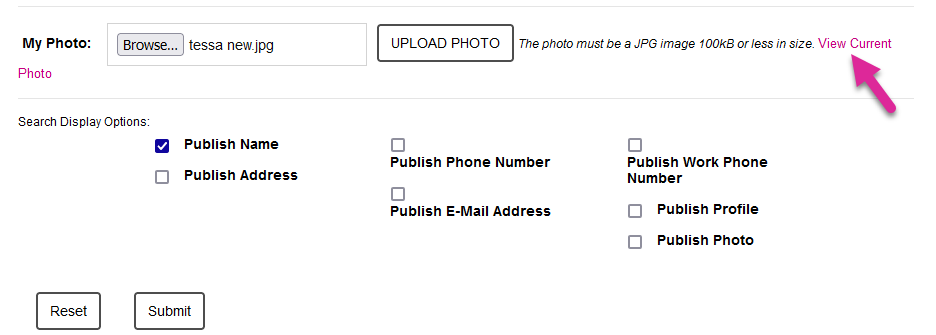
The last section of the page provides the user the opportunity to determine which information will be available to others who are conducting searches within portals other than the administrative portal. For example, if a student or instructor is searching for someone's name and phone number, but the user did not select Publish Phone Number, the phone number will not be displayed in the search results. The publishing options are:
Publish Name - checking this box allows the user's full name to be found in searches.
Publish Address - checking this box allows the user's full address to display in searches and course rosters.
Publish Phone Number - checking this box allows the user's phone number to display in searches and course rosters.
Publish E-Mail Address - checking this box allows the user's email address to display in searches and course rosters.
Publish Work Phone Number - checking this box allows the user's work phone number to display in searches and course rosters.
Publish Profile - checking this box allows the user's profile to display in searches and course rosters.
Publish Photo - checking this box allows the user's photo to display searches and course rosters.