Texting Provider Accounts
Overview
The Texting: Provider Accounts utility is used to set up the Jenzabar SONIS integration with external texting applications. Two external clients are available, Everbridge and Twilio. Everbridge is typically used only for emergency texting while Twilio can be used for a wider variety of messages. Once one of these clients has been set up, one of them must be selected as the process to be used in SONIS via the Text Processes utility. After activation, administrators can text groups of users through the Bulk External Texting utility. Additionally, faculty can use the provider to text their students from the Email/Text Class page in the Faculty portal and all text-based Notification Assignments will use the application.
Setup
Everbridge
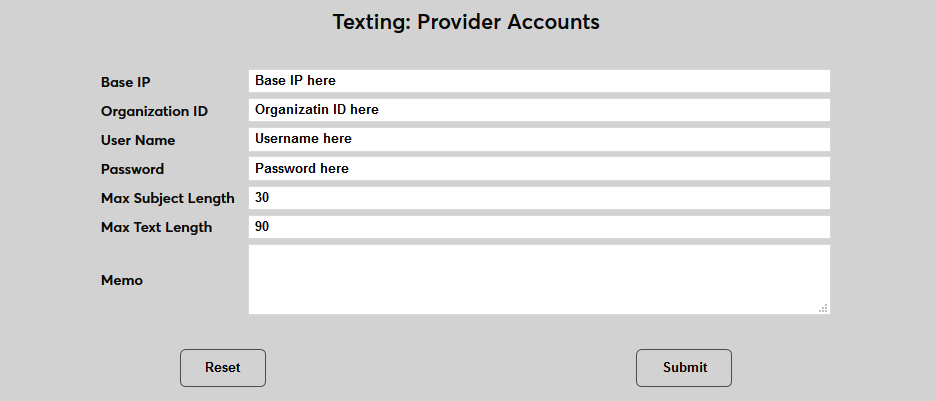
To set up Everbridge, navigate to the Texting: Provider Accounts utility and select Everbridge from the dropdown menu. Click Submit to continue.


The information to fill in the Base IP , Organization ID , User Name , and Password fields comes from Everbridge and will vary by account. The Max Subject Length and Max Text Length fields are used to set the maximum length of texts sent through Everbridge. A Memo field is included for any additional notes that may need to be stored on the page for later access.
Twilio
To link Twilio and SONIS, navigate to the Texting: Provider Accounts utility. Select Twilio and click Submit to begin.


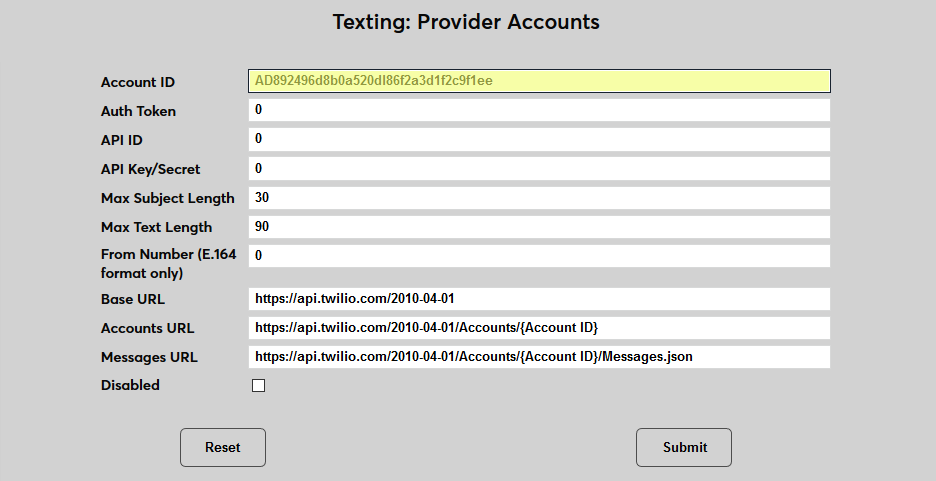
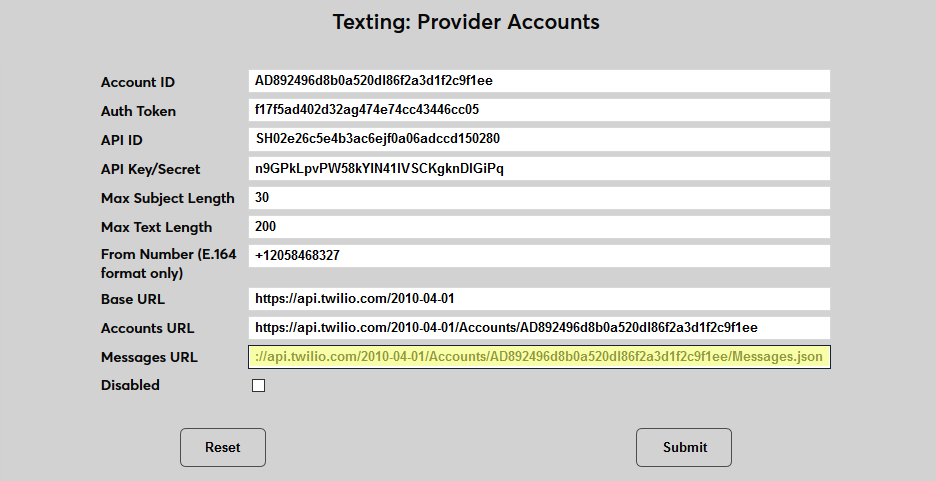
The Account ID is listed as the Account SID in Twilio. Copy the ID from the Twilio Dashboard and paste it into the field.
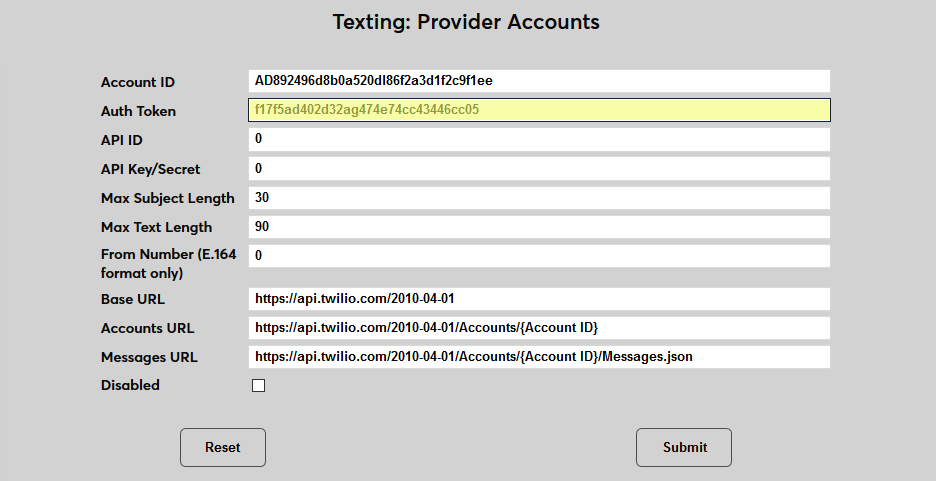
The Auth Token is also displayed on the Twilio Dashboard. Copy and paste the value into the Auth Token field.
The API ID is the API SID that's created by Twilio when creating the SONIS API. This value is stored in Twilio in the API Keys tab under the Settings menu.
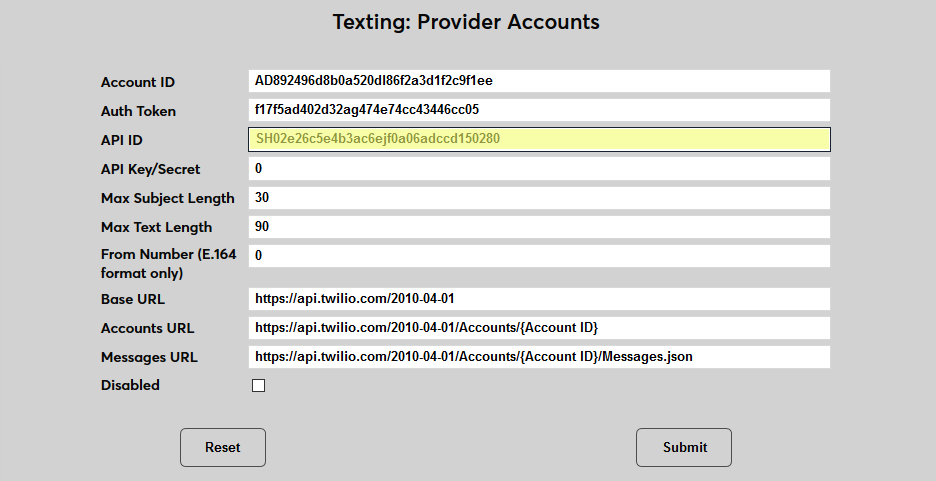
The API Key/Secret is the value displayed by Twilio as the Secret when the SONIS API is created. Twilio will not display this value again once it's been shown the first time. If the value is lost, a new API must be created, which would also create a new API ID.
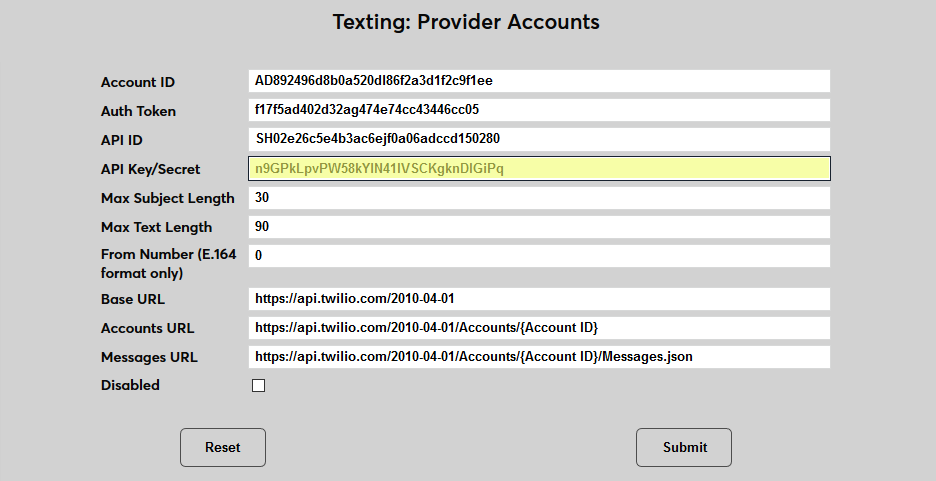
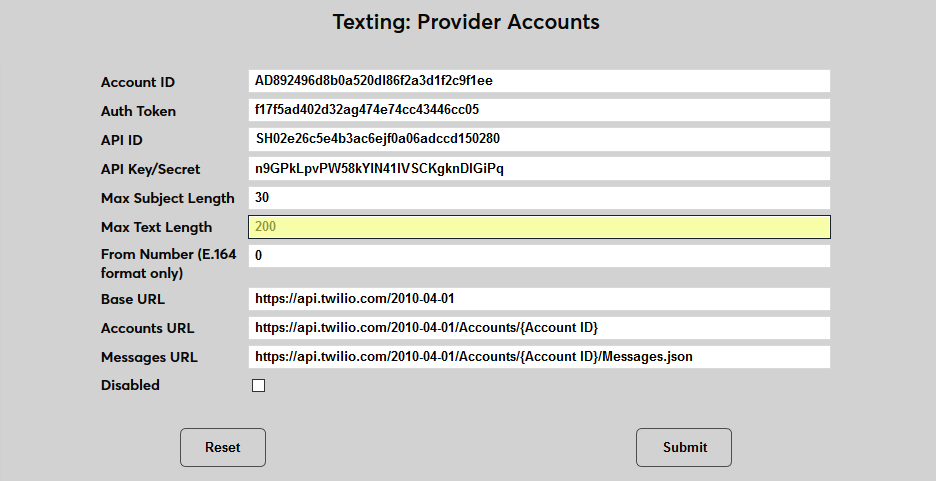
The Max Subject Length field is not currently being used and can be left unaltered. The Max Text Length field determines the maximum number of characters allowed in a text being sent. The highest value that can be set is 1,600, which is the limit that Twilio sets for all texts sent through their network.
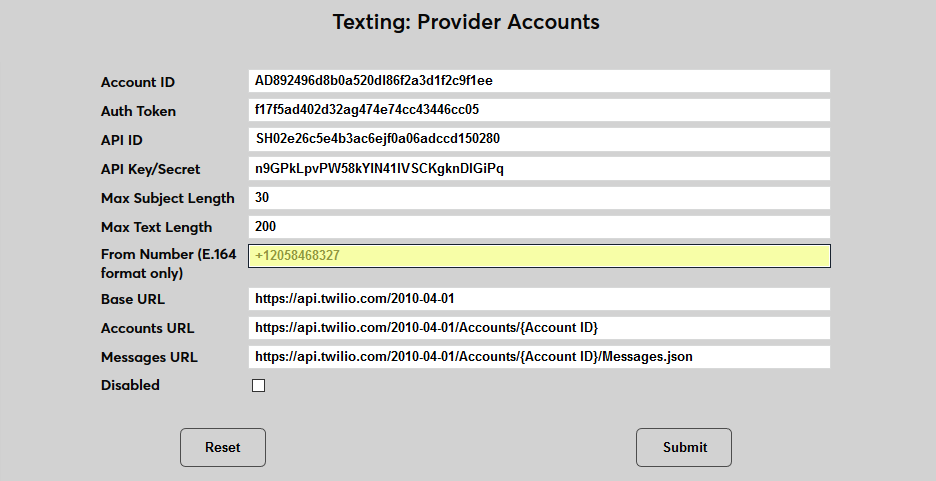
Enter the Twilio number being used in the From Number field. This number must be in E.164 format, which means that a + and the country code must be appended to the front of the number. For more on E.164 formatting, visit the Twilio page on Formatting International Phone Numbers .
The Base URL is provided by SONIS and should not be altered. The Accounts URL and the Messages URL are both partially supplied. Replace the {Account ID} with the actual Account ID in each field.
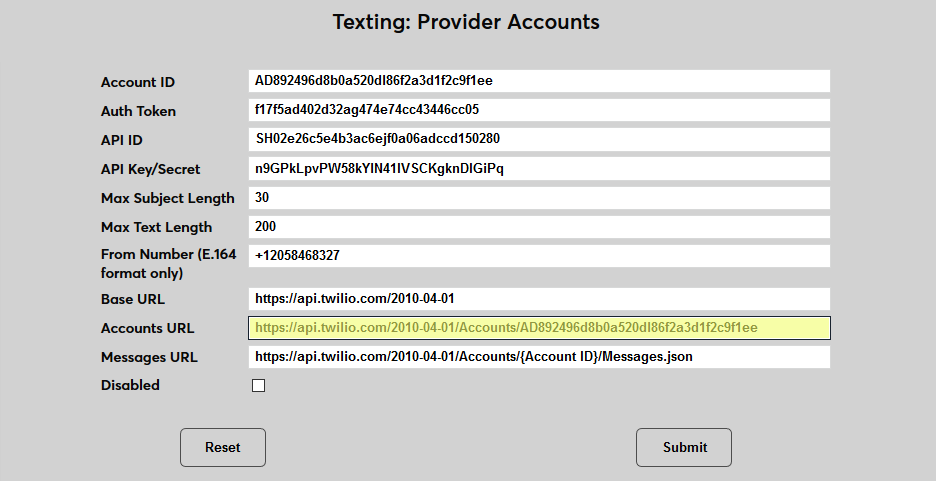
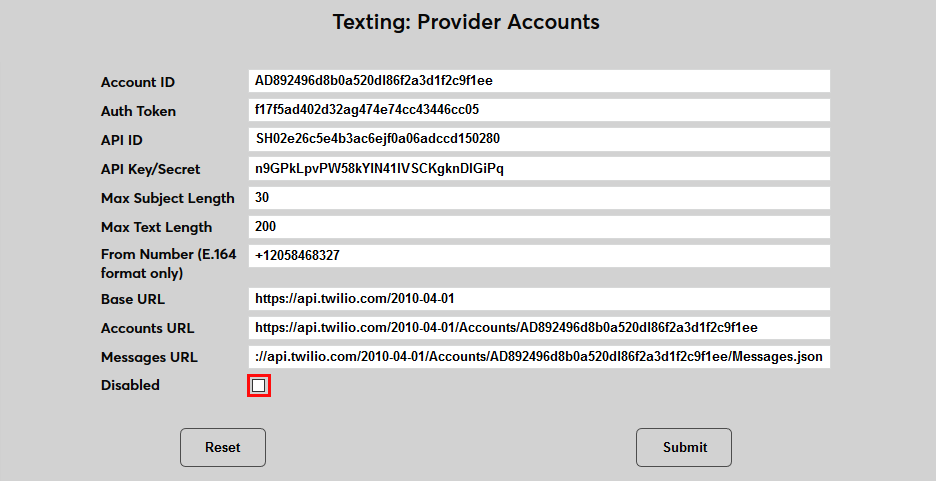
A Disabled checkbox is included to turn off access to the account. Click Submit to save the changes.
For more on external setup and where to locate the data to populate the fields, visit the Twilio Integration wiki page.