Status Bar and Breadcrumbs
Overview
As part of the SONIS 2023 redesign, cleaner breadcrumbs and a clearer status bar were added. The status bar and breadcrumbs will allow users to review in-use data and improve workflow efficiency.
Status Bar
The status bar displays at the top of the page, below the Logo, QuickSearch, and User Card. On the left side, details about the most recently accessed user display. On the right side, details about the most recently accessed course or section are displayed.
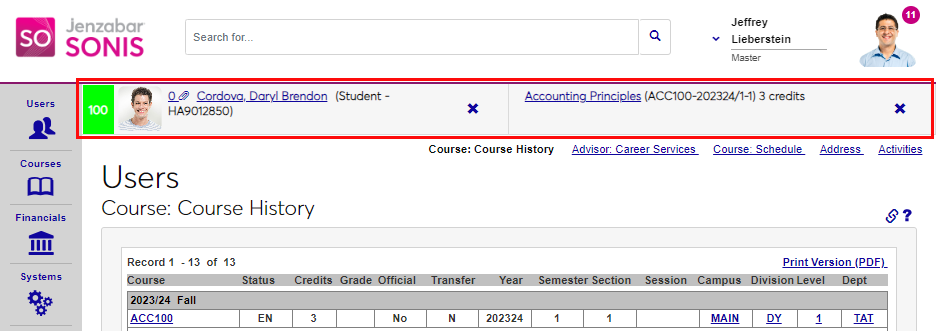
User Display
For the user side, the following information will display, if enabled.
• At-Risk Alert: The current At-Risk score for the user.
• Photo: The current photo for the user, as maintained on the Biographic page.
• Documents: If Documents are enabled and setup, all documents uploaded for the current user display as number sum next to a paperclip. Clicking the number displays the user's documents in a pop-up window.
• Name: The user's name, as maintained on the Biographic page displays. Clicking the name loads the Biographic page.
• Module Status: The module status of the user displays between the user's name and ID.
• SONIS ID: The identification number assigned to the user within SONIS.
• Status Indication: If status indications are in use, the status for the user displays.
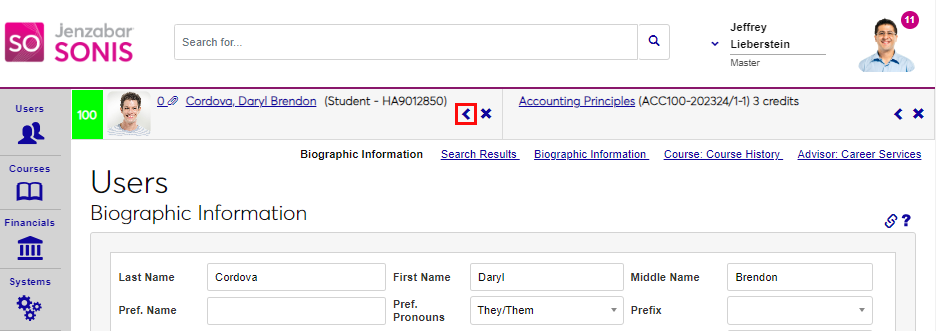
If the administrator used the search to locate a user, and that user is displaying in the status bar, the administrator can quickly go back to the Search Results page by clicking the arrow icon. The user can be removed from the status bar by clicking the X icon.
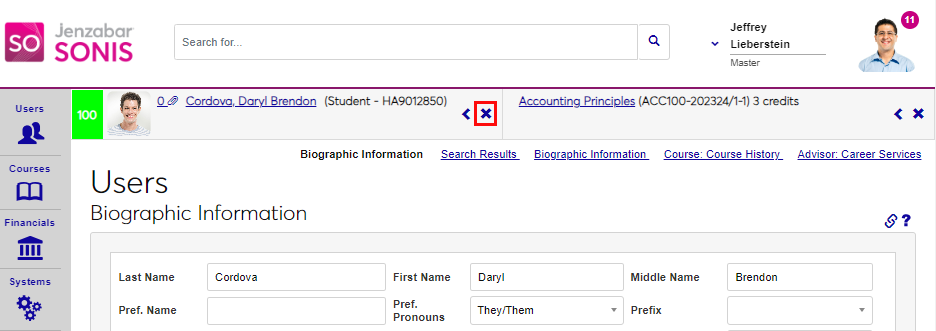
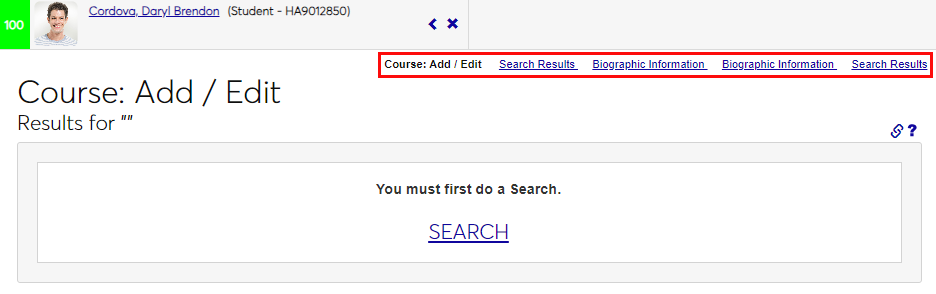
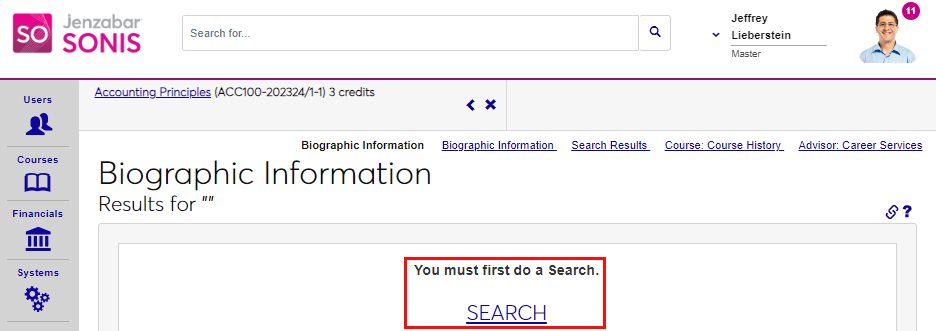
Removing the user will cause a page to reload. This may cause some pages that require a user be selected to display a message that a search must be performed before proceeding.
Course & Section Display
The course & section area displays the following information, if enabled.
• Documents: A link to all documents uploaded for the chosen Course or Section. Document Management must be enabled and set up for the corresponding page area.
• Description: The full title of the Course or Section.
• Course Code: The code or short description of the chosen course.
• School Year: The school year displays when a section has been selected.
• Semester: The semester displays when a section has been selected.
• Section: The section information displays when a section has been selected.
• Credits: The number of credits associated with the course.
• Status Indications: If a Cancelled section was selected, Status Cancelled displays.
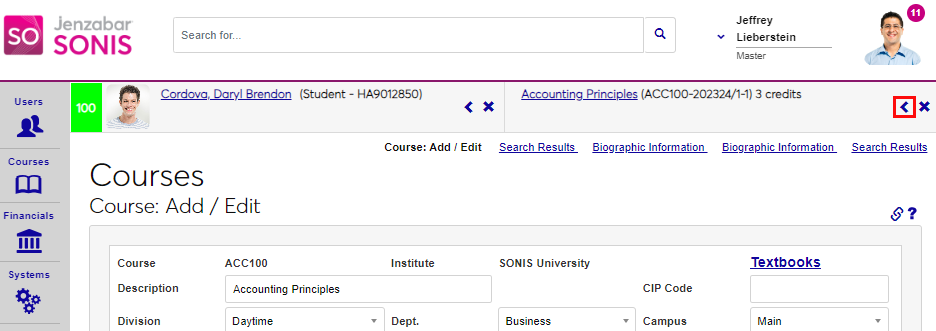
The left arrow icon can be used to quickly return to Search Results if the search was used to select the course. The X can be used to remove the course from the status bar.
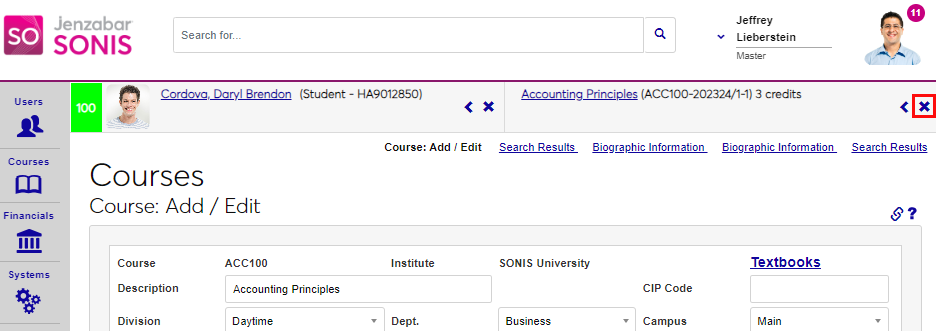
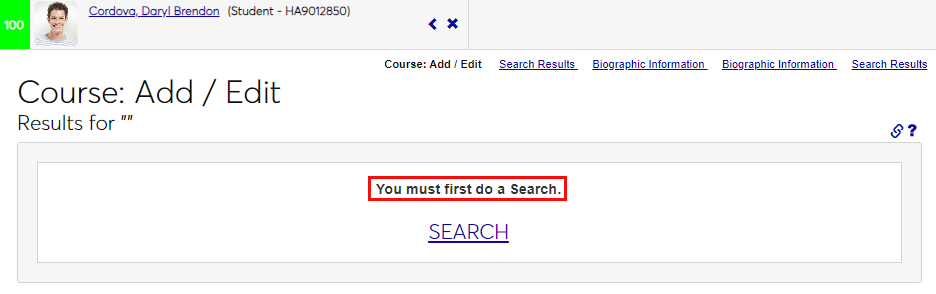
Removing a course or section from the status bar causes the page to reload and a message indicating that a search must be performed may display.
Breadcrumbs
The Breadcrumbs have had a slight visual change. The colors and boxing around the links were removed. The functionality of breadcrumbs remain the same. Details on enabling and using breadcrumbs are available #breadcrumbs-520159here.
Breadcrumbs look like this, after the redesign.