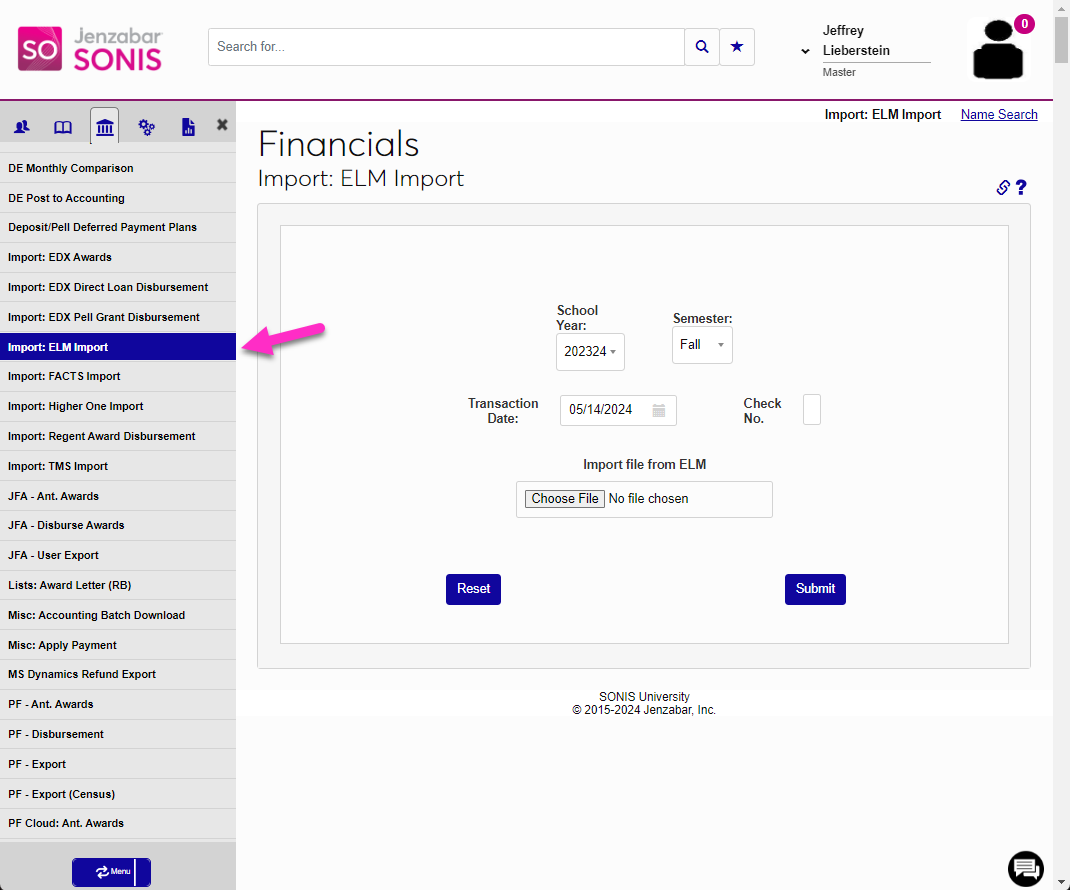
2024 Hub Area Display Options
Overview
In the 2024 release, an option was added that when toggled, allows the hub area navigation menu to remain pinned. After choosing to display the menu in this way, the list of page links will always display categorized in hubs. Clicking a hub icon allows the menu, or list of pages, for the hub to display.
Toggling the Display
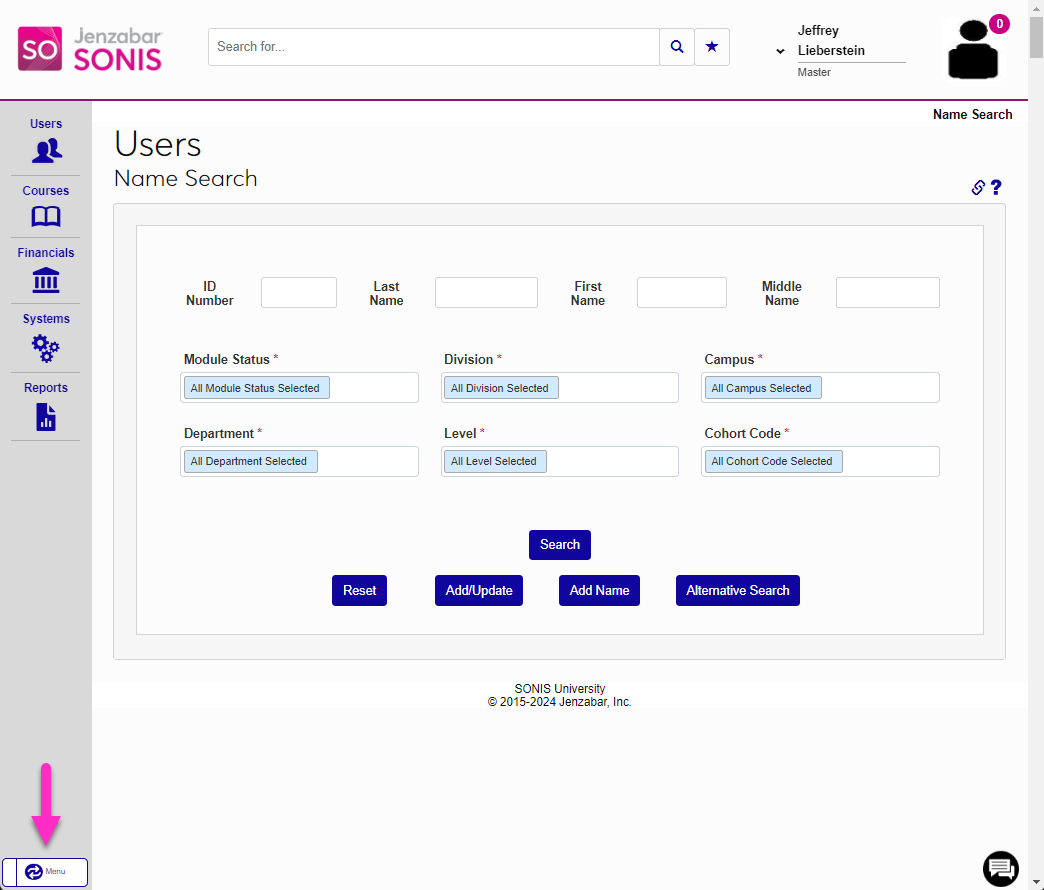
At the bottom of the left menu, a toggle button labeled Menu has been added. Click this button to change the default display for the logged in administrator. Changing the display does not change the display for other SONIS administrators.
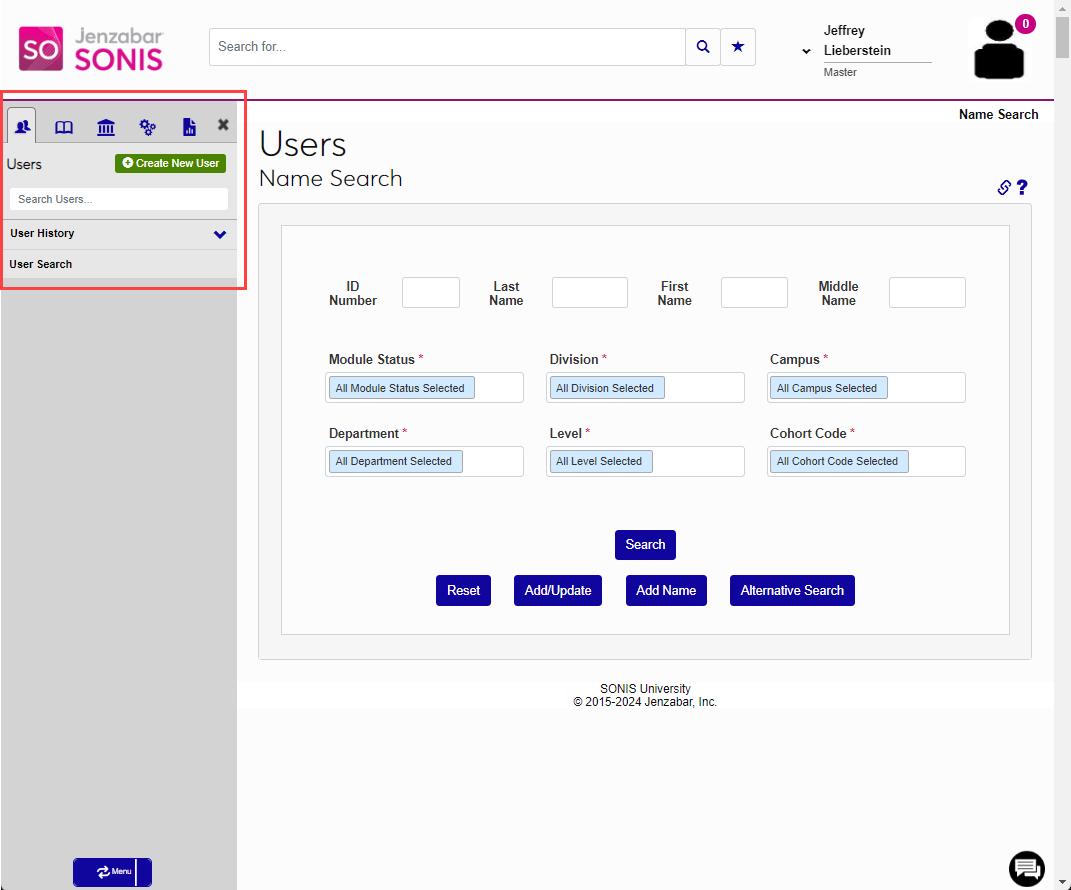
Using the Menu
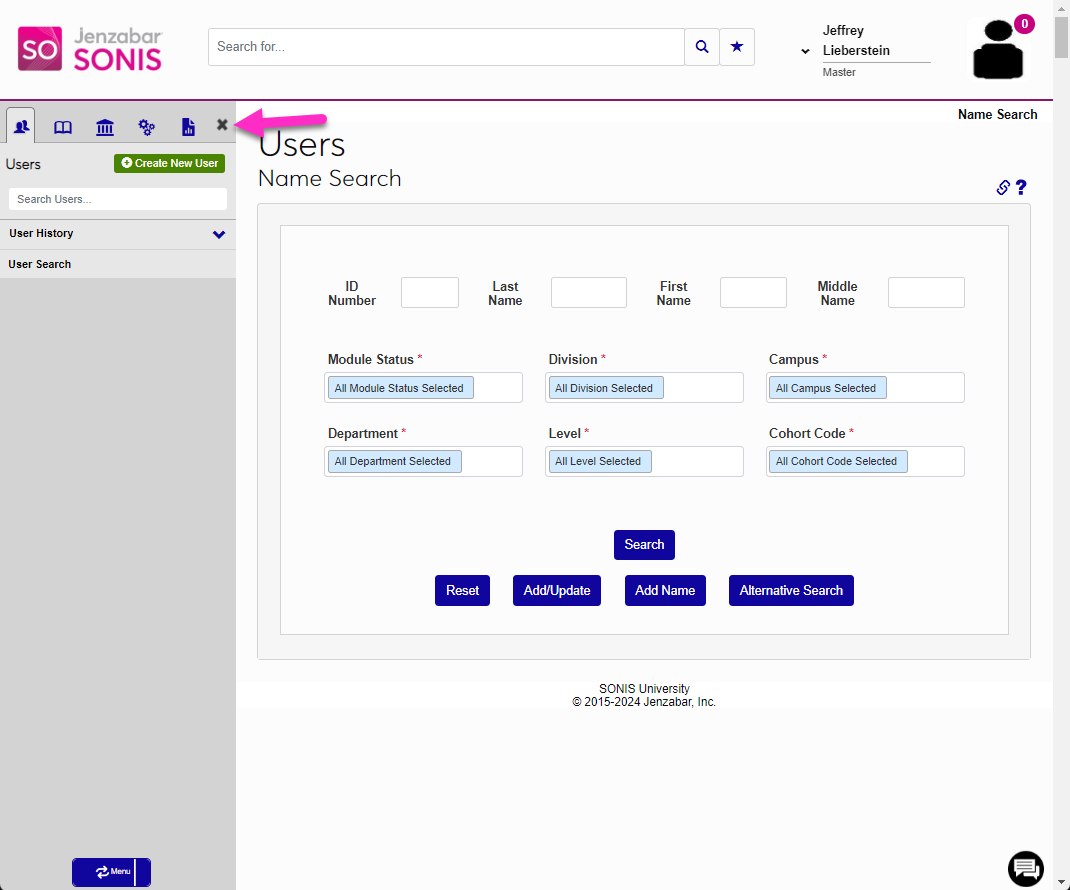
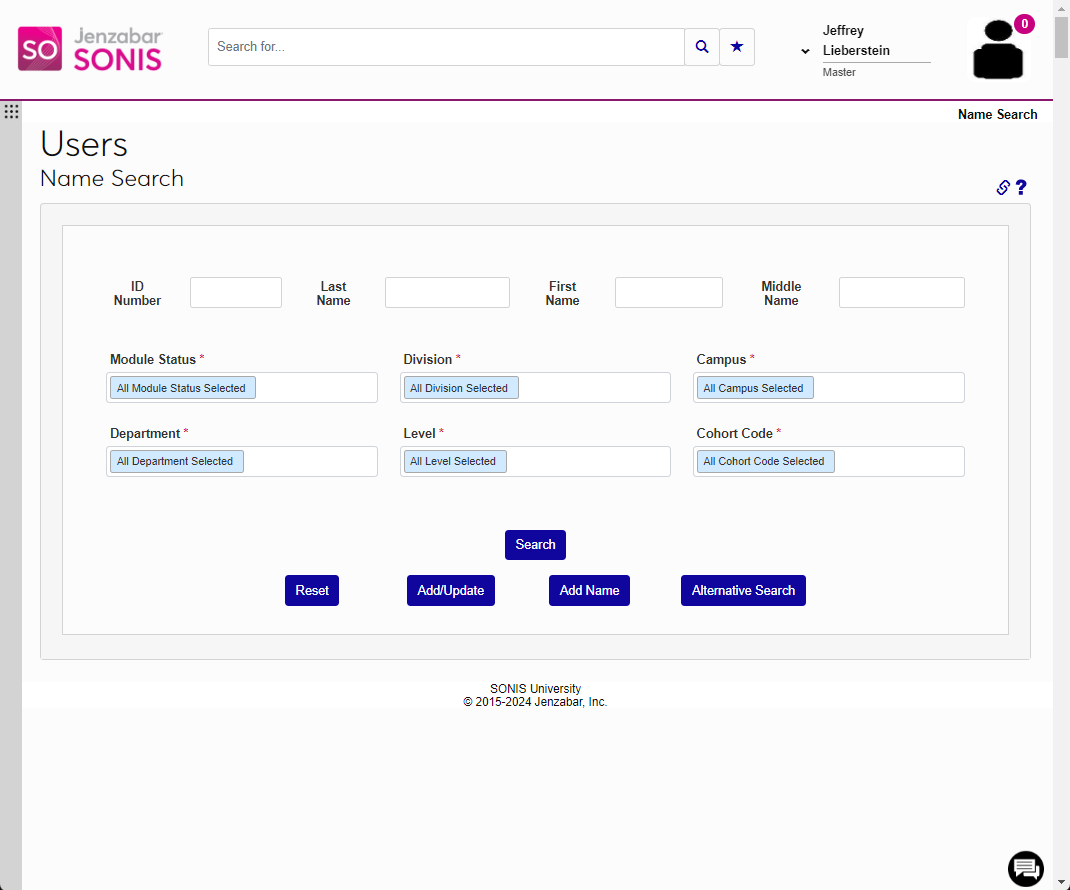
After changing the display, the hubs display as icons across the top of the menu area. Clicking a hub icon opens the list of pages for that hub. The list of pages displayed is controlled by User Security. Clicking the X collapses the menu to the left. Click any part of the menu ribbon to expand it.
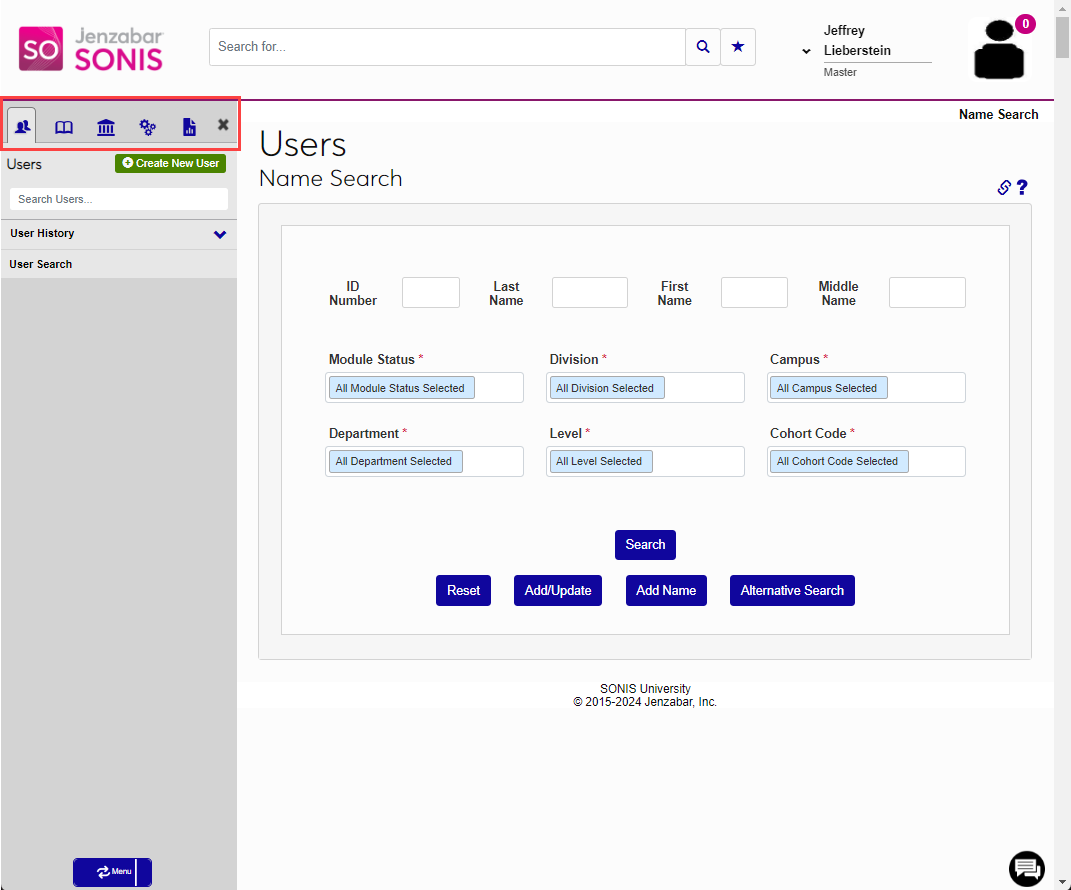
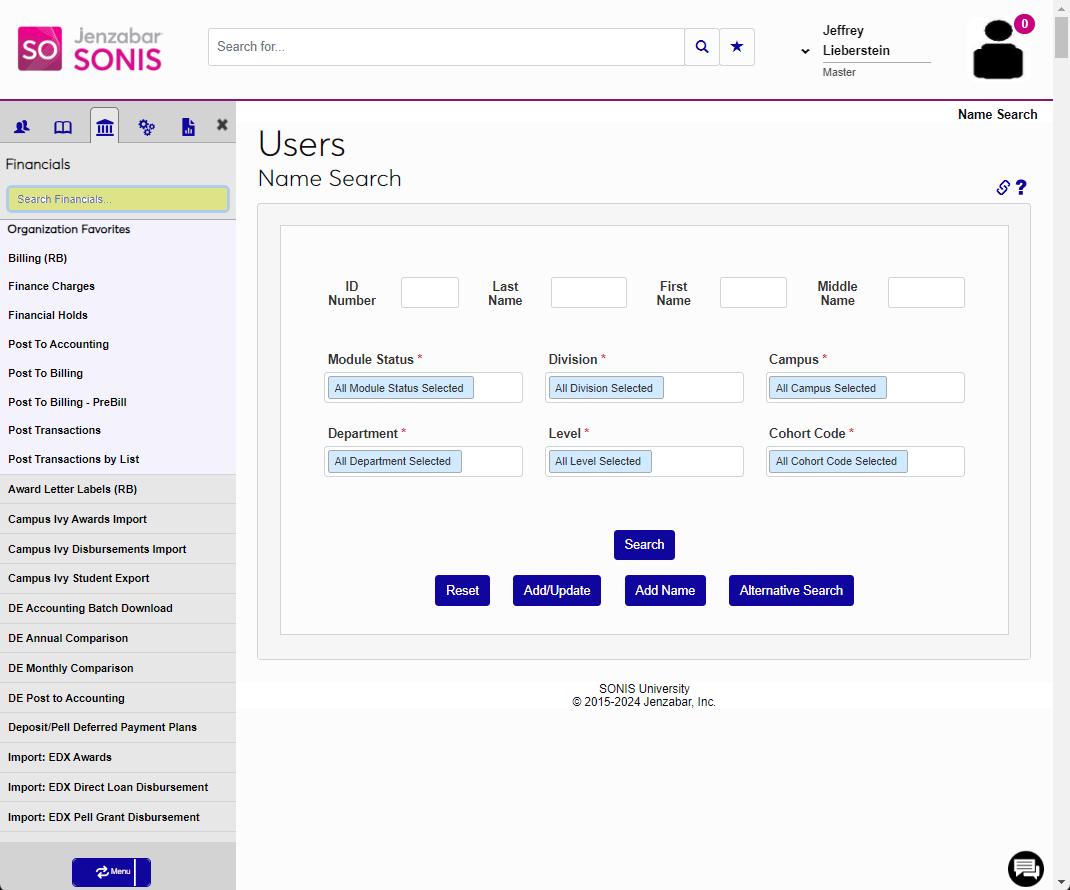
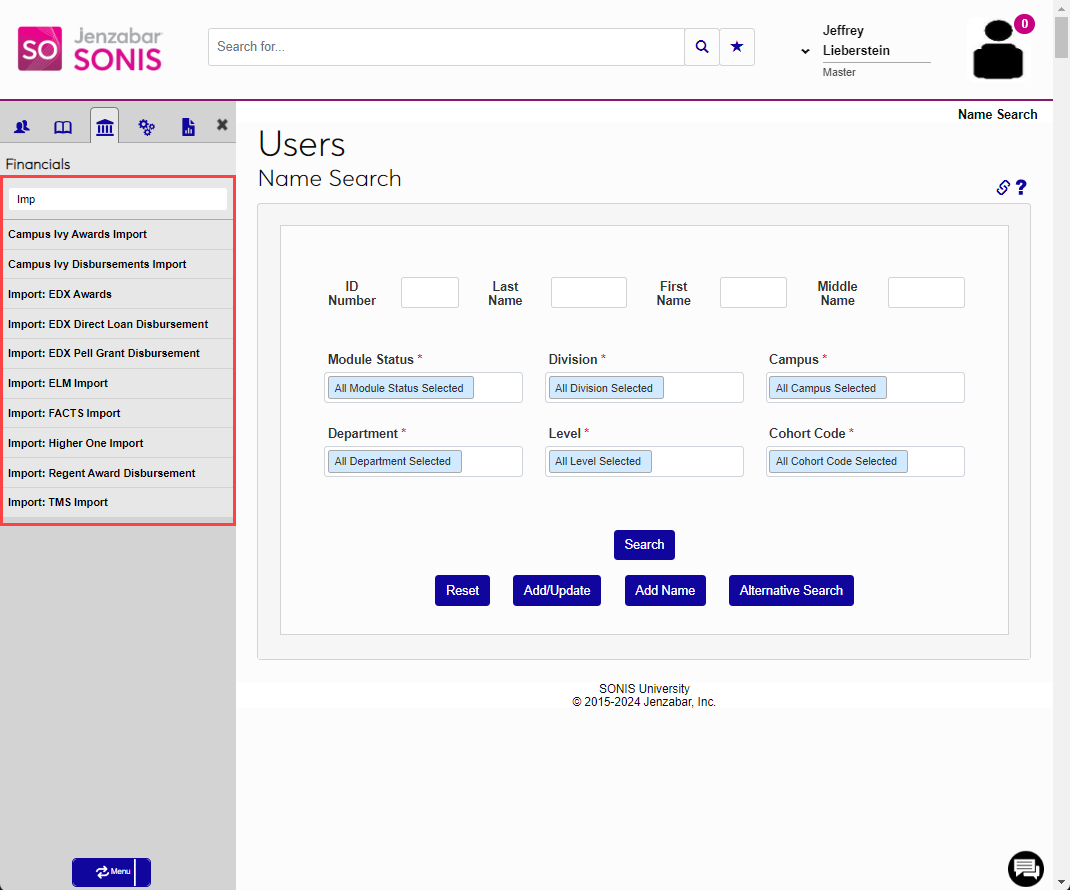
To search for a page within a hub, click in the Search box and enter the page title. The search is responsive and the menu will display results that meet each entered character.
When a page is selected, the link will be highlighted to show this is the currently selected page.