Disposition
Overview
During a student's academic career, they may go through a variety of processing stages or milestones. In Jenzabar SONIS these are called dispositions. A record of a student's dispositions display on the Disposition page, in the Users hub. The activities associated with specific stages and processes may be assigned and managed using Dispositions, Checklist: Work Tasks, or Work Tasks Assign.
For detailed information on how dispositions are created, managed, and assigned, for applicants, visit Dispositions for Applicants.
Use
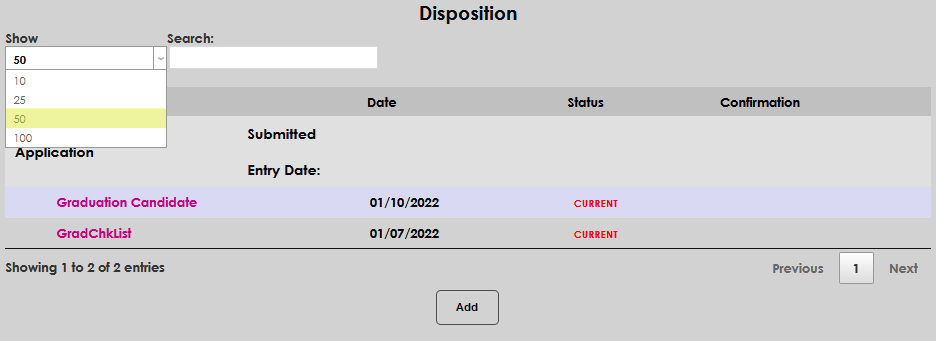
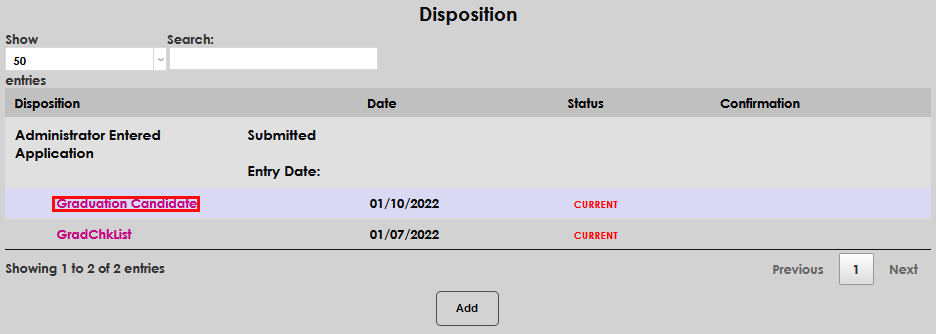
From the student's Users menu, navigate to the Disposition page. Up to 25 work tasks and dispositions will display automatically. If more exist and should be displayed, click the Show dropdown and select the desired number. After clicking the number, the additional records will display, if appropriate to the circumstances.
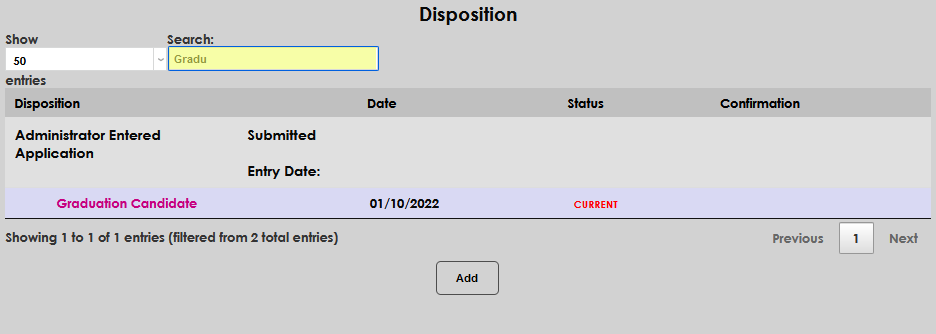
If there are large number of entries, the user can use the Search function to efficiently identify the needed disposition. The search will begin filtering as soon as a letter is typed in the search field. In this example, the user has searched for "Gradu" so the only returned value is the Graduation Checklist, as the addition of the "u" filtered out GradChkList.
To view or manage a work task, click the name of it.
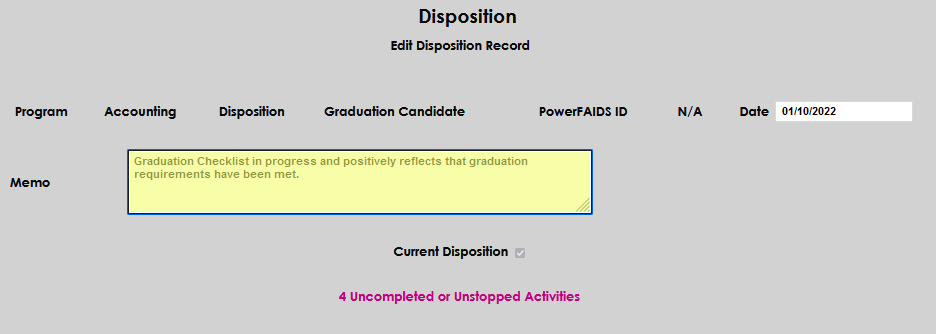
The display page offers a summary of data about the student and their academic career. A Memo field is provided to record any notes or pertinent information.
A link is provided to view activities associated with the work task being viewed.
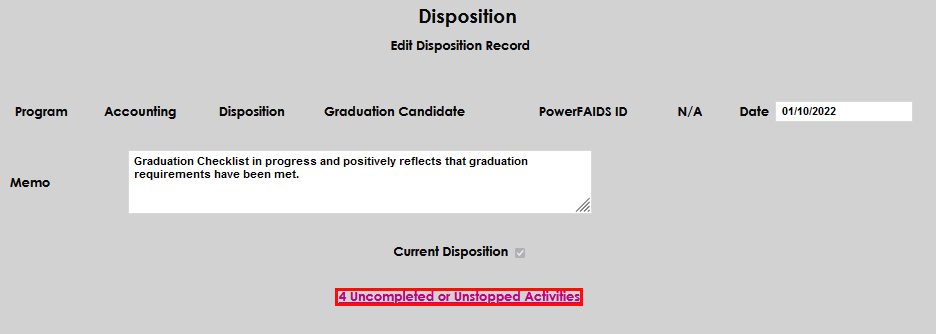
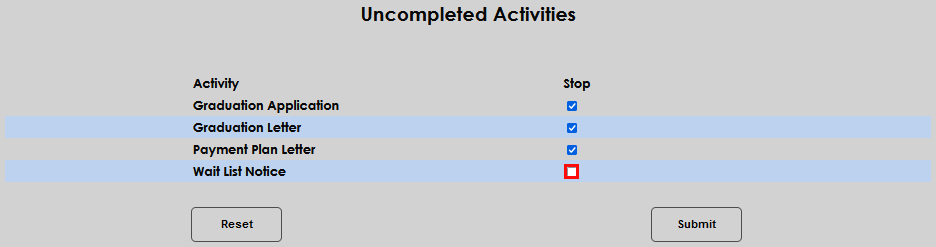
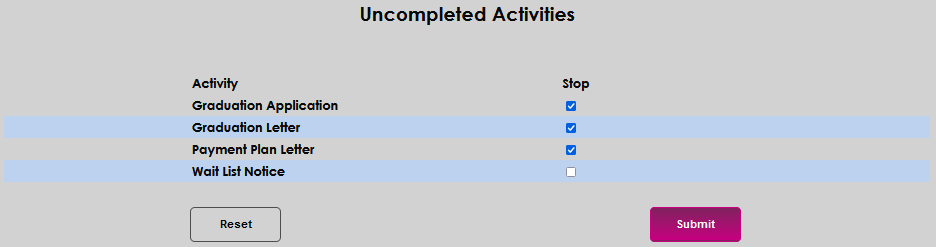
Upon clicking the link, the user is taken to a page with the incomplete activities listed. To stop an activity, uncheck the box, and click Submit.