Employment
Overview
The Employment utility is a Jenzabar SONIS function that allows schools to track student employment. It's primarily used for on-campus employment for current students and post-graduation job placement for alumni. Schools can track employment dates, salary, and other particulars.
Creating Employment Record
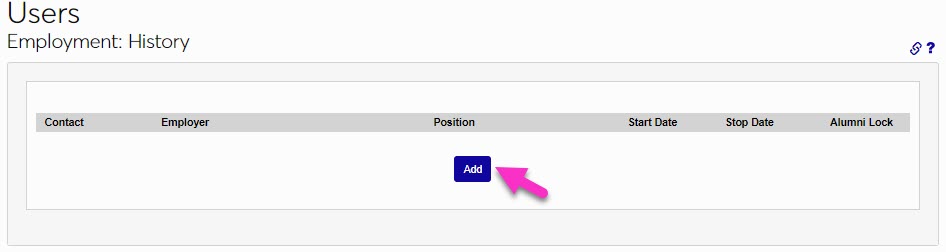
To create a new employment record for a student, navigate to Employment in the Users hub with the student selected and click Add to begin the process.
Select From List
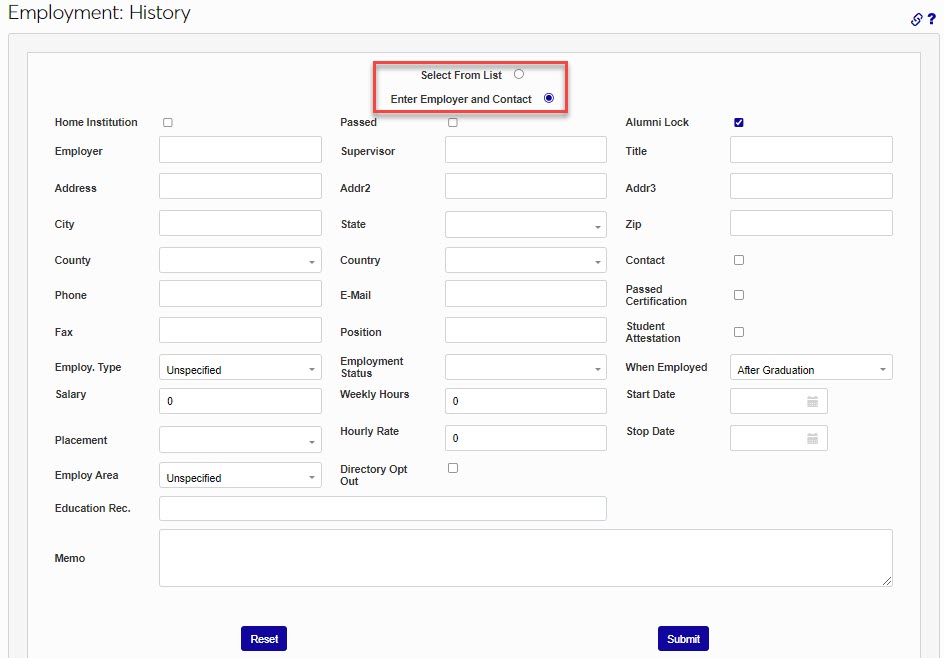
At the top of the ADD page, users have the option to Select From List if the employer has already been added to the system or Enter Employer and Contact to add a new employer.
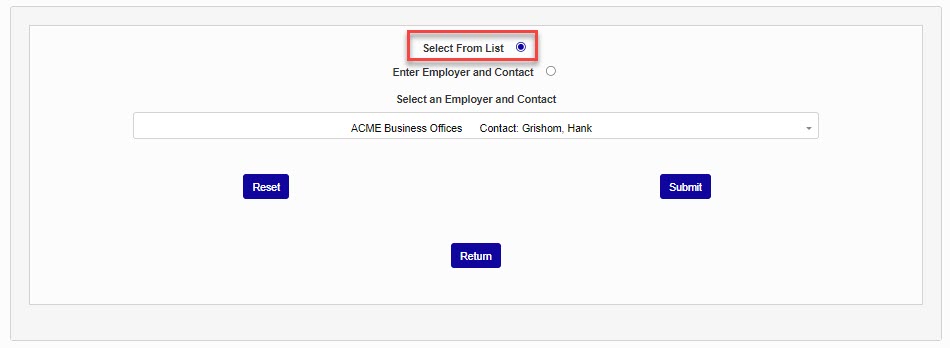
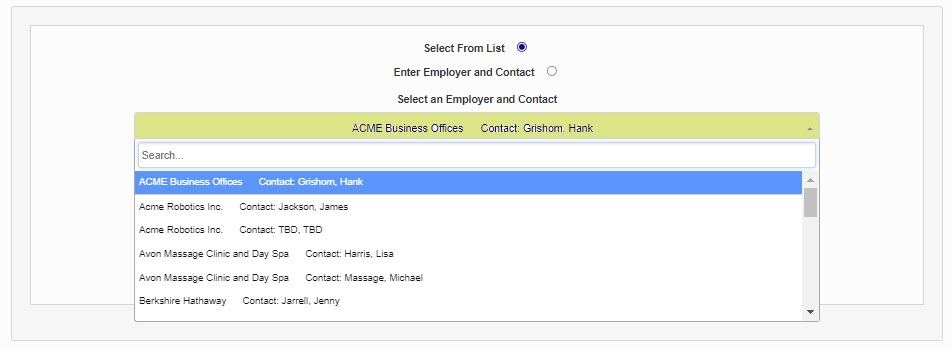
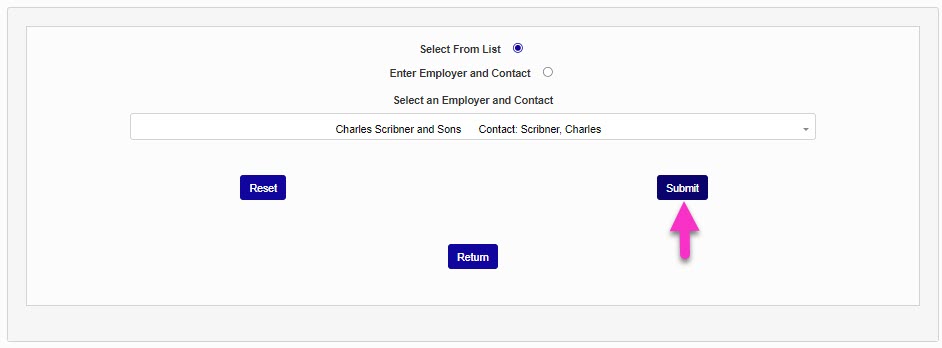
If the Select From List option is chosen, select the correct employer from the Select an Employer and Contact dropdown menu on the following page. If there are multiple contacts in the system for an employer, each contact will be listed separately. These entries can be created and edited via the Employer utility in the Systems hub. Once the proper employer has been selected, click Submit. If the desired employer is not found, select the Enter Employer Contact radio button or the Return button to return to the previous page.
Entering Data
If an existing employer was selected, the necessary information contained in the employer's record will be filled in on the employment record. If the option to Enter Employer and Contact was selected, the employer's record will need to be created by completing the page.
Enter Employer and Contact
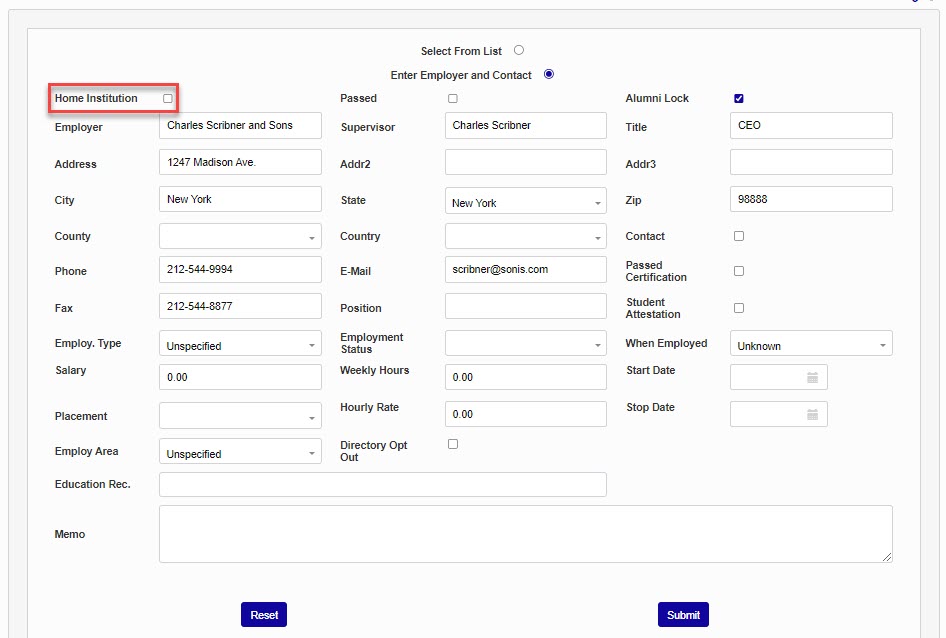
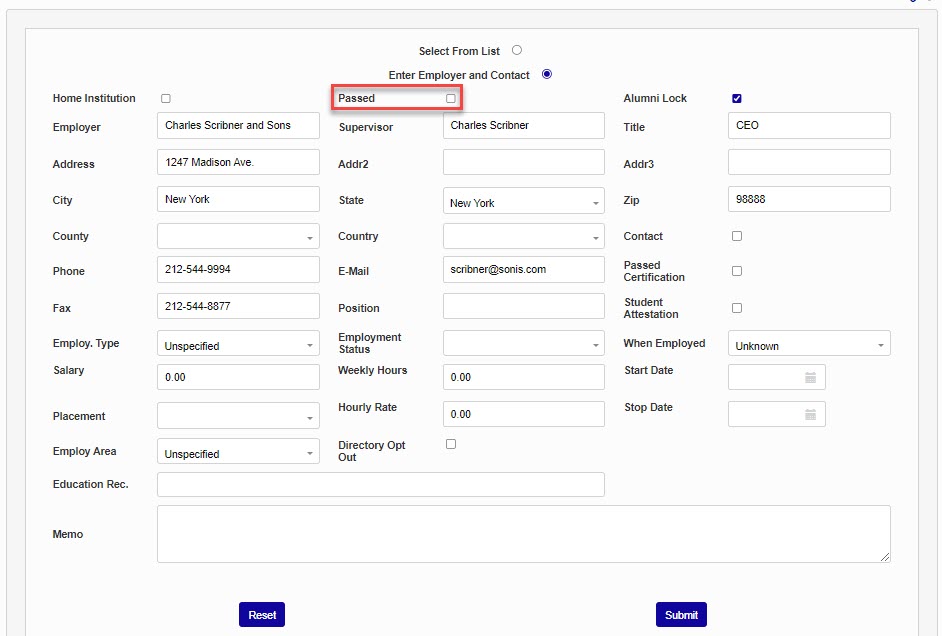
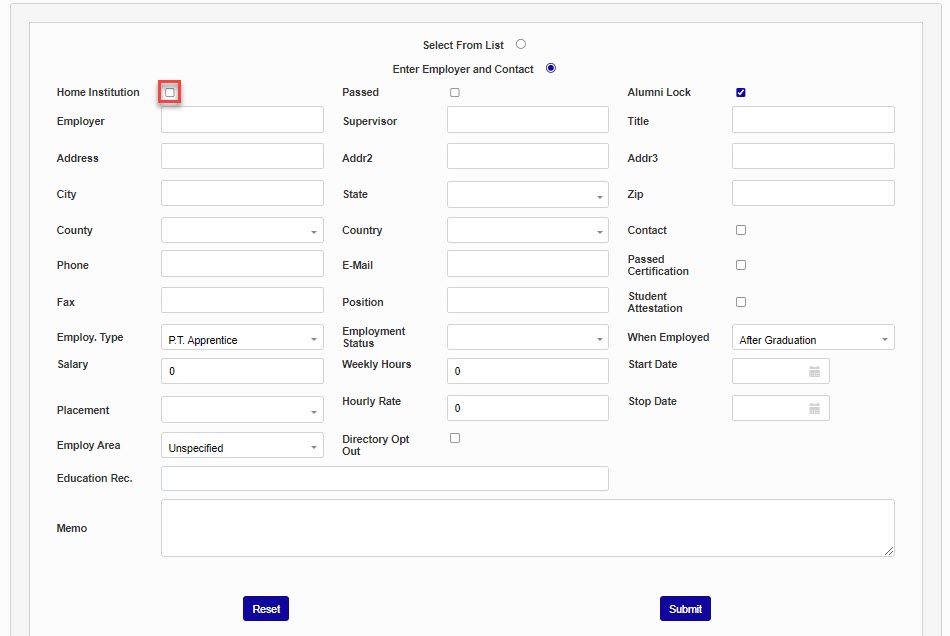
In the top left corner, the box marked Home Institution can be checked to indicate that is employment through the institution, such as on campus or placement. The Passed box is used to confirm that the student has passed a licensure test, such as the NCLEX, and will display in graduate placement reports.
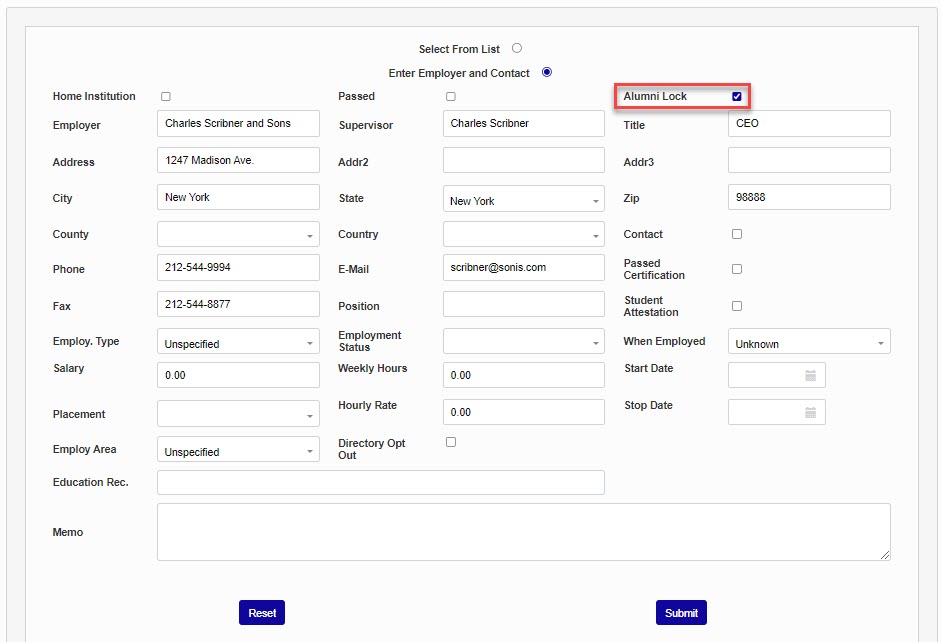
By default, the Alumni Lock box is checked. This prevents alumni from editing the details of this employment record in the Alumni portal. Uncheck it to allow the alumni to edit the details from their portal.
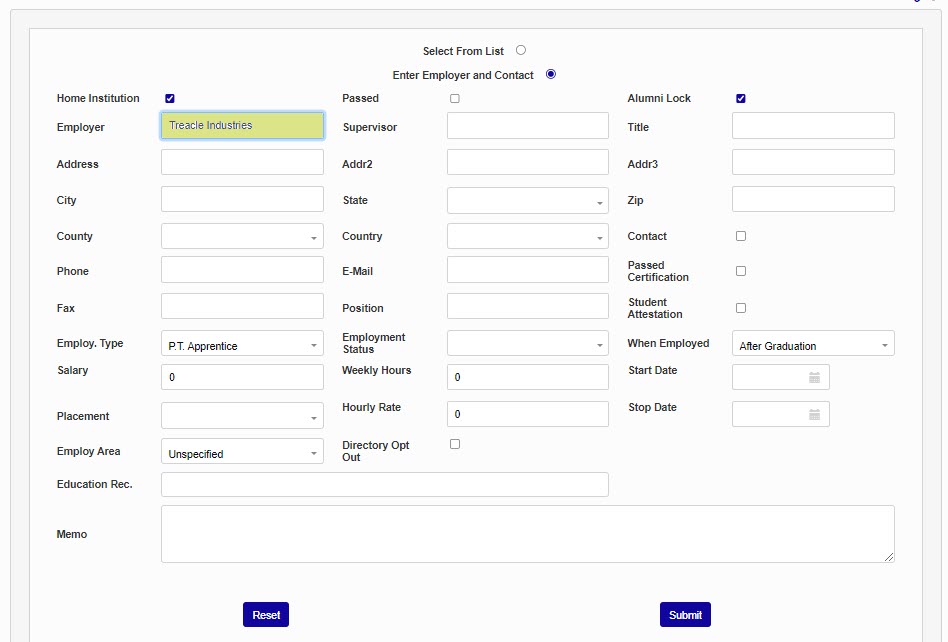
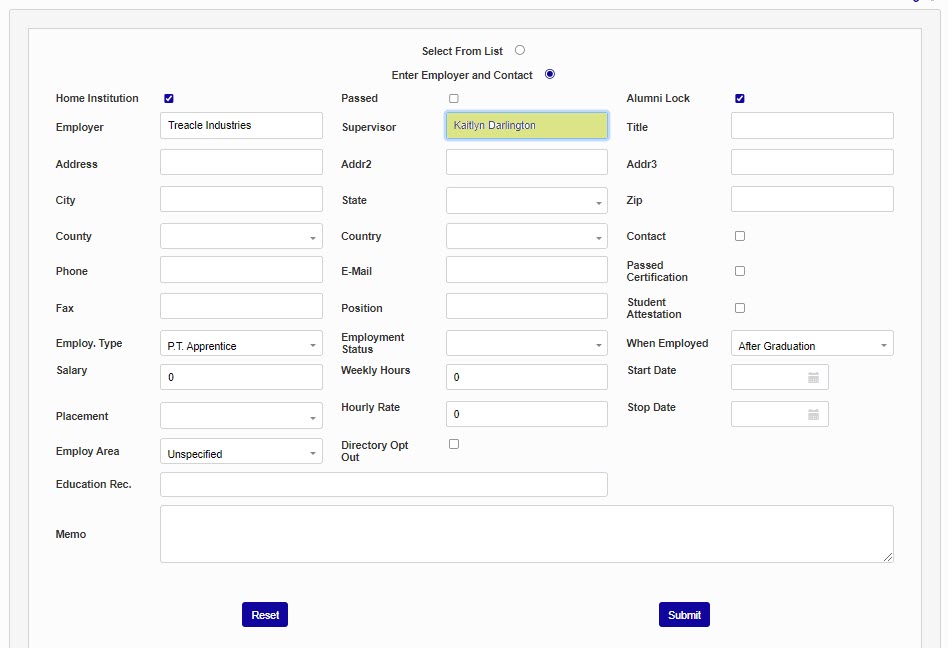
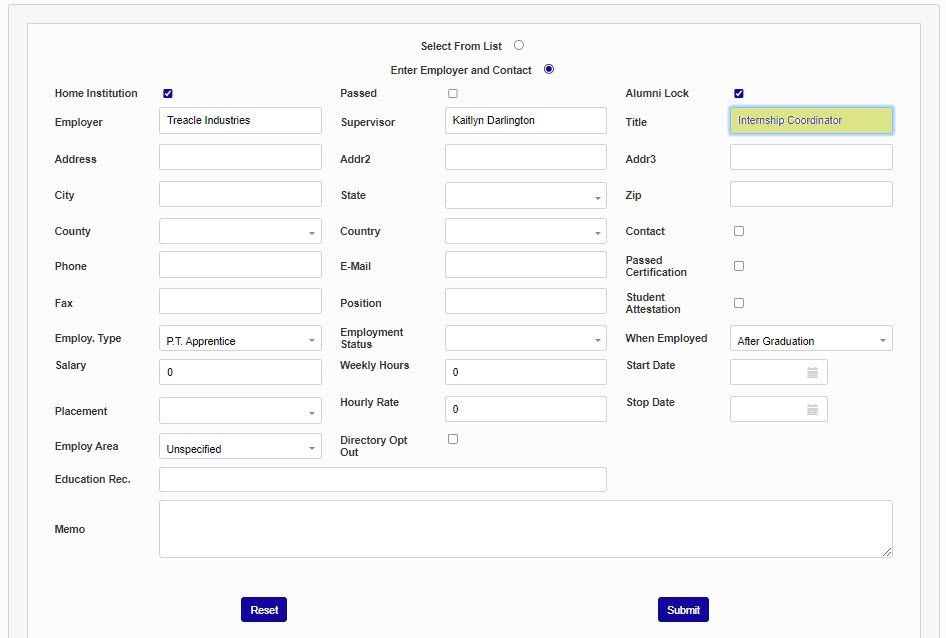
In the Employer box, enter the name of the company or organization employing the student. Enter the name of the Supervisor and their Title.
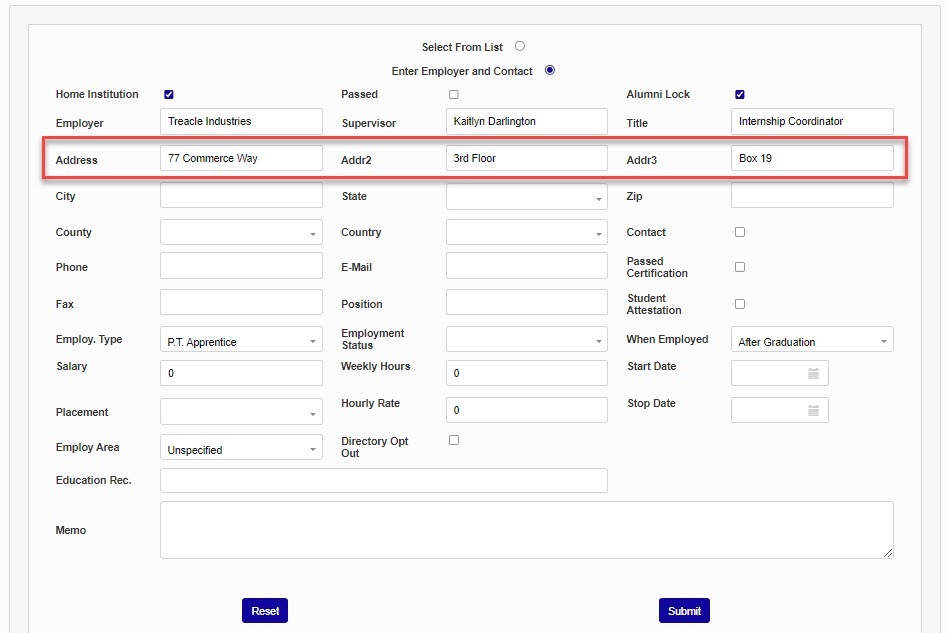
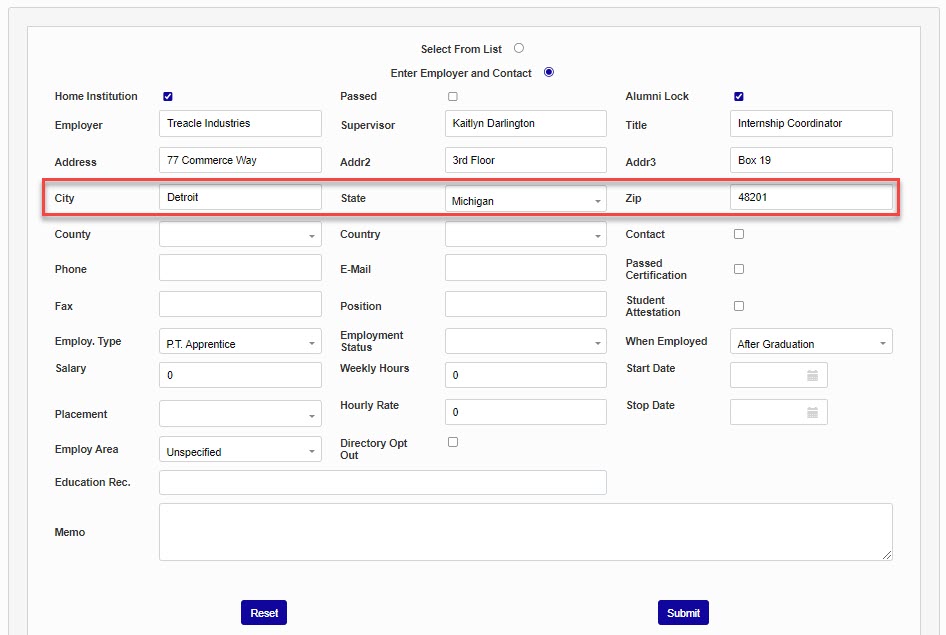
Enter the Address, utilizing the Addr2 and Addr3 fields, as needed. Complete the address by entering the City, State, and Zip Code.
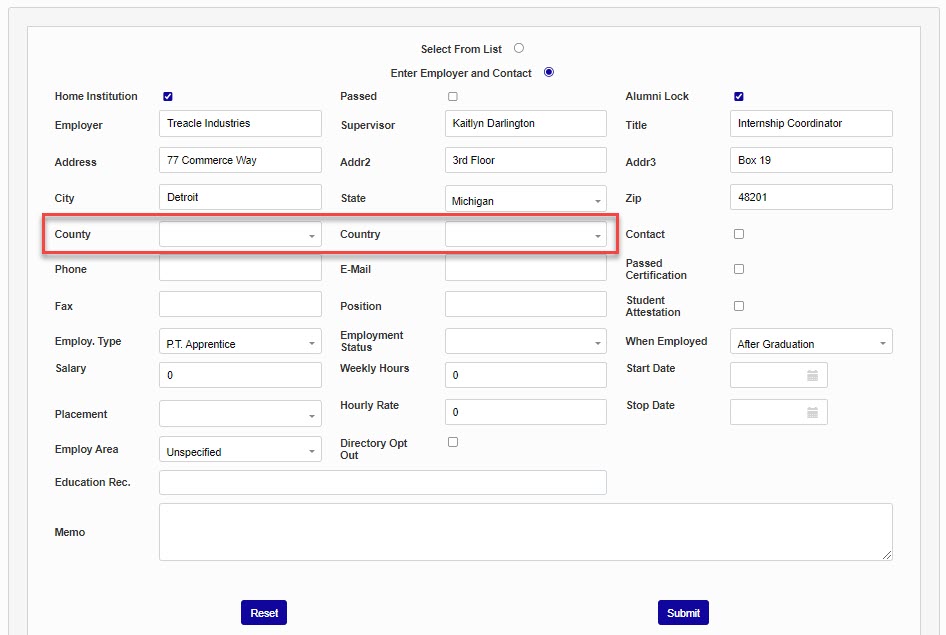
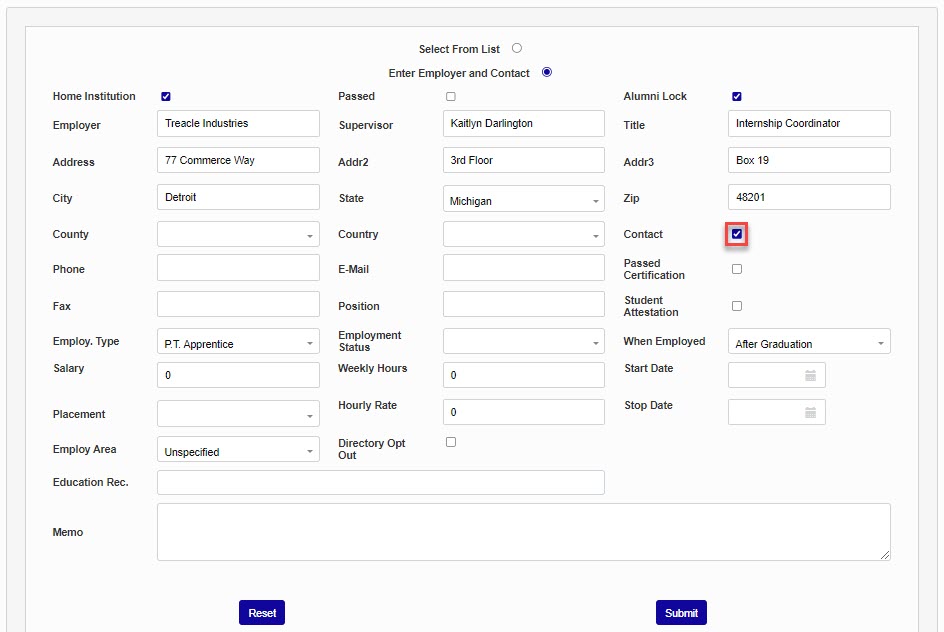
If necessary, select the County and Country from the dropdown menus. If the supervisor entered is the contact at the organization for any matters related to the student or alumni's employment, click the Contact box.
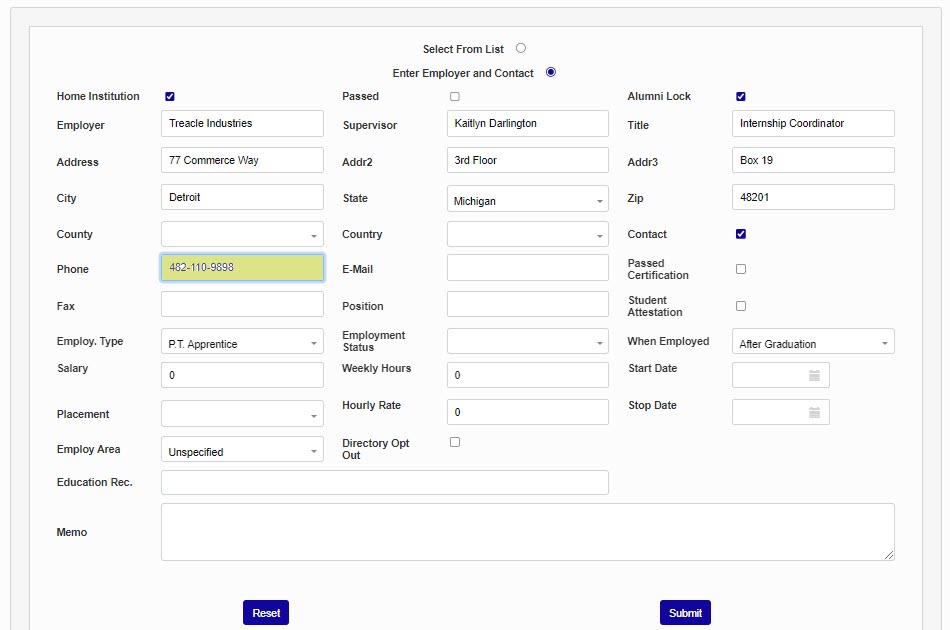
Enter the Phone Number and E-Mail for the supervisor. If the student or alumni passed a certification to attain this position, check the Passed Certification box.
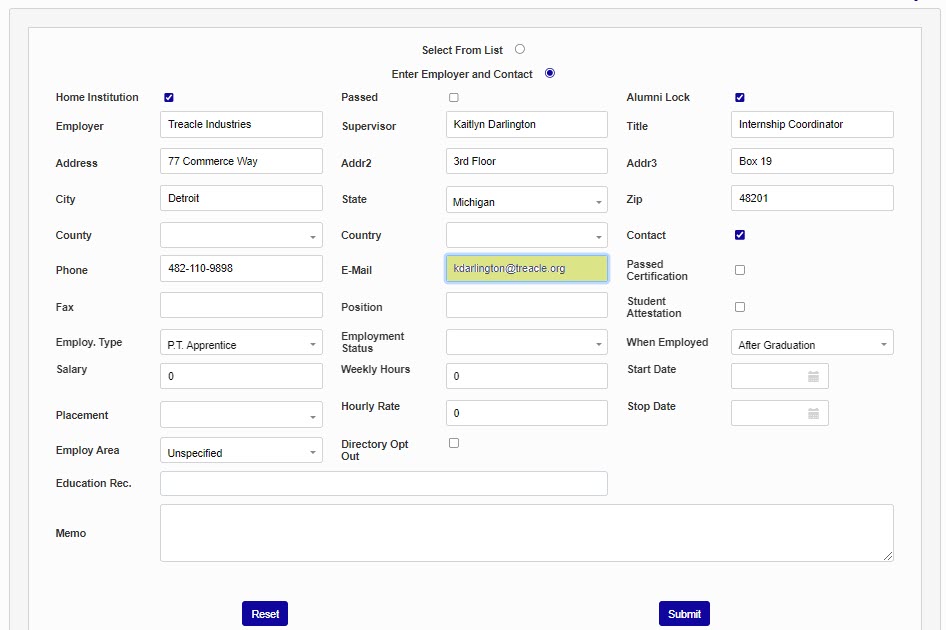
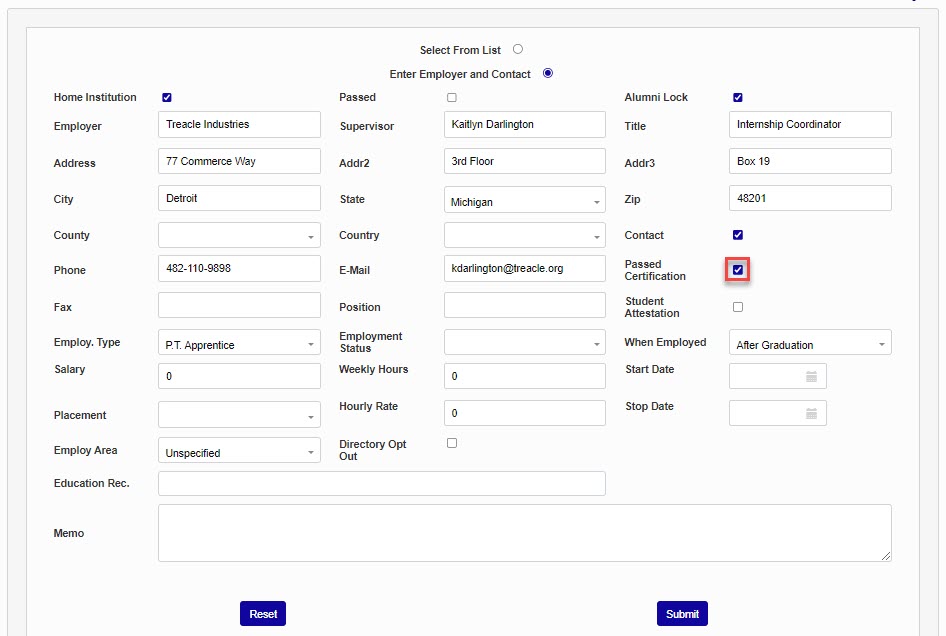
If the organization desires communication by fax, enter it in the Fax field. Enter the name of the student's position in the Position field.
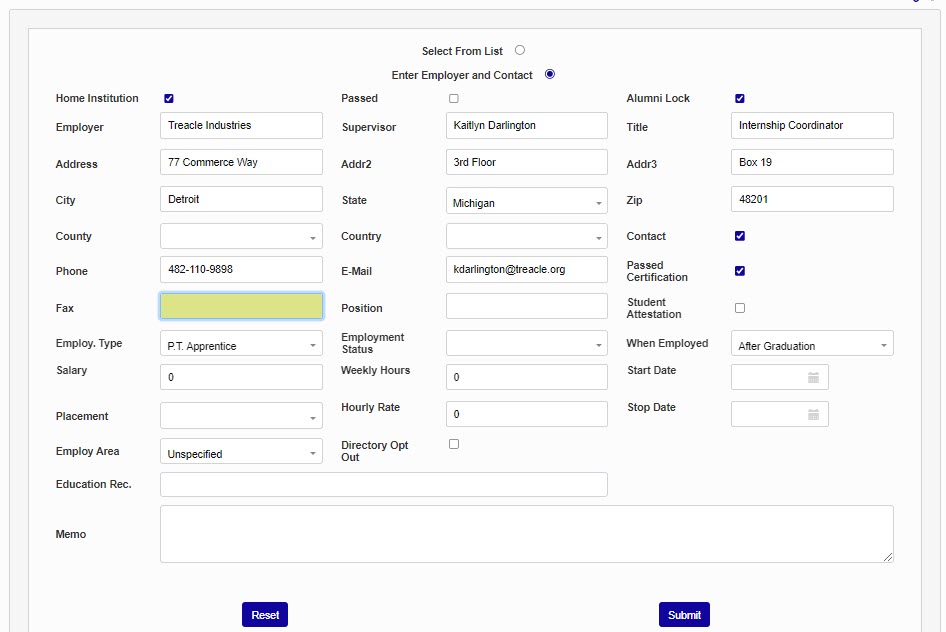
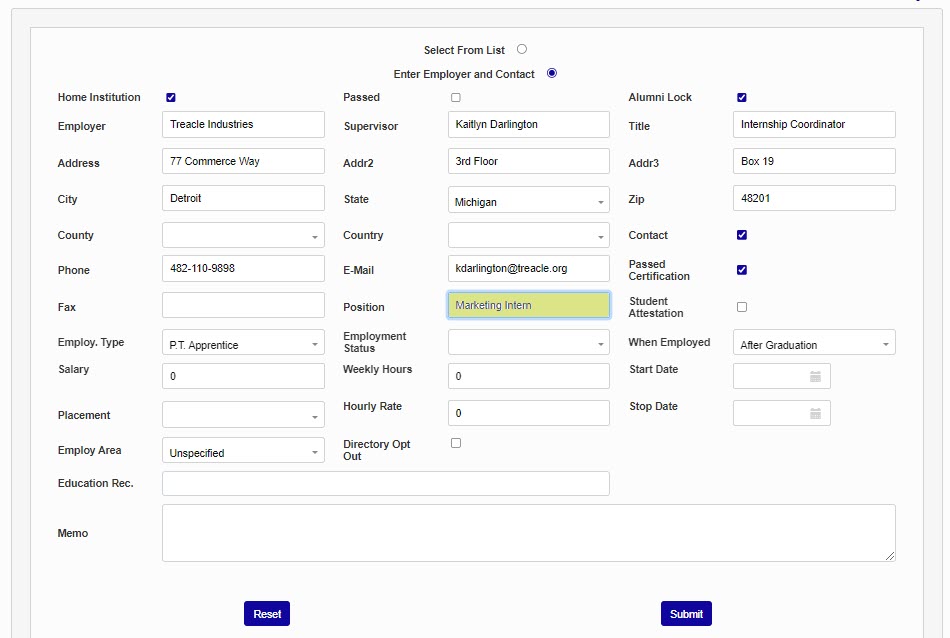
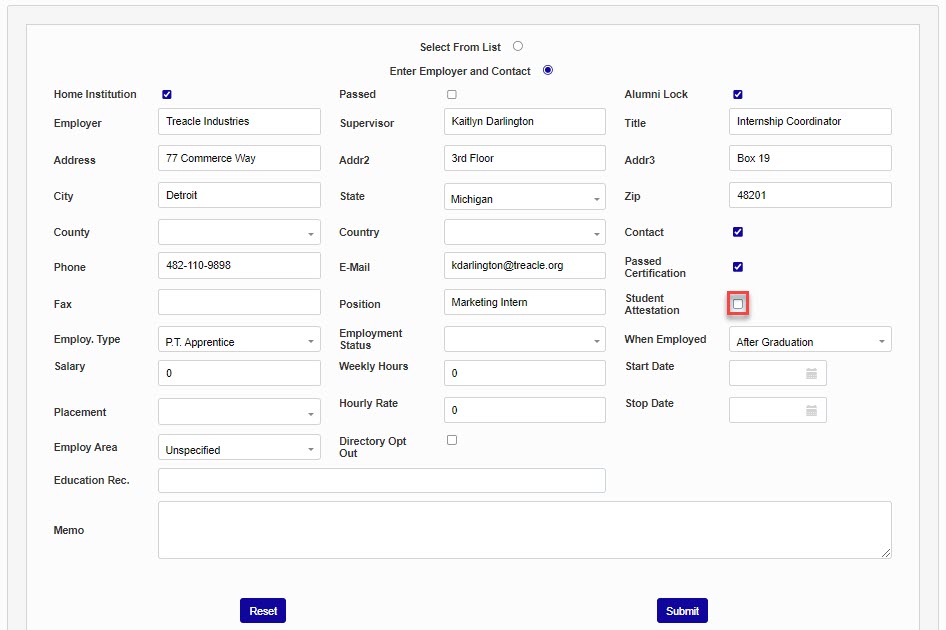
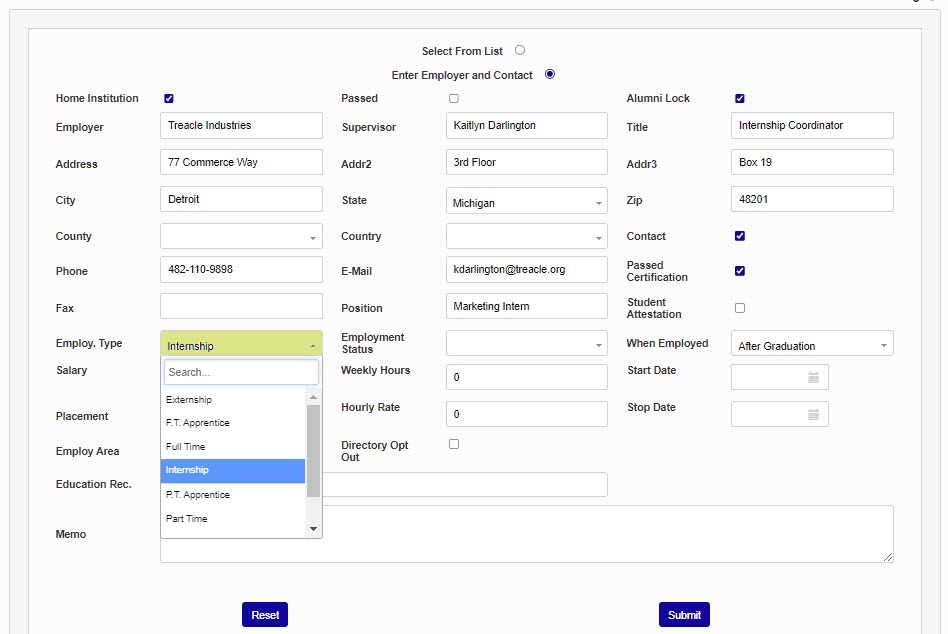
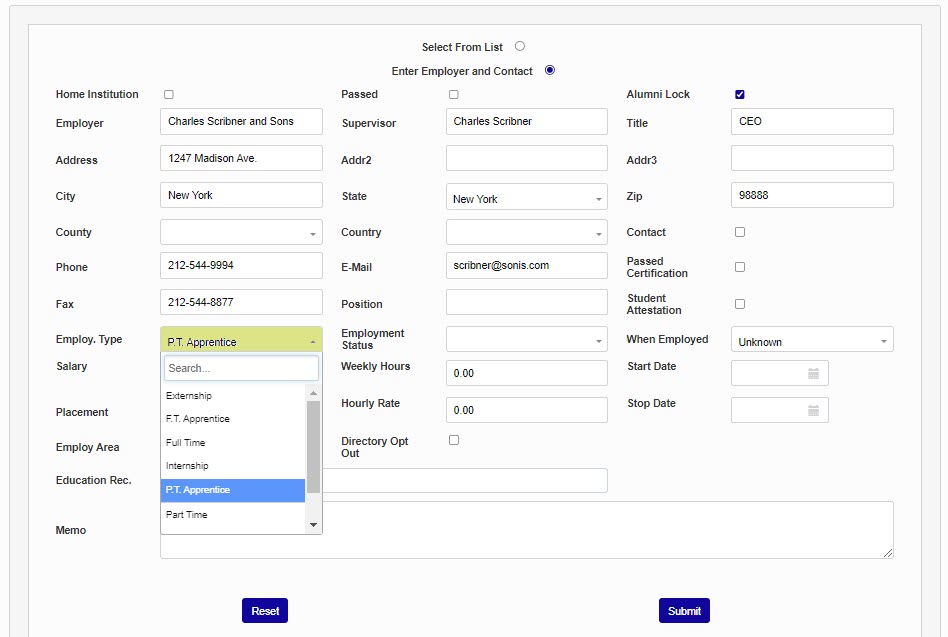
If the student or alumni was required to submit an attestation, check the Student Attestation box. Select the type of employment from the Employment Type menu. This menu is populated by the Employment Type table in the Systems hub.
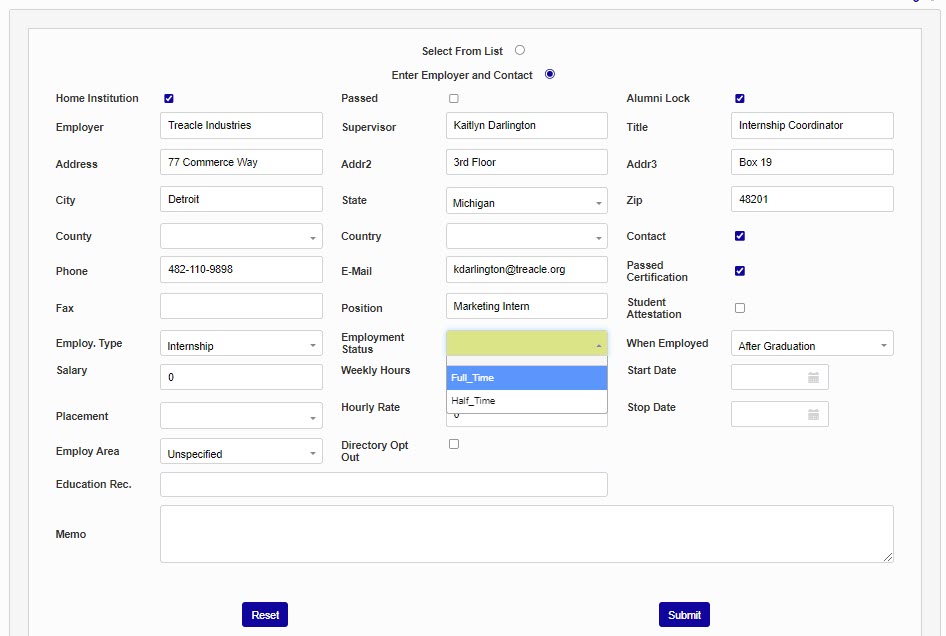
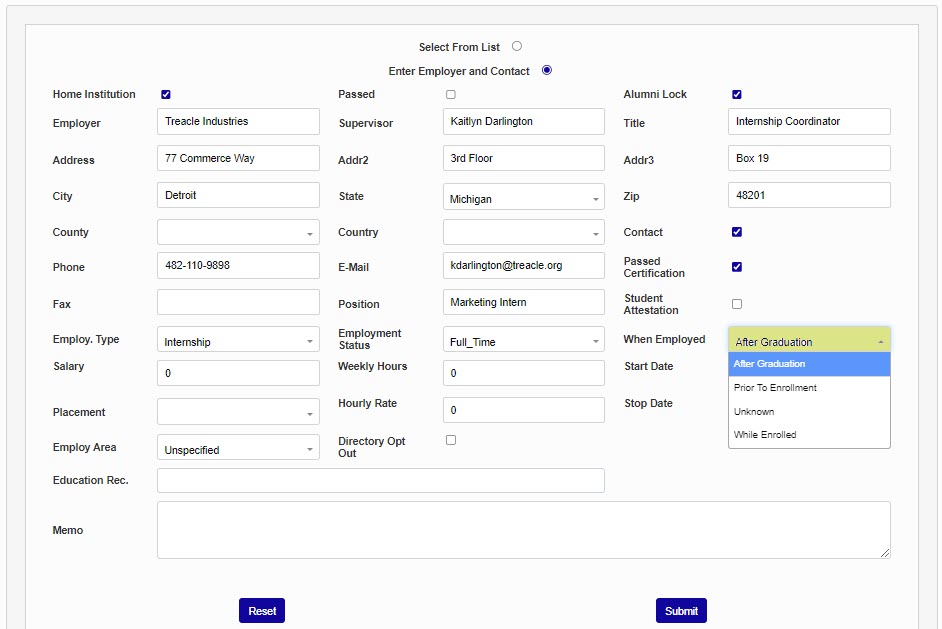
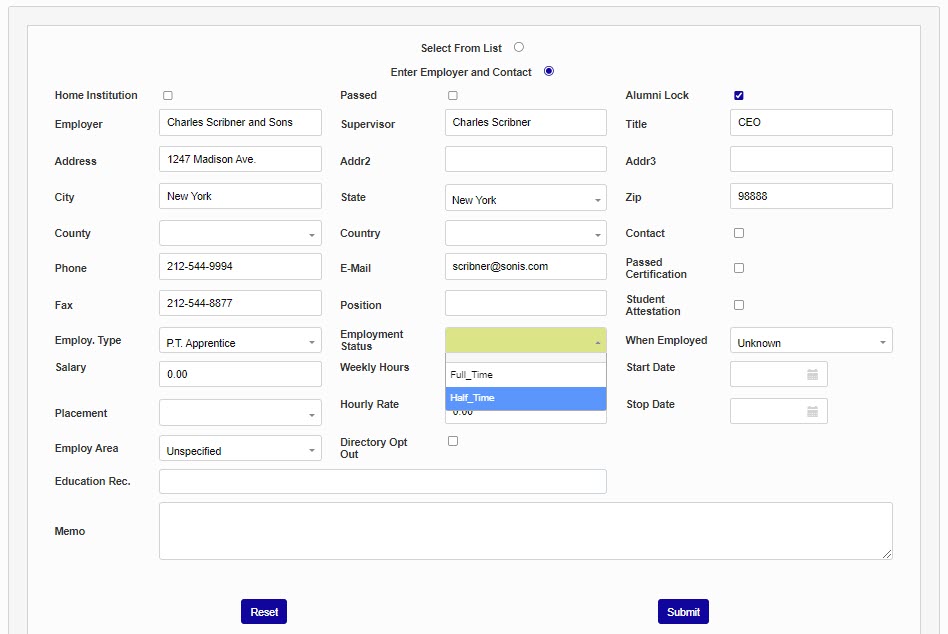
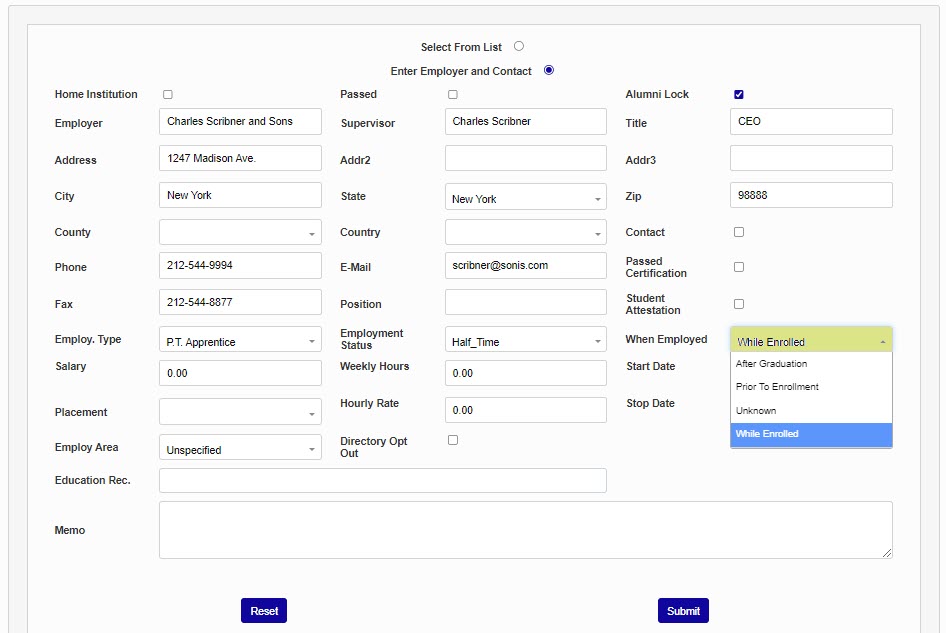
The Employment Status menu, populated by the Employment Status table, is used to indicate if the student or alumni is working full or part-time. Select when the student or alumni was employed from the When Employed menu. The values in this menu are predefined in the When Employed table.
Enter the Salary and Weekly Hours, if these are values needed for reporting.
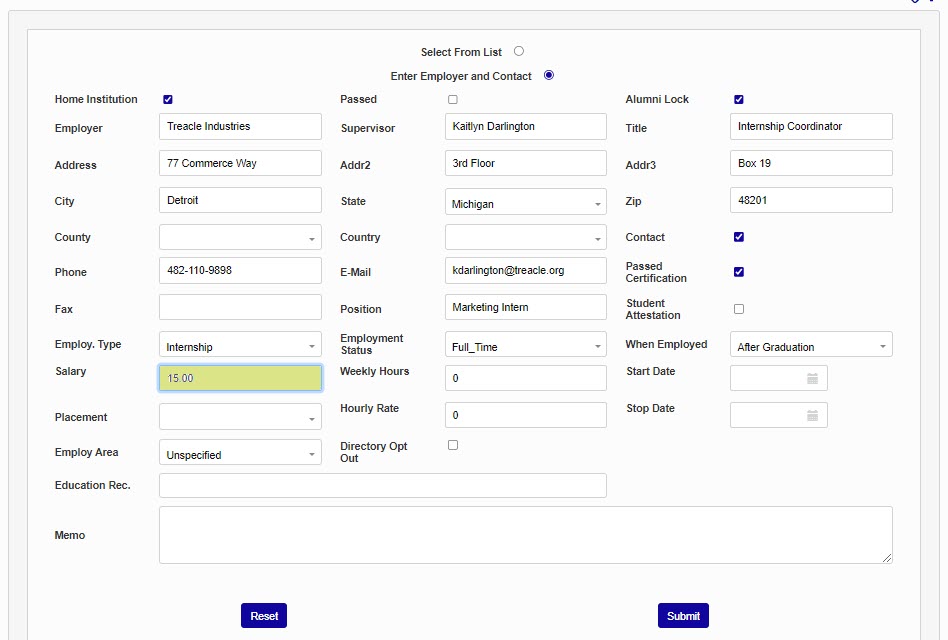
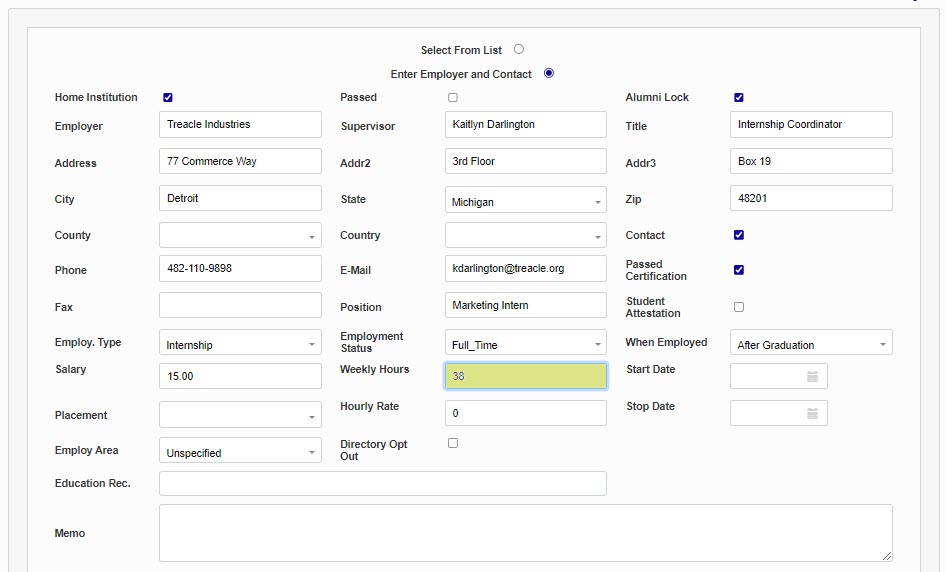
In the Start Date field, enter the date the student or alumni began their employment in this role. If the last day of employment is known, enter it in the Stop Date field.
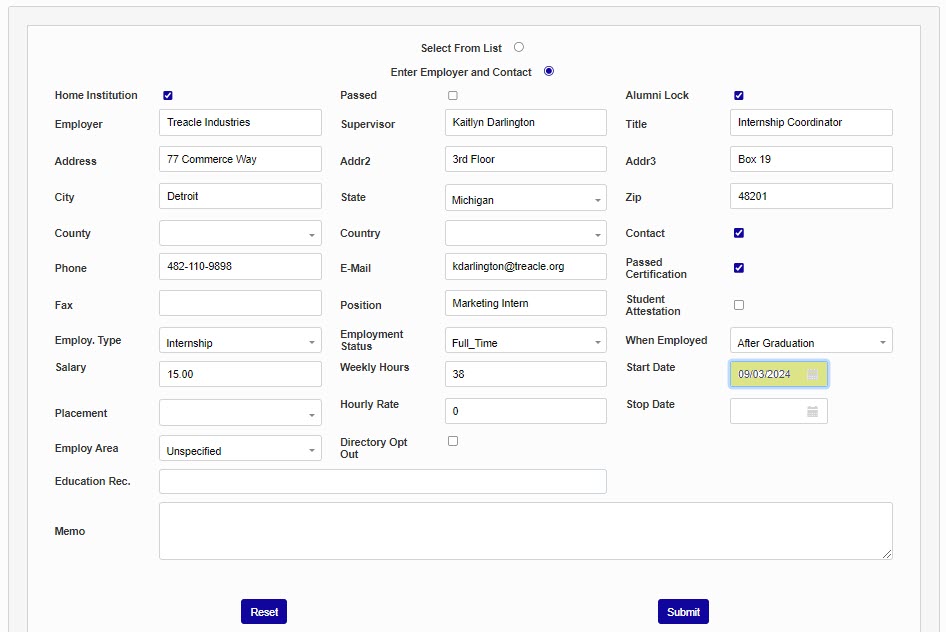
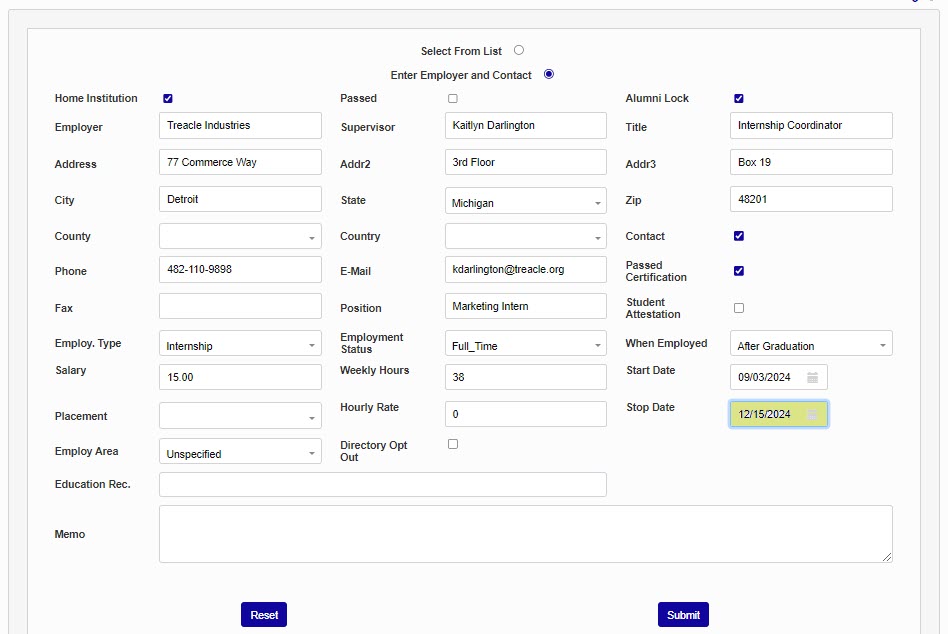
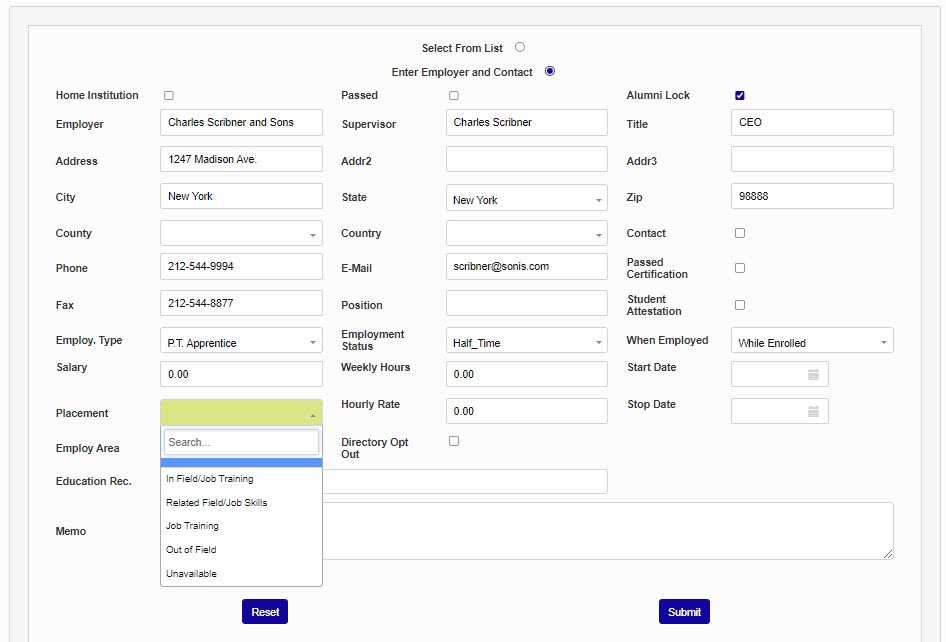
If the position was an institutionally organized placement, select the placement type from the Placement menu. This menu is populated by the Placement Type table. If the compensation will be earned hourly and is needed for reporting, enter the hourly amount in the Hourly Rate field.
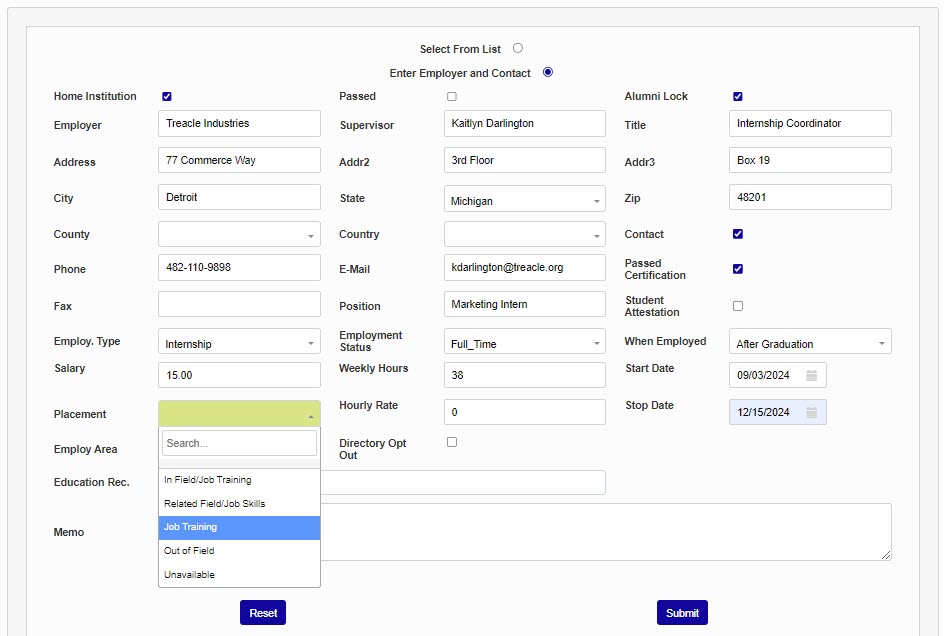
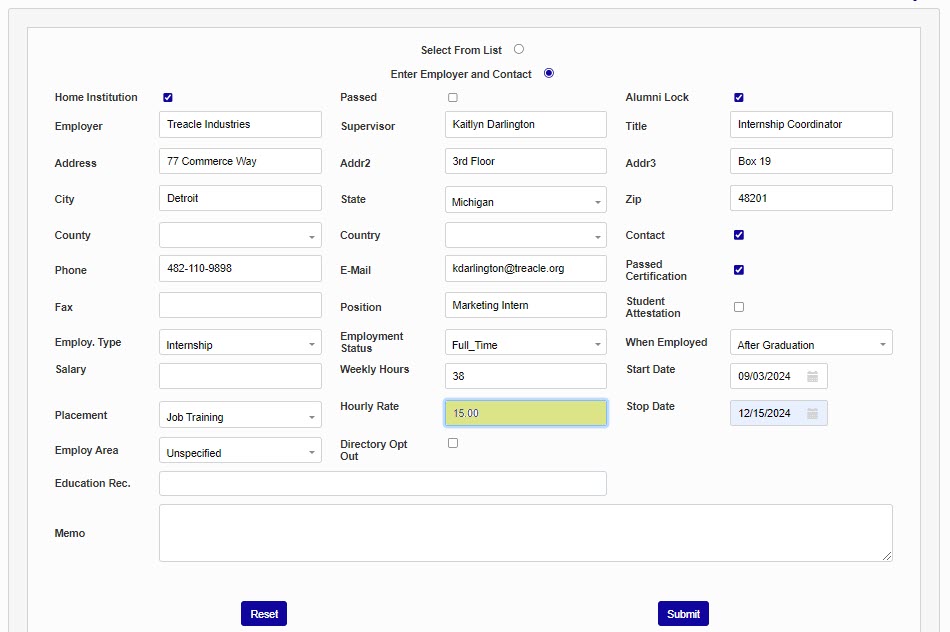
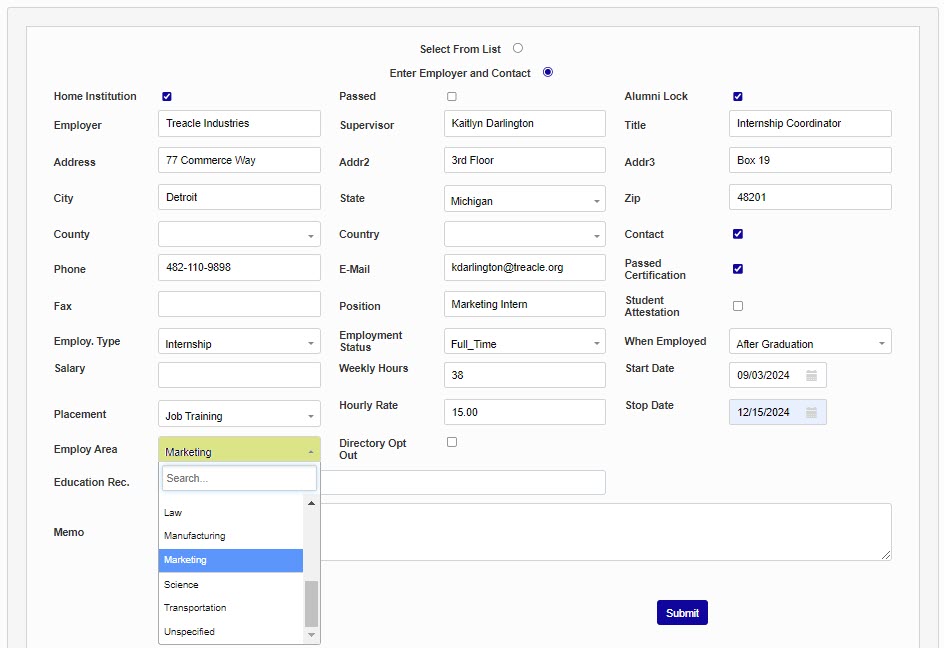
Select the academic area that is associated with the field of employment from the Employ Area menu. This menu is populated by the Employ Area table. If the Employer/Contact should not be included in the directory, click the Directory Opt Out box.
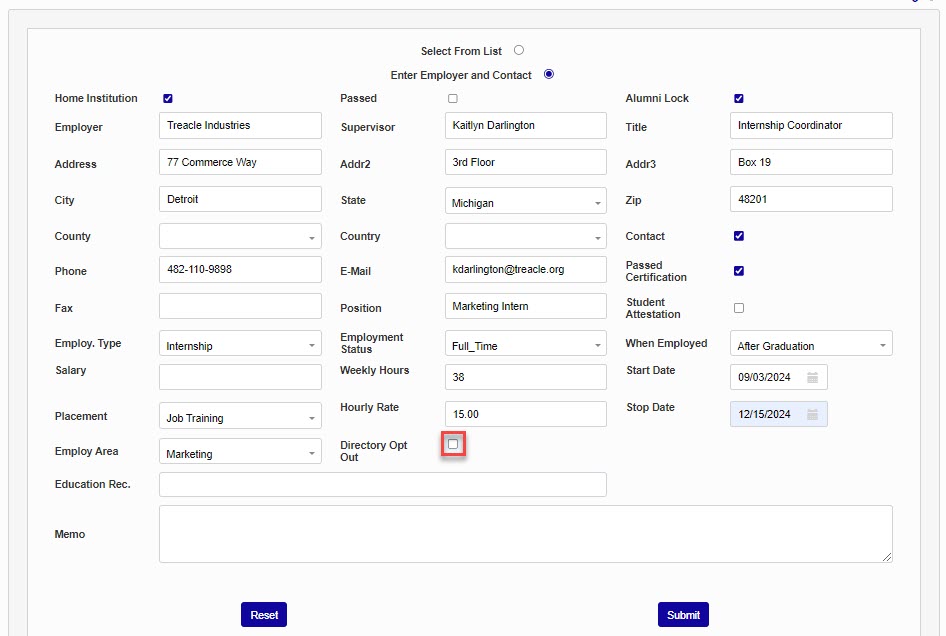
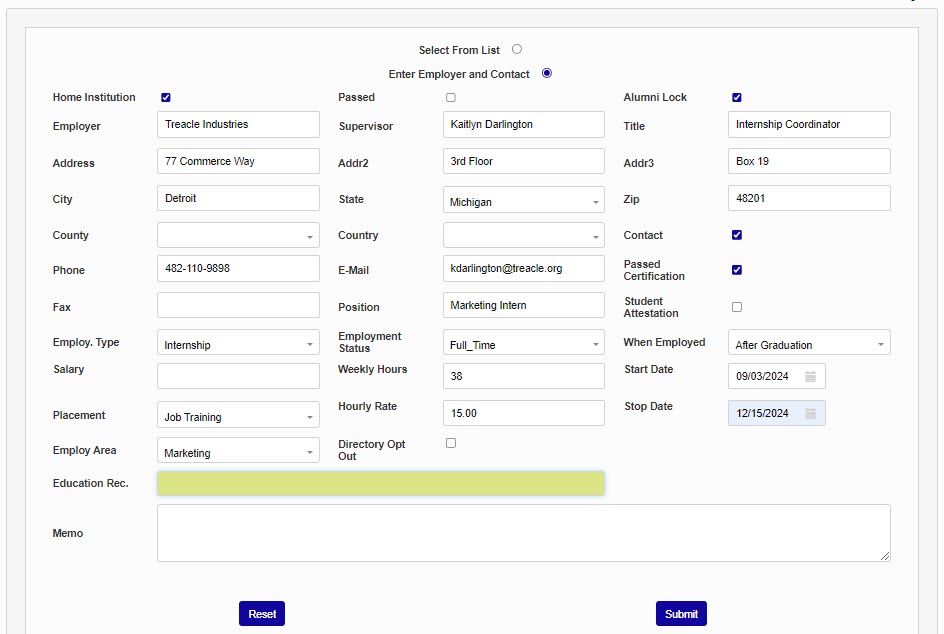
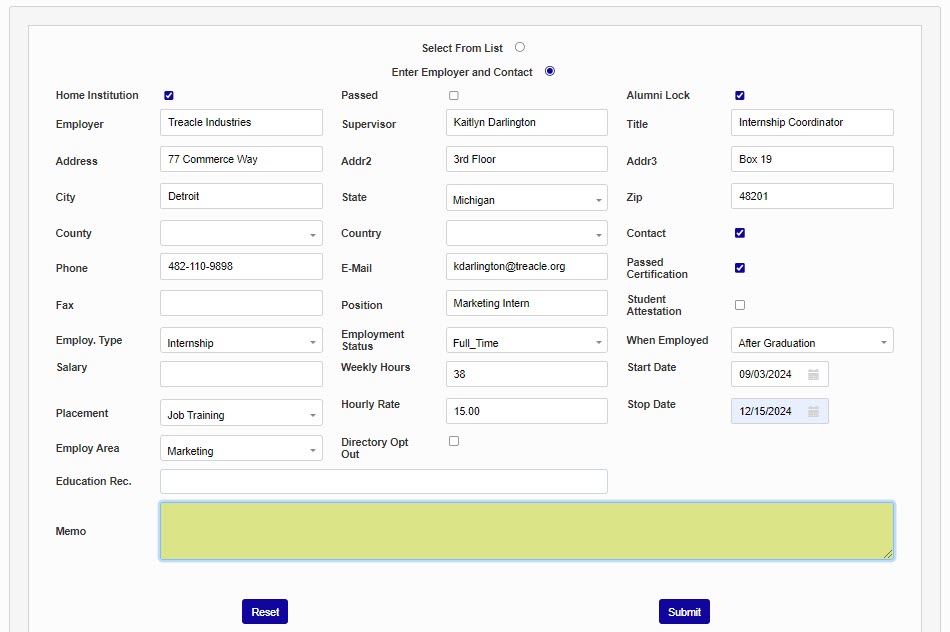
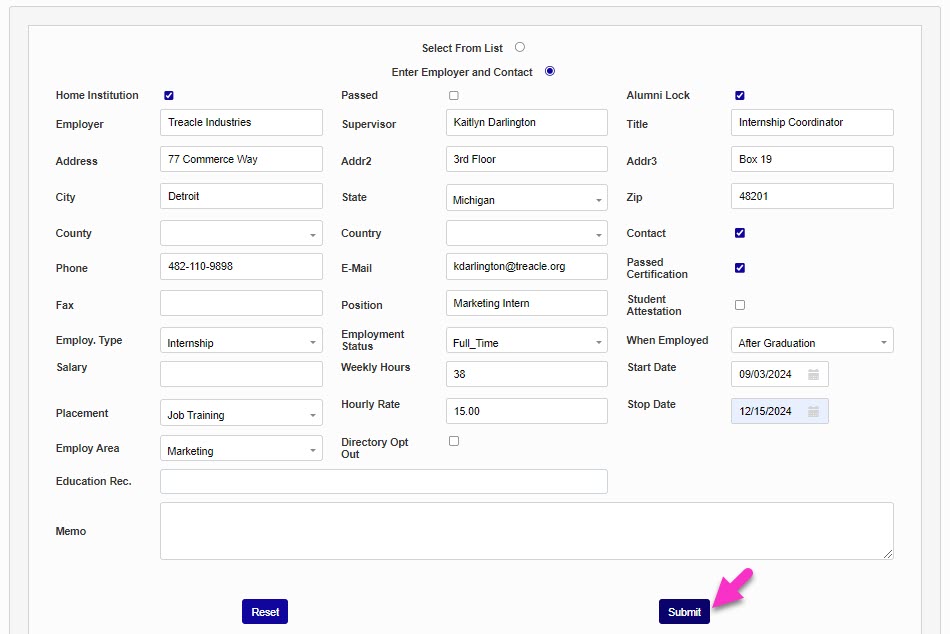
Select the student's associated Education Record, if applicable and needed for reporting. Enter any additional details in the Memo field and click Submit to save the entered information.
Select From List
In the top left corner, the box marked Home Institution can be checked to specify that this is employment through the school either on campus or through placement. To the right of the Home Institution box is a checkbox marked Passed. The Passed box is intended to be used to indicate that the student has passed a licensure test, such as the NCLEX, and will display in graduate placement reports.
In the upper right-hand corner, users have the option of toggling the Alumni Lock. This box will be checked by default. If unchecked, the Alumni Lock allows alumni of the school to edit their own employment records through their Alumni Portal.
Three other checkboxes on the right side of the screen provide similar options for reporting. The Contact box specifies whether the employer can be contacted by the university or not. Checking Passed Certification designates that the student or alumnus has passed a certification needed for the job. The Student Attestation checkbox is for verifying that the student has confirmed that the information on the Employment page is correct.
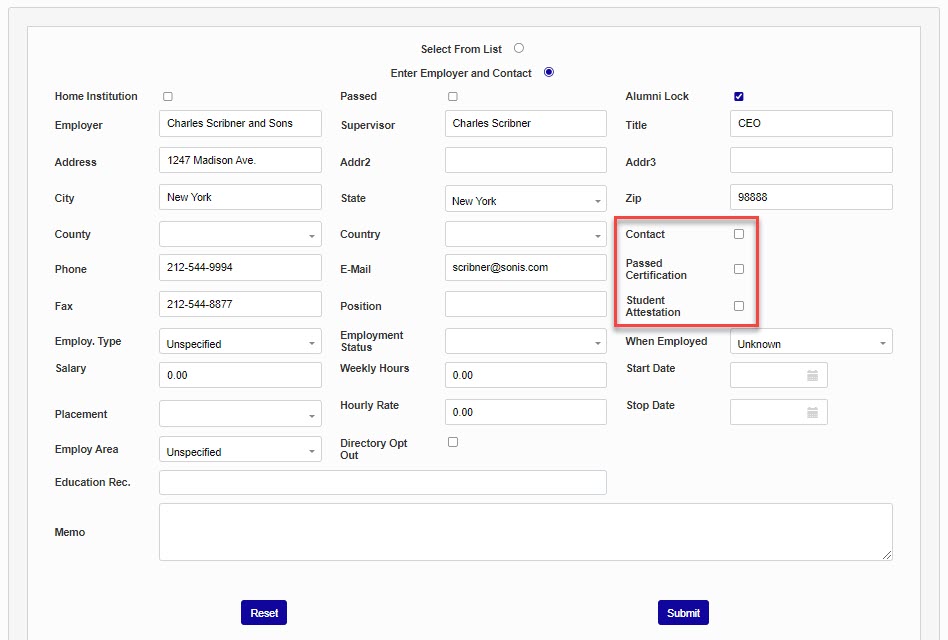
To the left of the page under the Fax field is a dropdown menu for selecting an Employment Type, which could be Seasonal, Internship, Apprenticeship, etc. This menu is populated by the Employment Type table. To the right is another dropdown menu labeled Employment Status for noting whether the employee works full-time or part-time. This dropdown is populated by the Tuition Status table.
On the far right is a dropdown called When Employed for noting whether the job was held before enrollment, after graduation, or while enrolled. The contents of this menu can be edited through the When Employed table in the Systems hub.
Below the Salary field is another dropdown called Placement to specify how the employee's job relates to their field of study. This field is not editable due to its use in the placement Reports. The Employ Area menu is used to specify the field of study that the job relates to. It is editable through Table Maintenance.
Education Record
Each student or alumni employment posting can be associated with a specific Education Record. This feature allows schools to better track employment outcomes for students who have enrolled in or completed post-graduation education with the home institution. Every education record associated with home institution will be listed in the Education Record dropdown menu along with the date of enrollment, the degree sought, the program, the major, and the start and stop dates where available. Education records associated with other institutions will not be included. Once the proper education record has been selected, click Submit to save the changes.
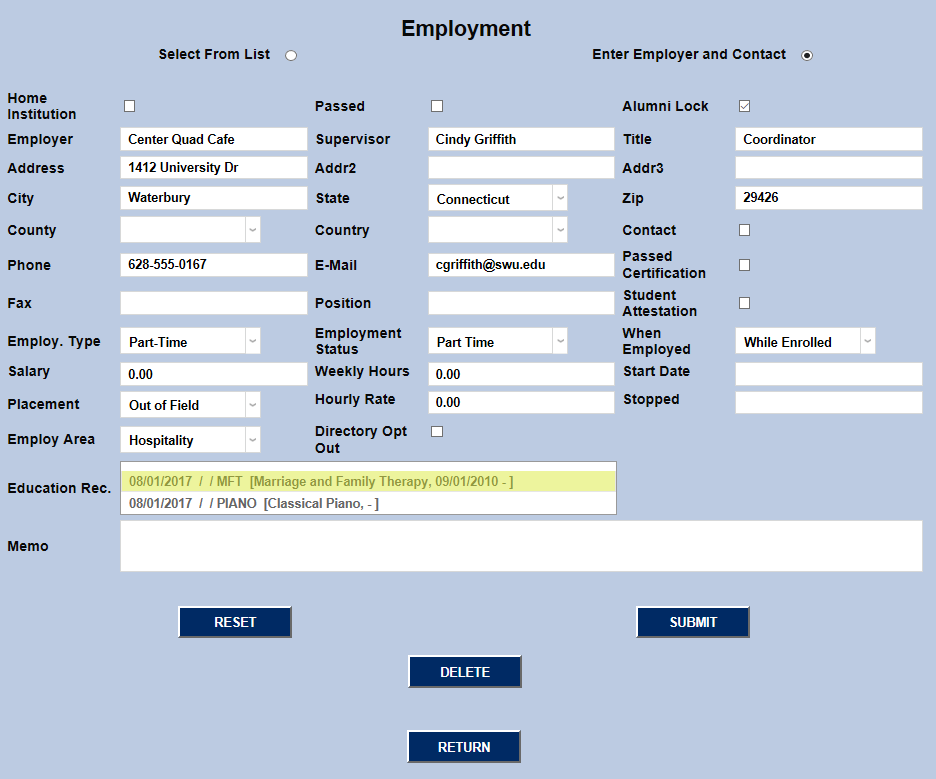
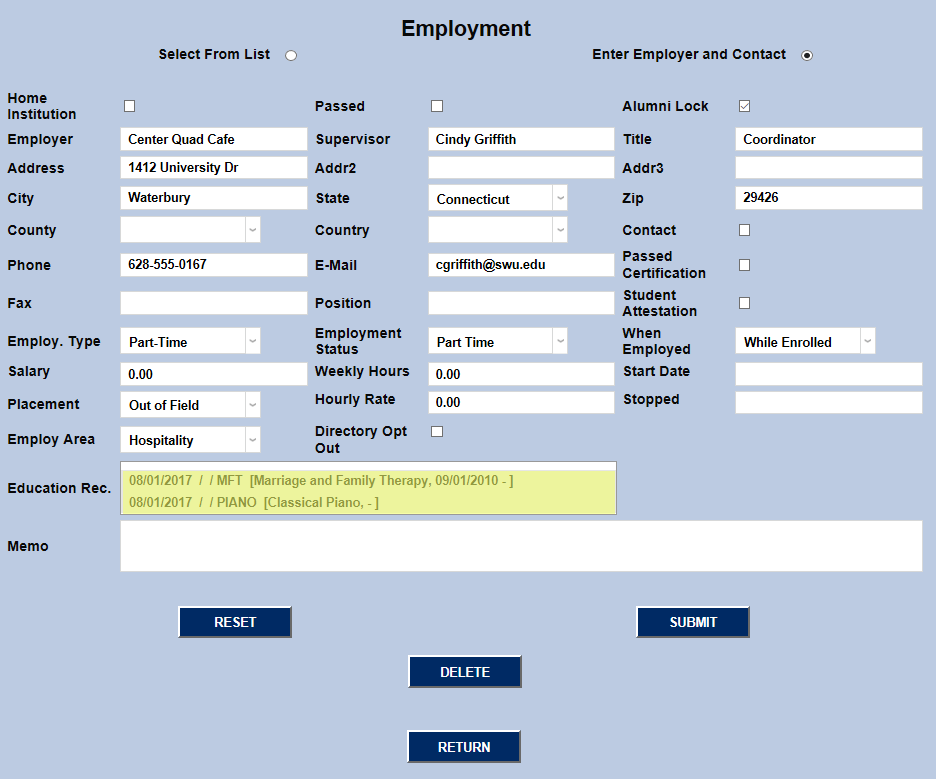
Education-Program record links can be updated or deleted at any time. As updated, changes are immediately reflected. Once the education-program information have been linked to individual employment records, users can query the system to retrieve this information for reporting or other purposes.