Transfer Registration
Overview
The Users hub page Transfer Registration provides the user a convenient way to articulate transfer credits and to search for course equivalencies that have previously been created in Jenzabar SONIS by the member institution. Institutions are created using the Institution: Add/Edit page in the Systems hub. Transfer courses are created using the Course Creation Wizard or the Add New Transfer Course option on the Course Search page.
An API is available to automate the identification of transfer equivalencies and articulate the credits to the student's academic history.
Adding Transfer Courses
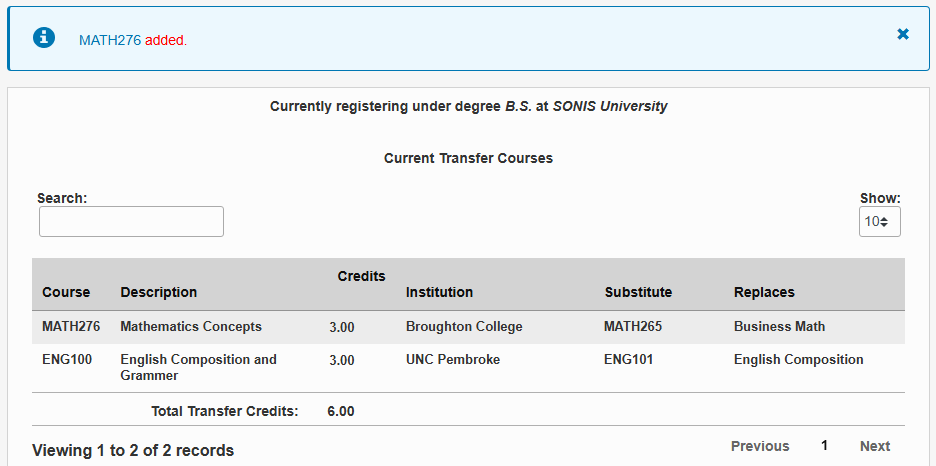
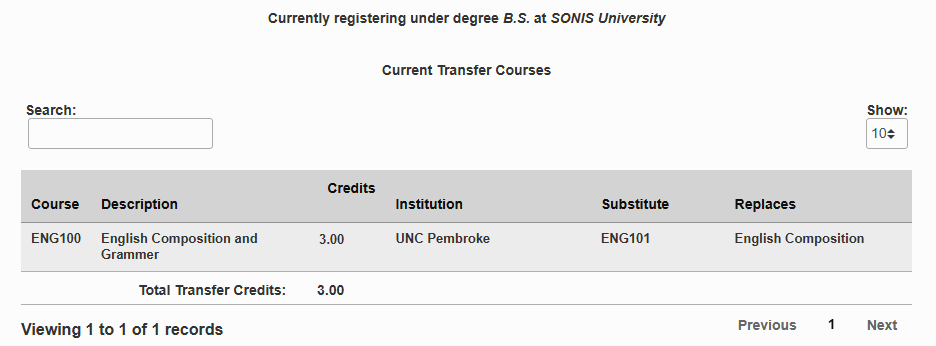
Enter the Transfer Registration page from the student's Users hub. The degree the student is pursuing is displayed at the top of the page. Any previously articulated transfer credits, the course replaced by the transfer, and the sum of articulated credits will display upon entering the page.
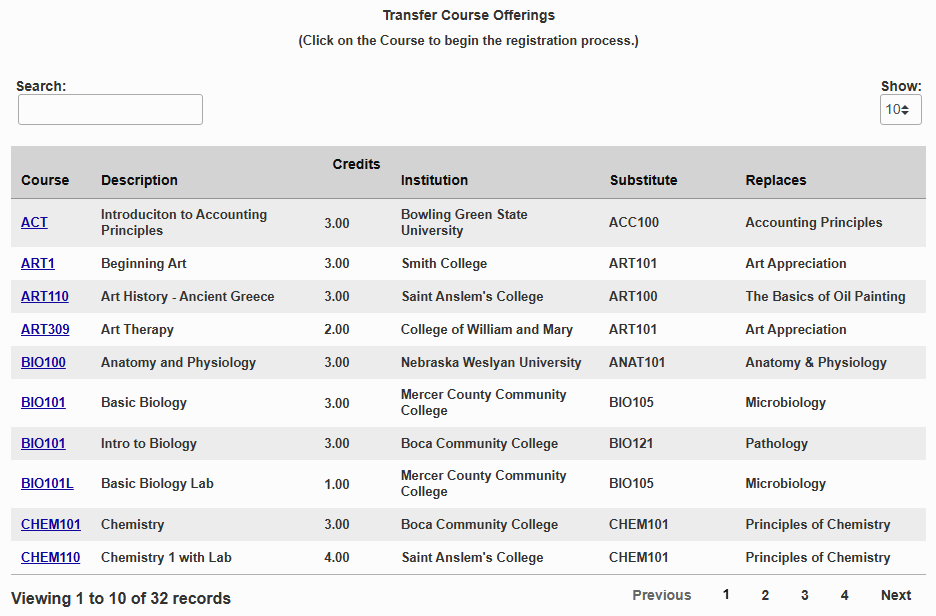
All previously created transfer courses are listed below in alphabetical order by course.
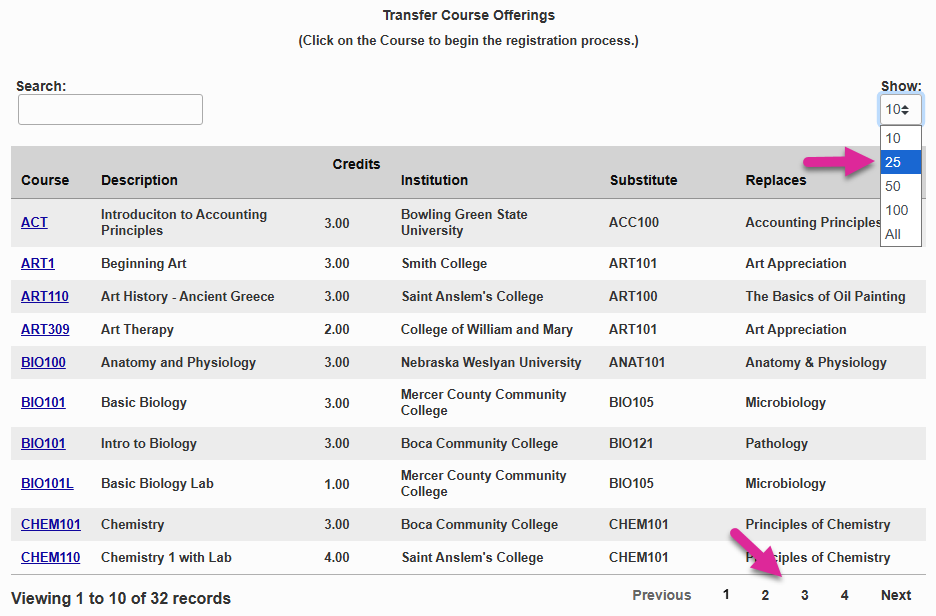
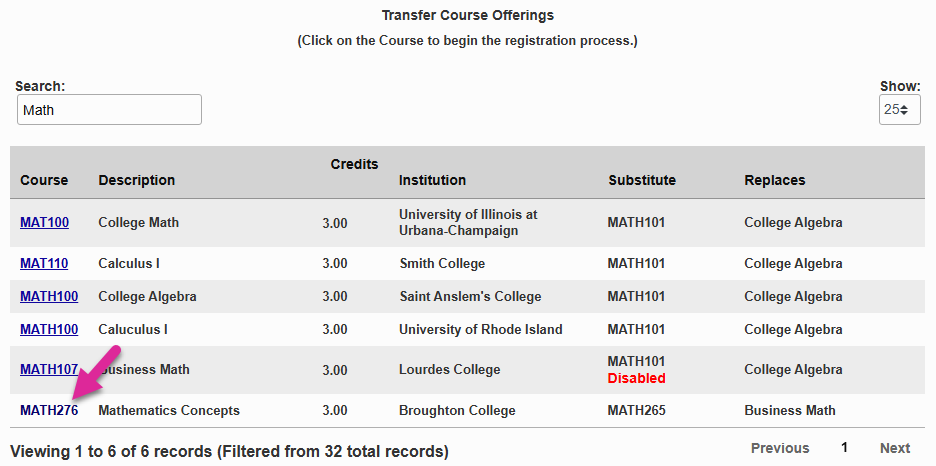
Use the Search box to filter the list as you type. You can search by any of the displayed data, including the course, the description, the credits, the institution where the course was taken as well as the home institution course you'll substitute it for and its description.
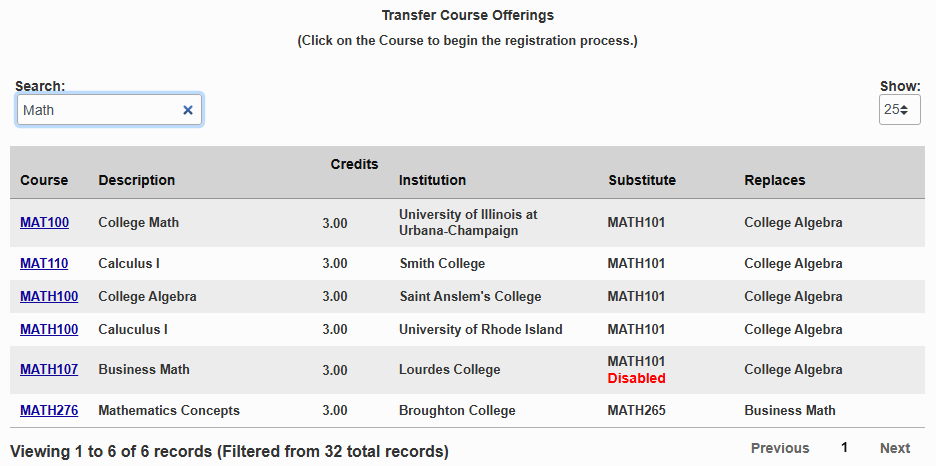
You can also control how many results to display per page and navigate between the pages using the Previous and Next links and the page number links.
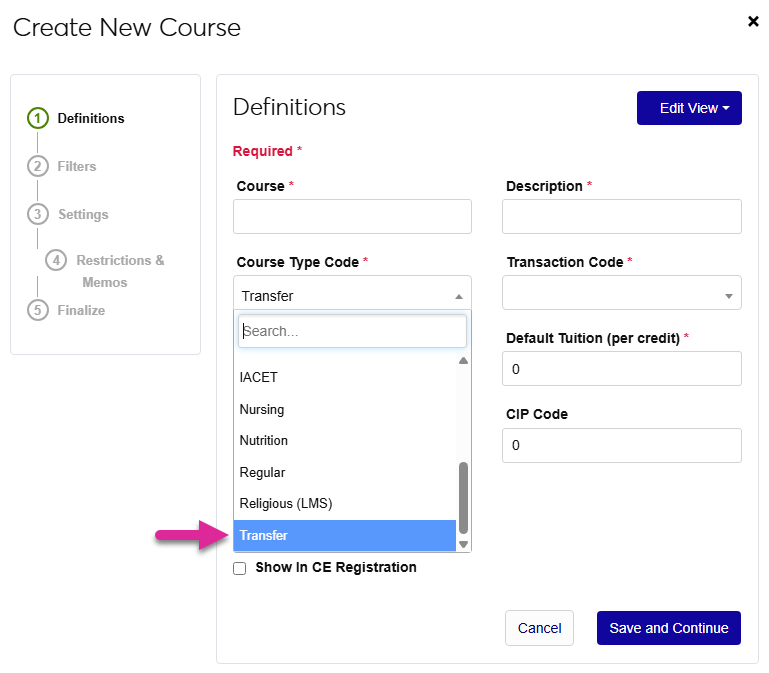
If the course you want to register isn't listed, you can add it using the Create New Course wizard and selecting Transfer as the Course Type Code. Once you've added the course, return to this page and search for your new transfer course.
Once the course you want to register is displayed, click on the Course to begin the transfer registration process.
Select a Grade for the course. This is the grade that the student will be assigned in your school's records.
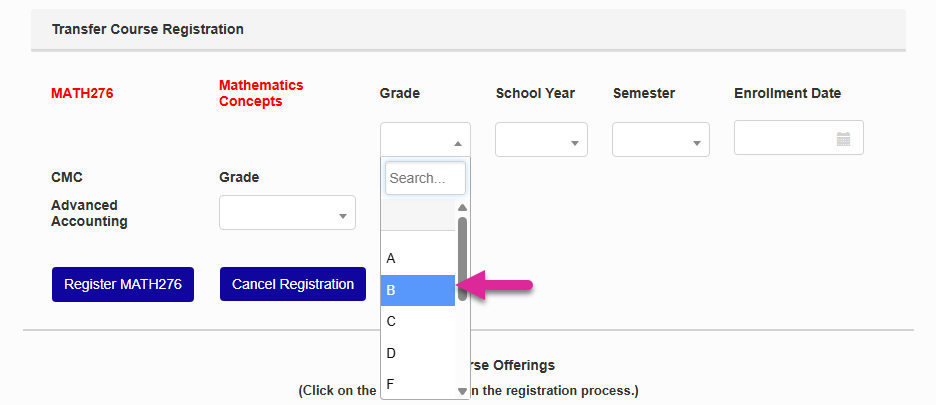
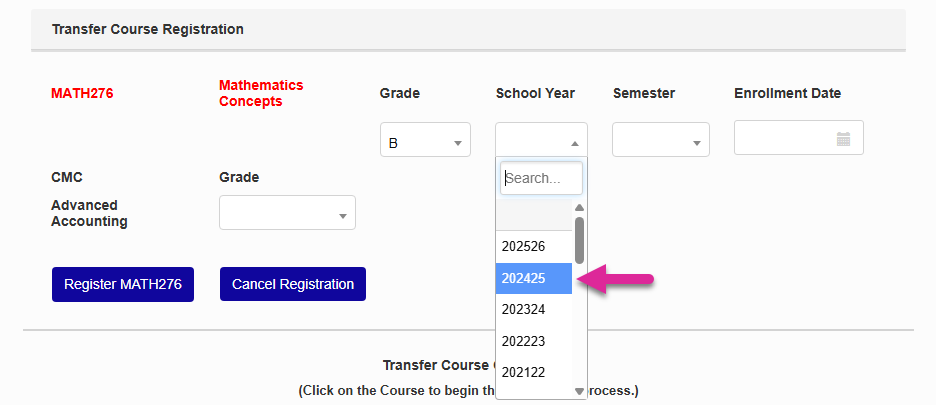
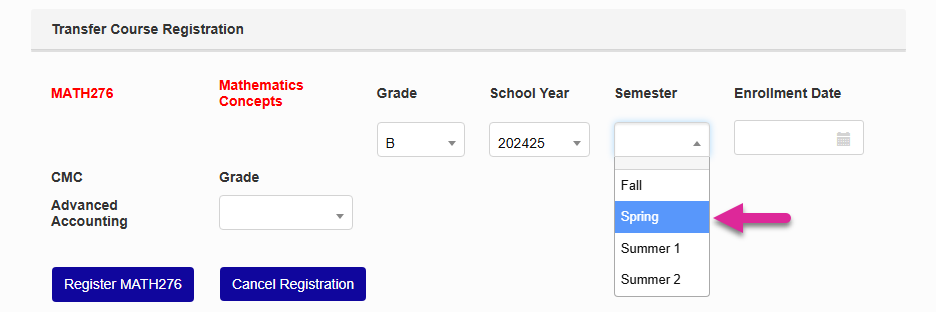
Select the school year and semester from the corresponding School Year and Semester dropdown menus.
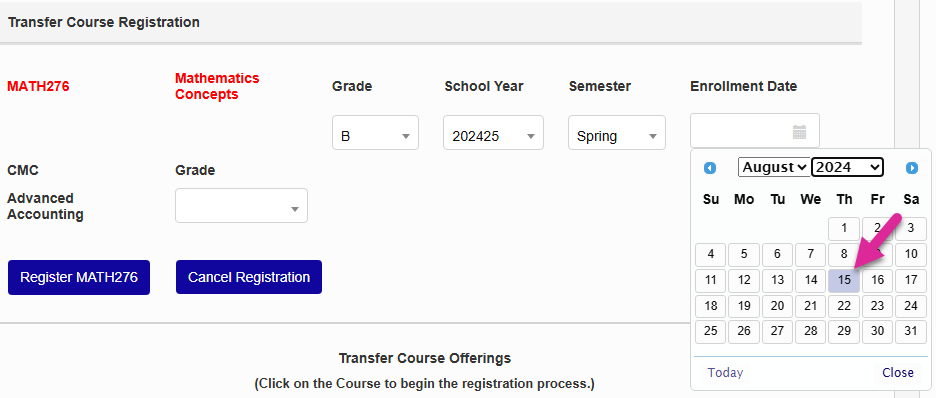
If available, enter the date the student enrolled in the course being articulated into the Enrollment Date field. This is not a required field.
To complete the acceptance of the transfer credit, click the Register XXXX111 button, where XXXX111 represents the course alphanumeric designation of the course being accepted.
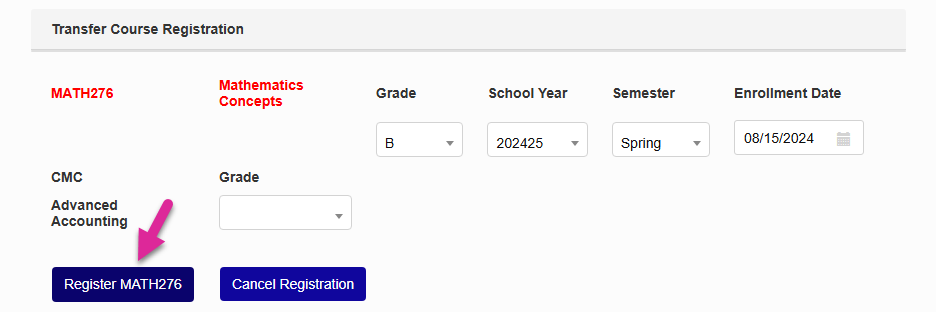
After clicking the register button, the course will display in the student's current transfer courses.