Form Builder Notifier
Overview
Jenzabar SONIS Form Builder allows administrators to create custom forms that can be filled out by other users. The Form Builder Notifier sends a select group of administrators a notification to inform them that a forms have been submitted.
Creating Notification
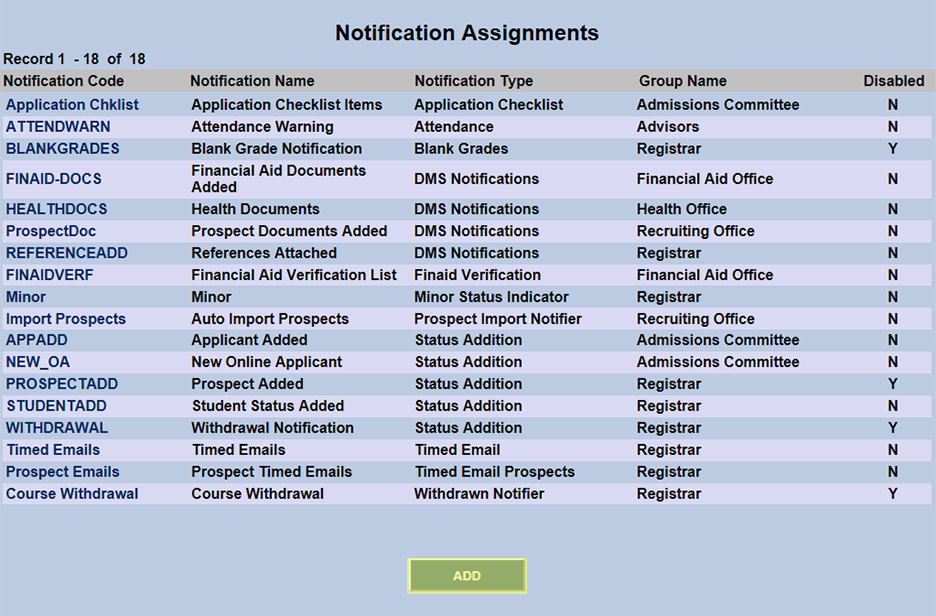
To create a Form Builder Forms Submitted notification, navigate to the Notification Assignments utility in the Systems hub and click Add.
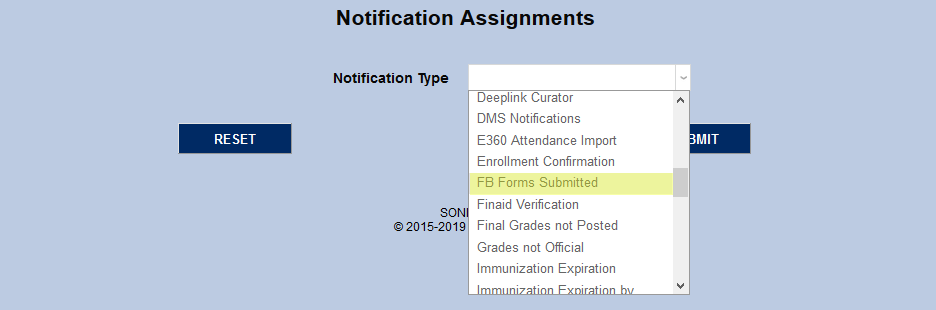
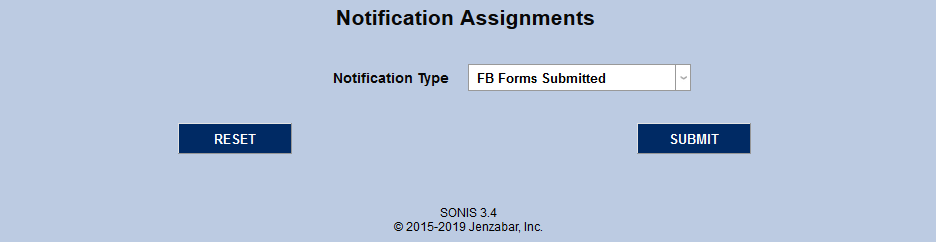
On the following page, select FB Forms Submitted from the Notification Type dropdown menu and click Submit.
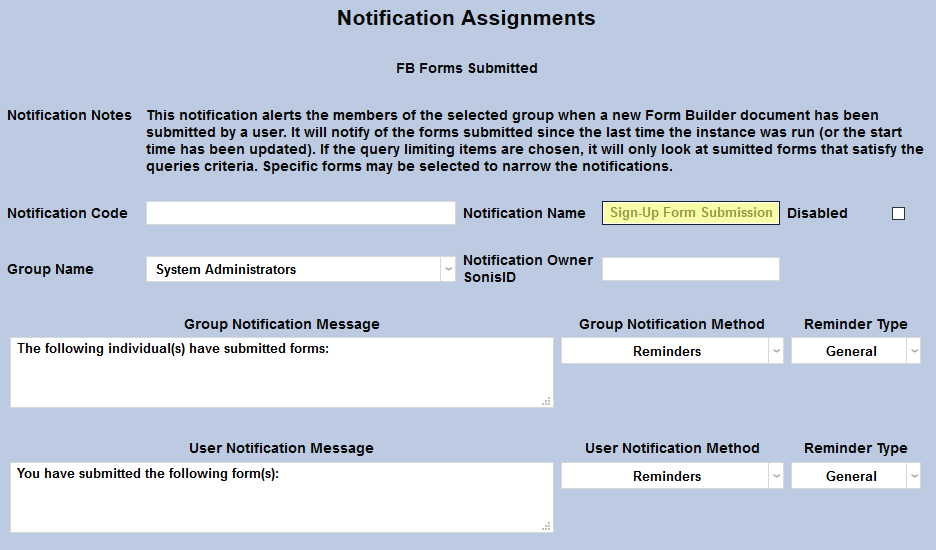
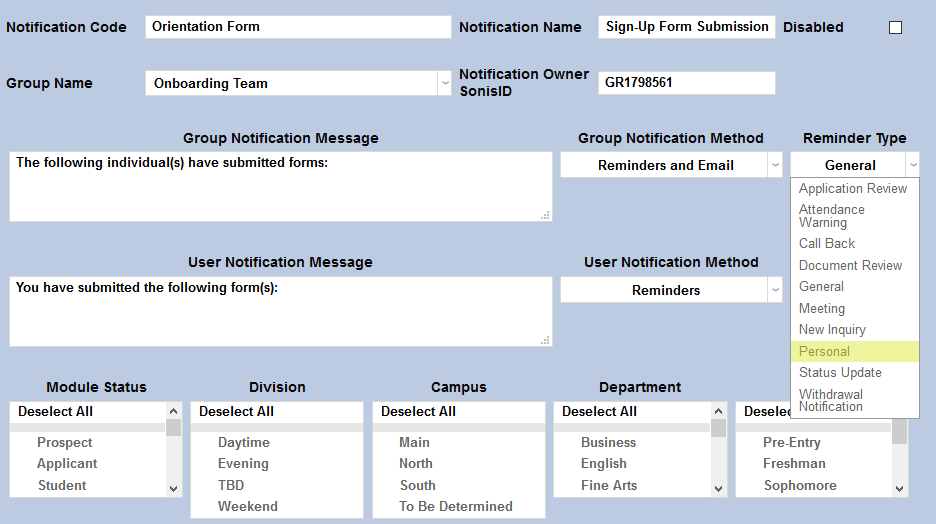
Next, create a Notification Name, a descriptor of the notifier's purpose with a 50 character limit, and a Notification Code, a shorter version of this name with a 20 character limit that the SONIS system will use internally to identify the notifier. In most cases, institutions will want to tie each notifier to a specific form and give the notifier a name that reflects that.
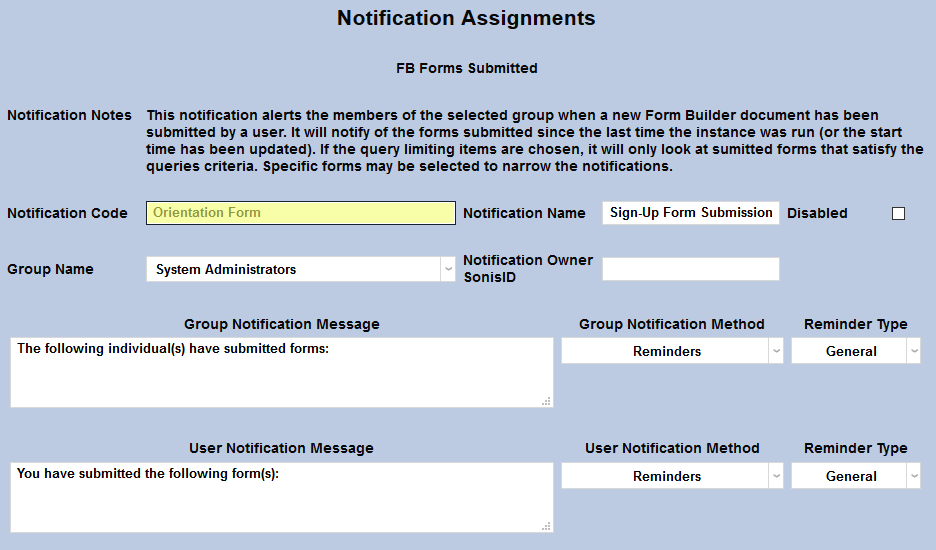
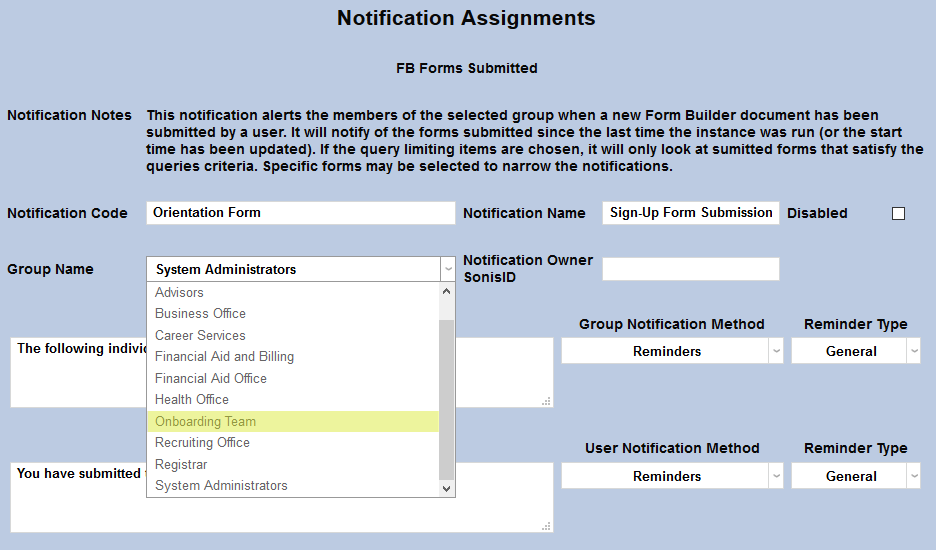
Select a group of staff/faculty to receive the notification from the Group Name dropdown menu. Groups can be added and edited through the Table Maintenance utility.
Enter the ID of the staff or faculty member who will be managing this notification in the Notification Owner SonisID field.
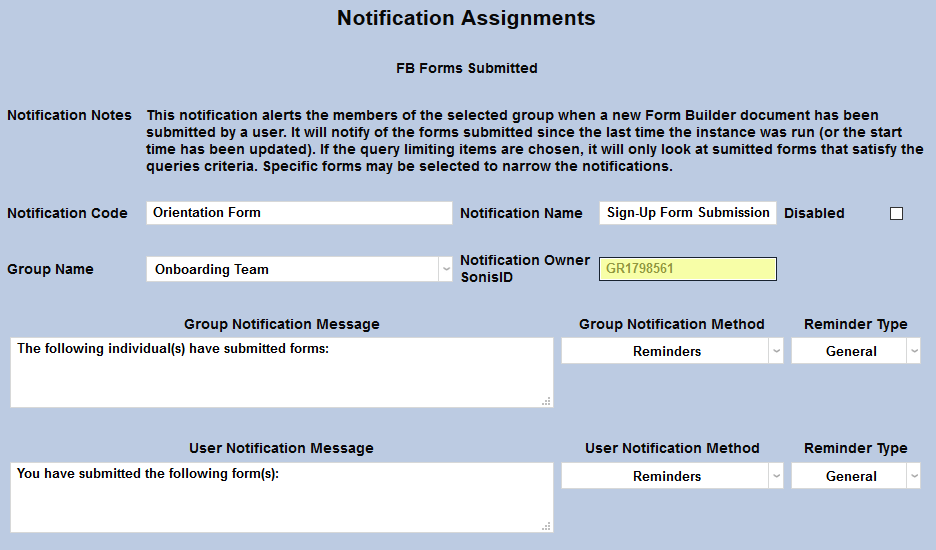
The default Group Notification Message for the Below Full-Time notifier is "The following individual(s) have submitted forms:" with a list of those forms included. This message can be edited to further clarify or provide additional information.
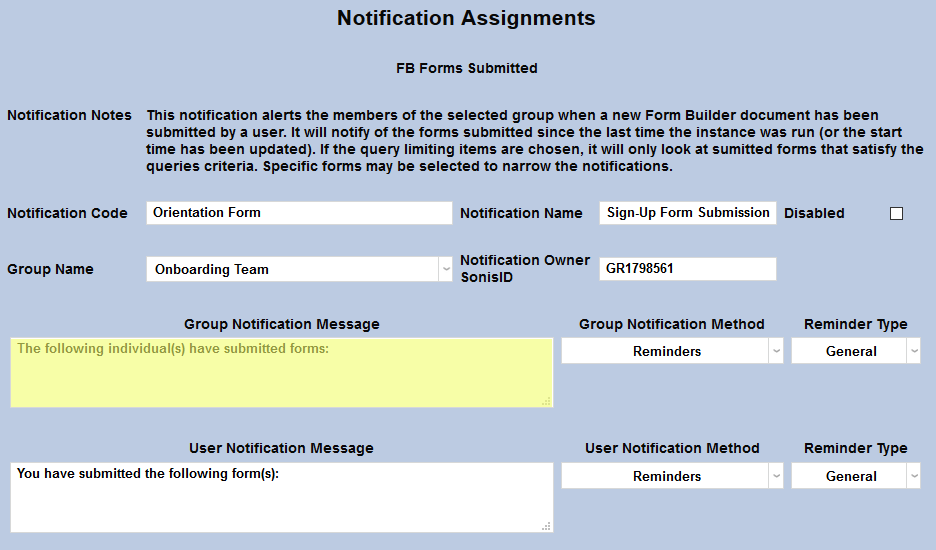
An additional message is sent to the user submitting the form notifying them of their submission. This message can also be edited to include additional information.
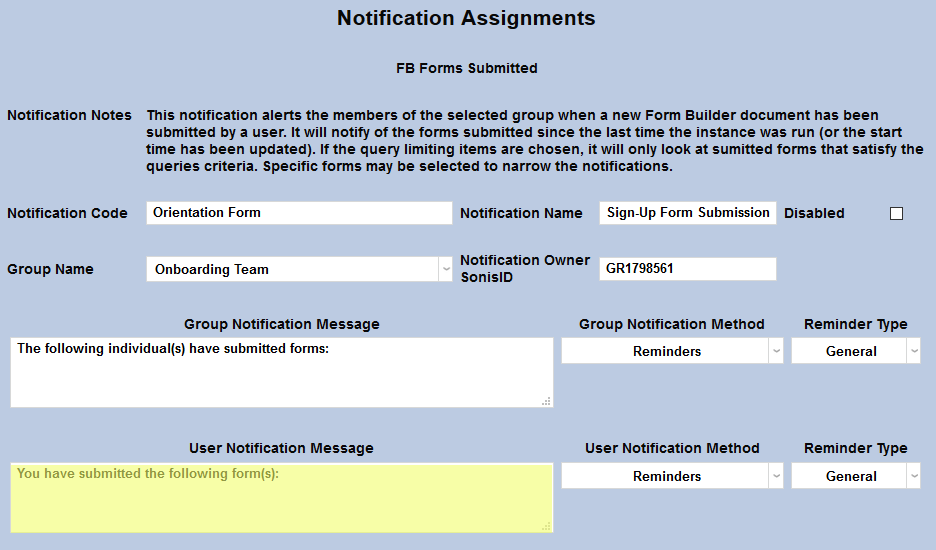
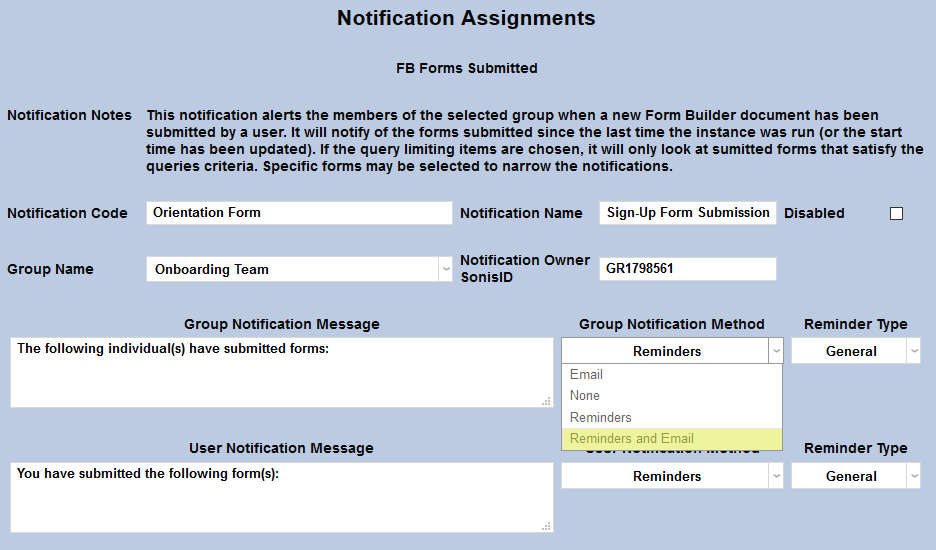
The Group Notification Method dropdown menu designates whether the group and individual users will receive an in-system reminder, an email, or neither when the notification is triggered. The Reminder Type dropdown can change how the in-system reminder displays. This list can be created and edited via the Table Maintenance utility. The User Notification Method and Reminder Type menus work in the same manner.
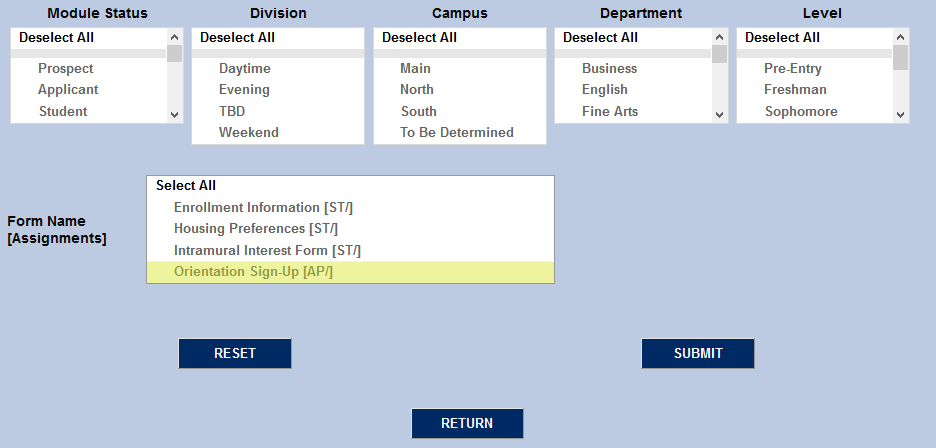
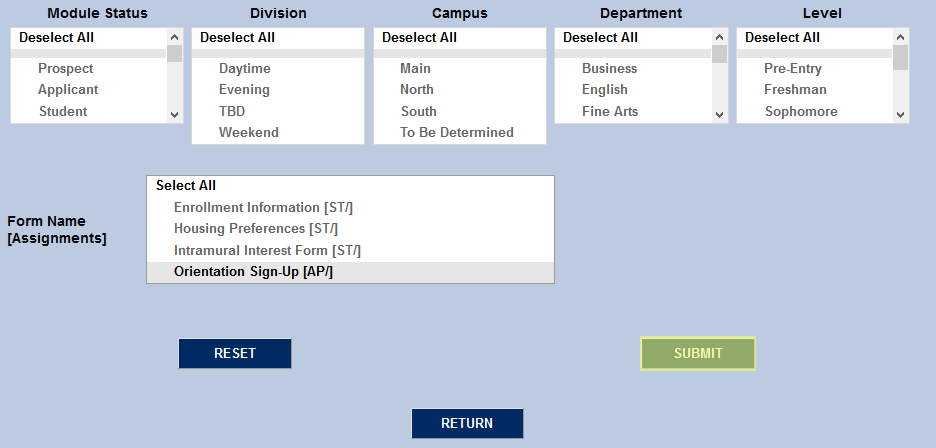
The Division, Campus, Department, and Level menus can be used to narrow down the list of students included in the notification.
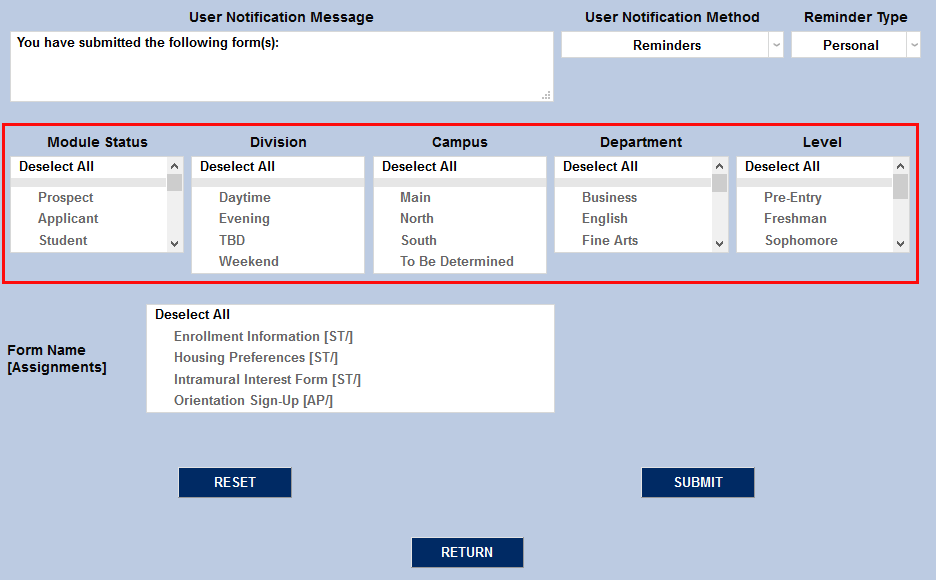
Lastly, select a form from the Form Name menu. Only forms that have been assigned will be listed. Click Submit to activate the notifier.