Checklist: Work Tasks
Overview
After an applicant has become a student, they will have milestones in their academic career that may require them to complete tasks such as meeting with an advisor before registering for a term. Much like the Application Checklist, these student milestones can be managed in Checklist: Work Tasks, available in the Users hub, and can be viewed or assigned to a student on Work Tasks Assign.
The Systems hub page Work Tasks Set Up is used to manage activities, transactions, and checklist items that will be assigned as work tasks. Activities, transactions, and checklist items are created and managed on their corresponding pages and/or tables. Any changes or edits made to existing tasks on this page will affect the tasks that are currently assigned to users.
Use
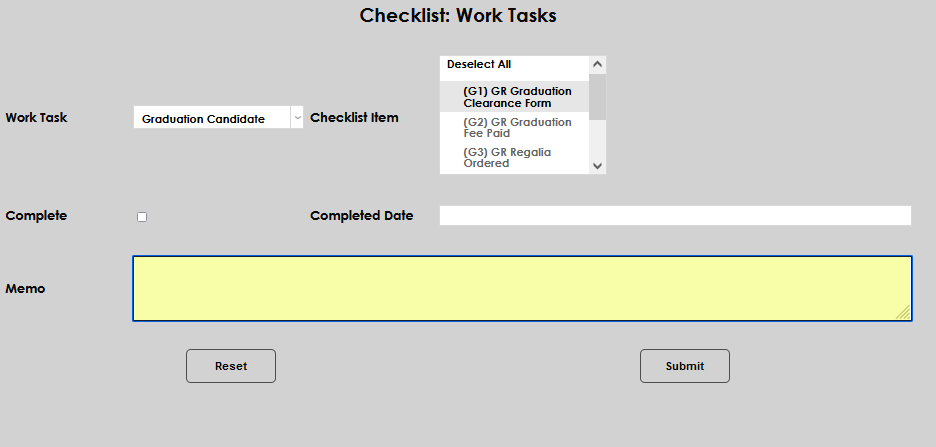
To add a work task or checklist activity to a user, Work Tasks Assign can be used. Additionally, users may navigate to Checklist: Work Tasks in the student's Users hub. Click Add New Task.

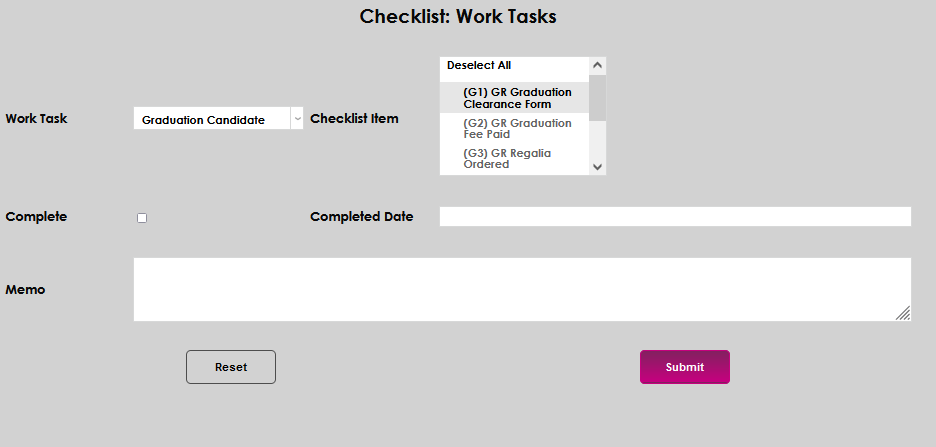
Select the appropriate Work Task from the dropdown menu.
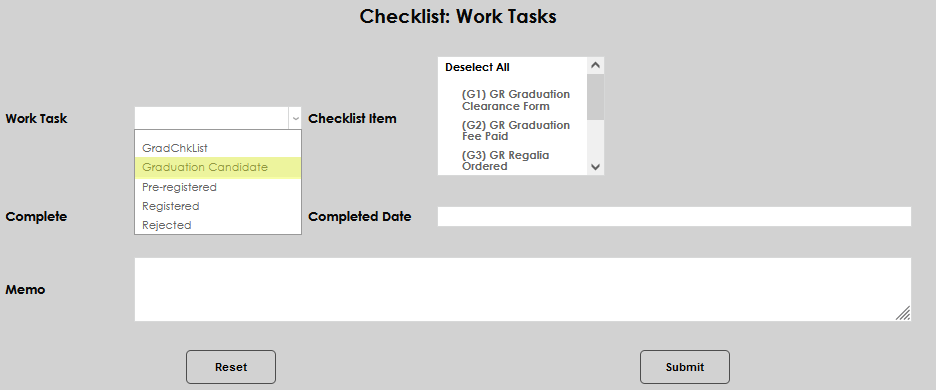
Choose the Checklist Item from the scroll menu.
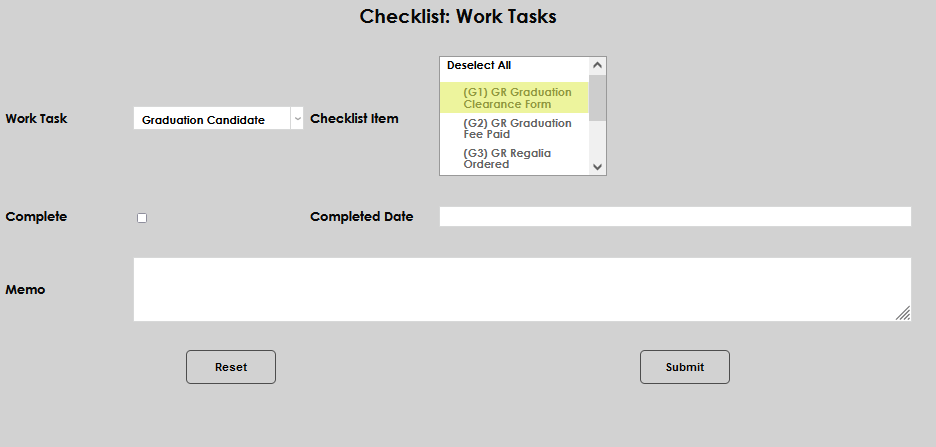
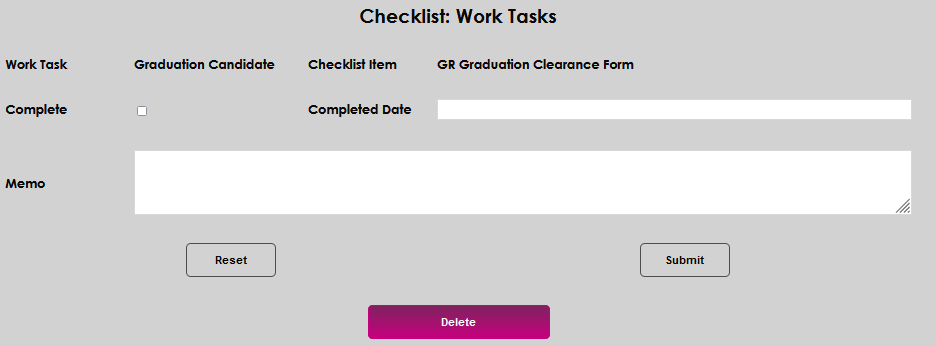
If this work task is complete, check the Complete box. Today's date will automatically populate in the Completed Date field. If it's necessary to change the date, simply click in the Completed Date field and make the desired edit(s). If it has not been completed, skip this area.
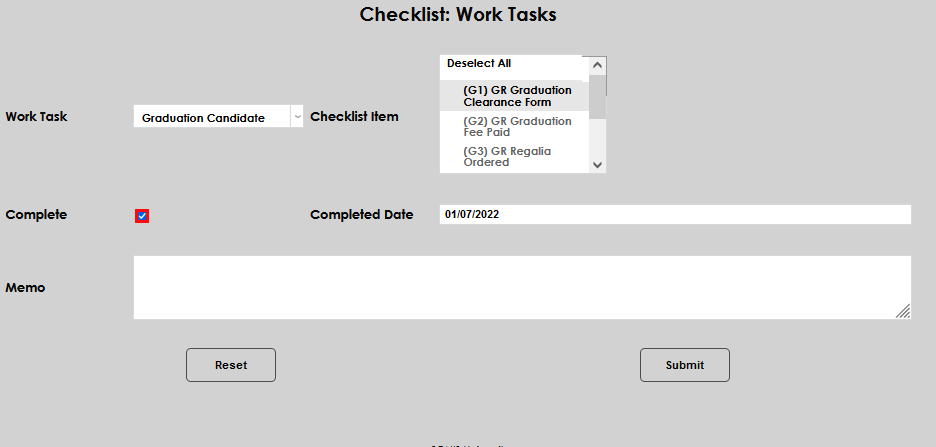
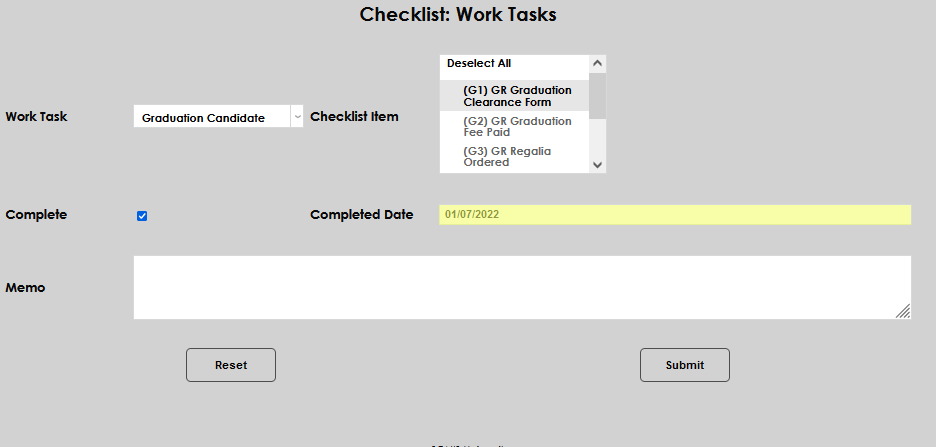
Enter any additional information about the work task item, and/or the reasons for assignment to the user, by typing in the Memo field. Click Submit to save the entered information.
Editing Existing Tasks
If the student already has tasks or checklist items on their record and they need to be updated or edited, navigate to Checklist: Work Tasks on the student's Users hub. Click the Work Task name that should be edited or updated.
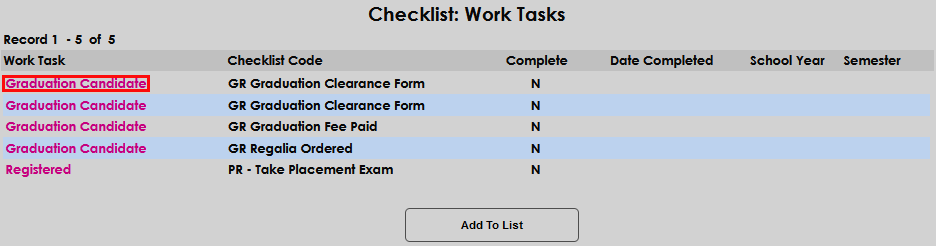
Update the desired information and click Submit.
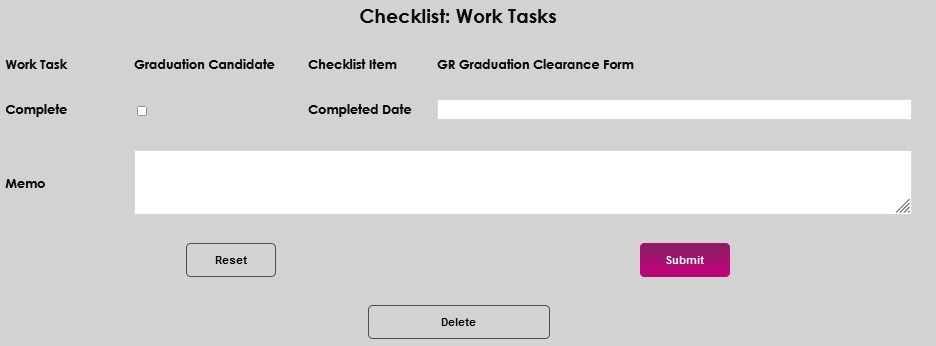
In this example, a duplicate task is being removed by clicking the Delete button.
When the opportunity to confirm the deletion is displayed, click Confirm Delete to remove the record or use the browser back button to exit the delete process.
