CAS Integration
Overview
The Central Authentication Service (CAS) is a common single sign-on protocol used by numerous web applications. Jenzabar SONIS clients with a CAS server environment can allow their students, faculty, alumni, and administrative staff to be automatically logged in to Jenzabar SONIS once they're logged in to the CAS system. The setup and login process mirrors the SONIS LDAP integration and predates the SSO Configuration page.
With CAS, users are able to log in to multiple applications without authenticating again as long as the CAS session timeout threshold hasn't been reached. When the threshold is reached, or if they haven't logged in yet, the user will be prompted for login credentials from the CAS server. Upon successful login to the CAS server, they will be checked further for a valid SONIS username and access and whether their account is disabled. If login is possible, they will be forwarded into the respective login portal.
Setup
System Variables
To link SONIS to the CAS server environment, navigate to the System Variables page in the Systems hub. Scroll to the bottom of the page and locate the CAS URL field. Enter the URL of the CAS server. This should be a full working URL with an http or https prefix.

The CAS Logout URL is optional. If a CAS server Logout URL is entered, all users will be taken to this page to be logged out of the system. Alternately, it could also take them to a user-defined page that provides any information that the institution deems necessary. It is recommended for users to still close all browser sessions before leaving a station to make sure that they are fully out of the CAS system.

Click the Submit button to save the changes.

Active Directory User ID
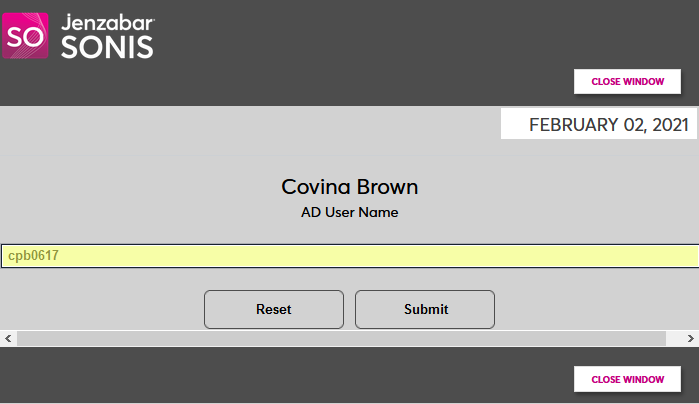
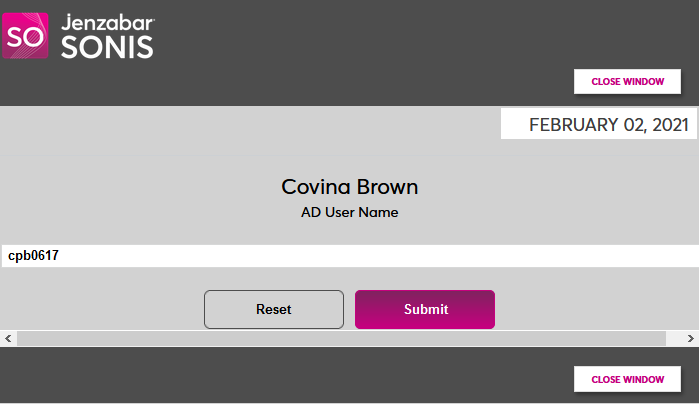
In addition to the URLs, each individual user who will log in through CAS must have an unique CAS user ID stored in their records. To add or edit an ID, navigate to the user's page. Click on the View link next to the AD User ID label.

A new window will open. Enter the user's CAS login ID and click Submit to save the change.
Note
For administrator logins, if there is more than one profile with the same AD User ID, the user will be prompted to select a profile when navigating to SONIS. Otherwise, the system will authenticate without prompt as is done when accessing the other portals.
User Replacement Pages
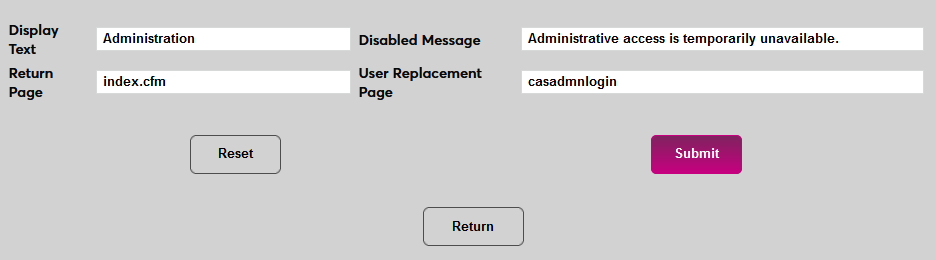
Some institutions may wish to set CAS login as the default means of entering SONIS. To make this change, navigate to under the systems menu and select one of the portals that will be utilizing CAS login.


Copy one of the following values into the User Replacement Page field.
• casadmnlogin - for Administrator Login
• casalumlogin.cfm - for Alumni Login
• casfaclogin.cfm - for Faculty Login
• casstulogin.cfm - for Student Login
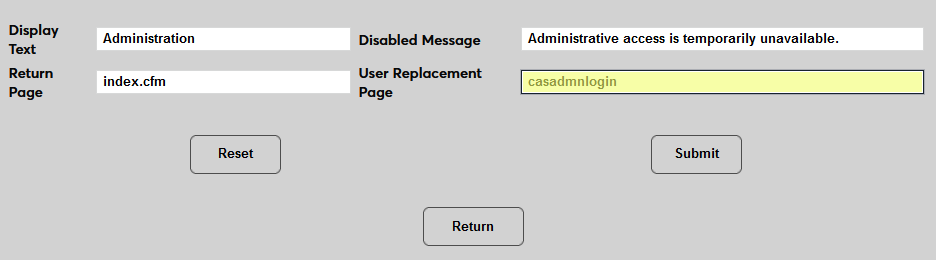
Click Submit to save the page.