Evaluation Assignments
Overview
The Systems hub option Evaluation Assignments allows administrators to assign course evaluations to course sections for a specific school year and term. Multiple course evaluation types are allowed. Evaluations may be assigned at multiple points within a term. Evaluations are viewable to students within the Student Portal and to faculty with the a Web Options setting turned on.
For more on the course evaluation process, see Evaluations, Evaluation Questions, and Evaluation Responses.
Assigning Evaluations
To assign an evaluation, begin by selecting the evaluation you want to assign from the Evaluation drop-down menu.
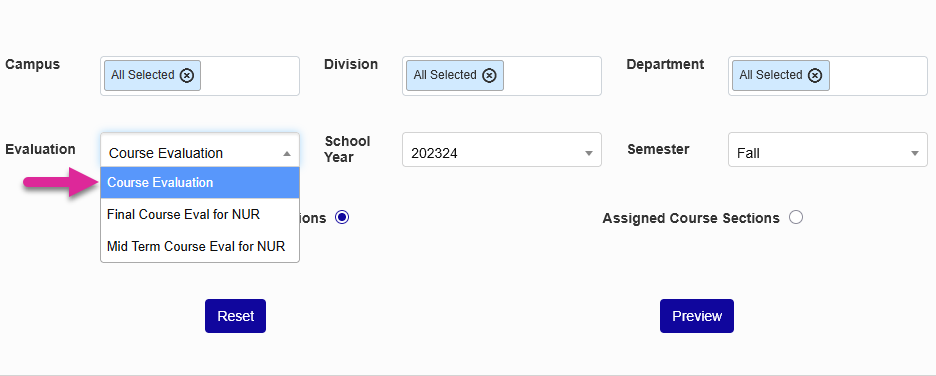
Use the multi-select Campus, Division, and Department menus along with the single-select School Year and Semester menus to choose which courses will be displayed on the search page.
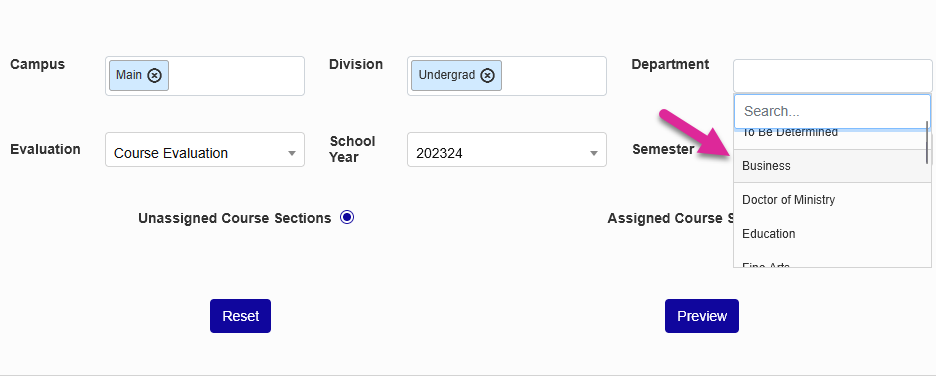
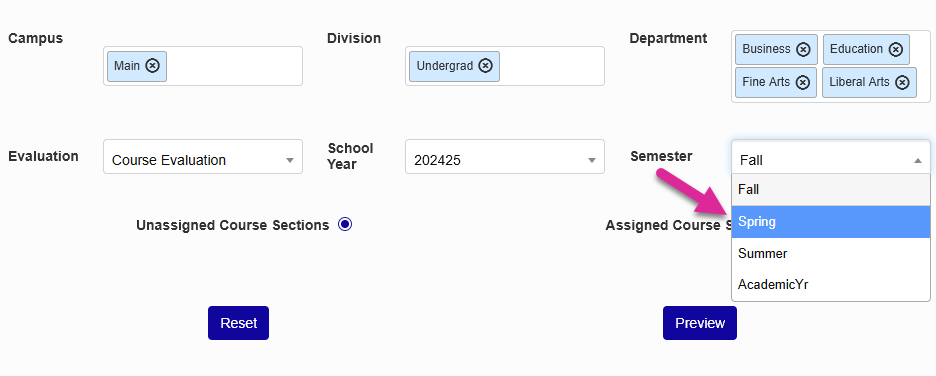
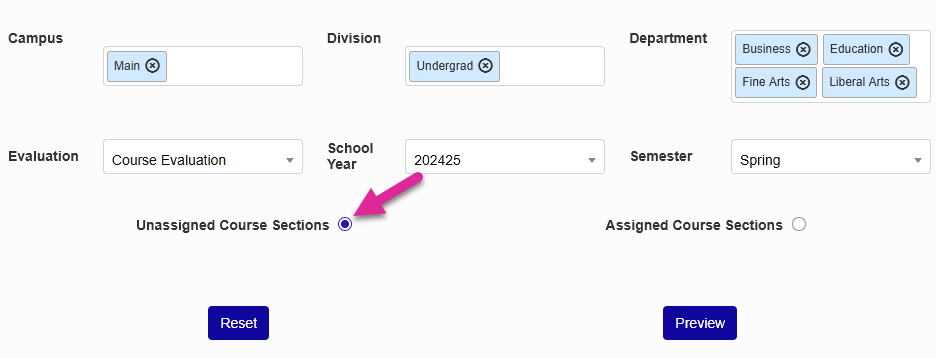
Ensure that the Unassigned Course Sections radio button is selected and click Preview to continue.
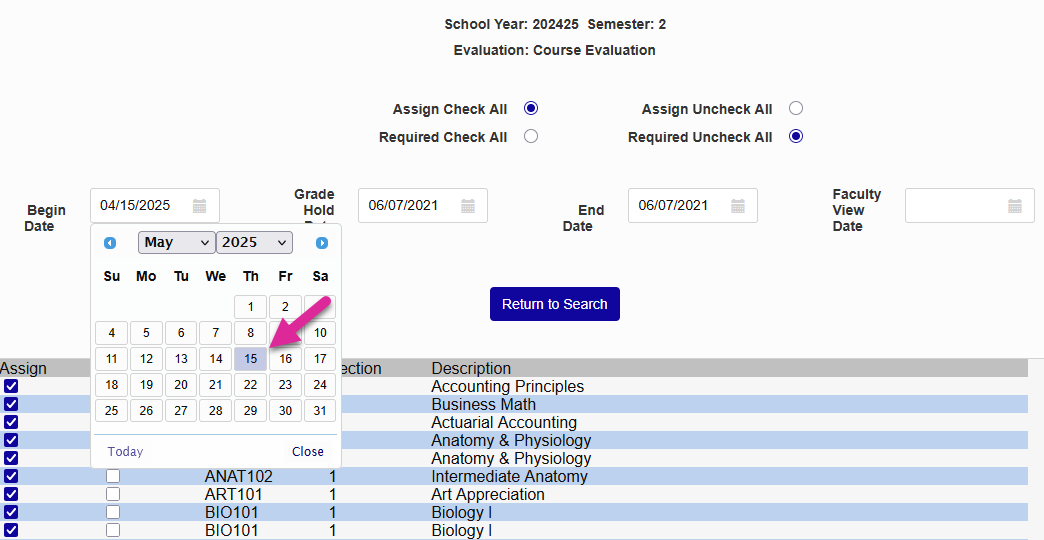
At the top of the page, use the date fields to set the key dates for the evaluation.
Begin Date: The date when the evaluation will first be accessible to students through the Student portal
End Date: The last date that the evaluation will be accessible to students through the Student portal before it can no longer be filled out
Grade Hold Date: The date on which students who have not filled out a required evaluation will no longer be able to view their grades, their schedule, and their GPA on the Student portal
Faculty View Date: The date on which faculty will be allowed to view their evaluation results in the Faculty portal, if applicable
Note
In order for faculty to view evaluations, the Allow Faculty to View Course Evaluations option in Web Options must be active. The evaluations are kept anonymous.
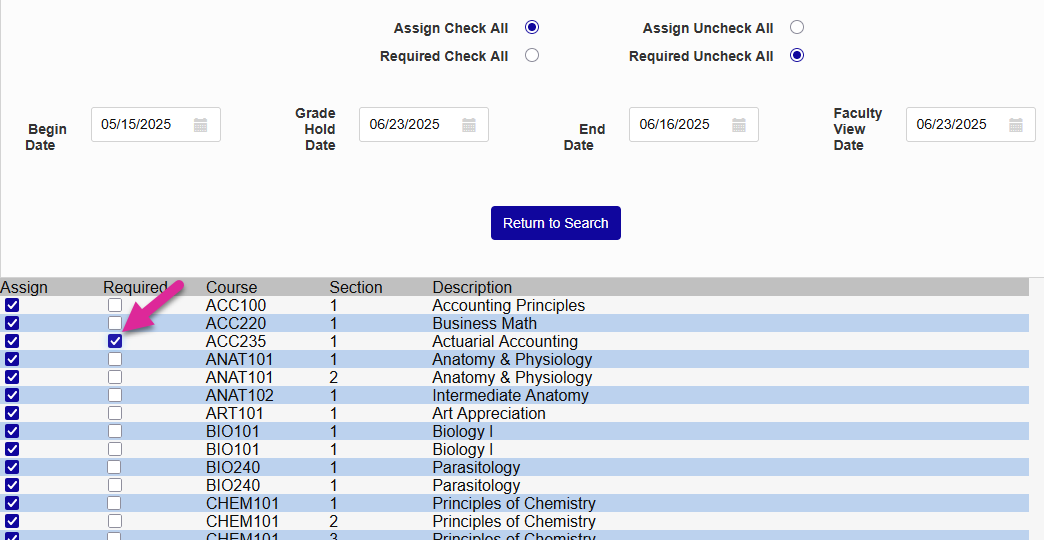
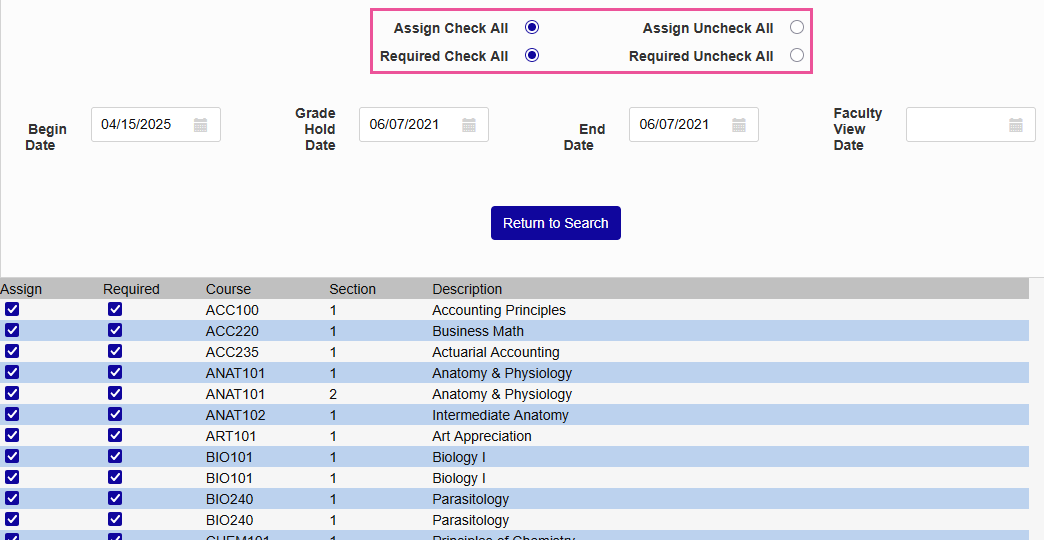
Check or uncheck the corresponding boxes for each course to choose whether the evaluation will be assigned to each course and whether it will be required or optional. You can use the Assign Check All, Assign Uncheck All, Required Check All, and Required Uncheck All buttons at the top of the page to speed up the process.
Once you have the proper settings in place, click Submit to assign the course evaluations.
Unassigning & Overriding Evaluations
To unassign or override an evaluation, begin by selecting the evaluation you want to unassign or override from the Evaluation drop-down menu.
Use the multi-select Campus, Division, and Department menus along with the single-select School Year and Semester menus to choose which courses will be displayed on the search page.
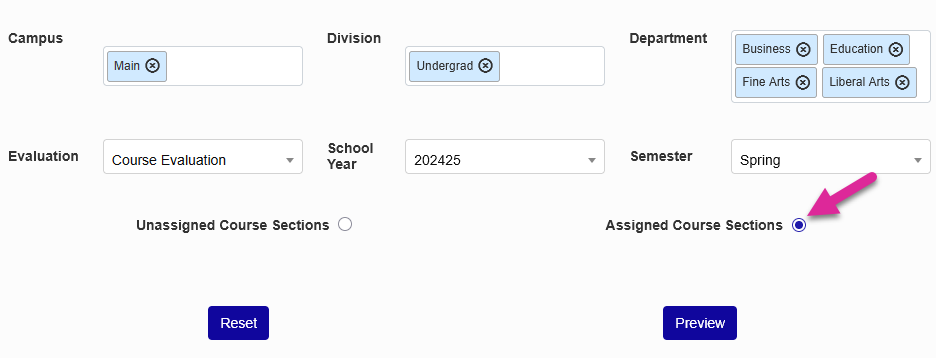
Ensure that the Assigned Course Sections radio button is selected and click Preview to continue.
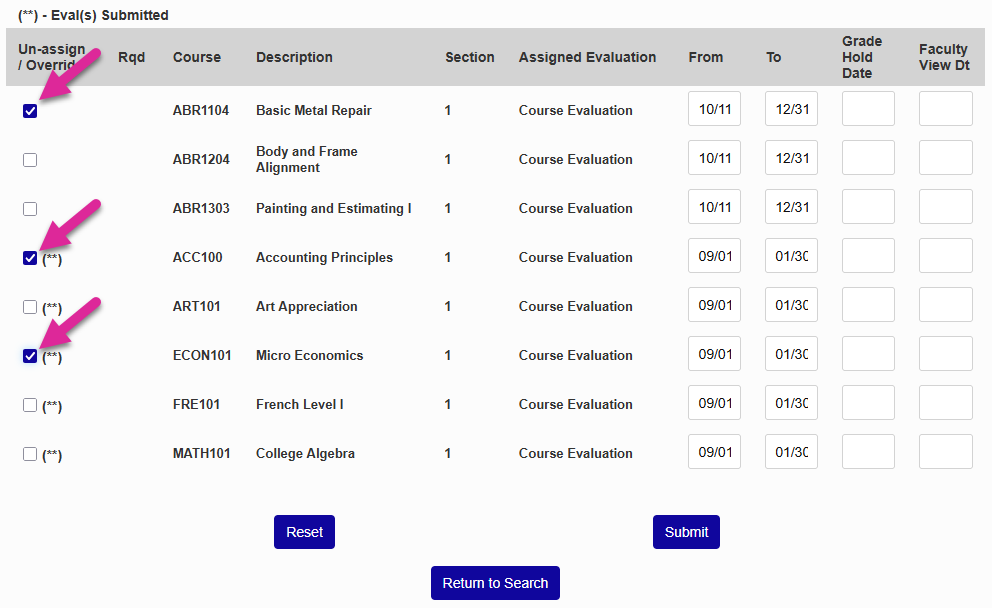
Note that some results may have a (**) notation. This means that at least one student has submitted this evaluation. Once an evaluation has been submitted, it cannot be unassigned. However, you can still give students in this course an override that will allow them to access their grades, their schedule, and their GPA even if they haven't filled out the evaluation.
To unassign or override an evaluation, check and uncheck the appropriate boxes in the Unassign/Override column and click submit. Once this change has processed, all selected evaluations that have not been submitted will be unassigned and all selected evaluations that have been submitted will be overridden.
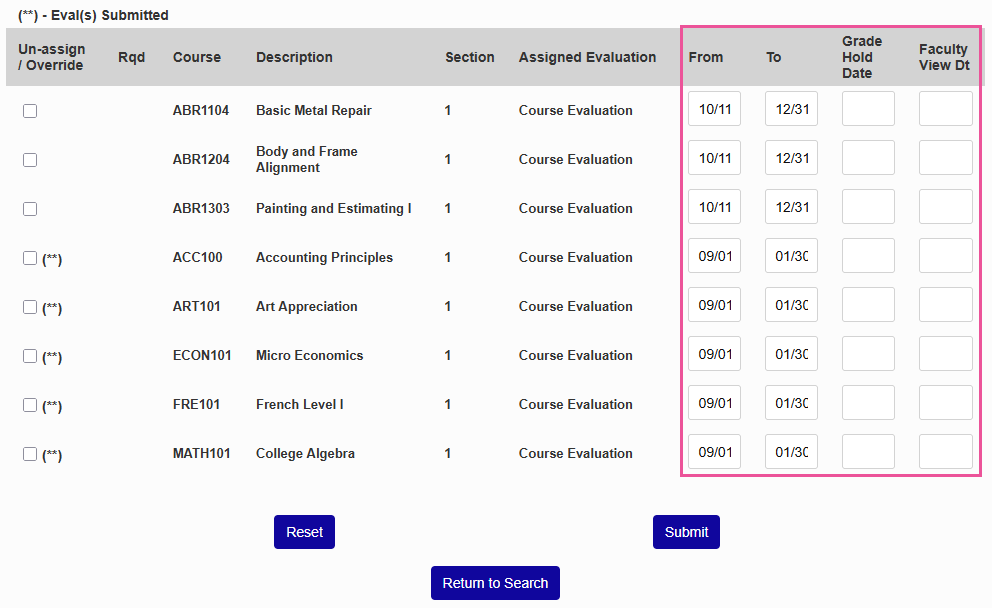
You can also change the key dates for the evaluations by changing the values in the From, To, Grade Hold Date, and Faculty View Dt fields and clicking submit.
Begin Date: The date when the evaluation will first be accessible to students through the Student portal
End Date: The last date that the evaluation will be accessible to students through the Student portal before it can no longer be filled out
Grade Hold Date: The date on which students who have not filled out a required evaluation will no longer be able to view their grades, their schedule, and their GPA on the Student portal
Faculty View Date: The date on which faculty will be allowed to view their evaluation results in the Faculty portal, if applicable
Note
In order for faculty to view evaluations, the Allow Faculty to View Course Evaluations option in Web Options must be active. The evaluations are kept anonymous.
Note
You can also override a course evaluation requirement on an individual level by finding the course in a student's Courses records and checking the Evaluation Override box.