Affiliation
Overview
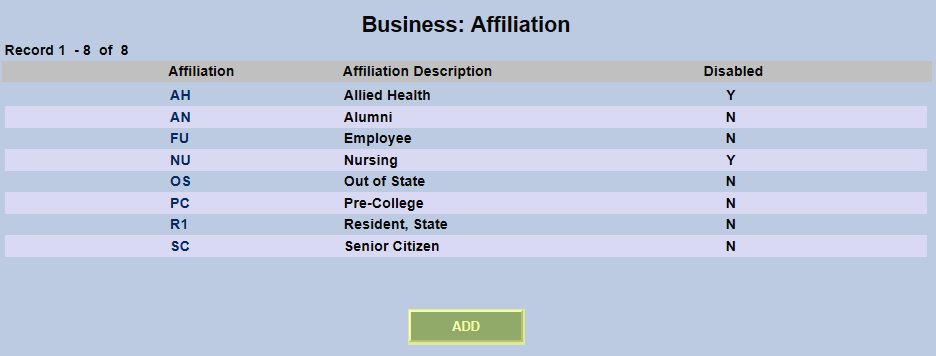
The Affiliations page allows schools to tag students with custom demographic labels that will display on the student's Biographic page and in other records. These tags are often used to determine tuition, fees, and other charges. The page is located in the Systems hub.
Adding Affiliation
To begin adding a new affiliation, click the Add button at the bottom of the page.
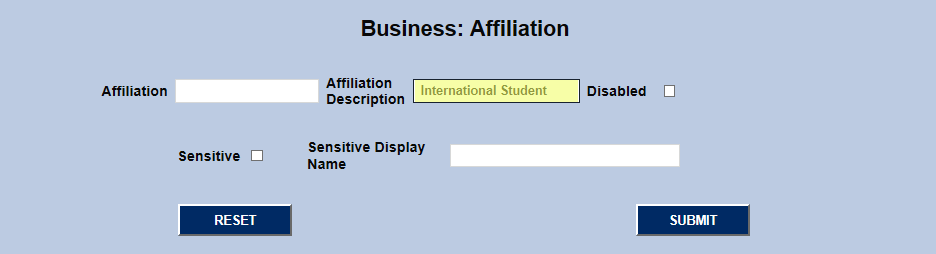
On the following page, write a long description of the affiliation in the Affiliation Description box. The field has a 35 character limit. Next, create a two-letter abbreviation for the affiliation in the Affiliation field.
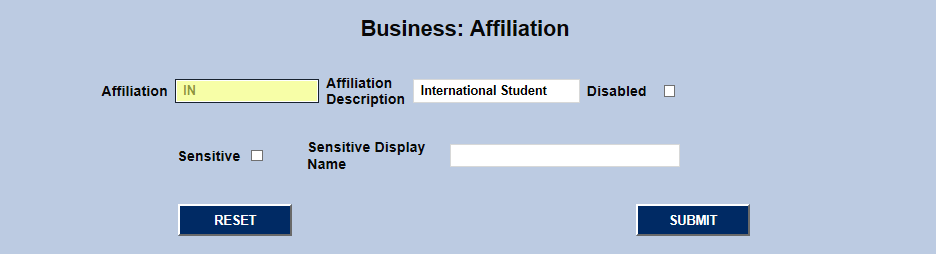
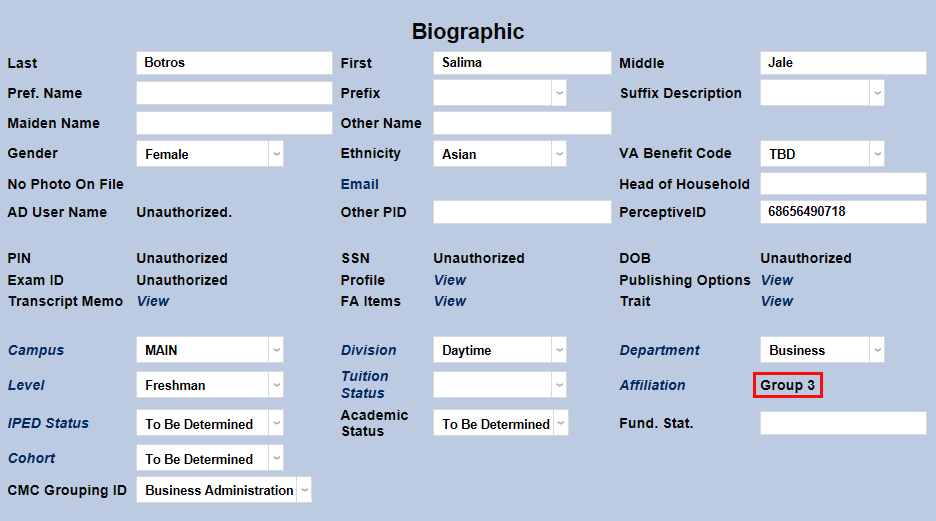
Some schools may wish to mask certain affiliations to keep lower-level employees from seeing them. To make an affiliation sensitive, simply check the Sensitive box and provide a Sensitive Display Name. This replacement name will replace the actual affiliation name on the student's Biographic page and Summary: Registrar page.
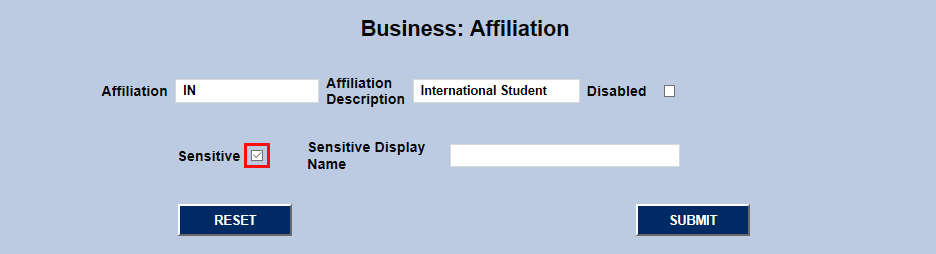
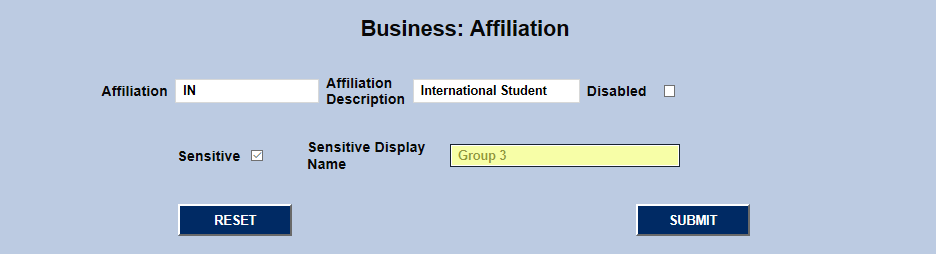
To allow users to view sensitive affiliations, add the Additional Privilege to their User Security profile. By default, no users in the system will have this privilege.

Click the Submit button to save changes. The affiliation will be immediately available for assignment.

Editing Affiliation
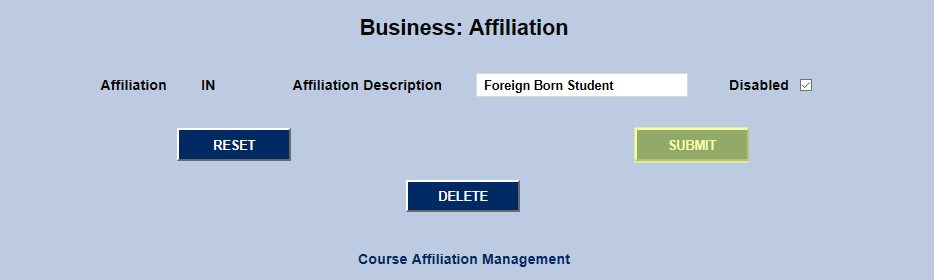
To edit an existing affiliation, click on the affiliation code. The Affiliation Code can not be changed, but the Affiliation Description can be edited by typing a new name into the field.
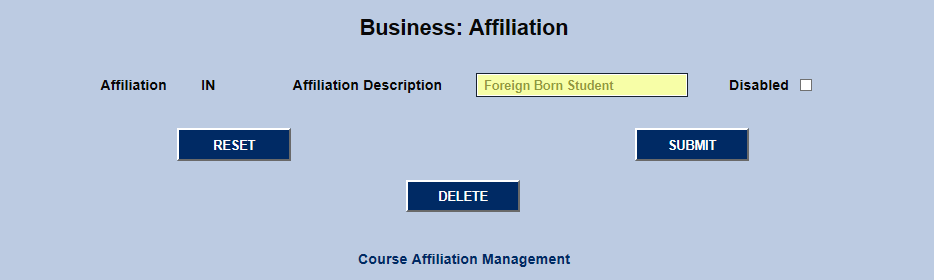
Check the "disabled" box to prevent the affiliation from being assigned. Disabled affiliations will only be visible via the affiliations page or the corresponding table.
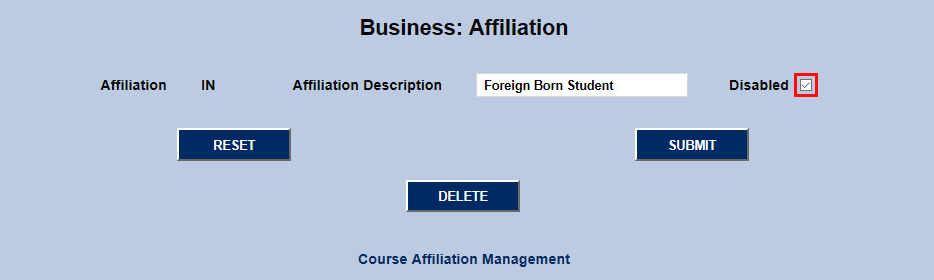
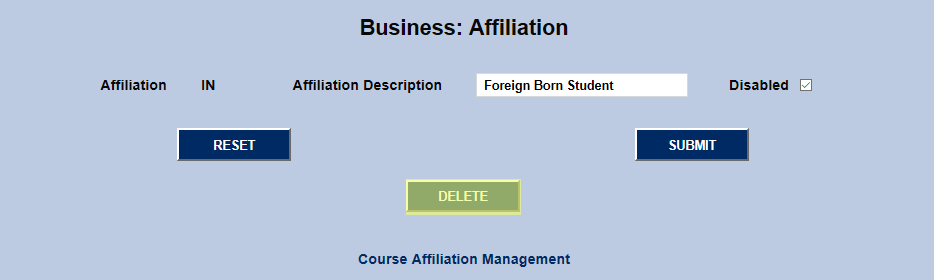
Once the necessary changes have been made, click the Submit button to save them. Alternately, the affiliation can be removed from the system altogether with the Delete button.
Course Affiliation Management
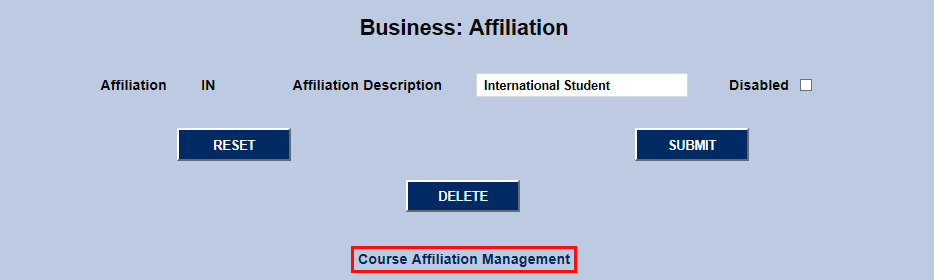
Affiliations can also be associated with a particular enrollment code. To create this association click the Course Affiliation Management link at the bottom of the page when editing a code.
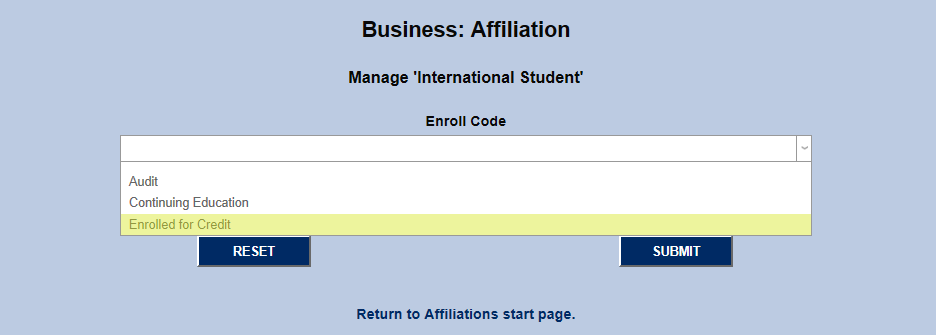
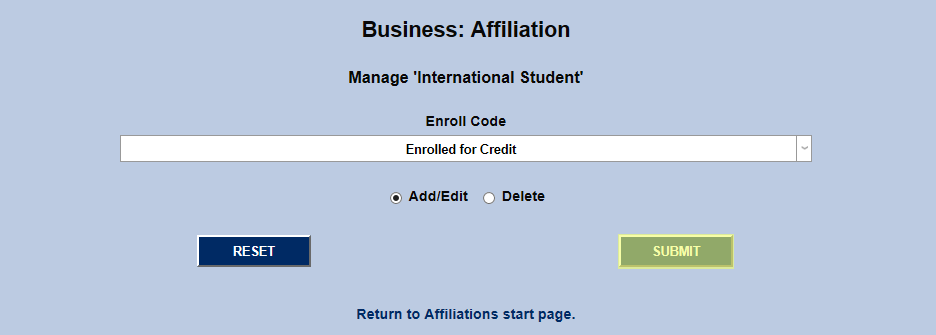
On the following page, select an Enroll Code from the dropdown menu and click Submit. All students with the affiliation in question will be given this type of course enrollment by default when registering.
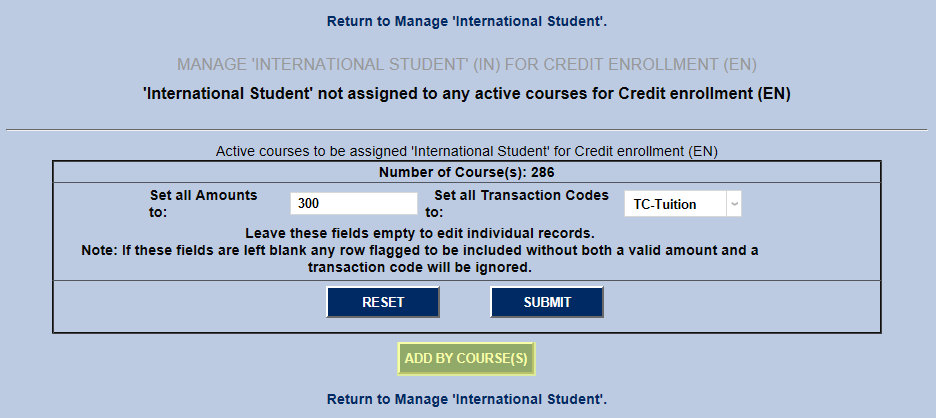
The next page offers administrators the chance to set a dollar amount to charge students in this affiliation per credit. Enter the per credit amount that the students in this affiliation should be charged for all courses they take and select a Transaction Code to pair with these charges. Click the Submit button to save the changes.
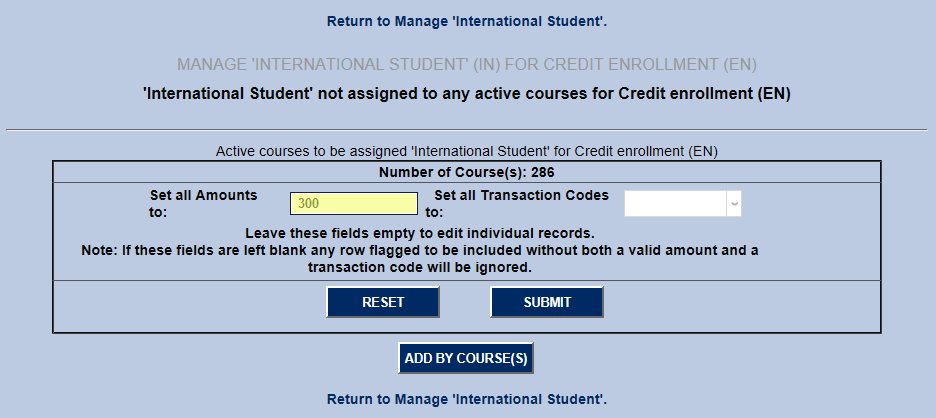
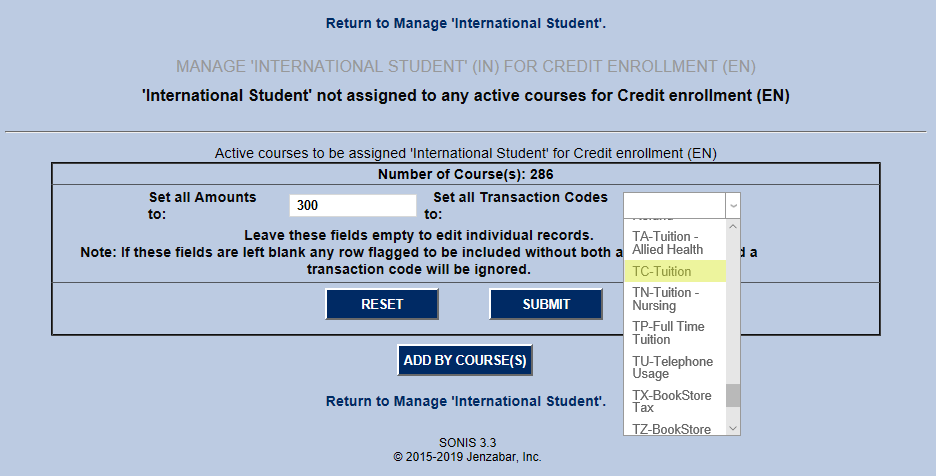
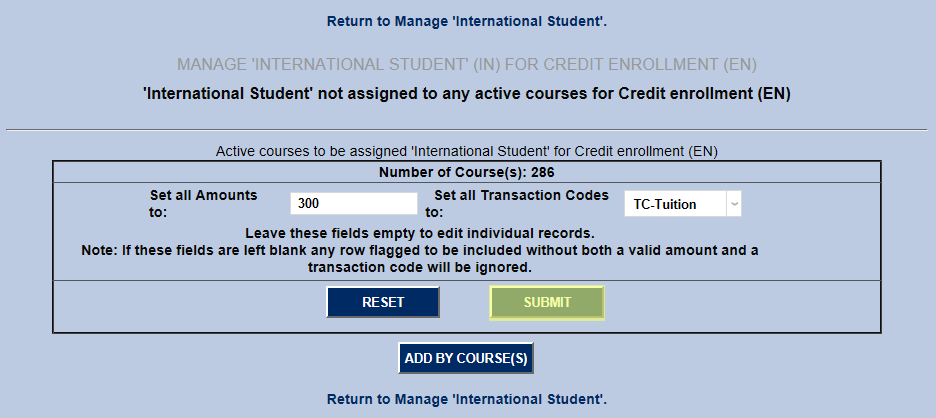
To set the prices for individual courses for this affiliation rather than all courses, click Add By Courses.
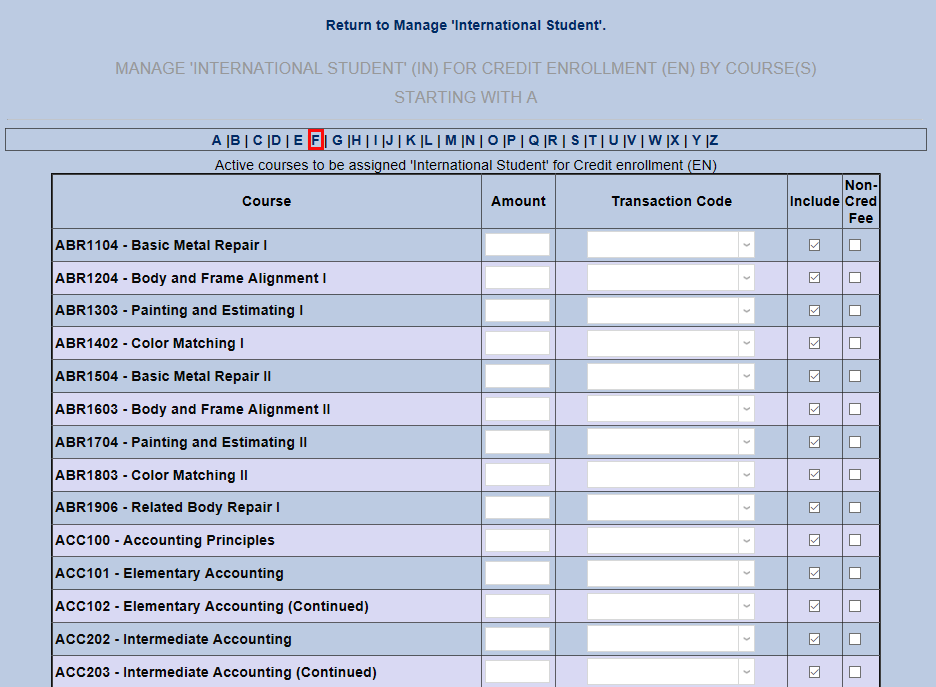
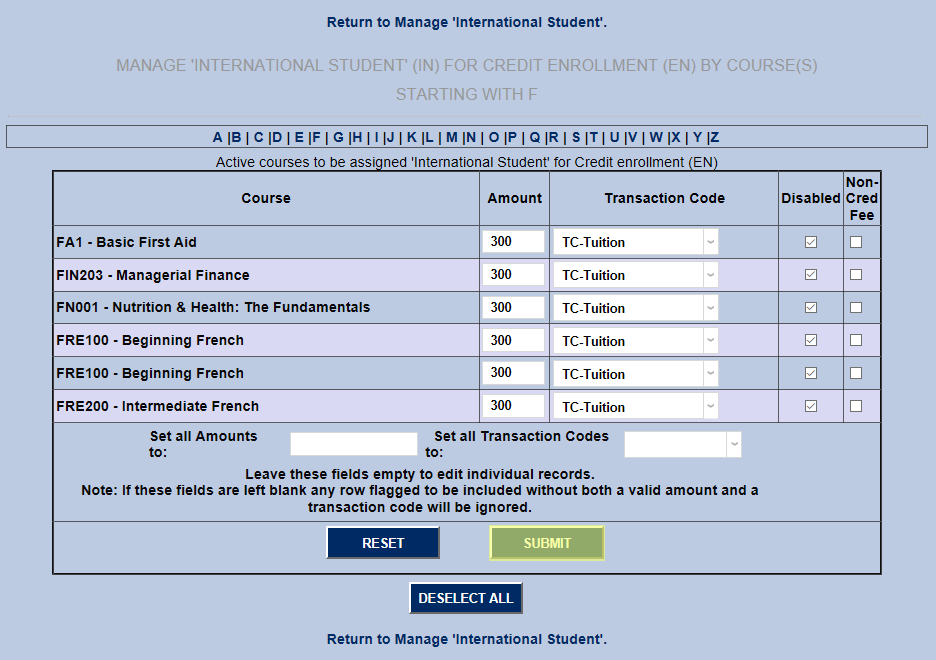
The following page lists every active course in the SONIS system. Select a letter from the top menu to find a course beginning with that letter.
In most cases, administrators should use the Set All Amounts To and Set All Transaction Codes To options at the bottom of the page. Once these values have been set, any course that should have a different fee structure or should not be included can be edited individually.
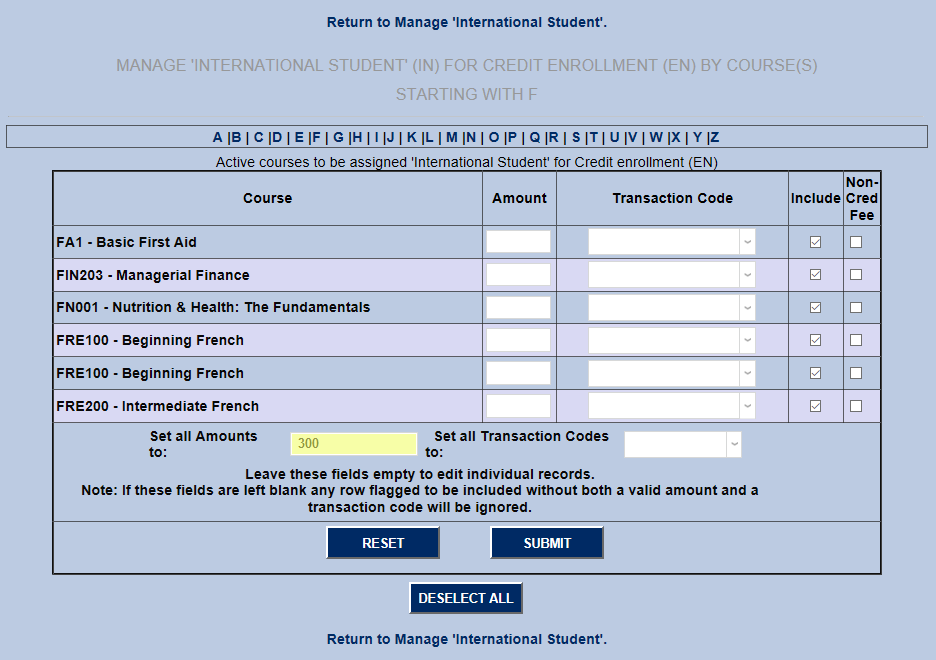
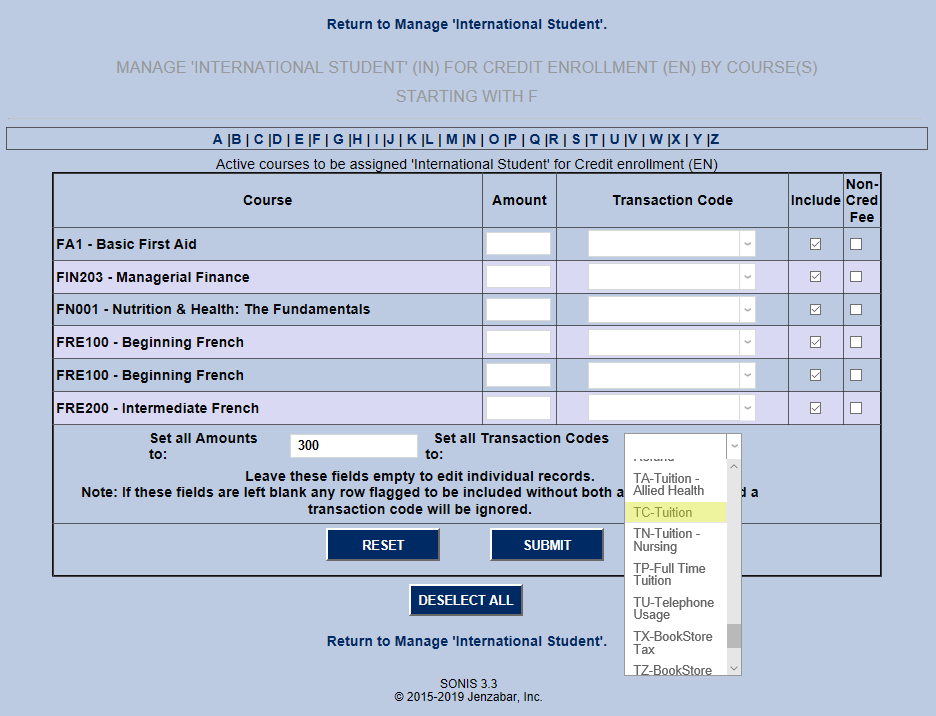
To set the cost of a course as a whole rather than on a per-credit basis, check the Non-Cred Fee box and change the Amount to the correct value.
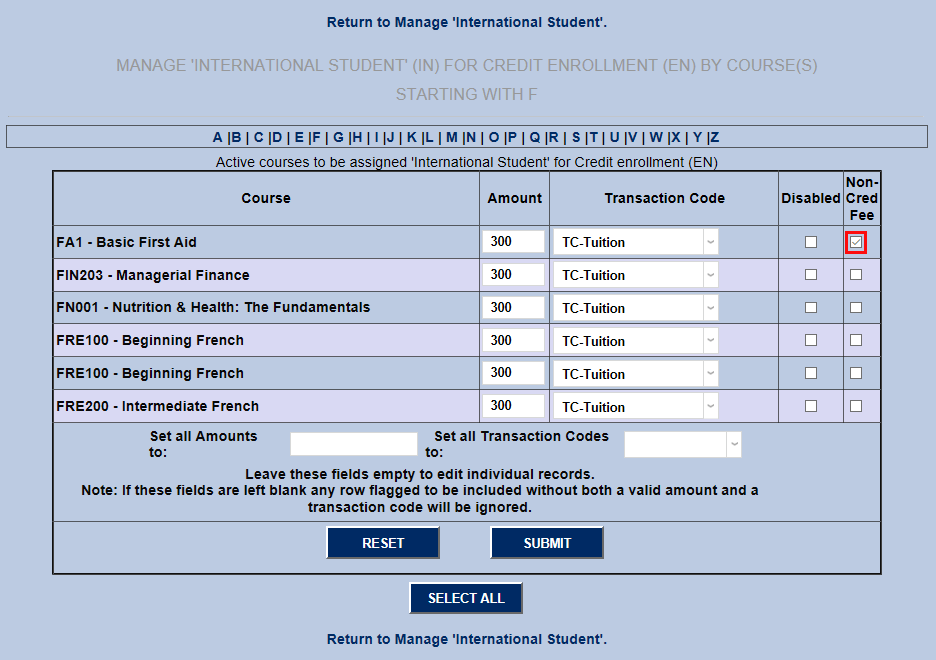
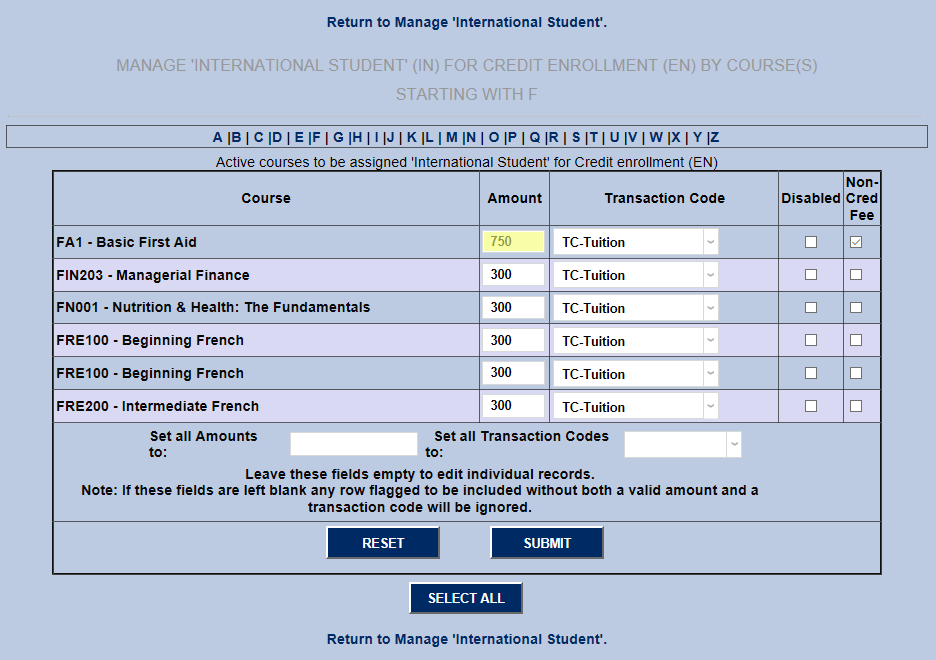
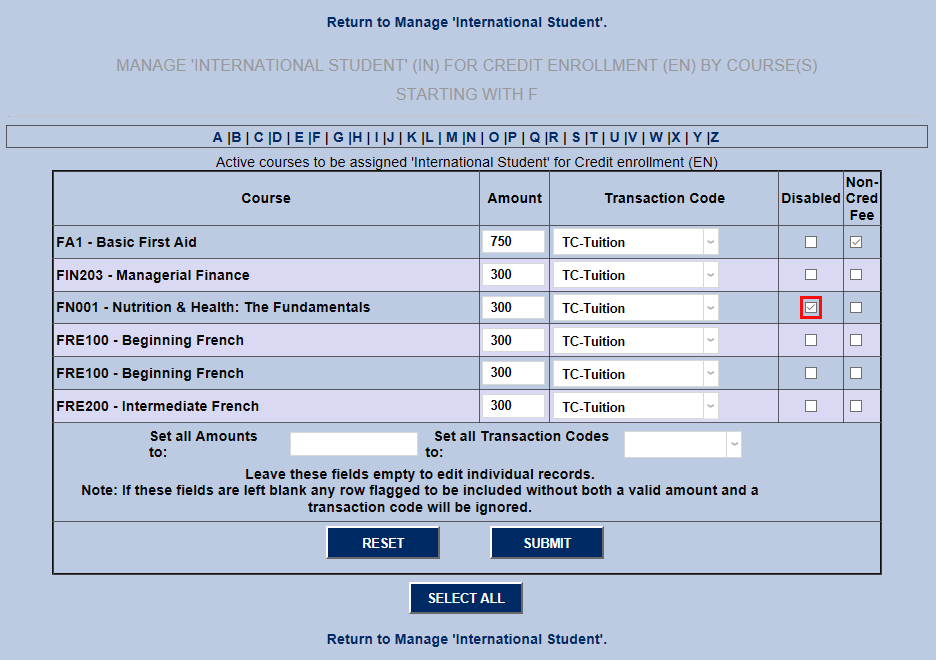
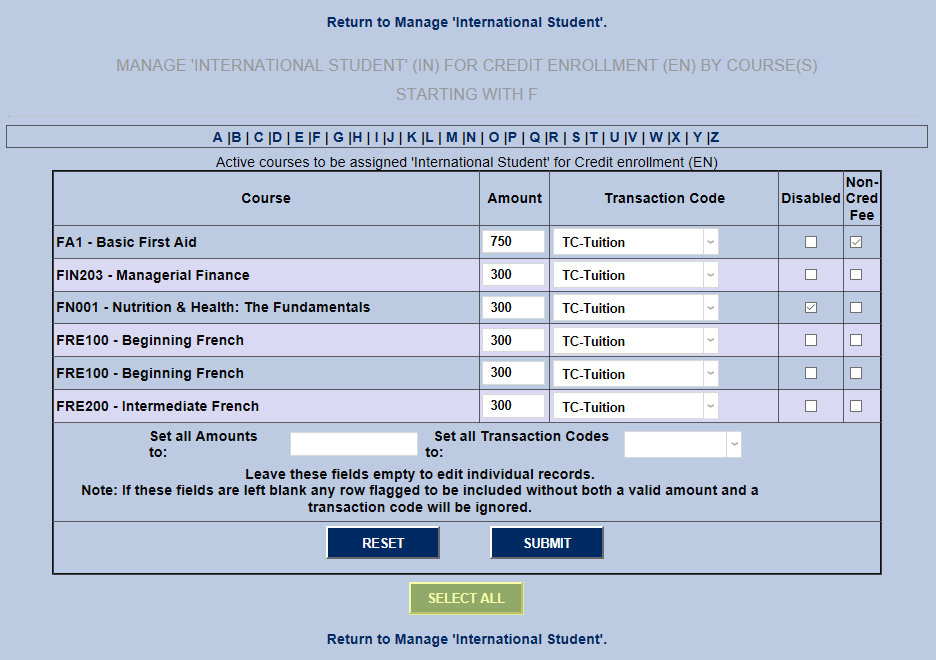
Individual courses can also be disabled by clicking the Disabled box. Or click Select All as a shortcut to check all Disabled boxes on the page. Click Submit to save the changes.
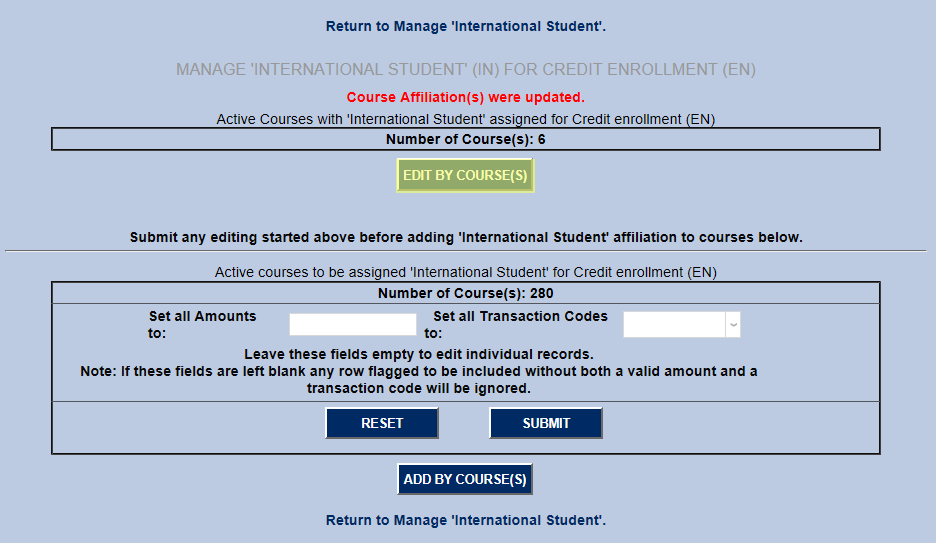
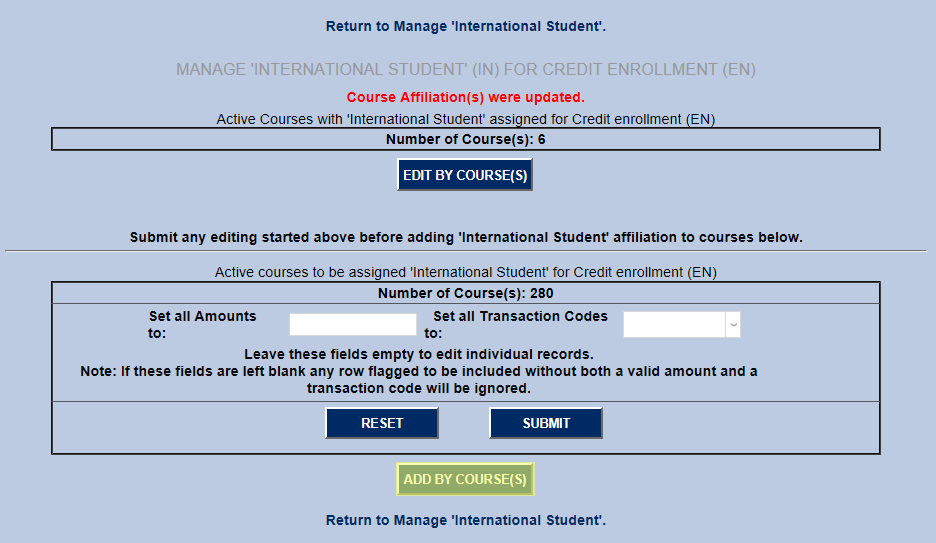
On the following page, administrators can click the Edit by Courses button to edit courses that they've updated previously. Only previously updated courses will be listed. Or click Add by Courses again to edit additional courses.
Assigning Affiliations
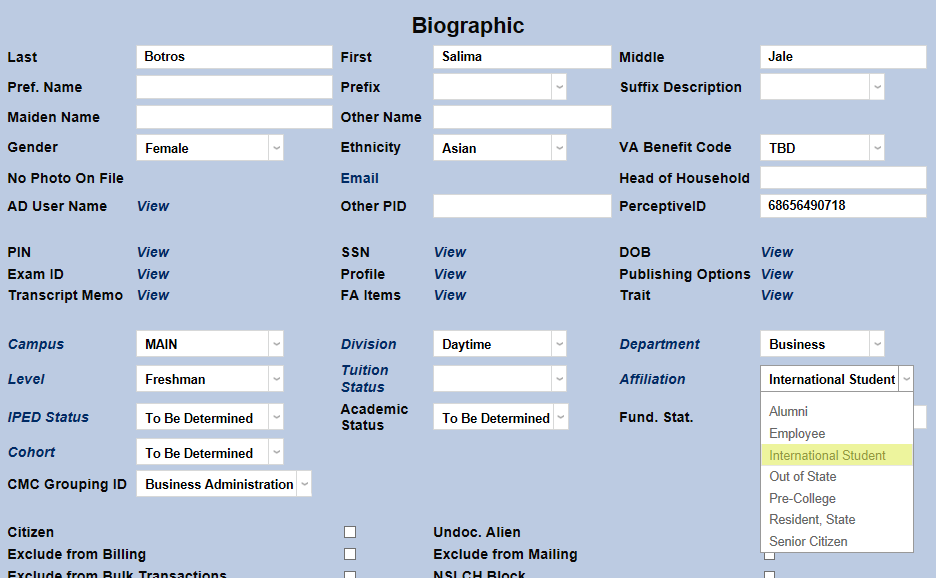
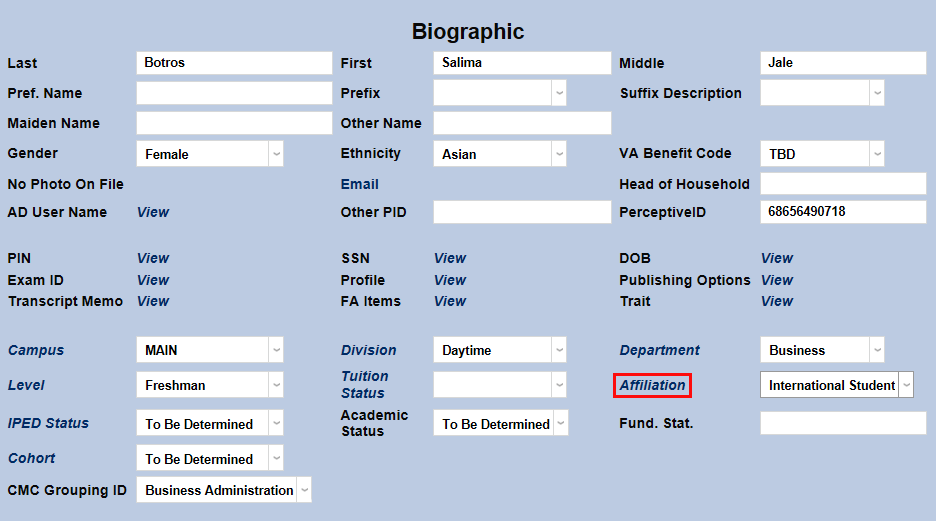
To change an individual student's affiliation, simply navigate to their Biographic page and choose the new affiliation from the Affiliation dropdown menu.
Previous affiliation changes can be viewed by clicking the Affiliation link. A new window will open showing the affiliations the student has been assigned with the dates and times they were active.
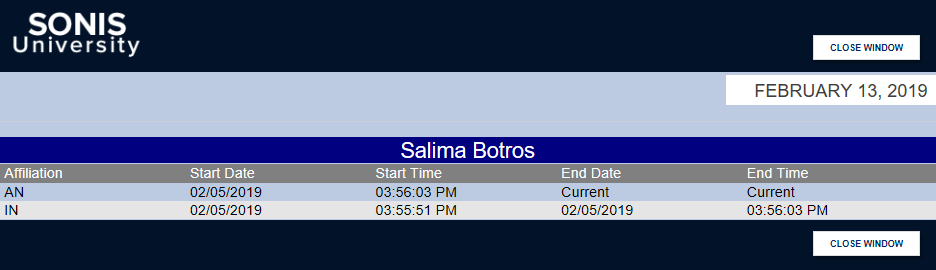
In both of these places, sensitive affiliation names will be obscured for users without the proper security clearance. In addition, users without the View Sensitive Names privilege will be unable to add or remove sensitive affiliations once they've been assigned.
Affiliation Tuition
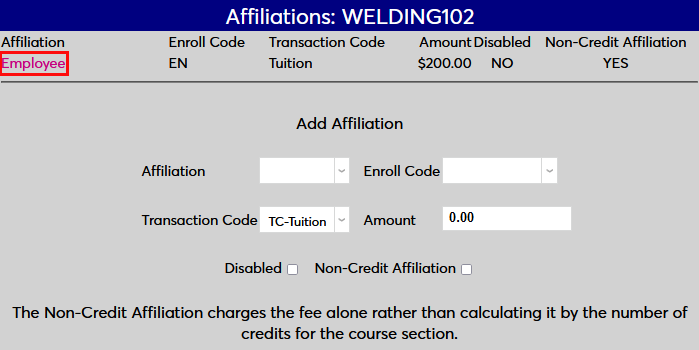
Some institutions may wish to charge their students different a different tuition based on the student's Affiliation. For example, students could receive a discount for being a staff member or an alumnus or could be charged more for having an out of state residency. To add affiliation-based tuitions, click the Affiliation link. A pop-up window will open.

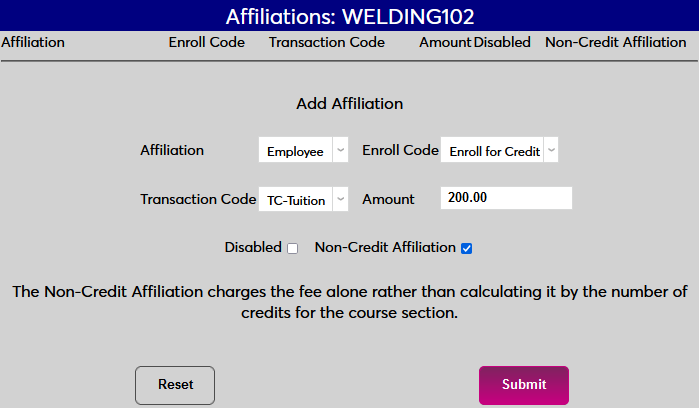
In the new window, begin by selecting an Affiliation.
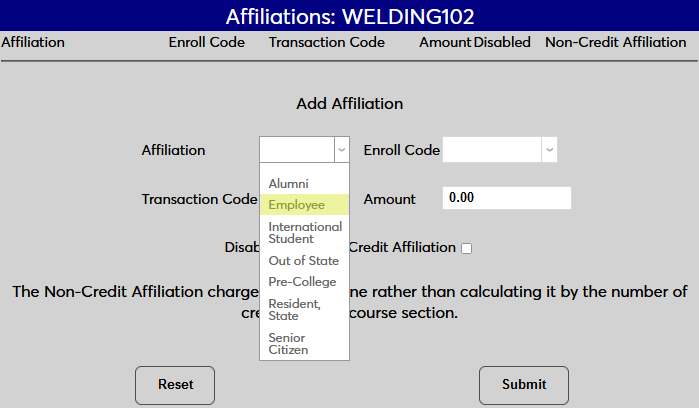
Next, select an Enroll Code for the students who will be paying the affiliation rate. The affiliation rate can either apply to students who are auditing the course, who are taking it as a continuing education course, or who are enrolled in the course for the standard credit.
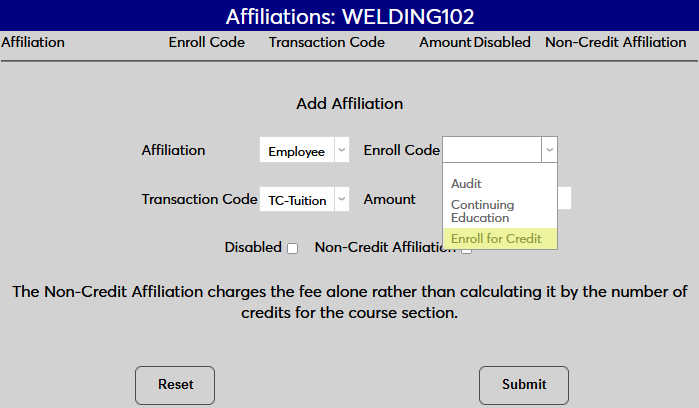
Select a Transaction Code that will apply to tuition payments received by students with this affiliation. Some institutions may wish to use a standard tuition T-code while others may create a T-code just for this kind of transaction.
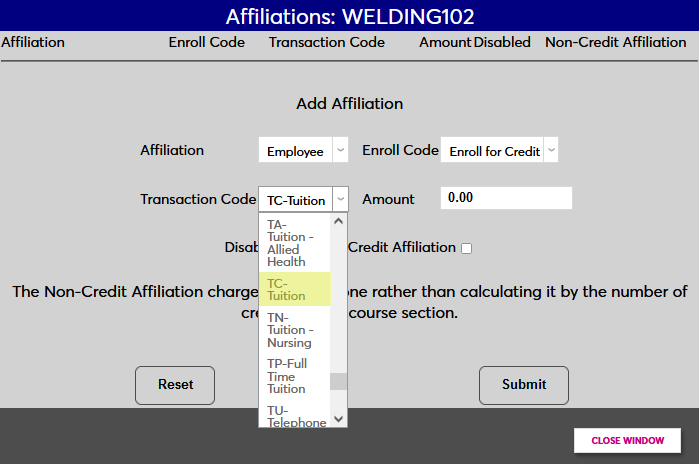
Set a dollar amount for the tuition using the Amount field. Check the Non-Credit Affiliation box if this amount will be the total amount paid for the course or leave it unchecked to charge the amount entered for each credit.
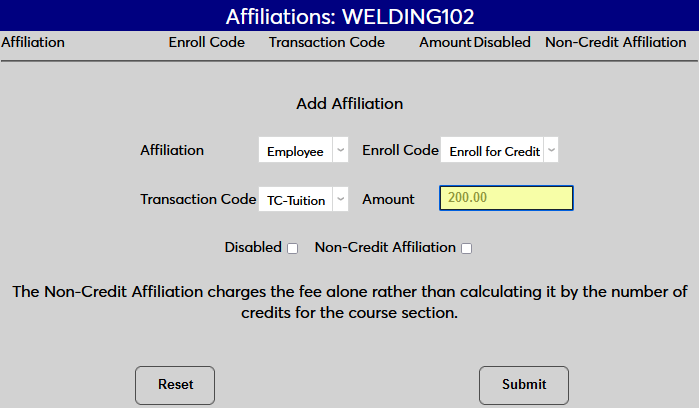
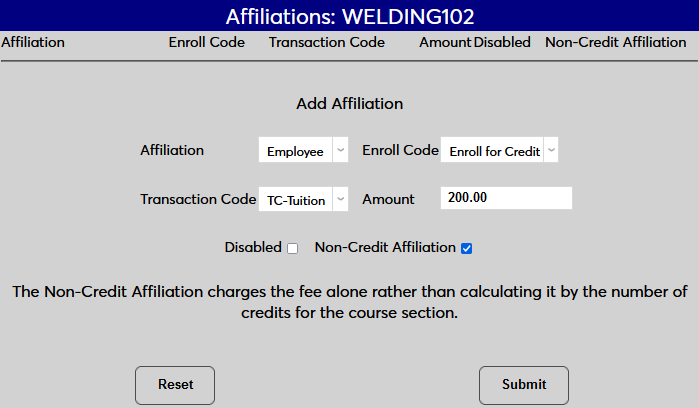
Click Submit to save the changes and activate the tuition.
Once an alternate tuition has been added, additional affiliation-based tuitions can be added using the same method. Click on the affiliation name to make changes to an existing setting.