Import Name Records
Overview
The Import Name Records function is used to bring outside user data into Jenzabar SONIS and create new records. This data can be created in a spreadsheet or imported from another system. Though the process itself is simple, the file specifications are very precise and must be followed to the letter to ensure success. XLS and XLSX files are accepted.
Building the File
Before importing user data, the file must be formatted correctly. The following table lists each field in the XLS/XLSX import file along with instructions on how to ensure that it's formatted properly. Click here to download a sample file.
Column | Field | Max Length | Data Type | Can Be Blank | Description/Info | SONIS Field/Page |
The columns shown below are for all records. | ||||||
A | last_name | 30 | Char | N | Last name of the individual | Last Name (Biographic Page) |
B | first_name | 30 | Char | N | First name of the individual | First Name (Biographic Page) |
C | birthdate | 10 | Date | N | Date of Birth, must be in valid date format for the system defined date format. Examples: US mm/dd/yyyy - 7/14/2000; UK dd/mm/yyyy - 14/7/2000; include slashes. | Birthdate (Biographic Page link) |
D | e_mail | 50 | Char | N | Must be in a valid email format: xxx@xxx.xxx. | Primary email address (Address Page) |
E | acadstat_cod | 8 | Char | Y | Must have a match in the SONIS Academic Status table. Provide the code, not the text description. | Academic Status (Biographic Page) |
F | affiliation_cod | 2 | Affiliation Table | Y | Must have a match in the SONIS Affiliations table. Provide the code, not the text description. | Affiliation (Biographic Page), Identifies alternative billing rates. |
G | camp_cod | 10 | Campus Table | N | Must have a match in the SONIS Campus table. Provide the code, not the text description. | Campus (Biographic Page) |
H | citizen | 1 | Logical Bit | N | Enter a zero (0) for No-not a citizen; enter a one (1) for Yes-citizen. Enter only the 0 or 1. | Citizen Y/N (Biographic Page) |
I | deceased | 1 | Logical Bit | N | Enter a zero (0) for No-not deceased; enter a one (1) for Yes-deceased. Enter only the 0 or 1. | Deceased (Biographic Page) |
J | dec_date | 10 | Logical Bit | Y | If deceased = 1, enter the date in the system defined date format (see birthdate above on row 4). | Date Deceased (Biographic Page) |
K | dept_cod | 4 | Department Table | N | Must have a match in the SONIS Department table. Provide the code, not the text description. | Department (Biographic Page) |
L | disabled | 1 | Logical Bit | N | Enter a zero (0) for No-this record is not to be added as disabled/inactive; enter a one (1) for Yes-this record is not to be added as disabled/inactive. Enter only the 0 or 1. This attribute does NOT refer to whether the individual has a disability or not; rather whether the record should be imported as a disabled/inactive record. A value of 1 is not typical. | Disabled (Biographic Page): Identified in SONIS with a checkbox; 1=Box is checked=Yes, the record should be imported as disabled. |
M | div_cod | 2 | Division Table | N | Must have a match in the SONIS Division table. Provide the code, not the text description. | Division (Biographic Page) |
N | ethnic_cod | 2 | Ethnic Table | Y | Must have a match in the SONIS Ethnic Codes table. Provide the code, not the text description. | Ethnicity (Biographic Page) |
O | exam_id | 9 | Check with Jenzabar Consultant or Help Desk | Y | Best left blank. Use SONIS to bulk generate exam_id after import. IF added, must be unique in the database and 9 random digits. | Exam ID (Biographic Page link) |
P | excl_billing | 1 | Logical Bit | N | Enter a zero (0) if the individual is NOT to be excluded from billing; enter a one (1) if the individual should be excluded from billing. Enter only the 0 or 1. | Exclude from Billing (Biographic Page) |
Q | excl_blk_trans | 1 | Logical Bit | N | Enter a zero (0) if the individual is NOT to be excluded from any bulk financial transactions; enter a one (1) If the individual should be excluded from bulk financial transactions. Enter only the 0 or 1. | Exclude from Bulk Transactions (Biographic Page) |
R | excl_mailing | 1 | Logical Bit | N | Enter a zero (0) if the individual is NOT to be excluded from mailings; enter a one (1) If the individual should be excluded from mailings. Enter only the 0 or 1. | Exclude from Mailing (Biographic Page) |
S | fund_stat | 2 | Check with Jenzabar Consultant or Help Desk | Y | Enter any 2 characters that have meaning for the school. This is a 2-character freeform field and is not typically used by most schools. | Fund Status (Biographic Page) |
T | gender | 1 | Gender Table | Y | Must have a match in the SONIS Gender table. Provide the code, not the text description. | Gender (Biographic Page) |
U | iped_stat | 2 | See Comments | Y | Must have a match in the SONIS IPED Status table. Provide the code, not the text description. Although the import will accept a blank, schools that report to IPEDS should provide accurate values. | IPED Status (Biographic Page) |
V | level_ | 1 | Level Table | N | Must have a match in the SONIS Levels table. Provide the code, not the text description. | Level (Biographic Page) |
W | maiden | 22 | Char | Y | Maiden name for the individual. | Maiden Name (Biographic Page) |
X | mar_cod | 2 | Marital Table | N | Must have a match in the SONIS Marital Status table. Provide the code, not the text description. | Marital Status (Biographic Page) |
Y | mi | 1 | Char | Y | The middle initial for the individual. | Middle Name (Biographic Page): Note the import will only import a middle initial, not the full middle name. |
Z | nickname | 20 | Char | Y | The nickname or preferred name for the individual. | Nickname or Preferred Name (Biographic Page) |
AA | notpubname | 1 | Logical Bit | N | Enter a zero (0) if the individual should NOT be included in portal search results; enter a one (1) If the individual should be included in portal search results. Enter only the 0 or 1. (NOTE: The individual will always be included in Admin search results, with appropriate user security.) | Don't Publish (Biographic Page>Publishing Options link) - Identified in SONIS with a checkbox; 1=Box is checked=DON'T Publish. This particular column can be confusing because 1=Yes=DON'T publish and 0=No=Okay to publish. |
AB | nslch_block | 1 | Logical Bit | N | Enter a zero (0) if the individual should NOT be identified as 'blocked' to the National Student Clearinghouse (NSCH); enter a one (1) If the individual should be identified as "blocked" to the National Student Clearinghouse (NSCH). Enter only the 0 or 1. This is only relevant for schools that report to the National Student Clearinghouse. Schools that do not must still enter a zero. | NSCH Block (Biographic Page) - Identifies if the individual has requested an NSCH block and it is on file. |
AC | nslch_block_date | 10 | Logical Bit | Y | If nslch_block = 1, provide the date the block became effective in the valid date format for the SONIS system: mm/dd/yyyy or dd/mm/yyyy. | NSCH Block Date (Biographic info, not shown on the page) - Identifies the date the NSCH block became effective. |
AD | online_hld | 1 | Logical Bit | N | Enter a zero (0) if the individual should NOT be imported with an online registration hold; enter a one (1) If the individual should be imported with an online registration hold. Enter only the 0 or 1. | Online Reg. Hold (Biographic Page) |
AE | photo | 25 | file name.jpg | Y | The filename of the photo image of the individual. Must be in xxxx.jpg format. | Photo Filename (Biographic Page): Note - The actual JPG image is not imported, only the filename. Your consultant can help get the JPG images into your SONIS system. |
AF | pin | 6 | Check with Jenzabar Consultant or Help Desk | Y | Best left blank. Use the SONIS bulk PIN generator utility, after import. IF added, must conform to the SONIS PIN requirement settings. | PIN link (Biographic Page) - The PIN used for online portal access. |
AG | prefix | 20 | Prefix Table | Y | Must have an identical match in the SONIS Prefix table. | Prefix (Biographic Page): Prefixes such as Mr., Ms., Miss, Dr., etc. |
AH | releas_dt | 10 | Date | Y | If releas_inf = 1, provide the date a FERPA release was received in the valid date format for the SONIS system: mm/dd/yyyy or dd/mm/yyyy. | Date Released (Biographic Page) - The date a FERPA release was received. |
AI | releas_inf | 1 | Logical Bit | Y | Enter a zero (0) if a FERPA release has NOT been received for the individual; enter a one (1) if a FERPA release has been received. Enter only the 0 or 1. | Release (Biographic Page) - Identifies if the individual has provided a FERPA release. Identified in SONIS with a checkbox; 1=Box is checked=Yes a release is on file, 0=Box is unchecked=No release on file. |
AJ | retries | 8 | Numerical | Y | Leave this column blank. | This field is no longer in use. |
AK | show_addr | 1 | Logical Bit | Y | Enter a zero (0) if the individual's address should NOT be included in portal search results; enter a one (1) If the individual's address should be included in portal search results. Enter only the 0 or 1. (NOTE: The individual will always be included in Admin search results, with appropriate user security.) | Include Address (Biographic Page Publishing Options link): Identified in SONIS with a checkbox, 1=Box is checked=Yes, include the individual's address in portal search results; 0=Box is unchecked=No, do not include the address in portal search results. |
AL | show_email | 1 | Logical Bit | N | Enter a zero (0) if the individual's email address should not be included in portal search results; enter a one (1) If the individual's email address should be included in portal search results. Enter only the 0 or 1. (NOTE: The individual will always be included in Admin search results, with appropriate user security.) | Include Email Address (Biographic Page Publishing Options link): Identified in SONIS with a checkbox, 1=Box is checked=Yes, include the individual's email address in portal search results; 0=Box is unchecked=No, do not include the email address in portal search results. |
AM | show_phone | 1 | Logical Bit | N | Enter a zero (0) if the individual's phone number should not be included in portal search results; enter a one (1) If the individual's phone number should be included in portal search results. Enter only the 0 or 1. (NOTE: The individual will always be included in Admin search results with appropriate user security.) | Include Phone(Biographic Page Publishing Options link): Identified in SONIS with a checkbox, 1=Box is checked=Yes, include the individual's phone number in portal search results; 0=Box is unchecked=No, do not include the phone number in portal search results. |
AN | show_wkphn | 1 | Logical Bit | N | Enter a zero (0) if the individual's phone number should NOT be included in portal search results; enter a one (1) If the individual's phone number should be included in portal searchc results. Enter only the 0 or 1. (NOTE: The individual will always be included in Admin search results, with appropriate user security.) | Include Phone(Biographic Page Publishing Options link): Identified in SONIS with a checkbox, 1=Box is checked=Yes, include the individual's phone number in portal search results; 0=Box is unchecked=No, do not include the phone number in portal search results. |
AO | soc_sec | 9 | Check with Jenzabar Consultant or Help Desk | Y | Leave blank. This will be the SONIS ID number. | Leave this column blank. |
AP | sonis_id | 9 | Check with Jenzabar Consultant or Help Desk | Y | Leave blank. This will also be the SONIS ID number, duplicated here. | Leave this column blank. |
AQ | ssn | 9 | numeric | Y | Provide the SSN (social security number) for the individual; numbers only, no dashes. Ensure leading zeroes by formating the column as text. | SSN (Biographic Page link): The social security number of the individual. Only nine (9) numeric digits are accepted. |
AR | suffix | 20 | Suffix Table | Y | Must have an identical match in the SONIS Suffix table. | Suffix Description (Biographic Page): Suffixes such as Jr., Esq., III, etc. |
AS | tuit_stat | 2 | Tuition Status Table | Y | Must have a match in the SONIS Tuition Status table. Provide the code, not the text description. | Tuition Status (Biographic Page): Often used to denote FT, PT, or other codes meaningful to the school. Not always used by all customers. |
AT | veteran | 1 | Logical Bit | N | Enter a zero (0) if the individual is NOT a veteran; enter a one (1) If the individual is a veteran. Enter only the 0 or 1. | FA Items (Biographic Page link): Indicated in SONIS with a checkbox. 1=the box is checked=Yes, the individual is a military service veteran; 0=the box is unchecked=No, the individual is NOT a military service veteran. |
AU | add_add2 | 35 | alpha/numeric | Y | Enter the third line of a street address, if it exists, here. | Street Cont. (Address Page): The third line of a street address, when needed. |
AV | add_addr | 35 | alpha/numeric | Y | Enter the second line of a street address, if it exists, here. | Street Address 2 (Address Page): The second line of a street address, when needed. |
AW | bad | 1 | Logical Bit | N | Enter a zero (0) if the address provided is NOT a known bad address for the individual; enter a one (1) if the address provided is a known bad address for the individual. Enter only the 0 or 1. Zero is most typical. | Known Bad (Address Page): Indicated in SONIS with a checkbox. 1=the box is checked=Yes, the address provided is a known bad address for the individual; 0=the box is unchecked=No, the address provided is NOT a known bad address for the individual. |
AX | cell_phone | 15 | numeric | Y | Enter the cell phone number. Dashes and parenthesis are acceptable for formatting purposes. | Cell Phone (Address Page) |
AY | city | 35 | Char | Y | Enter the address city. | City (Address Page) |
AZ | country | 25 | Country Table | Y | Must have a match in the SONIS Country table. Enter the code, not the text description. | Country (Address Page) |
BA | county_cod | 3 | County Table | Y | Must have a match in the SONIS County table. Enter the code, not the text description. | County (Address Page) |
BB | fax | 15 | numeric | Y | Enter the fax number. Dashes and parentheses are acceptable for formatting purposes. | Fax (Address Page) |
BC | IPED_addr | 1 | Logical Bit | N | Enter a zero (0) if the address provided should NOT be identified as the official address for IPEDS reporting purposes; enter a one (1) if the address provided should be identified as the official address for IPEDS reporting purposes. Enter only the 0 or 1. | Not shown on any page, but used for IPEDS reporting. Recommend an entry of 1 (for students, at least) for schools that report to IPEDS. |
BD | phone | 15 | numeric | Y | Enter the phone number. Dashes & parenthesis are acceptable for formatting purposes. | Telephone (Address Page) |
BE | preferred | 1 | numeric | N | Enter a 1 in this column. | Preferred (Address Page) ALL SONIS records must have ONE preferred address record to be valid. |
BF | salutation | 75 | Salutation Table | Y | Enter a preferred salutation, such as "The Honorable," etc. | Salutation (Address Page) |
BG | st_addr | 35 | alpha/numeric | Y | Enter the first line of the street address or PO Box. | Street Address (Address Page) |
BH | state | 2 | State Table | Y | Must have a match in the SONIS States table. Enter the code, not the text description. | State (Address Page) |
BI | work_phone | 15 | numeric | Y | Enter the work phone number. Dashes & parenthesis are acceptable for formatting purposes. | Work Phone (Address Page) |
BJ | zip | 10 | numeric | Y | Enter the zip or postal code for the address provided. Dashes are acceptable. | Zip Code (Address Page) |
BK | labels | 1 | numeric | N | Enter a zero in this column. Default Value 0 | Labels (Address Page) |
BL | labels | 1 | numeric | N | Enter a zero in this column. Default Value 0 | Labels2 (Address Page) |
BM | labels | 1 | numeric | N | Enter a zero in this column. Default Value 0 | Labels3 (Address Page) |
BN | type | 10 | Address Table | N | Must have a match in the SONIS Address Types table. | Address Type (Address Page) |
BO | mod_stat | 2 | Module Status | N | This value must be one of the following and identifies the SONIS status the individual record will be imported as. Only one status can be provided. ST - Student, AP - Applicant, OA - Online Applicant, WD - Withdrawn, AL - Alumni, PS - Prospect, SF - Staff, FA - Faculty, CO - Constituent, CE - Continuing Ed Student | Not shown on any specific page. Displayed in the placeholder when the record is in use. Determines which Name Search filter will include the record. |
BP | Incl_directory | 1 | Logical Bit | N | Enter a zero (0) if the individual is NOT to be included in the SONIS directory reports; enter a one (1) to include the individual in the SONIS directory reports. Enter only the 0 or 1. | Incl. in Directory (Biographic Page) |
The next set of columns is only to be provided for Prospect records. If no prospects are being imported, all columns can be left blank. | ||||||
BQ | inqtypecod | 2 | Inquiry Types Table | Y | Must have a match in the SONIS Inquiry Types table. Enter the code, not the text description. | Inquiry Type Code (Prospect Inquiry Details Page) |
BR | term_int | 20 | Interest Table | Y | Must have a match in the SONIS Term of Interest table. | Term of Interest (Prospect Inquiry Details Page) |
BS | categr_cod | 15 | Category Table | Y | Must have a match in the SONIS Categories table. Enter the code, not the text description. If the category In SONIS includes Activities and the recruit_plan column = 1, recruiting plan activities will also be created for the individual upon import. | Category Code (Prospect Inquiry Details Page) |
BT | agency_cod | 10 | Recruiter Table | Y | Must have a match in the SONIS Agency table. Enter the code, not the text description. | Recruiter (Prospect Inquiry Details Page) |
BU | refer_by | 30 | Date | Y | Must have a match in the SONIS Referred By table. Enter the text description, NOT the code. | Referred By (Prospect Inquiry Details Page) |
BV | date_inq | 10 | Date | Y | Enter the date of inquiry in the valid date format for the SONIS system: mm/dd/yyyy or dd/mm/yyyy. | Date of Inquiry (Prospect Inquiry Details Page) |
BW | intrlevcod | 10 | Level Table | Y | Must have a match in the SONIS Interest Level table. | Level of Interest (Prospect Inquiry Details Page) |
BX | enstat_cod | 2 | Enroll Table | Y | Must have a match in the SONIS Enrollment Status table. Enter the code, not the text description. | Enroll Status (Prospect Inquiry Details Page) |
BY | recruit_plan | 1 | Logical Bit | Y | Enter a zero (0) if recruiting plan activities should NOT be created for the individual; enter a one (1) to to create the recruiting plan activities for the individual. Enter only the 0 or 1. | Not shown on any page, but when set =1 AND a valid recruiting plan for the category code exists; then the recruiting plan activities will be created by the import process. |
The next set of columns will populate education and program records and should be provided for students and alumni. | ||||||
BZ | prg_cod | 10 | Program Table | Y | Must have a match in the SONIS Programs table. Enter the code, not the text description. | Program (Programs Page) an Active program record will be created and will be associated with the active home education record that is created. |
CA | cohort | 10 | Cohort Table | Y | Must have a match in the SONIS Cohort table. Enter the code, not the text description. | Cohort (Education Page, active home education record) |
CB | credits | 20 | Numeric | Y | Must have a match in the SONIS Prospect Credits table. | Prospect Credits Description (Prospect Inquiry Details). This table and field is most often used to identify the potential range of transfer credits for the prospect. Can be retooled for other uses. |
CC | degree | 35 | Degree Table | Y | Must have a match in the SONIS Degrees table. | Degree (Education Page, active home education record) |
CD | active | 1 | Logical Bit | N | Enter a 1 in this column. | Active (Education Page, active home education record) |
CE | start_dt | 10 | Date | Y | Enter a start date for the program record in the valid date format for the SONIS system: mm/dd/yyyy or dd/mm/yyyy. | Start Date (Program record; Programs & Education pages) |
CF | enter_date | 10 | Date | Y | Enter an enter date for the home education record in the valid date format for the SONIS system: mm/dd/yyyy or dd/mm/yyyy. Must have a match in the SONIS Application Entry Dates table. | From (Education Page, active home education record) |
CG | leave_date | 10 | Date | Y | Enter a leave date, if applicable, for the home education record in the valid date format for the SONIS system: mm/dd/yyyy or dd/mm/yyyy. | To (Education Page, active home education record) |
CH | grad_date | 10 | Date | Y | Enter a graduation date, if applicable, for the home education record in the valid date format for the SONIS system: mm/dd/yyyy or dd/mm/yyyy. | Grad. Date (Education Page, active home education record) |
CI | ant_grad_date | 10 | Date | Y | Enter an anticipated graduation date, if applicable, for the home education record in the valid date format for the SONIS system: mm/dd/yyyy or dd/mm/yyyy. | Anticip. Grad Date (Education Page, active home education record) |
CJ | ant_grad_date | 1 | Logical Bit | N | Enter a zero (0) if the home education record for the individual should NOT be marked as "Graduated"; enter a one (1) . Enter only the 0 or 1. | Graduated (Education Page, active home education record) |
CK | other_pid | 35 | Nvarchar | Y | Other PID field for the user. | Other PID (Biographic Page) |
CL | pronouns_rid | No Max | Integer | Y | The user's defined pronouns. | Pref. Pronounces (Biographic page) |
CM | gender_identity_cod | 3 | Nchar | Y | The user's defined gender identity. (Must match existing gender_identity_cod in the Gender Identity table.) | Gender Identity (Biographic Page) |
CN | name_ce1 | 4000 | Nvarchar | Y | An extra field that can be defined and shown on the Biographic page. | [User-Defined Field Name] (Biographic Page) |
CO | name_ce2 | 4000 | Nvarchar | Y | An extra field that can be defined and shown on the Biographic page. | [User-Defined Field Name] (Biographic Page) |
CP | other_name | 50 | Nvarchar | Y | The user's defined Other Name. | Other Name (Biographic Page) |
Importing
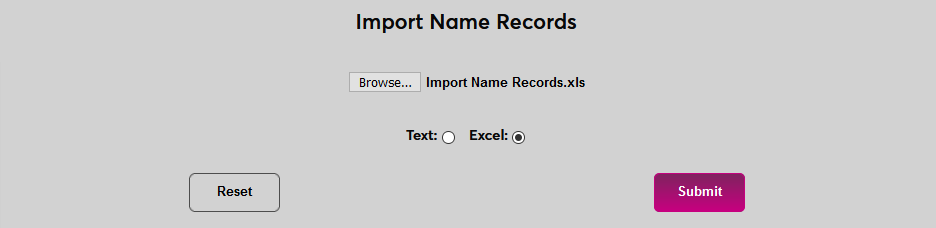
To import a file, navigate to Import Name Records under the Systems menu. Click Browse to locate and select the file to be uploaded.
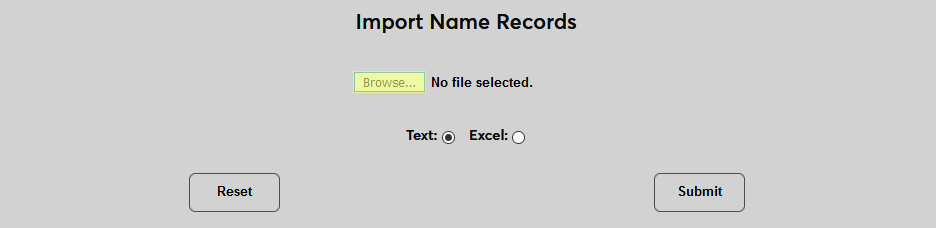
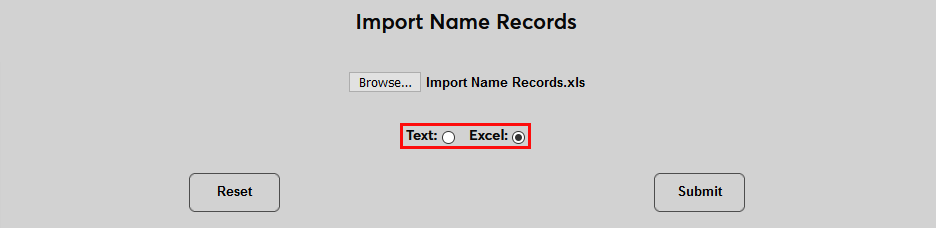
Select Text if the file is a TXT file or Excel if the file is an XLS. It's recommended that institutions use the XLS import.
Click Submit to begin the upload process.
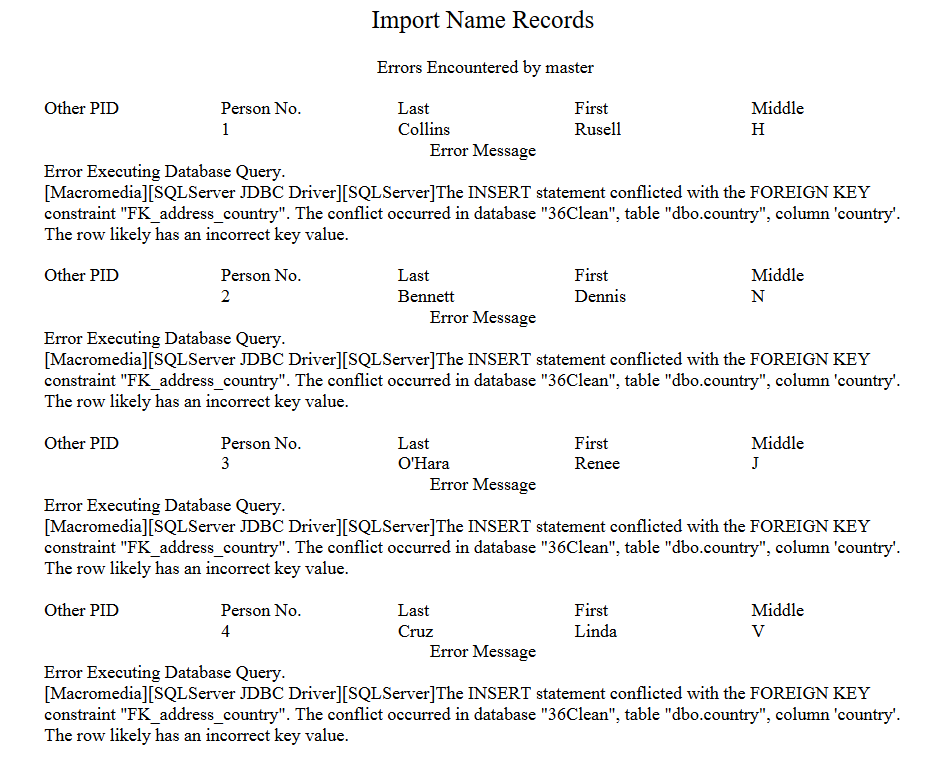
If there are errors in the file, SONIS will display the number of errors that were encountered. Click the text to view the specific errors in a PDF so they can be corrected.

Note
If errors occur in rows that appear empty, there may be spaces or other invisible text in these fields. Select the rows and use the right-click menu to delete all data from these fields.
If there are no errors in the file, the process will be completed successfully and the number of records will be listed along with the number of potential duplicates, if applicable.

Automatic Import
Timed Task Scheduler and Notification Assignments can be configured to automate the import and processing of the file, as well as notify a designated group when a file is imported.
File Transfer Table
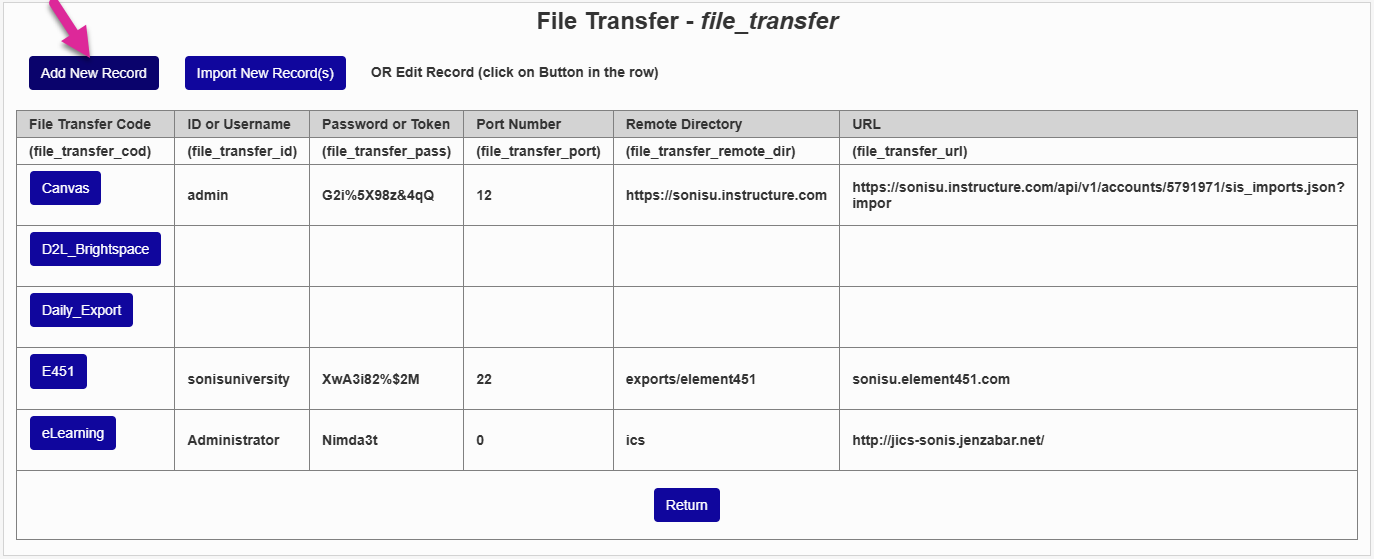
The File Transfer table is used to create the connection between SONIS and the remote directory where the name import file is located. To set this up, locate the File Transfer table under Table Maintenance and click Edit to make changes. On the following page, click Add New to create a new connection.
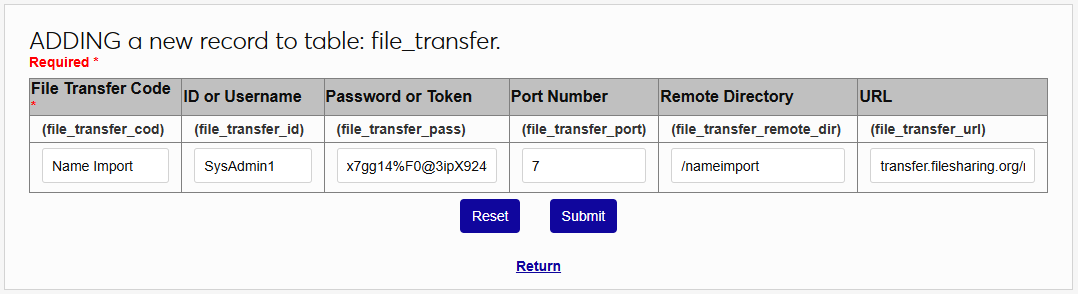
Name the connection using the File Transfer Code field and fill in the additional fields with the needed information to connect to the server. Some connections may not use every field. Click Submit to save the data and create the connection.
Timed Task Scheduler
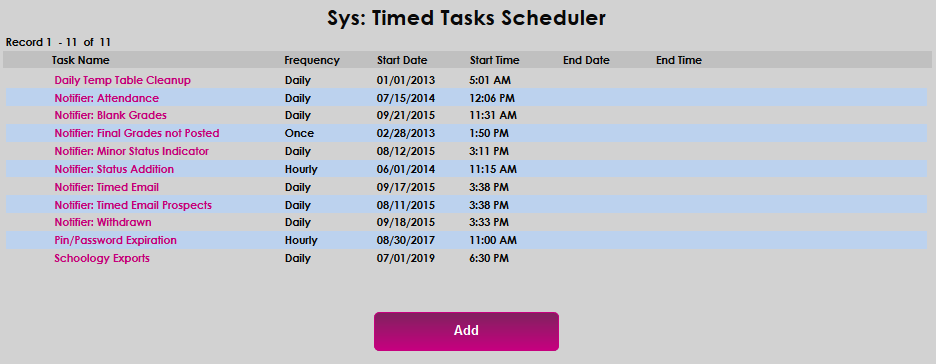
Navigate to the Timed Task Scheduler under the Systems hub and click Add to begin setting up a timed import.
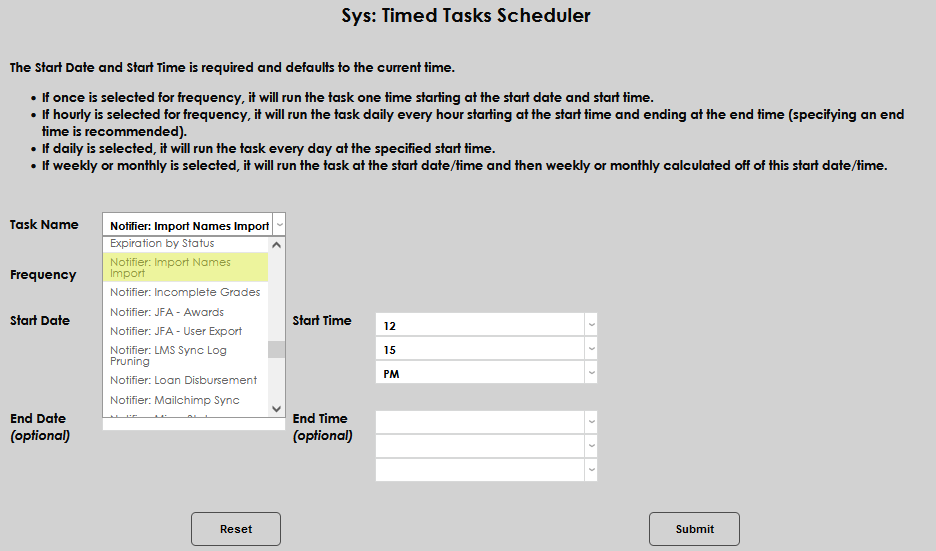
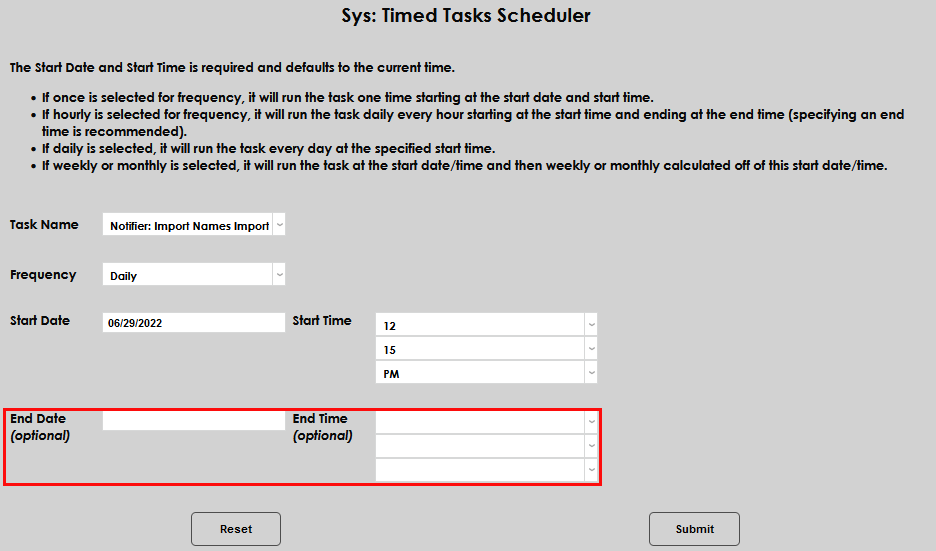
On the following page, select Notifier: Import Names Import from the Task Name menu.
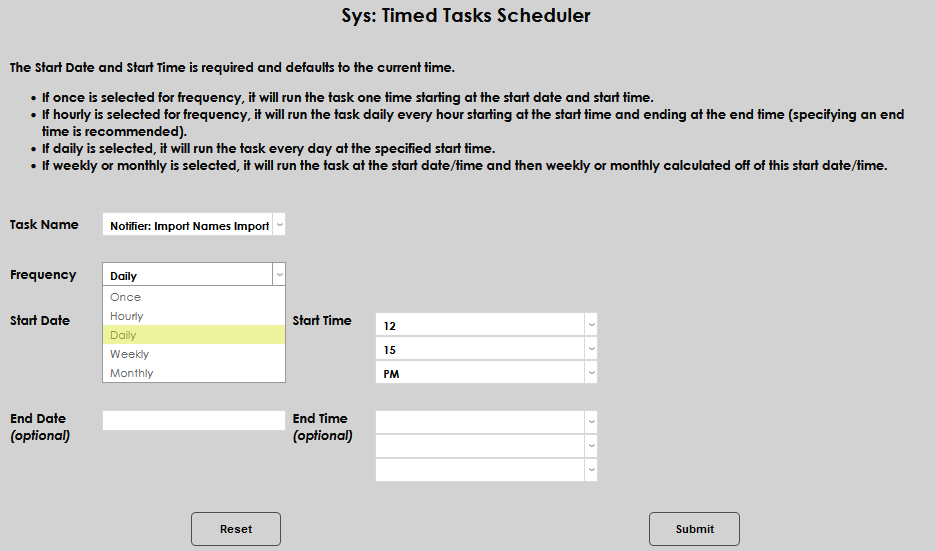
Select how often the task should occur with the Frequency dropdown. Schools may wish to run the import more frequently during each semester's admission period and edit the task to run only daily once this period has ended.
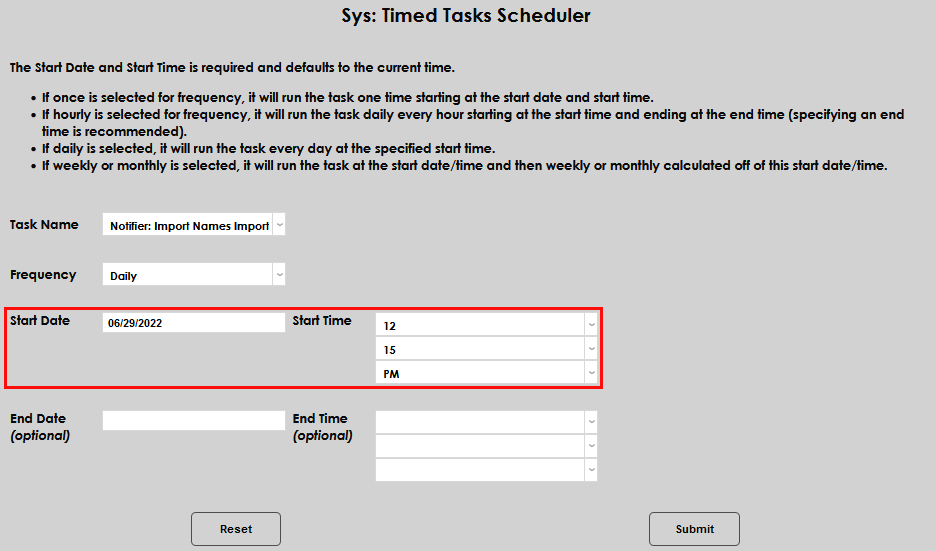
The Start Date and Start Time will automatically be set to the current date and time but can be changed to suit individual preferences. The End Date and End Time are optional.
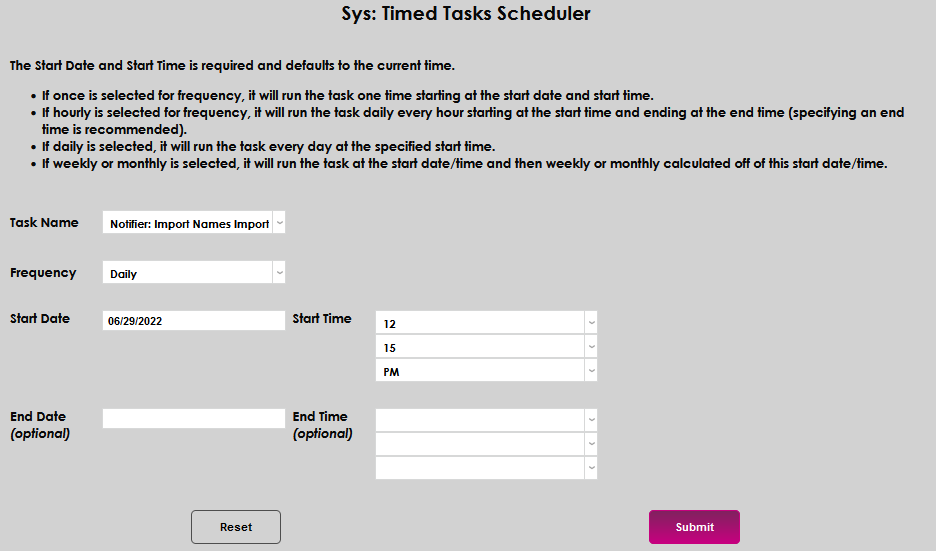
Click the Submit button to create the scheduled task.
Notification Assignment
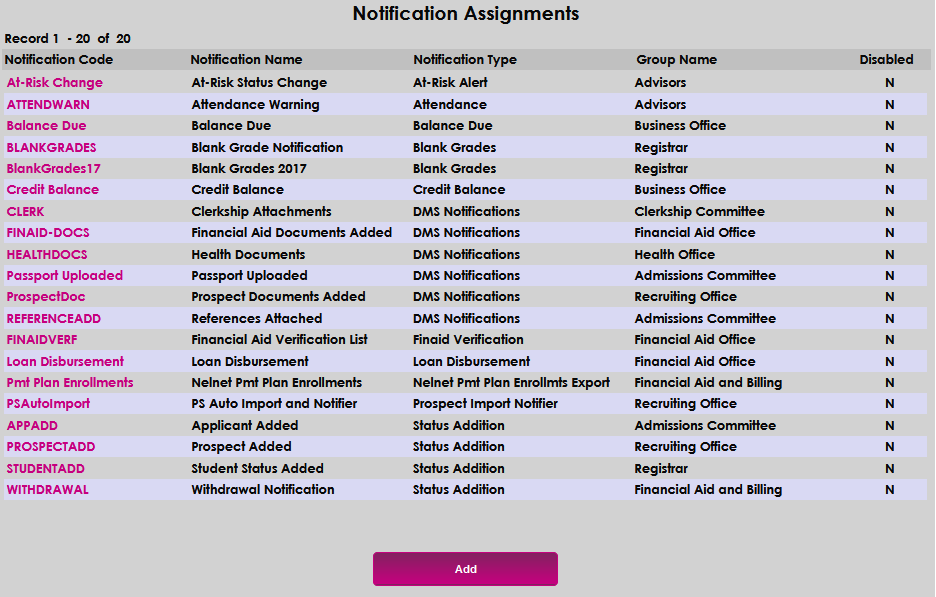
To create a notifier, select the Notification Assignments page from the Systems hub and click Add to begin.
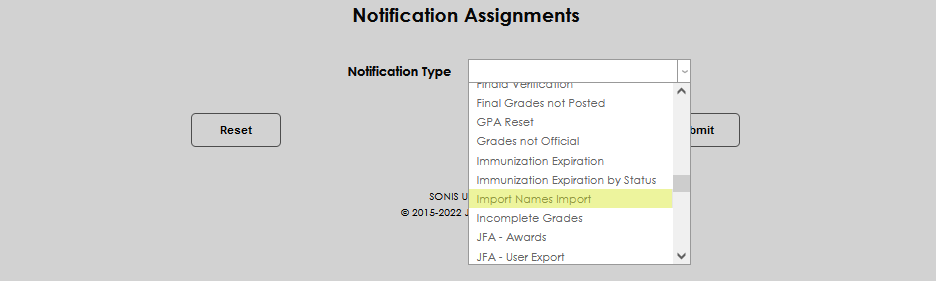
Select the Import Names Import from the Notification Type menu. Click Submit.

Next, create a Notification Name, a descriptor of the notifier's purpose with a 50-character limit, and a Notification Code, a shorter version of this name with a 20-character limit that the SONIS system will use internally to identify the notifier.
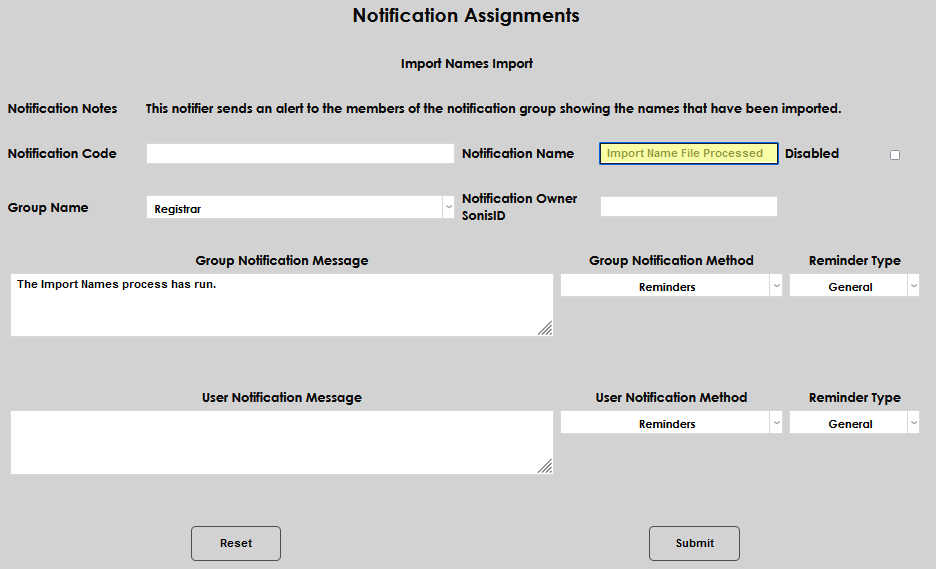
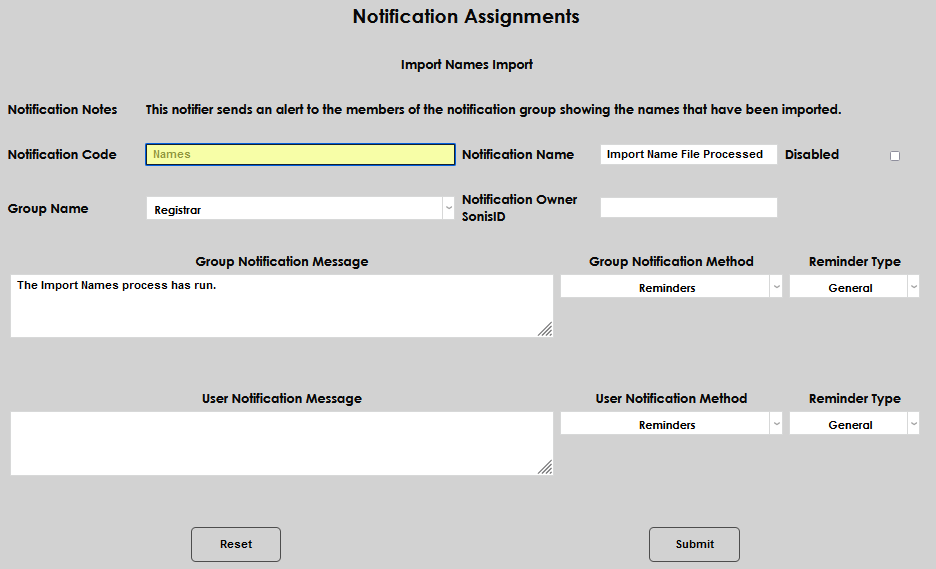
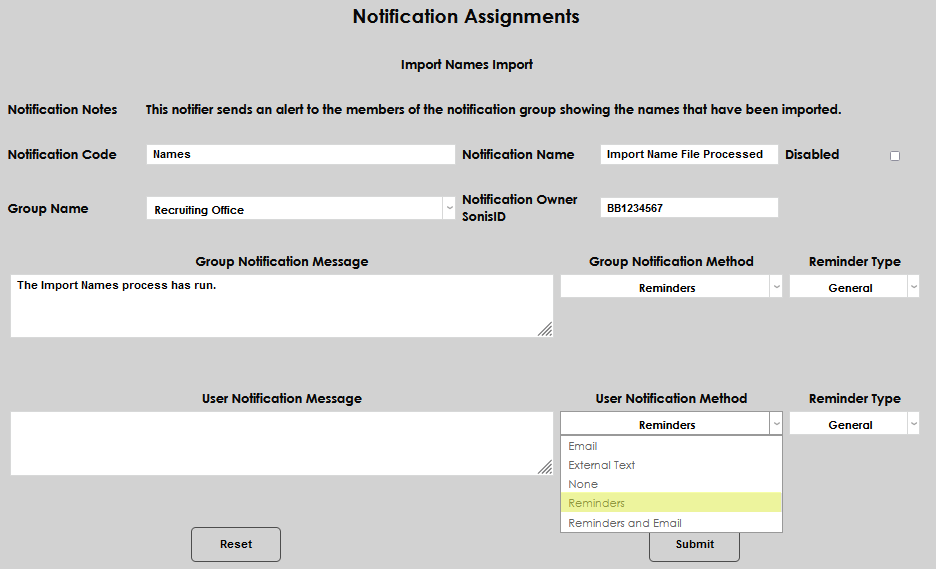
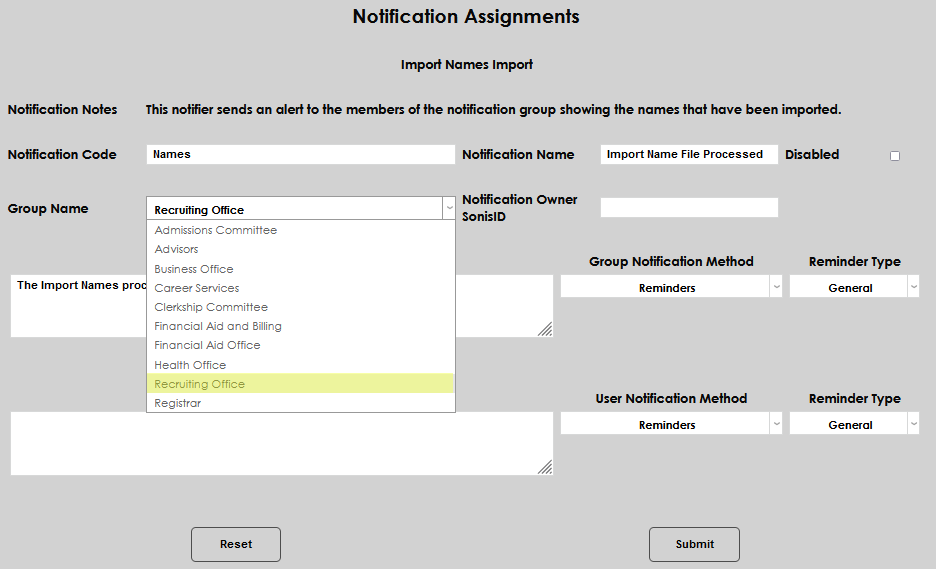
The Group Name dropdown menu determines who will receive the notification. Groups can be added and edited through the Table Maintenance utility. Select the desired group, then enter the ID of the staff or faculty member who will be managing this notification in the Notification Owner SONIS ID field.
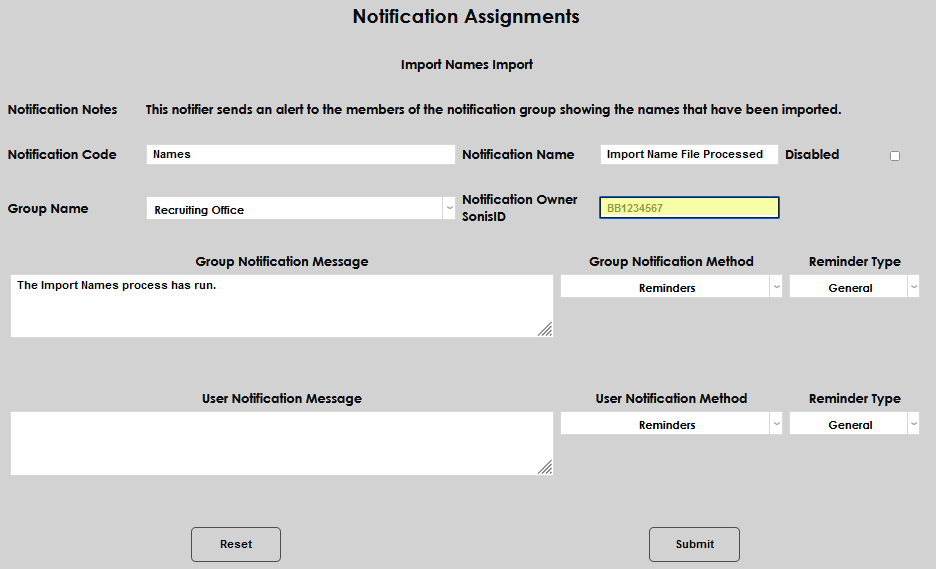
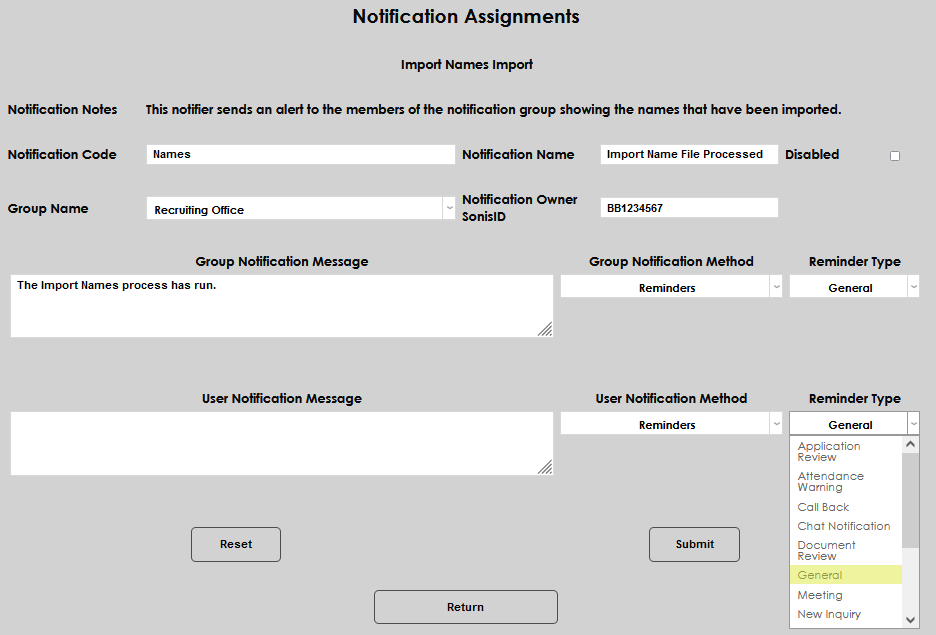
The Group Notification Message field is automatically filled in by SONIS based on the type of notifier selected. Both it and the User Notification Message can be edited to suit the needs of the group receiving the notification.
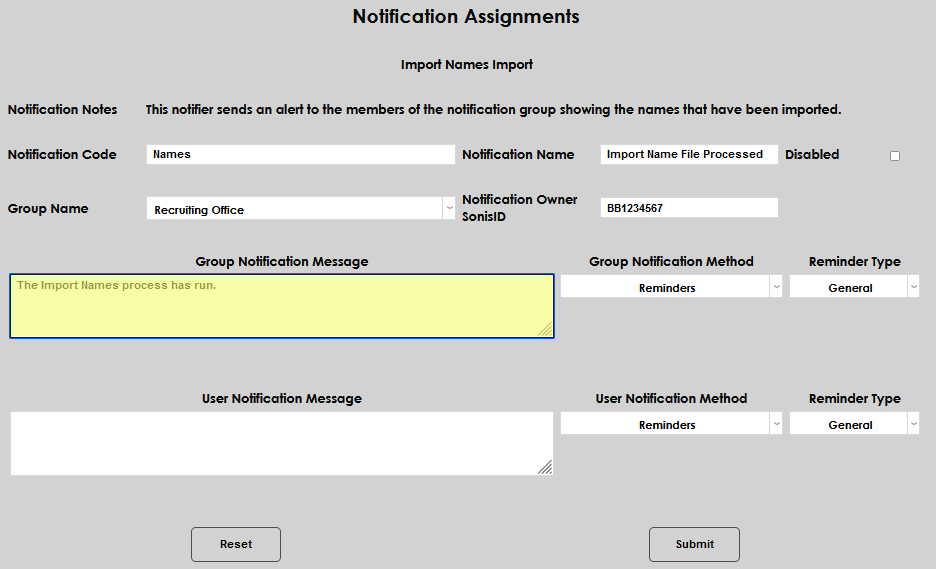
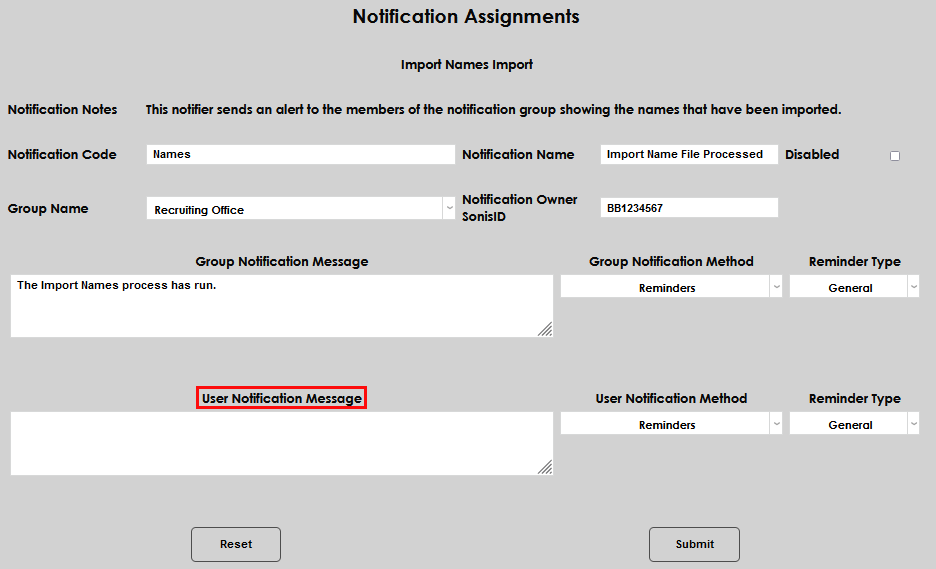
The Group Notification Method and User Notification Method dropdown menus designate whether the group and individual users will receive an in-system reminder, an email, or neither when the notification is triggered. The Notification Type dropdowns can change how the in-system reminder displays. This list can be created and edited via the Table Maintenance utility. Set these as desired using the corresponding drop-down menus, then click Submit to complete the notifier setup.